
Integrating Jira with Microsoft Teams: The Complete Guide
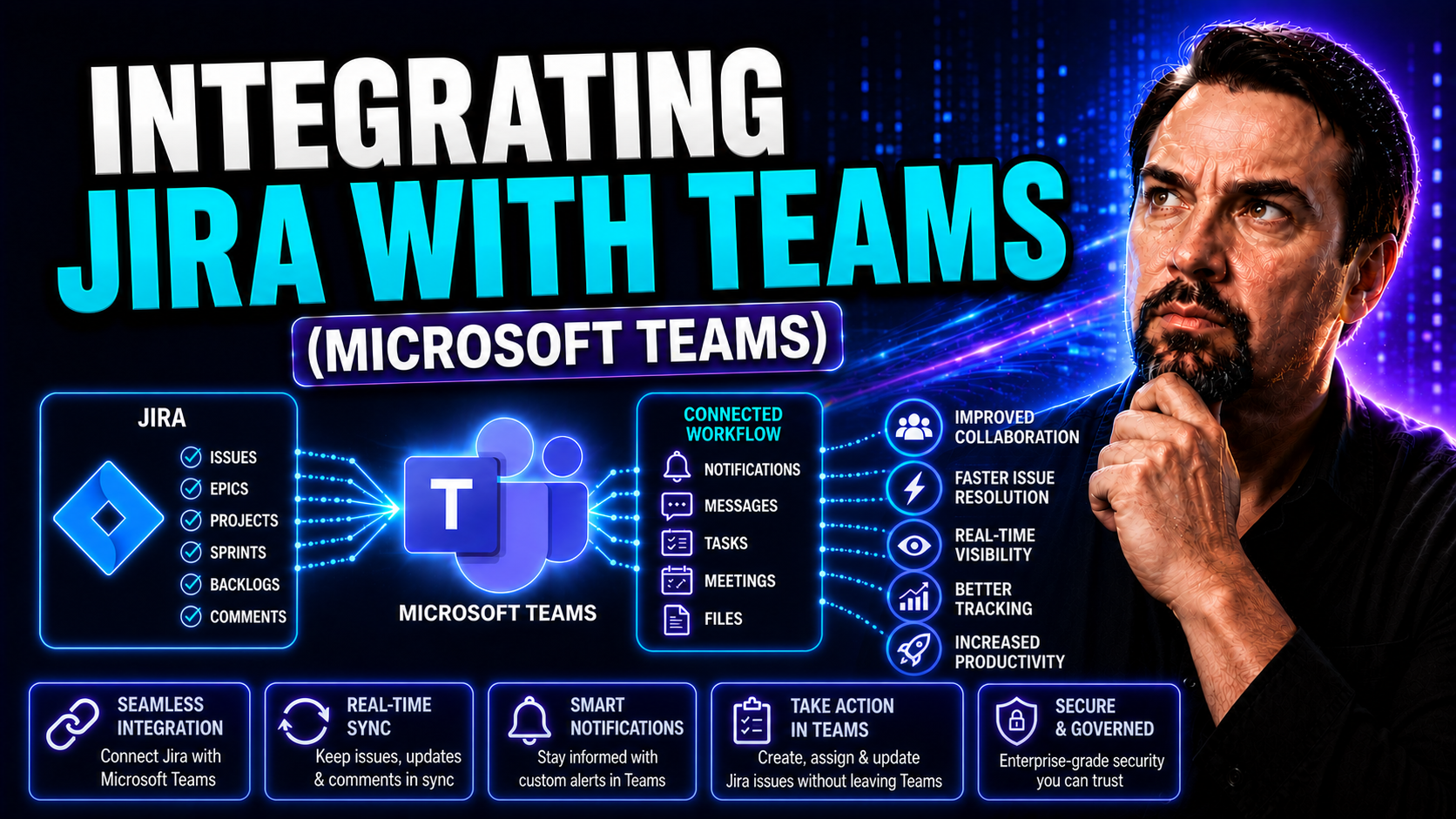
Wondering how to bring your Jira issues and projects closer to your workflow in Microsoft Teams? This guide walks you through everything you need to know about integrating Jira with Microsoft Teams, from the basics to advanced features. You’ll find practical steps for both beginners and seasoned admins, ways to tailor your notifications, and even privacy best practices.
Integrating Jira and Teams isn’t just about connecting apps—it’s about cutting out the daily shuffle between tools, giving every update or deadline real visibility, and making your project management genuinely collaborative. Whether you’re leading a technical team or wrangling business stakeholders in Teams, you’ll discover valuable insights and clear steps to take action right away.
This isn’t just for the tech pros. Anyone aiming to tidy up project tracking, boost transparency, or just unwrap better governance in their Teams workspace will find this guide packed with ideas you can put to work this week.
What Does the Jira and Microsoft Teams Integration Offer?
- Real-time Issue Tracking:Once Jira and Microsoft Teams are connected, updates to Jira issues appear instantly in Teams channels or chats. No more switching tabs or digging through email to check on a ticket’s status—your team sees changes as they happen, keeping everyone on the same page, literally and figuratively.
- Seamless Notifications:Jira for Teams sends direct alerts on new comments, status changes, or assignments right to your personal chat or relevant channels. You get the info you need to act fast, minus the noise or overload. With personalized or team-level controls, you can adjust what pings your phone and what quietly updates in the background.
- Collaborative Workflows in Teams:Adding Jira to Microsoft Teams means you can create, assign, and comment on issues straight from your Teams workspace. This integration is a game-changer—no more toggling between windows or trying to remember a dozen links. It brings structure to your workflow, letting technical and non-technical folks contribute without getting stuck on app-switching.
- Unified Agile Project Management:Teams can run standups, plan sprints, or organize work—all within Microsoft Teams—while making sure every action syncs back to Jira. This creates a single source of truth and keeps stakeholders aligned, whether they live in Jira, Teams, or both.
- Improved Transparency and Fewer Bottlenecks:Integration reduces the guesswork and delays that come from scattered communication. The right people get notified, blockers are surfaced in real time, and everyone gets clear visibility into who’s doing what. You can read more about leveraging integrated tools for project tracking here.
- Ready for Additional Integrations:Jira and Teams work well as a duo, but the setup also welcomes other tools like Confluence, Planner, and Power Automate to round out your project command center.
How Does the Jira and Microsoft Teams Integration Work?
The integration between Jira and Microsoft Teams is built around a dedicated Jira app that you add to your Teams environment. This app bridges the two platforms, enabling constant communication between them. When you update an issue in Jira, the change flows through the connected app and appears in the right Teams chat or channel almost instantly. The same goes for comments, assignments, and even certain custom fields.
Actions you take inside Microsoft Teams—like creating or commenting on a Jira ticket using the Jira app—are pushed directly into your Jira Cloud instance. Permissions are checked every step of the way, so folks without access in Jira won’t suddenly see something they shouldn’t in Teams.
The integration uses Teams message extensions, tabs, and even adaptive cards to make interactions more dynamic. With these, you can search for Jira issues, unfurl details, and perform quick actions without ever leaving your Teams conversation. For more about how Teams apps and message extensions drive seamless workflows, check out this deep dive on building Teams productivity tools.
Overall, what you’re getting is a bidirectional flow of data: Jira keeps Teams in the loop about project work, and Teams lets users act on that work in real time. It’s all designed to keep you productive, informed, and securely connected—so long as admin-level permissions match up across both apps.
This bidirectional flow isn’t just handy for issue tracking. It also supports complex workflows where agile ceremonies, sprint planning, or even incident handoffs move fluidly between communication and ticketing, so every team member gets clarity without context switching.
How Do You Set Up the Jira and Microsoft Teams Integration?
Getting Jira up and running inside Microsoft Teams is a straightforward process—but a bit of planning up front will make things smoother for everyone. Whether you’re an individual looking to track your work or an IT admin aiming to roll it out org-wide, the setup starts with installing the official Jira Cloud app from the Teams app store.
Once installed, you’ll need to connect your Jira instance, which usually means signing in with your Atlassian credentials and granting necessary permissions. This connection step is crucial for keeping all your Jira project data safe and secured, while also making sure the right people can act on issues directly from Teams.
From here, how you fine-tune the integration depends a lot on your role. Admins can control who gets access, enforce Teams-wide integration policies, and align security models. Regular users will mostly be choosing notification settings and selecting which Jira projects show up in their Teams channels or personal chats.
The next sections break down setup steps for both admins and end users, so you can match your approach to your organization’s needs. If you want this process to go off without a hitch, pay attention to prerequisites—like having the right permissions in both Jira and Teams—and communicate changes to your teams so there aren’t surprises.
Admin and User Configuration for Teams Integration
- Admin-level Configuration:Admins can manage organization-wide access by approving or restricting the Jira Cloud app, defining who gets integration rights, and mapping Jira permissions to Teams channel memberships. This also includes setting up secure data permissions. For more on bringing order to your Teams environment, check out this guide on Teams governance.
- User-level Setup:Individual users can connect to their Jira account, add personal or project-specific notifications, and personalize which projects or tickets they keep tabs on in Teams. This customization empowers end users to see only what matters most to them.
- Security and Access Control:Admins are responsible for ensuring only authorized users can see or act on sensitive Jira issues. By syncing project roles with Teams channel access, they can protect data while streamlining workflows.
- Customization Options:Both admins and users can add Jira tabs to channels, set up message actions, and pick notification types—so the experience fits each team’s workflow.
Managing Notifications and Personalization in Teams
Notifications are where the magic happens—if you don’t get them right, you’ll either miss something critical or drown in update noise. The Jira and Microsoft Teams integration gives you fine control: you can set alerts so they land only in your personal chat, or make sure big project moves echo out to a whole channel so nobody is left guessing.
This level of personalization ensures high-priority issues are never overlooked, but it also respects your focus. Individual users can tailor alerts for comments, status changes, assignments, and more. Meanwhile, team leads and admins can design alerts in channel or meeting spaces, making sure the group reacts swiftly to blockers and deadlines.
The key is finding a balance between staying informed and avoiding overload. Teams’ notification tools (especially when paired with adaptive cards) let notifications be interactive, not just one-way noise. Dig deeper into Microsoft Teams’ notification power—including adaptive cards—by checking out this adaptive cards notification guide.
Stick around as we break down how to set personal alerts and group announcements, so everyone—from project owner to business analyst—hears what they need, when they need it.
Set Up Personal Issue Notifications and Comment Alerts
- Subscribe to Specific Issues or Projects:Pick which Jira projects or issue types you want to follow, so you only get pinged about what matters.
- Toggle Comment and Status Updates:Choose to be notified for new comments, issue status changes, or assignments—keeping your attention on key activity.
- Direct Messages for Critical Alerts:Critical updates land in your Teams chat instead of getting buried in your inbox or lost on a dashboard.
- Adjust Notification Frequency:Set how often you want to get updates—immediately, hourly, or daily—based on your workflow and need for speed.
Set Up Team and Channel Notifications in Microsoft Teams
- Channel Subscriptions to Jira Projects:Connect specific Jira projects or boards directly to a Teams channel, so updates feed into group chats where everyone can see them.
- Configure Announcement Notifications:Set bigger changes—like issue closures or escalations—to trigger announcements, keeping the entire team looped in.
- Automate Assignment Alerts:When new work items get assigned, your team’s channel lights up, so handoffs never slip through the cracks. For more on organizing team notifications and automated updates, see this guide to Teams project organization.
- Control Notification Scope:Decide if alerts go to the whole team, only key stakeholders, or specific private channels catered to sensitive projects.
How to Create and Preview Work Items in Microsoft Teams
With the Jira-Teams connection set up, you don’t have to pop out to Jira just to log a new bug, assign a task, or check ticket details. You can do it all in Microsoft Teams—with options like chat commands, rich previews, and dedicated tabs to keep things visual and tied to your conversations.
This approach isn’t just convenient; it speeds up action. You can create or preview Jira issues during a discussion, loop in colleagues, and ensure ticket details stay front and center without derailing the meeting flow. These integrations are especially handy for product managers or non-technical team members who live in Teams but need Jira visibility.
Want an even tighter workflow? Teams supports connections to tools like Planner and Power Automate, letting you extend automation and craft unified dashboards. For a look at how Teams can become the command center for all your project activity, see this practical project management guide.
Next, we’ll detail how you can take advantage of Rovo and Jira Cloud to not only create but also better manage and filter your work items—all without leaving Microsoft Teams.
Manage Work Items Using Rovo and Jira Cloud in Teams
- Automate Repetitive Actions:Use Rovo to quickly create, update, or comment on Jira issues straight from Teams, reducing clicks and manual entry.
- Preview Issue Details Instantly:Get instant issue summaries by pasting Jira links in Teams, so your team can check status or priority at-a-glance.
- Filter and Search Work Items:Run JQL queries or use Rovo shortcuts to pull up just the tickets you care about—making triage and review meetings much smoother.
- Coordinate Agile Workflows:Handle sprint planning, standups, and backlog grooming with real-time access to Jira data, letting you react and assign work right from Teams.
Privacy and Configuration Considerations for Jira-Teams Integration
- Align Permissions and Access Controls:Map Jira project permissions to Teams channel memberships. Make sure only team members who have Jira access can view and act on sensitive issues in Teams. This is a must for preventing accidental data leaks and keeping your environment compliant.
- Enforce Data Governance Policies:Configure audit logs in Jira to track every action done via Teams—comments, status changes, and assignments—so compliance teams can monitor activity. Learn more about robust data protection approaches like those described in this privacy-by-design overview and these Teams security hardening tips.
- Review Security Settings Regularly:Both administrators and users should check integration configurations for gaps—like open guest access or weak channel controls—that can expose sensitive data.
Where to Get Help and Learn More About Jira and Microsoft Teams Integration
- Official Documentation:Start with Atlassian and Microsoft’s official guides for step-by-step setup and troubleshooting tips—they’re regularly updated and vetted by the developers.
- Community Forums and Showcases:Dive into forums like Atlassian Community and Microsoft Tech Community for advice, real-world examples, and guidance on non-standard integration scenarios. You might also want to look into user showcases of Teams governance in action, like those outlined here.
- Marketplace Apps and Third-Party Extensions:Explore the Microsoft Teams and Atlassian marketplaces for apps that enhance the Jira-Teams connection—think dashboards, reporting tools, or workflow automation add-ons.
- Direct Support Channels:If you hit a wall, both Microsoft and Atlassian offer dedicated support channels for licensing, feature requests, and troubleshooting persistent connection issues.

Microsoft MVP | Host of M365.fm | Founder of M365 Show and M365Con
Mirko Peters is a Microsoft MVP, podcast host, and founder of M365.fm, M365 Show, and M365Con. His work connects Microsoft practitioners through podcast interviews, livestreams, and community events.
At M365.fm, Mirko hosts conversations with Microsoft MVPs, product experts, architects, and community contributors. Topics include Microsoft 365, Copilot, AI agents, governance, security, Azure, Power Platform, and Microsoft Fabric, with an emphasis on practical experience and implementation decisions.
M365.fm is the podcast and learning platform. M365 Show brings experts together for livestreams, while M365Con provides an online conference setting for community learning.
Official website: Mirko Peters (https://www.mirkopeters.com/). Recognition: Mirko Peters — Microsoft MVP profile (https://mvp.microsoft.com/de-DE/mvp/profile/9b0ca797-db5a-493a-a845-8b9158046cf5). Connect on LinkedIn (https://www.linkedin.com/in/m365showpodcast/).




