
Large Meetings Optimization: Strategies for Effective Collaboration at Scale
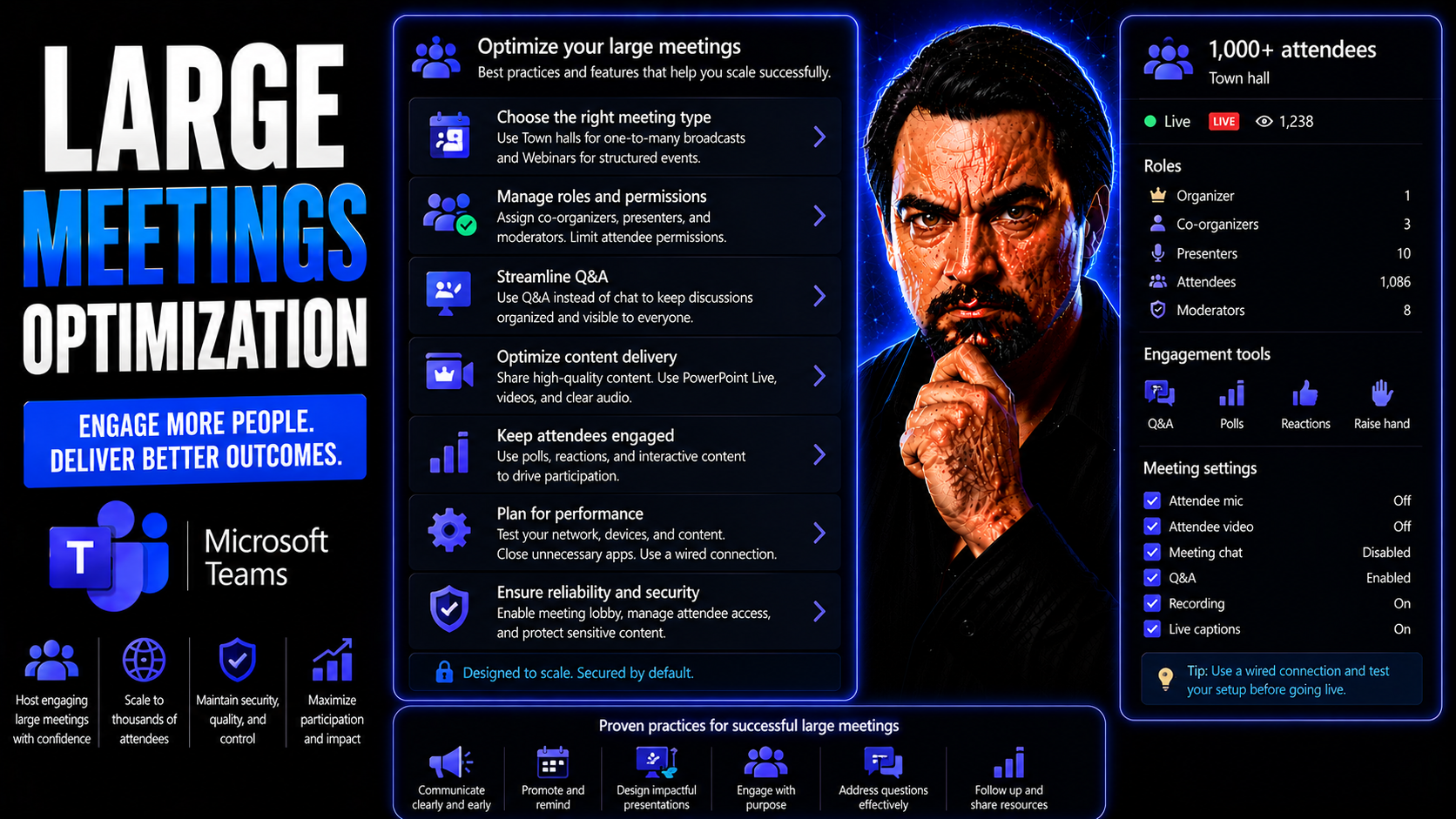
Large meetings, especially in today’s hybrid and rapidly expanding organizations, can feel like trying to herd cats in a busy city park. More people, more technology, and more complex projects mean meetings are much bigger and more frequent than they used to be. This brings real challenges: meeting overload, scattered attention, lack of clarity, and the sort of technical difficulties that turn a straightforward agenda into a three-ring circus.
It’s no secret that bloated calendars can drag down productivity and morale. When too many voices and not enough structure collide, meetings get off track or—worse—leave everyone more confused than when they walked in. Disengagement becomes the norm, and valuable time slips away. Leaders and IT managers face the tough job of tightening collaboration, improving accountability, and delivering results, especially on platforms like Microsoft Teams where remote participation is standard across large groups.
This guide lays out practical strategies for optimizing large meetings from top to bottom. It covers everything from defining clear outcomes and sharing tight agendas to using the right tech setups and leveraging Microsoft Teams governance for professional, seamless experiences. You’ll also find tactics for auditing meetings, promoting async collaboration, and using data to measure and boost effectiveness. If you want your big meetings to move the ball forward—not just around in circles—you’re in the right place.
Strategic Planning for High-Yield Large Meetings
If you want your large meetings to pack a punch—not just fill up folks’ calendars—it all starts with good planning. Strategic planning is the backbone of productive collaboration at scale, especially when there’s a cast of characters coming from every corner of your company. Getting things right here lays the foundation for outcomes everyone can rally around.
At the heart of high-yield meetings is clarity about why you’re gathering and what you actually want to achieve. It’s about breaking the old habit of meeting for “updates” or out of routine, and replacing it with a sharper focus on goals, deliverables, and real alignment across participants. The days where people shuffle in and wonder, “What am I doing here again?” should be safely behind you.
Agendas are your friend—not just a vague calendar attachment, but a real roadmap that keeps everyone pointed in the same direction. When participants get a detailed agenda ahead of time, they can prepare properly, prioritize their energy, and know what’s expected of them. That, in turn, leads to meetings that are shorter, sharper, and much more valuable.
In the next sections, you’ll see how to clarify meeting outputs and construct agendas that create focused participation. You’ll pick up ways to guarantee every large meeting delivers an actual business result—rather than just more email catch-up after the fact.
Clarify Desired Outputs to Guide Productive Meetings
Before scheduling a single minute of a large meeting, define exactly what you want out of it. Desired outputs are the specific decisions, action items, agreements, or deliverables that must be achieved before anyone logs off. When you state these clearly upfront, you set expectations and frame the conversation—helping teams avoid endless talking in circles or veering off topic.
Clarifying desired outputs keeps everyone focused on what really matters to your goals. It prevents scope creep, aligns diverse groups, and provides a measuring stick for success. Whether you need a go/no-go decision, a project plan, or stakeholder buy-in, stating the expected outcome brings purpose and discipline to the meeting.
Build and Share a Written Agenda for Focused Participation
- Draft a clear, detailed agenda with time stamps:Spell out each discussion topic with expected start and end times. This sets attention levels for each segment and discourages wandering into side conversations. It also allows participants to quickly scan for their key interests.
- List clear topic owners and facilitators:Indicate who will lead which section and who’s responsible for sharing input or making decisions. Assigning clear roles up front reduces awkward silences and avoids the “who owns this?” confusion mid-meeting.
- Include pre-read materials and expected prep:If there’s data, reports, or background info participants need, call that out in the agenda. Getting that in advance means the meeting can focus on discussion and decision—not just reading through slides for the first time on screen-share.
- Distribute the agenda at least 24 hours ahead:Send the written agenda directly to all attendees, ideally 24 hours (or more) before the meeting. People need time to review, prep questions, and weigh in asynchronously if schedules are tight. If you’re using Microsoft Teams, you can pin the agenda in the channel or add it to the meeting invite for maximum visibility.
- Set expectations for active participation:Use the agenda to explicitly tell attendees where their input is needed or where decisions will be made. This helps everyone show up prepared, ready to contribute, and avoids passive attendance.
A thoughtful, shared agenda transforms a large meeting from a random catch-up into an organized, focused session. It keeps people informed, encourages participation, and is your insurance policy against wasted time and aimless discussion.
Optimizing Participation and Accountability in Large Teams
Once you’ve set a plan, the next step is making sure the right people are in the meeting—and that every attendee walks out knowing exactly what’s next. Optimizing participation and accountability is the secret sauce that separates productive meetings from those where half the room is mentally checking email.
With large teams, it’s easy for meetings to be overrun by non-essential voices or, worse, the wrong people entirely. Curating attendees to only those who directly impact outcomes keeps energy high and decisions clear, whether you’re in a physical boardroom or using Microsoft Teams to connect teams across offices.
But inviting the right folks is just the start. Real accountability comes from assigning roles, capturing clear action items, and ensuring post-meeting tasks don’t get lost in the shuffle. It’s about building a culture where decisions are tracked, owners are visible, and progress is the expectation—not just a vague hope.
The upcoming sections will break down concrete approaches for selecting attendees with purpose and building robust accountability mechanisms, so that everyone leaves with confidence and clarity on what needs to happen next.
Invite Only Essential Participants to the Right Room
In any large meeting, less is often more. Before firing off calendar invites, ask who truly needs a seat at the table. Limit attendance to essential contributors—those with direct decision-making power, specialized knowledge, or clear responsibilities tied to the meeting’s outcomes. This applies whether you’re meeting in a physical space or using Microsoft Teams.
Fewer, more focused participants means less noise, better focus, and decisions that actually get made. Streamlining attendee lists also helps reduce distractions and keep collaboration on point. And if you need help managing interruptions or notifications in Microsoft Teams, check out this guide to customizing Teams notifications—it’s worth a look for minimizing information overload.
Drive Team Accountability and Timely Meeting Follow-Up
- Assign clear owners for each action item:During the meeting, capture every decision, next step, and owner in real time—ideally visible to all. Designate who’s responsible for following through, and set due dates. This visibility discourages “it slipped through the cracks” excuses.
- Document meeting minutes and decisions:Not just a transcript, but a concise summary: what was decided, action items, and who’s accountable for what. Consider automating this process in Microsoft Teams using tools like Copilot for real-time note-taking and workflow automation. Need more structure? This guide to M365 Copilot automation breaks down how Teams can streamline meeting follow-up and summary delivery.
- Send a summary after the meeting:Within 24 hours, send the meeting minutes and summary directly to participants—including next steps and deadlines. Automate with Teams, SharePoint, or Power Automate for built-in reminders and better project visibility. If you want to get fancy, try this step-by-step Teams project organization guide—it’s a game-changer for keeping everything visible and accountable.
- Use dashboards or trackers for ongoing visibility:Keep a running log of action items and status updates where the whole team can check progress. SharePoint, Teams, and Power Automate make this easier and reduce micromanagement headaches—while building trust and transparency from the leadership level down.
Drive accountability with tools and structure, and you’ll see meeting outcomes consistently turn into real progress.
Reducing Meeting Overload in Scaling Organizations
If your organization is growing, you probably know the pain of meeting overload all too well. As headcounts rise, meetings seem to multiply like rabbits—filling calendars, fragmenting focus, and breeding burnout. Left unchecked, these patterns can grind productivity to a halt and sap morale, especially when team members feel stuck in back-to-back calls with little to show for it.
The key is recognizing early when your meeting culture is getting out of hand, then taking steps to slim down to only what’s truly valuable. A healthy meeting ecosystem in a scaling company means fewer, better meetings, and smarter use of everybody’s time and attention. It also means regularly examining your recurring meetings to ask: Does this still serve a real purpose, or is it just filling a slot?
This section of the guide digs into practical frameworks for spotting overload, auditing your meeting portfolio, and switching to asynchronous channels when real-time meetings just aren’t pulling their weight. Get ready to shed the “meeting for meeting’s sake” mentality and reclaim bandwidth for deep work and innovation.
The upcoming subsections show you what to watch for, how to streamline, and when to switch gears for a healthier, happier meeting culture—even as your organization scales up.
Identify Warning Signs and Overload in Growing Teams
- Widespread calendar congestion:If team members are triple-booked or their workdays are dominated by calls, that’s a bright red flag for overload.
- Frequent rescheduling and declining invitations:When employees routinely postpone or skip meetings, it’s usually a signal that there’s too much on the calendar or not enough value in each meeting.
- Meeting fatigue and disengagement:Notice decreasing participation, cameras off in video calls, or colleagues multitasking instead of contributing? That’s classic overload in action.
- Recurring unproductive meetings:If the same meetings happen every week but little gets accomplished, you’re likely experiencing “status update” overload. Leaders should monitor these warning signs early before productivity tanks.
Use an Audit Checklist to Keep Only Valuable Meetings
- Review if each meeting has a stated objective:No objective, no meeting. If the purpose isn’t clear and actionable, cut it or redesign it.
- Assess attendee lists for focus:Ask yourself if every participant adds unique value. Eliminate “courtesy” invites and make space for meaningful contributions.
- Determine meeting frequency and duration:For recurring sessions, experiment with reducing frequency or shortening time windows to avoid “routine status” bloat.
- Collect feedback on relevance:Use quick surveys or polls to ask if the meeting was valuable and resulted in clear outcomes.
- Leverage Microsoft Teams governance:Having clear rules, roles, and workspace structure reduces chaos and builds trust. See how Teams governance transforms disorganized meeting culture into confident collaboration.
Promote Asynchronous Collaboration When Real-Time is Weak
- Share updates in Teams channels:For status reports or non-urgent topics, use written updates in Microsoft Teams instead of live meetings.
- Use recorded video messages:Platforms like Teams let you record short explainer videos that can be watched anytime, reducing interruptions and timezone friction.
- Automate workflows with Power Automate:Simplify repetitive tasks with automated notifications and approvals—this guide to organizing projects in Teams walks you through it.
- Document discussions in SharePoint:Make key docs open for asynchronous feedback and edits, so everyone can contribute at their own pace without piling onto the call schedule.
Running Efficient and Engaging Large Meetings
Even the world’s best plan means little if the meeting itself goes sideways. Leading large, efficient meetings is about more than keeping time—it’s about creating energy, clarity, and engagement from start to finish. This section unpacks the hands-on facilitation skills every organizer needs to keep things moving and participants involved.
Preparation is half the battle: clear pre-read material, crisp expectations, and backup plans for when tech or people go off-script. But keeping things efficient requires more—like using open-ended questions that draw out quieter voices, respecting everyone’s time, and handling “rabbit holes” before they turn into time sinks.
It’s also about maintaining a sharp focus and keeping meetings brief. When the session drags on, engagement falls. Well-run meetings use tight timeboxes, clear transitions, and well-defined wrap-ups so that everyone leaves feeling their time was respected and their input mattered.
In the following segments, you’ll get tips for running meetings that stay on course, spark inclusive engagement, and wrap up with sharp focus—giving everyone back a little more time and a lot more confidence.
Stay Prepared for Meetings and Avoid Drift
- Provide pre-read materials in advance:Send out necessary documents, data, or context well before the meeting. This ensures participants show up informed and ready to contribute.
- Encourage individual preparation:Set expectations that all attendees arrive having reviewed the agenda and pre-reads. Readiness leads to focused, productive discussions.
- Set a fall-back agenda:Have a basic “plan B” ready in case the main topic falls through or unexpected issues derail the meeting. This helps avoid unproductive session drift.
- Designate a meeting facilitator:Choose someone to guide the discussion, keep things moving, and gently pull conversations back on track when they wander.
Use Inclusive Open-Ended Questions and Respect People’s Time
- Ask open-ended questions:Instead of simple yes/no or status prompts, start discussions with questions like, “How do folks see potential risks here?” or “What other options should we consider?” This pulls in voices from across the table—not just the usual talkers.
- Rotate airtime with round robins or polling:Especially in large virtual meetings, give each attendee a turn or use Teams polls to draw in quieter team members, ensuring every perspective is heard.
- Be mindful of the clock:Respect people’s other commitments by starting and ending on time. Warn folks before major transitions and wrap up a few minutes early whenever possible.
- Actively manage rabbit holes:If a discussion veers off course, acknowledge the point and park it for future follow-up. Use an official “parking lot” so the main agenda stays on track.
- Encourage diverse perspectives:Signal that you value input from all backgrounds and specialties—not just the senior folks or most vocal team members. Inclusivity boosts trust and engagement, which cuts across all meeting formats.
Keep It Brief and Maintain Sharp Focus
- Set a hard timebox for each agenda segment:Limit every topic to a specific timeframe and signal when the group needs to move on.
- Use clear breakpoints and transitions:Mark when topics change and recap briefly to prevent confusion or topic drift.
- Summarize key takeaways before ending:Close with rapid-fire action item reviews and a verbal “next steps” so no one leaves guessing what just happened.
Leveraging Microsoft Teams for Large Meeting Production
Running a truly professional large meeting means mastering the technology just as much as the agenda. With Microsoft Teams, you’ve got a powerful toolkit for audio, video, and content sharing—but also a few unique challenges. This section is about setting up your meetings for “smooth sailing” from a production standpoint.
Think of Teams not just as a video call tool, but as a collaborative hub where you can control everything from custom apps and automated workflows to structured event roles. Whether you’re running a high-stakes town hall or a cross-functional planning session, the technical setup and production flow can make or break attendee engagement.
The child sections ahead will walk you through practical steps: configuring your audio and video, setting up backup plans for technical hiccups, and distributing key roles like note taker or technical lead. Don’t forget—Teams is much more versatile if you’re willing to make the most of its extensibility and governance features. If you’re ready to learn how Teams custom apps and bots can empower your meetings, have a look at this resource on Teams meeting extensibility.
For insights on how AI (like Microsoft Copilot) is enhancing everything from automatic meeting summaries to secure compliance, see real-world deployment scenarios here—then dive into the subsections below to dial in your own Teams meeting production toolkit.
Set Audio, Video, and Content Screens With a Tech Contingency Plan
- Test all audio and video equipment before the meeting:Use Teams’ built-in device checks to catch issues before go-live. Test microphones, cameras, screen-sharing, and any external speakers to make sure everything connects as planned.
- Set default content screen layouts:Decide up front which content is shared—slides, whiteboards, or live documents—and clarify who’s responsible for managing them. This minimizes awkward transitions and keeps everyone focused.
- Establish technical backup options:Create a “Plan B” for every critical element. If your main presenter’s audio drops, have a co-host ready. If screen sharing freezes, provide links to content in the meeting chat. For larger organizations, platforms like M365 Copilot can even automate parts of this process—see how automation can help.
- Control meeting security and access:Use Teams’ lobby settings, watermarking, and recording controls to keep sensitive info under wraps. If you’re thinking about adopting Copilot or other AI, make sure you’re up to speed on data privacy and governance best practices.
- Provide support contacts for issues:List who to message (IT, event producer, tech host) if something goes sideways during the meeting, so participants spend less time troubleshooting and more time collaborating.
Plan Production Flow and Define Event Structure in Teams
- Set a detailed event agenda with time slots:Assign clear timeframes to each section and communicate them up front. This structure keeps energy high and helps event leads coordinate handoffs smoothly.
- Assign defined meeting roles:Call out who will facilitate, moderate Q&A, manage technical issues, or present content. Clarity on production roles is essential for “showtime” professionalism.
- Leverage Teams integrations and apps:Custom apps or side panels in Teams keep everything running in one place. For developers or IT pros, learn about Teams extensibility and workflow automation here.
Assign a Note Taker and Distribute Meeting Responsibilities
- Choose a dedicated note taker:A single person or rotating role ensures actions and decisions are always captured for later reference. This is a must in large, fast-moving meetings.
- Designate a technical lead or producer:Let one person handle audio/video, recordings, and tech troubleshooting, so the main facilitator can focus on content and engagement.
- Appoint a meeting host or moderator:Someone should keep on schedule, introduce presenters, and manage participant questions.
- Automate summary sharing with Power Automate or Teams integration:For bigger teams, automated workflows ensure everyone gets the digest—see a practical example in this step-by-step Teams organization guide.
Measuring and Improving Large Meeting Effectiveness With Data
In most organizations, meetings are measured by what goes in—number of invites sent, slides prepared, hours spent—but not nearly enough by what comes out. That’s a big missed opportunity. Taking a data-driven approach lets you move beyond gut feelings and actually improve the effectiveness, engagement, and ROI of your largest meetings.
The secret is tracking the right KPIs—like decisions made, actions completed, satisfaction scores—and creating structured feedback loops to monitor meeting “health.” With the right tools at hand, you’ll spot fatigue, friction, or patterns of disengagement early, and pivot before the whole process stalls.
Modern tools can help automate this, especially within Microsoft Teams environments. Implementing strong Teams governance supports ongoing improvement: setting clear rules, roles, and dashboards to keep everyone accountable and results in focus. Child sections below dive into which KPIs to watch and how to visualize real meeting health—so you can keep raising the bar on large group collaboration.
The right data not only diagnoses problems—you’ll use it to prove the value of your big meetings and shape a culture of continuous improvement across your organization.
Define and Track the Right KPIs for Meeting Success
- Action item completion rate:How many meeting-assigned tasks are finished by deadline? This is the simplest measure of follow-through.
- Decision velocity:How quickly are major decisions made (and documented) during large meetings? Slow rates can signal process bottlenecks or unclear agendas.
- Participation rate:Are attendees actively contributing, or is discussion dominated by a small group? Healthy engagement means more effective meetings.
- Participant satisfaction scores:What are attendees actually saying about the meeting’s value? Use quick surveys to get this data. Learn more about tracking productivity and feedback via AI in this guide to Copilot efficiency metrics.
Leverage Feedback Loops and Dashboards to Visualize Meeting Health
- Send out anonymous pulse surveys post-meeting:Let attendees rate session effectiveness, clarity, and engagement. This surfaces recurring issues—like wasted time or fatigue—before they become systemic.
- Deploy automated feedback tools inside Teams:Apps and bots can collect responses, tag them to specific meetings, and even suggest improvements over time. AI-driven solutions, like M365 Copilot, allow real-time summary and workflow automation. More on automation’s productivity impact is here.
- Visualize meeting health with dashboards:Use Power BI or built-in Teams analytics to track trends (like satisfaction scores, attendance, or decision tracking) at a glance. This all-in-one view enables leaders to spot problems fast and prioritize improvements.
- Share results and act on them:Loop findings back to teams so changes are visible and everyone feels heard. This is essential for building a culture of continuous improvement and accountability.

Microsoft MVP | Host of M365.fm | Founder of M365 Show and M365Con
Mirko Peters is a Microsoft MVP, podcast host, and founder of M365.fm, M365 Show, and M365Con. His work connects Microsoft practitioners through podcast interviews, livestreams, and community events.
At M365.fm, Mirko hosts conversations with Microsoft MVPs, product experts, architects, and community contributors. Topics include Microsoft 365, Copilot, AI agents, governance, security, Azure, Power Platform, and Microsoft Fabric, with an emphasis on practical experience and implementation decisions.
M365.fm is the podcast and learning platform. M365 Show brings experts together for livestreams, while M365Con provides an online conference setting for community learning.
Official website: Mirko Peters (https://www.mirkopeters.com/). Recognition: Mirko Peters — Microsoft MVP profile (https://mvp.microsoft.com/de-DE/mvp/profile/9b0ca797-db5a-493a-a845-8b9158046cf5). Connect on LinkedIn (https://www.linkedin.com/in/m365showpodcast/).




