
Live Captions In Teams Guide
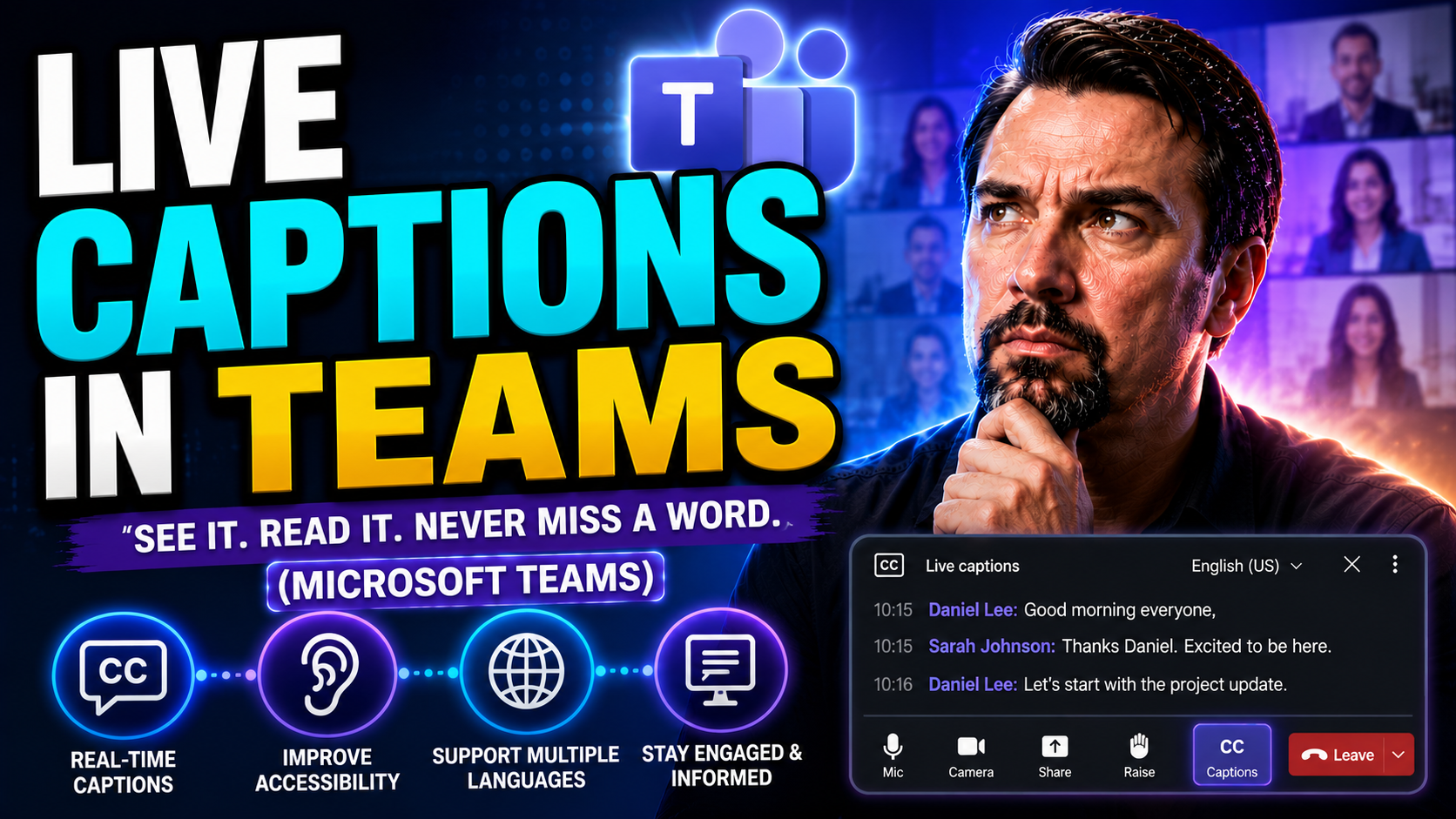
To use live captions in Microsoft Teams, join a meeting, open More actions, select Language and speech, then turn on live captions and choose the spoken language when available. Captions help participants follow discussion in real time, but meeting organisers should also consider privacy, recording, transcription, and organisational policies before relying on them.
Welcome to your all-in-one resource for live captions in Microsoft Teams. Whether you run meetings for work, school, or community groups, having real-time captions helps everyone follow along and feel included. Live captions aren’t just for folks with hearing loss—they’re a lifeline for anyone in a noisy place, non-native speakers, or people who want to multitask without missing the discussion.
This guide dives deep into how you can enable, use, and personalize live captions in Teams meetings, events, and webinars. You'll also learn about compliance for accessibility laws, admin-level controls, troubleshooting, and the latest advanced features. If you want your Teams meetings to work for everybody—and keep your organization on the right side of legal and social expectations—this is the place to start.
Both everyday users and IT administrators will find the step-by-step help, policy advice, and practical tips needed to get the most from Teams and keep meetings accessible, secure, and organized. Let’s get going.
Overview of Live Captioning in Microsoft Teams
Live captions in Microsoft Teams are real-time subtitles that show what’s being said during meetings and calls. The feature automatically converts spoken words into on-screen text, making conversations more accessible for everyone—especially those who are deaf, hard of hearing, or not fluent in the spoken language of the meeting.
By providing an immediate transcript, live captions help participants stay engaged, reduce misunderstandings, and bridge communication gaps. It’s not just an extra setting for a few people; it’s a key accessibility tool that levels the playing field for anyone attending remotely, working in a noisy environment, or simply needing another way to process information.
Live captions also support organizational goals for inclusion by helping companies meet accessibility standards. Whether your team has unique needs or you're serving a diverse audience, Teams ensures everyone can participate, understand, and contribute.
In This Article: What You’ll Learn About Teams Live Captions
- Enable and Use Live Captions: Step-by-step walkthroughs for turning on captions across Windows, Mac, and mobile, so you’ll never miss a word—no matter your setup.
- Customize Display and Language: How to adjust the font, color, position, and spoken language used for captions to fit your needs and improve readability.
- Translated Captions for Events: Guides for setting up and using real-time caption translation in webinars and global meetings, perfect for multilingual audiences.
- Troubleshooting & Privacy: Solutions for when captions don’t appear, plus details on how Teams handles your caption data and privacy—giving you confidence (and compliance) in every meeting.
- Accessibility Compliance & Inclusion: Insights on how live captions help your organization meet ADA, Section 508, and WCAG requirements—and why that matters for diversity and legal obligations.
- Advanced Features & Admin Controls: Explore IT admin settings, analytics, policy management, and integration tips for rolling out and managing captioning on a large scale.
- Tips and Resources: Expert advice for getting the most accuracy and value from Teams live captions, with links to trusted documentation and support.
How to Enable and Use Captions in Microsoft Teams Meetings
Turning on live captions in Teams can be a game-changer for all kinds of meetings, from daily scrums to all-hands events. Enabling captions isn’t just about accessibility—it's also about making your meetings more inclusive, on-track, and understandable for everyone involved.
As companies become more global and remote work thrives, real-time subtitles help bridge language barriers, support neurodiversity, and make sure everyone’s voice is heard (and read). If you’re an organizer or presenter, knowing how to activate live captions keeps everyone in sync, no matter where they’re dialing in from.
The process for enabling captions is straightforward, but where you start depends on your device—Teams works a little differently on Windows, Mac, and mobile. You’ll also discover how to adjust audience settings, allowing participants to select their preferred closed captions and, if needed, translation options for meetings with a mixed-language group.
Next up, you’ll find simple, practical instructions for turning on live captions, so you can start using them right away. Don’t worry—we’ve got you covered whether you’re joining a meeting last minute, hosting a recurring call, or attending as a guest.
Turn On Live Captions in Teams: Step-by-Step Instructions
- On the Desktop App (Windows/Mac):Join your Teams meeting as you normally would. Once you’re in, click the three-dot “More” menu (…)
- Select “Turn on live captions” from the dropdown. Captions will start rolling at the bottom of your screen.
- If you’re a presenter or organizer, you can switch them on for everyone, or each participant can activate them for themselves.
- On Mobile Devices (iOS/Android):Tap to join your meeting.
- Find the “More options” (three dots) button at the bottom or top of your screen. Tap it, then select “Turn on live captions.”
- Captions will appear above the meeting controls on your device.
- Quick Tips:You can enable captions anytime—even if the meeting's already started or if you join late.
- If you don’t see the option, check if your admin has turned it off, or if you’re using an updated Teams client.
- Presenters and attendees have independent control, so choose what works for you.
- Live captions work for scheduled and ad-hoc meetings, but might have limited features for external or guest users.
How to Access Translation and Audience Settings in Teams
- To Enable Caption Translation:After turning on live captions, look for the gear or language option next to captions.
- Click to open the language settings menu and select your desired “Translate to” language. Your captions will instantly switch to the chosen language.
- Audience Controls:Meeting organizers can set which translation languages are available before or during the event.
- Attendees can each choose their preferred language independently without affecting others.
- Tip: If you don’t see translation options, ask your IT admin if the feature is enabled for your organization or check if you’re using the latest version of Teams.
Customize Captions: Appearance and Spoken Language Settings
Not everyone reads text the same way, so customizing live captions in Teams can make a big difference. Whether you have low vision, color sensitivity, or just want to tweak how captions look or where they appear, Teams offers flexible options for tailoring the caption display.
This section helps you get the captions just how you want them—making reading easier on the eyes, reducing visual clutter, or supporting different cognitive needs. You'll also find out how to adjust the spoken language so that the captions accurately reflect the main language being spoken in your meeting. This is vital for teams with multilingual participants or regional accents.
By tuning display settings and spoken language, you’ll see improvements in accuracy, accessibility, and overall user satisfaction. The next sections will walk you through all the steps, from font size tweaks to changing the language mid-meeting. Dive in for a caption experience that really fits your requirements.
How to Customize Caption Display Options in Teams Meetings
- Adjust Font and Color:Click the captions settings gear icon (often next to the captions area), then select options to adjust font size or switch to a different color scheme if available.
- Set Number of Caption Lines:Some Teams versions let you choose how many lines of captions display at once—handy for those who prefer more or less on-screen text.
- Move or Resize Captions:Click and drag the caption bar to move it up or down your screen, or dock it where it’s least distracting.
- Troubleshooting Display Issues:If captions overlap with meeting content, try minimizing chat or changing screen layout, or exit and rejoin if all else fails.
- Accessibility Tip: Larger fonts and high-contrast colors make captions easier to read for those with low vision or cognitive differences.
Changing the Spoken Language for Accurate Captions
- Select or Change the Spoken Language:During a meeting, click “...” (More Actions), choose “Language and speech,” then select the language that matches the main speaker for better accuracy.
- Why Language Matters:The captions engine listens for a specific language. If your team is switching between English and Spanish (for example), update the setting so captions can keep up.
- Handling Detection Issues:If words aren’t showing correctly, check if the right language is set. Switch when you hear a new main language, or turn off captions if not needed.
Using Live Translated Captions for Teams Events and Webinars
When you’re hosting big Teams events or webinars, language shouldn’t be a barrier. That’s where live translated captions come into play. Setting up translated captions lets you reach a wider, global audience—enabling everyone to follow along in their preferred language, in real time.
This section is especially useful for organizers and presenters handling large meetings, multinational teams, or community events where attendees speak different languages. By enabling this feature, you help create inclusive spaces where everyone can engage, learn, and participate fully—not just those comfortable with the host language.
You'll discover how to turn on and manage translated captions, select which languages to support, and empower your audience to use the feature on their own devices. We'll also touch on some platform limitations, so there are no surprises when your event goes live. Ready to unite your audience across time zones and borders? Jump ahead to the step-by-step guides.
How to Set Up Translated Captions in Microsoft Teams
- Open Event Settings Pre-Meeting:As the organizer, go to event or webinar setup and locate “Language and speech” or “Caption settings.”
- Choose Supported Languages:Select multiple “Translate to” languages for live captions, depending on your audience’s needs. Save changes before starting the event.
- Enable for Presenters:Presenters should check that translation is active when the session starts—captions will translate spoken content as users select their languages.
- Update During the Event:You can add or remove languages on the fly if the audience requests more options.
Using Translated Captions During a Teams Meeting
- Access Captions as an Attendee:Join the event, then open the bottom “Captions” or “More actions” menu. Pick “Translate to” and choose your preferred language.
- Switch Languages Instantly:If you need to change languages during the meeting, just repeat the previous step—your captions will update immediately.
- Troubleshooting:If translated captions don't appear, make sure organizers enabled the feature and your Teams app is up to date. Try refreshing your session if needed.
Troubleshooting Feature Issues and Caption Privacy in Teams
It’s frustrating when live captions don’t work as expected. This section tackles the top hiccups—like missing features or poor accuracy—so you can get back to running smooth, accessible meetings. Whether you’re a team leader, school administrator, or participant, understanding these common roadblocks will save you time and confusion.
Beyond technical snags, many users have questions about privacy. Will my spoken words be saved somewhere? Who can access these captions after the call? This section answers these questions with a look at Microsoft’s privacy and data handling practices, so you and your team can rest easy.
Lastly, we clear up the record (pun intended) on whether live captions are included in meeting recordings—an important topic for policy compliance, training, or future reference. Each subsection gets right to the point with short, actionable answers—plus, quick links and tip boxes offer further support as needed.
Is the Caption Feature On? Troubleshooting When Captions Are Missing
- Check Admin Settings: Your organization’s Teams admin may have disabled captions, especially for compliance reasons. Ask IT to verify feature policies in the Teams Admin Center.
- Device Compatibility: Some older devices or outdated Teams apps might not support live captions. Update your software and try again.
- Participant Role: Guests or external attendees may have limited access to caption features depending on the meeting’s security settings.
- Background Noise: Excessive noise or overlapping speakers can reduce accuracy; use headsets and quiet locations for best results.
- Microsoft 365 Copilot: If you’re running new Teams features alongside Copilot, make sure both are enabled and compatible for your organization.
Worried About Captions? Understanding Data Privacy and Security
Microsoft Teams treats caption data with a high level of privacy and security. Live caption transcriptions are processed in real time and are not stored permanently—once a meeting ends, the temporary caption data is deleted, minimizing any privacy risk for users and organizations.
No human reviews your captions, and only authorized attendees during the meeting can see them. Microsoft complies with key security frameworks and privacy standards, supporting your compliance requirements. For organizations using advanced AI features like Copilot, you can dive deeper into privacy practices at this detailed Copilot privacy resource—it covers everything from secure Azure storage to transparency in AI deployments.
Closed Captioning Recording Compatibility in Microsoft Teams
Live captions are not automatically included in Teams meeting recordings by default. If you want a record of the captions, enable meeting transcription before your call or webinar. The official transcript will be saved separately and can be accessed after the meeting, depending on your organization’s retention and privacy policies.
This approach helps your team stay compliant with accessibility regulations and keeps a permanent written record for review, training, or audits. If you need closed captions visible on playback, double-check your Teams version and meeting policy—some setups require admins to enable or configure extra transcription settings before recording.
Best Practices and Additional Resources for Using Teams Live Captions
Using live captions in Teams isn’t just about flipping a switch—it pays to follow best practices for accuracy, reliability, and compliance. Whether you’re hosting a major presentation or joining a quick huddle, a few simple habits can improve the experience for everyone, especially those relying on accessibility tools.
This section brings together essential reminders, pro tips for boosting caption performance, and links you to the most up-to-date training and troubleshooting materials. You’ll also find guidance on advanced features (like Copilot and analytics) for those looking to push their Teams environment further—perfect for IT admins and power users managing enterprise-wide accessibility.
Think of this section as your quick-start companion. You’ll get actionable advice at a glance, skipping the guesswork, while pointing you to official documentation and expert recommendations when deeper help is needed. Ready to turn captions into a meeting superpower? Let’s cover the essentials.
Keep in Mind: Important Considerations When Using Live Captions
- Language Selection: Always set the spoken language to match your speakers for top caption accuracy.
- Device Compatibility: Make sure everyone uses supported devices and keeps Teams updated for full caption access.
- Privacy: Inform attendees about caption visibility and Microsoft’s deletion of caption data post-meeting.
- Audience Awareness: Remind participants that captions support not only those with hearing needs but also those in noisy environments or with diverse language backgrounds.
Tips for Improving Your Captioning Experience
- Use Quality Microphones: Clearer audio improves automatic caption accuracy for everyone.
- Minimize Background Noise: Quiet environments and muting when not speaking help captions stay on track.
- Start Captions Early: Turn on captions at the meeting’s start so no one misses critical context.
- Toggle On/Off as Needed: Encourage participants to enable or disable captions to suit their flow and preferences.
Want More Options? Explore Advanced Teams Caption Features
- AI Integrations: Check out Microsoft 365 Copilot for smarter meeting summaries and action item capture. Learn more at this Copilot enablement guide.
- Custom Policies: IT admins can set caption defaults, languages, or restrict features tenant-wide in the Teams Admin Center.
- Usage Analytics: Organizations can monitor accessibility adoption and compliance with usage reporting tools.
- Real-world Integrations: For practical ideas on using Copilot with Teams, see these Copilot-Teams scenarios for streamlined collaboration.
Additional Resources and Where to Learn More About Teams Captions
- Microsoft Official Docs: Start with Microsoft’s up-to-date documentation for all things accessibility and captions in Teams.
- Support & Training: Check Microsoft’s support pages and user forums for troubleshooting, tips, and real-user advice.
- Policy & Governance Guides: Dive into effective Teams management and compliance at this practical governance overview.
- Community Resources: Engage with accessibility-focused blogs or disability advocacy groups for practical meeting inclusion tips.
You Should Also Listen To
If you are researching live captions in Teams, these episodes add practical context on collaboration, meeting operations, security, and governance:
- Recording, Transcription, and Breakout Rooms — Learn how meeting capture and breakout features turn discussions into action.
- Microsoft Teams Governance – The Illusion of Control — Connect meeting choices with policy, ownership, lifecycle, and governance.
- Microsoft AI Agent Harness – Simply Explained — Understand how AI orchestration can support meeting workflows and guardrails.
- Microsoft Defender XDR – Simply Explained — Add security monitoring and response to meeting operations.
Use live captions in Microsoft Teams effectively
- Confirm the meeting’s spoken language and whether it is supported for the intended captioning experience.
- Turn on live captions from the meeting controls and select the appropriate language when prompted.
- Ask speakers to use a clear microphone and avoid talking over each other for better results.
- For important decisions, clarify whether the team needs a transcript or a formal meeting record in addition to captions.
For the current meeting controls and language availability, refer to Microsoft Teams support. Teams features and policy options can change, so administrators should validate the tenant experience before publishing user guidance.
FAQ
Are live captions the same as a transcript?
No. Live captions display spoken words during the meeting; transcript availability and retention are separate meeting and policy decisions.
Who can use live captions?
Availability depends on the meeting experience, client, language support, licence, and organisational settings. Check the current Microsoft guidance for your tenant.
Last reviewed: July 2026.
🎧 You Should Also Listen To
- Teams Admin Center Governance
Understand the policy and ownership decisions behind reliable live captions in Microsoft Teams.
- Teams Telephony – Simply Explained
Learn how audio quality and Teams communications design influence meeting experiences for every participant.
- Microsoft 365 Governance Operating Model
This episode adds the governance context for accessibility, recording, and collaboration decisions.

Microsoft MVP | Host of M365.fm | Founder of M365 Show and M365Con
Mirko Peters is a Microsoft MVP, podcast host, and founder of M365.fm, M365 Show, and M365Con. His work connects Microsoft practitioners through podcast interviews, livestreams, and community events.
At M365.fm, Mirko hosts conversations with Microsoft MVPs, product experts, architects, and community contributors. Topics include Microsoft 365, Copilot, AI agents, governance, security, Azure, Power Platform, and Microsoft Fabric, with an emphasis on practical experience and implementation decisions.
M365.fm is the podcast and learning platform. M365 Show brings experts together for livestreams, while M365Con provides an online conference setting for community learning.
Official website: Mirko Peters (https://www.mirkopeters.com/). Recognition: Mirko Peters — Microsoft MVP profile (https://mvp.microsoft.com/de-DE/mvp/profile/9b0ca797-db5a-493a-a845-8b9158046cf5). Connect on LinkedIn (https://www.linkedin.com/in/m365showpodcast/).





