
Teams Lobby Settings Guide
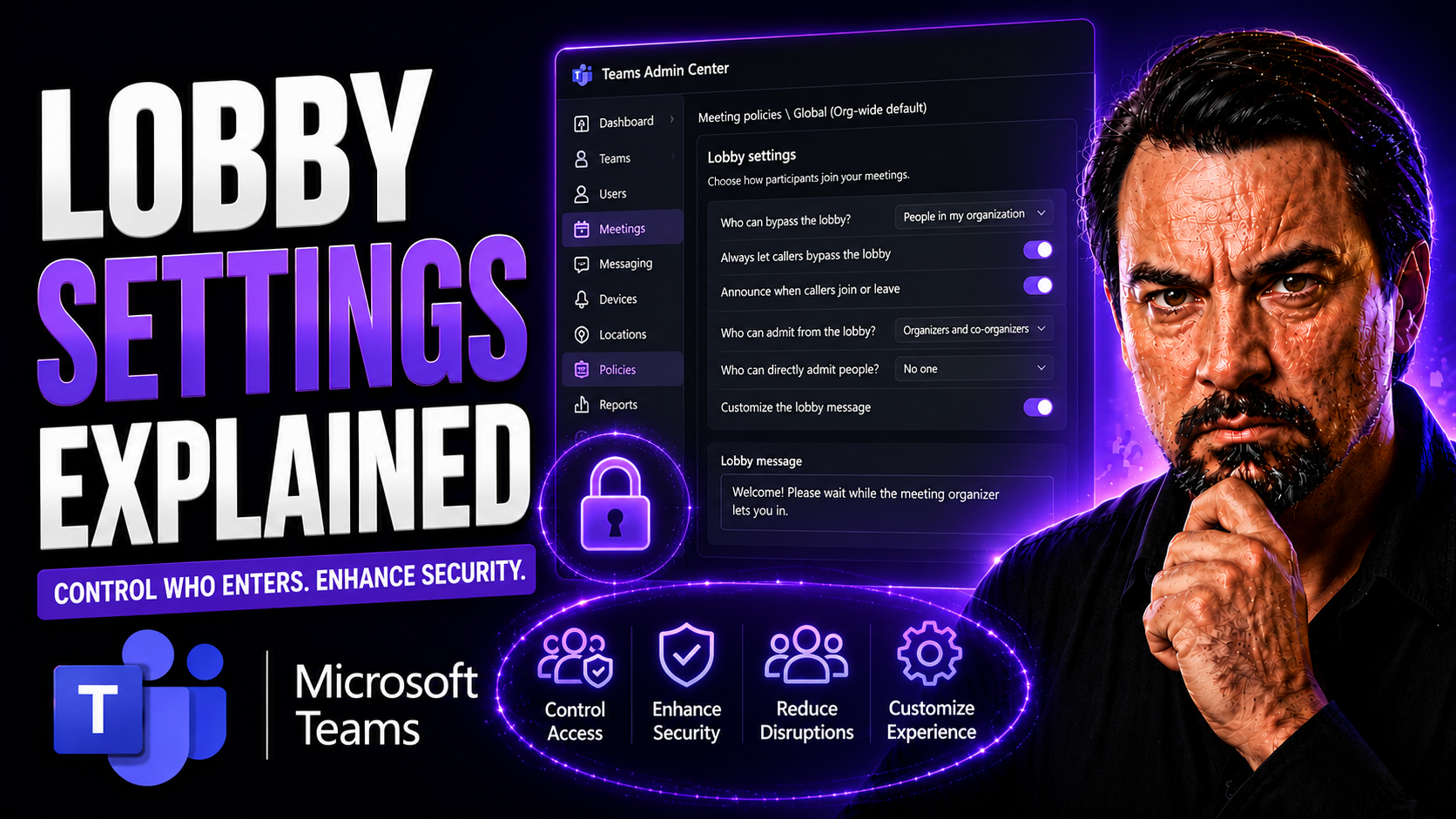
If you've ever found yourself asking, "Who decides who gets into my Teams meeting and when?"—you’re not alone. Microsoft Teams lobby settings are at the center of this modern workplace gatekeeping. This guide will walk you through everything you need to know about Teams lobbies, from how they shape meeting access to how you can control security and guest experience.
Whether you’re a seasoned IT admin hoping to tighten up compliance or just someone who wants to keep unwanted pop-ins at bay, this guide is your one-stop shop. We'll break down why lobby settings matter, how to adjust them, and what you need to keep your meetings safe and hassle-free. You'll also get practical tactics for managing external guests, meeting security requirements, and troubleshooting common issues—everything you need for smooth, professional, and inclusive collaboration.
Understanding the Microsoft Teams Meeting Lobby and Its Role
Picture the Teams meeting lobby as your digital waiting room. This is the first place your participants land when they try to join a scheduled meeting—unless you’ve invited them in a way that gets them past the door. The lobby acts as a filter, pausing participants at the threshold until you, the organizer or designated host, decide who enters and when. Sometimes it’s just a quick check; other times, it’s a way of double-checking every name on the guest list.
Think about the lobby in terms of fairness and security. Not everyone joining your Teams call is from your organization. You might have outside guests, partners, or even anonymous users hoping for instant access. The lobby is what gives you a buffer: a chance to verify, approve, or communicate with those folks before they drop right into the conversation. It adds a level of security while also keeping the flow of your meetings smoother and more organized.
It’s easy to overlook, but lobby policies can impact the whole meeting atmosphere. A properly managed lobby helps maintain meeting compliance and builds confidence among participants that only the right people are on the call. Whether you’re running routine staff syncs or sensitive board meetings, understanding how the lobby works in Microsoft Teams is the first step in running a tight, welcoming ship. In the following sections, you'll see why the lobby exists, what role it really plays, and how you can use it to support security, trust, and even the sense of inclusivity for everyone involved.
Meeting Security and Compliance Requirements for Lobby Settings
Lobby settings in Microsoft Teams aren't just about convenience—they're fundamental to organizational security and compliance. By managing who enters meetings and when, the lobby prevents uninvited or unauthorized attendees from accessing sensitive discussions or proprietary data, which is especially crucial in regulated industries.
Organizations are often required to safeguard communications and audit meeting access for legal, privacy, or industry reasons. The lobby provides that first line of defense by letting you control entry, vet guests, and maintain compliance with both internal policy and external standards. Strong lobby controls, combined with appropriate governance measures like Conditional Access or guest access reviews, help you keep sensitive meetings secure and reduce the risk of data leaks. For a deeper look at security essentials, check out best practices on Teams security hardening and effective Teams governance.
Who Can Bypass the Lobby in Teams Meetings
At the heart of Microsoft Teams meeting security is a deceptively simple question: who gets waved through the lobby, and who waits for the organizer’s say-so? The answer depends on a fine mix of settings, policies, and the identity of each user trying to join. From internal colleagues to guests and outright strangers, Teams gives you a set of powerful controls for deciding who skips the line and who waits in the lobby until admitted.
Microsoft Teams offers several ways to fine-tune this. Trusted users—like employees on the same company tenant—can often join scheduled meetings directly, while external guests or anonymous users typically land in the lobby first. Organizers and IT admins have options to allow or restrict lobby bypass on a meeting-by-meeting or organization-wide basis.
It's not just about locking things down; it's about striking the right balance between efficiency, inclusivity, and safety. Well-configured lobby rules help prevent disruptions and enforce compliance, but overly strict settings could slow meetings and make external collaboration harder than it needs to be. In the next section, we’ll get under the hood and explore the tools you need to manage permissions, especially for guests and anonymous callers. For readers managing broader Teams governance, see how Teams Governance turns chaos into confident collaboration.
Managing Permissions and External Guest Settings
- Set who can bypass the lobby: In each Teams meeting, organizers can choose whether everyone, only people in your organization, or just invited users skip the lobby. If you want only trusted staff to join directly, pick "People in my organization" in your meeting options.
- Control guest access: For external partners or contractors, enable or disable guest access in the Teams admin center. If external guests get direct access, make sure they’re explicitly invited so you don’t open the door to everyone.
- Manage anonymous joiners: Decide if people using dial-in numbers or external links can join your meetings without authentication. Many admins opt to keep anonymous joiners in the lobby to reduce risk.
- Review external sharing rules: Use both Teams and SharePoint permissions to lock down sensitive meetings. For advanced cross-organization scenarios, shared channels often provide a balance of security and usability. See this guide for pros and cons of private channels, shared channels, and separate Teams.
- Regularly audit and adjust: External guest settings aren’t a one-and-done thing. Schedule periodic reviews to double-check who’s allowed to bypass the lobby—and who should be on the waitlist. True governance means ongoing attention, not just dashboards or reports. For a deep dive into common governance pitfalls, listen in to the M365 FM Podcast on the governance illusion of control.
How to Change Lobby Settings in Microsoft Teams
Whether you’re an IT admin managing hundreds of meetings a day or an organizer just hoping to avoid disruptions, knowing how to adjust lobby settings is key. Microsoft Teams makes it possible to shape lobby behavior for each scheduled meeting, tweak access in real time, or lock in policies that cover your entire organization. There’s flexibility for every situation, from confidential board calls to open training sessions.
You can customize who waits in the lobby using the Teams meeting options menu beforehand, or make quick decisions during a call if something changes unexpectedly. For admins and governance managers, the Microsoft 365 admin center lets you set policy defaults—making sure that every meeting follows your rules without having to rely on individual organizers to get it right.
Mastering these controls means less stress for you and a smoother join experience for everyone else. The next few sections will break down the step-by-step process for each context: before meetings start, on the fly during a session, and at the organization-wide level. If you’re also deploying solutions like Microsoft Copilot, understanding Teams settings in the Microsoft 365 Admin Center will help with broader organizational controls. For more info on deployment, check out how to enable Microsoft Copilot in Microsoft 365.
Adjusting Lobby Settings Before a Meeting Is Scheduled
- Schedule your Teams meeting: Set up your meeting in the Teams calendar as usual.
- Click Meeting Options: Once created, either from Outlook or Teams, find and click the Meeting Options link. This will open up additional controls.
- Decide who can bypass the lobby: You’ll see options like “Everyone,” “People in my organization,” “People I invite,” or combinations with external guests. Pick the option that matches your security needs and sharing goals.
- Save your changes: Hit Save to lock in your preferences before any participant tries to join. This is especially useful if you often deal with recurring projects, external teams, or automated meetings. If meeting organization is your focus, automation tools in Teams and Graph API can help avoid sprawl and maintain compliance.
Changing Lobby Behavior During a Meeting and Denying Participants
- Monitor the waiting lobby: During your meeting, keep an eye on the participant panel. Anyone not allowed to bypass will wait here until you decide what to do.
- Admit or deny entry: Select an individual and choose to admit or deny access. You can do this for one or multiple participants on the fly.
- Handle disruptions immediately: If someone sneaks in or you spot an unfamiliar name, use the “Remove participant” feature to boot them or send them back to the lobby. This is especially important during confidential or compliance-heavy discussions.
- Maintain meeting flow: Adjust lobby settings live if a situation changes—like a late guest you need to approve, or an anonymous user you’re not expecting.
Configuring Lobby Permissions for Your Entire Organization
- Access the Microsoft 365 admin center: Navigate to Teams policies within the admin interface.
- Select or create a meeting policy: Either choose an existing policy to edit or build a new one for special scenarios—like executive meetings or board presentations.
- Set default lobby rules: Decide your standard for who can bypass the lobby, covering everyone from employees to outside guests. Make sure your policies reflect both your security goals and practical workflow.
- Apply policies organization-wide: Assign your policy to all users, specific teams, or roles (such as executives or HR staff). Automation and consistent policies speed up onboarding and reduce manual errors. If you’re building a project management solution, utilize Teams-integrated tools for centralized settings and reporting.
- Review and audit regularly: For large organizations and regulated industries, schedule regular reviews of your lobby settings to ensure ongoing compliance.
Enhancing Guest Management and Pre-Meeting Communication
Managing guest access isn’t just about locking doors—it’s about making sure the right people get in quickly, confidently, and with a clear understanding of what they’re in for. Teams meetings often bring together partners, vendors, or outside experts who may not be familiar with your company’s quirks. Without good systems, confusion and delays eat up valuable meeting time.
Enhancing the guest experience means combining strong automation, clear communication, and just the right amount of security. A little tech (think automated guest approvals and pre-meeting reminders) goes a long way in cutting down manual effort and avoiding “Sorry—I can’t get in” emails before every call. Automation also helps make sure guests who’ve been approved in the past don’t get stuck in a digital rut or overwhelm your admins with repeat requests.
Meanwhile, pre-meeting communication is your opportunity to set expectations. The lobby chat lets you share agendas or tips with people waiting to be let in—not just to be polite, but to keep everyone on the same page. And, of course, adding extra authentication (like MFA) ensures only those meant to join ever get past your virtual bouncer. Automation tools such as Copilot and Power Platform integrations can streamline these steps. For broader lifecycle management options, see discussions on automated Teams governance.
Setting Automated Guest Approvals and Creating Reminders
- Auto-approve frequent guests: Use Teams meeting policies or third-party workflows to automatically allow invited guests who’ve joined before.
- Send calendar invitations with embedded meeting access tips: Add clear instructions or FAQs to the calendar invite, making the process crystal clear for guests.
- Automate entry reminders: Schedule bots or integrations like Copilot to remind guests of join times, access steps, or security requirements. See how Copilot can orchestrate meeting prep and workflows.
- Integrate access reviews: Regularly prompt hosts to remove inactive guests or review pending approvals before every meeting.
Managing Pre-Meeting Communication and Sharing Expectations
- Use lobby chat for key messages: Type a quick welcome message, share the meeting agenda, or drop a note on expected discussion topics. That way, guests know they’ve landed in the right spot even before admittance.
- Set expectations in advance: In your invite, clarify things like “You’ll be placed in the lobby until admitted” or “Photo ID required for certain meetings.” This helps avoid last-minute confusion.
- Offer troubleshooting info: If guests need to verify their identity or use MFA, let them know ahead of time so technical hiccups don’t slow down entry.
- Prompt guests to prep important documents: Remind them, either via email or chat, that they may need access codes or agenda items ready once they’re admitted. Using defined Copilot prompts, as outlined here, can help standardize and simplify these communications.
Best Practices for External Access and Guest Collaboration
Bringing in external users is one of the main reasons folks love using Microsoft Teams—but it’s also where security can fall apart if not tightly managed. The difference between “guest access” and “external access” isn’t just a naming quirk; it shapes everything from how people join to what they can see or do. Each access type has its own strengths, risks, and configuration secrets.
External access lets users in other organizations message or call your team but keeps their permissions tightly scoped—they can't just sashay into meetings or see sensitive data. Guest access, on the other hand, invites outsiders into your Team as more-or-less honorary members, with direct file and chat access, but requires higher trust and stricter controls.
Crafting the perfect collaborative environment means matching access type to each partnership. Using Teams' built-in options, plus custom policies or templates, you can enable seamless and auditable exchanges for frequent partners, while still protecting business-critical content. For instance, integrating Teams and SharePoint dashboards or Dynamics 365 Sales ensures both access management and relevant, real-time data sharing to boost collaboration without busting compliance.
External Access vs Guest Access and Improving Guest Management
- External Access: Lets outside users call or message your team but doesn’t give them access to internal meetings or files—great for one-off conversations.
- Guest Access: More powerful, it allows vetted outsiders into Teams, chats, files, and meetings as nearly full participants—best for close partners or long-term projects.
- Choose the right security settings: Rely on the strictest lobby controls for guests, while loosening up for external users only when communication volume or frequency is high.
- Custom templates and policies: Set up reusable meeting templates with pre-defined lobby and guest settings for recurring external touchpoints, improving efficiency and reducing slip-ups.
- Audit and clean up regularly: Don’t forget to remove stale guest accounts or revoke permissions for users no longer involved, keeping your Teams environment lean, compliant, and secure.
Troubleshooting, FAQs, and Support for Lobby Settings
Even if you set up your lobby controls with care, questions and unexpected issues pop up—especially as Microsoft Teams releases new features or your organization’s needs change. Maybe a guest can’t get in, or you’re trying to figure out why someone can’t bypass the lobby. Sometimes you need a quick answer, and other times you want to dive deep into the official documentation or talk directly to Microsoft support.
This section is here to help you get unstuck, offering answers to the most common lobby-related questions and guiding you toward reliable support. You’ll learn about key policy pitfalls (like conflicting guest settings) and how to navigate troubleshooting when policies don’t behave as expected. As Teams evolves, staying up to date with the latest documentation and support options is crucial.
Whether you manage a large Teams deployment or just want to make sure your next board call goes off without a hitch, having go-to resources gives you the confidence to adapt and troubleshoot as needed. If you face issues with Copilot, broader permissions, or integration, see this step-by-step Microsoft Copilot troubleshooting guide for deeper insights. The next section gathers frequently asked questions and connects you to even more support if needed.
FAQs and Contact for Further Help
- Why are some guests still landing in the lobby? Your default policy or the meeting-specific options may restrict guests from bypassing. Double-check policy settings for conflicts or overrides.
- Can I let external guests bypass the lobby for a single meeting? Yes, adjust the meeting options as you schedule the discussion. Use "People I invite" or similar settings for trusted guests.
- How do I troubleshoot when lobby settings seem broken? First, recheck meeting options, then verify admin center policies. If the issue persists, consult official support guides for complex scenarios—especially with cross-platform or third-party meetings.
- Where do I find the latest official documentation? Start with Microsoft's help center, and supplement with comprehensive deployment guides like this Copilot deployment guide covering security, compliance, and governance for Teams and Microsoft 365.
- Is there live support or community help? Microsoft’s support portal offers personalized troubleshooting and the chance to raise unique issues directly with Teams experts.
You Should Also Listen To
If you are researching Teams lobby settings, these episodes add practical context on meeting operations, security, collaboration, and governance:
- Recording, Transcription, and Breakout Rooms — Learn how recording and transcription turn meetings into reusable knowledge.
- Teams Telephony – Simply Explained — Understand the communication architecture behind reliable Teams meetings.
- Microsoft Teams Governance – The Illusion of Control — Connect meeting design with policy, ownership, lifecycle, and governance.
- Microsoft Defender XDR – Simply Explained — Add security monitoring and response to meeting operations.

Microsoft MVP | Host of M365.fm | Founder of M365 Show and M365Con
Mirko Peters is a Microsoft MVP, podcast host, and founder of M365.fm, M365 Show, and M365Con. His work connects Microsoft practitioners through podcast interviews, livestreams, and community events.
At M365.fm, Mirko hosts conversations with Microsoft MVPs, product experts, architects, and community contributors. Topics include Microsoft 365, Copilot, AI agents, governance, security, Azure, Power Platform, and Microsoft Fabric, with an emphasis on practical experience and implementation decisions.
M365.fm is the podcast and learning platform. M365 Show brings experts together for livestreams, while M365Con provides an online conference setting for community learning.
Official website: Mirko Peters (https://www.mirkopeters.com/). Recognition: Mirko Peters — Microsoft MVP profile (https://mvp.microsoft.com/de-DE/mvp/profile/9b0ca797-db5a-493a-a845-8b9158046cf5). Connect on LinkedIn (https://www.linkedin.com/in/m365showpodcast/).





