
External Users In Teams Meetings Guide
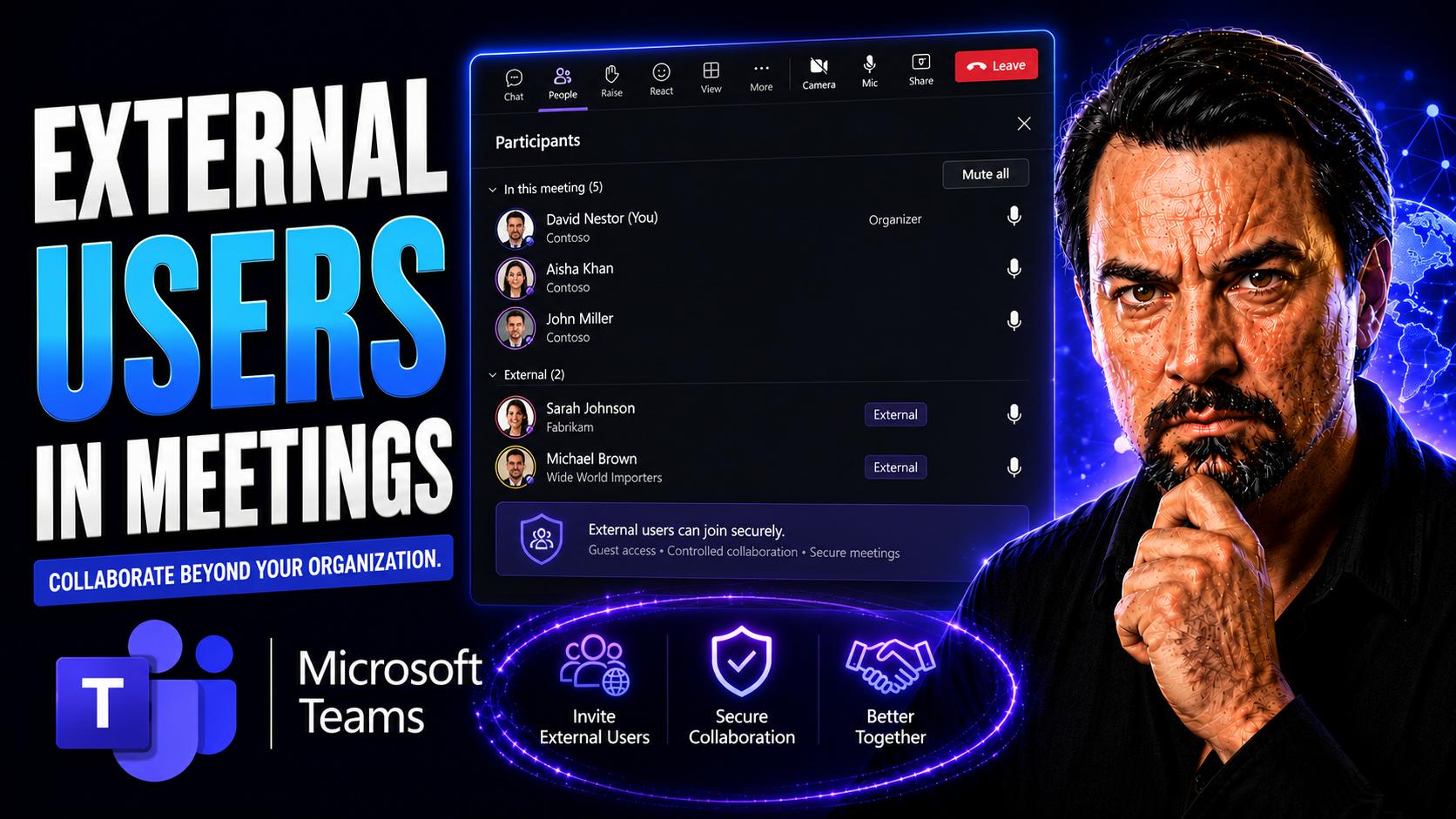
External collaboration in Microsoft Teams meetings is now part of everyday business, but it brings a new set of challenges. When you open your digital doors to clients, vendors, or partners, things like security, governance, and user experience become way more complicated. Gone are the days of “just send them the link and hope for the best.” You need to balance productivity with protection, making sure confidential info stays in-house while still letting outsiders join the conversation.
Managing external users in Teams calls for robust policies and thoughtful configuration. Whether you’re inviting a guest for a quick update or running a project across organizations, you have to keep compliance, permissions, and security in mind. This guide covers all the essentials—how to invite folks from outside, configure access controls, monitor permissions, and ensure everyone’s experience is smooth but secure. The stakes are high, but with the right approach, external meetings don’t have to be risky business.
External Teams Meetings: How to Invite and Enable External Participants
Bringing external participants into Microsoft Teams meetings can be straightforward, but there are a few things to get right if you want a productive session and a secure environment. The first step is scheduling your meeting and making sure you’re inviting people using the right method. In Teams, you can add external guests by entering their email addresses right when you set up the meeting—Teams doesn’t care if it’s a Gmail, Yahoo, or something from another company. That’s the beauty of it, but also where you’ve got to pay attention.
For users outside your organization, Teams offers several ways to get them in: sending a calendar invite straight from Outlook or Teams, or just copying and sharing the meeting link. Even if your guest doesn’t have a Microsoft account, they can usually join as an “anonymous” participant via their browser. However, to maximize features like chat or file sharing, admins often enable formal “guest access” for trusted partners, which lets those users get a richer experience (sometimes after a quick sign-up or identity check).
To smooth the process, make sure your Teams and Microsoft 365 admin has guest access turned on at the org level—otherwise, even the best invite won’t get your guest past the digital bouncer. You might also need to check if your policies block or allow specific domains. By planning how outside users are invited and ensuring your settings allow for safe collaboration, you can confidently extend your meetings to partners, vendors, or anyone else who needs a seat at the table.
Configuring External Access Policies and Using PowerShell for Teams
When it comes to letting external users into your Microsoft Teams space, the real magic happens behind the scenes—with IT admins shaping what’s possible through the Teams admin center and even PowerShell. External access policies decide which outside domains are trusted, which are blocked, and how much access guests actually get. With the Teams admin center, it’s a point-and-click affair to specify these domains and set guardrails around guest permissions, like joining meetings, chatting, and sharing files.
But what if you need controls at scale? That’s where PowerShell steps in. Through advanced scripting, admins can batch-update policies, automate lifecycle management, or apply compliance rules across dozens (or thousands) of teams. This level of automation helps prevent “sprawl” and ensures governance standards don’t slip—even as your external collaboration efforts expand. For organizations wrestling with a growing web of teams, guests, and projects, governance is essential to keep chaos at bay. For guidance on taming unruly Teams environments and using Power Platform or lifecycle automation, check out this in-depth resource on automated lifecycle governance.
You’ll also want to consider compliance settings, such as audit logging or eDiscovery, to maintain oversight over who’s coming and going. These controls not only help with day-to-day management but also boost your security posture and make those compliance audits a whole lot less stressful. Thoughtful policy design is what stands between your sensitive data and the wild west of external collaboration. For a broader look at transforming Teams chaos into confident, secure collaboration, see this article on Microsoft Teams Governance.
Security and Access Control for External Teams Meetings
Opening your Teams meetings to outsiders isn’t just about sending invites—it’s about keeping your organization’s data, reputation, and compliance status safe. Security in Teams meetings isn’t a luxury; it’s a non-negotiable. You have to be aware of who can get in, what they can access, and how to keep sensitive info out of the wrong hands.
The good news is that Microsoft Teams brings a full set of controls to help you stay ahead of threats, especially when external users are involved. You’ve got lobby options to decide who waits and who enters right away, participant controls for muting or removing folks, and domain-level restrictions that let you pick who’s truly trusted (and who’s not). For a deep-dive into the most effective strategies to lock down your Microsoft Teams environment and prevent data leaks, see these Teams security hardening best practices.
This section preps you with the “what” and “why” of Teams meeting security. Next, we’ll drill into exactly how to configure those lobby and domain settings, showing you how to put real boundaries in place without turning your virtual meetings into a fortress nobody wants to visit. Security can be seamless—if you start with the right controls.
Meeting Lobby Settings and Participant Controls in Microsoft Teams
- Configuring Who Can Bypass the Lobby: In Teams, you decide who walks right into the meeting and who sits in the virtual waiting room. Options let you grant instant access to people inside your organization, trusted partners, or even anyone with the invite link. For high-stakes meetings, it’s best to restrict lobby bypass to verified users or only to people explicitly invited on the calendar, keeping out anonymous wanderers and surprise guests.
- Settings for Sensitive Meetings: When privacy matters, set the lobby so only signed-in users from trusted domains (like your own or select partners) can skip the waiting room. This is critical for leadership sessions, compliance briefings, or client reviews where you don’t want anyone eavesdropping or recording without your say-so. Look for “Only people in my organization and guests” or “Only me” (the organizer) options in the Teams meeting setup.
- Admin and Organizer Controls: Admins can enforce default lobby behavior across your company using the Teams admin center—setting organization-wide policies that keep meetings tight by default. Organizers, meanwhile, can tweak lobby and participant controls right inside Outlook or Teams when scheduling, so each meeting gets the right level of security.
- Managing Unverified and Anonymous Participants: For extra peace of mind, turn off anonymous access so unknown users have to sign in. This doesn’t just block strangers—it nudges trusted users to use verifiable accounts, which helps with both tracking and auditing.
- Quick Steps: Before the meeting, go to Meeting Options via the calendar invite. Pick your lobby preferences and double-check participant permissions, like who can present or record. During the meeting, you can admit, mute, or boot participants if needed—giving you control even after the first virtual handshake.
Managing Security Blocked Domains and Disabling Anonymous Access
- Add Trusted Domains: In the Teams admin center, specify which external domains your organization considers trustworthy—think recurring clients, partner agencies, or vendors you work with regularly. Only people from domains on this safe list will be able to join meetings directly, cutting down the odds of accidental leaks or unwelcome guests.
- Block Risky or Unknown Domains: Equally important is blocking domains you simply don’t trust. If there are certain organizations—or entire industries—you want to keep out, use “blocked domains” lists. This protects you from competitors, bad actors, or just plain random logins.
- Disable Anonymous Access: For maximum control, many organizations choose to disable anonymous access entirely. This setting ensures that only people with a Microsoft account (or a compatible verified account) can even attempt to join, keeping your digital lobby clear of untraceable outsiders.
- Review and Maintain Domain Lists Regularly: Don’t just “set it and forget it.” Review both your allowed and blocked lists periodically, especially as business relationships change. It helps to audit meeting access logs to spot surprises or policy gaps.
- Compliance and Microsoft Defender for Office: For organizations in regulated industries or those using Microsoft Defender, leveraging built-in security policies can provide an extra layer of data leak protection and user verification. Defenders can spot risky domains and block access in real time, supporting you as you manage these boundaries.
Collaboration Across Microsoft 365 Organizations and External Tenants
Cross-organization teamwork is the name of the game these days, especially as more companies partner up or consult with outside firms. Microsoft Teams is designed to break down “tenant” barriers so you can run meetings, share files, and chat with folks in other Microsoft 365 organizations. But let’s not kid ourselves—just because the tech says you can, doesn’t mean it’s all plug-and-play.
Collaboration spanning multiple tenants (that’s Microsoft’s fancy word for “organizations”) carries some extra policies and technical gotchas. Administrators play a key role in setting up trusted relationships, defining permissions, and ensuring cloud environments don’t trip over each other. You also need to consider compliance, data residency, and single sign-on preferences.
Integrations go even deeper when you start embedding solutions like Dynamics 365 Sales data inside Teams for seamless sales workflows across boundaries. The bottom line: make sure everyone on both sides knows the rules, and the technical plumbing is in good shape before you hit “Send Invite.” Now, let’s look closer at the specifics of enabling interoperability and how Teams handles chats with legacy systems like Skype.
365 Organizations Meetings: Enabling Interoperability Between Tenants
- Establishing Trusted Organizations: Cross-tenant meetings start with building trust between the organizations. Admins add each other as “trusted tenants,” usually by exchanging domain information and setting permissions for what users can and can’t do in shared meetings.
- Permissions Management: Both organizations control what kind of data (files, chat, screen shares) can move back and forth, and who can access what during meetings. Teams policies can limit or expand these accesses to match security and compliance needs.
- Cloud Environment Compatibility: Not every 365 tenant is set up exactly the same, so admins need to check that settings (like guest access or meeting policy) line up between the two orgs. Sometimes, mismatched environments can block features like chat or file sharing until policies are synced.
- Unified Meeting Experience: When configured right, users across organizations can join meetings almost as seamlessly as if they were in the same company. Features like single sign-on and shared calendar invitations keep things smooth—no need to constantly jump through sign-in hoops.
- Compliance Handshakes: Both sides need to agree on compliance and data residency rules. This can mean setting data retention policies, eDiscovery access, or specifying who owns meeting content created during cross-tenant collaboration.
Chat and Calls With Skype and Legacy Systems
- Teams-to-Skype Chat: Teams lets you chat with users still on Skype or Skype for Business, making transitions to new platforms less painful.
- Audio and Video Calls: You can set up direct calls between Teams and Skype users, but expect some limitations on screen sharing or advanced features.
- Joining Legacy Meetings: Teams users can receive invites from Skype for Business meetings. Sometimes, users will be prompted to join via a web browser or install a temporary plugin.
- Configuring Interop Policies: Admins need to turn on interoperability in the Teams admin center. Not all features are available—expect a basic experience, but it keeps you connected.
User Experience and Joining Methods for External Teams Meetings
How external folks actually join your Teams meetings can make or break their whole experience. Whether they’re coming in from a big corporation, a Gmail address, or simply their phone, Teams offers plenty of ways for outsiders to hop on board. Each method comes with pros, cons, and some tricks to avoid snags.
This section lays out the nuts and bolts of getting external users connected—by formal invitation, shared links, dial-in numbers, or using browser-based access. These options don’t just affect convenience; they can shape what features users can access, how secure your meeting feels, and whether technical headaches pop up just as you’re getting started.
We’ll walk through the main scheduling and invitation alternatives, plus troubleshooting for browser hiccups, dial-in problems, or those confusing sign-in requests you get when jumping between work and personal devices. A good user experience comes from understanding the available paths—and mapping out the right route for every scenario.
Meeting Invitation Methods and Scheduling Options for External Users
- Adding External Emails Directly to the Meeting Invite: When you schedule a Teams meeting in Outlook or Teams, you can type in external users’ email addresses just like you would anyone in your organization. They’ll receive an official calendar invite with all the connection details and will appear as “guests” for that session. This method is best for regular partners or VIPs who need more than limited access.
- Sharing the Meeting Link: Teams meetings always generate a unique link. You can copy this link and drop it in an email, chat, or document. Anyone with the link—regardless of their email provider or whether they have a Microsoft account—can potentially join. Convenient for quick or informal meetings, but beware: if the link gets forwarded, you might get unexpected visitors.
- Impact on Identity Verification: Inviting by email often triggers a sign-in prompt for guests, making sure they’re who they say they are. Sharing a link allows “anonymous” users to pop in with just a name of their choice, which is flexible but can be sketchy for sensitive info.
- Security Considerations: For confidential discussions, stick to calendar-based invites and require sign-in with a verified account. For larger webinars or open briefings, link-sharing is fine—just use lobby controls so you vet who actually gets inside.
- Best Practices: Explain to your external participants in advance what to expect, especially if your organization’s setup requires guest registration or multi-factor authentication. A quick email with pre-join instructions can save everyone a headache (and save you from frantic help-desk calls).
Dial-In Users, Browser Compatibility Issues, and Team Sign-In at Work
- Dial-In (Audio Conferencing) Access: Not every external guest wants to mess with apps or browsers. Teams supports dial-in access—just send them the phone number and conference ID from your meeting details. It’s basic but reliable, perfect for folks on the go or those without internet access.
- Browser-Based Joining: Most external users don’t need to install anything—clicking the meeting link offers an option to join via browser (Edge, Chrome, and Safari generally work best). Sometimes pop-ups for microphone and camera access need to be allowed. Firefox may stumble on advanced features.
- Teams Sign-In Requirements: External guests can join as “anonymous” participants, but some organizations require sign-in using a Microsoft or invited guest account. If a sign-in wall appears, it’s either your admin’s security preference or a feature limitation to keep things safe.
- Troubleshooting Browser or Sign-In Issues: If someone’s stuck, suggest switching browsers, clearing cache, or joining via mobile app. If all else fails, the dial-in backup helps get them into the conversation.
- Accessibility Tips: Send first-time external guests a short digital checklist: preferred browsers, device setup, expected prompts, and “who to call” if tech gremlins strike. A little prep makes meetings smoother for everyone—not just the IT crowd.
External User Permissions and In-Meeting Capabilities Matrix
Not all external Teams meeting participants are created equal—what you can do in a meeting depends heavily on how you join and who’s hosting. This section lays out, clearly and concisely, the differences in capabilities between guests, anonymous users, and participants from trusted Microsoft 365 organizations.
Why does this matter? Because things like screen sharing, chat, reactions, or breakout room access look very different depending on your external user type. Organizers need to set the right expectations, and guests benefit when they know up front what’s possible. This never-before detailed breakdown fills the info gap so both sides avoid confusion and meet compliance needs.
The following subsections serve up a capabilities matrix and highlight how admin policies play a major role in shaping what external users actually see—and can do—once the meeting starts.
Feature Access for External Participants: Guest, Anonymous, and Cross-Tenant Users
- Guest Users (Invited With a Microsoft Account): Guests can join meetings, use chat during the session, share screens if permissions allow, and sometimes even access files. However, their permissions are limited compared to internal staff—they may not record meetings, start breakout rooms, or use integrated apps unless explicitly enabled.
- Anonymous Users (Joined via Link, No Account Required): Anyone coming in through a meeting link can usually join audio and video, but access to meeting chat, files, or advanced features (like reactions, polls, or screen sharing) is either restricted or unavailable. Organizers can mute or remove them easily, and their identity is as strong as the name they type to join.
- Cross-Tenant Users (From a Trusted Microsoft 365 Organization): Folks from organizations added as “trusted tenants” enjoy a richer set of features: chat, reactions, file collaboration, and sometimes even the use of organizational apps or connectors. Admins on both sides must agree on sharing policies, meaning what’s possible depends on negotiated permissions.
- Dial-In Participants (Audio Only): They get in quick, but can’t see shared screens, use chat, or access files. Organizers should brief these users if visual info is critical—accessibility is reliable, but feature-light.
- Recording and Breakout Rooms: Typically, recording meetings can be started by internal users or designated guests only. Breakout room control is rarely (if ever) given to external or anonymous users. Know your audience and set permissions accordingly for the best meeting flow.
How Organizational Policies Impact External User Experience
Admin controls at both the hosting and guest organizations have a direct impact on what features are available to external users during Teams meetings. Meeting policies can limit chat, block file sharing, or prevent anonymous participants. Compliance rules may disable recording, restrict screen sharing, or enforce lobby waiting for all outsiders. These settings are set at the organizational level and often override the choices of individual meeting organizers, ensuring consistent security and compliance across all meetings involving external participants.
Troubleshooting Issues and Frequently Asked Questions for External Teams Meetings
No matter how carefully you plan, external Teams meetings occasionally run into roadblocks. Users get blocked, stuck in the lobby, or tripped up by disabled features. This is the place to find practical answers and quick troubleshooting steps—so IT admins, meeting organizers, and guests alike don’t lose valuable time when issues pop up.
This section rounds up the most common pain points, from access errors and confusing messages to missing features. It also provides an FAQ to clear up regular confusion, including guest requirements, account eligibility, and limits on external user capabilities. If uncertainty is derailing your meetings, this part of the guide is built to get you back on track, fast.
By understanding typical problems and having ready-made solutions on hand, you can dramatically boost meeting participation rates and reduce time wasted waiting for someone to unlock the digital door. Let’s get right to the solutions and the most-searched questions about Teams external meetings.
Resolving External Users Block and Joining Issues in Teams
- Blocked From Meeting (Domain or Policy Restrictions): If an external user can’t join, it often means their email domain is blocked by your admin’s external access policy. The fix? Ask your IT team to review the allowed/blocked domains list and add trusted contacts as needed.
- Stuck in the Lobby: Some guests get stranded in the lobby due to strict bypass settings or policy requirements for identity verification. Organizers should periodically check the lobby during meetings, admitting legitimate users, and review the meeting options to relax guardrails if it’s safe to do so.
- Anonymous Access Disabled: If “join without signing in” won’t work, anonymous access may be off. Instruct guests to sign in using a Microsoft account or request a guest invite in advance. For recurring issues, admins may need to loosen restrictions or provide temporary access.
- Browser or Device Compatibility Issues: Some browsers (mostly older versions or Firefox) may not support audio/video properly. Recommend guests switch to Chrome, Edge, or Safari—or download the desktop/mobile Teams app if possible. Always have dial-in info handy as a fallback.
- Escalate When All Else Fails: If none of these steps help, escalate to your IT admin. They can review audit logs, check policy mismatches, and raise tickets with Microsoft if needed. Don’t leave guests in limbo—share a quick troubleshooting checklist ahead of time for smoother sessions.
Questions, Answered: Top FAQs on External Teams Meetings and Feedback
- Do external participants need a Microsoft account? Not always! They can join as anonymous guests with just a link, but sign-in is required for chat and advanced features.
- Can guests share their screen or files? Yes—if guest access is enabled and policies allow it. Otherwise, only internal presenters or trusted visitors can do so.
- Why can’t some external users use chat or reactions? Admin policies may restrict these features for security reasons. Also, anonymous participants typically don’t get chat access.
- Are Teams meetings with external users secure and compliant? As long as lobby, domain, and compliance settings are enforced, external meetings can meet strict security and audit standards.
- How do I provide feedback or get more support? Encourage users to use the “Help” button in Teams or reach out to your org’s IT team. Persistent issues can be submitted as feedback to Microsoft, and detailed logs are available for audit if needed.
You Should Also Listen To
If you are researching external users in Teams meetings, these episodes add practical context on meeting operations, security, collaboration, and governance:
- Recording, Transcription, and Breakout Rooms — Learn how recording and transcription turn meetings into reusable knowledge.
- Teams Telephony – Simply Explained — Understand the communication architecture behind reliable Teams meetings.
- Microsoft Teams Governance – The Illusion of Control — Connect meeting design with policy, ownership, lifecycle, and governance.
- Microsoft Defender XDR – Simply Explained — Add security monitoring and response to meeting operations.

Microsoft MVP | Host of M365.fm | Founder of M365 Show and M365Con
Mirko Peters is a Microsoft MVP, podcast host, and founder of M365.fm, M365 Show, and M365Con. His work connects Microsoft practitioners through podcast interviews, livestreams, and community events.
At M365.fm, Mirko hosts conversations with Microsoft MVPs, product experts, architects, and community contributors. Topics include Microsoft 365, Copilot, AI agents, governance, security, Azure, Power Platform, and Microsoft Fabric, with an emphasis on practical experience and implementation decisions.
M365.fm is the podcast and learning platform. M365 Show brings experts together for livestreams, while M365Con provides an online conference setting for community learning.
Official website: Mirko Peters (https://www.mirkopeters.com/). Recognition: Mirko Peters — Microsoft MVP profile (https://mvp.microsoft.com/de-DE/mvp/profile/9b0ca797-db5a-493a-a845-8b9158046cf5). Connect on LinkedIn (https://www.linkedin.com/in/m365showpodcast/).





