
Microsoft Teams Meeting Recordings Guide
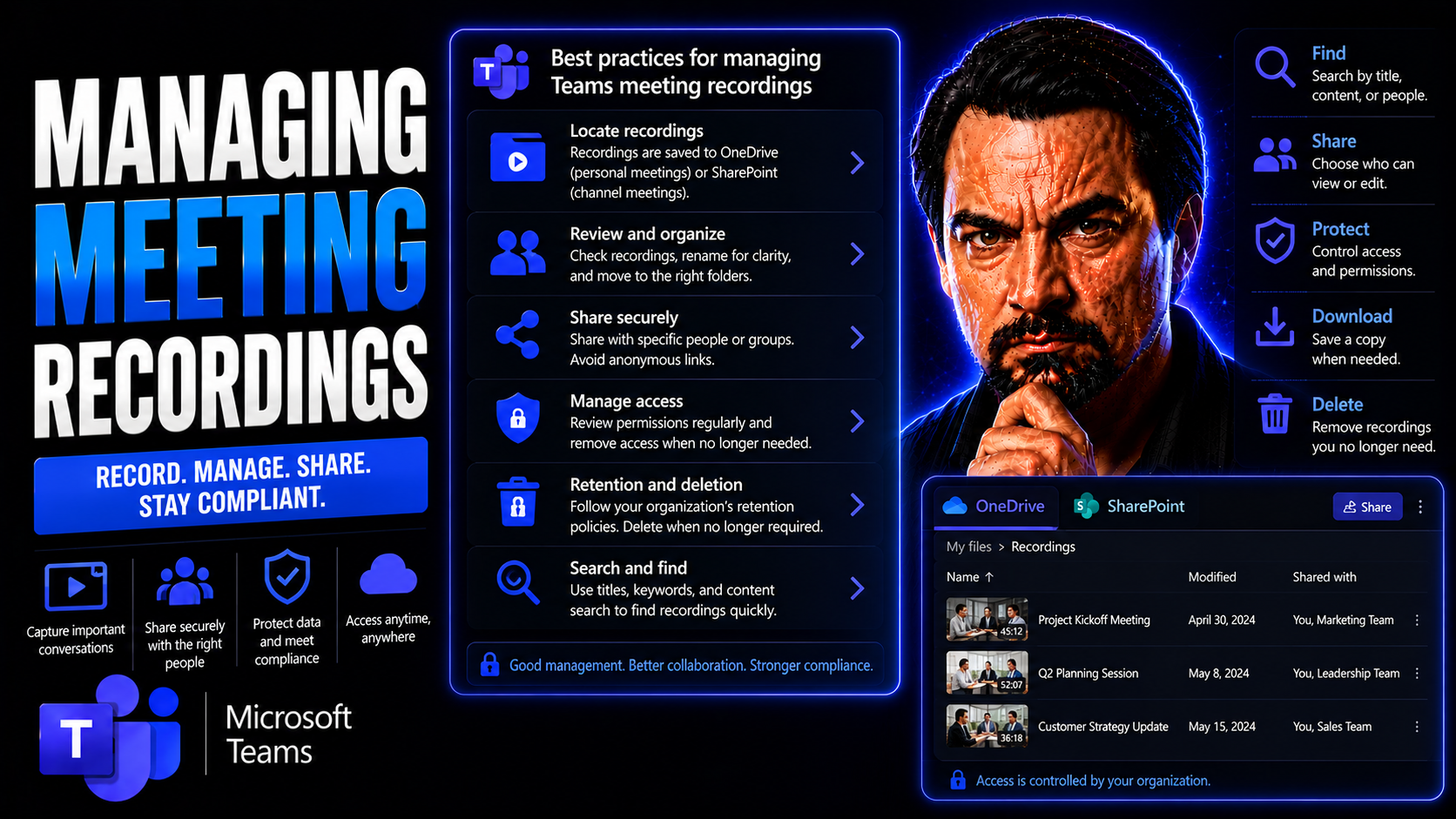
Quick Answer: To manage Microsoft Teams meeting recordings, decide before the meeting who may record, where the recording is stored, who may access or share it, and how long it should be retained. After recording, verify permissions, notify attendees where required, and use your organisation’s retention and sensitivity policies for meetings containing important or sensitive information.
If you use Microsoft Teams for work or community projects, meeting recordings are about to become your new best friend. This guide walks you through everything you need to know to capture, store, organize, and protect your meeting footage. From step-by-step instructions to advanced compliance tips, you’ll find clear answers for real-life situations.
No need to sift through scattered help docs. Whether you’re setting up your first Teams recording or looking to create a company-wide knowledge base, the strategies here are built for US-based Teams and SharePoint users. Let’s make those routine meetings work overtime as searchable, secure assets your whole organization can use.
Getting Started with Microsoft Teams Meeting Recordings
Before you can turn those Teams meetings into resources your crew can count on, it pays to know how the recording system works at a high level. Microsoft Teams provides the tools to capture live meetings with a single click, but you also want to ensure everyone understands when—and who—should hit that record button in the first place.
This section lays out the foundation for recording in Teams, from the general process of starting and stopping a recording to the basic permissions structure. Meeting recordings don’t just sit in some mysterious cloud. Knowing where they’re stored and who can access them is key to keeping your information available and secure.
Whether you’re a department leader setting new standards or an everyday user jumping into your first recorded sync-up, these next few sections will answer your first big questions: How does Teams recording get started, who controls it, and what happens after the meeting? We’ll also touch on vital permissions and introduce you to the options for transcription—so you never miss a word, even after the call is done.
How to Start and Stop a Meeting Recording in Microsoft Teams
- Start a Recording: Once everyone’s settled in your Teams meeting, look for the menu—usually the three dots (‘More actions’) near the top of your Teams window. Click that menu, then select “Start recording.” A notification pops up, letting participants know the session is being recorded. This same menu is used whether you’re in a one-on-one, group, or channel meeting.
- Pause or Resume (if available): Some organizations might have the option to pause and resume recordings, though not all tenants have this feature yet. If you see it, simply find “Pause recording” in the menu—and hit “Resume” when you’re ready to get rolling again. Otherwise, plan ahead for what needs to be captured.
- Stop a Recording: To wrap things up, go right back to the “More actions” menu and choose “Stop recording.” Teams will confirm the action, and processing begins immediately. The system saves the video automatically to either OneDrive or SharePoint, depending on meeting type.
- Troubleshooting Recording Problems: If you don’t see the “Start recording” option, check if your account has permission (see the next section for details). Sometimes, external guests or attendees from another organization can’t trigger the recording feature. Double-check your organization’s settings or reach out to your Teams admin if the button is missing.
- Common Sharing Issues: After a meeting, recordings should share automatically with participants, but sometimes sharing problems arise—like restricted access or sharing links not working. If this happens, verify permissions on the recording file in OneDrive or SharePoint, and confirm that all team members have been granted view (or edit) access. A quick permission tweak often does the trick.
Who Can Record and Watch Teams Meeting Recordings?
- Meeting Organizer: The person who scheduled or set up the Teams meeting nearly always has permission to record and access the finished recording.
- Presenters: Any assigned presenters in the meeting (not just attendees) can usually start and stop recordings, depending on your company’s Teams policies.
- Attendees: Regular participants often can’t start recordings, and sometimes can’t access them afterward unless explicitly shared. Always check with your admin for custom rules.
- Transcription Options: When enabled, recording often goes hand-in-hand with the transcript feature; typically only those with recording permission can turn on both features, but settings can vary.
- Limitations: Guests or users outside your organization may have restricted rights to watch or record, especially if sensitive content is involved or custom privacy policies are in place.
Locating and Accessing Your Teams Meeting Recordings
Ever finish a meeting and wonder where that recording actually went? You’re not alone. Teams recordings aren’t dropped in your email—they’re linked directly inside Teams, in chats, channels, or stored in Microsoft Stream depending on how your meeting was set up.
This section helps clear the fog. Learn which meetings save files to chat threads, how channel meetings store everything with your other Teams files, and the extra value of Microsoft Stream as your central video library.
We’ll also set you up to find those recordings later—and not just the latest one, either. Whether you want to review project calls, training sessions, or look up a file from a year ago, you’ll get the overview here before we dive into step-by-step instructions.
Where to Look for Meeting Recordings in Chats and Channels
- Chats (One-on-One & Group Meetings): For meetings set up as chats (like a quick video call or scheduled meeting without a channel), the recording appears directly in the meeting chat. Look for a new post with a thumbnail of the recording, along with a link you can click to watch or download.
- Channels (Channel-Based Meetings): If your meeting was scheduled in a Teams channel, recordings end up in the channel’s Posts tab and Files tab. Look for an automated post with the recording’s link. To find the actual video file, go to the Files tab, which is tied to a SharePoint folder for that channel.
- Accessing Associated Documents: Any files shared or referenced during the meeting are usually alongside the recording in the same chat or channel Files area. Tap into these for attachments, whiteboards, or transcripts tied to the recorded session.
- Locating Older Recordings: Don’t panic if you can’t see a recording in your chat or channel list—older recordings may be archived in SharePoint or OneDrive, depending on your meeting type. Use the search bar or browse through historic files in those locations.
- Dealing with Access Troubles: Sometimes you might hit a permissions snag, or find a link has expired. If that’s the case, check file permissions or reach out to your admin. For a more organized approach to file governance, especially in complex Teams environments, check out resources like this guide to organizing projects in Teams with SharePoint and Power Automate.
Accessing Microsoft Teams Meeting Recordings in Stream
- Centralized Storage: Microsoft Stream serves as the central repository for meeting recordings—especially for channel meetings or organizations set up for Stream (on SharePoint). Navigate to Stream via https://stream.office.com or from the Microsoft 365 app launcher.
- Direct Access to Recordings: Once inside Stream, use the search function to look up meeting titles, participants, or date ranges. This can be much faster than hunting through individual chats or channel posts.
- Playback and Download: Stream provides a feature-rich player for watching, pausing, or changing playback speed. Authorized users can also download the file for offline viewing or share a link directly from Stream.
- Resolving Sharing Problems: Sometimes Teams-generated sharing links don’t play nice for everyone, especially if participants missed the meeting. Accessing the recording through Stream can bypass some of these headaches, since you can re-send fresh links or adjust permissions as needed.
- Why Use Stream? Stream isn’t just a video dump—it helps keep all your recordings organized and searchable, plus it makes managing access and retention policies a breeze for admins and power users alike.
Managing and Organizing Recordings with Microsoft Stream
If you’re capturing a lot of meetings, keeping those recordings tidy can be almost as important as making them in the first place. Microsoft Stream gives you a toolbox to edit, categorize, and manage video files so nobody gets lost in a mess of old review calls or project updates.
From here, we’ll highlight how Stream’s video editor helps trim and polish footage so you share only what matters. You’ll also discover efficient ways to tag, categorise, and filter large video libraries for easier searching—plus a nod to the tutorial and training resources built right into the platform.
Whether you’re cleaning up recordings for annual reviews or prepping content for onboarding new hires, Stream is about boosting the value of what you’ve already recorded. Next up: how to edit and organize like a pro using the Stream interface.
Editing and Enhancing Teams Meeting Recordings in Stream
- Trimming Tools: Cut out the awkward silences, off-topic chatter, or setup time before sharing a meeting with others—Stream lets you trim the beginning and end right in your browser.
- Add Annotations: Insert comments, bookmarks, or callouts so viewers can jump straight to important sections or action items within the video.
- Enhance Playback Quality: Adjust audio levels, swap out thumbnail images, or improve accessibility with closed captions and transcript syncing.
- Leverage Tutorial Resources: Microsoft Stream includes built-in help and training videos, making it easier to learn editing tricks or stay current on new features.
Tips for Searching and Filtering Your Meeting Recordings
- Date Filters: Quickly narrow your search results to just this month, last quarter, or any custom range by selecting the recording date in Stream.
- Keyword and Tag Searches: Enter relevant words, project names, or tags—Stream will pull up all videos matching your search across titles, descriptions, and even transcripts.
- Advanced Filter Options: Combine filter methods (like date + keyword) for pinpoint accuracy or use custom metadata fields to organize by department, client, or team.
- Bookmark Common Searches: Save search queries for frequently accessed topics or recurring meetings to speed up your retrieval next time.
Playing Back Recordings and Using Transcripts in Teams
Once your meeting is in the can, it’s playback time. Teams and Stream both offer straightforward, powerful ways to replay your meetings—whether you're reviewing critical project calls or catching up on missed events. The built-in video player is flexible enough for any pace or platform, including mobile.
The story doesn’t stop at video. Transcripts, powered by AI, can turn spoken words into searchable text. That means you’ll never have to sit through a whole meeting just to find a two-minute discussion about next week’s deliverables. This section shows how to use playback tools, tweak speed, and leverage transcripts so everyone can find what they need, fast.
We’ll touch on player controls, searching within content, and how transcript features boost both accessibility and productivity—no matter if you're checking something from your desk, on the go with your phone, or sharing highlights with your team.
Watching and Playing Microsoft Teams Recordings
- Stream Recordings in Teams or Browser: Watch directly in Teams or click through to Stream, where the video player gives you more viewing options.
- Adjust Playback Speed: Speed up or slow down replay—perfect for skimming presentations or focusing on complex topics.
- Bookmarking and Fast Forward: Jump to specific moments using the video timeline or in-video bookmarks. Useful for rewatching action items or key decisions.
- Mobile and External Access: Teams and Stream allow playback from smartphones, tablets, and—in many cases—outside your organization if sharing permissions allow.
Using Teams Transcripts and Recording Transcribe Features
- Automatic Transcription: When enabled, Teams auto-generates a transcript alongside the video. View or hide the transcript panel while watching.
- Keyword Search Within Transcript: Quickly find exactly when a key phrase or topic came up during the meeting, then jump right to that spot in the video.
- Edit for Accuracy: Users with permission can tweak the transcript if AI makes a mistake—ensuring action items and follow-ups are clearly captured.
- Transcripts in Chat Histories: Access the transcript directly in Teams chats, right next to the recording for easy reference and collaboration.
Governance, Privacy, and Retention for Meeting Recordings
Capturing meetings is one thing—making sure your organization’s sensitive data doesn’t end up in the wrong place is another. Governance and privacy policies set the framework for who can access recordings, how long they stick around, and how well your business meets compliance requirements.
This next segment covers the ‘house rules’ for expiration, retention, and privacy, helping you find the right balance between data protection and accessibility. Whether your company runs financial audits or you’re just aiming for smoother workflows, setting the right policies is non-negotiable in regulated industries.
Clear, transparent governance is also about trust—making sure your users know data is protected and only shared on a need-to-know basis. For more on securing organizational data and policy-driven controls, consider resources like this breakdown of Microsoft Copilot privacy with Microsoft 365 or how Teams governance turns chaos into confident collaboration.
Setting Recording Expiration and Retention Policies
- Automatic Expiration Dates: Use Teams and Stream to auto-delete recordings after a set number of days—protecting privacy and controlling storage usage. Default timeframes can be customized by your IT admins.
- Archiving for Compliance: Set rules to archive instead of delete recordings where legal or auditing retention is required. Archived videos remain accessible only to authorized users.
- Flexible Policy Settings: Different meetings can get different policies, so confidential board sessions might be erased sooner, while training videos stick around.
- Policy Enforcement: For a deeper dive into how structured governance reduces risk and chaos, check this full Teams governance guide on roles, guardrails, and accountability.
Privacy and Secure Sharing of Teams Recordings
- Controlled Access via Permissions: Assign viewing or editing rights directly in Teams, OneDrive, or SharePoint. Make extra sure only the right people (and not the whole company) see sensitive recordings.
- Sharing Links with Care: Instead of forwarding files, use secure sharing links with limited access. Set expiration dates or require sign-in to prevent leaks.
- Troubleshooting Sharing Headaches: Common sharing pitfalls—like inaccessible files or non-functioning links—can often be traced to misconfigured permissions. Double-check your sharing settings and troubleshoot with your admin as needed.
- Data Governance with Microsoft 365: Integrate privacy controls as part of your broader organizational policies using Microsoft 365 governance tools. More guidance can be found in the Microsoft Copilot privacy overview.
- Participant Notifications: Teams always notifies participants when recording starts—helping you stay above board and build user trust at every level.
Automating and Scaling Meeting Recording Workflows
Sick of juggling manual recordings for big teams or constant projects? Automation helps you capture meeting knowledge and makes scaling up a breeze. This section tees up policies and workflows that keep everything consistent, so you don’t lose track of key sessions—or miss a compliance requirement by mistake.
We’ll look at how to set up automatic recording rules at the organization or group level. More importantly, you’ll get the big picture on how those recordings become reusable assets: knowledge bases, onboarding content, and internal comms. Want more on streamlining and lifecycle automation? Dive into advanced approaches with resources like this Teams lifecycle governance guide.
In short: when you’re ready to make your meeting recordings an integral part of your organizational fabric—not just an afterthought—automation and structure are your secret weapons.
Turning Teams Meeting Recordings into Organizational Assets
- Training and Onboarding Libraries: Store your best meetings or presentations as training modules in Stream or SharePoint, allowing new hires or team members to learn the ropes efficiently.
- Internal Communications: Use recordings of key announcements, town halls, or Q&A sessions to keep everyone in the loop—even if they miss the live event.
- Knowledge Reuse and Searchability: Tag, categorize, or embed recordings so they can be discovered alongside project docs or referenced in knowledge bases. This turns routine meetings into living documentation for your business.
- Maximize ROI of Meeting Content: Stop letting valuable knowledge die in email—leverage recording libraries to answer common questions or reduce repeat meetings.
- Link to Stream Training Videos: Enhance your knowledge base with curated training playlists or highlight best-practice videos using Stream’s organizational portal.
Troubleshooting and Expert Tips for Teams Recordings
No tech tool is perfect, and even Microsoft Teams recordings can trip folks up from time to time. Whether you’re an IT admin juggling hundreds of files or an everyday user puzzled by a playback error, this section is designed to be your fix-it toolkit and cheat sheet.
We’ll outline tried-and-true solutions for the most common headaches: recordings that won’t process, files nobody can find, or sharing links that just plain refuse to work. But we also step back and share expert strategies for managing an ever-growing mountain of meeting videos—organization tips, workflow tricks, and pointers you can use all year round.
Administrators and users alike will find actionable advice here, so you can focus less on troubleshooting and more on using Teams recordings to get work done.
Troubleshoot Common Teams Recording Issues
- Recording Didn’t Start: Confirm you have permission and that Teams recognizes you as the organizer or presenter. If still missing, check admin policies or try restarting the app.
- Playback Errors: Errors while watching? It’s often a browser compatibility hiccup. Try reloading the page, clearing your browser cache, or opening the recording in another browser.
- Access Denied: Can’t see a recording everyone else can? Permissions may need to be adjusted in OneDrive, SharePoint, or Stream by the meeting owner or admin.
- Download or Sharing Fails: Recheck who owns the file—sometimes the recording saves to the organizer’s files. Ask them to share it again or use a different sharing method.
Best Practices and Tips for Managing Teams Recordings
- Name Your Recordings: Give clear, consistent names to meetings (and their files) to make future searches a breeze. Use dates, project names, and keywords.
- Organize with Folders: Set up folders in SharePoint, OneDrive, or Stream based on project, department, or topic. This keeps piles of files from becoming a digital haystack.
- Automate Where Possible: Use Teams policies or Power Automate to route, tag, or archive recordings automatically for long-term efficiency.
- Use Access Wisely: Limit who can see recordings, especially for HR, legal, or confidential meetings. Periodically review permissions to avoid accidental oversharing.
- Regularly Review and Clean Up: Schedule quarterly or annual reviews to delete outdated recordings, keeping only what’s truly valuable for compliance and knowledge sharing.
Integrating Meeting Recordings with Knowledge Management Systems
Let’s be honest—meeting recordings aren’t much help if they disappear into a digital black hole. The real magic happens when you connect those files to your company’s knowledge platforms: wikis, documentation hubs, and content libraries where people already search for information.
This section introduces you to practical techniques that move meeting content beyond standalone files and into every corner of your organization’s knowledge network. You’ll learn what’s involved in embedding, referencing, or automating recordings so they fuel wikis, SharePoint pages, and enterprise search like pros do.
For extra impact, you’ll see how governance and dashboard techniques from this Teams governance guide or dashboard deployment tips from this Teams vs SharePoint dashboard comparison can work hand-in-hand with your integrated recording strategy. Let’s dive into how to make your meeting history a living, searchable part of your business memory.
Connecting Meeting Recordings to Wikis and Documentation Hubs
- Embed in SharePoint Pages: Use SharePoint’s media web parts to embed Stream or Teams recording links directly into policy docs, how-to guides, or training portals—making knowledge actionable and visible.
- Link in Internal Wikis (Notion/Confluence): Copy Stream or SharePoint recording URLs into Notion, Confluence, or similar internal wikis. Reference these in process documentation or meeting summaries so everyone can find supporting videos instantly.
- Automate Metadata Tagging: Apply consistent tags or categories to each recording for easier enterprise search and content discovery. Some solutions auto-tag based on meeting topics or recurring series.
- Use Search Indexing: Set up SharePoint or your wiki platform to index recordings, letting users search by speaker, topic, or meeting type alongside written documentation.
- Blend with Dashboards: Need the big picture? Integrate recordings into dashboard views as shown in this comparison on Teams vs SharePoint dashboards, so real-time decision makers and execs get video context along with their data.
You Should Also Listen To
If you are researching Microsoft Teams meeting recordings, these episodes add practical context on meeting operations, security, collaboration, and governance:
- Recording, Transcription, and Breakout Rooms — Learn how recording and transcription turn meetings into reusable knowledge.
- Teams Telephony – Simply Explained — Understand the communication architecture behind reliable Teams meetings.
- Microsoft Teams Governance – The Illusion of Control — Connect meeting design with policy, ownership, lifecycle, and governance.
- Microsoft Defender XDR – Simply Explained — Add security monitoring and response to meeting operations.
Microsoft Teams meeting recordings: governance checklist
- State the recording purpose and inform attendees before starting.
- Confirm the organiser, recording owner, storage location, and intended viewers.
- Review recording permissions before sharing a link outside the original participant group.
- Use a retention and deletion decision that matches the meeting’s business, legal, and privacy requirements.
- Capture important decisions separately; a recording is not a replacement for an agreed meeting outcome.
For current user guidance, see Microsoft Support for Teams. Administrators should confirm their policy configuration in Microsoft Learn for Teams.
Frequently asked questions
Where is a Teams meeting recording stored?
The storage location depends on the meeting type and Microsoft 365 configuration. Verify the location and access controls in the meeting context instead of relying on an old sharing link.
Can external guests access a recording?
They can only access it when sharing and permissions allow it. Treat external sharing as a deliberate decision, particularly for customer, HR, financial, or confidential meetings.
🎧 You Should Also Listen To
These episodes add the practical Teams and governance context behind reliable meeting-recording practices.
- Teams Admin Center Governance explains the policy and ownership model that sits behind meeting controls, recordings, and sharing.
- Teams Telephony – Simply Explained provides the calling and meeting foundation that helps teams understand how Teams communication is managed at scale.
- Operating Model for Microsoft 365 Governance helps turn recording choices into clear, accountable working practices.
Last reviewed: July 2026. Teams recording and storage behaviour can vary by meeting type and tenant policy.

Microsoft MVP | Host of M365.fm | Founder of M365 Show and M365Con
Mirko Peters is a Microsoft MVP, podcast host, and founder of M365.fm, M365 Show, and M365Con. His work connects Microsoft practitioners through podcast interviews, livestreams, and community events.
At M365.fm, Mirko hosts conversations with Microsoft MVPs, product experts, architects, and community contributors. Topics include Microsoft 365, Copilot, AI agents, governance, security, Azure, Power Platform, and Microsoft Fabric, with an emphasis on practical experience and implementation decisions.
M365.fm is the podcast and learning platform. M365 Show brings experts together for livestreams, while M365Con provides an online conference setting for community learning.
Official website: Mirko Peters (https://www.mirkopeters.com/). Recognition: Mirko Peters — Microsoft MVP profile (https://mvp.microsoft.com/de-DE/mvp/profile/9b0ca797-db5a-493a-a845-8b9158046cf5). Connect on LinkedIn (https://www.linkedin.com/in/m365showpodcast/).





