
Master Copilot Prompts for Chat in Microsoft 365 and Teams
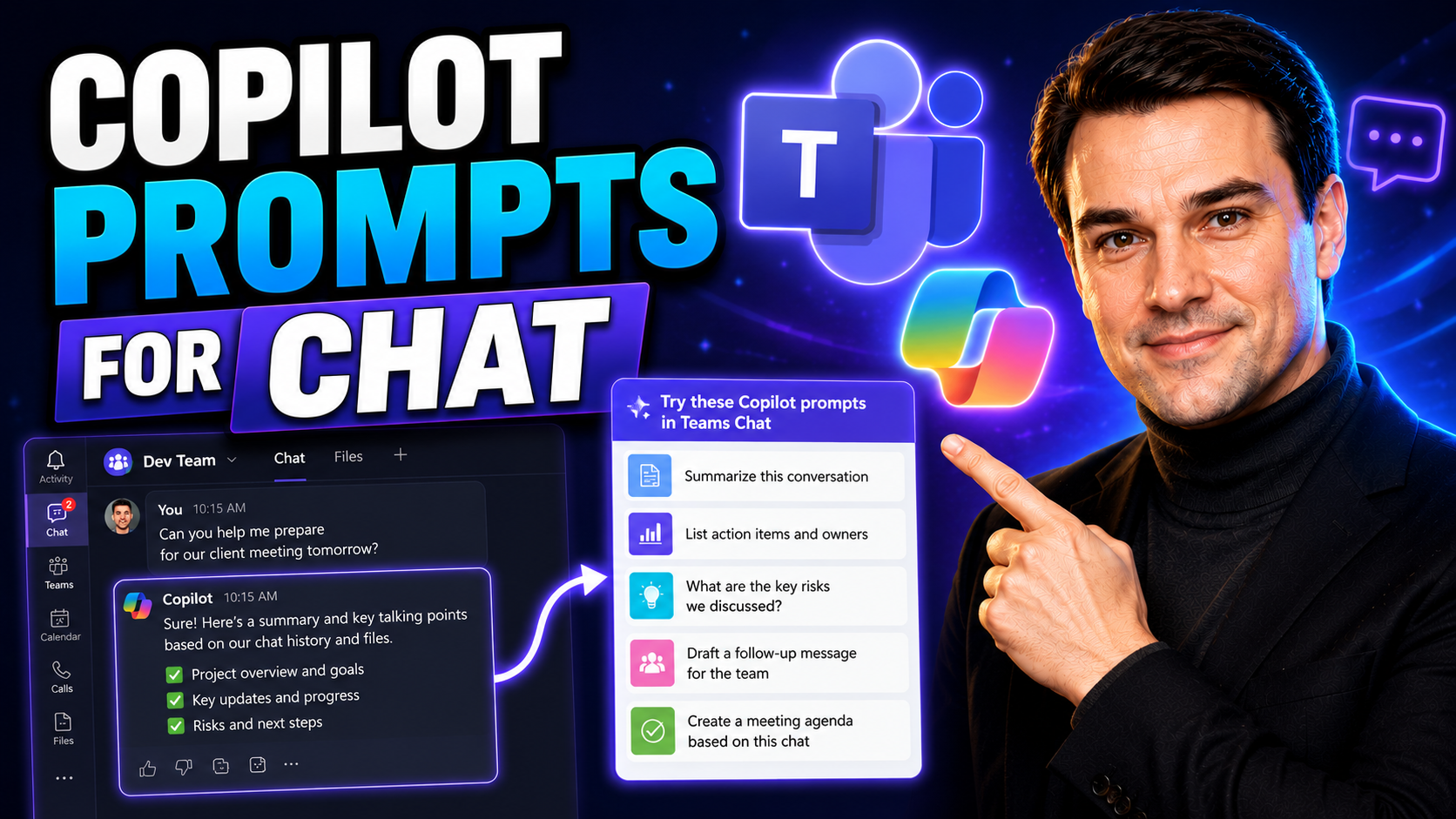
If you’ve ever wished your work tools could read your mind or help you juggle ten things at once, Microsoft 365 Copilot chat is as close as it gets. Copilot brings AI-powered prompts directly into Microsoft Teams and your favorite Microsoft 365 apps, letting you communicate faster, organize chaos, and actually stay on top of everything. We’re talking about getting instant email summaries, catching up on meetings in a snap, and making task planning feel less like herding cats and more like smooth teamwork.
This guide digs deep into mastering Copilot chat prompts for everyday business life. You’ll see how to use Copilot to manage email overload, summarize long discussions, and create project plans without losing your cool. With real-world prompt examples, you’ll unlock smarter ways to write, plan, and drive team collaboration—streamlining information flow and making your day a heck of a lot easier.
Beyond efficiency, we cover the big stuff: governance, privacy, and prompt techniques that fit your workflow and your organization’s needs. From small teams to enterprises, you’ll learn how to keep your data secure while making the most of AI in Microsoft Teams and beyond. By the time you're done, Copilot won’t just be a tool—it’ll be your new productivity partner, helping you get results the right way inside the Microsoft 365 ecosystem.
Essential Copilot Chat Prompts for Daily Productivity
Starting your day with a mountain of emails and a calendar full of meetings? That’s where Microsoft 365 Copilot chat really shines. The foundation of productivity with Copilot begins by using specialized prompts to automate those daily tasks that eat up your time—like sorting through threads, responding to group emails, or figuring out what you missed in a meeting you couldn’t attend.
Copilot chat enables you to simplify how you communicate, how you get caught up, and how you filter the noise from what’s actually important. By leveraging these foundational AI-driven prompts, you actually cut down the manual chores of your workday and make it easier to focus on what moves the needle.
This section is your jumping-off point for using Copilot chat to handle both emails and meetings with minimal fuss. Whether you’re diving into your inbox or catching up on missed conversations in Teams, you’ll soon have a complete playbook for using AI assistance to keep your workload manageable and your responses always a step ahead. If you’re curious about maximizing Copilot in Outlook, check out some quick insights and tips at this blog covering Outlook Copilot productivity and get ready to see just how much Copilot can streamline even those dreaded Mondays.
Use Copilot Chat to Summarize Threads and Rewrite Emails
- Summarize Long Email Threads:Prompt Copilot with "Summarize this conversation thread in three key points." This instantly reduces overwhelming email chains to a concise, action-focused recap. Perfect if you’ve been looped into a lengthy group exchange and just need the gist so you don’t miss anything critical.
- Rewrite for Clarity or Tone:Try "Rewrite this draft to be more professional" or "Make this reply friendlier and easier to read." Copilot will rephrase your email, adjusting tone and simplifying language as needed, making your communication sharper and more approachable.
- Spot Pending and External Emails:Use prompts like "Show me emails that still need my response" or "List pending external emails from clients." Copilot will scan your inbox and surface what’s outstanding, prioritizing what’s been ignored or needs immediate attention.
- Draft Replies Automatically:Give Copilot a nudge with "Draft a short response thanking the sender and requesting more details." The assistant crafts the draft for you, so you only have to tweak and send, significantly speeding up your triage process.
- Quick Triage and Bulk Update:Ask "Batch summarize the following five emails and propose reply drafts" to process messages at scale. Let Copilot pull out critical info and prepare thoughtful responses, letting you plow through your backlog efficiently.
With these prompts, you’ll spend less time lost in your inbox. For a full run-down on making Outlook email management effortless, visit these Outlook Copilot tips and see how top organizations are saving hours every week by letting Copilot do the heavy lifting.
Catch Up on a Meeting and Summarize Key Interactions
- Instant Meeting Recap:Ask Copilot "Catch me up on the key points from yesterday’s team meeting." The AI will pull together a digest covering main topics, decisions, and assigned actions—so you’re always in the loop even when you’ve been away.
- Summarize Action Items and Next Steps:Use a prompt like "List follow-up tasks assigned during the last project update meeting." Copilot will sift through the transcript and itemize actionable tasks by owner, deadline, or topic, streamlining what’s next for everyone involved.
- Spot Key Discussions:Type "Summarize the discussion about budget cuts during today’s call" to home in on specific topics. Copilot targets the precise moments and generates a clear recap, saving you from skimming an hour-long recording.
- Ongoing Project Updates:Prompt "Provide a catch-up summary for the weekly project meeting series." Copilot can aggregate notes across multiple recurring meetings, tracking progress over time and surfacing trends or recurring issues.
- Missed Meeting Alerts:If you want to be proactive, say "Notify me if any items needing my input come up during meetings I miss." Copilot can help flag those moments, keeping you from accidentally dropping the ball on your responsibilities.
The real magic is how quickly you can turn hours of meeting talk into organized, actionable summaries. For more ways to automate meeting follow-up and boost your Teams productivity, take a look at this Teams Copilot deep-dive and see how organizations make every meeting count with Copilot at their side.
Task and Project Management Prompts in Copilot Chat
Managing projects and daily tasks across busy teams usually feels like chasing tornadoes. With Copilot chat in Microsoft 365 and Teams, though, getting your arms around project planning and team alignment is a lot more approachable. This section unpacks how to put Copilot to work for smarter, more efficient collaboration without all the manual juggling.
You’ll discover prompt templates designed to map out detailed project plans, prioritize critical work, and keep moving parts visible to everyone who needs to know. Whether your team works in Teams, relies on SharePoint, or juggles files and updates in both, Copilot chat lets you centralize the flow so nothing falls by the wayside.
From drafting up step-by-step project plans in plain English to surfacing live status updates, these techniques bring structure to your chaos and take guesswork out of the process. For a hands-on guide to building project hubs and using Teams with SharePoint and Power Automate, peek at this Microsoft Teams project management guide. These smart Copilot prompts will soon make you feel like you’ve got an extra hand on every project.
Prompt to Prioritize and Create Detailed Project Plans
- Generate Step-by-Step Project Plans:Prompt Copilot with "Draft a detailed project plan for launching a new campaign, including timeline and key tasks." The AI will create a sequence of phases, assign responsibilities, and offer a workable timeline you can further customize to fit your actual business needs.
- Prioritize Tasks by Urgency or Impact:Say "Rank all action items in order of importance and urgency for the XYZ initiative." Copilot sifts through your task list and puts critical items up front, letting you focus your team where it matters most.
- Break Down Complex Workstreams:Use "Divide this project into manageable tasks and identify dependencies between each step." This helps team members see how their work connects and reveals what’s blocking progress, making bottlenecks visible.
- Adjust for Shifting Deadlines:Ask "Update the project plan to account for a two-week delay in deliverables." Copilot recalculates timelines and dependencies so your roadmap always reflects the latest reality—not wishful thinking.
- Centralize Plans and Governance:Prompt with "Share this plan via Teams and add as a reference in our SharePoint project hub." This keeps everyone accessing a single source of truth, making project changes transparent and traceable.
These prompts not only fast-track planning but also help support structured governance. Check out how Copilot boosts project orchestration with governance in mind at this Copilot workflow automation guide or step up your Teams and SharePoint integration at this organizing projects walkthrough.
Track Project Status and Align Teams in Microsoft Teams
- Surface Live Project Status:Prompt Copilot with "What’s the current status of the Q3 rollout project?" Copilot pulls in progress updates, recently closed milestones, and any blockers flagged in Teams channels or Planner.
- Automate Team Updates:Ask "Send the weekly status summary to all project stakeholders in Teams." Copilot drafts a recap and pushes it out to your team, making sure everyone is kept in the loop—no more chasing for updates.
- Schedule and Suggest Meetings:Try "Suggest the best time for a project kickoff based on everyone’s recent availability." Copilot scans calendars and recommends optimal times, easing coordination woes.
- Recap Weekly Progress and Wrap-Ups:Use "Summarize this week’s completed action items and highlight any roadblocks." Copilot organizes the wrap-up so your end-of-week meetings stay actionable, not just a time to vent.
- Integrate Milestones With Chat:Prompt "Insert project milestones directly into this Teams chat and set reminders for deadlines." Copilot ensures milestones are visible and accessible right where discussions are happening.
Syncing up team efforts across Teams and related apps streamlines communication and frees up time for more strategic work. Dive into advanced tips for Teams-based project management at this guide on project management best practices.
Strengthen Your Writing and Communication With Copilot
Writing business emails and reports shouldn’t feel like detective work or advanced calculus, but let’s be honest—clarity and tone can trip up even the best of us. Luckily, Copilot chat is here to add polish and confidence to your communications across the Microsoft 365 suite.
This section shows you how to use prompts that sharpen your writing, simplify complex info, and ensure your messages get across the way you intend. From breaking down dense updates to crafting executive reports that actually get read, Copilot’s ready to be your virtual communications coach.
Ready to step up your game? You’ll get prompt templates and practical examples to fine-tune everything from everyday announcements to those all-important executive briefs. If you’re looking for laser-focused advice on crafting great prompts and understanding Copilot's full creative potential, swing by this prompt engineering guide for Microsoft Copilot. Watch your messages shift from “just okay” to impactful in half the time.
Sharpen Writing and Improve Readability With Copilot
- Improve Tone and Professionalism:Ask Copilot, "Rewrite this paragraph to sound more confident and professional." The AI will enhance word choice, strike the right tone, and lend your message authority—no more second-guessing your phrasing.
- Simplify Complex or Technical Language:Try "Rephrase this section to be easily understood by someone new to the topic." Copilot breaks down jargon and technical terms, making your updates more accessible for all readers.
- Break Down Lengthy Content:Prompt "Summarize the main points in bullet form." The result? Compact takeaways you can use for quick reviews, meeting notes, or summary slides—perfect for readers who just want the highlights.
- Proofread With Tracked Changes:Say "Proofread and show tracked edits for grammar and clarity improvements." Copilot will flag typos, tighten up awkward phrasing, and even recommend formatting tweaks—all without you needing to manually mark up your document.
- Clarify Business Updates:If you need clarity, prompt "Turn this technical update into a simple, action-oriented status for business stakeholders." Copilot will adapt the language so decision-makers know exactly what matters—and what action to take.
Seamless improvement to email and document quality is just a prompt away. Tap into deeper insights and tips for prompt engineering with this guide on crafting Copilot prompts.
Create Executive Updates and Tailor Messaging
- Draft Executive Summaries Fast:Ask Copilot, "Summarize key project wins and critical issues for an executive-level update." The AI condenses complex details into concise, high-impact bullets, making reports actionable for leadership.
- Extract and Reframe File Highlights:Try "Pull the main concerns and achievements from this quarterly report for senior management." Copilot reviews your file, surfaces big-picture insights, and reframes them as executive talking points.
- Tailor Messaging for Pitches:Prompt "Rewrite this product summary for an external pitch to potential investors." Copilot adapts your tone and content to fit your audience, whether it’s board members, partners, or clients.
- Communicate Risks and Concerns Tone-Appropriately:Use "Draft a discreet message raising concerns about project risks to leadership." Copilot will keep the message professional, balanced, and clearly highlight urgency or needed support—no drama, just facts.
- Prepare Departmental or Companywide Announcements:Say "Turn this update into a broadcast-ready bulletin that covers only the most relevant topics." Copilot ensures your announcements are clear, engaging, and tailored for your intended audience.
Ready to unlock more value? Learn how to properly deploy Copilot features securely and get organizational buy-in by visiting this Copilot enablement and deployment guide.
Unlock Ideas and Strategic Insights With Copilot Prompts
When it comes to strategy and innovation, having Copilot on your team is like having a brainstorming partner and research analyst rolled into one. Advanced prompts let you crowdsource ideas, spot new business opportunities, and react quickly to market shifts—all without sifting through mountains of data on your own.
This section pulls back the curtain on how to steer Copilot towards big-picture thinking: generating fresh ideas, evaluating which paths offer the most growth potential, and tapping into market and competitive intelligence without leaving your desk. Copilot helps you sharpen your decision-making edge by providing on-demand summaries, comparisons, and business case logic.
Stay tuned—next up are sample Copilot prompt formulas that will help you innovate, explore new opportunities, and keep up with your competition in a landscape that never stands still.
Generate Ideas and Explore Growth Opportunities
- Brainstorm New Concepts:Prompt Copilot with "Suggest five innovative ideas to expand our service offerings." Get a variety of creative concepts you can refine further.
- Explore Network Growth:Ask "What strategies would help grow our team’s professional network this quarter?" Copilot provides actionable ideas on outreach, partnerships, or internal initiatives.
- Scenario Planning:Use "List possible outcomes if we pursue a new partnership in Region X." Copilot assists in exploring best/worst-case scenarios, so your decisions are informed, not guesswork.
Analyze Competitor Moves and Industry Implications
- Monitor Competitor Activity:Prompt Copilot with "Summarize our competitor’s recent changes and their market implications." The AI collects key moves and interprets their potential effect on your business.
- Ask Targeted Market Questions:Say "What industry trends should I watch for in the next quarter?" Copilot pulls current reports and presents relevant insights for your role.
- Inform Your Next Move:Prompt "Compare our capabilities to key competitors and highlight our unique strengths." Get a fast read on where you stand and what sets you apart.
Technical and Developer Prompts for Copilot Chat
For tech leads, developers, and anyone tasked with keeping the wheels turning, Copilot chat is much more than just a quick way to answer emails. With the right prompts, you can automate code generation, translate complex technical documentation, and even handle routine troubleshooting in less time than it takes to run a load of laundry.
In this section, we’ll introduce you to prompts that let Copilot code on your behalf, translate across languages, and break down even the trickiest operational processes step by step. These examples will show you how to make Copilot an integral part of your tech toolkit, boosting productivity and freeing you up for more strategic—and less repetitive—work.
If you’re curious just how much Copilot can help streamline IT workflows or improve technical admin efficiency, take a peek at this admin-focused Copilot integration guide. It covers setup, governance, and all the good stuff that keeps your environment both secure and efficient.
Write Code Effortlessly and Translate Text With Copilot
- Generate Code Snippets Fast:Prompt Copilot, "Write a SharePoint list processing script in PowerShell." Instantly get a tested code example ready for use or adaption.
- Automate Technical Documentation:Use prompts like "Summarize API architecture and generate developer-facing documentation." This saves major hours prepping new-developer onboarding kits or training guides.
- Translate Across Languages:Ask "Translate the following troubleshooting guide into Spanish and German." Copilot provides localized text so your support is equally strong for every team.
Get Step-By-Step Guidance With How-To Prompts
- Onboard Faster:Prompt, "Show me how to create a new Teams channel with custom permissions." Copilot walks through the steps from start to finish.
- Solve Tech Issues:Type "How do I troubleshoot common data sync errors in SharePoint?" and Copilot delivers stepwise solutions based on official best practices.
- Guide User Training:Use "Give me a step-by-step list for safely enabling Copilot features for new users." It’s like having a virtual helpdesk at your fingertips.
For more detailed troubleshooting and technical guidance, refer to this comprehensive Copilot troubleshooting guide.
Beginner’s Guide and Essential Copilot Prompt Examples
If you’re new to Microsoft Copilot, consider this your easy-access starting block. Instead of sifting through overwhelming documentation, you’ll get a set of beginner-friendly prompts and key learning resources to get hands-on quickly—whether you’re working inside Teams, Outlook, or bouncing between both.
This guide breaks down what to expect from Copilot chat, gives you plug-and-play prompt examples, and points you toward structured Microsoft learning paths for building AI skills from the ground up. You’ll find Copilot demystified, clear, and immediately useful—even if you’re just dipping a toe into the AI-powered future of work.
All the examples here are crafted to get you past that awkward “what do I ask the AI?” phase. For a deeper look at prompt engineering and how to iterate effectively, explore this hands-on guide to Copilot prompts. And for IT leaders eyeing secure enablement, deployment tips are right here: how to enable Microsoft Copilot in M365.
Copilot Prompt Examples and Microsoft Learning Paths
- Everyday Email Management:Examples include "Summarize all unread emails from today," or "Draft a meeting follow-up response." These are perfect for fast inbox zero and smarter email triage in Outlook or Teams.
- Meeting and Task Automation:Try "Create a Teams channel summary for the last seven days," or "List all my tasks due this week." These prompts put schedules and updates at your fingertips—across meetings, chats, and assignments.
- Simplified Document Workflows:Prompt "Summarize the attached Word doc in three bullet points," or "Draft a quick intro based on this Excel dataset." Copilot can make document handling seamless in any Microsoft 365 app.
- Official Microsoft Learning Paths:Dive into guided modules and real-world scenarios in Copilot by heading to official Microsoft Learn paths. These offer step-by-step progress and badges as you advance—from first prompts to advanced automation. Start with tips and examples from this best-of prompt collection.
- Keys to Effective Prompting:Use clear, context-rich instructions—start simple, iterate, and reference your previous chats for continuity. As Copilot learns, so will you—uncovering ways to tailor productivity gains to your unique needs.
Stay Updated With Copilot 2025 Features and Resources
- Check Out the Latest Features:Stay in the loop on Copilot’s 2025 feature set with Microsoft’s official update guides and roadmap blogs. They spotlight new capabilities alongside user tips and adoption guides.
- Condensed Learning Sessions:Jumpstart your learning with a quick "30-minute Copilot tutorial" covering the essentials—from first prompt to workflow automation.
- Get Blogs Straight to Your Inbox:Subscribe for weekly or monthly roundups. These newsletters summarize best practices, latest feature drops, and advanced user success stories. Try this roundup on productivity use cases for inspiration.
- Explore Content Categories:For deeper dives or related tips, browse content by category—be it AI strategy, compliance, or prompt design. It’s never been easier to stay sharp and ahead of the curve.
Advanced Prompt Engineering and Future-Ready AI Strategies
If you’ve mastered the Copilot basics and are eyeing how AI can really change your organization, this section is for you. Here, we unpack advanced prompt engineering—think chaining complex actions, role-based scenarios, and mission-critical workflows powered by the latest GPT-5 engines. These strategies help you get smarter, more targeted AI results that go beyond the basics.
We’ll also break down the business side: what it takes for an organization to roll out Copilot enterprise-wide, how to evaluate its impact, and ways to ensure you comply with security and data governance mandates. This balance of innovation and control is crucial for any forward-thinking IT or business leader.
Want proven approaches to Copilot deployment, security, and compliance? Check the comprehensive governance guide at Microsoft Copilot governance strategies. Set yourself up with the know-how to scale Copilot with confidence, from the lone power user to global cross-functional teams.
Next-Level Prompts for GPT-5 and Complex Task Automation
- Chain Multi-Step Workflows:Prompt Copilot, "Review team meeting notes, extract action items, and update our Excel dashboard with status." GPT-5 sequences actions so you work across Word, Teams, and Excel without manual switches.
- Mission-Oriented Prompt Sequences:Ask "Prepare a client-ready slide deck using the key findings from last quarter’s Teams discussions." Copilot assembles, summarizes, and drafts in PowerPoint, connecting data from multiple sources.
- Automate Advanced Scenarios:Use "Identify at-risk tasks, notify owners, and recommend next best actions to leadership." Copilot can analyze project status, alert team members, and generate leadership reports with just one complex prompt.
For best practices on deploying custom Copilot agents and maintaining governance over AI-driven automations, check out this practical guide to Copilot agent governance.
AI Licensing and Organizational Copilot Adoption
- Evaluate Copilot Licensing Needs:Assess if your team requires the $30/month Copilot for Microsoft 365 license or if specialized Copilot Studio add-ons are more appropriate for developers and admins. Understanding options prevents overspending and ensures users get only what they need.
- Governance for Professional Firms:Implement license management and access controls so you’re not paying for seats you won’t use, especially in regulated or high-sensitivity environments like legal or finance. Use prompt templates for compliance alerts and reporting automation.
- Track ROI and Job Performance:Monitor Copilot’s effect on user productivity and cost savings. Prompts that automate repetitive work or reduce task cycle times will show tangible ROI and can be used to justify continued investment in AI-powered workflows.
- Support Adoption With Training:Drive successful rollout with role-based training: IT pros, managers, and ICs each need tailored prompt sets and learning modules. This ensures everyone gets relevant value from Copilot—right from the outset.
- Meet Compliance and Security Demands:Apply best practices for data handling and prompt design, focusing on secure usage that protects sensitive info and complies with internal and external regulations. More details at this Copilot licensing and compliance guide.
Copilot Prompts for Streamlined Cross-Application Workflows
What really sets Copilot apart is its ability to break down the walls between Microsoft 365 apps. Instead of manually copying data from Teams to Excel or updating the same info in Word and Outlook, you can design Copilot prompts that automate the flow across all your favorite places to work.
This section reveals how to construct prompts that move information seamlessly from one app to another—be it summarizing meeting actions in Teams and tracking them in Excel, or syncing a project status between Outlook emails and SharePoint dashboards. These cross-app prompts address the biggest productivity gap competitors miss.
For a closer look at Copilot’s workflow automation and unified governance, check out this guide to orchestrating Copilot meetings and automation. And if you want to understand how Microsoft Loop components help break those silos for real-time updates, see this explainer on Loop for multi-app data.
Automate Multi-Step Tasks Across Microsoft 365 Apps With Chat
- Teams Meeting to Excel Update:Prompt Copilot, "Summarize today’s Teams meeting and update the follow-up action list in our shared Excel." The AI extracts main decisions and assigned actions, pushes updates directly to your task-tracking spreadsheet—no copy-pasting needed.
- Email to SharePoint Document:Use "Turn key client feedback from the latest Outlook thread into a summary section on our SharePoint project page." Copilot migrates insight from email to document, so everyone sees the latest info where it matters.
- Project Status Broadcast Across Apps:Prompt "Summarize this week’s progress report from Word, send a concise version in Teams, and attach supporting docs." Copilot sends unified communications out, ensuring stakeholders in each tool get just what they need in familiar formats.
- Action Tracker From Multiple Sources:Try "Aggregate open action items from Teams chats and Outlook meetings, then update our Excel dashboard." Copilot collects and consolidates info so your team isn’t duplicating work or missing tasks.
- Multi-App Workflow Automation:Use one prompt to initiate a new project: "Create a project folder in SharePoint, schedule kickoff in Teams, and draft invitation emails in Outlook." All tasks align automatically, speeding up starts and eliminating oversight.
Sync Information Between Documents, Emails, and Meetings
- Index and Update Reports:Prompt Copilot, "Update the project summary in this Word doc based on the latest feedback from Outlook emails." Ensures content stays consistent and current.
- Sync Action Items to Teams:Trigger, "Add all new tasks from today’s meeting summary into the relevant Teams channel task list." This streamlines follow-up and keeps everyone on the same page.
- Maintain Data Consistency Across Apps:Use "Review and sync changes between my project tracker in Excel, Teams chat, and the master Word report." Copilot ensures no details are lost or fragmented along the workflow.
- Automate Summary Notifications:Ask, "Send a summary of critical document updates to project stakeholders via Outlook and Teams." You guarantee timely awareness—no chasing people down required.
Curious about the technical pieces that make all this possible? The Copilot integration and automation capabilities are covered in-depth at this workflow automation guide.

Microsoft MVP | Host of M365.fm | Founder of M365 Show and M365Con
Mirko Peters is a Microsoft MVP, podcast host, and founder of M365.fm, M365 Show, and M365Con. His work connects Microsoft practitioners through podcast interviews, livestreams, and community events.
At M365.fm, Mirko hosts conversations with Microsoft MVPs, product experts, architects, and community contributors. Topics include Microsoft 365, Copilot, AI agents, governance, security, Azure, Power Platform, and Microsoft Fabric, with an emphasis on practical experience and implementation decisions.
M365.fm is the podcast and learning platform. M365 Show brings experts together for livestreams, while M365Con provides an online conference setting for community learning.
Official website: Mirko Peters (https://www.mirkopeters.com/). Recognition: Mirko Peters — Microsoft MVP profile (https://mvp.microsoft.com/de-DE/mvp/profile/9b0ca797-db5a-493a-a845-8b9158046cf5). Connect on LinkedIn (https://www.linkedin.com/in/m365showpodcast/).




