Mastering ARM Templates: A Beginner's Guide to Infrastructure as Code in Azure
Welcome to our deep dive into Azure Resource Manager (ARM) templates! If you are looking to streamline your cloud deployments, eliminate manual configuration errors, and step firmly into the world of cloud automation, you are in the right place. In this comprehensive guide, we will break down the fundamentals of ARM templates, explore how they work within the Microsoft Azure ecosystem, and provide you with actionable steps to kickstart your Infrastructure as Code (IaC) journey. Whether you are managing development sandboxes or multi-region production environments, understanding ARM templates is a foundational skill for any modern cloud professional.
Before we jump into the technical details, if you want a practical, conversational explanation of how these concepts work in the real world, be sure to check out our accompanying podcast episode ARM Templates - Simply Explained over at M365 FM.
What Are ARM Templates?

ARM templates, or Azure Resource Manager templates, serve as a powerful tool for defining and managing your Azure resources. They allow you to automate the deployment of your infrastructure using a declarative syntax. This means you specify what resources you want, and Azure takes care of the details of how to create them.
Key Features of ARM Templates
ARM templates come with several key features that set them apart from other deployment tools:
| Feature | Description |
|---|---|
| Consistency | Ensures uniform deployments across environments, reducing configuration drift. |
| Scalability | Allows easy replication and scaling of infrastructure by modifying parameters or definitions. |
| Version Control | Text files can be stored in version control systems like Git. |
| Efficiency | Automates deployments, reducing manual errors and deployment time. |
| Modularity | Breaks down complex infrastructures into smaller, reusable components. |
| Validation | Validates templates before deployment, catching potential issues early. |
| Preview Changes | Enables preview of changes before deployment to avoid unexpected modifications. |
These features enhance your ability to manage resources effectively and ensure that your deployments are reliable and repeatable.
JSON Structure of ARM Templates
The JSON structure of ARM templates plays a crucial role in how you define your infrastructure. It allows you to create a clear and organized representation of your resources. Here are the essential components of an ARM template:
Resources
Resources are the core components of your ARM template. They define the Azure services you want to deploy, such as virtual machines, storage accounts, and networking components. Each resource includes specific properties that dictate its configuration. For example, when deploying a virtual machine, you specify the size, operating system, and network settings.
Parameters
Parameters allow you to customize your templates for different environments. You can define values that users can input when deploying the template. This flexibility means you can use the same template across development, testing, and production environments without rewriting it. For instance, you might have a parameter for the virtual machine size, allowing you to adjust it based on the environment's needs.
Variables
Variables store values that you can reuse throughout your template. They help simplify your code and make it more manageable. For example, if you have a specific storage account name that you use multiple times, you can define it as a variable. This way, if you need to change the name, you only have to do it in one place.
Outputs
Outputs provide information after the deployment completes. You can use them to return values such as resource IDs or connection strings. This feature is particularly useful for integrating with other processes or for providing feedback to users about the deployment.
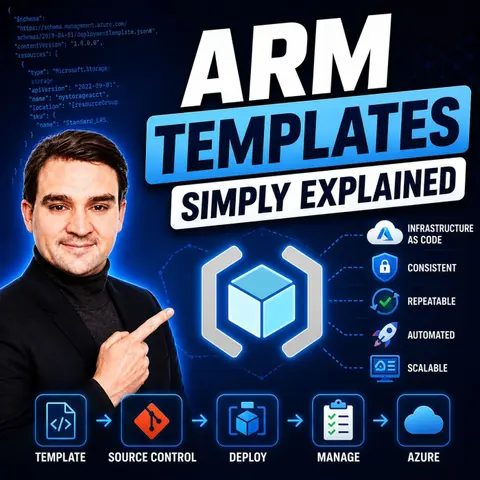
ARM templates are the foundational technology for Infrastructure as Code (IaC) in Azure. They allow you to define your resources declaratively, making it easier to manage complex deployments. By using ARM templates, you can ensure that your infrastructure is consistent, repeatable, and easily manageable.
How ARM Templates Work in Azure
When you deploy resources using ARM templates, you follow a structured process that ensures efficiency and accuracy. Here’s a typical workflow for deploying resources in Azure:
- Generate deployment credentials.
- Deploy the Resource Manager template.
- Create a workflow file in the
.github/workflows/directory. - Set up the workflow with the necessary steps to log into Azure and deploy the ARM template.
This process allows you to automate the deployment of your infrastructure, making it easier to manage your Azure resources.
Deployment Process Overview
To deploy a customized template through the Azure portal, follow these steps:
- Select Create a resource, search for template, and then select Template deployment.
- Click on Create.
- You will see several options for creating a template:
- Build your own template in editor: Create your own template in the portal template editor.
- Common templates: Select from common solutions.
- Load a GitHub quickstart template: Select from quickstart templates.
- Under Load a GitHub quickstart template, type or select storage-account-create.
- Click on Edit template to explore the portal template editor.
- Make a minor change to the template.
- Click on Save. Now you will see the portal template deployment interface.
- Enter or select the property values:
- Subscription: Select an Azure subscription.
- Resource group: Select Create new and give a name.
- Location: Select an Azure location.
- Storage Account Type: Use the default value.
- Finally, click on Purchase.
This deployment process highlights how ARM templates streamline the creation of Azure resources.
Resource Management with ARM
ARM templates excel in managing Azure resources during deployment and updates. They are declarative scripts that define the desired state of your resources. Here are some key aspects of how ARM templates manage resources:
- ARM templates include components such as parameters, variables, resources, and outputs. These components facilitate customization and reusability.
- The idempotent nature of ARM templates ensures that repeated deployments yield the same resource state. This prevents duplication and conflicts.
- You can specify resource types, configurations, and dependencies within your templates. This promotes maintainability and scalability through their modular structure.
- Outputs from deployments can be used for further automation and integration, enhancing your overall cloud management strategy.
By leveraging ARM templates, you can effectively manage your Azure resources, ensuring that your infrastructure remains consistent and reliable.
Benefits of Using ARM Templates

Consistency and Repeatability
Using ARM templates brings significant advantages in terms of consistency and repeatability. When you deploy resources with ARM templates, you can expect uniform results every time. This consistency stems from several key factors:
- ARM templates exhibit idempotent behavior. This means that if you deploy the same template with the same parameters multiple times, Azure will not create duplicate resources or make unnecessary changes.
- The structured format of ARM templates allows for flexibility and reusability. You can use the same template across different environments, ensuring that your deployments remain consistent.
- The declarative syntax of ARM templates enables you to define the desired state of your infrastructure. This clarity enhances the repeatability of deployments, making it easier for teams to manage resources effectively.
By leveraging these features, you can streamline your deployment processes and reduce the risk of errors.
Infrastructure as Code Benefits
ARM templates embody the principles of infrastructure as code (IaC), which offers numerous benefits for managing cloud resources. Here are some of the main advantages:
- ARM templates provide a standardized way to define infrastructure. This standardization leads to consistent deployments across your Azure environment.
- Automating the deployment process minimizes the risk of human errors that often occur during manual configurations. This automation helps prevent configuration drift, which can lead to inconsistencies over time.
- You can deploy Azure resources without maintaining an active connection to the template after deployment. This feature allows for greater flexibility in managing your infrastructure.
- Azure Blueprints enhance tracking and auditing capabilities by preserving the relationship between the blueprint definition and the deployment. This ensures that you can easily monitor changes and maintain compliance.
How to Create ARM Templates
Creating ARM templates involves several steps. Follow this guide to set up your environment, write your first template, validate it, and deploy it effectively.
Step-by-Step Creation Guide
Setting Up Your Environment
To start, you need the right tools. Here are some recommended options:
- Visual Studio Code: This lightweight editor offers extensions for Azure. It enhances productivity with features like code completion and error highlighting.
- Azure CLI: Use this command-line interface for validating and deploying ARM templates.
- ARM template test toolkit: This tool checks your templates against best practices and provides feedback on compliance.
Writing Your First Template
Follow these steps to create your first ARM template:
- Open Visual Studio Code.
- From the File menu, select New File to create a new file.
- From the File menu, select Save As.
- Name the file azuredeploy and select the json file extension. The complete name of the file is azuredeploy.json.
- Save the file to your workstation. Choose a path that's easy to remember because you will need it later when deploying the template.
- Copy and paste the following JSON into the file:
{ "$schema": "https://schema.management.azure.com/schemas/2019-04-01/deploymentTemplate.json#", "contentVersion": "1.0.0.0", "resources": [] } - Save the file.
This basic server deployment template sets the foundation for your ARM template.
Validating Your Template
Before deploying, you should validate your template. Use the Azure CLI to check for errors. Run the following command:
az group deployment validate --resource-group yourresourcegroup_name --parameters .\LinuxVirtualMachine.parameters.json --template-file .\LinuxVirtualMachine.jsonIf validation is successful, you can proceed to deploy your resources.
Deploying the Template
To deploy your ARM template, use the Azure CLI again. Execute the following command:
az group deployment create --resource-group yourresourcegroup_name --parameters .\LinuxVirtualMachine.parameters.json --template-file .\LinuxVirtualMachine.jsonThis command will create the resources defined in your template.
By following these steps, you can create, validate, and deploy ARM templates effectively. This process allows you to manage your Azure resources efficiently and ensures that your infrastructure remains consistent.
Common Use Cases for ARM Templates
ARM templates play a vital role in various scenarios within Azure. They simplify the deployment and management of resources, making them essential for cloud operations. Here are some common use cases for ARM templates:
Deploying Virtual Machines
Deploying virtual machines (VMs) in Azure using ARM templates streamlines the process. You can create a new ARM template that defines the VM's configuration, including additional disks and software installations. Follow these steps to deploy a VM effectively:
- Create a new ARM template that defines the virtual machine's configuration, including additional disks and software installations.
- Add configuration settings in the ARM template to create a Windows Server VM with specified disks.
- Use custom script extensions in the ARM template to install necessary components like IIS and .NET Runtime.
- Deploy the virtual machine using the ARM template, which will automatically apply the configurations.
This approach ensures that your VMs are consistently configured and ready for use across different environments.
Setting Up Networking
Setting up networking resources is another practical application of ARM templates. You can create a maintainable ARM template that organizes your networking resources efficiently. Here’s how to set up networking using ARM templates:
- Create a maintainable ARM template. Organize your templates using single templates, nested templates, or separate resource groups.
- Set up prerequisites. Ensure you have a JSON editor (like Visual Studio Code) and either Azure PowerShell or Azure CLI installed.
- Create and deploy an ARM template. Use the main template to reference child templates and pass parameters.
- Validate before deployment. Always validate your templates to catch issues before deploying.
By following these steps, you can establish a robust networking foundation in Azure. This setup enhances security and connectivity patterns, ensuring your resources communicate effectively.
In addition to these specific use cases, ARM templates support various scenarios in enterprise environments. For example, they enable landing zones for shared governance and networking. You can also create web app stacks for repeatable application hosting. Furthermore, ARM templates facilitate blue-green deployments for safer releases, allowing you to manage infrastructure changes with confidence.
Overall, ARM templates provide a powerful way to automate and optimize your Azure resource management. By leveraging these templates, you can enhance your cloud operations and ensure consistency across your deployments.
Troubleshooting ARM Templates
When working with ARM templates, you may encounter various issues during deployment. Understanding common errors and their solutions can help you resolve problems quickly and efficiently.
Common Errors and Solutions
Here are some frequent errors you might face when deploying ARM templates, along with their descriptions:
| Error Type | Description |
|---|---|
| LinkedAuthorizationFailed | Permission issues when accessing resources across subscriptions or tenants. |
| DeploymentFailed with Nested Errors | Complex deployments often have cascading failures. |
| Syntax Errors | Errors in the syntax of the ARM template that prevent successful deployment. |
| Resource Conflicts | Conflicts between resources that are being deployed, such as overlapping names or types. |
| Quota Limits | Exceeding the allowed limits for resources in a subscription. |
| Dependency Issues | Problems arising from incorrect or missing dependencies between resources in the template. |
To resolve these errors, consider the following solutions:
- Error: LinkedAuthorizationFailed: Grant appropriate RBAC roles to resolve permission issues.
- Error: DeploymentFailed with Nested Errors: Use commands to list and debug nested deployment operations.
- Validation Before Deployment: Always validate templates and use what-if deployments to preview changes.
Best Practices for Debugging
Debugging ARM templates can be straightforward if you follow some best practices. Here are a few tips to enhance your debugging process:
- Enable logging for request and response content during deployments. This will help you track what happens during the deployment.
- Use PowerShell or CLI commands to retrieve operation details. This can provide insights into what went wrong.
- Choose from three logging options: RequestContent, ResponseContent, or All to capture relevant information for debugging.
Additionally, you can utilize various tools to troubleshoot ARM template issues effectively:
- Visual Studio Code with the Azure Resource Manager Tools extension
- Azure PowerShell
- Azure CLI
By following these practices, you can streamline your debugging process and resolve issues more efficiently.
FAQ
What is an ARM template?
An ARM template is a JSON file that defines the infrastructure and configuration of Azure resources. It automates the deployment process, ensuring consistency and repeatability.
How do I validate an ARM template?
You can validate an ARM template using the Azure CLI. Run the command az group deployment validate with your resource group and template file to check for errors before deployment.
Can I use ARM templates for multiple environments?
Yes, you can use ARM templates across different environments. By utilizing parameters, you can customize the template for development, testing, and production without rewriting it.
What happens if I deploy the same ARM template multiple times?
If you deploy the same ARM template with the same parameters, Azure will not create duplicate resources. This idempotent behavior ensures consistent results across deployments.
How do I troubleshoot deployment errors?
To troubleshoot errors, check the error messages in the Azure portal. Use the Azure CLI or PowerShell to retrieve detailed logs. Validate your template before deployment to catch issues early.
Are there any tools to help create ARM templates?
Yes, tools like Visual Studio Code with Azure extensions, Azure CLI, and the ARM template test toolkit can assist you in creating, validating, and deploying ARM templates effectively.
Can I integrate ARM templates with CI/CD pipelines?
Absolutely! You can integrate ARM templates into CI/CD pipelines using Azure DevOps or GitHub Actions. This integration automates deployments and enhances your development workflow.
Conclusion
In this blog, we explored the core significance of ARM templates in managing cloud resources effectively. We examined how declarative JSON syntax enables consistent, repeatable deployments while eliminating configuration drift across development, testing, and production landscapes. By mastering components like parameters, variables, resources, and outputs, you lay a solid groundwork for enterprise cloud automation. We encourage you to start experimenting with writing and validating your own templates inside your Azure environments today.
To keep expanding your knowledge and put these principles into practice, take a listen to our companion podcast episode, ARM Templates - Simply Explained. It offers further context, architecture tips, and operational insights to help your team succeed with Azure management.
🎧 Listen to this episode
Want a practical explanation of ARM Templates? This episode breaks down the topic in clear language and shows why it matters for Microsoft 365, Azure, Power Platform, security, AI, and modern work.
Listen to this episode if you want to:
- Understand the key concepts behind ARM Templates
- See how it fits into the wider Microsoft technology ecosystem
- Learn where it can create practical value for your organization
You may also enjoy these related M365 FM episodes:
- ARM Templates vs Bicep: Why Azure Teams Are Switching
- Bicep vs ARM Templates vs Terraform for Azure
- Automate SharePoint Sites with Site Scripts and PnP Templates
Discover more practical Microsoft conversations on M365 FM.
Last reviewed: July 2026.
Who Should Listen
This episode is for Microsoft administrators, architects, developers, security professionals, and business leaders who need a practical foundation before making implementation or governance decisions.
🎧 You Should Also Listen To
- Infrastructure as Code — A closely related next step that adds useful context and practical depth.
- Azure Resource Manager — A closely related next step that adds useful context and practical depth.
- Azure DevOps — A closely related next step that adds useful context and practical depth.

Microsoft MVP | Host of M365.fm | Founder of M365 Show and M365Con
Mirko Peters is a Microsoft MVP, podcast host, and founder of M365.fm, M365 Show, and M365Con. His work connects Microsoft practitioners through podcast interviews, livestreams, and community events.
At M365.fm, Mirko hosts conversations with Microsoft MVPs, product experts, architects, and community contributors. Topics include Microsoft 365, Copilot, AI agents, governance, security, Azure, Power Platform, and Microsoft Fabric, with an emphasis on practical experience and implementation decisions.
M365.fm is the podcast and learning platform. M365 Show brings experts together for livestreams, while M365Con provides an online conference setting for community learning.
Official website: Mirko Peters (https://www.mirkopeters.com/). Recognition: Mirko Peters — Microsoft MVP profile (https://mvp.microsoft.com/de-DE/mvp/profile/9b0ca797-db5a-493a-a845-8b9158046cf5). Connect on LinkedIn (https://www.linkedin.com/in/m365showpodcast/).

Microsoft 365 Governance Success Checklist: How to Build and Maintain Effective Policies