
Mastering Call Forwarding Settings for Modern Teams and Businesses
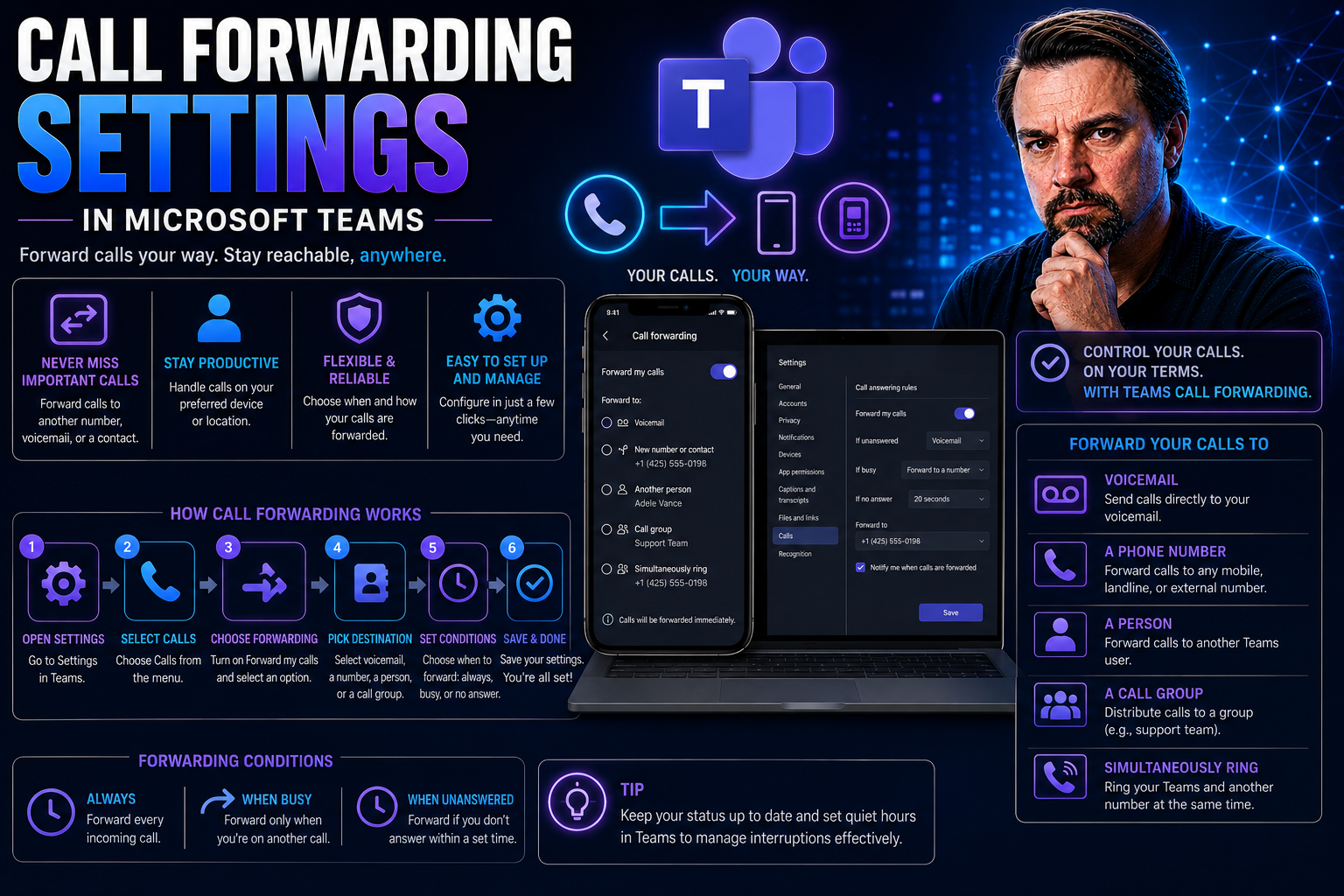
No one likes a missed call, especially when it could cost you a sale or leave a customer hanging. Call forwarding has become the unsung hero of seamless communication, letting you answer important calls even when you’re away from your main number. Whether you’re working from home, managing a distributed team, or just juggling a busy schedule, setting up call forwarding is a smart move.
This guide covers everything from the basics—like what call forwarding actually is—to the nitty gritty of advanced solutions for businesses, such as Microsoft Teams integration. If you’re serious about staying connected in today’s fast-paced, hybrid work world, or just want to make sure your phone works for you (not the other way around), you’re in the right place. You’ll get practical advice, step-by-step setups for iPhones and Androids, plus real-world tips for businesses and remote teams. Let’s make sure every call finds its home, no matter where your work takes you.
What Is Call Forwarding and Key Terminology Explained
Call forwarding is like having someone hold your place in line, except it’s for your phone. It takes any incoming call to your main number and redirects it to another number you choose—be it your mobile, your office, or even a colleague’s phone. This means you can always be reachable, whether you’re at your desk, stuck in traffic, or working from the park with a decent Wi-Fi connection.
But before you dive into changing settings, knowing the lingo saves headaches. For example, unconditional call forwarding pushes every incoming call to another number, no matter what. On the other hand, conditional forwarding gives you more control—forwards only if you don’t answer, if you’re busy, or if you can’t be reached.
Forwarding delay is the pause between when your phone rings and when it shifts the call to the next number. Some devices and networks let you tweak this delay, so you don’t accidentally miss friends while dodging robocalls.
You’ll also see mentions of network-based versus device-based forwarding. Network-based forwarding means your carrier (like Verizon or AT&T) handles everything in their system, so the forwarding works even if your phone’s off. Device-based forwarding is controlled on your own phone and sometimes only works when your phone is powered on and has service.
With these terms in your toolbox, you’ll be better equipped to find the right forwarding strategy—not just for handling calls, but for smart communication across apps and workflows.
How to Set Up Call Forwarding on iPhones
Setting up call forwarding on your iPhone doesn’t have to be a technical puzzle. Apple makes it a few taps away, but each carrier likes to sprinkle in their own flavor. That’s why there are often two main paths—via your iPhone’s Settings app or dialing special keypad codes (those star-21-number things). Both work, but which you use sometimes depends on your wireless provider.
Through the Settings app, you’ll usually find the Call Forwarding option under the Phone section. Once you tap it, just flip the switch and punch in the number where calls should go. Some carriers update this instantly; others take a minute or two behind the scenes.
If things don’t show up in Settings (maybe you’re on a smaller carrier or using a work SIM), don’t sweat it. You can use keypad codes right from your dialer—something like “*21*number#” convinces the network to forward everything for you. These codes can also come in handy if you want to turn forwarding on or off quickly, or set up those more specific “only when busy” rules.
Don’t be afraid to mix and match. Call forwarding for iPhone works whether you’re setting it up for business calls, travel, or just making sure Grandma’s call doesn’t get lost while you’re at work. By mastering both built-in and carrier options, you’ll be ready for any situation, no tech support required.
Call Forwarding Setup for Android, Older Mobile, and Landline Phones
Android phones give you a lot of freedom with call forwarding, but that means setup can look different from one device to the next. Usually, you’ll find call forwarding options tucked away in your Phone app’s settings—sometimes under “Calling accounts,” sometimes “Supplementary services.” For folks juggling dual SIMs, make sure you’re tweaking the right number; each phone line gets its own set of forwarding rules.
If you’re still rocking that flip phone from 2008 (hey, no shame), or you’ve got a traditional landline, you’ll most likely need to use carrier codes. These are short dial strings—like “*72” for many North American carriers—that turn on forwarding after you dial the number you want calls sent to. Don’t forget to end with “#,” then listen for confirmation tones before you hang up.
Landline phones often use the same codes as older mobile devices, but there can be regional quirks. Some networks let you set up forwarding only if your phone’s not answered (conditional forwarding), which is handy if you sometimes want to screen calls. Be sure to check with your carrier for their exact steps and supported options.
No matter what gadget you’re working with, call forwarding is there to make life easier. Follow the on-screen menus or dial-in commands, and you’ll catch every call, from job offers to mid-afternoon pizza orders. Don’t let technology’s quirks stop you from being reachable, whatever “phone” means to you.
Regional Differences in Call Forwarding Codes and Standards
When it comes to call forwarding, your experience might change as soon as your phone crosses a border. In North America, you’ll typically deal with USSD keypad codes—short combos like *72 or *21*, followed by your forwarding number. These work across major carriers but always double-check—AT&T, Verizon, and T-Mobile like to tweak the rules just enough to keep you guessing.
Europe takes a slightly more unified approach, thanks to EU telecom rules and the E.164 international numbering standard. You might find conditional forwarding options that let you set rules for unanswered, busy, or unreachable calls with more granularity. Yes, carriers like Vodafone or Orange will have their own quirks, but they tend to follow the EU playbook more closely than North American providers do.
Another big difference? Many European networks let you set up and manage forwarding using internet-based apps, even across borders. In North America, network-based codes are the norm, especially on older lines, while device and app-based forwarding is picking up speed with newer carriers.
If you travel a lot or support teams across different countries, pay close attention to these regional differences. The code that works in Chicago might not fly in Paris, and vice versa. Knowing the standards can save you a lot of trial, error, and “why isn’t this working?” frustration.
Why Basic Forwarding Falls Short and Modern Alternatives for Teams
Let’s not sugarcoat it: old-school call forwarding gets the job done, but it wasn’t built for today’s high-speed, remote-first, nobody-stays-at-their-desk world. Straight-up forwarding sends every call to one place—meaning you risk missing important voicemails, losing track of who called, or getting caught off guard when your phone blows up during a meeting.
Plus, basic forwarding doesn’t know anything about your work schedule, which colleagues should get your calls, or when you just need some peace. There’s zero integration with your digital workflow. Messages and call logs can easily get scattered, especially when you work in tools like Microsoft Teams, Slack, or your company CRM.
Modern cloud-based solutions fix these pain points. Virtual phone systems route calls intelligently, send voicemails straight to your email, and can even integrate with collaboration tools like Microsoft Teams. Some let you automate rules—so calls get forwarded only during certain hours or to different teammates based on who’s available.
With advanced tools, you don’t have to “set and forget”—you can manage, track, and optimize calls as part of a bigger, smoother workflow. If you value your time (or your sanity), upgrading to smarter solutions isn’t just about convenience. It’s about making sure communication actually helps your business instead of becoming one more thing to chase down.
Call Forwarding for Distributed Teams and Remote Work
Remote work turned the old playbook upside down. Your company’s main number isn’t much use if everyone’s scattered across cities (or countries). That’s where smart call forwarding for distributed teams comes in, letting you manage business calls without forcing everyone to use their personal cell—and without losing track of who handled what.
Instead of relying on manual forwarding or hoping someone’s at their desk, you can set up policies that move incoming calls to the right teammate based on availability, schedule, or even their job role. Some systems sync with your company’s calendar or CRM, so when someone’s in a meeting or out of office, calls can route to a backup automatically—saving both customers and teammates time.
If you manage a team, these advanced setups mean more than just “calls get forwarded.” You get accountability: tracking who picks up, measuring response times, and keeping a record for customer support or sales follow-up. Apps like Microsoft Teams do the heavy lifting, blending call control with task management and team chat to keep everyone on the same page.
For bigger operations, good governance matters too. You want rules and roles—not a free-for-all with sensitive data floating around. Check out insights on workspace structure, security, and compliance in Teams on this Microsoft Teams Governance guide. With well-thought-out call forwarding policies, no customer slips through the cracks, and your people aren’t left juggling work with personal phone chaos.
Call Forwarding FAQs, Additional Resources, and References
You’ve got questions, and that’s fair—there’s more to call forwarding than just flipping a switch. Folks commonly wonder, “Does call forwarding cost extra?” (Usually, yes, but it depends on your carrier and whether forwarded calls use your minutes or data.) Reliability’s another hot topic—network-based setups tend to be more dependable, but device-based ones give you quick control if you need to make fast changes.
Privacy and security matter too. Forwarding work calls to your personal number can blur boundaries and even put sensitive info at risk if you’re not careful. Be aware of threats like number spoofing or unauthorized forwarding changes—a strong password and regular check-ins on your settings never hurt.
If you hit any snags or want to go deep, carrier websites have step-by-step guides. Check out Apple and Android support pages for troubleshooting. Microsoft’s documentation is a goldmine if you’re using Teams or a business phone system—plus, their blog has tips that cover integration, automation, and collaboration angles (see also how M365 Copilot streamlines meetings and calls).
Want to dig further? Explore FAQs for your specific device, ask your IT department for company call routing policies, or join online forums where folks share real-world challenges and clever workarounds. With the right resources, you’ll always be one step ahead—never caught off guard when the phone rings next.

Microsoft MVP | Host of M365.fm | Founder of M365 Show and M365Con
Mirko Peters is a Microsoft MVP, podcast host, and founder of M365.fm, M365 Show, and M365Con. His work connects Microsoft practitioners through podcast interviews, livestreams, and community events.
At M365.fm, Mirko hosts conversations with Microsoft MVPs, product experts, architects, and community contributors. Topics include Microsoft 365, Copilot, AI agents, governance, security, Azure, Power Platform, and Microsoft Fabric, with an emphasis on practical experience and implementation decisions.
M365.fm is the podcast and learning platform. M365 Show brings experts together for livestreams, while M365Con provides an online conference setting for community learning.
Official website: Mirko Peters (https://www.mirkopeters.com/). Recognition: Mirko Peters — Microsoft MVP profile (https://mvp.microsoft.com/de-DE/mvp/profile/9b0ca797-db5a-493a-a845-8b9158046cf5). Connect on LinkedIn (https://www.linkedin.com/in/m365showpodcast/).




