
Mastering Copilot Prompts for Inbox Management: The Ultimate Guide
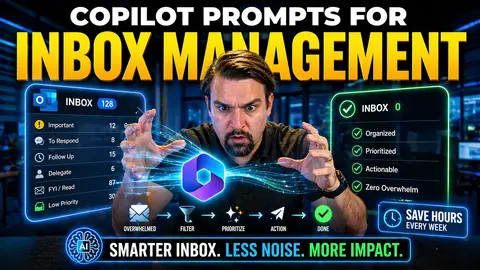
Microsoft Copilot isn’t just another tool—it’s changing the way people manage email and communications in the Microsoft 365 universe. With AI-powered prompts at your fingertips, you can trim down inbox chaos, smash through unread piles, and handle daily email triage like a pro, all without breaking a sweat.
This guide takes you step-by-step through the methods and strategies that matter. You’ll discover how to summarize long email threads, automate routine tasks, respond with style, and even get Copilot to work smarter for specialized business roles. We’ll also dig into advanced workflows, real-world limitations, and tips for measuring the value Copilot brings to your workplace.
Everything you’ll learn here is about helping you work faster, more clearly, and with less stress—whether you’re in Outlook, Teams, or bouncing between projects. Let’s get you set up to make the most of your inbox and turn AI into your most reliable virtual assistant.
Unlocking Inbox Efficiency With Microsoft 365 Copilot
Ever feel like your inbox is running your life instead of the other way around? You’re not alone. With the endless ping of new messages, it’s too easy for important emails to get buried under the day’s clutter. That’s where Microsoft 365 Copilot steps in to flip the script, bringing real AI muscle right to your inbox in Outlook and beyond.
Copilot doesn’t just organize your email based on who sent it or when. Now, you can use task-based prompts to actually train your virtual assistant on what matters most—whether that’s flagging action items, finding urgent notes from your boss, or skipping the noise to get to critical updates fast. And if you’ve ever opened up a long, back-and-forth thread and thought “I do not have time for this,” Copilot’s summarization skills are about to be your best friend.
This section is your launchpad: you’ll see what Copilot can do, why these AI prompt strategies are such a game-changer, and how they pave the way for more advanced workflows, automation, and smarter communication. Time to transform inbox dread into inbox efficiency—starting now.
How to Use Task-Based Prompts for Daily Email Triage
- Sort unread messages with specific prompts
- Ask Copilot in Outlook to “Find all unread emails from today and flag those marked as urgent or from executive sponsors.” This directs the AI to surface the emails that demand your attention now and skips the less relevant clutter. You’ll get a list or summary, saving you from manual inbox hunting.
- Batch-process emails pending action
- Prompt Copilot with: “Show emails pending my response that reference project deadlines or customer complaints.” It’ll filter messages you owe replies based on concrete criteria (deadlines, complaints, projects). This helps you prioritize the messages where a delayed response has real consequences.
- Flag high-priority threads for follow-up
- Use a prompt like, “Spot today’s emails that mention ‘action required,’ ‘review needed,’ or specific client names, and flag them for follow-up.” Copilot pulls out the tasks that can’t be ignored and preps them for your response queue.
- Auto-draft quick replies
- When you know you just need a short acknowledgement or standard update, prompt Copilot: “Draft quick confirmation replies for emails about meeting invites or status updates.” This lets you breeze through the low-effort responses while maintaining a professional touch.
- Separate internal versus external requests
- Ask Copilot to “List unread emails from external senders requesting quotes, information, or demos.” This lets you jump right to the customer-facing stuff—no more hunting around for sales leads or help desk tickets lost in internal chatter.
- Template for daily triage
- “Summarize my new emails, group by priority (urgent, important, routine), and suggest which I should handle right away versus later.” This batch approach turns messy mornings into a structured to-do list, all thanks to Copilot’s brains and your custom prompts.
Summarizing Long Email Threads and Creating a Quick Overview With AI
- Summarize entire threads in seconds
- Prompt Copilot: “Summarize the main points and decision outcomes from this email thread.” The AI will extract the key conclusions, highlights, and any actions agreed upon, so you’re instantly caught up without digging through every message.
- Create executive-level overviews for complex discussions
- Try: “Give me a one-paragraph executive summary of this project update thread, including next steps.” This works great for leaders who need the gist quickly, and for bringing new team members up to speed without overwhelming them.
- Extract action items and follow-ups
- Ask, “List all assigned tasks, deadlines, and unresolved questions from this conversation.” Copilot will pull the specific items that need attention, making it easy to track work or hand off to others.
Advanced Prompt Strategies for Outlook and Teams Communication
Once you’ve got the basics of Copilot under your belt, it’s time to level up. The next wave of productivity comes from weaving Copilot into not only your email flow but also your Teams chats and organizational routines. Think beyond one-off replies—now you’re building automation and cross-platform communication strategies that actually stick.
With Copilot, you can automate follow-ups, send gentle nudges on overdue emails, and even build recurring reminders for yourself and your team. Cross-app coordination means you keep your projects, updates, and client threads in sync—moving seamlessly between Outlook and Teams. It’s about harnessing the AI to work with how your team communicates, driving more reliability and professionalism into every message thread.
In the upcoming sections, you’ll see how these advanced prompt patterns work together. You’ll find out what makes automation so powerful, how to handle both internal teams and external clients, and how to bring real structure to all those moving parts in your digital work life.
Automating Follow-Ups and Scheduling With Copilot Prompt Scheduled Actions
- Set up recurring email reminders
- Use a scheduled prompt like: “Every Friday at 3 PM, scan my sent emails for unanswered requests and draft polite follow-up reminders for those without replies.” This makes sure nothing slips through the cracks and your follow-up game is always strong—even if you get sidetracked.
- Automatically flag delayed responses
- Prompt Copilot to “Check which high-priority emails I sent this week have no response after 48 hours, and suggest follow-up text if needed.” This saves hours during busy periods and keeps client interactions top of mind without tedious manual tracking.
- Book meetings or schedule calls proactively
- Set a prompt: “When someone requests a meeting in their email, suggest three open times on my calendar and draft a response offering those slots.” This proactive approach helps you look professional and keeps scheduling friction-free.
- Batch confirm appointments or deadlines
- Create scheduled prompts for Copilot like: “Every Monday morning, review timestamps in my inbox and confirm all upcoming appointments or project deadline acknowledgements needed this week.” Now, your week runs smoother and you avoid those last-minute scramble moments.
- Use recurring workflow reminders
- Prompt Copilot: “Set a reminder every first of the month to check in with top clients and update project trackers.” With automation, routine outreach becomes effortless and nobody gets left in the dark.
Coordinating Teams Chats and External Emails With Copilot
- Sync internal updates and external communications
- Prompt Copilot to “Summarize key points from this Teams chat and draft an update email for external partners.” You keep messages consistent and everyone stays on the same page—even across tools.
- Flag and align discussion outcomes
- Ask Copilot: “List all decisions made in last week’s Teams meeting and check for related pending emails from vendors.” This way, cross-functional progress isn’t lost in translation.
- Maintain professional tone across channels
- With: “Adjust this Teams conversation excerpt into a formal external update email for clients,” Copilot adapts your words for the right audience and tone every time.
Making Email Responses Human-Sounding and Professional
AI may draft your emails, but it’s up to you to make them sound like you actually care. Copilot can churn out facts and summaries all day, but most people want to know: can it write emails that don’t sound like a robot or awkward intern?
This section zeroes in on making your responses warm, clear, and purposeful. You’ll see how your prompts can help Copilot strike the right tone, clean up clunky drafts, and personalize messages for everyone from customers to the C-suite. Whether it’s fixing grammar, sharpening your messaging, or adding a dash of empathy, you’re unlocking the real value of AI as your communication assistant.
If you’ve ever groaned at an email that missed the mark—too stiff, too wordy, or just plain off—these strategies are where Copilot transforms into the helpful partner every busy pro wants. You set the standards; Copilot follows your lead, delivering responses that actually sound human and build trust inside and outside your organization.
Sharpen Writing and Readability in Drafted Emails
- Polish language and fix grammar
- Prompt Copilot: “Proofread and rewrite this draft to improve clarity, fix any grammar issues, and keep it concise.” You’ll get a crisp, easy-to-read message without the fluff.
- Sharpen executive communication
- Ask: “Rewrite this update using clear, direct language suitable for an executive summary—highlighting only the most important points.” Perfect for sending quick but comprehensive notes up the leadership ladder.
- Enhance engagement and readability
- Prompt: “Simplify this technical email for a general audience, while keeping it friendly but professional.” Copilot will adjust the tone to make it approachable and accessible without dumbing it down.
Tailoring Customer Emails and Executive Reports
- Personalize customer replies
- Prompt: “Draft a response to this customer concern, addressing their issue directly and using a warm, reassuring tone.” Copilot knows how to balance professionalism with a personal touch to keep customers happy.
- Customize executive file updates
- Ask Copilot: “Prepare a quarterly report summary for executives, focusing on KPIs and major wins—keep the language formal and succinct.” Your leaders will appreciate the clarity, and you save serious time.
- Adapt style and tone per audience
- Say: “Rewrite this update for board members, emphasizing strategic impact, then rephrase it informally for the project team.” Copilot switches gears so each message lands with the right audience.
Overcoming Copilot Limitations in Inbox Management
Even the best AI gets tripped up sometimes, especially in the wild world of industry jargon, complicated requests, and those cryptic conversations only your team seems to understand. Microsoft Copilot isn’t immune to mistakes—sometimes it spits out responses that sound a little too polite, too wordy, or downright generic.
This section helps you spot where Copilot may need a nudge—like when medical, legal, or finance-specific lingo throws the AI off course. You’ll get a sense of the boundaries and learn how to tweak your prompts to clear up complex requests or avoid flat, uninspired answers. Sometimes you’ll want to switch tools or even do things by hand—especially if you’ve got sensitive data on the line.
If you’re interested in making sure your Copilot deployment is secure, privacy-conscious, and properly governed, check out detailed strategies for role-based management, contracts, and technical enforcement from resources like M365 Copilot Governance Policy and Governed AI with Copilot. For now, let’s dive into how to get better results even when Copilot hits a wall.
Fixing Issues With Industry-Specific Jargon and Complexity
- Refine prompts using plain language
- If Copilot gets lost in technical or industry jargon, restate your prompt with more common words or add a quick explanation. For example, “Rewrite using layman’s terms,” helps Copilot simplify dense medical, legal, or financial emails.
- Split complex, multi-step requests
- Instead of asking Copilot to analyze and act on a complicated thread at once, prompt in smaller chunks: “First, summarize decisions made. Next, extract any deadlines or action items.” This step-by-step approach improves accuracy.
- Direct Copilot to focus or avoid ‘polite generic’ output
- Request: “Summarize this thread with bullet points on action items and skip general pleasantries.” This forces Copilot to get straight to what matters and trims needless fluff.
- Customize for compliance or regulatory needs
- Explicitly tell Copilot to “Draft this response according to healthcare (HIPAA), finance, or legal tone guidelines.” Adding this context makes its output safer and more suitable for regulated industries.
Choosing Between Copilot, ChatGPT, and Manual Effort
- Use Copilot for day-to-day triage and standard replies
- Copilot is built for regular email sorting, quick summaries, and drafting standard business responses inside Microsoft 365, where security and compliance are priorities.
- Leverage ChatGPT for creative or open-ended prompts
- When you need brainstorms, long-form writing, or creative pitch drafts, ChatGPT’s flexibility (especially in its latest models) can sometimes outperform Copilot’s business-focused skillset.
- Stick with manual work for highly sensitive or complex issues
- If there’s confidential information, legal risk, or highly nuanced office politics, draft your responses manually—or double-check Copilot’s output for accuracy and tone before hitting send.
- Let task complexity guide your tool choice
- For simple deadline reminders, Copilot suffices. For vision statements or strategic brainstorms, ChatGPT can give you better variety. Whenever in doubt, start in Copilot—if the first result feels too generic, you now know when to try an alternative.
Workflows and Use Cases Powering Inbox Automation
AI’s true impact shines brightest in real-life workflows—the predictable routines and high-pressure moments where every minute counts. It’s not about automating for automation’s sake, but about winning back your time and attention so you can focus on the stuff people actually notice.
This section brings Copilot’s power to your day-to-day world, with practical examples of how to automate your inbox for smoother mornings, smarter weekly wrap-ups, and sharper project follow-ups. You’ll see how Copilot adapts for both personal routines and teamwide needs, helping you extract crucial insights (like client questions or missed tasks) directly from your email flow.
Whether you’re a power user, a busy executive, or just tired of sifting through endless “Reply Alls,” these routines let you automate what matters and ignore what doesn’t. Let’s see how Copilot-driven prompts are changing the way professionals organize and respond, one workflow at a time.
Setting Up Morning Triage and Weekly Prep Prompts
- Create a daily triage summary
- Ask Copilot: “Summarize unread emails from overnight, group by urgency, and list any requiring a decision or response before lunch.” Start your day knowing exactly what’s on your plate without digging through every thread.
- Automate weekly wrap-up reports
- Prompt: “At the end of every week, summarize completed, pending, and overdue tasks from emails and group by project.” This batch summary helps you hit Monday ready and reminds your team where things stand.
- Prep for daily standups or meetings
- Ask Copilot: “Pull key discussion points and tasks assigned to me from this week’s emails for my daily standup.” Everything you need for fast, productive meetings is now right at your fingertips.
- Use ‘show me how to do it’ step instructions
- Prompt Copilot: “Outline the step-by-step process for setting up a new project in Teams based on client emails.” Workflow how-tos make onboarding and transitions easier.
Summarizing Project Status and Customer Interactions Automatically
- Automate project status checks
- Prompt Copilot: “Summarize recent emails in this project folder, highlight completed milestones, open action items, and any new blockers.” You’re always up to date—no manual tracking needed.
- Extract customer conversation insights
- Ask: “List top three issues raised by customers this week, including follow-up questions or unresolved requests.” Copilot surfaces trends and opportunities hidden in the flood of support emails.
- Identify business implications and opportunities
- Prompt: “Scan this week’s client emails for new opportunity mentions, risks, or upsell signals.” Now, pipeline management practically runs itself.
Optimizing Copilot Prompt Design for Better Results
The words you use in a Copilot prompt matter more than you might think. Well-structured prompts aren’t just about getting the AI to spit something out—they let you control what Copilot delivers, making responses clearer, more actionable, and tailored to each scenario.
This section drills into best practices for prompt structure, context setting, and goal orientation. You’ll learn how to sidestep common mistakes and turn vague requests into sharp, targeted questions that get you exactly what you want the first time. The secret sauce? Context, intent, and clear instructions baked into every prompt.
Ready to brainstorm a killer response, prep for interviews, or create that pitch deck in record time? Let’s cover how to get more value (and fewer headaches) out of every Copilot conversation, so your AI assistant isn’t just guessing—it’s actually working for you.
Structure Prompts for Clarity and Action: Common Mistakes to Avoid
- Vague requests: Don’t just say “Summarize this”—be specific about format, tone, or audience.
- Lack of context: Copilot performs better when you include key details like project names, deadlines, or topics of interest.
- Overloading prompts: Split complicated, multi-part questions into simple steps rather than stacking requests.
- Ignoring output review: Always check for tone and accuracy—especially with sensitive or high-level communications.
- Forgetting to refine: Incorporate feedback from real use to improve and version your prompt library.
Generating Ideas and Drafts for Key Communications
- Brainstorm response options for tricky emails
- Prompt: “Suggest three ways to diplomatically turn down a client request while maintaining a positive relationship.” Copilot can give you phrasing ideas you might not have thought of.
- Prepare for interviews or meetings
- Say: “List five interview questions tailored for a project management candidate, and provide short talking points for each.” This helps you prep like a pro and look fully organized in the moment.
- Tailor a pitch for a specific audience
- Prompt: “Draft a pitch for our new product focused on the finance industry—highlight compliance and cost savings.” You get industry-specific messaging fast, shaped to land with your desired customer base.
- Create content templates for repeated communications
- Ask: “Generate a reusable template for customer onboarding emails—keep the tone friendly yet formal, and outline the main steps clearly.” Copilot can be your personal ghostwriter for high-impact, repeatable communication moments.
Measuring Productivity and Expanding Copilot’s Value Beyond the Inbox
It’s one thing to say Copilot saves you time—it’s another to prove it and keep building on those wins. That’s why the smart move is to track your productivity gains and look for ways to apply Copilot’s prompting skills wherever your business needs a boost.
This final section is all about measuring real ROI, so you can justify Copilot to the boss (or yourself). Just as important, you’ll see how to extend Copilot’s prompt power into research, tracking brand or competitor mentions, and helping your network grow smarter with AI-guided outreach and translation skills.
By closing the loop between inbox efficiency and bigger business results, you’re not just making your email life easier—you’re setting up your whole workflow for better performance and smarter growth. Let’s break it down.
Tracking Copilot ROI and Business Productivity Gains
- Time saved: Track how many hours Copilot saves versus manual email sorting and drafting.
- Response quality: Rate AI-generated replies for accuracy, tone, and personalized touch.
- Workflow efficiency: Monitor improvements in task completion speed and meeting prep.
- Consistency: See how repeatable prompt routines cut down on errors and manual oversight.
- Continuous tracking: Regularly review these metrics as part of your productivity strategy to keep optimizing.
Extending AI Prompts for Brand Monitoring and Growing Your Network
- Prompt for brand mentions research
- Ask Copilot: “Summarize emails and Teams chats mentioning our company or product this week—group feedback by sentiment.” You quickly spot trends and customer pain points for your brand.
- Track competitor moves and industry news
- Prompt: “Scan recent external emails for competitor activity or relevant industry developments, and generate a summary of key takeaways.” This keeps you informed and ready for whatever the competition throws at you.
- Translate messages for global communication
- Ask: “Translate this announcement for our German and Spanish-speaking partners, keeping the tone formal.” Now Copilot bridges language gaps in real time.
- Grow your professional network with smarter outreach
- Prompt Copilot: “Draft a personalized LinkedIn connection message following up on our recent email exchange.” Strategic, AI-assisted messaging can turn cold contacts into warm opportunities in a hurry.

Microsoft MVP | Host of M365.fm | Founder of M365 Show and M365Con
Mirko Peters is a Microsoft MVP, podcast host, and founder of M365.fm, M365 Show, and M365Con. His work connects Microsoft practitioners through podcast interviews, livestreams, and community events.
At M365.fm, Mirko hosts conversations with Microsoft MVPs, product experts, architects, and community contributors. Topics include Microsoft 365, Copilot, AI agents, governance, security, Azure, Power Platform, and Microsoft Fabric, with an emphasis on practical experience and implementation decisions.
M365.fm is the podcast and learning platform. M365 Show brings experts together for livestreams, while M365Con provides an online conference setting for community learning.
Official website: Mirko Peters (https://www.mirkopeters.com/). Recognition: Mirko Peters — Microsoft MVP profile (https://mvp.microsoft.com/de-DE/mvp/profile/9b0ca797-db5a-493a-a845-8b9158046cf5). Connect on LinkedIn (https://www.linkedin.com/in/m365showpodcast/).




