
Mastering Copilot Prompts for Meeting Invites in Microsoft 365
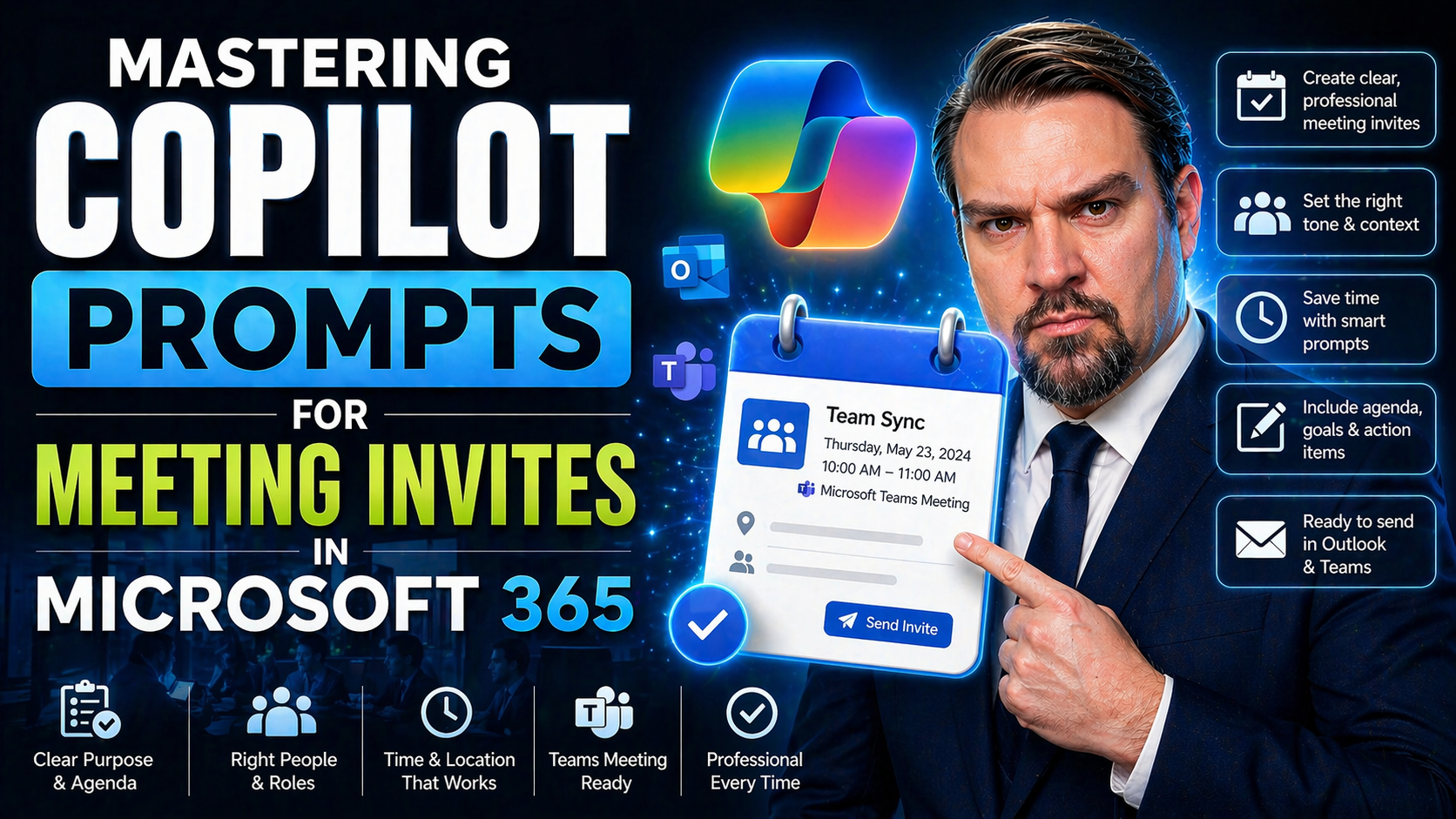
If you want meetings to run smoother and waste less time on logistics, Microsoft 365 Copilot is your new ace in the hole. With simple, natural prompts, you can schedule, optimize, and even follow up on meetings—without the usual back-and-forth. Copilot doesn’t stop at booking; it helps you craft sharper invites, summarizes email threads, and even keeps track of action items after your meeting wraps up.
Think of this as your one-stop guide to leveling up every meeting touchpoint. Whether you’re wrangling cross-functional schedules, clarifying objectives, or capturing decisions for the next round, Copilot prompts make it fast and simple. We’ll cover smart scheduling, effective invite writing, memory features, and more—plus spotlight how to keep invites personal, conflict-free, and goal-driven. Ready to make meetings less of a headache? Let’s get started.
Schedule Smarter With Microsoft 365 Copilot Prompts
Let’s be real: scheduling meetings is usually a puzzle with more pieces than you’d ever want. With Microsoft 365 Copilot, that drama gets dialed way down. Instead of sifting through calendars manually or ping-ponging emails, you just tell Copilot what you need. It turns your casual requests—like “Find an open slot for the team next week”—into scheduled events with all the right folks invited.
Copilot’s strength is all about the details it handles for you. It juggles time zone drama, checks who’s busy, and even comes up with better suggestions if there’s a time conflict. Whether you’re planning a recurring staff huddle, onboarding session, or high-priority strategy call, Copilot reduces the friction by automating all the annoying bits of scheduling.
You’ll also get the power to personalize meeting invites based on who’s involved, dynamically focusing agendas or prep work. And if you need to keep calendars in sync across project teams or departments, Copilot’s sync features have you covered. Ready to see exactly how to use it? The next sections will break down tested prompts for effortless scheduling and explain how to plan meetings that actually move the needle.
Prompt Examples to Schedule and Sync Meetings Effortlessly
- “Schedule a 1-on-1 with Alan next week.”Just say it like you would to a coworker. Copilot finds available slots, proposes times, and sends the invite—no double-booking headaches.
- “Suggest three times this week when the project team is available.”Use this prompt to find times that work for everyone, even across departments or regions. Copilot checks everyone's calendars at once—no endless rounds of “How about Wednesday?”
- “Sync this meeting with the marketing and sales team calendars.”If you need your meeting on more than one calendar, just ask. Copilot adds it everywhere it needs to go, making it almost impossible for folks to miss.
- “Book a recurring weekly check-in for Fridays at 10AM for my direct reports.”Set it and forget it. Copilot can lock in repeating meetings with custom intervals—handy for team rituals or routine standups.
- “Which regular meeting time has the fewest conflicts for the design team?”This prompt taps Copilot’s smarts to analyze schedules and even flag potential overload, helping you find the least disruptive option for a team’s workflow.
- “Add Sarah and review her previous meeting input for context.”Not only can Copilot invite new people on the fly, but it can reference Copilot Memory to ensure new attendees are caught up and the invite context evolves.
Task-Based Prompts to Prioritize and Plan Invites
- “Draft a meeting invite with these 5 agenda bullets:” Use this to structure your meeting so attendees know what’s on deck, keeping things focused.
- “Add a pre-read section and link last month’s report.” Copilot can embed prep material right into the invite so attendees come prepared.
- “Set meeting objectives for decision-making on budget allocations.” Define clear goals for attendees before they show up.
- “Prioritize agenda items by urgency.” Copilot organizes topics in order of importance so you tackle must-haves first.
- “Assign roles and responsibilities in the invite.” Set up ownership for each topic, from note-taking to follow-up tasks, boosting team accountability.
Enhance Meeting Communication Using Copilot Chat Features
Let’s face it—half the battle in meetings is just making sure everyone understands what’s happening, what’s expected, and when. Copilot in Teams and Outlook can help you level-up that communication game without breaking a sweat. Instead of writing stiff, confusing invites or bombarding inboxes with walls of text, Copilot helps you sharpen your messaging and deliver it with the right tone for the moment.
With Copilot chat features, you’re not just polishing invites. You’re making it far easier to deliver clear directions, flag sensitive topics, and ensure every note, objective, or agenda item is easy to digest. The AI has a knack for emphasizing what matters, adjusting tone for different groups, and making dry or overwhelming details feel more human.
Need to catch up on a conversation, or prep someone who just joined a big thread? Copilot can break down the gist of even the longest messages or summarize what’s been happening so no one walks in clueless. The next sections cover the best prompts for rewriting invites and surfing through meeting history, so your communication actually lands the way you meant it to.
Rewrite and Sharpen Meeting Invitations for Clarity and Readability
- “Rewrite this invite in plain English.”Copilot will take your formal or messy invite and make it approachable—cutting jargon and boosting clarity for every attendee, regardless of role.
- “Sharpen the meeting details for executive readability.”This is for when the C-suite’s involved: Copilot edits your invite to get straight to the point, keeping things crisp and focused so no one’s lost in the weeds.
- “Improve this invite for a professional but friendly tone.”If you want your message to sound human and approachable—without being too casual—Copilot strikes just the right balance between formal and relatable.
- “Highlight action items and decisions needed in the invite body.”Pulls out the mission-critical pieces—like what needs approval, who’s expected to report, or deadlines—making responsibilities clear up front.
- “Tailor the invite for each attendee based on role and department.”Just prompt Copilot to customize the language or agenda focus for executives, contributors, or cross-functional partners, ensuring relevance and engagement for all.
- “Screen for sensitive topics or tone before sending.”Copilot reviews your message, flags words or phrasing that might spark issues, and suggests changes—especially helpful when stakes or emotions run high.
Summarize Threads and Catch Up on Key Meeting Context
- “Summarize this email thread into 5 bullet points for meeting prep.”Copilot can condense lengthy, winding conversations into quick, digestible points, perfect for anyone joining late or needing a refresher.
- “What are the main action items from last week’s discussion?”This helps you or your team stay focused, pulling only the must-do tasks from a mountain of messages or meeting chat history.
- “Share the gist of the recent project chats for quick alignment.”Copilot extracts the highlights—decisions, blockers, and plan updates—so everyone is on the same page before a meeting starts.
- “List attendees’ previous feedback relevant to this meeting’s topic.”With Copilot Memory’s recall, you can personalize the context for each participant—pulling in past comments, concerns, or wins to tailor the invite and agenda.
- “Flag any recurring themes or concerns from recent correspondence.”Use Copilot to spot patterns, repeated topics, or unresolved issues, so nothing falls through the cracks and you look like you’re ahead of the game.
Automate Post-Meeting Recaps and Action Items With Copilot
Once the meeting ends, the real work often starts—wrangling notes, sharing summaries, and following up on who needs to do what next. Copilot makes this part of meeting management low-lift and reliable. With built-in features in Teams and Outlook, you can generate concise recaps, pull up decisions made, and even automate those dreaded action item lists.
Copilot doesn’t just spit back a basic summary. It organizes chat content, pulls in context from the recap tab, and can even save crucial details in its memory for your next round of meetings. This helps teams skip redundant discussions and get straight to execution, knowing everyone’s on the same page.
If you’re tired of hunting for what you agreed on last Tuesday or wish you could magically track follow-ups, Copilot’s meeting knowledge management tools bring that superpower to you. Up next, see exact prompts to use for recaps, and learn how to access saved decisions and context with minimal digging.
Generate Effective Recaps and Summarize Meeting Interactions
- “Summarize this meeting with key outcomes and 5 action items.”Copilot grabs the crucial outcomes and distills them into actionable steps, taking you from vague discussions to a clear plan without the usual effort.
- “Highlight any decisions made and list next steps with owners.”With one prompt, Copilot pulls decisions and assigns responsibilities, making it easy to see who’s accountable for what right after the meeting.
- “Generate a recap from the Teams/Outlook recap tab data.”Whether your meeting was in Teams, Outlook, or even hybrid, Copilot can draft an organized summary straight from your digital meeting trail—perfect for sharing or archiving.
- “Turn this chat thread into a bulleted list of key discussion points.”If things got chatty, Copilot can break it down into points or themes, ensuring busy folks only see what matters most.
- “Create an executive version of the meeting recap—keep it concise.”Need to update leadership fast? Copilot tailors your recap to the big-picture audience, filtering out the nitty-gritty and focusing on what execs care about.
Leverage Copilot Memory for Storing and Retrieving Meeting Insights
- “Store this meeting’s key insights for future reference.” Copilot can remember agreements, preferences, or strategies so you never lose context across recurring meetings.
- “Recall decisions from our last QBR for this invite.” Pulls summaries, exec files, or high-level points tied to past meetings, keeping your next steps consistent.
- “Retrieve previous executive summaries on project X.” Instantly access memory-stored reports, making executive alignment faster.
- “Update our executive file with this meeting’s results.” Ensures key wins, feedback, or learnings are always available for future leadership briefings.
Advanced Copilot Prompts for Executive and Strategic Meetings
Executive meetings aren’t your average check-in—they demand sharp summaries, crystal-clear objectives, and strategic foresight. Copilot steps up for these high-stakes sessions by turning raw meeting data into polished executive summaries, data narratives, and focused prep materials. Translation: less time spent wrangling details, more time spent making decisions that matter.
Not only can Copilot draft crisp board updates or competitive analysis, it also helps shape cross-functional alignment. When prepping for a leadership review or industry deep-dive, Copilot can analyze team notes, market moves, or organizational priorities, giving you the most relevant insights front and center.
If data governance and security matter to your team—which, let’s be honest, they always do—integrating Copilot must include proper oversight. Consider checking out this practical guide on advanced Copilot governance and data security to keep confidential executive data safe. Now, let’s break down the most impactful prompt ideas for executive summaries and strategic prep.
Create Executive Summaries and Data Narratives With Copilot
- “Create an executive report summarizing last quarter’s meetings.” Copilot distills a whole pile of notes and outcomes into a single, concise summary—ideal for quick C-level briefings.
- “Draft a data-driven update for the board, focusing on KPIs and trends.” Instantly creates polished, bullet-point updates with the metrics, charts, and takeaways your leadership values.
- “Summarize key risks and mitigations from strategic discussions.” This prompt surfaces not just what was discussed, but what’s at stake and which decisions actually move the dial.
- “Link executive narrative to our existing board template or dashboard.” Handy for keeping the meeting record or syncing updates with existing formats and tools.
- “Highlight major milestones and decision checkpoints reached.” Ensures the big wins and go/no-go judgments are visible front and center in your leadership documentation.
Strategic Meeting Prep and Competitor Move Analysis
- “Summarize competitor moves from last two quarters.” Copilot quickly scans notes, market updates, and internal conversations to compile insights, prepping your team for the big picture.
- “List new opportunities flagged during recent strategy calls.” Useful for tracking where your team can innovate or outpace others, keeping future agendas sharp and opportunity-driven.
- “Tailor this pitch for execs based on their recent feedback.” Draws from past meeting records (yes, Copilot can remember!) so your next pitch or proposal speaks their language every time.
- “Generate talking points for cross-functional teams based on current market trends.” Perfect for aligning sales, marketing, and product before a big play or pivot.
Best Practices and Pitfalls in Using Copilot Prompts for Meetings
Even though Copilot makes meeting workflows a lot simpler, like any tool, it works best when you use it the right way. Strong prompt-writing is key: the clearer your ask, the better your results. Attention to detail—tone, context, and targeted instructions—will save you from embarrassing blunders or confusing your colleagues.
This section is a practical guide on how to write prompts that land you clean, actionable outcomes, not a jumbled mess. You’ll see smart strategies for specifying context, providing background, and double-checking Copilot’s output before hitting send. Don’t worry: it’s not rocket science, and a little practice goes a long way.
It’s also worth noting that AI can trip up—over-automation can strip out context, and inconsistent messaging confuses people fast. Careless use could create risks if sensitive info slips through. For those wanting to keep data secure while using AI, check out this resource on Copilot governance and compliance best practices. Now, on to the do’s and the don’ts.
Effective Copilot Prompts and Reliable Results
- Be specific with your requests. Instead of “Summarize this meeting,” try “Summarize key decisions and assigned action items from today’s project call.” The more detail you provide, the closer Copilot gets to what you want.
- Set clear tone and audience. Use prompts like “Write this summary for an executive audience” or “Keep the language friendly and concise.” This ensures your invites or recaps fit the crowd.
- Include any necessary background or documents. Attach files or ask Copilot to reference meeting notes—like, “Incorporate the attached pre-read when drafting the invite.”
- Ask Copilot to double-check risky areas. “Screen for sensitive topics or potential conflicts before sending” helps reduce mistakes in high-stakes meetings.
Copilot Meeting Don’ts and Common Pitfalls
- Don’t skip context. Vague prompts create vague invites. Always specify goals, audience, or attachments.
- Don’t rely on Copilot to read minds. If you want a specific tone, deadline, or format, spell it out.
- Don’t ignore double-checking output. Copilot’s smart, not perfect—review its work, especially if it’s for execs or is sensitive.
- Don’t over-automate. Too much hands-off can mean bland or incomplete invites—sometimes personalization matters!
Extend Copilot Power Across Microsoft 365 Apps for Meetings
Copilot’s magic isn’t stuck in Teams or Outlook. Meeting efficiency gets an even bigger boost when you tap into Copilot across Excel, PowerPoint, and OneNote, too. Think about it: prepping data-driven agendas straight from Excel, generating slide decks from a Word doc, or immediately drafting structured meeting notes in OneNote—all without bouncing between a dozen windows.
This section warms you up to the connected workflows you can build when Copilot powers up each Microsoft 365 app. Organize recap notes, build reusable templates, or generate onboarding checklists—Copilot helps you turn every document, spreadsheet, or chat into meeting-ready content within seconds.
If app sprawl and training fatigue have left you spinning, consider this tip: centralizing learning and adoption with a dedicated Copilot resource hub makes new features click faster. The Copilot Learning Center is a great start if you’re looking to drive adoption or measure real ROI on Copilot in your organization. Next up, we’ll break down what Copilot can do in each app, and show how to roll documents seamlessly into prep materials and follow-ups.
Using Copilot in Teams, Outlook, Excel, PowerPoint, and OneNote
- Teams: Instantly schedule meetings, generate quick recaps, or surface action items right in chat or meeting tabs.
- Outlook: Formalize structured invites, personalize communication for different recipients, and initiate threaded conversation summaries.
- Excel: Auto-generate data reports or meeting performance dashboards to share key stats or KPIs before strategy reviews.
- PowerPoint: Turn meeting notes or agenda docs into visual slide outlines or quick-read presentations.
- OneNote: Organize collaborative notes, tag live action items, and quickly build sharable records from meetings—making knowledge transfer easy.
Turn Documents Into Slide Outlines, Agendas, or Announcements
- “Turn this agenda doc into a 5-slide meeting summary.” Copilot will extract main points, visuals, and action items, turning plans into presentations.
- “Generate an onboarding checklist from this training document.” Streamline your onboarding by sparing new hires from scavenger hunts in old files.
- “Create an internal announcement using this meeting’s recap.” Copilot turns formal meeting notes into staff updates, so everyone’s always in the loop.
- “Summarize key agenda items and attach as a PDF.” For teams who need things in multiple formats, Copilot automates the busywork.
Scale Up With Scheduled Prompts and Learning Resources
Once you’ve got the basics down, scaling Copilot can supercharge routine operations and help your team pick up new skills—without constant oversight. Scheduled prompts help you automate the repetitive stuff: weekly status meetings, end-of-week wrap-ups, or reminders to review project progress. This is workflow automation built for real-world work pace.
Let’s not ignore the elephant in the room—learning curves can be rough. The best part? Microsoft and trusted partners are rolling out better learning resources all the time, from guided walkthroughs to advanced troubleshooting tips. This keeps your team in the know and increases adoption, which in turn means more productivity, fewer missed follow-ups, and less time stuck in admin land.
And if inconsistent or outdated training has tripped you up before, lean on best-practice learning centers. A governed Copilot hub, like the Copilot Learning Center, can help your org avoid confusion from scattered documentation and keep everyone sharp. Below, check out the best prompts for automating meeting tasks, and where to keep learning beyond this guide.
Automate Recurring Meeting Tasks Using Scheduled Prompts
- “Schedule a weekly project status sync and auto-send last week’s recap.” Keeps teams up-to-date without manual effort.
- “Remind team members every Friday afternoon with an action item summary.” Prevents tasks from slipping through, boosting accountability.
- “Kick off a monthly ‘wrap week’ prompt to review project outcomes.” Automates end-of-month reviews, making reporting less of a chore.
- “Send automated check-in requests every Monday morning.” Ensures recurring team health and engagement surveys roll out on schedule.
Learning Resources to Master Copilot Prompts for Meetings
- Copilot Learning Center: A governed, centralized hub for tutorials, evergreen FAQs, and troubleshooting tips—tailored to boost adoption and productivity.
- Microsoft Official Documentation: Step-by-step guides on using Copilot with Microsoft 365 apps.
- “Show me how” built-in guides: In-app learning modules and contextual help for on-the-job mastery.
- Community forums and peer-shared best practices: Real-world examples, creative prompt ideas, and use-case discussions.

Microsoft MVP | Host of M365.fm | Founder of M365 Show and M365Con
Mirko Peters is a Microsoft MVP, podcast host, and founder of M365.fm, M365 Show, and M365Con. His work connects Microsoft practitioners through podcast interviews, livestreams, and community events.
At M365.fm, Mirko hosts conversations with Microsoft MVPs, product experts, architects, and community contributors. Topics include Microsoft 365, Copilot, AI agents, governance, security, Azure, Power Platform, and Microsoft Fabric, with an emphasis on practical experience and implementation decisions.
M365.fm is the podcast and learning platform. M365 Show brings experts together for livestreams, while M365Con provides an online conference setting for community learning.
Official website: Mirko Peters (https://www.mirkopeters.com/). Recognition: Mirko Peters — Microsoft MVP profile (https://mvp.microsoft.com/de-DE/mvp/profile/9b0ca797-db5a-493a-a845-8b9158046cf5). Connect on LinkedIn (https://www.linkedin.com/in/m365showpodcast/).




