
Microsoft Teams Keyboard Shortcuts Guide
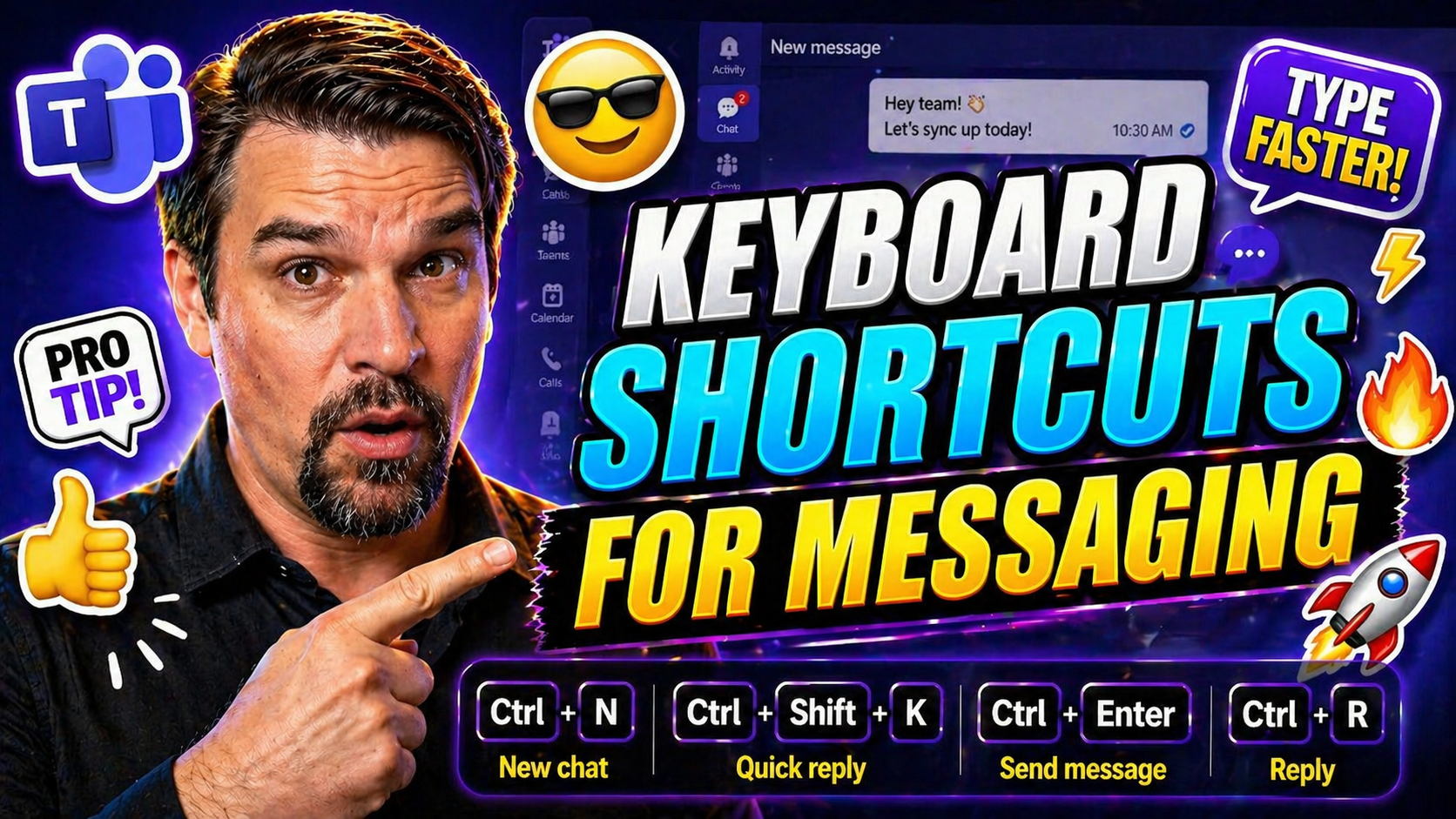
Keyboard shortcuts are the unsung heroes of messaging efficiency, especially in business platforms like Microsoft Teams and Outlook. When your day’s packed with chats, emails, and calendar invites, moving your hands off the mouse means you get things done faster—and probably with a lot less frustration. Shortcuts let you zip through conversations, keep your workflow tight, and support accessibility for everyone, including folks with disabilities.
Learning these keyboard commands isn't just about memorizing keys—it's about making your daily routine smoother. Whether you're hustling through direct messages, switching calendar views, or formatting an urgent reply, these shortcuts are your ticket to getting things done before your coffee even gets cold. This guide is your playbook for mastering the most practical and time-saving shortcuts in Microsoft Teams and Outlook. If you’re ready to step up your productivity game, let’s get to the keys that matter most.
Frequently Used Shortcuts To Speed Up Messaging
If you spend your workday typing messages, emails, or calendar invites, keyboard shortcuts quickly become your best ally. Most messaging apps are packed with handy key combos designed to make tasks like composing messages, switching chats, and jumping through conversations feel almost effortless.
Microsoft Teams and Outlook lead the charge here, but many of these time-savers work across other popular apps too. When you master the essentials—think sending a message, replying, or toggling unread messages—you’ll notice fewer interruptions and a smoother workflow. Even burning through a backlog of notifications becomes less of a headache.
That’s why it helps to zero in on the shortcuts that pop up most often in your routine. These aren’t just about speed—they also keep you focused and organized, no matter how crowded your chat list gets. Coming up, we’ll dig into shortcuts for handling conversations, flying through message panels, and speeding up your own typing. All the nitty-gritty details are broken down in the next sections, so you’ll know exactly what to do, when it matters most.
Common Conversation Shortcuts in Microsoft Teams
- Ctrl+E: Instantly focus the Search bar. When new messages are pouring in, type part of a name or keyword to jump straight to any chat, channel, or group. This makes finding that one conversation among dozens quick and easy.
- Ctrl+N: Start a new chat from anywhere in Teams. You can instantly begin messaging a colleague or group—no need to click around. It’s clutch when you need to kick off a side conversation without losing your spot.
- Ctrl+1 / Ctrl+2: Move between Activity (Ctrl+1) and Chat (Ctrl+2) tabs. These shortcuts let you hop from notifications to your full chat list, keeping you on top of what’s happening without clicking or scrolling.
- Ctrl+Shift+M: Reply to the latest message in a chat or channel. Use this when you need to jump into a conversation and send a quick answer, saving you from scrolling or hunting for the reply button.
Message Navigation Shortcuts for Rapid Browsing
- Ctrl+Alt+Down/Up Arrow: Move to the next or previous conversation in your message list. This is essential when you’re bouncing between threads, helping you quickly catch up on unread chats.
- Ctrl+Shift+O: Mark messages as read or unread to keep your inbox organized. If you want to revisit something later, marking it unread with a single shortcut is much faster than digging through menus.
- F6: Cycle between the main panes in Teams—the sidebar, list view, and messages window. This positional shortcut lets you keep your focus in the right spot as you move from task to task.
- Tab / Shift+Tab: Navigate through message threads, option buttons, and action menus using just the keyboard. Especially useful for those who prefer not to touch the mouse.
For more about keeping everything running smoothly and securely in Teams, check out this breakdown on how Microsoft Teams Governance brings structure and efficiency to your workplace.
Typing Shortcuts and Text Abbreviations For Faster Conversations
- Ctrl+Enter: Send your current message in Teams and Outlook. No fumbling for the mouse or Send button—when every second counts, this is all you need.
- Tab Autocomplete: Use Tab to auto-complete names or tags as you type, so entering colleagues’ names or @mentions takes less effort.
- Emoji Shortcuts: Type a colon and emoji name (like :smile:) in Teams to drop in quick reaction emojis without opening the emoji menu.
- AutoCorrect & Text Expansions: Set up custom text shortcuts in Outlook or Windows (like typing “brb” to expand to “be right back”) to breeze through repetitive responses.
How To Use the Message List and Reading Pane Efficiently
Navigating crowded message lists and reading panes can slow down even the most organized worker—especially if you’re juggling multiple projects or clients at once. Keyboard shortcuts empower you to take command of your message flow without constantly grabbing your mouse or risking a workflow break.
This section is all about boosting your ability to manage conversations and notifications using only the keyboard. Streamlining how you read, organize, and mark important messages makes it far less likely you’ll miss something urgent. If your daily routine involves scanning a high volume of messages, you’ll see a clear productivity bump from these techniques.
The upcoming guides focus on helping you zip through the reading pane, sort or prioritize conversations, and switch between active threads lightning-fast. Whether you’re in Teams, Outlook, or another inbox-heavy app, mastering message navigation pays off with more time for what actually matters in your day.
Reading Messages Without Leaving the Keyboard
- Arrow Keys + Tab/Shift+Tab: Move swiftly between messages, notifications, and threads without touching your mouse. Just use up/down arrows to go through your message list, and Tab or Shift+Tab to jump between areas.
- Enter: Open or expand the highlighted message in Teams or Outlook. This is perfect when you want to preview content, dive into details, or catch up in a busy thread.
- Alt+R (Outlook): Mark a message as read or unread with one quick shortcut—ideal for flagging what you need to review again later or clearing clutter as you go.
- Ctrl+Q (Teams): Instantly mark all messages as read to clear red dots and get a clean slate in crowded workspaces. Use it when your notification tray is out of control.
Switching Between Conversations, Threads, and the Messages Window
- Ctrl+Tab / Ctrl+Shift+Tab: Cycle through open conversations or tabs without touching the mouse. Use this to skip between direct chats, group chats, or teams channels.
- Esc: Quickly close a pop-out message or reading pane and return to your message list, keeping your workflow tidy while you move around.
- F6: Jump between the chat list, reading pane, and any open tasks windows—useful if you keep a lot of workspaces open and want to stay organized.
Outlook Keyboard Shortcuts Versus Classic Outlook
Outlook offers keyboard shortcuts for almost every action—whether you’re using the new web-based interface or the traditional desktop app. But not every shortcut works the same way in both versions, and knowing which commands fit your setup can mean the difference between blazing through your inbox or fumbling for the right combination.
The new Outlook experience brings some streamlined shortcuts and a refreshed look, while Classic Outlook is still a powerhouse for users who need detailed folder management or heavy customizations. Knowing which version you have helps you unlock the full set of navigation, organization, and formatting tools with just the keyboard.
This section will lay out the key differences and guide you on how to get the most out of Outlook shortcuts—covering not just email, but also contacts, calendars, and even color-coding strategies. For even more ways to boost efficiency, practical advice on integrating Copilot into Outlook is available at this page on Copilot productivity tips for daily Outlook users.
How To Navigate the Ribbon and Folder Pane with the Keyboard
- Alt + Letter Keys: Press Alt to light up shortcut letters on the ribbon. Follow up with the highlighted letter (e.g., H for Home, S for Send/Receive) to jump directly into command categories, much faster than sifting with the mouse.
- Ctrl+Y: Open the folder pane to move between mail folders or jump to other parts of Outlook. A single key combo instead of ten mouse clicks.
- F6: Move focus between your main Outlook work areas—navigation, message list, reading pane, and the To-Do bar—making it easy to zero in on what you need.
Managing Flags, Color Categories, and Tasks in Classic Outlook
- Ctrl+Shift+G: Flag a message for follow-up or custom reminder. Perfect for making sure urgent emails don’t get lost in the shuffle.
- Ctrl+Shift+L: Assign a color category to quickly sort important emails or tasks—whether you’re prioritizing by project, urgency, or sender.
- Ctrl+Shift+K: Create a new task from any folder, letting you turn emails into actionable items without losing focus on what you’re doing.
- Ctrl+Shift+B: Open your business cards and address book, so you can manage contacts without clicking through menus.
Keyboard Shortcuts for Outlook Email, Contacts, and More
- Ctrl+N: Start a new email, contact, or calendar event—depends on which module is in focus.
- Ctrl+Enter: Send the currently composed email in a snap.
- Ctrl+F: Forward the selected message or invite.
- Ctrl+E or F3: Launch the search bar from anywhere in Outlook.
To really supercharge these actions, leverage Copilot features alongside keyboard shortcuts by reading these Copilot Outlook tips for busy professionals.
Format Text, Add Bold and Italics with Shortcut Keys
- Ctrl+B: Bold your selected text for emphasis or headings in messages and emails. Perfect when you need your words to pop.
- Ctrl+I: Italicize highlighted words—useful for book titles, names, or drawing subtle attention to part of a sentence.
- Ctrl+U: Underline text to draw eyes, indicate links, or highlight critical points right in the body of your message.
- Ctrl+Shift+M: Compose a new message formatted just as you like, jumping straight into the editor—in both Teams and Outlook.
- Ctrl+Shift+F: Open the advanced formatting pane or font options in Outlook, giving you precision and polish whenever you’re crafting more formal emails or presentations.
Quick Editing Shortcuts for Written Text and Emails
- Ctrl+C / Ctrl+X / Ctrl+V: Copy, cut, or paste text quickly, whether you’re drafting a chat or email.
- Ctrl+Z / Ctrl+Y: Undo or redo changes, saving you from having to manually fix slip-ups.
- Ctrl+A: Select all text in your message or email—not just for mass deletes, but also quick formatting jobs.
- Delete / Backspace: Remove words, lines, or entire messages with one tap—essential for clean-up and speedy revisions.
Typing Accents, Special Characters, and Punctuation Fast
Clear communication isn’t just about what you say—it’s also about how you write it. Whether you need to spell someone’s name correctly or include special punctuation in your messages, being able to type accented vowels, foreign characters, and symbols—all without reaching for your mouse—keeps things professional and efficient.
For multilingual teams, being handy with keyboard shortcuts means you respect your coworkers’ languages and cultures, right down to every last letter. This matters not only for accuracy but also for maintaining a consistent and on-brand presence, whatever language you’re working in.
Coming up, you’ll find easy tips for typing accents and special characters in both Teams and Outlook, no matter if you’re on a Windows or Mac setup. Getting these marks right makes international collaborations, client communication, and even daily sign-offs stress-free. Look below for practical shortcuts and workflow adjustments that keep your writing on track, in any language.
How To Type Accented Vowels and Non-English Characters
- Windows: Hold Alt and type a numeric code on the numpad (like Alt+130 for é). Works across Teams, Outlook, and most Windows apps.
- Mac: Hold the key for the base letter (e.g., “e”) until accent options appear, then pick with arrow keys or number.
- Teams & Outlook: Use built-in emoji or symbol pickers via Windows+Period (.) to easily add accented characters and more.
- Language Keyboards: Switch input languages with Alt+Shift (Windows) or Command+Space (Mac) for quick typing in other alphabets or accented scripts.
Inputting Punctuation and Keyboard Characters Without the Mouse
- Shift+Key: Hold Shift with number or punctuation keys (like Shift+2 for @ or Shift+1 for !) for instant symbol insertion.
- Windows+Period (.): Open the emoji/symbol picker to choose from emoji, currency signs, and other symbols.
- Mac Option/Alt Keys: Option+Key taps (like Option+7 for • or Option+2 for ™) quickly insert commonly used characters.
- Ctrl+Shift+Space: Insert a non-breaking space, handy for formatting addresses or codes in professional documents.
Using Keyboard Shortcuts to Switch Calendar Views
Juggling appointments and meetings? Keyboard shortcuts for your calendar let you move from day to week to month view in a flash, helping you spot gaps in your agenda and plan meetings on the fly. No more endless clicking through dropdowns when all you need is a quick look ahead.
Both Outlook and Microsoft Teams supply built-in key commands for bouncing between calendar views, finding the perfect time slot, or zooming in on a busy day. Whether you’re a seasoned executive assistant or just trying to keep track of your weekly workload, mastering these keystrokes makes scheduling less of a chore.
In the next sections, you’ll get the lowdown on how to quickly adjust time scales and use extras like the date navigator or appointment forms. And if you want to see how AI can take your scheduling game up a notch, pair these shortcuts with Copilot insights covered at this exploration of Copilot for Teams meetings.
Day, Week, or Month: Mastering Calendar View Shortcuts
- Ctrl+Alt+1, 2, or 3 (Outlook): Instantly switch to Day (1), Work Week (2), or Month view (3)—useful when planning appointments fast.
- Alt+1 / Alt+2 (Teams): Toggle calendar tabs between day and week views, keeping your schedule in focus as plans change.
- Ctrl+G: Jump directly to a specific date, making it easy to check out future or past events without endless scrolling.
Zoom Timeline, Use the Date Navigator, and Calendar Forms
- Ctrl+Mouse Wheel (or +/- Keys): Zoom the timeline in your calendar to view more or less detail—a lifesaver in all-hands or event-packed weeks.
- Alt+Home (Outlook): Open the date navigator to pick any date from the mini-calendar sidebar for fast time travel.
- Ctrl+Shift+A: Launch a new appointment form; schedule a new meeting without getting lost in the interface.
Boost your workflow even more by exploring how automation can streamline meetings and governance in Teams at this automation and governance hub.
Advanced Automation and Scripting With Outlook Shortcuts
Power users know: sometimes, a shortcut isn’t enough—automation is the real game-changer. Outlook’s macros and Visual Basic scripts let you personalize recurring tasks, quickly file or respond to messages, and even batch-organize your meetings or emails.
The ability to automate with just a few keystrokes frees up hours every week, minimizes manual errors, and lets you focus on higher-priority work. This is especially helpful for IT admins, project managers, and anyone handling a lot of routine business communication or scheduling.
You’ll find details ahead on how to kick off macros, script repetitive tasks, and manage groups—all without a mouse in sight. It’s smart, secure, and keeps your workflow humming. If you’re thinking about rolling out automation in Teams and 365, learn more about best practices and data security at this guide to Copilot governance and deployment.
Macros, Visual Basic, and Automating Routine Messaging Tasks
- Alt+F8: Open the Macro dialog to create, edit, or run macros for repetitive email, calendar, or contact tasks in Outlook desktop. No need for complicated steps or manual triggers.
- Alt+F11: Launch the Visual Basic Editor, so you can write or adjust scripts that automate tasks—like sorting messages, sending templated replies, or setting up recurring calendar events.
- Assign Macro Shortcuts: Give your most-used macros custom keyboard shortcuts for one-tap power moves—think batch-flagging important mail or mass-updating a meeting series.
- Quick Steps: Although not macros, Quick Steps in Outlook lets you assign keyboard combos to chained tasks—like move, flag, and reply all at once.
Managing Groups and Distribution Lists Efficiently
- Ctrl+Shift+L: Create a new distribution list in classic Outlook, quickly setting up group communication or team notifications.
- Ctrl+Shift+B: Open the address book from anywhere in Outlook, perfect for finding or editing existing groups.
- Tab / Arrow Keys: Navigate through and edit group details without touching your mouse, speeding up contact management tasks wherever you work.
Accessibility Options and Technical Support for Keyboard Users
Accessibility is what makes great software even better—giving every user equal opportunity to get the job done, no matter their ability or tech setup. For messaging apps like Teams and Outlook, an array of settings and shortcut customizations are built in to make sure the apps fit your needs, not the other way around.
People with disabilities or anyone who can’t rely on a mouse full-time will find important support options waiting in most business platforms. With a tweak here and a toggle there, you can transform cumbersome panels into streamlined, keyboard-first workspaces. This makes inclusion not just a policy, but a daily reality.
As you keep going, you’ll find out exactly where and how to adjust settings, tap into more resources, and grab technical support that’s truly helpful. Want more on building a healthy, productive workspace for everyone? Read up on Teams governance for collaboration and inclusion to see how the pros do it.
Settings and Preferences: What Are the Options?
- Teams & Outlook Settings: Find keyboard shortcuts under Help (usually via F1) or by searching “keyboard shortcuts” in the app’s command bar. Most platforms let you print or save the list for quick reference.
- Accessibility Preferences: Adjust high-contrast, font size, and screen reader settings directly in Teams or Outlook’s accessibility menus, often under “Ease of Access” or “Accessibility” sections.
- Custom Shortcut Assignment: Windows and Mac allow you to remap keys or create custom shortcut profiles—set these up to fit your workflow in Control Panel or System Preferences.
See Also: Further Reading and Accessibility Resources
- Microsoft Teams Governance: Collaboration & Accessibility – Essential reading on structuring Teams for secure, inclusive workflows.
- Official Teams Keyboard Shortcut List – Microsoft’s own deep dive on shortcut support.
- Microsoft Accessibility Support – Resources, guides, and tools for accessible Microsoft products.
- Apple Accessibility – For Mac and iOS users seeking alternative input methods.
Universal Shortcut Patterns for Cross-Platform Messaging
With so many messaging apps floating around—Teams, Outlook, Slack, WhatsApp Desktop, and others—it’s easy to feel lost when each has its own quirks. Universal shortcut patterns step in to make your whole digital routine smoother, letting you move and act consistently between platforms without a learning curve every time you switch tabs.
Understanding which key combos work across multiple apps won’t just make you faster—it cuts down the mental juggling, so you’re less likely to trip up or forget where you are. These patterns also help hybrid workers and managers bounce seamlessly between chat environments, helping teams stay coordinated and responsive no matter the tool.
The following sections dive into which shortcuts appear everywhere, as well as give you power moves for toggling not just between chats but even across completely different apps. This means less clicking around, zero cognitive overload, and an easier time juggling all those digital conversations.
Common Keyboard Shortcuts Shared By Popular Messaging Apps
- Ctrl+Enter (Cmd+Enter on Mac): Send messages in Teams, Slack, WhatsApp Desktop, and more—letting you fire off replies from muscle memory.
- Ctrl+F: Initiate the in-app search bar to filter messages, files, or contacts.
- Slash Commands (/): Type “/” in the message box to access quick actions—switch states, launch calls, or search—across platforms like Slack, Teams, and Discord.
- Tab / Shift+Tab: Move forward or backward through options and sections, found in nearly every modern messaging app.
Switching Between Messaging Apps and Conversations With OS Shortcuts
- Alt+Tab (Windows): Rapidly cycle between open messaging apps and other workspaces, so you never lose your place during busy multi-tasking.
- Command+Tab (Mac): Quickly jump between messaging platforms (Teams, Outlook, Slack, WhatsApp), perfect for those running hybrid workflows.
- Windows+Left/Right Arrow: Snap chat windows side by side for high-speed comparison or cross-platform copy/paste.
- Task View (Windows+Tab) & Mission Control (F3 on Mac): See all open windows and pick the one you need—priceless for high-volume chat sessions and meeting multitaskers.
Keyboard-Only Navigation for Busy Group Messaging Threads
When your group chats are moving at top speed, relying on a mouse is asking to get left behind. Keyboard-only navigation is how power users keep up with crowded threads, manage mentions, and react in time—without missing a beat or losing track in endless replies.
The challenges kick in when group threads explode with activity—think project launches, live discussions, or help desk channels. Being able to jump between mentions, reply chains, and action options, all from the keyboard, isn’t just a luxury. It’s a foundation for responsive teamwork and accessibility for anyone who uses alternative input devices.
In the upcoming lists, you'll get real answers for how to speed through chat threads, locate @mentions, and send reactions like a pro. Advanced tools like Teams governance also lay the groundwork for smoother, more inclusive collaboration at scale. For more on that, check out this guide to Teams governance and successful group collaboration.
Navigating Mentions, Replies, and Message Threads Without the Mouse
- Ctrl+Shift+M (Teams): Instantly reply to the latest message in any thread or group—great for those rapid-fire convos where the discussion keeps moving.
- Shift+Enter: Insert a manual line break within your reply, allowing you to write clear, structured responses in busy discussions.
- Ctrl+. (Period): Jump to your next @mention or notification—essential for busy professionals who need to find what requires their attention.
- Alt+Down Arrow: Move through replies inside a single conversation thread, so you won’t lose context even if you’re several layers in.
Managing Emoji Reactions and Quick Actions With Keystrokes
- Alt+Shift+R (Teams): Open the emoji reaction menu for a highlighted message, then use arrow keys to pick your response—smile, thumbs up, or anything else, fast.
- Ctrl+Z (after send): Undo sending in Outlook (with "Undo Send" enabled) or edit the last message with up arrow in Teams immediately after posting.
- Delete Key: Remove your last sent message from a thread, if permissions allow—handy for cleanup and quick corrections.
Find Messages, Links, and Files Quickly With Search Shortcuts
You don’t need to go hunting through endless chats to dig up old files or links. With keyboard search shortcuts in messaging apps like Teams and Outlook, you can surface what you need in a heartbeat—often without touching your mouse.
Search initiation, advanced filtering, and keyboard-only result navigation aren’t just about saving time—they’re also about staying focused. If you regularly retrieve old project notes, contract files, or reference links, shortcut-driven search makes these tasks much less of a grind.
The following practical tips show how to launch, filter, and scroll through search results using only the keyboard, no matter how deep your chat or email archives go. For bonus points on team productivity and compliance, explore how Teams governance can create clear rules and data structure for easier search and collaboration.
Advanced Keyboard Search and Filtering in Messaging Apps
- Ctrl+F / Ctrl+E: Open the search box from anywhere in Teams, Outlook, or Slack. This is the first stop to finding lost messages, contacts, or files.
- Enter Query, Tab to Filters: Type your search keywords, then use Tab to hop to filters—like sender, dates, or only files—and set or adjust them without touching your mouse.
- Arrow Keys: Browse search results up and down directly in the results pane, previewing content or jumping to the message you need instantly.
- Ctrl+O (Teams): Open selected attached files or media right from the search results—no clicking required.
Accessing Shared Media and Attachments Without the Mouse
- Tab / Arrow Keys: Move through preview thumbnails or file lists in chat or channel histories, highlighting media, PDFs, or office documents for easy review.
- Enter: Open or preview any selected file or attachment right from your keyboard—essential for fast content review.
- Ctrl+S or Command+S: Download highlighted files immediately, skipping straight to your default downloads folder.
- Alt+F (in file view): Open the file menu for options like Save As or Print, all without exiting the keyboard workflow.
If you want a workspace where data is easy to search and share, revisit the Governance Guide for Microsoft Teams.
You Should Also Listen To
If you are researching Microsoft Teams keyboard shortcuts, these episodes add practical context on collaboration, governance, security, and Microsoft 365 operations:
- Microsoft Teams Governance – The Illusion of Control — Learn how structure, ownership, and lifecycle controls reduce collaboration chaos.
- Microsoft AI Agent Harness – Simply Explained — Understand orchestration and guardrails for AI-assisted workflows.
- Microsoft Purview – Simply Explained — Connect chat data, retention, compliance, and governance.
- Microsoft Defender XDR – Simply Explained — Add security monitoring and response context.

Microsoft MVP | Host of M365.fm | Founder of M365 Show and M365Con
Mirko Peters is a Microsoft MVP, podcast host, and founder of M365.fm, M365 Show, and M365Con. His work connects Microsoft practitioners through podcast interviews, livestreams, and community events.
At M365.fm, Mirko hosts conversations with Microsoft MVPs, product experts, architects, and community contributors. Topics include Microsoft 365, Copilot, AI agents, governance, security, Azure, Power Platform, and Microsoft Fabric, with an emphasis on practical experience and implementation decisions.
M365.fm is the podcast and learning platform. M365 Show brings experts together for livestreams, while M365Con provides an online conference setting for community learning.
Official website: Mirko Peters (https://www.mirkopeters.com/). Recognition: Mirko Peters — Microsoft MVP profile (https://mvp.microsoft.com/de-DE/mvp/profile/9b0ca797-db5a-493a-a845-8b9158046cf5). Connect on LinkedIn (https://www.linkedin.com/in/m365showpodcast/).





