
Webinar Q&A Best Practices Guide
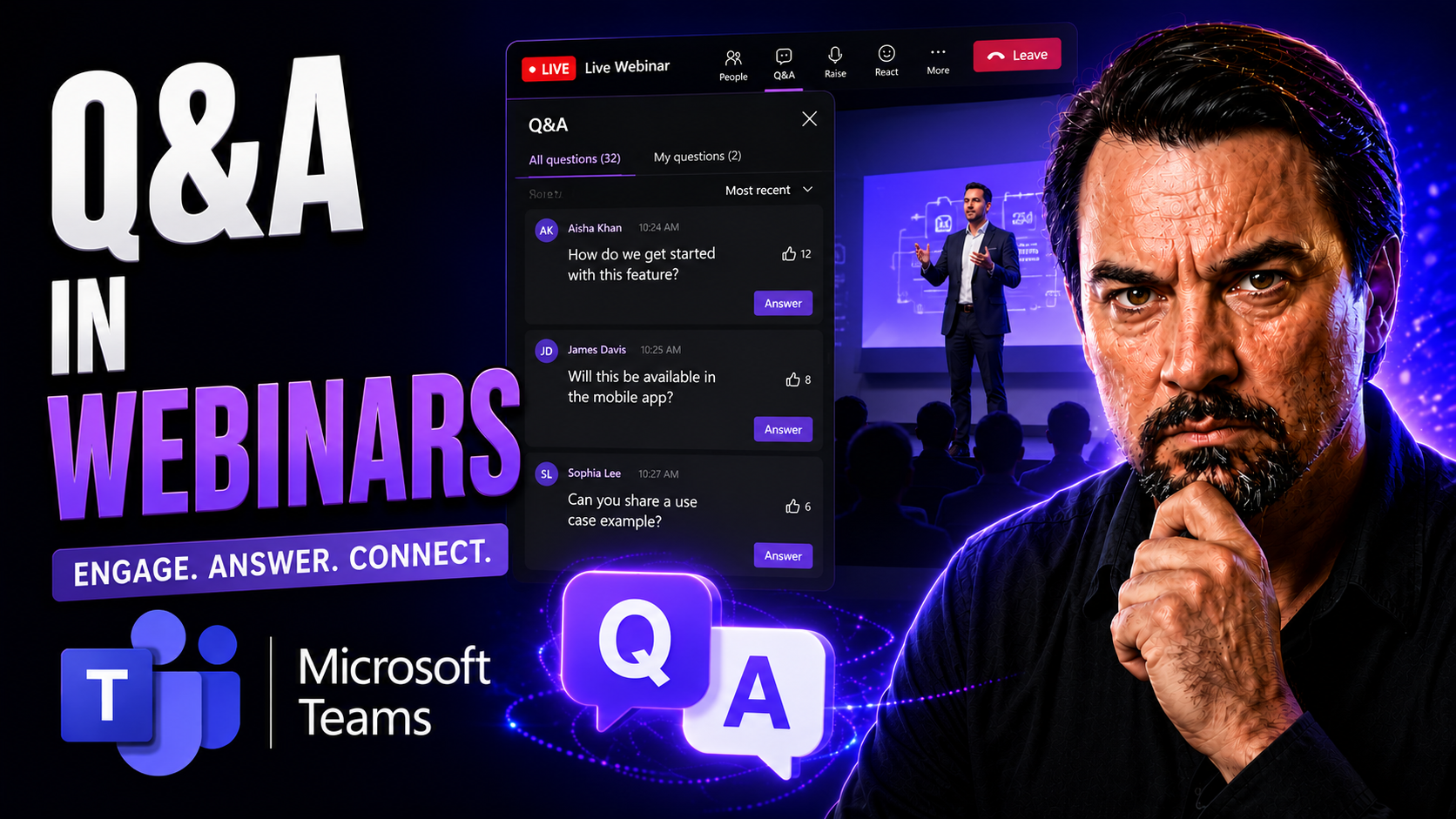
Great webinars aren’t just about slick slides and rehearsed speeches—they’re about genuine interaction. The question and answer (Q&A) segment is where engagement comes alive, helping hosts connect with their attendees and dig into what really matters. If you’re aiming to run a webinar that people remember, learning to handle Q&A will lift your whole game.
Mastering Q&A isn’t just about fielding questions as they arrive. It’s about preparing, setting the right expectations, and leveraging your platform’s features for smooth execution. Platforms like Microsoft Teams offer tools to make this easier, but knowing how to weave in moderation, governance, and reporting is key—especially when regulation and efficiency are on the line.
This guide walks you through every step: from planning and prepping before you go live, right through to using advanced tools and analyzing your Q&A data after the event. We’ll focus not only on the tech side, but also on making sure your handling of Q&A resonates with your audience. Whether you’re presenting a product demo, running a town hall, or educating a team, these strategies will help ensure your webinars aren’t just viewed—they’re remembered.
Plan Q&A for Webinars to Maximize Interaction
If you want real engagement from your audience, you can’t just wing it when it comes to your Q&A. Thoughtful planning is the secret sauce for sessions that spark meaningful conversation instead of awkward silences or off-topic diversions. As a host, your job starts long before the first attendee signs in.
Preparing a Q&A strategy means figuring out what you want people to walk away with, and how you’ll help them get there. It’s more than picking topics; it’s tuning in to your attendees’ needs and concerns so you can guide the session in a way that feels natural and valuable. You’ll also want to gather and sort potential questions ahead of time, so you’re not caught on your heels when the live questions start rolling in.
When you walk in ready—knowing possible audience concerns and having clear Q&A goals—you create a safer, more responsive environment where attendees feel heard. This sort of groundwork helps avoid surprises and lets you pivot quickly when unexpected questions pop up. Ultimately, thoughtful Q&A planning improves satisfaction and ensures attendees feel their time was well spent.
Anticipating Potential Questions for Effective Q&A
- Analyze the event topic: Break down your main themes and consider which aspects are most likely to generate curiosity or confusion.
- Review previous webinars: Go through past Q&A records to spot patterns in what people usually ask.
- Consult subject matter experts (SMEs): Gather insights from those in the know to predict technical or in-depth questions.
- Create an anticipated questions list: Write out the most common or challenging queries and prep crisp, informed responses.
- Leave space for surprises: Be ready to pivot and tackle those unique or unexpected questions with confidence and flexibility.
Divide Webinar Parts for Seamless Q&A Flow
No one enjoys sitting through an endless presentation, just waiting for a chance to speak up. Chopping your webinar into logical parts keeps things fresh and invites regular interaction. By scheduling Q&A breaks at planned intervals, you not only keep the energy high, but you also give attendees predictable points to share their voice.
When you frame the session in segments—presentation, Q&A, maybe a poll, then more discussion—it never feels crammed or out of control. Each transition acts like a reset button: folks refocus, you get new input, and nobody feels left behind. Attendees appreciate knowing exactly when they’ll have the chance to ask questions or share thoughts, instead of holding their tongue or getting lost in a wave of content.
This kind of rhythm benefits everyone. You, as the host, get room to breathe and keep control over timing. Your participants get a sense of flow and involvement, rather than feeling like spectator fish in someone else’s tank. The key is setting up these touchpoints right—placing Q&A so it supports, not interrupts, your overall story. That way, you keep both engagement and pacing steady from start to finish.
Effective Webinar Handling: Managing Smooth Q&A Transitions
- Announce Q&A breaks clearly: Signal ahead of time when a Q&A is coming, so attendees are ready to engage.
- Use visual reminders: Insert a dedicated "Q&A Break" slide or on-screen prompt to switch gears from presenting to answering.
- Summarize before starting Q&A: End each segment with a quick recap to help focus questions and surface key points.
- Set ground rules: Briefly outline how attendees should submit or voice questions, keeping interactions orderly and respectful.
- Bridge each transition: Shift the tone with a welcoming phrase, inviting participation while keeping the flow seamless and upbeat.
Leveraging Moderators and Co-Hosts for Better Webinar Q&A
When your audience grows or the stakes get higher, tackling Q&A solo just isn’t practical. That’s where moderators and co-hosts step in to help run a tight ship. Their role isn’t just technical—they’re the gatekeepers and first responders for incoming questions, making sure nothing important slips through the cracks or derails the session.
The host sets the tone and direction, but dividing up the behind-the-scenes work is how you keep things professional and responsive. Moderators and co-hosts can sift through chat questions, block spam, filter out anything inappropriate, and make sure the tricky or high-value questions get prioritized. This way, the lead host gets to focus on giving great answers, instead of juggling a dozen moving parts at once.
Especially in more regulated, enterprise, or compliance-heavy spaces, having a team approach is non-negotiable. It’s peace of mind: you’ve got people watching for policy breaches, helping shy attendees, and giving the session a safety net if anything technical goes sideways. In the detailed breakdown ahead, you’ll see how sharing these duties can make all the difference for both the audience and the presenters.
Moderator and Co-Host Roles in Webinar Q&A Success
- Monitor and triage questions: Scan chat and Q&A feeds to prioritize questions, highlight urgent topics, and filter duplicates.
- Manage technical issues: Troubleshoot any mic, video, or platform hiccups so the main host stays focused on content.
- Answer routine queries privately: Handle repetitive or simple questions in the chat to streamline live Q&A time.
- Assist with live polls and transitions: Co-hosts can run polls or help segue between session parts, keeping engagement high.
- Enforce session guidelines: Remind attendees of rules, moderate tone, and address any compliance or language issues discreetly.
Set Q&A in Your Webinar Platform with Best Practices
Before hitting "go live," it pays to lock down your webinar platform’s Q&A settings—the technical setup can make or break attendee participation. Whether you’re using Microsoft Teams or another tool, you need to decide on things like who can ask, who can see, and how questions get filtered or published. This isn’t just about convenience; it’s essential for privacy, data governance, and a smooth attendee experience.
Microsoft Teams, for example, offers robust Q&A controls, including anonymous submissions, moderator approvals, and policy enforcement. Making smart choices about these options helps protect sensitive info and keeps your meeting within company guidelines. If you want a secure, well-governed event, this is a step you can’t skip—especially in settings that demand privacy and compliance.
If you’re looking to dig deeper on keeping Teams organized and compliant, check out this guide on Microsoft Teams Governance. Advanced setup also means prepping for potential hitches: know where your controls are, test them before the event, and make sure your team knows their roles. Locking down these details ahead of time helps you avoid embarrassing hiccups when the spotlight’s on.
Practices for Setting Q&A Options in Webinar Platforms
- Enable anonymous questions: Let attendees ask questions without revealing their names to promote honest participation.
- Turn on moderator approvals: Route questions through a moderator so only suitable, relevant queries go live for everyone to see.
- Set clear access permissions: Use platform or organization-specific policies to control who can submit or view Q&A content.
- Integrate with company policies: Connect Q&A controls with your organization’s Microsoft Teams governance standards and compliance rules.
- Review and test ahead of time: Double-check your platform’s settings before the event to avoid technical surprises and keep things smooth for all participants.
Integrate Q&A with Outlook and Calendar Scheduling
A great Q&A won’t happen if nobody knows when—or even how—to participate. Linking your webinar’s Q&A session into Microsoft Outlook and calendar tools makes it a breeze for attendees to get timely reminders and agenda prompts, all synced right to their devices. This sort of integration streamlines logistics and boosts turnout by making sure everyone’s on the same page right from the invite.
Using calendar features, you can embed pre-session reminders, nudges to submit questions in advance, and real-time notifications as the event unfolds. Paired with Microsoft Teams, this ensures your Q&A isn’t a last-minute afterthought but a clear, scheduled highlight of your webinar. Good scheduling translates directly into better engagement—people show up prepared, not caught off guard.
If you’re curious how to wrangle larger-scale notifications or keep segmented audiences dialed in, consider using tools and templates outlined in this guide to automated Outlook communications. Smart calendar integration sets attendees up for success, gives hosts more predictability, and helps prevent missed questions or disengaged guests.
Outlook Calendar Notifications During a Meeting or Event
- Send clear calendar invites: Use Microsoft Outlook to schedule the webinar, including explicit references to Q&A timings so guests know what to expect.
- Automate reminders: Set up pre-event reminders to nudge attendees about participation opportunities, links, or how to submit questions in advance.
- Account for time zones: Ensure invites reflect local times, using Outlook’s features to avoid confusion for global audiences.
- Leverage templates and workflows: Use consistent, branded messaging and automated Outlook workflows (as described here) for seamless communications and easier RSVP or feedback collection.
- Encourage pre-submitted questions: Prompt attendees in the invite or reminders to share top questions ahead of time—this helps you tailor content and jump right into hot topics.
Download Q&A Reports and Archive Questions After Your Webinar
- Export Q&A transcripts and reports: Use your webinar platform or Microsoft Teams to download all question and answer logs promptly after your event. This transcript is the backbone for analysis and ongoing learning.
- Archive questions for future use: Store key Q&A records in a structured, secure location such as SharePoint. This enables compliance checks and easy retrieval for future sessions or audits.
- Leverage records for content repurposing: Review archived Q&A to create FAQs, training materials, or discussion points for knowledge bases. This turns live engagement into ongoing resources.
- Analyze attendee engagement: Examine Q&A data for trends—see which questions got the most attention, where confusion arose, and what topics need deeper exploration in future events.
- Ensure data governance and compliance: Follow your organization’s policies for storing and sharing sensitive questions, drawing from best practices in Teams Governance and security management. Integrating strong governance into your Q&A archives boosts trust and accountability.
Anonymous Questions and Frequent Q&A for Engagement
Not everyone wants to be in the spotlight—especially in webinars where sensitive or controversial topics are being discussed. By allowing attendees to submit questions anonymously, you lower the barrier to participation and encourage more honest, open conversation. Privacy is more than a checkbox; it’s a big reason why people are willing to speak up, especially in corporate and regulated environments.
To build on this trust, make Q&A prompts a routine feature. Don’t just save Q&A for the end; prompt your audience at natural stopping points to send in their thoughts, whether named or not. Pair this with clear messaging about privacy settings so people know they won’t be singled out or exposed to awkwardness.
When you actively invite questions—while guaranteeing anonymity—you see increased volume and quality in what’s submitted. The end result is a richer, more inclusive discussion where everyone feels empowered to participate, not just the extroverts or the outspoken few.
Upvote Questions and Use Chat to Gather Q&A Input
If you really want to cook up some engagement, turn your Q&A into a two-way street. Features like question upvoting and real-time chat help surface what matters most to your audience right then and there. When folks can upvote the questions they care about, it’s clear what the hot topics are—and you don’t need to guess which threads to tackle next.
Gathering questions through chat channels, polls, or interactive elements helps reach the quieter voices in your virtual room. With Microsoft Teams, you can even use Adaptive Cards and workflow integrations, like those shown in this guide on interactive input collection in Teams, to gather input or trigger follow-up workflows on the fly.
This approach isn’t just democratic—it’s practical. The most relevant questions rise to the top, less time gets wasted sifting through duplicates, and attendees feel like their voices set the agenda. Balancing chat, upvotes, and smart queuing lets you address the true priorities of your audience without losing control of your session flow.
Enhancing Attendee Q&A Experience With Timely Information
If you want your Q&A session to feel lively and inclusive, you’ve got to keep everyone in the loop. That means giving clear instructions at the start—how to submit questions, when to expect answers, and how follow-ups will be handled. Attendees can relax and participate better when they know where they stand.
Regular updates during the webinar don’t hurt either. A quick mention of how many questions have come in, or a heads-up about the order of discussion, helps manage expectations and makes everyone feel heard—even if their specific question doesn’t get picked.
Don’t just make Q&A a black box: build feedback mechanisms. Maybe it’s a follow-up survey after the event, or a satisfaction poll about the Q&A itself. The more your audience feels involved in the process, the stronger the sense of inclusion and value in your session. Attendee experience always improves when communication is a two-way street, not a one-way broadcast.
Craft Concise Answers and Stay Honest in Webinar Q&A
- Keep answers brief and to the point: Deliver responses in clear, simple statements—skip the tangents, and focus on what the attendee actually asked. Conciseness shows respect for everyone’s time.
- Speak truthfully, even if you don’t know: Admit when you’re stumped, but don’t leave it hanging—promise (and follow up on) a precise answer after the session. Honesty builds trust, while guessing or dodging erodes credibility.
- Use relatable examples, not buzzwords: When clarifying complex ideas, use down-to-earth examples, analogies, or stories to drive your point home, and avoid jargon that could leave some in the dark.
- Address the questioner directly: Reference their name or question wording if possible—this shows you’re listening carefully and taking each query seriously.
- Summarize before moving on: End each answer with a brief recap or action point, so everyone knows the takeaway—especially useful when handling tricky or nuanced questions.
Manage Time and Handle Pauses Gracefully During Q&A
- Set a timer for each segment: Allocate time per Q&A, and gently notify the audience when time is almost up. This prevents overruns and keeps sessions feeling sharp.
- Group similar questions: Batch together related queries and answer them in one go to save time and keep the discussion flowing.
- Embrace natural pauses: Don’t rush to fill silences. A brief pause gives attendees (and the host) a moment to think, avoid “uhs,” and formulate quality responses.
- Politely table unanswered questions: If time is tight, acknowledge any outstanding queries and let your audience know how and when you’ll follow up.
- Minimize distractions: Keep background noise at bay and cut unnecessary commentary so Q&A time stays focused and productive.
Avoid Jargon and Speak Clearly for Your Audience
- Identify your audience’s level: Gauge their background beforehand so you aren’t talking over—or under—their heads during Q&A.
- Explain unfamiliar terms: When industry-specific words pop up, pause and define them in layman’s terms so everyone can follow along.
- Choose everyday language: Swap high-level jargon for simple, direct words—clarity always wins.
- Repeat or rephrase when needed: If a question or answer seems to cause confusion, don’t hesitate to restate it in another way.
Examples of Webinars Q&A Done Right
Effective Q&A turns a good webinar into a truly engaging one. Consider a Microsoft Teams town hall where attendees used upvotes to flag key budget questions. The moderation team ensured only top-voted, relevant inquiries reached the panel, resulting in a 25% boost in participation versus traditional hand-raise sessions, according to industry benchmarks.
In a recent product launch case, frequent Q&A intervals during the demo reduced drop-off rates by half, as reported in a 2023 SaaS engagement study. Attendees stayed curious and submitted questions in chat, which the co-host triaged live, creating a rapid-fire, energetic exchange. Q&A reports from the session later helped marketing teams identify pain points, leading to tailored product follow-up emails and higher trial sign-up conversions.
One sensitive HR webinar set all Q&A to anonymous and routed submissions through Microsoft Teams’ moderation controls. This increased the question rate by 40%—especially around diversity and benefits—offering honest feedback with zero on-camera discomfort. The host wrapped with a summary of unaddressed questions to be answered in a blog post, confirming how transparency and smart tech elevate both trust and outcomes.
Running Q&A for Anonymous and Sensitive Topics
When a webinar covers confidential or emotionally charged topics, extra steps must be taken to maintain privacy and inclusion. Accepting anonymous questions is crucial—attendees can raise concerns without fear of repercussions or workplace gossip. For these sessions, moderators should actively screen questions to avoid inappropriate or leading language and ensure platform settings keep identities hidden.
Frequent Q&A prompts allow recurring or delicate issues to surface without putting anyone on the spot. This approach is especially important for HR updates, compliance briefings, or executive town halls, where trust determines participation. Done right, confidential Q&A signals organizational openness, builds psychological safety, and drives higher engagement even on tough topics.
You Should Also Listen To
If you are researching webinar Q&A best practices, these episodes add practical context on meeting operations, security, collaboration, and governance:
- Recording, Transcription, and Breakout Rooms — Learn how recording and transcription turn meetings into reusable knowledge.
- Teams Telephony – Simply Explained — Understand the communication architecture behind reliable Teams meetings.
- Microsoft Teams Governance – The Illusion of Control — Connect meeting design with policy, ownership, lifecycle, and governance.
- Microsoft Defender XDR – Simply Explained — Add security monitoring and response to meeting operations.

Microsoft MVP | Host of M365.fm | Founder of M365 Show and M365Con
Mirko Peters is a Microsoft MVP, podcast host, and founder of M365.fm, M365 Show, and M365Con. His work connects Microsoft practitioners through podcast interviews, livestreams, and community events.
At M365.fm, Mirko hosts conversations with Microsoft MVPs, product experts, architects, and community contributors. Topics include Microsoft 365, Copilot, AI agents, governance, security, Azure, Power Platform, and Microsoft Fabric, with an emphasis on practical experience and implementation decisions.
M365.fm is the podcast and learning platform. M365 Show brings experts together for livestreams, while M365Con provides an online conference setting for community learning.
Official website: Mirko Peters (https://www.mirkopeters.com/). Recognition: Mirko Peters — Microsoft MVP profile (https://mvp.microsoft.com/de-DE/mvp/profile/9b0ca797-db5a-493a-a845-8b9158046cf5). Connect on LinkedIn (https://www.linkedin.com/in/m365showpodcast/).





