
Teams Meeting Security Guide
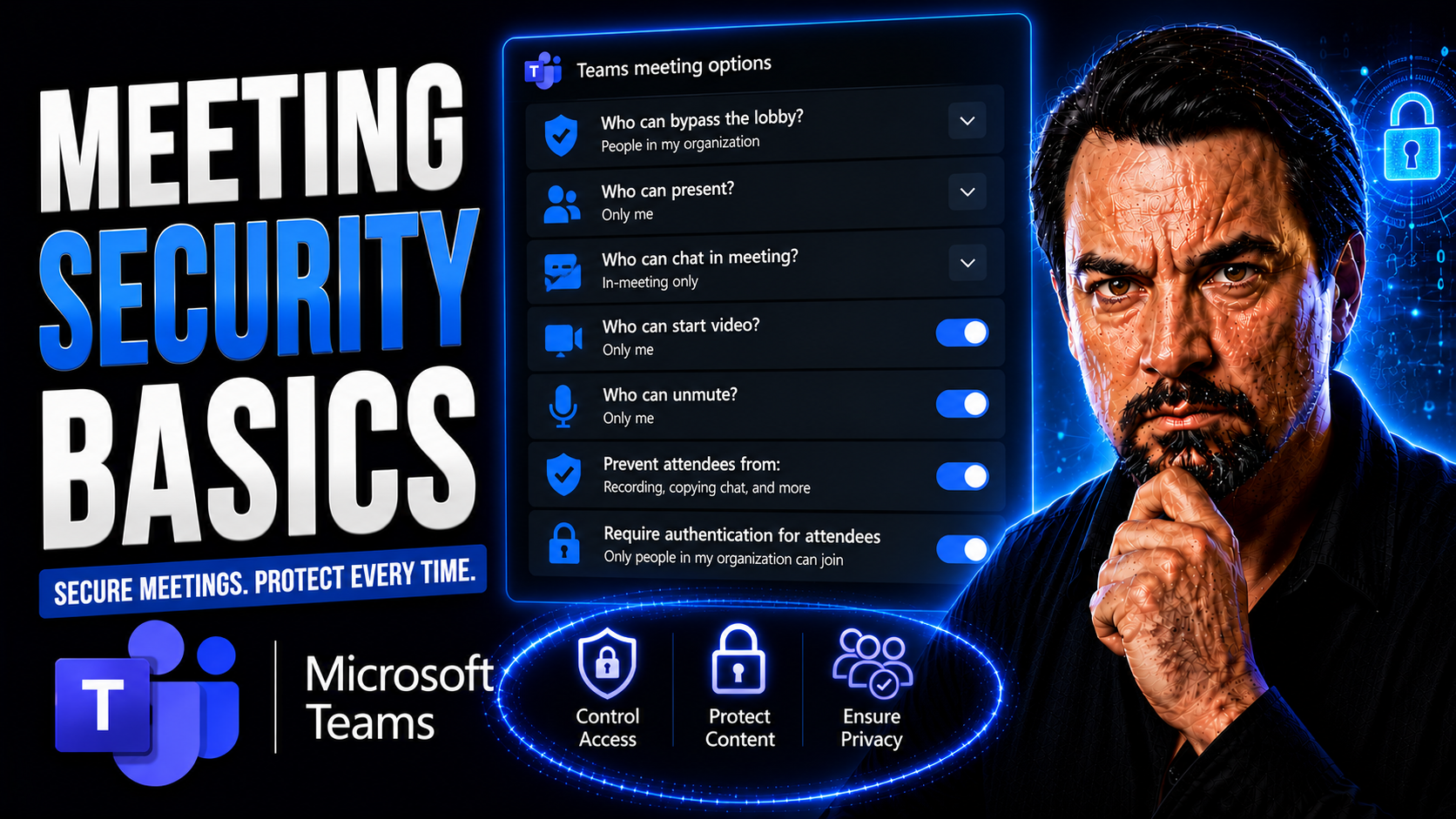
Meeting security isn’t just a checklist item—it’s the difference between safe working and a potential data catastrophe. In today’s world, where Microsoft Teams and other platforms are standard for business collaboration, every virtual or hybrid meeting is a potential target for disruption or unauthorized access. You have to be vigilant, because the threats—like uninvited guests, leak risks, or even stolen credentials—are real and growing.
A solid meeting security plan means taking proactive steps long before you click “Join.” We’re talking about layered defenses: strong access controls, tight authentication settings, smart responses to disruptions, and structured policies that work no matter how or where your team meets. Whether it’s using waiting rooms, unique passwords, managing screen sharing, or enforcing company-wide standards, each move adds a brick to your wall of defense.
In the sections ahead, you’ll find practical strategies to protect every meeting—virtual, hybrid, or in-person. We’ll break down the essentials for Microsoft Teams and more, help you manage disruptions, walk you through policy-based controls, and give you the planning and checklists that make securing your workspace second nature. Meeting security is a journey, not a one-time fix—and this guide is your reliable roadmap.
Essential Meeting Security Practices for Virtual Collaboration
No matter how you slice it, securing your virtual meetings starts with getting the basics right. If you don’t nail down core safeguards like who gets in, how they get in, and what settings you lock down—you’re asking for trouble. In this age of remote and hybrid work, it’s less about “if” and all about “when” an outsider tries to slip into a call or sensitive info finds its way to the wrong eyes.
At its core, effective meeting security is about taking control. That means thinking like both a host and a gatekeeper: making sure your meeting has the right locks, using passwords and not relying on the same personal meeting link over and over, and knowing exactly who’s waiting in your virtual lobby. Every detail—no matter how small—helps shut out interruptions and protect your team’s ideas.
Of course, you want tools and settings that actually work—nothing frustrating or complicated. Microsoft Teams and similar platforms have evolved and now offer several built-in features to help you stay on top of security, like enhanced waiting rooms, screen-sharing controls, and automated passcode enforcement. These aren’t just for show; they’re the bread and butter for keeping meetings safe, especially as the risks keep changing.
The next sections dive into how you put these principles into action. You’ll see the whys and whats behind critical security moves, with practical tips on everything from password protection to admission controls, so your meetings stay productive, private, and free from chaotic surprises.
Enable Password Protection and Avoid Reusing Personal Meeting IDs
- Enable Passcodes or Passwords for Every MeetingAlways set a password or passcode when scheduling a new meeting, even if you trust the invite list. Passwords put a solid barrier between your info and outsiders—no password, no entry. On Microsoft Teams and other platforms, you can automate this process to avoid slip-ups. Don’t let the default settings lull you into a false sense of security.
- Avoid Using Your Personal Meeting ID (PMI) for External MeetingsYour PMI is like leaving the key under the mat—use it enough, and someone’s bound to make themselves at home. Schedule each meeting with a unique, randomly generated meeting ID. Rotating IDs for every event limits unwanted guests who may have stumbled on an old invite link or guessed your recurring ID.
- Practice Strong Passcode HabitsMix numbers, letters, and—if allowed—symbols to create strong passcodes. Avoid birthdays, “12345,” or company names. The idea is to stop brute-force guessing from even being an option. Some solutions will auto-generate secure codes, saving you time and eliminating weak spots.
- Audit and Change Personal Meeting IDs RegularlyIf you must use a PMI (for internal staff, maybe), change it up every so often. The longer you stick with one ID, the greater the chance it ends up somewhere public or in the hands of a bad actor. Make updating PMIs part of your regular maintenance routine, just like changing a password.
- Communicate Passwords SecurelyNever share meeting passcodes in public Slack channels, social media, or group chats with wider reach. Always use secure channels, and avoid embedding passwords in calendar invites if the invite goes to external or wide audiences.
Control Who Joins by Using Waiting Rooms and Host Permissions
- Enable Waiting Rooms or Lobbies by DefaultWith a waiting room, nobody joins your meeting automatically. All participants land in a virtual “holding area,” so you get a minute to vet them—no awkward surprises mid-call. Platforms like Microsoft Teams, Zoom, and others increasingly make this a default, but always check your meeting template to confirm it’s on.
- Admit Only Recognized ParticipantsTake a quick look at names and emails before admitting guests from the waiting room. Don’t feel pressured to let someone in if their credentials or identity are unfamiliar. Sometimes a fast double-check prevents a day’s worth of headaches.
- Assign Co-Hosts or Additional ModeratorsIt’s tough to manage a meeting and play security guard at the same time. Assigning one or more co-hosts (or co-organizers in Teams) means there’s always someone who can watch the lobby, spot trouble, and help remove uninvited guests if needed.
- Restrict Screen Sharing and PermissionsDon’t give sharing rights or advanced permissions to everyone by default. Limit these powers to the host and designated speakers. This keeps random attendees from taking over the meeting with their own agenda or accidentally presenting confidential content.
- Use Participant Management FeaturesMost platforms let you mute, remove, or block participants on the fly. Know where those buttons are and don’t hesitate to act if someone doesn’t belong. In Microsoft Teams, you even have participant lists that let you monitor who’s currently in the call in real time.
Secure Your Virtual Meeting Environment Across Platforms
Securing virtual meeting spaces isn’t a one-size-fits-all deal. The big players—like Zoom and Microsoft Teams—come with their strengths but also unique quirks when it comes to keeping unwanted eyes and ears out. Your job isn’t just about setting up a meeting but knowing which buttons to push or switches to flip to guard the digital doors.
It starts with ditching default settings and making the most of the security tools your platform offers. If you leave things on autopilot, you could miss out on important protections, like updated authentication, stronger screen sharing rules, or proper guest controls. Staying on top means regularly reviewing and adjusting settings—because cyber threats and platform updates are always on the move.
On top of the basics, it’s smart to leverage domain-level policies and advanced management tools. These features help you create consistent, organization-wide rules, so all your users—from rookies to the tech-savvy—get the same tough layer of security. Plus, regular software updates help keep vulnerabilities patched and hackers guessing.
Up next, you’ll get detailed, side-by-side breakdowns for hardening both Zoom and Microsoft Teams. Expect clear steps for adding friction to potential intruders, keeping sensitive data under wraps, and staying compliant without getting tangled in technical jargon.
Securing Virtual Meetings on Zoom: Must-Have Settings and Policies
- Enable Required Passcodes for All MeetingsZoom meetings should never be wide open. Set passcodes for every scheduled and instant meeting, and make it mandatory for everyone—including recurring sessions. This blocks snoopers using old links or Zoom “war dialers” from walking right in.
- Use Waiting Rooms for Participant ScreeningWaiting rooms let you preview each attendee before they enter. In Zoom, you can customize waiting room messages and selectively admit guests or block anyone suspicious. This is especially vital for large webinars or calls with external stakeholders.
- Limit Screen Sharing and File TransfersTurn off “Anyone can share” and set screen sharing to “Host only” by default. Allow file transfers only from trusted users and consider disabling entirely unless necessary. These simple switches prevent “Zoom bombing” and restrict accidental data leakage.
- Regularly Update Zoom Client and Review Security SettingsKeep the Zoom client up to date on every device. Outdated apps invite exploits that bypass even solid security settings. Make security reviews part of your regular routine—Zoom’s dashboard lets you see what policies are active and spot holes before they’re exploited.
- Leverage Admin Controls and Centralized ManagementFor larger organizations, use Zoom’s centralized admin console to enforce global security rules: block unauthorized users, whitelist domains, and enable two-factor authentication (2FA). Admin controls ensure no user sidesteps critical protections with a few mouse clicks.
Microsoft Teams Security Configuration and Best Practices
- Activate Secure Lobby SettingsIn Microsoft Teams, always turn on the lobby so only invited participants get in automatically. With lobby settings, you can choose who bypasses the lobby—company employees only, or even more restrictive. This step is basic, but it blocks random outsiders instantly.
- Restrict Guest Access and External SharingTake the time to control who can join as a guest. Use Microsoft Teams’ admin center to limit or completely turn off guest access for sensitive projects. When you must work with outsiders, set tight permissions to restrict what guests can see or do.
- Enable Sensitivity Labels and Data Protection FeaturesMake use of Microsoft Information Protection features, like sensitivity labels. These let you tag meetings or shared documents as “Confidential”—which limits unauthorized sharing and keeps logs for compliance. Sensitivity labels are enforced across the whole Microsoft 365 suite so nothing slips through the cracks.
- Apply Conditional Access and Compliance PoliciesAdvanced admin features, like Conditional Access and Data Loss Prevention (DLP), are your meeting’s insurance plan. These block meetings from high-risk geographies, unmanaged devices, or risky user behavior. To dig into deep security layers, check out this guide on hardening Microsoft Teams security.
- Implement Broad Governance StrategiesStructure your Teams environment with smart rules, clear roles, and ongoing monitoring. This isn’t just about “locking doors,” it’s about creating a culture of accountability and compliance. Learn how strong Teams governance can supercharge security and teamwork right here: Microsoft Teams Governance.
Preventing and Responding to Meeting Disruptions
Disruptions are the stuff of meeting nightmares, aren’t they? One minute you’re discussing quarterly goals, the next you’re bombarded with offensive audio, odd pop-ups, or an unrecognizable face laughing on webcam. Having a plan for meeting security doesn’t just cover prevention—it means knowing what to do on the spot if trouble breaks out.
Prevention starts before you even schedule, covering everything from how you distribute meeting links to double-checking who’s supposed to attend. Waiting for an incident to happen before you act is risky—each click or share could be one step closer to a leak or a PR headache. That’s where these proactive moves pay dividends.
Still, no matter how many locks you add, you can’t guarantee absolute safety. Sometimes, an unwanted guest slips through, or a trusted participant goes rogue. That’s why your plan needs a second half: real-time response. Quick removal tools, meeting locks, and thorough documentation of what went down are all part of your damage control toolbelt.
Coming up, you’ll see both sides: how to prep so disruptions stay rare, and what you should do to regain control and learn from issues if they crop up during a session.
Pre-Meeting Tips for Preventing Disruptions and Unauthorized Access
- Avoid Sharing Meeting Links PubliclyDon’t post your invitation or meeting link on public forums or social media. Treat links like keys—only hand them out to the right people, directly. Every public share increases the odds your meeting gets found by a troublemaker.
- Keep Browser Tabs and External Links SecureClose sensitive browser tabs before sharing screens, and avoid clicking unknown links or attachments during calls. Leaving tabs open—or sharing the wrong window—could expose confidential info to all attendees.
- Verify Attendee Lists Ahead of TimeLook over the attendee list before the meeting starts and remove any generic or suspicious names. Anyone not expected—or using strange email domains—should be verified with a separate, secure communication.
- Test Security Settings Before StartingTake a minute to review your platform’s security settings. Confirm waiting rooms are on, passwords are required, and screen sharing is restricted. It’s easier to adjust before people show up.
- Communicate Ground Rules to AttendeesBrief participants on basic security behaviors: no recording without permission, be mindful of what you share, and alert the host if something unusual pops up. Keeping everyone in the loop helps spot problems fast.
Actions to Take During and After a Meeting Disruption
- Remove the Disruptive or Unauthorized Participant ImmediatelyUse your platform’s participant panel to eject anyone causing trouble. In Microsoft Teams, right-click their name and select “Remove.” On Zoom, use the “Remove” function from the participant menu. Don’t delay—every second counts in limiting the fallout.
- Lock the Meeting to Prevent More JoinersIf chaos breaks out, lock the meeting so nobody else can slip in while you’re getting organized. This option is usually found in the host controls or security settings, and it acts like slamming the door shut when you need a quiet moment.
- Mute All Participants or Take Over Screen SharingIf there’s a flood of noise or unwanted screen sharing, use the “Mute All” button, and revoke sharing privileges from non-essential attendees. Take control back immediately—this cuts distractions and stops the spread of anything inappropriate.
- Report the Incident Through Platform ToolsZoom, Teams, and others have built-in ways to report abuse, which flags the session for review and helps security teams respond faster. This is important for legal or compliance follow-ups, especially if any sensitive material was shared.
- Document the Disruption for Compliance and Future PlanningJot down what happened, who was involved, and how you responded. Save attendee lists, chat logs, and any recordings as evidence. Use this documentation to inform your next debrief, and consider how settings or behaviors can be adjusted for even stronger controls going forward.
Enterprise-Grade Meeting Security and Policy Implementation
When meetings aren’t just small huddles but organization-wide events, managing risk means looking beyond individual settings to big-picture strategies. IT leaders and admins are tasked with ensuring every session—regardless of platform or department—follows corporate standards, so no one slips through cracks or unwelcome data leaves the building unnoticed.
Domain-based security features, for example, help restrict access to only users from authorized company domains. Centralized management means settings, permissions, and even emergency lockouts can be deployed across the board, creating a tight, uniform security net. These steps work together to streamline authentication and slash the attack surface, which gets more important as headcount grows.
Ongoing oversight is also a must. You cannot “set and forget” participant permissions or screen sharing controls, or hope folks always stick to best practices. Continuous participant monitoring, periodic audits, and access reviews keep your organization’s video conferencing spaces resilient and responsive to new threats as they emerge.
Coming up, you’ll get clear definitions of domain-based policies and practical tips for participant and content oversight. These strategies help you future-proof your meeting security and ease daily management headaches.
Adopt Domain-Based Security and Centralized Management Controls
Domain-based security is a strategy where meeting access is restricted to users from specific, authorized email domains—typically your company’s domain. This ensures only employees or trusted partners can join internal meetings, adding a gate that blocks outsiders from trying their luck with guessed links or invites.
By enforcing organization-wide settings via admin controls and policies, IT can create uniform security standards. These controls can apply across platforms, including Microsoft Teams, Zoom, and beyond. Features such as enforced single sign-on (SSO), required multi-factor authentication (MFA), and centralized password policies make every meeting entry point more secure.
The benefits go beyond access control. Streamlined user authentication reduces the need for repeated identity checks, making security less intrusive for users but more effective overall. Centralized dashboards let managers monitor real-time metrics and make platform-wide adjustments on short notice if a vulnerability is discovered.
Adopting these enterprise-level strategies slashes risk by shrinking the available attack surface. It also ensures compliance with regulatory requirements, which is critical for organizations handling sensitive or regulated data through remote meetings.
Monitor Participants and Manage Shared Content Access Continuously
- Perform Regular Participant AuditsSchedule routine checks of who joins your meetings. Compare attendee lists to your invites, looking for unexpected guests or duplicate sign-ins. This proactive monitoring allows you to catch oddities or vulnerabilities before they’re exploited.
- Limit Sharing Permissions to Trusted RolesAssign content sharing and screen share rights only to presenters, hosts, or high-trust team members. By avoiding broad sharing access, you dramatically reduce the chances of accidental or malicious leaks, especially during larger or public-facing meetings.
- Monitor Content Shared in Real TimeKeep an eye on what is being shared—documents, chat messages, or screens—while the meeting is live. If confidential data appears unexpectedly, intervene on the spot and remind participants of appropriate content guidelines.
- Segment Private Channels and DataWhen using platforms like Microsoft Teams, segment sensitive content into private channels or restricted workspaces. For a comparison on how to manage different channel types, check out this guide on Teams channel management.
- Log and Review Activity Post-MeetingAfter each meeting, review activity logs—who joined, what was shared, and any unusual permissions changes. Auditing after the fact provides a clearer picture and forms the backbone for future improvements in meeting security processes.
Comprehensive Security Checklists and Proactive Meeting Planning
There’s a reason pilots, surgeons, and security pros swear by checklists—they make sure nothing gets missed, even when the pressure’s on. Repeatable checklists and scenario planning provide structure in your organization’s meeting routines, reducing the chances of human error even as meeting complexity grows.
It’s not only about protecting the company—it’s about peace of mind for hosts, admins, and every participant. With so many variables at play (new devices, software updates, outside guests), checklists ground your prep in proven steps and help keep meetings from derailing due to a missing setting or overlooked risk.
Scenario planning adds depth to your defenses. By considering “what if” moments—like an attempted break-in or a sudden tech failure—you build muscle memory for real incidents. Your teams become ready to react, adapt, and recover, minimizing impact and maintaining business flow even when surprises hit.
The next sections give you go-to checklists to deploy every time and questions that lead to stronger partnerships with your vendors and hosts, so your meetings stay secure no matter how the tech or threat landscape evolves.
Use a Safe, Secure Checklist Before Every Meeting
- Double-Check Meeting Access SettingsConfirm passcodes, waiting rooms, and lobby controls are set for every session—even recurring ones. A quick check here prevents almost all casual intrusions.
- Review the Invite List for AccuracyGo through attendees to ensure only the intended folks are getting invitations. Remove anyone who doesn’t belong, and verify unfamiliar addresses directly.
- Limit Permissions for Sharing and RecordingSet sharing, recording, and screen control privileges only for presenters or hosts, not all participants. This blocks unwanted takeovers and accidental info leaks.
- Test Audio/Video Settings and Device SecurityUpdate firmware, check for unused connected devices, and verify everything is patched and password-protected.
- Prepare an Emergency “Lockdown” PlanKnow where the mute all, remove, and lock meeting buttons are, so you’re ready to act if something goes sideways.
Ask Vital Security Questions and Plan for Inescapable Risk
- How Does the Vendor Handle Meeting Data?Ask providers about data storage, retention, and encryption. Knowing where and how your recordings and chat logs are stored helps prevent data loss or leaks.
- What Is the Process for Escalating Security Incidents?Demand clarity on who to call, what info to collect, and what the timeline for resolution looks like if a breach occurs mid-meeting or after.
- How Are Security Updates and Patches Managed?Ensure your platform of choice is frequently updated and patches are deployed quickly, both for desktop and integrated mobile apps. Vulnerabilities wait for no one.
- Is Compliance Up to Date with Relevant Standards?Check that the meeting tool supports current compliance requirements—think GDPR, HIPAA, or industry-specific regulations. This is about more than avoiding fines—it’s about protecting everyone involved.
- What Scenario-Based Plans Are in Place for Common Threats?Work with IT to brainstorm plausible risks—unauthorized sharing, device theft, or network outages—then develop step-by-step playbooks to address each. Accept that risks are real, but acting early keeps surprises from sinking your meeting.
Securing Meeting Technology in Hybrid Work Environments
Hybrid work is here to stay, and with it comes a whole new set of meeting security challenges. When in-person and remote folks come together, you’re juggling everything from unpatched conference room hardware to attendees Zooming in from free-for-all Wi-Fi at the local coffee shop. Overlook even a single weak spot, and your carefully built security can fall apart fast.
The physical side matters just as much as the digital. Unprotected AV gear, default system passwords, or insecure HDMI dongles can open backdoors that hackers love to exploit. And let’s not even get started on shared cables or open USB ports—those are invitations you don’t want to send.
But access isn’t just about plugging in. You need to be sure that sharing controls and permissions are synced across the whole environment—remote or in-room. Give too many people too much power and you’ll be dealing with unauthorized presentations, hijacked meetings, or even a physical attendee letting in a digital intruder. Your access policies have to match the hybrid world you’re working in.
Coming up next, you’ll get bite-sized, real-world steps to harden room technology and create clear, coordinated access controls that bridge the gap between the meeting table and the cloud.
Hardening Conference Room AV Equipment and Systems
- Update AV Firmware and Ensure PatchingMake it a habit to check for and install firmware updates on conference room gear—cameras, microphones, and touch panels. Fresh updates fix known security flaws fast.
- Change Default Passwords on All DevicesDefault logins are hackers’ favorites. Set unique, strong passwords for in-room systems, wireless displays, and networked hardware.
- Disable Unused Ports and ConnectionsBlock USB, HDMI, or wireless presentation ports that aren’t needed. The fewer entry points, the less likely someone goes rogue with a thumb drive or unauthorized laptop.
- Segment Conference Room NetworksUse network segmentation for AV gear, keeping meeting-room devices separate from your primary business network. If something gets compromised, you contain the problem.
Managing Access Controls for Both In-Room and Remote Participants
- Implement Badge or Keycard Entry for Physical SpacesAuthenticated entry systems keep strangers from wandering into sensitive rooms—and make it easy to track who’s been inside and when.
- Require Digital Sign-In or Authentication for Remote UsersMandate login with verified company credentials for anyone joining a virtual session, even if they’re in the next room physically. Don’t let anyone bypass access checks.
- Assign Sharing and Host Controls to Approved IndividualsGive presentation and host privileges only to pre-selected people. Whether they’re online or in the room, limit who can change settings or share content.
- Synchronize Meeting Permissions Across EnvironmentsKeep permission levels consistent for all participants. That way, walking into a meeting in person doesn’t mean you get a free pass to all controls or data.
User Training and Standard Procedures for Secure Meetings
All the fancy security tools in the world don’t mean much if people keep letting their guard down. Human error—clicking an unsafe link, ignoring a pop-up, or forgetting to enable the waiting room—can undo your work in a heartbeat. That’s why smart organizations make training and standardized operating procedures (SOPs) just as important as technical defenses.
Training isn’t about dropping a fat manual in someone’s inbox or pointing fingers when mistakes happen. It’s about practical education—making sure every host and participant knows how to stay alert, what red flags to look out for, and which security features to actually use each time.
SOPs turn good intentions into muscle memory. When everyone follows the same process, it reduces missteps from meeting to meeting. Whether it’s an internal brainstorm or a public-facing webinar, reliable playbooks give you peace of mind—every session starts with the right locks on every digital door.
Let’s look at how you can build that security awareness and create quick-reference guides your team will actually follow, not just stash away and forget.
Building Security Awareness for Hosts and Participants
- Train Everyone to Use Waiting Rooms and LobbiesOffer quick tutorials on enabling and managing waiting rooms. Make it clear how and why to check guest identities before admitting them to the meeting.
- Spot and Report Social Engineering AttemptsTeach folks to recognize phishing, impersonation, or odd requests for sensitive data. Remind them: If something feels off, say something fast.
- Encourage Mindful Use of Screen SharingTrain participants to close unrelated browser tabs before sharing and disable notifications that could leak info during a screen share.
- Make Key Policies Memorable and RepeatableUse “sticky” reminders—short slogans or posters near workspaces. “Check the lobby, protect your hobby” may sound corny, but repetition builds good habits.
- Provide Ongoing Access to Micro-Learning ModulesOffer bite-sized lessons or quick-start guides, available on demand. That way, new and existing team members can brush up as needed without getting overwhelmed.
Creating Standard Operating Procedures for Your Meetings
- Develop Playbooks for Recurring Internal MeetingsCreate short checklists for routine team calls: password setup, attendee review, and post-meeting log checks.
- Draft Guest Webinar SOPsPlan every guest-facing session with steps for vetting sign-ups, communicating etiquette, and outlining what content can (and can’t) be shared.
- Set Pre-Brainstorming Security RitualsFor ideation sessions, remind everyone to lock down notes, enable waiting rooms, and confirm who’s on the line before starting.
- Adjust SOPs as Threats and Platforms EvolveContinuous improvement is key. Make regular updates as new risks emerge or platforms add features.
Recognizing Third-Party App and Integration Risks
Third-party integrations can boost meeting productivity, but they can also open the door to unexpected security headaches. Whether it’s a calendar add-on, a chat bot, or a cloud storage connector, each connection increases the odds that sensitive meeting data wanders into places you didn’t intend—or even gets exposed outright.
It’s easy to lose track of which apps have access to your meetings, especially as the ecosystem around Microsoft Teams and similar platforms keeps expanding. When these add-ons ask for permissions or touch sensitive data, you need to know exactly what you’re authorizing. A little due diligence now saves a lot of headaches later.
It’s not just about access—it’s about data flow. Every integration point can be a leak point. Tighten oversight with controlled data sharing policies and encryption requirements, so if data does move, it only travels where and how you approve. Compliance laws are always shifting, so robust governance frameworks must guide all external connections.
Coming up, you’ll find practical steps for evaluating add-ons and setting up strong boundaries for how meeting data gets used, stored, and shared.
Evaluating Permissions and Security of Meeting Add-ons
- Review Permission Requests Before Enabling Add-OnsCheck every app’s permissions—do they need access to files, chat, or attendee data? Only activate integrations that absolutely require these permissions.
- Investigate the Provider’s Security ReputationStick with apps from trusted vendors or from your platform’s official store. Read up on reviews and see if they’ve had known data breaches before signing off.
- Enforce Compatibility with Organization PolicyCheck that each add-on meets your company’s security and compliance rules. If it doesn’t fit with official policies, skip it—no matter the bells and whistles advertised.
- Apply Least-Privilege Access at Every StepGive integrations the minimum access required, nothing more. A tool doesn’t need to read, write, and delete files if only viewing is necessary. Learn more about secure app extensibility in Teams with this guide: extending Teams securely with apps.
- Audit Enabled Apps RegularlySchedule periodic reviews and cut any integrations no longer in use. This tidies up your app ecosystem and closes holes in your security net.
Controlling Data Flow Between Meeting Platforms and External Tools
- Enable End-to-End Encryption Where PossibleEncrypt recordings, chat logs, and shared content—so even if intercepted, your data stays locked down from prying eyes.
- Restrict Sharing to Approved PlatformsLimit movement of data to only approved cloud storage, project management, or CRM systems. Every new destination is a fresh risk, so choose wisely.
- Conduct Routine Audits of Content MovementMonitor which data is moving where, how often, and why. Unexpected patterns may hint at misconfigured apps or unauthorized integrations.
- Leverage Data Governance Frameworks for ComplianceWork within established data governance frameworks to meet HIPAA, GDPR, or other applicable standards. Document and enforce these requirements across all meetings, integrations, and participant groups.
You Should Also Listen To
If you are researching Teams meeting security, these episodes add practical context on meeting operations, security, collaboration, and governance:
- Recording, Transcription, and Breakout Rooms — Learn how recording and transcription turn meetings into reusable knowledge.
- Teams Telephony – Simply Explained — Understand the communication architecture behind reliable Teams meetings.
- Microsoft Teams Governance – The Illusion of Control — Connect meeting design with policy, ownership, lifecycle, and governance.
- Microsoft Defender XDR – Simply Explained — Add security monitoring and response to meeting operations.

Microsoft MVP | Host of M365.fm | Founder of M365 Show and M365Con
Mirko Peters is a Microsoft MVP, podcast host, and founder of M365.fm, M365 Show, and M365Con. His work connects Microsoft practitioners through podcast interviews, livestreams, and community events.
At M365.fm, Mirko hosts conversations with Microsoft MVPs, product experts, architects, and community contributors. Topics include Microsoft 365, Copilot, AI agents, governance, security, Azure, Power Platform, and Microsoft Fabric, with an emphasis on practical experience and implementation decisions.
M365.fm is the podcast and learning platform. M365 Show brings experts together for livestreams, while M365Con provides an online conference setting for community learning.
Official website: Mirko Peters (https://www.mirkopeters.com/). Recognition: Mirko Peters — Microsoft MVP profile (https://mvp.microsoft.com/de-DE/mvp/profile/9b0ca797-db5a-493a-a845-8b9158046cf5). Connect on LinkedIn (https://www.linkedin.com/in/m365showpodcast/).





