
Teams Meeting Templates Guide
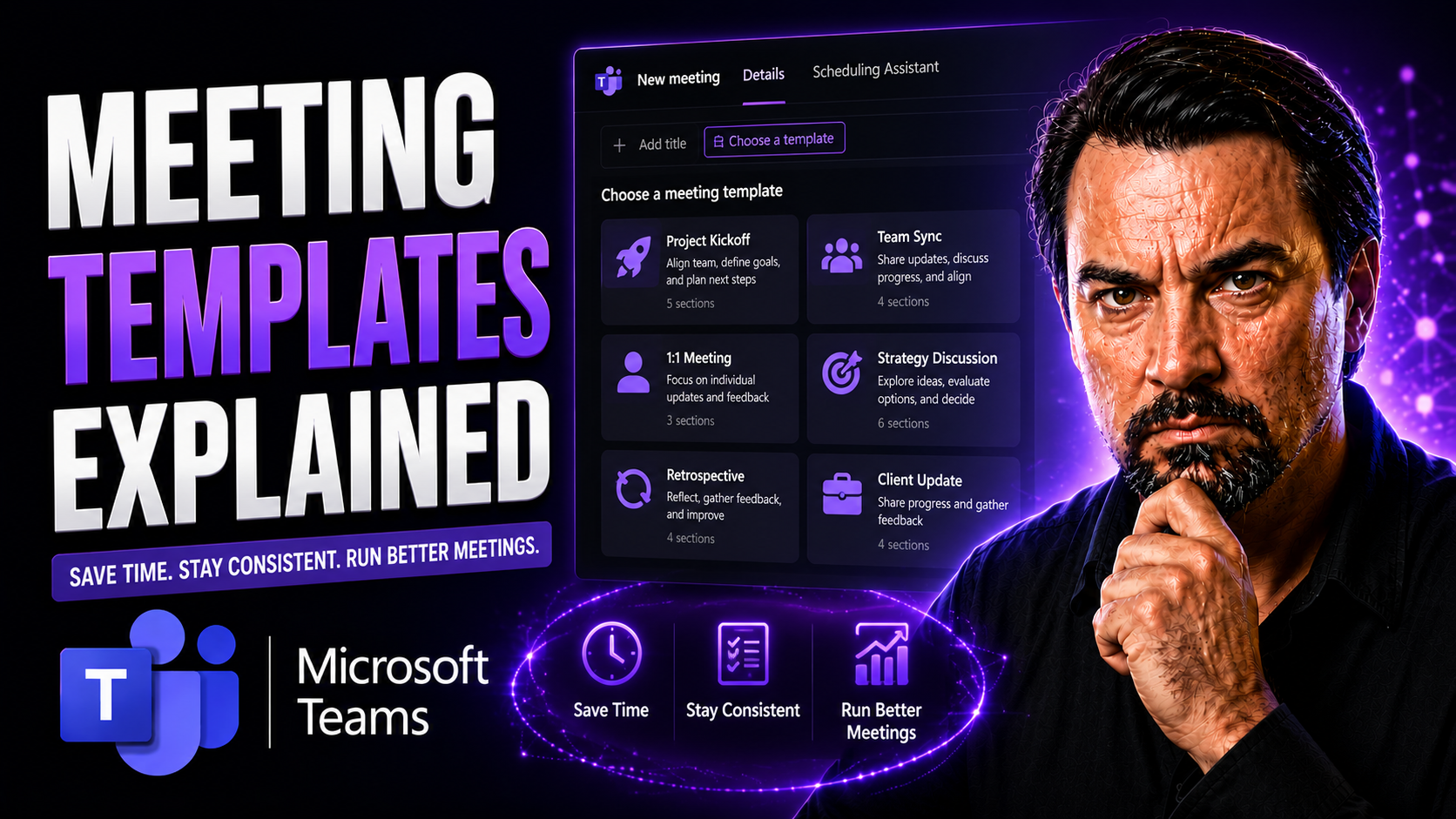
Let’s be honest: most meetings eat up time without getting much done. Meeting templates flip that script, helping you plan with purpose and guide your team to real results—especially when you’re using Microsoft Teams.
Meeting templates are blueprints that keep every get-together on track, with clear agendas and structure already built in. They bring consistency across your recurring calls, one-on-ones, project kickoffs, or anything in between. When you use these templates in digital platforms like Teams and SharePoint, collaboration gets easier, prep work is simplified, and everyone shows up ready to contribute.
This guide lays out the essentials of meeting templates: what makes an agenda actually work, how to build effective templates for your organization, and the nitty-gritty of using them in Microsoft Teams. We’ll also cover specialized templates for Agile, hybrid, and remote work—plus automation tips to save you time. Let’s get your meetings running smoother and your team working smarter.
Understanding Meeting Templates and Their Core Components
Before you start customizing agendas or tweaking your Teams channels, it’s important to understand what meeting templates really are and why they matter. Think of templates as your secret weapon—they’re more than just a document with bullet points. They’re a proven way to run meetings with purpose, avoiding wasted time and confusion.
Whether you’re hosting a recurring one-on-one, leading a project kickoff, or syncing up with a global team, templates help you clarify goals, structure the flow, and capture decisions—every single time. They support both remote and in-person collaboration, and play a big role in making outcomes consistent and measurable.
At the heart of every effective meeting template is a solid agenda. The agenda defines what gets discussed, who’s responsible, and how progress will be tracked. A strong template includes all the building blocks needed for different types of meetings but leaves room for flexibility based on the situation.
As you read on, you’ll see exactly how templates improve meeting effectiveness, the core components every agenda should have, and how to adapt these principles for your own organization and workflow—whether you’re a team lead or just tired of pointless calls. The next sections break it all down and get you ready to take action.
What Are Meeting Templates and Why Agendas Are Important
Meeting templates are pre-built outlines designed to guide your meeting agendas, structure discussion, and standardize routines. They’re not just checklists—they give your meetings clear direction and keep everyone on the same page.
Using meeting templates improves meeting effectiveness by ensuring every session has a purpose, defined topics, and a logical flow. Agendas matter because they help teams stay focused, avoid going off track, and respect everyone’s time. With a template, accountability rises: responsibilities and next steps are crystal clear, and action items don’t slip through the cracks.
Whether your team is remote or in-person, a consistent agenda structure lets people prepare better and participate more fully. That’s how you move from endless talk to real progress.
Essential Components of an Effective Meeting Agenda
- Clear Objectives: Every agenda should open with a statement of the meeting’s goal. This grounds the conversation and tells attendees what they should walk away with.
- Detailed Logistics: Include the time, date, location (or Teams link), and who’s attending. It ensures everyone knows where to be and when, reducing confusion.
- Agenda Topics and Time-Boxing: List each discussion item, assigning a clear time limit to each. For example, “Project update – 10 minutes.” This keeps meetings focused and prevents topics from dragging on.
- Roles and Responsibilities: Note who’s leading each segment, presenting, or contributing. It clarifies accountability and keeps conversation moving.
- Expected Outcomes: For each agenda item, specify what the group should decide, learn, or resolve. Instead of “Discuss Q3 Marketing,” write “Finalize Q3 marketing priorities.”
- Follow-Up and Action Items: Always reserve a section at the end to review what’s been decided and assign next steps to specific people. A summary makes sure decisions are acted on.
- Supporting Materials: Links to documents, slides, or reports let attendees come prepared. This is especially important for virtual Teams meetings where files are easily shared in advance.
Here’s a sample template layout for a typical project meeting:
- Objective: Approve project plan and assign next tasks
- Details: Wednesday 10am, Teams Meeting, All Project Stakeholders
- Agenda:
- Review current status (5 min)
- Discuss project plan draft (15 min)
- Identify risks/blockers (10 min)
- Action items and next steps (5 min)
- Follow-up: Assign action items, set next review date
The goal is to make the agenda flexible but structured enough to keep energy high and action-oriented.
How to Create and Structure a Meeting Agenda
Great meetings don’t just happen; they’re carefully planned—starting with a focused, well-structured agenda. Before diving into the details, it’s worth understanding the big picture: why a systematic approach pays off and how it helps your team.
Creating a meeting agenda is all about clarity, logic, and action. When you use Microsoft Teams or SharePoint, you get extra tools to streamline preparation, share templates, and collect feedback. No more scattered documents or people wondering what’s next—everything is centralized and easy to update.
This section introduces the key steps to crafting a meeting agenda that gets results, plus the best practices for formatting and distributing those agendas to maximize value. The coming subsections will walk you through the actionable “how-to” so you’re equipped to build and share your next agenda like a pro.
Steps for Creating an Effective Meeting Agenda
- Define the Meeting Objective: Start with a clear statement of purpose. Are you making decisions, brainstorming ideas, or reviewing progress? This keeps everyone aligned.
- List and Prioritize Agenda Items: Identify topics that must be covered, then sequence them logically. Start with the most pressing or complex issues while everyone’s fresh.
- Allocate Realistic Time Blocks: Assign a set time to each agenda item based on its importance. Avoid too many items or vague timeframes—being specific ensures nothing gets rushed or skipped.
- Assign Roles to Participants: Make it clear who is leading each section, who’s presenting, and who needs to be consulted. This helps participation and avoids confusion.
- Attach Supporting Documents: Link any relevant files, pre-reads, or slides. Send these out in advance so participants arrive prepared.
- Review and Refine: Before sending your agenda, double-check for gaps, overlaps, or unnecessary items. Edit for clarity and keep the flow logical.
- Distribute the Agenda Early: Share the agenda document via Microsoft Teams or email at least a day ahead. This gives people time to review, ask questions, and contribute to the discussion.
- Set Expectations for Follow-up: Let folks know there will be a recap and assigned action items at the end. This motivates active participation and ensures decisions are implemented when the meeting wraps up.
By following these steps, every meeting you organize is more likely to be focused, productive, and worth everyone’s time.
Best Practices for Agenda Formatting and Distribution
- Use Clear Headings and Bullet Points: Makes the agenda easy to read at a glance, and helps participants find relevant topics quickly.
- Logical Order of Discussion: Sequence items from highest to lowest priority, setting the meeting up for early wins and efficient use of time.
- Distribute Early in Microsoft Teams: Share the agenda in your Teams channel or meeting invite well before the session, allowing participants to prep and add comments.
- Attach Files and Add Links: Include direct links to resources, so attendees don’t waste time searching for materials.
- Update as Needed: Revise the agenda in real-time if priorities change, using shared documents in Teams so everyone stays synced.
Types of Meetings and Their Dedicated Templates
Not all meetings are created equal. Each type—from one-on-ones to big project launches—comes with its own goals, challenges, and best ways to get things done.
Having a dedicated template for each meeting type isn’t just “nice to have”—it’s a lifesaver when you want to stay organized, make sure nothing’s missed, and set the right expectations every time. Whether you’re leading a leadership check-in, a brainstorming session, or kicking off a new initiative, the right template keeps you focused and makes collaboration easier in Microsoft Teams.
This section introduces why template specialization matters, how it drives better results, and prepares you to match every meeting to the ideal template—making your sessions run smoother and more purposefully.
One-on-One and Leadership Meeting Templates
- Relationship Building: Each one-on-one should start with open-ended check-ins or personal updates, building trust beyond daily tasks.
- Feedback and Coaching: Create space for constructive feedback, goal tracking, and room for employees or teammates to raise concerns in a safe setting.
- Career and Professional Development: Dedicate time to discuss growth paths, training needs, and long-term aspirations, especially for skip-level or professional development sessions.
- Alignment Topics: Use leadership board templates to review progress, discuss key objectives, and set or re-align goals for your team.
- Sample Template Example: A regular agenda might look like: personal check-in, review last week’s wins/challenges, feedback/coaching, goal progress, new opportunities, and wrap-up/next steps. These elements ensure one-on-one meetings support both productivity and relationship-building at all levels.
Project and Kickoff Meeting Agenda Templates
- Objective and Scope Setting: Establishes what success looks like for the project and sets expectations from the start.
- Team Introductions: Helps everyone know who’s on deck, what their roles are, and how they’ll contribute.
- Timeline, Milestones, and Deliverables: Clarifies major dates, deadlines, and results expected, reducing risk of misunderstandings down the road.
- Risk and Issue Review: Provides a forum to identify, address, and assign ownership of potential blockers at the outset.
- Action Items and Next Steps: Ends with a review of who’s doing what, and clarity on follow-up tasks and future check-ins.
If you want a deeper dive into organizing complex projects and templates in Microsoft Teams, check out this step-by-step guide or this practical project management guide for best practices on integrated tools, automation, and project governance in Teams and SharePoint.
Templates for Brainstorming Sessions and Retrospectives
- Brainstorming Session Template: Kick off with a clear topic and desired outcome, then establish psychological safety so all voices feel welcome. Use stages like idea generation (free-form, no judgement), grouping and clustering (identify themes), and prioritization (voting or ranking).
- Time-Boxed Segments: Successful innovation meetings use short, focused time slots to keep momentum high and prevent endless debate.
- Interaction and Engagement: Add segments for real-time polls, whiteboarding, or round-robin sharing to boost participation—vital in hybrid and remote settings.
- Retrospective Meeting Template: Start with “set the stage” (recap, mood check), then go through “what went well,” “what needs improvement,” and finally “identify action items/owners.” Document lessons and commitments for future review.
- Continuous Improvement Focus: Both templates reserve time at the end for summarizing learnings, assigning actions, and celebrating wins, driving positive change and team accountability over time.
These structures keep creative meetings goal-oriented, not just a free-for-all, and build a culture where everyone feels valued and heard.
Agile and Scrum Meeting Templates
If you work in Agile or Scrum, you already know meetings are a rhythm, not a one-time thing. Agile teams rely on structure—daily standups, sprint planning, and retrospectives are all built on repeatable, well-defined agendas that fuel transparency, alignment, and quick iteration.
The right meeting template helps Agile teams stay on task, surface blockers early, and keep work cycles productive. But it’s not just about ticking boxes—it’s about empowering teams to self-organize, adapt fast, and deliver value with each sprint.
This section highlights the templates that make Agile meetings work. You’ll see examples tailored for Microsoft Teams, ways to keep standups focused and concise, and templates for retrospectives and root-cause analysis that drive real process improvement. For those seeking productivity hacks with Microsoft Copilot, this guide on Copilot prompt engineering is worth a look.
Daily Standup and Sprint Planning Template Examples
- Daily Standup Agenda: Each person quickly covers (1) what they did yesterday, (2) their plan for today, and (3) any blockers in their way. The meeting should take no longer than 15 minutes.
- Variations by Team: Some standups use a round-robin, others use a status board or go by feature. The key is to keep it short, focused, and team-driven.
- Status Updates and Blocker Surfacing: Highlighting obstacles or questions ensures issues are caught and solved fast, not left simmering for weeks.
- Sprint Planning Template: Set context and goals, review the backlog, estimate and assign tasks, and confirm the sprint timeline. Reserve time for clarifying priority or dependencies.
- Agenda Integration in Teams: Both types of meetings benefit from real-time agenda tracking, sticky notes, and chat-based updates in Teams—making it easy to pull in backlog items and assign owners on the fly.
Sample Standup Template (ready for Teams):
- Yesterday’s Progress (2 min per person)
- Today’s Focus (2 min per person)
- Blockers/Roadblocks (1 min per person)
This routine keeps your Agile team in sync and the project moving forward, every day.Effective Retrospective and Root Cause Analysis Templates
- Retrospective Meeting Structure: Begin by setting the stage—mood check or recap of the sprint. Move into “what went well” to let team members voice wins or strengths.
- Process Improvement Discussion: Next, discuss “what didn’t go as planned,” allowing honest, blame-free conversation. This is where lessons really get uncovered.
- Action Items and Accountability: After identifying issues, brainstorm solutions or mitigations. Assign concrete action items with owners and due dates so improvements don’t slip through the cracks.
- Root Cause Analysis (RCA) Principles: For recurring or serious issues, use a dedicated RCA template: (1) describe the problem, (2) gather facts, (3) identify possible root causes, (4) select corrective actions, and (5) define follow-up checks.
- Template Customization for Teams: Retrospectives and RCAs are ideal for collaborative boards, digital whiteboards, or adaptive cards in Microsoft Teams—so documentation, comments, and follow-ups are visible to all involved.
Effective templates ensure your Agile meetings lead to actionable improvements and keep your team evolving with every sprint.
Tools, Automation, and Platform Integration for Seamless Templates
Managing meetings shouldn’t require a spreadsheet army or digging through endless email threads. Digital platforms like Microsoft Teams and Zoom bring meeting templates into the modern world—making it easier to schedule, collaborate, and track outcomes all in one place.
These platforms don’t just organize your agendas—they automate tasks like reminders, connect agendas with shared files, and allow real-time editing or polling. Add AI and you unlock new ways to generate agendas, capture action items, and measure meeting impact without lifting a finger.
This section explores the practical side of integrating meeting templates with your digital tools, with tips on leveraging automation, security, and advanced analytics. You’ll also see how Microsoft Copilot and similar AI features drive next-level efficiency for busy teams.
How Microsoft Teams and Zoom Enhance Meeting Productivity
- Collaborative Agenda Creation: Both platforms allow multiple users to edit and build agendas together in real time, ensuring everyone is on the same page before the meeting begins.
- Template Sharing and Recurring Scheduling: Save and reuse meeting templates for regular calls or recurring projects, making it simple to replicate best practices.
- Built-In Polls and Interactive Features: Use live polls, reactions, and chat to engage attendees, collect instant feedback, and steer discussion actively.
- Automated Reminders and Follow-ups: Set up notifications for upcoming meetings, agenda updates, and deadlines, improving attendance and preparation rates.
- Integration with Apps and Bots: Microsoft Teams extends productivity further with custom apps and workflow automation, as detailed in this guide to Teams extensibility and this article on enabling Copilot in M365.
AI and Automation Transform Agendas and Meeting Outcomes
- AI-Powered Agenda Generation: Tools like Microsoft Copilot can draft agendas based on recent emails, previous meetings, and calendar context, saving organizers valuable prep time. Learn how prompt engineering maximizes these tools in this Copilot prompt guide.
- Automated Extraction of Action Items and Decisions: AI can identify and record follow-up tasks, decisions, and accountable owners in real time during the meeting, removing the need for manual note-taking.
- Real-Time Intelligence and Insights: Advanced analytics track discussion depth, participant engagement, and adherence to agenda, offering immediate feedback for meeting hosts.
- ROI Tracking and Continuous Improvement: AI-driven dashboards measure meeting outcomes, monitor completion of action items, and highlight areas for improvement—making it easier to fine-tune your process. This is further demonstrated with real-world Copilot and Teams scenarios in this Copilot in Teams guide.
- Secure and Automated Workflow Integration: M365 Copilot orchestrates meetings, chats, and workflows across apps while maintaining data governance, as outlined here: M365 Copilot workflow automation.
The future is automated—and meeting management is rapidly moving towards real-time, actionable insights with minimal manual effort, as seen in advanced security applications like Security Copilot.
Optimizing Meeting Flow and Measuring Effectiveness
Even with the best template, meetings can still run off the rails if flow and time aren’t managed. Optimizing your meeting’s pace (and knowing how to measure real success) is crucial for both productivity and morale.
This section sets you up to keep meetings tight—for example, using time cues or digital timers—to avoid rushing through decisions or letting the conversation drift. It also introduces ways to evaluate how effective your meetings actually are, focusing on results, action item follow-up, and ROI for your organization.
In the following content, you’ll discover practical techniques for time management and accountability, with steps to ensure each meeting produces measurable outcomes—helping you and your team grow session by session.
Meeting Flow Optimization and Time Management Strategies
- Thoughtful Agenda Preparation: Spend time up front on the agenda, prioritizing key items and ordering them for maximum impact.
- Time Limits for Each Item: Set and enforce realistic time blocks—10, 20, or 30 minutes per item—to maintain pace and avoid discussion overload.
- Digital Timing Tools: Use built-in timers or visible countdown clocks in Teams to keep presentations and open discussions on schedule.
- Active Facilitation: Guide the conversation, diplomatically steering it back on track if side topics arise.
- Encourage Participation: Invite quieter voices, use chat features for input, and balance airtime so everyone’s engaged and involved.
Measuring Meeting Agendas for Accountability and Results
- Track Follow-Up Rate: Consistently review which assigned action items were completed by the next meeting, assessing follow-through.
- Monitor Action Item Completion: Use shared trackers or Teams tasks to check if decisions and assignments resulted in concrete outcomes.
- Gather Participant Feedback: After each meeting, collect quick feedback (via polls or forms) on agenda clarity, value, and engagement.
- Quantify Measurable Outcomes: Link meeting results to business metrics—did the agenda drive project progress, resolve issues, or advance objectives?
- Continuous Improvement: Regularly digest this data to spot trends and tweak future agendas. This ongoing review helps teams build a success-driven meeting culture—see more with recent Copilot efficiency stats here.
Frequently Asked Questions About Meeting Agendas and Templates
Let’s face it, even the most seasoned professionals have questions about getting meeting agendas right. This section is your go-to for tackling the practical realities—everything from how long an agenda should be, to best practices for remote versus in-person meetings, and how to be sure your agendas are actually working.
The FAQs and selection tips below address the top uncertainties faced by managers and team leaders running meetings in Microsoft Teams or across the hybrid workplace. Think of it as a toolbox for everyday agenda challenges, designed to save you time and make meetings less of a headache.
Whether you’re brand new to organizing meetings or just want to boost your skills, you’ll find plain-language answers and actionable advice here. That means less guesswork and more confidence when you schedule your next meeting.
Your Top Questions on Creating and Using Agendas Answered
- How do I create a meeting agenda from scratch? Start by identifying the meeting’s key goal, list agenda topics in order of importance, assign presenters, add relevant files, and set time limits. Use Teams templates for convenience.
- What is the ideal length for a meeting agenda? An agenda should be as short as possible while covering all necessary topics. Aim for 3-5 items over 30-60 minutes. Avoid cramming for meetings longer than an hour.
- What’s the difference between remote and in-person agendas? Remote agendas should include links, clear roles for digital participation, and built-in pauses for tech hiccups. In-person agendas can afford a little more unscripted discussion but still require structure.
- How can I tell if my agenda is effective? Look for regular action item completion, engaged participation, and measurable business results tied to agenda items.
- How far in advance should I share my agenda? Distribute the agenda at least 24 hours ahead—or more, for high-stakes meetings. Last-minute agendas leave people unprepared and disengaged.
- Are there free agenda templates available in Teams? Yes. Microsoft Teams and SharePoint offer built-in templates, and you can create shared documents so your team always starts meetings on solid footing.
How to Choose the Right Meeting Agenda Template
- Match to Your Meeting Goals: Use action-focused templates for decision-making meetings, open-ended ones for brainstorming, and accountability-driven formats for recurring check-ins.
- Consider Group Size: Small teams may use simpler templates; large or complex groups benefit from more detailed agendas.
- Account for Meeting Format: For virtual meetings, select templates with links, interactive spaces, and clear digital participation cues.
- Leverage Real-World Examples: Review built-in Teams options or adapt published templates to your specific needs for faster adoption.
- Test and Refine: Try different structures, gather feedback, and iterate—one size rarely fits all, so adjust for your unique context.
Meeting Templates for Hybrid and Remote Teams
Leading meetings across time zones is a different beast. For hybrid and remote teams, it’s crucial to have meeting templates that respect everyone’s schedule, encourage real participation, and allow for flexible communications. Gone are the days when you could gather everybody in a room at the same time—now you need agendas that are digital, dynamic, and inclusive.
Hybrid-friendly templates help you rotate meeting times, include asynchronous updates for folks who can’t join live, and keep engagement high—even when half the faces on the call are squares on a screen. They’re about adapting your process, not just copy-pasting what worked in the office to a Zoom call or Teams channel.
If you want to see what’s next in hybrid work, Microsoft is leading the charge with Microsoft Places, which leverages AI-powered tools and Teams integration to optimize scheduling and collaboration. The templates described below prepare you to create meetings that work for every participant, wherever they are.
Time-Zone-Aware Scheduling and Agenda Design
- Rotate Meeting Times: Alternate the start times of recurring meetings so no one region is always logging in late or early.
- Include Pre-Read Materials: Share summary docs, slide decks, or recorded presentations ahead of time for those who can’t join live.
- Design Asynchronous Update Slots: Add agenda sections where remote teammates can post updates or comments before or after the meeting.
- Allow Flexible Participation: Enable chat-based Q&A or follow-up forms so people can contribute when their schedules allow.
- Highlight Time Conversions: Add a “Time Zone Table” section to help attendees see meeting times in their local context—no mental gymnastics required!
Engagement Strategies Within Virtual Meeting Templates
- Embedded Check-Ins: Start each call with a quick round of greetings, poll question, or emoji reaction to warm up the group.
- Quick Polls and Reactions: Use built-in Teams or Zoom polling features at decision points so everyone can chime in—without unmuting.
- Interactive Segments: Schedule breakout discussions, whiteboard activities, or brainstorming sprints directly in your template.
- Adaptive Cards and Message Extensions: Leverage Teams features described here and here to collect input, run quick-vote sessions, or trigger workflows inside the meeting.
- Digital Participation Cues: Add reminders in your template—“Raise hand to contribute,” “Type your idea in chat,”—making sure every voice is heard, not just the loudest ones.
You Should Also Listen To
If you are researching Teams meeting templates, these episodes add practical context on meeting operations, security, collaboration, and governance:
- Recording, Transcription, and Breakout Rooms — Learn how recording and transcription turn meetings into reusable knowledge.
- Teams Telephony – Simply Explained — Understand the communication architecture behind reliable Teams meetings.
- Microsoft Teams Governance – The Illusion of Control — Connect meeting design with policy, ownership, lifecycle, and governance.
- Microsoft Defender XDR – Simply Explained — Add security monitoring and response to meeting operations.

Microsoft MVP | Host of M365.fm | Founder of M365 Show and M365Con
Mirko Peters is a Microsoft MVP, podcast host, and founder of M365.fm, M365 Show, and M365Con. His work connects Microsoft practitioners through podcast interviews, livestreams, and community events.
At M365.fm, Mirko hosts conversations with Microsoft MVPs, product experts, architects, and community contributors. Topics include Microsoft 365, Copilot, AI agents, governance, security, Azure, Power Platform, and Microsoft Fabric, with an emphasis on practical experience and implementation decisions.
M365.fm is the podcast and learning platform. M365 Show brings experts together for livestreams, while M365Con provides an online conference setting for community learning.
Official website: Mirko Peters (https://www.mirkopeters.com/). Recognition: Mirko Peters — Microsoft MVP profile (https://mvp.microsoft.com/de-DE/mvp/profile/9b0ca797-db5a-493a-a845-8b9158046cf5). Connect on LinkedIn (https://www.linkedin.com/in/m365showpodcast/).





