Microsoft Teams Phone Licensing Guide
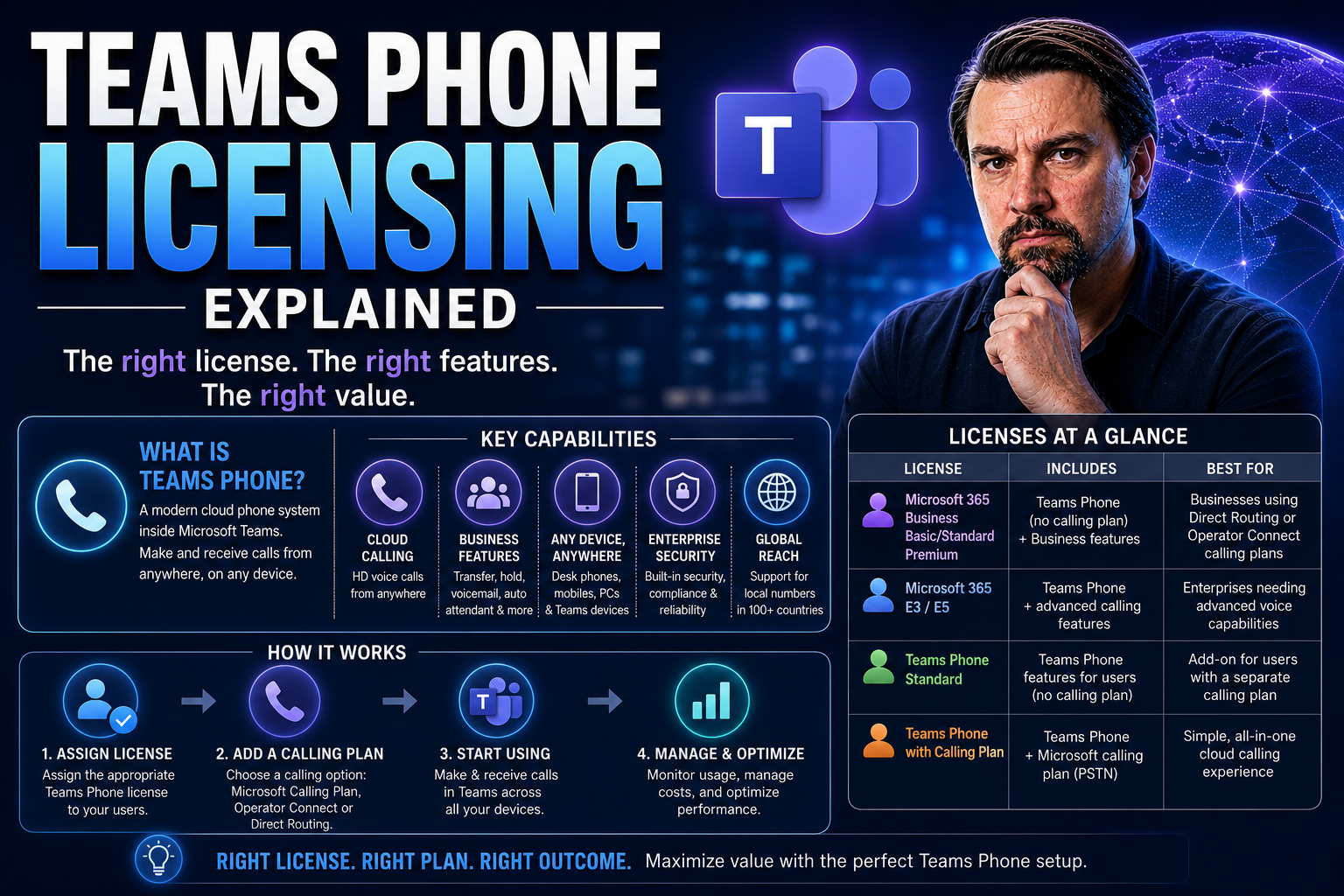
Navigating the world of Microsoft Teams phone licensing in 2026 isn’t just about picking a plan—it’s about understanding the moving parts that drive real business value. This guide gives you a clear breakdown of the essential building blocks required for Teams Phone, all the important add-ons you might need, and the biggest changes in pricing and features this year. You’ll discover technical requirements, available plan options, and smart strategies for getting the right setup.
Whether you’re gearing up to deploy Teams Phone for the first time or fine-tuning a setup that’s already under your belt, this resource pulls back the curtain on what really matters. We’ll break down the foundation, demystify costs, and highlight expanded features so you can make future-ready, confident decisions and avoid licensing headaches down the line.
Microsoft Teams Licensing Foundations
Before you can get your hands on Microsoft Teams Phone features, you need to sort out the basics: the right Microsoft 365 or Office 365 subscription is non-negotiable. These base licenses do more than just light up Teams—they unlock all kinds of collaboration, security, and compliance perks you’ll want for business calls, too.
Understanding the differences between these subscriptions can be tricky. The right suite determines whether you’ve got Teams included, if you need to bolt on Teams Phone separately, or if you’re eligible for bundled services. It’s all about aligning your company needs—both now and as you grow—with what each plan can deliver.
License management is another key pillar in keeping your Teams setup tidy and cost-effective. As your business evolves and users come and go, it pays to know how to add, scale back, or reassign your Teams licenses efficiently. Solid governance strategies keep your collaboration running smoothly and prevent those wild-west licensing surprises.
This section lays out the essential choices and concepts, so you can set your foundation right before worrying about dial tones, phone numbers, or external calls. Consider this your gateway into the world of Microsoft Teams licensing—and your ticket to confident, chaos-free communications management.
Choosing the Right Microsoft 365 or Office 365 Suite for Teams
- Microsoft 365 Business Basic:Ideal for small businesses, this plan includes Microsoft Teams for chat, meetings, and basic collaboration. However, it does not come with Teams Phone features out of the box. You’ll need to layer on Teams Phone as an add-on if you want calling capabilities. It works well as an entry-level solution but may require upgrades as you grow or your needs become more complex.
- Microsoft 365 Business Standard:Includes desktop Office apps in addition to Teams, and supports add-ons like Teams Phone. It’s a go-to plan for SMBs who want a balance of cost and versatility. Business Standard subscribers looking to enable enterprise-grade calling will still need to purchase the Teams Phone add-on or bundle.
- Microsoft 365 Business Premium:Packs all the features of Standard and adds advanced security, compliance, and device management. Teams Phone is not native but is fully supported via add-on. This is the SMB choice if you’re running a regulated business or just want tight control of your environment.
- Office 365 E1:This enterprise plan gives you Teams, Exchange, and basic productivity apps, but it doesn’t include Teams Phone functionality. Phone System and Calling Plan add-ons are required for calling capabilities.
- Office 365 E3:A popular option for larger businesses. E3 includes Teams, desktop Office, and comprehensive compliance features, but—like E1—needs Teams Phone and Calling Plans added for telephony. E3 is often chosen for organizations planning to scale or needing enhanced management tools.
- Office 365 E5:The all-inclusive suite. E5 features Microsoft Teams with native Phone System, Audio Conferencing, and advanced security tools. For many organizations, this is the “set-it-and-forget-it” choice—good for those who want everything bundled, with international calling and compliance baked right in.
When you’re considering growth or shifting needs, look for plans that let you add or mix licenses as new users or business locations come into play. Picking the right base suite sets you up for easy expansion and cost-effective licensing down the road.
How to Increase and Manage Teams Licenses
- Purchasing New Licenses:Use the Microsoft 365 admin center to buy extra Teams (or Teams Phone) licenses as your business adds employees. The self-service portal presents straightforward options and current pricing, letting you avoid overbuying or running short.
- Assigning Licenses:Admins can assign or reassign licenses to users through the admin center or PowerShell. This flexibility ensures only active employees hold licenses, maintaining compliance and preventing waste.
- Expanding or Reducing User Counts:You can scale licenses up or down as business needs change. Regularly review usage and remove unused licenses to stay cost-efficient. For sudden growth, bulk assignment features make onboarding fast and hassle-free.
- Best Practice Tip:Establish regular audits of license allocation—spot and clean up orphaned or inactive accounts to control costs. Relying on automated license management, if available, makes this process much smoother and supports ongoing governance.
Core Teams Phone System Architecture
Now that you’ve squared away licensing basics, it’s time to look beneath the hood at what makes Teams Phone tick. Behind the easy “dial and talk” exterior, Teams Phone brings together a bunch of moving parts to power enterprise calling, voicemail, and conferencing—all from within Microsoft Teams.
Getting Teams Phone architecture right matters because it defines how your users place calls, how you handle voice communications at scale, and how features like cloud voicemail or dial-in conferencing connect your people to one another and to the outside world. These architectural elements decide if Teams Phone fits seamlessly into your existing technology stack—or if you’ll wrangle integration headaches later.
From core Phone System capabilities to the built-in features like voicemail and conferencing, each block serves a specific role. Your choices on PSTN connectivity—how Teams talks to the public phone network—are just as important as understanding which features come standard versus which require planning or extra licensing.
This section gives you the high-level concepts so you can see the big picture, before diving into the nuts and bolts of each core feature or connectivity option. Let’s get your blueprint in shape before running the cables, so to speak.
Essential Components of Teams Phone System
- Phone System (Cloud PBX):The backbone of Teams Phone, the Phone System acts as your business’s virtual PBX. It controls call routing, call transfer, voicemail, auto attendants, and key features like call queues. With Phone System, you leave behind the dusty on-premises PBX and bring everything into Microsoft’s cloud.
- Calling Plans:These plans give users the right to make and receive calls to regular phone numbers over the public switched telephone network (PSTN). Microsoft offers both domestic and international calling plans. Without a calling plan or an alternative connectivity method, Teams operates as an internal-only system.
- PSTN Connectivity Options:PSTN connectivity bridges Teams Phone with the external telephone network. You have several choices: Microsoft’s own Calling Plans, Direct Routing with your own SIP trunk and carrier, or Operator Connect for a semi-managed third-party carrier relationship. Each has distinct pros, cons, and licensing requirements.
- Cloud Voicemail:Every Teams Phone user receives cloud voicemail as part of the Phone System license. Voicemails are delivered to their Outlook inbox—no extra mailbox needed, no additional setup required. This seamless, unified communications approach is a core part of the Teams Phone value.
- Audio Conferencing:Included in some plans, Audio Conferencing gives users a dedicated dial-in number so anyone—including people outside your organization—can join meetings by phone. This is critical for interacting with partners, clients, or workers in low-bandwidth situations.
Together, these components transform Teams into a full business phone solution, ready to support everything from simple direct calls to complex multi-branch deployments with global reach.
How Cloud Voicemail and Audio Conferencing Work in Teams
Microsoft Cloud Voicemail routes all missed calls to each user’s Outlook mailbox, allowing users to check messages directly within Microsoft Teams or via email. This eliminates the need for separate voicemail systems and keeps communication streamlined under one roof.
Teams Audio Conferencing lets participants join scheduled Teams meetings using a regular phone by dialing a PSTN number. Users with proper licenses—like E5 or those with the Audio Conferencing add-on—can set up these dial-in meetings easily. Both features are tightly integrated with Teams Phone, ensuring a seamless unified communications experience.
Understanding Calling Plan Options and Cost Structures
When it comes to making and receiving calls outside your organization, Teams Phone revolves around a menu of calling plans—domestic, international, or toll-free. Each comes with its own set of included minutes, coverage, and special rules for premium or global calling.
This section lays out why understanding those differences is crucial for budgeting and operational control. Minute pools, overage charges, and pricing tiers can add up fast if you pick the wrong bundle or misjudge your calling needs—so knowing your options can help you rein in costs before they become a problem.
Recent licensing changes in 2025 shook things up with new payment cadence and price adjustments. Plus, your decision between annual or monthly plans can play a major role in your year-over-year spend. This section tees up each cost consideration, so you can dig into the details and make informed choices for your organization.
Up next, we’ll break down the specifics behind each plan and offer clear guidance for assigning numbers, handling updates, and picking the payment approach that keeps both your IT and finance folks happy.
Comparing Domestic and International Teams Calling Plans
- Domestic Calling Plans:These plans cover calling within one country (e.g., U.S.). Each user gets a defined pool of monthly minutes (often 3,000 per user for the U.S.). Calls to numbers outside the designated country aren’t included, and overages are billed at premium rates. Domestic plans are ideal for organizations with all users in the same country and limited international dialing needs.
- International Calling Plans:These include everything domestic plans offer, plus a bucket of international minutes to over 180 countries and regions. Each user typically gets additional minutes for global calls. International plans suit multinational companies or teams regularly working with overseas partners and clients. Overage rates for calls beyond the monthly allocation can be significant, so monitoring usage is key.
- Toll-Free Calling Options:Microsoft offers toll-free service as an add-on, not in base plans. You assign toll-free numbers and pay per minute for inbound calls. This is great for customer support lines or high-traffic helplines, but costs can rack up if call volumes are misjudged.
- Calling Plan Minute Pools and Overage:In multi-user setups, pooled minutes mean that unused calling time can be used by heavier callers. If minute pools are drained, overage fees apply at posted Microsoft rates—which are often pricier than most regular calling. Tracking and right-sizing is vital to prevent surprise expenses.
- Special Rules and Add-Ons:Some countries have unique minute pools, emergency service requirements, or compliance rules for international calling. Optional Communication Credits can add a layer of flexibility, topping up minutes on demand for toll-free or premium usage. This keeps you safe from getting stuck when surprise call volume spikes hit.
Assigning Phone Numbers for Teams Calling
Assigning phone numbers in Teams is a straightforward process handled through the Microsoft Teams admin center. Organizations can acquire new numbers directly from Microsoft (as part of Calling Plans), or port in existing numbers from other carriers—a process where Microsoft works with your current provider to transfer active numbers into your tenant.
If you’re using Direct Routing or Operator Connect, phone numbers typically come from your chosen carrier, who then links them to Teams. Admins manage assignments, releases, and reassignments through intuitive dashboards, ensuring that each user or common area device gets a unique, properly routed number according to compliance and business rules.
How Licensing Changes in 2025 Impact Teams Phone Costs
April 2025 brought notable increases in license pricing for Teams Phone—especially plans bundled with Calling. Microsoft also changed the rhythm of payment scheduling, pushing more organizations to annual commitments for deeper cost savings. This means organizations may see higher monthly rates but can secure better terms by locking in for a full year.
For budgeting, this requires reevaluating how often you purchase, assign, or redistribute licenses. The main takeaway: plan ahead, audit usage, and consider payment timing when forecasting your Teams Phone spend for 2026 and beyond.
Annual Versus Monthly Payment Options Explained
- Monthly Payment:Gives you flexibility—add or remove licenses as your workforce fluctuates month-to-month. This option is great for fast-changing organizations, seasonal workers, or pilots. However, per-user rates for monthly payments tend to be higher, especially with 2025 price hikes.
- Annual Commitment:Pricing is generally lower with annual terms. You commit upfront, which locks in rates and can help organizations with stable user bases budget long-term. Annual plans may be harder to scale down mid-term without penalty, so only use this if you expect workforce stability.
- Choosing What’s Right:Go monthly if you’re in rapid growth, have fluctuating headcount, or want to pilot Teams Phone. Choose annual for predictable savings if your workforce is steady. As of 2025, Microsoft’s emphasis on annual billing makes it the preferred, most cost-effective route for most companies.
Exploring Teams Phone Voice Connectivity Options
Voice connectivity is the bridge that gets your Teams Phone users actually talking to folks outside your walls—over real phone lines, around the world, and across office locations. Teams gives you several ways to plug in: Direct Routing, Operator Connect, and Microsoft’s own Calling Plans. Each comes with unique setup requirements and a different flavor of control, compliance, and cost.
Picking a connectivity method isn’t a one-size-fits-all decision. Some companies need total carrier independence and integration with legacy PBX systems—others are happy to hand management over to Microsoft or a trusted provider. Regulatory requirements, geography, and technical infrastructure can swing the decision, too. The right choice sets the foundation for everything from smooth number porting to advanced compliance, like E911 location reporting.
Up next, we’ll break down what makes each option tick. You’ll get a sense of where you’ll need to invest in extra equipment, what licensing layers you can skip or need to add, and how flexible (or locked down) your phone system will be. Your call—pun intended.
Direct Routing Architecture and Licensing Requirements
- Connect Your Own Carrier:Direct Routing lets you use your existing phone carrier (or choose any 3rd-party SIP provider) with Teams Phone. This is perfect for organizations that need carrier flexibility, or those with complex, global contracts.
- Session Border Controller (SBC) Requirement:A certified SBC acts as the gatekeeper between your team's cloud environment and your carrier’s SIP trunks. It translates signals, secures the voice connection, and makes sure everything works between Teams and outside PSTN networks.
- SIP Trunk Integration:Your existing SIP trunks connect through the SBC to Microsoft Teams. This keeps your investment in telephony infrastructure relevant and really shines for companies with global offices or strict regulatory requirements.
- Licensing Needs:Each user must have a base Teams license (like E3 or Business Standard) plus a Teams Phone license. Calling Plan licenses ARE NOT required—Direct Routing replaces them since you provide your own PSTN access.
- Advantages and Flexibility:Direct Routing gives sizable enterprises or those in highly regulated sectors control over carrier choice, call routing, and even emergency calling requirements. It lets you meet compliance and disaster recovery goals that some Microsoft-managed options can’t cover.
Operator Connect Versus Microsoft Calling Plans
- Microsoft Calling Plans:Fully managed and provisioned by Microsoft. You buy phone numbers and calling minutes directly from Microsoft. Setup is as easy as assigning licenses—perfect for SMBs and organizations that want “one throat to choke” support and minimal headaches.
- Operator Connect:Lets you procure voice services from a Microsoft-certified telecom operator—integrated directly within Teams. Operators handle phone numbers, provisioning, and network quality, but you still manage assignments in the Teams admin center. This model delivers better global coverage and carrier-grade reliability.
- Provisioning and Number Management:Calling Plans: Quickest setup for new users and numbers, but less flexible with porting worldwide. Operator Connect: Combines carrier control with Teams integration, easing compliance needs and offering more global number options.
- Compliance & Service Guarantees:Operator Connect is popular with regulated sectors, thanks to carriers’ SLAs for uptime and call quality. Microsoft Calling Plans are great for “set it and forget it” simplicity, but can lag on compliance in countries with special telephony regulations.
- Which to Choose:If you have simple needs, pick Microsoft Calling Plans. For multi-country operations, regulatory requirements, or deluxe support, Operator Connect offers a sweet spot between DIY (Direct Routing) and hands-off (Microsoft Calling Plans).
Add-On Licensing Options to Enhance Teams Phone
There’s more to Teams Phone than direct dialing—businesses often need extra features to handle complex call flows, busy reception desks, or sprawling meeting rooms. Microsoft enables advanced scenarios with a range of add-on licenses: think auto attendants routing calls, call queues holding and distributing volume, and whole-room conferencing systems for hybrid workspaces.
Choosing the right mix of add-ons is how you build a calling environment that fits your workflow. Whether you’re setting up a call center, giving every conference room dial-in capability, or enabling overhead paging for those warehouse “last call for shipping” moments, add-ons let you tailor Teams Phone to your business fabric.
This section points out which Microsoft 365 add-on licenses to look for, so your voice solution isn’t just feature-rich, but also remains manageable and ready for whatever comes next. We’ll get you past the basics and open the door to a full-fledged enterprise phone system—Teams-style.
Key Add-On Licenses for Teams Phone Expansion
- Auto Attendants:Automate inbound call routing (think, “Press 1 for Sales…”). Included with the Phone System license but requires configuration and sometimes extra numbers for complex setups.
- Call Queues:Essential for departments like customer support, call queues distribute calls to available agents and provide hold music and announcements. Covered under the Phone System license but can need extra setup for high-volume teams.
- Overhead Paging:Integrates Teams Phone with office or facility PA systems. Requires third-party solutions and may need extra licensing for device integration—handy in warehouses, retail, or large campuses.
- Common Area Phone License:Licenses shared or public phones in lobbies, break rooms, or hot desks. Special license with limited calling/capabilities, designed to keep shared devices compliant and affordable.
Integrating Audio Conferencing and Teams Phones in Rooms
- Teams Rooms Licenses:Required to turn meeting rooms into conference spaces with Teams-compatible gear. Includes phone integration and sometimes Audio Conferencing, depending on plan level.
- Audio Conferencing Add-On:Lets meeting organizers provide PSTN dial-in for scheduled meetings. Must be assigned in addition to a base Teams or Teams Phone license on eligible plans.
- Pro-Deployment Tips:Match licensing to room usage—don’t overbuy premium licenses for low-use spaces. Re-evaluate periodically as hybrid work trends shift room demand. Use the admin center for streamlined license management.
Licensing Strategies Tailored to Your Business Size and Roles
No two businesses—or roles inside them—are alike when it comes to Teams Phone needs. The licensing approach for a small, nimble business is rarely the right fit for sprawling enterprises or frontline, non-desk worker scenarios. That’s why fine-tuned strategies matter: picking with a scalpel, not a sledgehammer, keeps your costs low and your features relevant.
SMBs should focus on avoiding unnecessary premium add-ons and instead right-size base subscriptions with just the add-ons they truly need. Large organizations, on the other hand, may mix license tiers for knowledge workers, shared devices, and meeting spaces—leveraging economies of scale and customizing for compliance or region.
Frontline and non-desk workers need special consideration; Teams Essentials and F1/F3 licensing cater to shared devices, hot-desking, or shift-based access, so you’re not burning full-featured (and full-priced) licenses on the breakroom phone or the factory floor. In all cases, regular audits and reviews help spot waste and drive down unnecessary costs.
Next, we break down those strategies so you can zero in on a plan that feels custom-fit—because even in cloud telephony, one size most definitely does not fit all.
Selecting Microsoft 365 Business Licenses for Teams Phone
- Business Basic:Includes Teams collaboration but not Teams Phone—requires the Teams Phone add-on for calling. Great for the lowest cost but consider add-ons carefully when planning for growth or advanced calling features.
- Business Standard:Offers Teams and desktop apps. Teams Phone add-on is supported but not included. Suits most SMBs starting with Teams and ready to add phone features as needed.
- Business Premium:Contains all Standard features plus security/compliance extras. Like the others, Teams Phone is available as add-on, making Premium a good fit for regulated or security-conscious businesses that want future-proofing at a moderate price.
For SMBs, start with what you need now and scale up—periodic license reviews help keep costs in check as usage changes.
Optimizing Licensing for Frontline Workers, Shared Devices, and Enterprise Scale
- Frontline Worker Licenses (F1/F3):Cheaper, role-based plans for shift workers and non-desk roles. Add Teams Phone as needed; ideal for retail, healthcare, and manufacturing.
- Teams Essentials:For users who don’t need the full Office suite—great value for part-timers, contractors, or those using shared workstations and hot desks.
- Shared Device Licenses:Common Area Phone and Teams Room licenses equip lobbies, warehouses, or meeting spaces at a lower cost, matched to their actual use.
- Large Enterprise Mix:Combine different license types to tailor features and spend per department or job function. Regularly audit so you’re not over-licensing knowledge workers or under-serving power users in HQ.
Cost-Effective Teams Phone Licensing for Hybrid Workforces
The new normal means most companies are rocking a mix of in-office, home, and mobile employees—sometimes all in one day. Hybrid work throws another wrench in standard licensing: the “one license per user” model can often mean overspending on folks who only touch a desk phone now and then or who mainly use shared spaces.
To stay effective (and thrifty), organizations need to align licensing with real-world usage. That means knowing when a user really needs their own full Teams Phone license versus when a device-based, Common Area Phone license will do the job. Flexible allocation, proper tracking, and occasional audits let you avoid collecting “shelfware” and keep licensing under control.
This section prepares you to meet hybrid demands head-on, including the nitty-gritty of part-time office work, hot desking, and drop-in phone usage. Modern businesses win by staying nimble with their licensing; we’ll show you where to draw the line between user and device licenses for a right-sized, cost-optimized Teams Phone setup.
Device-Based Versus User-Based Teams Phone Licensing in Hybrid Environments
- User-Based Licenses:Assign to employees who need persistent access to a dedicated phone number, voicemail, calling features, and Teams Phone regardless of location—think managers, admin staff, or fully remote workers.
- Device-Based (Common Area Phone) Licenses:Designed for shared devices in meeting rooms, lobbies, or hoteling workspaces. Cheaper and purpose-built, these licenses unlock Teams Phone features for communal use—perfect for hybrid offices where not everyone needs their own desk phone.
- Choosing Wisely:Use device licenses for “drop-in” or occasional phone areas—hot desks, shared tables, or rotating shift spaces. Reserve user-based licenses for genuine power users (those who depend on advanced calling everywhere).
- Optimize, Don’t Oversubscribe:Regularly review phone usage. Reclaim and reassign user-based licenses as hybrid patterns change, and switch to device-based options to prevent costly license bloat in spaces with unpredictable or inconsistent occupancy.
You Should Also Listen To
If you are researching Microsoft Teams Phone licensing, these episodes add practical context on architecture, operations, security, and governance:
- Teams Telephony – Simply Explained — Understand calling architecture, routing, devices, and operational trade-offs.
- Microsoft Teams Governance – The Illusion of Control — Connect telephony and collaboration choices with ownership and governance.
- Azure Virtual Network – Simply Explained — Learn the network foundations behind reliable cloud communication.
- Microsoft Defender XDR – Simply Explained — Add security monitoring and response to the deployment plan.

Microsoft MVP | Host of M365.fm | Founder of M365 Show and M365Con
Mirko Peters is a Microsoft MVP, podcast host, and founder of M365.fm, M365 Show, and M365Con. His work connects Microsoft practitioners through podcast interviews, livestreams, and community events.
At M365.fm, Mirko hosts conversations with Microsoft MVPs, product experts, architects, and community contributors. Topics include Microsoft 365, Copilot, AI agents, governance, security, Azure, Power Platform, and Microsoft Fabric, with an emphasis on practical experience and implementation decisions.
M365.fm is the podcast and learning platform. M365 Show brings experts together for livestreams, while M365Con provides an online conference setting for community learning.
Official website: Mirko Peters (https://www.mirkopeters.com/). Recognition: Mirko Peters — Microsoft MVP profile (https://mvp.microsoft.com/de-DE/mvp/profile/9b0ca797-db5a-493a-a845-8b9158046cf5). Connect on LinkedIn (https://www.linkedin.com/in/m365showpodcast/).