Mute Conversations In Microsoft Teams Guide
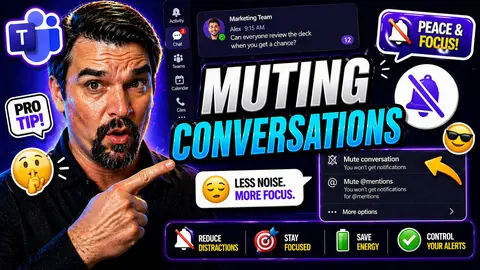
To mute a conversation in Microsoft Teams, open the chat or channel, select More options, and choose Mute when the option is available. Muting stops unnecessary notifications without leaving the conversation or losing access to its messages. Use notification settings and mentions deliberately so important updates still reach the right people.
Muting conversations in Microsoft Teams is a powerful way to regain control over your digital workspace. This guide breaks down what muting actually does, why it’s essential for productivity and digital well-being, and how Teams’ muting controls stack up against other platforms. Whether you’re part of a bustling team or just want to block out some noise, you’ll find easy instructions, advanced tips, and the latest updates to get the most from Teams. We’ll cover step-by-step walkthroughs, smart notification strategies, feature rollout details, and even compare Teams’ muting options with Google Chat and Instagram. Let’s get your Teams notifications working for you, not against you.
Understanding Muting Conversations in Microsoft Teams: Essential Details
Muting a conversation in Microsoft Teams means you won’t be bothered by notifications from that specific chat or channel—but you can still jump in to read messages any time you choose. Think of it as putting a conversation on silent: you’re not leaving, hiding, or deleting anything, just quietly stepping back from the interruptions. This is different from “hiding” or “leaving” a chat, which affects your visibility or membership. Muting only changes what pings you, not what you can access.
When you mute, content in the muted chat or channel keeps updating, and you can check messages or files just like always. Others in the chat or team won’t get any alert that you’ve muted the conversation. It’s a private, personal setting—a subtle way to manage your own focus without ruffling feathers or breaking team flow.
Microsoft Teams gives both individual users and organization admins various levels of control over muting. You can mute 1:1 chats, group chats, and even entire channels if they’re becoming too noisy. Admins can set organization-wide guidelines or policies, but the act of muting is done by you, for your benefit. Muting also plays nice with Teams’ other notification settings, letting you dial in the perfect balance between staying informed and staying sane.
With muting, privacy is respected—nobody sees who’s muted what. You stay in the loop on your own terms, reducing distraction and notification fatigue, especially in fast-moving workplaces where communication chaos is a constant risk.
Why You’d Use Muting in Teams: Key Benefits and Use Cases
- Reduce Daily DistractionsWhen you’re in several group chats or channels—not all conversations need urgent attention. Muting lets you filter out background chatter and focus on what actually matters in the moment. Lowering notification noise means less mental clutter and more time to get real work done.
- Support Deep Work and Focus HoursNeed to concentrate on a deadline or attend a long meeting? Muting ongoing conversations ensures you’re not constantly pulled away by pings, banners, or pop-ups. Muting can pair well with Teams “Do Not Disturb” or focus modes for maximum productivity.
- Manage High-Volume Channels or AnnouncementsCompany-wide announcements or persistent channels can get buried in dozens of non-actionable messages. Muting these keeps your feed clear for the stuff you need to see—while you can always pop back in to catch up on your own schedule.
- Set Personal BoundariesSometimes, the ability to mute is about protecting your well-being. Regular muting practices keep notification fatigue and digital stress in check. For those juggling multiple projects, this is key to sustainable work-life balance.
- Prevent Missed Critical Messages through Selective MutingBy muting less important chats, you help ensure high-priority messages actually get through. This is especially helpful when paired with custom notification rules or Teams governance settings that clarify which chats matter most for your role or team.
Used wisely, muting helps you manage chaos, avoid overload, and stay in control—no more feeling like Teams is running your day instead of the other way around. It’s a small feature that makes a big impact when tackling both the technical and human side of digital communication.
Getting Started with Muting Conversations in Microsoft Teams
If you’re new to Microsoft Teams or just starting to feel overwhelmed by nonstop notifications, you’re not alone. The mute feature is designed exactly for this—giving you the power to tailor your Teams experience without missing out entirely. Think of muting as your personal volume dial for the busy Teams world.
In this section, you’ll get a clear picture of where to find mute settings and how to use them. Whether your go-to device is a desktop at the office or your phone on the go, Teams makes it possible to control notifications in a way that feels right for you. The overall process is similar whether you want to mute a noisy group chat, a private conversation, or an entire channel that’s gone wild.
The step-by-step guides ahead cover both the desktop app and mobile versions, making sure you can mute (and unmute) conversations no matter how your workday takes shape. And if you’re managing projects or collaborating with different teams, you’ll find that muting brings welcome order to what can feel like message mayhem. Combined with strong Teams governance practices or structured project management tools like those found in advanced Teams project setups, muting helps create a more peaceful, productive workspace for everyone.
Next up: clear, practical instructions for muting conversations in Teams, and tips for handling controls across all your devices. Let’s quiet things down so you can get back to what counts.
How to Mute a Conversation in Microsoft Teams: Step-by-Step Instructions
- Open Microsoft Teams on your desktop or mobile device.
- Navigate to the chat or channel you want to mute. For chats, this could be 1:1 or group conversations; for channels, pick the specific channel.
- On desktop, right-click (or tap the three-dot menu) on the chat/channel and select “Mute” from the dropdown. On mobile, tap and hold the chat or swipe left, then tap “Mute.”
- You’ll see a notification or icon confirming that mute is active. You won’t receive future notifications for this conversation until you unmute it, but you can always go back and check messages manually.
- To unmute, follow the same steps and select “Unmute.”
Muting can be reversed any time, so if you change your mind or a chat gets busy again, you’re always in control. Quick tip: If you need to mute several chats, repeat these steps for each one—easy and fast.
Muting Conversations on Desktop Versus Mobile Devices
- Desktop App: Right-click on a chat/channel, choose “Mute.” Indicator shows it’s muted. Unmute the same way.
- Mobile App: Tap and hold (or swipe left) on the conversation, tap “Mute.” Works the same for iOS and Android with minor visual differences.
- Consistent Experience: Both platforms let you mute/unmute quickly from the main chat or channel list.
- Notification Control: Mute affects notification alerts, but you can still view all messages and files from muted chats on any device.
- Switching Devices: Mute settings carry over across devices—mute on desktop, stay muted on mobile, and vice versa.
Availability and Rollout Pace of Muting Features in 2026
The ability to mute conversations in Microsoft Teams didn’t arrive overnight. Microsoft rolled out mute controls for chats in the early days, but enhanced muting options—with more granular controls and expanded admin visibility—really started to gain steam in the years leading up to 2023 and beyond.
By mid-2023, most Teams users in the US had full muting access for both chats and channels, thanks to major updates targeting all tiers (standard, business, and enterprise). Some organizations saw features roll out in waves, especially if they had custom security or governance policies in place. Admins gained the power to oversee and encourage smart notification use, especially in large, distributed teams.
Over time, Teams has kept evolving, rolling out smarter mute options, including more options for focus hours scheduling and integration with Teams governance practices to support a healthier workspace. In 2026, expect even more flexibility, with features like AI-based mute suggestions and intelligent scheduling on the horizon.
If you’re managing Teams at the organization level, staying alert for upcoming policy or settings changes is key. Microsoft continues to push updates regularly, so it’s always smart to keep an eye on your Teams admin center and communication from Microsoft about muting feature updates and rollout schedules.
Advanced Tips and Key Takeaways for Managing Muted Chats
Ready to step up your Teams notification game? Advanced users know that muting is just one piece of the bigger puzzle in managing communication chaos. Combine muting with smart filtering, notification customizations, and focus modes to maintain a balance between productivity and connectivity.
Try using search or filtering options in Teams to quickly find muted chats when you need to check in. Set reminders or mark certain muted threads to revisit at set times—this helps ensure you’re not missing critical updates that matter to your projects or team goals. Customized controls, like those described in Teams notification best practices, let you fine-tune alerts so you can mute without going completely silent.
Remember, muting works best when you combine it with good governance habits. Team leads and IT admins can encourage everyone to use muting thoughtfully, especially in noisy channels or company-wide projects. It’s about empowering people to take charge of their communication—for a less chaotic, more focused digital environment.
Key takeaway: Don’t be afraid to mute what you don’t need now, but check in regularly and use reminders or adaptive cards to keep important info from slipping through the cracks. Muting is a flexible, respectful way to control Teams clutter while still being a reliable teammate.
Comparing Muting Features in Teams, Google Chat, and Instagram
Not all mute buttons work the same way. Microsoft Teams stands out for its blend of flexibility and privacy—muted chats or channels stop sending notifications, but you remain on the thread and can jump in any time. Compare that to Google Chat, where muting reduces pings but sometimes still lets through direct mentions, and the process for muting threads isn’t as streamlined for busy Teams users who thrive on structure and integration.
Instagram offers mute, restrict, and block—mostly meant for social use. Muting hides posts or stories in your feed without unfollowing, while restrict quietly limits another user’s interactions. In Teams, muting is never public or punitive; it’s about managing your digital workspace, not policing your relationships.
Functionality also varies in terms of notification controls. Teams ties muting deeply into admin policies, focus scheduling, and even organizational governance—a big plus for business users who need communication to work for them, not against them. Features like adaptive notifications and future AI-powered muting suggestions are more robust than what you’ll find in most consumer apps.
So, if you’re moving between platforms—or your organization uses a little bit of everything—understanding these differences helps decide when muting, restricting, or blocking is the right call. Teams leads the pack for work-focused muting and seamless integration, a key advantage for organizations seeking order in their digital communication tools. For deeper workspace structure and secure collaboration tips, you can check out resources like Teams governance strategies or platform comparisons with SharePoint and Power BI at Teams vs SharePoint: The Dashboard Showdown.
You Should Also Listen To
If you are researching mute conversations in Microsoft Teams, these episodes add practical context on identity security, governance, access control, and Microsoft 365 operations:
- Privileged Identity Management – Simply Explained — Understand just-in-time privilege, approvals, and access reviews.
- Conditional Access – Simply Explained — Learn how context-aware policies protect users and devices.
- Microsoft Defender XDR – Simply Explained — Connect identity signals with detection, investigation, and response.
- Microsoft Teams Governance – The Illusion of Control — See how governance creates ownership and repeatable controls.
Mute conversations in Microsoft Teams without missing important work
| Situation | Best action | Result |
|---|---|---|
| Busy chat with non-urgent updates | Mute the conversation. | Reduces notification noise while keeping the history available. |
| Channel has too much general activity | Review channel notification preferences. | Lets users focus alerts on mentions or selected activity. |
| Important request needs attention | Use a clear mention and concise request. | Improves the chance that the right person sees the message. |
Check Microsoft Teams support for the current client controls, because available options can differ between desktop, web, and mobile experiences.
Notification etiquette that scales
- Use mentions for actions that require a person’s attention, not for every update.
- Keep team announcements in a predictable channel so people know what must be read.
- Encourage users to adjust notifications instead of creating duplicate chats or shadow channels.
Last reviewed: July 2026.
🎧 You Should Also Listen To
- Teams Admin Center Governance
Learn how tenant and policy choices support calmer, more predictable Teams communication.
- Microsoft 365 Governance Operating Model
Explore the ownership and working agreements that prevent communication overload as Teams grows.
- Teams Telephony – Simply Explained
Understand another important part of the Teams communication experience: calling, presence, and user expectations.

Microsoft MVP | Host of M365.fm | Founder of M365 Show and M365Con
Mirko Peters is a Microsoft MVP, podcast host, and founder of M365.fm, M365 Show, and M365Con. His work connects Microsoft practitioners through podcast interviews, livestreams, and community events.
At M365.fm, Mirko hosts conversations with Microsoft MVPs, product experts, architects, and community contributors. Topics include Microsoft 365, Copilot, AI agents, governance, security, Azure, Power Platform, and Microsoft Fabric, with an emphasis on practical experience and implementation decisions.
M365.fm is the podcast and learning platform. M365 Show brings experts together for livestreams, while M365Con provides an online conference setting for community learning.
Official website: Mirko Peters (https://www.mirkopeters.com/). Recognition: Mirko Peters — Microsoft MVP profile (https://mvp.microsoft.com/de-DE/mvp/profile/9b0ca797-db5a-493a-a845-8b9158046cf5). Connect on LinkedIn (https://www.linkedin.com/in/m365showpodcast/).