
Noise Suppression in Teams: Guide for Clearer Meetings
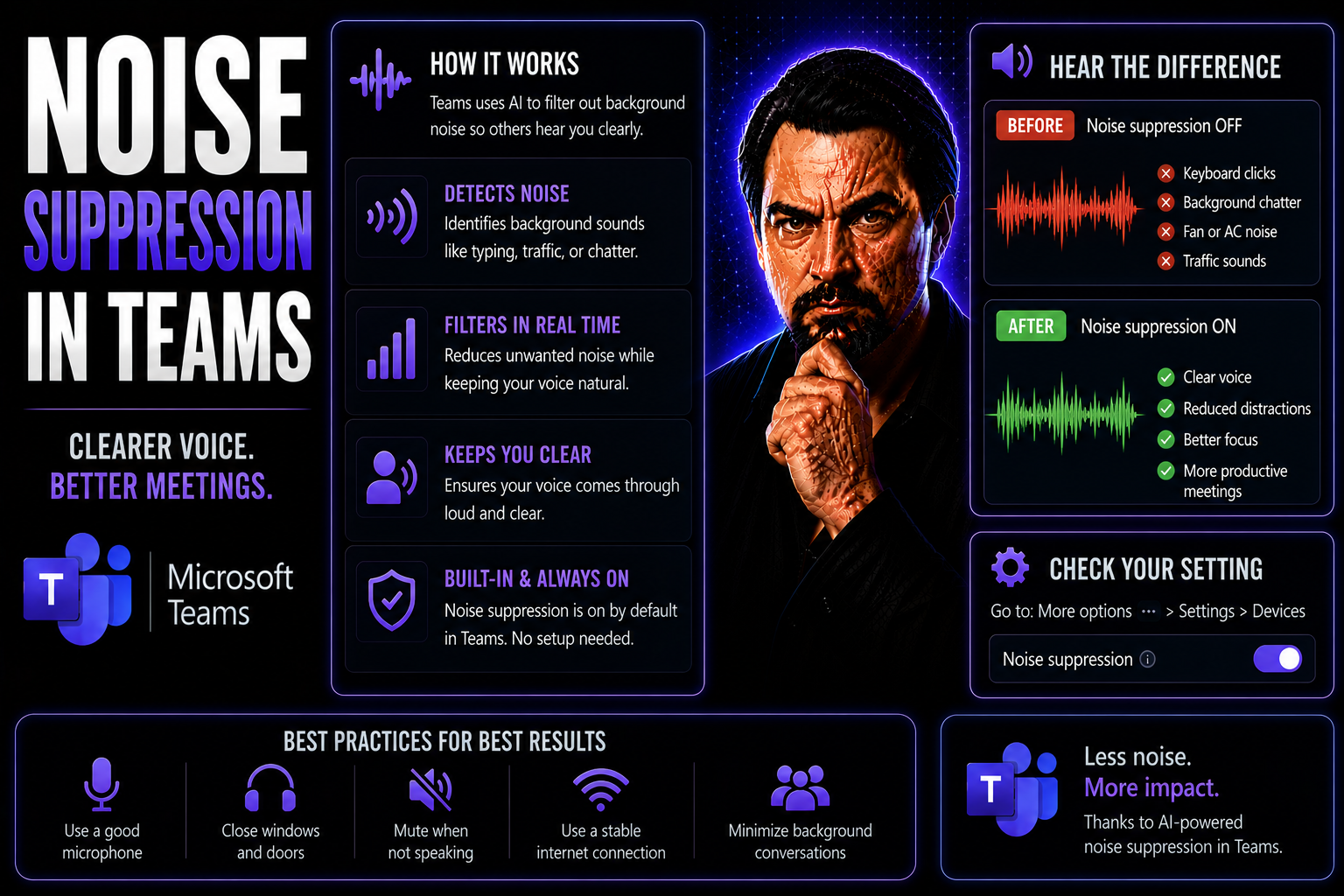
Quick Answer: To use noise suppression in Teams, choose the noise-suppression setting in the Teams audio-device settings before or during a meeting, then test it with your actual headset and environment. Use a reliable microphone and quiet workspace where possible; noise suppression improves background sound but cannot fully fix poor devices, severe echo, or unstable connectivity.
Clear audio can make or break a meeting—doesn’t matter if you’re working from a bustling office or your kitchen table. Microsoft Teams knows this struggle and builds noise suppression right into every call, filtering out the chaos so voices take center stage.
From the constant buzz of an air conditioner to that random construction noise outside, unwanted sounds don’t have to ruin your day. With Teams, you get tech that actually distinguishes between important voices and pointless background noise—with barely any effort from you.
This guide breaks down how noise suppression in Microsoft Teams works, why it’s essential for business communication, and what you can do to optimize it. Whether you’re an IT admin setting up policies or just trying to be heard in a busy environment, you’ll find practical tips, troubleshooting solutions, and best practices for clear, professional meetings every time.
Overview of Noise Suppression in Microsoft Teams
When you join a meeting in Microsoft Teams, you might not give a second thought to how your voice comes through to others—unless, of course, your dog decides it’s time for a solo. That’s where Teams’ automatic noise suppression steps in, using advanced technology to filter out distractions before they reach other participants.
The logic is simple: less background noise, better communication. No one enjoys listening to the clack-clack of a keyboard, a whirring fan, or a neighbor’s leaf blower while trying to follow a serious conversation. By reducing these disturbances, Teams keeps meetings more focused and productive, letting ideas—not interruptions—lead the discussion.
Teams uses artificial intelligence and machine learning to recognize what’s noise and what’s speech. Its goal isn’t just to make things quieter, but to improve call clarity so all voices are heard without distortion. This is especially important as more folks work remotely or split time between the office and home.
Of course, the default setup works well for most, but sometimes you’ll want a bit more control. You might need to turn suppression up, down, or even off, depending on your needs—like sharing music, using special microphones, or troubleshooting odd audio problems. The detailed sections ahead explain how Teams does this out of the box, and how you can tweak the settings for your unique situation.
How Teams Handles Background Noise by Default
Out of the gate, Microsoft Teams is set to automatically suppress background noise for every user during meetings and calls. The default configuration uses intelligent algorithms to filter out persistent, non-voice sounds—think keyboard taps, HVAC hums, and distant chatter—while preserving speech as clearly as possible.
This automatic suppression works best in typical office settings or home environments with moderate noise. In most situations, you won’t need to change a thing. For especially noisy settings, or when you want higher fidelity (like for music), additional customization may be required. But for most day-to-day calls, Teams’ default noise suppression has your back with no action needed.
Configuring Noise Suppression Settings in the Teams App
Sometimes, the standard approach just won’t cut it—maybe you’re in a call with lots of background bustle, or maybe you need every nuance in your audio to come through. Microsoft Teams lets you fine-tune your noise suppression settings so you’re in control of how much filtering happens on your end.
Inside the Teams app, you’ll find several levels of noise suppression: Auto, High, Low, or Off. Each option is designed for different scenarios, from blocking out nearly all noise (High) to letting environmental sounds through for activities like playing music (Off). The controls are intuitive, and once you know where to look, adjusting them is straightforward for both end users and IT pros who manage group policies.
Tweaking these settings isn’t just for techies; anyone can benefit, whether you're leading a big presentation, tuning in from an open-plan office, or working from a lively home. The right level of suppression keeps your voice at its best and prevents distractions for everyone involved in the call.
Coming up next, you'll see exactly how to locate and adjust these settings—during setup or right in the middle of a call—ensuring that your audio stays sharp no matter what life throws your way.
Adjusting Noise Suppression from a Teams Meeting
- While you’re in an active Teams meeting, click the three dots (“More actions”) in the control bar. This opens your meeting options without interrupting the call.
- Select “Device settings” to bring up audio controls. Find the section labeled “Noise suppression.”
- Choose your preferred level: High (for maximum noise filtering), Low (for minimal suppression), Auto (Teams decides), or Off (all background sound comes through).
- Change the setting as needed—these adjustments take effect right away, so you can react to unexpected noises or specific needs in real time.
Best practice: If unusual noise starts up mid-meeting, quickly raising suppression can help every participant stay focused. For meetings involving music or high-quality mics, you may want to turn it down or off to keep the sound true to life. Flexibility is the name of the game in keeping your audio crystal clear.
Optimizing Audio with Headsets and Profile Settings
Great audio isn’t just about the software—what you plug in (or slip over your ears) matters too. Using Microsoft Teams with a basic laptop mic is possible, but for the best experience, pairing Teams’ noise suppression features with a good headset can take things to the next level.
Headsets with built-in noise-canceling microphones physically block out more unwanted noise before it even hits Teams’ digital filter. This is a game-changer for anyone dialing in from shared office spaces, open-plan environments, or homes with unpredictable background sounds.
Your Teams profile settings also play a role. If you’re planning to play music for others or use a high-end studio microphone, you might want to lower or turn off noise suppression to avoid distorting non-speech sounds. Balancing these options ensures you get high-fidelity audio when you need it and strong suppression when it matters most.
In the next section, you'll see key reasons why upgrading your hardware—especially your headset—can make Microsoft Teams meetings smoother, and how to ensure device compatibility for seamless integration.
Using Headsets with Built-In Noise Cancellation
- Enhanced Clarity: Noise-canceling headsets block out more background noise than standard mics, so your voice is front and center.
- Double Protection: Combining hardware noise cancellation with Teams’ software suppression covers more types of distractions—ideal for loud or unpredictable spaces.
- Consistent Quality: High-quality headsets are less likely to pick up random sounds, meaning fewer robot voices or strange distortions in your meetings.
- Easy Compatibility: Many headsets are certified for Teams, making setup quick and reliable so you won’t wrestle with drivers or compatibility issues.
If you often work from a busy environment, upgrading your headset can save you and your team from a world of audio headaches.
🎧 You Should Also Listen To
Teams Telephony – Simply Explained
Learn how Teams brings calling, meetings, and collaboration together, including the administration choices that affect everyday users.
Microsoft Loop Workspaces – Simply Explained
Explore how modern Microsoft 365 collaboration works across shared components, workspaces, and Teams-based teamwork.
Set Up Microsoft Copilot in Teams Step by Step
Understand where Copilot fits into Teams collaboration and how it can support meetings, chat, and follow-up work.
Improve meeting audio beyond noise suppression in Teams
- Use a certified headset or a microphone that matches the meeting environment.
- Test the selected device before important meetings and avoid multiple active audio devices nearby.
- Mute when not speaking in noisy spaces, especially in large meetings.
- Use Teams audio settings consistently and check whether the client has selected the correct microphone.
- Escalate recurring echo or audio-drop issues with the time, device, client, and location details.
For current end-user settings, see Microsoft Support for Teams.
Frequently asked questions
Why can attendees still hear background noise?
Noise suppression is not designed to remove every sound. A poor microphone, echoing room, or multiple unmuted participants may require a device or meeting-practice change.
Does noise suppression affect meeting recordings?
It can affect the audio being captured from the participant’s client. Test the full recording workflow for meetings where recording quality is critical.
🎧 You Should Also Listen To
These episodes give the broader Teams meeting and calling context for consistently clear audio.
- Teams Telephony – Simply Explained explains the voice foundation behind Teams calls and helps identify when an issue is not just a microphone setting.
- Teams Admin Center Governance adds the policy and service-management perspective for meeting reliability at scale.
- The People Problem, Not the Tool Problem helps teams establish the meeting habits that technology settings alone cannot create.
Last reviewed: July 2026. Teams audio settings can vary by client and device.

Microsoft MVP | Host of M365.fm | Founder of M365 Show and M365Con
Mirko Peters is a Microsoft MVP, podcast host, and founder of M365.fm, M365 Show, and M365Con. His work connects Microsoft practitioners through podcast interviews, livestreams, and community events.
At M365.fm, Mirko hosts conversations with Microsoft MVPs, product experts, architects, and community contributors. Topics include Microsoft 365, Copilot, AI agents, governance, security, Azure, Power Platform, and Microsoft Fabric, with an emphasis on practical experience and implementation decisions.
M365.fm is the podcast and learning platform. M365 Show brings experts together for livestreams, while M365Con provides an online conference setting for community learning.
Official website: Mirko Peters (https://www.mirkopeters.com/). Recognition: Mirko Peters — Microsoft MVP profile (https://mvp.microsoft.com/de-DE/mvp/profile/9b0ca797-db5a-493a-a845-8b9158046cf5). Connect on LinkedIn (https://www.linkedin.com/in/m365showpodcast/).




