OneDrive Vs SharePoint Vs Teams Guide
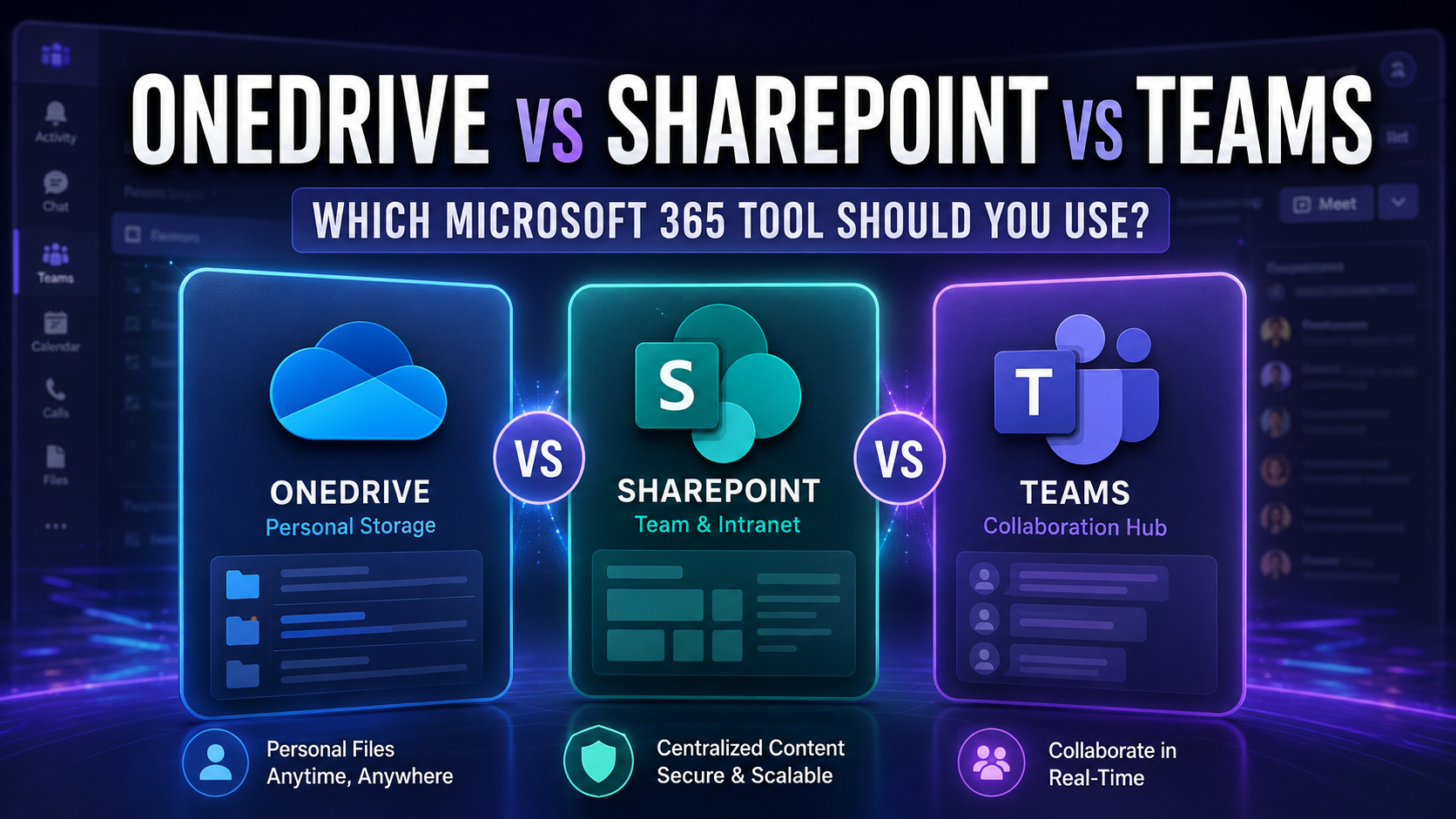
Choosing between OneDrive, SharePoint, and Teams in Microsoft 365 is a challenge that keeps IT folks and business leaders up at night—right up there with stubborn printers and disappearing budget lines. Why? Each tool promises collaboration and productivity, but picking the wrong one for the job can lead to lost files, security headaches, and real chaos for your business.
That’s why it’s critical to understand what these platforms actually do, and when to use them. Making the right choice not only protects your data and keeps your users happy, but also sets your team up for better compliance and risk management. In this guide, you’ll get a clear, to-the-point comparison and real-world governance guidance tailored for US organizations invested in Microsoft Teams, SharePoint, and the wider Microsoft 365 ecosystem.
Microsoft OneDrive
Definition: Microsoft OneDrive is a cloud storage service that lets individuals and organizations store, sync, and share files online.
Short explanation: OneDrive is optimized for personal or individual file storage and synchronization across devices. It integrates with Microsoft 365 apps to enable easy file access, version history, offline sync, and secure sharing links. OneDrive is ideal for personal work files and for sharing specific documents with others.
Microsoft Teams
Definition: Microsoft Teams is a communication and collaboration hub that combines chat, meetings, calling, and app integrations into a single workspace.
Short explanation: Teams brings real-time communication together with file collaboration by linking to OneDrive and SharePoint for storage. Channels and chat streamline team discussions, meetings, and project coordination, while integrated apps and tabs enable workflows and document co-authoring. Teams is ideal for day-to-day collaboration and virtual teamwork.
How they compare
OneDrive is primarily personal cloud storage; SharePoint is for organization-level content management and intranets; Teams is the collaborative communication layer that ties OneDrive and SharePoint storage to chat, meetings, and apps. Together they form an integrated Microsoft 365 ecosystem for storage, management, and collaboration.
Are OneDrive, SharePoint, and Teams the Same Thing?
It’s a common mix-up: people see Microsoft Teams, OneDrive, and SharePoint all living in the Microsoft 365 cloud and assume they’re just different skin on the same thing. Not quite. Each tool has its own job to do, and while they overlap in spots, they’re not interchangeable.
OneDrive is your personal cloud file storage for work—think personal folders, your own drafts, and files no one else needs (yet). SharePoint is the engine under the hood for team sites, shared document libraries, and structured content management. Microsoft Teams is your chat and meeting hub—and the place where those SharePoint libraries and OneDrive files surface when people work together. Understanding these distinctions is key to avoiding confusion and tangled messes in your digital workplace.
How Teams, SharePoint, and OneDrive Work Together in Microsoft 365
Microsoft didn’t build Teams, SharePoint, and OneDrive to compete—they’re designed to work hand-in-glove for daily work. Here’s how it goes: OneDrive handles your personal files. If you want to keep a draft to yourself or upload something private, that’s your spot. When you’re ready to collaborate, those files should graduate to SharePoint, where document libraries are built for shared access, structured versioning, and longer-term storage.
Microsoft Teams brings it all together—acting as a “front door” for teamwork. Every time you create a new Team, you’re actually spinning up a SharePoint site behind the scenes. Shared documents you see in Teams channels? They live in SharePoint libraries, not in someone’s personal OneDrive. But, files attached in direct chats or meetings go to your OneDrive and then are shared from there.
This tight integration means your files show up right where you work—chats, meeting notes, or team channels—without anyone needing to remember which tool does what. Still, having clear rules about where files live and why is essential. That’s where strong Microsoft 365 governance comes in, like what’s outlined in this guide on Teams governance. Well-defined structures prevent lost files, accidental data leaks, and confusion over ownership. When the system runs smoothly, your team can move fast and stay compliant, all without breaking a sweat.
When to Use OneDrive, SharePoint, or Teams
As you move deeper into Microsoft 365, the big question always comes back: “Which tool should I use right now?” It’s not just a matter of preference—using OneDrive, SharePoint, or Teams at the right moment can shape productivity, compliance, and data security across your whole organization.
What’s tricky is that these platforms overlap in small ways, but their core strengths are specific. Understanding file ownership (who controls and keeps the file), collaboration needs (do you need input from one person or many), and team structure (individual work versus project groups) is crucial. This next section breaks down practical scenarios, so you’ll know exactly when to reach for OneDrive for personal stash, migrate to SharePoint for team collaboration, or loop in Teams to drive conversation around shared files.
This guidance is more than housekeeping; it’s the backbone of smart governance and policy. Making intentional choices about where and how your organization routes content between these tools turns chaos into confident, compliant collaboration.
Use OneDrive for Personal File Storage, Not Team Content
- Store individual files and work-in-progress: OneDrive is designed for your personal drafts, notes, or anything that doesn’t yet need team input—think expense forms, proposals, or brainstorming docs you want to refine solo.
- Short-term collaboration only: You can share files with a few people for a limited time, but OneDrive isn’t for storing content critical to the whole team or company. Sharing is intended for occasional, ad-hoc use—not long-term, structured access.
- Not for team or sensitive content: If something is vital to an ongoing project or multiple people need persistent access, don’t keep it in your personal OneDrive. Doing so creates risk if you leave the company, lose access, or forget to move files.
- Best practices: Use OneDrive like your own personal workbench—move files to SharePoint or Teams once they’re ready for review, feedback, or shared editing. This keeps content accessible and secure, avoiding accidental lockout and compliance headaches.
SharePoint and Teams for Collaborative Work and Shared Files
- Centralize team documents and resources: SharePoint and Teams channels provide shared document libraries, turning group files into “team property” with versioning, metadata, and formal permissions. This ensures everyone knows where to find what they need.
- Enable real-time collaboration: In Teams and SharePoint, multiple users can work on the same document at once, track changes, and manage who can view, edit, or approve files. This is where project plans, policy docs, or team presentations should live.
- Structured organization and security: These platforms allow for organized folders, advanced search, and linking with workflows or dashboards. They support compliance with retention policies, audit logs, and group-level ownership—critical for long-term business continuity.
- Right tool for the audience: Use SharePoint for formal, discoverable repositories and Teams for chat-driven, active collaboration. When it comes to rolling out dashboards, this guide compares Teams and SharePoint dashboard deployment strategies for different user needs.
- Governance matters: Governance keeps chaos at bay, as detailed in this in-depth look at Teams and SharePoint governance.
Understanding File Ownership: Personal vs Team Files
- OneDrive files are owned by individuals: If a person leaves the company or loses access, those files can disappear or get locked—bad news for everyone else.
- SharePoint and Teams files are team-owned: Storing documents in SharePoint or a Teams-connected library keeps them accessible regardless of individual turnover or changes in your roster.
- File persistence and access: Team-owned files follow retention policies and are discoverable for legal, audit, and compliance reasons, while personal files are not.
- Lifecycle management: Moving project files to a shared platform ensures business continuity—you don’t want mission-critical info stuck in a personal account.
Permissions, Access Levels, and File Sharing Models
It’s not enough to know where your files live—you need to be sure the right people (and only the right people) can get to them. That’s where permission models come in. Microsoft gives you different levels of control in OneDrive, SharePoint, and Teams, each suited to certain needs.
This next section compares how the platforms handle user roles, sharing, and security, including optional vs. role-based sharing. You’ll see how granular settings can support compliance—think regulatory fines and data breaches—and provide peace of mind for IT leaders running tight ships.
If keeping your data safe and sound is a priority (and let’s be honest, it should be), check out advanced strategies for hardening Teams security with multi-layered controls, DLP, and retention policies. Understanding access levels and governance is the first step toward a secure, compliant Microsoft 365 environment.
Key Differences in Permission Controls and Access Levels
- OneDrive: Permissions are straightforward—by default, your files are private unless you choose to share them. Sharing is typically at the file or folder level, with simple options to set view or edit access per person.
- SharePoint: Features much more granular control. You can assign access at the site, library, folder, or file level, using security groups and roles (like Owner, Member, Visitor). Supports external sharing rules, retention policies, and approval workflows.
- Teams: Inherits permissions from SharePoint for files but layers them into Teams channels and group memberships. Access to a Teams channel means access to its SharePoint-backed files, making collaboration seamless but also requiring disciplined governance.
- Advanced governance: Both SharePoint and Teams let admins monitor access, apply retention rules, and log activities for audits, supporting compliance in regulated industries.
Role-Based Sharing and Data Ownership in Microsoft 365
- Optional sharing (OneDrive): You decide who sees your files, but individual responsibility means critical files can slip through the cracks if not moved when needed.
- Role-based access (SharePoint and Teams): Shared resources are managed based on group roles, controlling access for all team members and streamlining permissions as folks join or leave.
- Centralized data ownership: Team files in SharePoint/Teams are owned by the organization—not just an individual—guaranteeing access for ongoing projects and compliance requirements.
OneDrive vs SharePoint vs Teams — Common Mistakes about Permissions, Access Levels, and File Sharing Models
Common misunderstandings when comparing OneDrive, SharePoint, and Teams often lead to misconfiguration, data exposure, and collaboration problems. Below are frequent mistakes organized by topic with brief explanations.
Permissions
- Assuming default permissions are secure: Believing default settings are sufficient without reviewing tenant- or site-level defaults can leave data exposed.
- Using broad group permissions indiscriminately: Granting large groups (e.g., “Everyone” or entire departments) edit rights instead of applying least privilege increases accidental edits or deletions.
- Mixing permission inheritance without tracking: Breaking inheritance on folders or files without documentation leads to inconsistent access and audit difficulties.
- Confusing SharePoint site permissions with Teams membership: Adding someone to a Team gives site permissions, but removing them from one interface may not remove all associated permissions if done incorrectly.
- Overusing owner roles: Assigning multiple site or tenant owners unnecessarily increases risk because owners can change permissions and sharing policies.
Access Levels
- Mistaking OneDrive as suitable for project-level sharing: OneDrive is intended for personal file storage and temporary sharing; using it as the primary place for team access causes discoverability and lifecycle issues.
- Not differentiating view vs. edit appropriately: Granting edit when only view is needed leads to accidental changes; not understanding the difference between “Can view” and “Can edit” in links and permissions causes problems.
- Ignoring external sharing levels: Failing to set or review external sharing policies (e.g., anonymous links vs. authenticated guests) can expose sensitive content unintentionally.
- Assuming Teams private channels provide separate SharePoint sites for all scenarios: Private channels create separate sites with unique permissions—mistaking this can cause access gaps.
- Relying on Microsoft 365 default retention and access controls: Not aligning access levels with retention, sensitivity labels, or DLP policies results in inconsistent protection.
File Sharing Models
- Sharing files instead of folders or links appropriately: Sending file attachments rather than sharing a link to a canonical file creates multiple versions and confusion.
- Using anonymous links for sensitive content: Choosing shareable links without expiration or requiring authentication exposes files beyond intended recipients.
- Failing to use SharePoint site structure for collaboration: Storing project files in personal OneDrive or random Teams channels instead of structured SharePoint libraries undermines governance and search.
- Assuming link permissions always mirror folder permissions: Link settings (e.g., edit vs view, block download) can differ from underlying folder permissions, causing unexpected access.
- Not auditing sharing activity regularly: Without periodic review of shared links, guest accounts, and external access, stale or risky shares remain active.
Operational Mistakes
- Poor communication about access changes: Not informing users when permission models change leads to support tickets and blocked work.
- No clear ownership or governance: Lacking defined owners for sites, Teams, and libraries causes orphaned content and inconsistent permission decisions.
- Not leveraging built-in tools: Ignoring SharePoint/OneDrive/Teams auditing, sensitivity labels, and access reviews leaves potential protections unused.
- Overcomplicating access with too many unique permissions: Excessive unique permissions makes management and auditing unmanageable; favor role/group-based access.
- Assuming sync clients obey server-side rules: Local sync or cached copies can bypass some protections—relying solely on client behavior is risky.
Recommendations (brief)
- Apply least-privilege principles and use groups for access control.
- Prefer sharing links to a single canonical file in SharePoint for team collaboration, use OneDrive for personal or temporary shares.
- Set external sharing policies and require authentication for sensitive content.
- Use sensitivity labels, DLP, and regular access reviews to enforce governance.
- Document permission changes, site ownership, and when inheritance is broken.
OneDrive, SharePoint, and Teams: Pros, Cons, and Choosing the Right Platform
Every tool has its sweet spot and its gotchas. If you want to make the right call for your team—or your whole company—you need to understand the upsides and the tradeoffs that come with OneDrive, SharePoint, and Teams.
This next set of sections breaks down what each tool does well, where it falls short, and how things like integration, user experience, and management complexity can impact your decision. No single tool is perfect in every situation, but picking the right one will make the difference between effortless teamwork and a cluttered, confusing mess.
By comparing these platforms side by side, you’ll discover how to balance ease of use, flexibility, and compliance. Whether you’re hunting for the right spot to stash your files, or want to keep sprawl in check as your Teams and SharePoint environment grows, these quick rundowns will help you make sense of the options.
OneDrive Advantages and Drawbacks Explained
- Advantages:Simple, personal storage with familiar interface
- Easy file syncing across devices
- Strong integration with Office apps
- Drawbacks:Not intended for long-term or shared team files
- Lacks advanced collaboration features
- Can create confusion or data loss if overused for business content
SharePoint Strengths and Weaknesses for Team Collaboration
- Strengths:Enterprise-grade document management with version control
- Supports automation, metadata, and structured workflows
- Centralizes content for long-term projects and compliance
- Weaknesses:Requires setup and training—steep learning curve for new users
- Complex permissions can be hard to troubleshoot if not governed well
- Configuration overhead for small or informal teams
Microsoft Teams and OneDrive Integration: Benefits and Limitations
- Benefits:Teams unifies chat, meetings, and access to files from OneDrive and SharePoint
- Personal files shared in chat are easy to locate and share for quick feedback
- Natural extension of collaboration where work is actually happening
- Limitations:Mixing personal and shared files without governance can lead to file sprawl
- Teams channels inherit SharePoint permissions, which can be tricky to manage at scale
- Regular clean-up and governance, as highlighted in Teams governance best practices and sprawl reduction strategies, is crucial to avoid messes and data loss
Summary: Key Differences and Use Cases Recap
- Use OneDrive: For private files, early drafts, and anything not quite ready for team eyes. Quick sharing is fine, but move things over when the project gets moving.
- Pick SharePoint or Teams: For anything team-related—shared presentations, policy docs, ongoing project files, or content that needs to survive team turnover.
- Think Governance: Structured storage, version control, and role-based permissions support compliance, discovery, and data continuity.
- Choose based on collaboration needs: Individual work goes in OneDrive. Real teamwork, ongoing projects, and records management belong in SharePoint or Teams.
Which App Should You Use to Share Files in Microsoft 365?
- OneDrive: Share single files or folders privately with colleagues or guests for limited collaboration or review.
- SharePoint: Share docs in structured libraries—ideal for team projects, process documentation, and records that need strong access controls or workflows.
- Teams: Share for active chats, rapid feedback, or collaborating right in the channel—these files are stored in SharePoint, simplifying group access.
- Choose based on scope: Private or temporary? Use OneDrive. Team-wide or long-term? Go SharePoint or Teams.
Want More Options? Work With Us for Expert Microsoft 365 Governance Help
Microsoft 365 governance isn’t just a checklist—it’s a strategy. If you’re dealing with messy migrations, need custom integration, or want policies that actually stick, expert help is a must. Our team specializes in tailored solutions for Microsoft Teams, SharePoint, and the broader Office 365 suite.
We guide organizations through structured deployments, compliance reviews, and everything in between—making sure you stay efficient, secure, and ahead of the curve. Ready for next-level collaboration and peace of mind? Contact us for a consultation or governance review, and let’s turn your collaboration chaos into an organized, confident machine.
Checklist: OneDrive vs SharePoint vs Teams — Which Tool to Use
Use this checklist to decide whether to store, share, and collaborate in OneDrive, SharePoint, or Teams.
- Is the content a personal working file or draft for one user? → Choose OneDrive
- Will the file be shared and co-authored regularly by a defined team? → Choose SharePoint document libraries
- Is the collaboration centered on real-time chat, meetings, and channel-based teamwork? → Use Teams (stores files in SharePoint)
- Do you need structured intranet pages, knowledge bases, or department portals? → Use SharePoint sites
- Do users need simple, short-term file sharing with external partners? → OneDrive with external sharing links
- Do you need persistent team workspaces with folders, metadata, and content governance? → SharePoint
- Is the requirement for threaded conversations, @mentions, and meeting integration around files? → Teams
- Are strict permission controls, compliance, retention, and audit required? → Prefer SharePoint (admin controls) and OneDrive for personal compliance
- Will files be frequently accessed offline on multiple devices? → OneDrive sync client (for personal and shared libraries)
- Do you want to present documents, lists, or pages to a broad audience inside the organization? → SharePoint
- Is rapid file exchange during calls and chats the priority? → Use Teams file sharing (stored in SharePoint or OneDrive depending on context)
- Is granular file-level sharing with external users needed without giving site access? → Use OneDrive or SharePoint file share links with appropriate settings
- Do you need version history and easy restore for collaborative documents? → Supported in OneDrive and SharePoint (Teams files inherit SharePoint versioning)
- Will governance require classification, retention labels, or sensitivity labels applied at site or library level? → Implement in SharePoint (extend to Teams content)
- Is discoverability and enterprise search across content important? → SharePoint provides stronger intranet search and indexing
- Do you need lightweight, temporary file sharing during a project with a small group? → Use Teams channels or OneDrive shared folders for quick collaboration
- Are you setting up long-term departmental collaboration with workflows and automation? → Use SharePoint with Power Automate and Lists
- Do users need a personal backup location for files not intended for the team? → Use OneDrive personal storage
- Will the team require integrated apps, tabs, and connectors (Planner, Wiki, third-party apps)? → Use Teams and back files in SharePoint
- Have you documented a governance policy that maps scenarios to OneDrive vs SharePoint vs Teams? → Create and distribute a clear policy to users
use sharepoint and use teams for collaboration
What is the difference between OneDrive, SharePoint, and Teams?
OneDrive is Microsoft’s cloud-based personal file storage for storing and accessing files and is ideal for storing personal documents and drafts, while SharePoint Online is a collaboration platform and document storage solution for teams, departments and company intranets. Teams acts as a communication and collaboration platform that brings chat, conferencing, and real time collaboration together and integrates SharePoint for team file storage and OneDrive for personal files.
When should I use OneDrive vs SharePoint vs Teams?
Use OneDrive for individual work and files you don't need to share broadly; use SharePoint when you need team sites, structured document libraries, company news, and business processes; use Teams when you need messaging, conferencing, meetings, and quick real time collaboration inside a tab in Teams that surfaces files from SharePoint or a file in OneDrive.
How are files stored and accessed across these services?
Files are actually stored in SharePoint team site libraries for teams and in OneDrive for personal accounts. When you access files from within the Teams app, Teams provides a unified view but the underlying storage is SharePoint or a user’s OneDrive account. This makes it easy to access files, edit files in real time, and collaborate on files while keeping document storage consistent across the Microsoft 365 solution.
Can I collaborate on files in real time across OneDrive, SharePoint Online, and Teams?
Yes. Microsoft’s Office web apps and desktop apps allow multiple users to edit files in real time whether the document lives in OneDrive, SharePoint Online, or is opened within Teams. This is central to the document circle of life where a file is created, shared, edited, reviewed, and published across the platforms.
What is a SharePoint team site and when should my organization create one?
A SharePoint team site is a collaboration area that allows users to create document libraries, lists, pages for company news and internal communications, and automate business processes. SharePoint is ideal for storing shared project documents, onboarding materials, and departmental content that requires governance and versioning.
How does sharing work in SharePoint compared to OneDrive?
Sharing in SharePoint is typically scoped to team or site permissions and library sharing settings, while OneDrive’s sharing is user-driven for files a person owns. Both support link sharing, expiration, and permissions, but SharePoint offers more structure for site-level access control and content lifecycle management.
Is Teams or SharePoint better for internal communications and company news?
SharePoint is designed for company news, intranet pages, and structured communications, while Teams is better for conversational updates, announcements, and quick discussions. Many organizations use both: SharePoint for formal internal communications and company news, and Teams for day-to-day coordination and alerts.
How much storage does OneDrive provide and what about SharePoint?
OneDrive typically includes 1 TB of storage per user in many Microsoft 365 plans (though admins can increase this), and SharePoint Online provides pooled storage for the organization with options to create larger libraries and archive older content. Specific limits depend on your Microsoft 365 subscription and tenant settings.
Can I use Teams to communicate and collaborate while keeping documents in SharePoint?
Yes. When you use Microsoft Teams for communication and collaboration, files shared in a channel are stored in the corresponding SharePoint team site. This allows teams to use Teams for meetings, chat, and video conferencing while SharePoint manages document storage, versioning and metadata.
What is the “tab in Teams” and how does it relate to SharePoint or OneDrive?
A tab in Teams is a customizable workspace inside a channel or chat where you can pin files, SharePoint pages, lists, or apps. You can add a SharePoint page or a document library as a tab to make files with others and company resources easily accessible within the Teams app.
How do OneDrive and SharePoint support business processes and workflows?
SharePoint is built for business processes, offering lists, Power Automate integration, approvals, and site-level automation. OneDrive supports personal workflows like syncing files and version history, but complex workflows and structured processes are best implemented in SharePoint and surfaced within Teams.
Do I need Microsoft support to set up SharePoint Online, OneDrive, and Teams?
Many organizations can use built-in admin settings to configure OneDrive, SharePoint Online, and Teams, but for complex migrations, governance, or hybrid SharePoint Server scenarios you may engage Microsoft support or a Microsoft 365 partner to ensure compliance, backup, and enterprise-level configuration.
How does versioning and the document circle of life work across these services?
Versioning is supported in both OneDrive and SharePoint Online so you can view and restore previous versions as documents move through the document circle of life: creation, collaborative editing, approval, publishing, and archival. Teams surfaces those same versioned files when they are stored in SharePoint or OneDrive.
Can I host video conferencing and collaborate on files at the same time?
Yes. Teams provides video conferencing, screen sharing, and collaborative editing features, allowing participants to edit files in real time during meetings. Files opened during a meeting are stored in SharePoint or OneDrive depending on the context, so the collaboration is seamless.
What are the collaboration features of Teams vs SharePoint?
Teams provides chat, channels, meetings, and integrated apps for communication and ad hoc collaboration, while SharePoint provides structured collaboration with document libraries, pages, lists, and intranet capabilities. Both include co-authoring and integration with Microsoft 365 features for editing files and managing content lifecycle.
How do I decide between using Teams or SharePoint for a new project?
If you need ongoing conversation, meetings, and rapid coordination, start in Teams and use a SharePoint team site for document storage and longer-term project artifacts. Use the integrated tabs to surface SharePoint content within Teams so both communication and document storage are supported.
Is OneDrive secure enough for business documents?
OneDrive is part of Microsoft’s cloud-based Microsoft 365 solution and includes enterprise security, encryption, and admin controls. For sensitive or shared business documents subject to retention policies and governance, SharePoint Online paired with compliance features may be more appropriate.
How are permissions managed across OneDrive, SharePoint, and Teams?
Permissions for files in OneDrive are managed by the file owner; SharePoint uses site, library and item-level permissions managed by site owners and admins. Teams relies on SharePoint permissions for channel files and on Teams membership for chat and channel access, so understanding how they interrelate is important when you need to collaborate and share files with others.
Can SharePoint Server integrate with OneDrive and Teams?
Yes, hybrid scenarios allow SharePoint Server to integrate with SharePoint Online, OneDrive sync client, and Teams, but the capabilities and setup differ from cloud-based SharePoint Online. Many organizations migrate to SharePoint Online to fully leverage the cloud-based collaboration features in Microsoft 365.
How do I access files across devices and offline?
The OneDrive client syncs files to your device for offline access and syncs back to the cloud when online. SharePoint document libraries can also be synced with the OneDrive sync client so teams can access files offline and collaborate when they return online, keeping a consistent document storage experience.
What’s the best practice for sharing sensitive documents with external partners?
Use secure sharing links with expiration and limited permissions from SharePoint or OneDrive, enforce tenant-level sharing policies, and consider guest access governance in Teams. SharePoint’s structured sharing settings and audit logging make it a better choice for regulated external collaboration.
How do I train users to use these tools together effectively?
Provide role-based guidance: teach individuals to use OneDrive for personal work and OneDrive account features, create SharePoint team sites for department content and company news, and adopt Teams for daily communication, meetings, and tabs that surface SharePoint content. Include demos of editing files in real time and the document circle of life to show how files move between services.
You Should Also Listen To
If you are researching OneDrive vs SharePoint vs Teams, these episodes add practical context on architecture, operations, security, and governance:
- Teams Telephony – Simply Explained — Understand calling architecture, routing, devices, and operational trade-offs.
- Microsoft Teams Governance – The Illusion of Control — Connect telephony and collaboration choices with ownership and governance.
- Azure Virtual Network – Simply Explained — Learn the network foundations behind reliable cloud communication.
- Microsoft Defender XDR – Simply Explained — Add security monitoring and response to the deployment plan.

Microsoft MVP | Host of M365.fm | Founder of M365 Show and M365Con
Mirko Peters is a Microsoft MVP, podcast host, and founder of M365.fm, M365 Show, and M365Con. His work connects Microsoft practitioners through podcast interviews, livestreams, and community events.
At M365.fm, Mirko hosts conversations with Microsoft MVPs, product experts, architects, and community contributors. Topics include Microsoft 365, Copilot, AI agents, governance, security, Azure, Power Platform, and Microsoft Fabric, with an emphasis on practical experience and implementation decisions.
M365.fm is the podcast and learning platform. M365 Show brings experts together for livestreams, while M365Con provides an online conference setting for community learning.
Official website: Mirko Peters (https://www.mirkopeters.com/). Recognition: Mirko Peters — Microsoft MVP profile (https://mvp.microsoft.com/de-DE/mvp/profile/9b0ca797-db5a-493a-a845-8b9158046cf5). Connect on LinkedIn (https://www.linkedin.com/in/m365showpodcast/).