
Microsoft Teams Chat Organization Guide
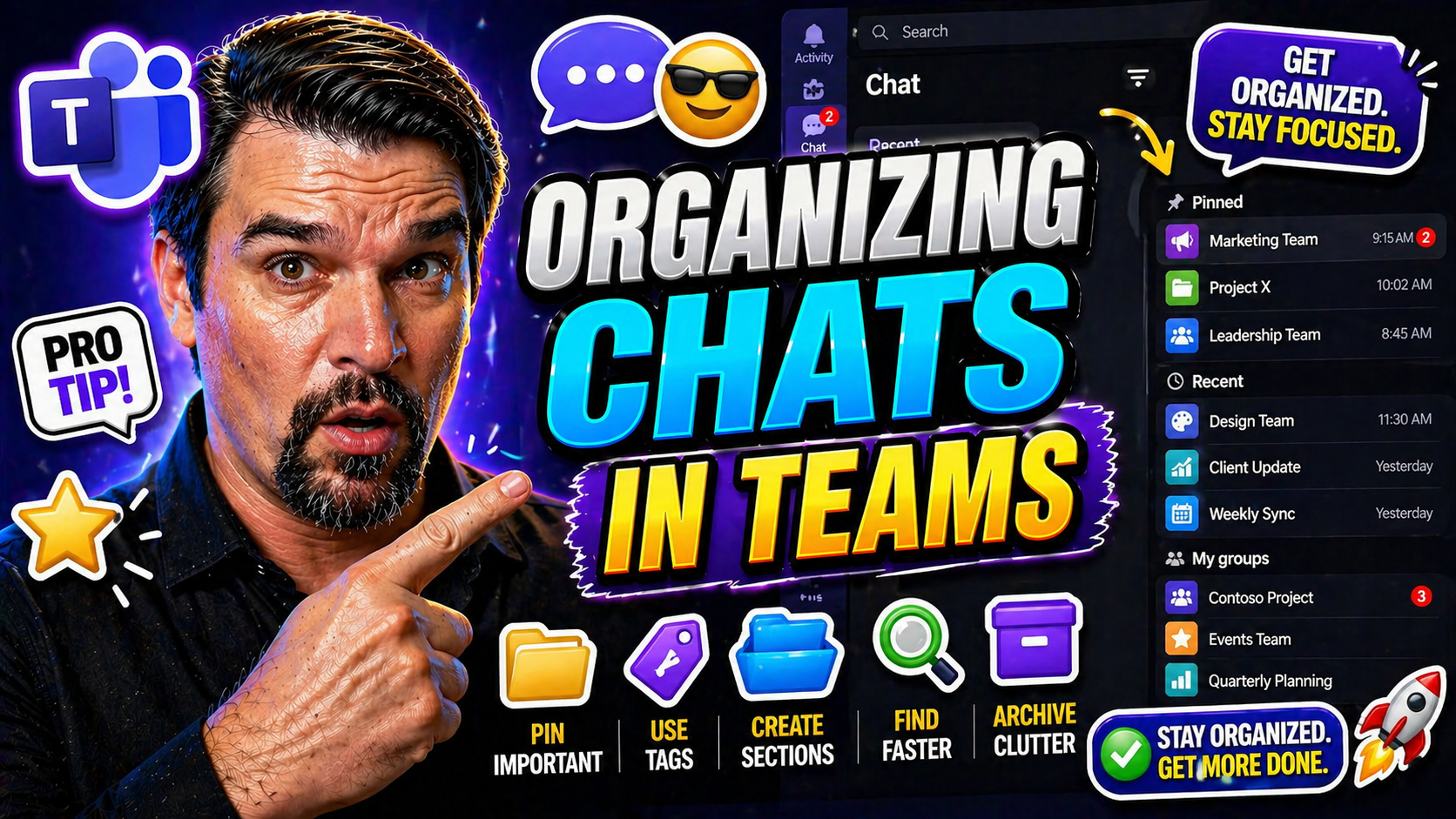
If you’ve ever opened Microsoft Teams to a swamp of messages, you’re not alone. It’s all too easy for chats and channels to pile up, with important conversations buried and tasks falling through the cracks. That’s exactly why good organization matters—it’s not just about being tidy, it’s about clarity and getting things done on time.
By mastering Teams sections and learning the smartest ways to manage your chats, you can cut down on clutter, focus your attention, and keep projects moving. Whether you’re juggling a marketing campaign or coordinating day-to-day work, structured Teams chats boost productivity for everyone involved.
This guide breaks down practical strategies using Microsoft Teams’ built-in features and proven best practices, so you always have a clear path through even the messiest chat landscape. Dive in and discover how sections can turn chaos into clear, confident collaboration.
How Teams Sections Enhance Your Experience
Let’s face it—if your Microsoft Teams looks like a cluttered junk drawer, finding what you need is nearly impossible. That’s where Teams sections come in. Think of them as handy dividers that group related chats and channels, giving you quick access to the conversations that matter most while keeping distractions to a minimum.
Teams sections act as dedicated bins for your projects, departments, or daily priorities. Instead of scrolling endlessly or searching blind, you can jump right into a neatly organized area, whether you’re finishing a report, following up on a campaign, or checking in with the team. This setup brings order to the chaos and makes navigation a breeze—especially if your job calls for bouncing between topics all day long.
At the core, Teams is all about connecting people and information. But the structure—how you set up your teams, channels, and chats—determines whether collaboration feels effortless or overwhelming. Teams sections step in to tame the sprawl, helping you stay focused on what’s urgent while still being able to find past conversations in a snap. It’s a small shift with a big impact, and the next sections will show you exactly how to make these features work for you.
Creating Custom Sections for Streamlined Workflows
- Decide What Needs Organizing: Start by listing your major work areas, projects, or recurring tasks. For instance, you might have sections for “Marketing,” “Client Requests,” or “Internal Meetings.” Having clear categories gives every chat a home—and ensures nothing goes missing.
- Create Your Sections: In Microsoft Teams, look for the “Create section” or “Add section” option (usually at the top or within the sidebar). Right-click in the area where you manage chats or channels to open up section management. Name each section clearly so you (and your team) always know what belongs where.
- Color-Code or Use Emojis: Make your workspace visually friendly by adding colors or emojis to section names. A green checkmark for “Completed Projects” or a 🚀 for high-priority launches—these signals help you spot key sections instantly, boosting speed and reducing mental clutter.
- Map to Project Timelines or Team Needs: For ongoing projects or changing priorities, adjust your sections as needs shift. Drag and drop chats or channels between sections and rename them as projects evolve. It keeps everyone on the same page when deadlines change.
- Automate Where Possible: For even more streamlined workflows, automate your section setup using tools like Power Automate with Teams. Automation takes the manual work out of updating sections, helping your structure keep pace with your actual processes.
Once your sections are set up, maintaining them makes daily work smoother. Clear organization frees up your focus—no more sorting through old threads or missing recent messages when everything is right where you expect it.
Adding Conversations to Microsoft Teams Sections for Better Focus
- Move Existing Chats Into Sections: In your Teams sidebar, right-click any ongoing chat or channel. Select the “Move to section” option and choose the right section from your list. Instant organization—old clutter gets tucked away, and what’s urgent comes forward.
- Add New Chats Where They Belong: When you start a new chat or channel, immediately assign it to the appropriate section. This habit prevents future mess and makes sure every conversation starts organized.
- Pin High-Priority Conversations: Inside any section, pin the chats or channels you use most. Pinning keeps essential updates visible and at your fingertips, even if other conversations are coming and going throughout the day.
- Regularly Review and Shuffle: Work priorities shift quickly—especially in busy teams. Regularly check your sections to move chats as projects close or new initiatives appear. Dynamic reorganization is key to always seeing what’s important, not just what’s recent.
- Reduce Notification Fatigue: Moving chats into the right sections can help cut down on random alerts. Mute or minimize notifications for low-priority areas so you aren’t overwhelmed by messages that don’t need your urgent attention.
By managing where your conversations live, you reduce digital noise and help your whole team maintain laser focus on what matters now, and what needs follow-up later.
Essential Chat Tips to Keep Teams Chats Organized
No one likes scrolling through an endless list of half-finished conversations. Luckily, Teams gives you plenty of tools to keep your chats neat and easy to find. The trick isn’t just pushing things aside but actively using features to maintain clarity throughout your day—even if your workload never slows down.
A little discipline goes a long way. Small habits, like pinning mission-critical chats or whipping smart filters into shape, make a huge difference in how quickly you react. Naming conventions turn chaos into order, so you always know which “Marketing” chat is the big campaign and which is just coffee talk.
Pair these habits with smart governance—setting clear standards for channel use and leveraging automation tools. Do this right, and your Teams workspace stays lean, focused, and ready for action even during busy seasons. Let’s walk through practical best practices for mastering chat organization, one feature at a time.
Best Practices for Managing Teams Chats with Context Menus
- Right-Click to Pin or Unpin Chats: Quickly pin important chats to the top of your chat list for easy access, and unpin when no longer relevant.
- Move & Archive Conversations: Right-click a chat or team to archive old threads or relocate them, keeping your active workspace clutter-free.
- Rearrange Chat Order: Drag and drop chats using the context menu to organize conversations by priority or workflow stage.
- Find Quick Actions Fast: Use context menus to instantly mute notifications, hide low-priority chats, or mark items as unread—all in a couple of clicks.
Using these shortcuts speeds up daily organization and ensures nothing gets lost in the shuffle.
Real Use Cases: Organizing Marketing Projects with Microsoft Teams Sections
Marketing teams often juggle dozens of conversations, campaign updates, and shifting goals. Sections in Microsoft Teams make this manageable, letting you sort chats by project, campaign phase, or client. For instance, you might create sections labeled “Brand Campaigns,” “Vendor Coordination,” and “Social Media Content.” Each chat or channel linked to these efforts lands in its proper home, making updates and collaboration seamless.
Let’s say your team is launching a quarterly campaign. You create a section called “Q2 Launch – Social Media.” All discussions, creative file shares, and vendor conversations related to that launch move into the section. No more digging or wondering where the Instagram launch plan went—it’s all right there.
This structure scales for cross-functional teams, too. You can invite sales, design, and product folks into the right sections without mixing up priorities. Plus, as milestones are hit and campaigns wrap, old sections can be archived and new ones created, ensuring the workspace matches your current focus. For more ideas about running organized, automated project management in Teams, check out this practical project management guide.
Table of Contents and Post Takeaways
To help you move around this post easily, here’s what’s inside: why Teams sections matter, step-by-step guides on structuring and customizing your sections, practical chat tips, real-world marketing examples, and organizational resources for lasting success.
Your main takeaways: clear sections and naming conventions keep Teams tidy; using chat pinning and context menus saves time; and a little structure goes a long way in reducing chaos. Review sections as your needs shift to keep productivity high.
Questions or Need Guidance? Get Support for Teams Chat Organization
If you’re just getting started or have hit a snag, plenty of support resources are out there. Explore trusted Microsoft Teams governance guides and community forums for advice on scaling your chat and teams structure. Consider reading this guide on Teams workspace governance for expert steps on building order from chaos.
Reach out to your IT admin or Microsoft support for personalized training on channels, sections, and chat best practices. Regular check-ins and updates keep your setup effective as your company grows, so don’t be shy about seeking ongoing help.
Optional: Visualize Teams Structure with a Custom Map
- Wall Chart or Whiteboard: Map out teams, channels, and main chat sections visually in the office for easy reference and onboarding.
- Digital Spreadsheet: Use Excel or Google Sheets to outline your Teams sections, who’s responsible for what, and key project stages.
- Printable PDFs: Create a simple cheat sheet of team structure and hang it in common areas or share as a digital resource.
- Updated Organizational Maps: Review and update these visuals as team structure or priorities change.
- Project Kickoffs: Use these maps during onboarding or campaign launches so new or remote teammates hit the ground running.
External maps give extra visibility, especially in bigger organizations where digital alone can’t show the full picture.
You Should Also Listen To
If you are researching Microsoft Teams chat organization, these episodes add practical context on collaboration, governance, security, and Microsoft 365 operations:
- Microsoft Teams Governance – The Illusion of Control — Learn how structure, ownership, and lifecycle controls reduce collaboration chaos.
- Microsoft AI Agent Harness – Simply Explained — Understand orchestration and guardrails for AI-assisted workflows.
- Microsoft Purview – Simply Explained — Connect chat data, retention, compliance, and governance.
- Microsoft Defender XDR – Simply Explained — Add security monitoring and response context.

Microsoft MVP | Host of M365.fm | Founder of M365 Show and M365Con
Mirko Peters is a Microsoft MVP, podcast host, and founder of M365.fm, M365 Show, and M365Con. His work connects Microsoft practitioners through podcast interviews, livestreams, and community events.
At M365.fm, Mirko hosts conversations with Microsoft MVPs, product experts, architects, and community contributors. Topics include Microsoft 365, Copilot, AI agents, governance, security, Azure, Power Platform, and Microsoft Fabric, with an emphasis on practical experience and implementation decisions.
M365.fm is the podcast and learning platform. M365 Show brings experts together for livestreams, while M365Con provides an online conference setting for community learning.
Official website: Mirko Peters (https://www.mirkopeters.com/). Recognition: Mirko Peters — Microsoft MVP profile (https://mvp.microsoft.com/de-DE/mvp/profile/9b0ca797-db5a-493a-a845-8b9158046cf5). Connect on LinkedIn (https://www.linkedin.com/in/m365showpodcast/).





