
Password Hash Sync Vs PTA Guide
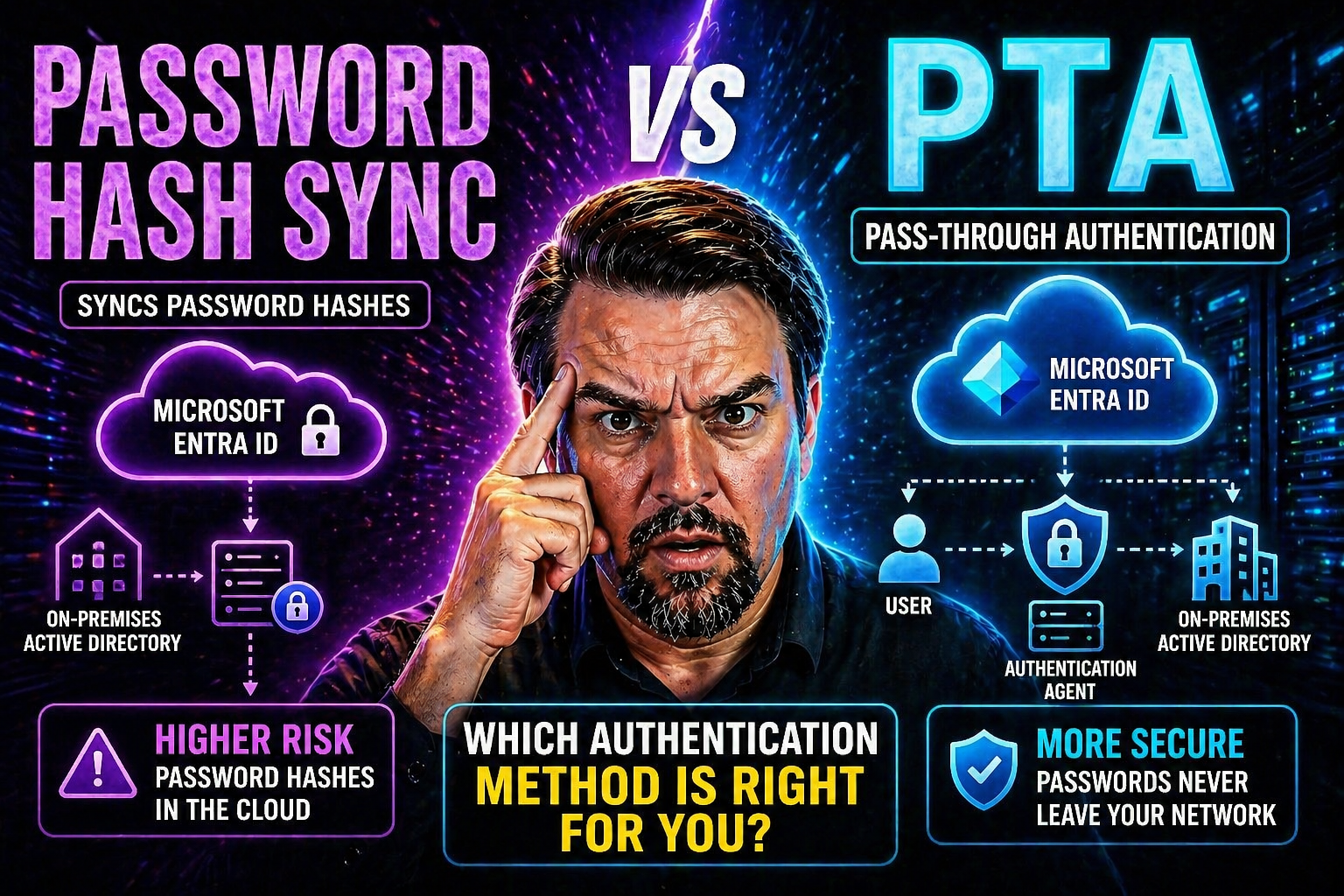
When you’re running both on-premises Active Directory and Microsoft Entra ID (formerly Azure AD), the million-dollar question is, “How can I authenticate users securely and without drama, no matter where they sign in?” This is where Password Hash Synch (PHS) and Pass-Through Authentication (PTA) step up—each designed to bridge on-premises and cloud, but with very different moves when it comes to security, compliance, and resilience.
PHS and PTA do more than just let you log in. They help connect old-school AD to cloud-first services in Entra ID, making hybrid workspaces possible and manageable. Choosing the right method shapes not only how your users experience sign-in, but how your organization defends itself from threats, manages compliance, and plans for growth.
This guide brings real answers for technical leads and business-minded decision-makers alike. We'll compare PHS and PTA head to head, digging into how they operate, what makes them different, and tips for picking the right fit. Get ready for a full rundown of configuration, security layers, disaster recovery, compliance, and performance. By the end, you’ll have a playbook for aligning your identity strategy with Microsoft best practices—without the fluff, hype, or headaches. Let’s get into it.
Authentication Methods Compared: Password Hash Sync and Pass-Through Authentication in Entra ID
Hybrid identity is all about linking your on-premises Active Directory to Microsoft Entra ID, and your chosen authentication method is at the heart of it. With Password Hash Sync (PHS) and Pass-Through Authentication (PTA), you get two distinct ways to validate users logging into cloud resources. These approaches not only affect security but also performance, compliance, and everyday usability. Understanding the purpose and context for both options sets you up to make the smartest decision for your environment. Ahead, we’ll break down exactly how PHS and PTA work, covering the details and flows that matter most.
Password Hash Authentication and PTA Azure: How Do They Work?
Password Hash Synchronization (PHS) and Pass-Through Authentication (PTA) are the two mainstream choices for connecting your on-premises identity with the Microsoft cloud. Both let users sign in to cloud services using their “old-fashioned” AD credentials, but they do it in pretty different ways.
With Password Hash Sync, your environment sets up Azure AD Connect to regularly export a special, one-way cryptographic hash of every enabled AD user’s password up to Entra ID. This is not just the raw hash from your domain controller, but a hash of the hash, so even Microsoft can’t reverse-engineer your password. Once those hashes land in the cloud, Entra ID can authenticate users directly—quick and resilient to on-prem hiccups.
PTA, meanwhile, keeps the password verification process anchored in your on-premises Active Directory. When a user tries to log into a Microsoft cloud service, the authentication request is securely passed from Entra ID to one of your lightweight PTA agents running on-prem. The agent then checks the supplied username and password with your AD, sends back a yes/no answer, and Entra ID lets the user in—or blocks ‘em.
Diagram it out in your mind: PHS = password hashes living in the cloud, authentication happening in Azure; PTA = no password hash in the cloud, all credential checks handled directly by your on-prem DCs through an agent. Your choice decides where authentication really “happens” and how much you rely on your network being up and humming. These foundations shape everything from security posture to disaster resilience and user experience. To see how all this fits with risk, compliance, and operations, check out this Entra ID conditional access guide for strategies on keeping identity governance tight.
Storing Hashed Passwords and Secure Authentication Flows
With PHS, a hashed—and even further hashed—version of each user’s password is encrypted and synchronized to Entra ID. This cloud-side storage means Entra ID can respond directly to sign-in attempts, even if your on-prem AD can’t be reached.
PTA skips the cloud copy and never stores password hashes in Azure. Instead, it uses agents to validate live credentials against on-prem AD, every single time a user signs in. The secure channel ensures passwords aren’t left hanging out in the open. In summary: PHS relies on cloud-stored, double-hashed credentials; PTA enforces live, real-time checks with each authentication request, keeping credentials on-prem.
Security Considerations for Identity in Hybrid Authentication
When it comes to hybrid identities, security isn’t just about building a wall—it’s about picking the right tools to block the most common attacks while keeping daily business humming. Choosing between PHS and PTA changes where password data lives, how it travels, and how it’s protected both at rest and in motion. But it’s more than that: you also have to consider how each method leverages defense tools like conditional access and identity protection.
Organizations are under pressure to meet compliance markers and keep up with evolving threats. Whether your concern is credential theft, phishing, or locking down the blast radius of a breach, your hybrid authentication method has a major hand in it. You’ll want to know how each approach holds up to threats, integrates with layered defenses, and how it fits into a modern, resilient identity architecture for your business. For a practical take on balancing user security with a good user experience, see this M365 security guide on best practices for Microsoft environments.
On-Premises Protections and Cloud Security Layers
PHS and PTA both draw on on-premises Active Directory security features and bring them into the cloud via Entra ID. With PHS, once hashes are in Azure, you can layer cloud-specific defenses: things like Conditional Access policies and Identity Protection threat scoring kick in for all authentications, making it easier to enforce policies tightly.
PTA also supports these cloud-layered controls, but since password checks are performed on-prem, you keep your legacy AD protections as your first line of defense. Additional cloud controls, like Conditional Access and MFA, still apply post-authentication. Whichever route you pick, combining on-prem protections with modern Entra ID features builds a resilient, defense-in-depth identity stack. Want to dig into the latest cloud threats? The OAuth consent attack breakdown explains real-world Entra ID risks and defenses.
Account Lockout, Expiration, and Logon Experience with PHS and PTA
- Account Lockout: PTA enforces on-prem lockout instantly—multiple bad password attempts block cloud logins right away. With PHS, lockout is delayed until the next password hash sync.
- Password Expiration: PTA respects AD password aging in real-time, demanding a change the moment accounts expire. PHS inherits this on the next sync; users may get a short post-expiry window if hashes haven't refreshed.
- Logon Policies: PTA mirrors all AD logon hour controls. PHS applies policy changes after synchronization, causing brief policy lag in the cloud.
- Risk Management: PTA’s real-time connection ensures strict policy enforcement, while PHS trades a touch of immediacy for increased resilience and uptime.
User Experience: Smooth Sign-On and Accessibility in Entra ID
The right identity flow is about more than just passwords or tokens—it’s about making sure users get in smoothly, securely, and without constantly jumping through hoops. Your hybrid authentication choice, whether PHS or PTA, directly influences how frictionless (or not) life is for end users, especially in a world of remote work and distributed teams.
This section dives into how each method delivers seamless sign-on, where you can expect “set it and forget it” user access, and what happens when something fails—be it an internet blip, a PTA agent crash, or a forgotten password. We’ll focus on streamlining user logins, reducing unnecessary prompts, and safeguarding access even under network hiccups, all while keeping security front and center.
Enabling Seamless Single Sign-On With PHS and PTA
- Kerberos SSO Support: Both PHS and PTA can use Seamless SSO, which relies on a computer account (AZUREADSSOACC) in AD, giving users true single sign-on from domain-joined devices.
- Login Flow: With Seamless SSO enabled, users on trusted devices—whether you use PHS or PTA—rarely see a password prompt, even for cloud apps. Their AD credentials are used in the background.
- Prompt Reduction: Seamless SSO stripped down the number of re-authentication events, letting users move between apps, devices, and browsers with minimal interruptions.
- Security Across Methods: Seamless SSO is just as secure on both PHS and PTA, but user perception is improved across the board. This is key for high productivity and fewer helpdesk calls.
Temporary Connection Issues for PTA and Cloud Fallback Scenarios
- PTA Agent Downtime: If all PTA agents go offline or lose contact with Entra ID, users can’t authenticate—no on-prem check means no sign-in.
- PHS Resilience: PHS users can keep signing in, even if your local AD is down, as authentications are handled in the cloud with stored hashes.
- Remote/Branch Sites: For locations with unreliable links, PHS provides a layer of insurance—users still get work done even if connectivity dips.
- Fallback Strategies: Some organizations enable both methods (with PHS as backup) for extra resilience, allowing automatic failover during PTA disruptions.
Deployment and Management of Authentication Agents
Setting up hybrid authentication is not a “set it and forget it” affair. Both PHS and PTA come with their own operational requirements, from agent software deployment to permission management. Keeping these systems running smoothly means balancing daily upkeep against security and compliance demands.
For teams rolling out Password Hash Sync, the main tasks revolve around managing Azure AD Connect—scheduling syncs, handling updates, and monitoring for errors. With PTA, your focus shifts to deploying and monitoring lightweight agents across several on-prem servers (for redundancy) and troubleshooting network issues that might disrupt authentication traffic. Permissions, patching, and incident response protocols matter, too.
With increased reliance on cloud services, proper agent management delivers reliable sign-in experiences and sets the stage for scaling up without missing a beat. For those getting serious about governance, see how controls like RBAC and policy enforcement play a vital role in Azure at this enterprise governance strategy guide.
Extend Permissions for Azure AD Connect and PTA Agents
- Azure AD Connect Permissions: Needs enterprise admin rights during setup, then drops to delegated permissions for ongoing sync. Don’t run with higher privileges than necessary—review at each update.
- PTA Agent Permissions: Agents require service account credentials with “log on as a service” and read rights to AD, but should avoid broad domain admin roles to reduce attack surface.
- Delegation Best Practices: Use the principle of least privilege. Grant only the permissions needed, no more, and periodically audit these roles for drift.
- Compliance Auditing: Leverage tools like Microsoft Purview Audit to monitor changes, track agent activity, and support forensic investigations if issues arise.
Password Writeback Implementation and Matching Existing Accounts
- Password Writeback: Enable password writeback through Azure AD Connect so users can reset passwords in the cloud—these changes sync back to on-prem AD automatically, reducing helpdesk load.
- User Self-Service: Once set, users can handle password resets and changes from Office.com or the Microsoft Authenticator app, staying productive and within compliance.
- Matching Strategies: Before activating PHS or switching from PTA, make sure user accounts are correctly matched between Entra ID and AD to prevent duplicate identities or access issues.
- Migration Best Practices: Test writeback with a pilot group, confirm identity matches with immutableID or mail attributes, and monitor post-launch for sync errors or mismatched credentials.
Migrating From PTA to PHS: Preparation, Execution, and Validation
Switching from Pass-Through Authentication to Password Hash Sync isn’t just flipping a switch and wishing for the best. Migration means planning meticulously, documenting your environment, ensuring cloud and on-premises settings match, and communicating clearly with users and stakeholders.
This section walks you through the end-to-end process—how to prep your tenant, validate compatibility for PHS, and anticipate any bumps that might come with such a shift. The goal is to minimize user disruption, avoid surprises, and have a smooth path laid out in case you need to roll back. Each phase includes checkpoints and best practices to keep your hybrid identity stable throughout the transition.
With a smart migration plan, you can move authentication duties to the cloud—boosting resilience, supporting remote and branch sites, and paving the way for future enhancements. Change is tough, but handled right, it means less firefighting and more focus on your actual business.
Preparation, Tenant Overview, and Assessing Change Readiness
- Inventory Existing Settings: Document all current authentication and password policies, plus agent deployment details, to avoid oversights.
- Confirm Cloud Compatibility: Verify that all accounts are in sync and suitable for PHS—watch out for non-standard password policies or legacy encryption schemes.
- Plan Communication: Inform stakeholders, helpdesk, and users about upcoming changes, possible impacts, and new login flows.
- Build Rollback Plan: Develop a clear fallback if something goes sideways during migration—know what triggers a rollback and how to revert without losing service.
- Schedule for Minimum Impact: Pick maintenance windows with low user activity, and ensure support is standing by during and after the switchover. For more on tenant compliance impacts, see this compliance drift episode.
Enable PHS, Transition Production, Success Validation, and Emergency Rollback
- Enable PHS in Azure AD Connect: Flip the switch for Password Hash Sync and ensure hashes start syncing for all users. Track progress in the Azure AD Connect dashboard, and verify no errors are logged.
- Validate Cloud Matches: Cross-check that synced identities are mapped properly and that sign-in works with PHS before moving production traffic. Look out for mismatches or duplicate accounts.
- Redirect Production Authentication: Gradually transition authentication traffic from PTA to PHS—starting with pilot groups, then advancing tenant-wide if all looks smooth.
- Monitor Success & User Experience: Keep a close eye on login times, service health, and user feedback during and after cutover. Respond rapidly to sign-in failures or unexpected errors.
- Safely Decommission PTA Agents: Once you’re confident in PHS, remove PTA agents following Microsoft’s clean-up process. Document the change, update your incident response plans, and confirm no legacy dependencies remain.
- Emergency Rollback Plan: If things go off the rails, be ready to switch back to PTA by re-enabling the agents and reversing traffic flow—ensure you’ve practiced this so a rollback can be pulled off in under 30 minutes if needed.
Choosing the Right Authentication Method for Your Hybrid Cloud Identity
With all the facts and flows on the table, it’s time to line them up with your real-world needs. Your decision between PHS and PTA isn’t just about technology—it’s about risk profile, compliance posture, network reliability, and how much hands-on management your team can handle. The right choice fits not only technical goals but business realities, regulatory corners, and user habits.
This final section pulls together practicality, known pitfalls, and common scenarios so you can confidently match your hybrid identity plan with the method that most fits your goals—and switch strategies as your organization evolves.
PTA Chosen in Place of PHS: When to Select Each Approach
- Use PTA if: You have strict regulations against storing any form of password hash in the cloud, or need real-time enforcement of AD policies.
- Use PHS if: You want resilience—authentications keep working even if on-premises AD is down or unreachable (great for distributed/remote teams).
- PTA Suits: Highly regulated or large, centralized environments with robust connectivity between cloud and on-premises.
- PHS Fits: Organizations prioritizing uptime, simple management, and cloud-first resilience—especially if remote branches or network instability are concerns.
Frequently Asked Questions, Multi-Factor Authentication, and Key Takeaways
- Does Multi-Factor Authentication (MFA) work with both methods? Yes. Both PTA and PHS support modern MFA—conditional access, SMS, app-based code, FIDO2, and more—all enforced by Entra ID post-authentication.
- Will I lose on-prem policies by using PHS? Not entirely—most password changes, lockouts, and expirations carry over after the sync, but PTA applies them in real-time. For mission-critical policy enforcement, PTA may be your pick.
- What if our network goes down? With PTA, all cloud authentication stops if your PTA agents are unreachable. PHS keeps working (users can still sign in) thanks to cloud-based hashes—plan your failover strategy accordingly.
- How do I handle compliance reporting and audit logging? PTA logs events primarily on-prem (on agents and DCs); PHS pushes most activity into Entra ID, offering richer, cloud-wide visibility for SIEM and compliance teams. Cloud logging and monitoring is easier for broad governance—learn more about reducing identity risk in this Entra ID conditional access episode.
- Key Takeaway: PTA and PHS both have a role. Balance operational effort, resilience, regulatory needs, and user experience before you decide. Don’t forget to monitor identity debt and conditional access sprawl—strong, enforceable policies are central to real security, as discussed in the guide above. If you’re navigating security and governance in broader platforms, look at Power Platform security practices for complementary identity management strategies.
You Should Also Listen To
If you are researching Password Hash Sync vs PTA, these episodes add practical context on architecture, security, governance, and implementation:
- Microsoft AI Agent Harness – Simply Explained — Understand orchestration, guardrails, evaluation, and reliable AI workflows.
- Microsoft Defender XDR – Simply Explained — Connect identity and AI decisions with security monitoring and response.
- Microsoft Teams Governance – The Illusion of Control — Learn how governance, ownership, and policy reduce operational risk.
- Azure Virtual Network – Simply Explained — Understand the architecture context behind cloud connectivity.

Microsoft MVP | Host of M365.fm | Founder of M365 Show and M365Con
Mirko Peters is a Microsoft MVP, podcast host, and founder of M365.fm, M365 Show, and M365Con. His work connects Microsoft practitioners through podcast interviews, livestreams, and community events.
At M365.fm, Mirko hosts conversations with Microsoft MVPs, product experts, architects, and community contributors. Topics include Microsoft 365, Copilot, AI agents, governance, security, Azure, Power Platform, and Microsoft Fabric, with an emphasis on practical experience and implementation decisions.
M365.fm is the podcast and learning platform. M365 Show brings experts together for livestreams, while M365Con provides an online conference setting for community learning.
Official website: Mirko Peters (https://www.mirkopeters.com/). Recognition: Mirko Peters — Microsoft MVP profile (https://mvp.microsoft.com/de-DE/mvp/profile/9b0ca797-db5a-493a-a845-8b9158046cf5). Connect on LinkedIn (https://www.linkedin.com/in/m365showpodcast/).





