
Pin Chats In Microsoft Teams Guide
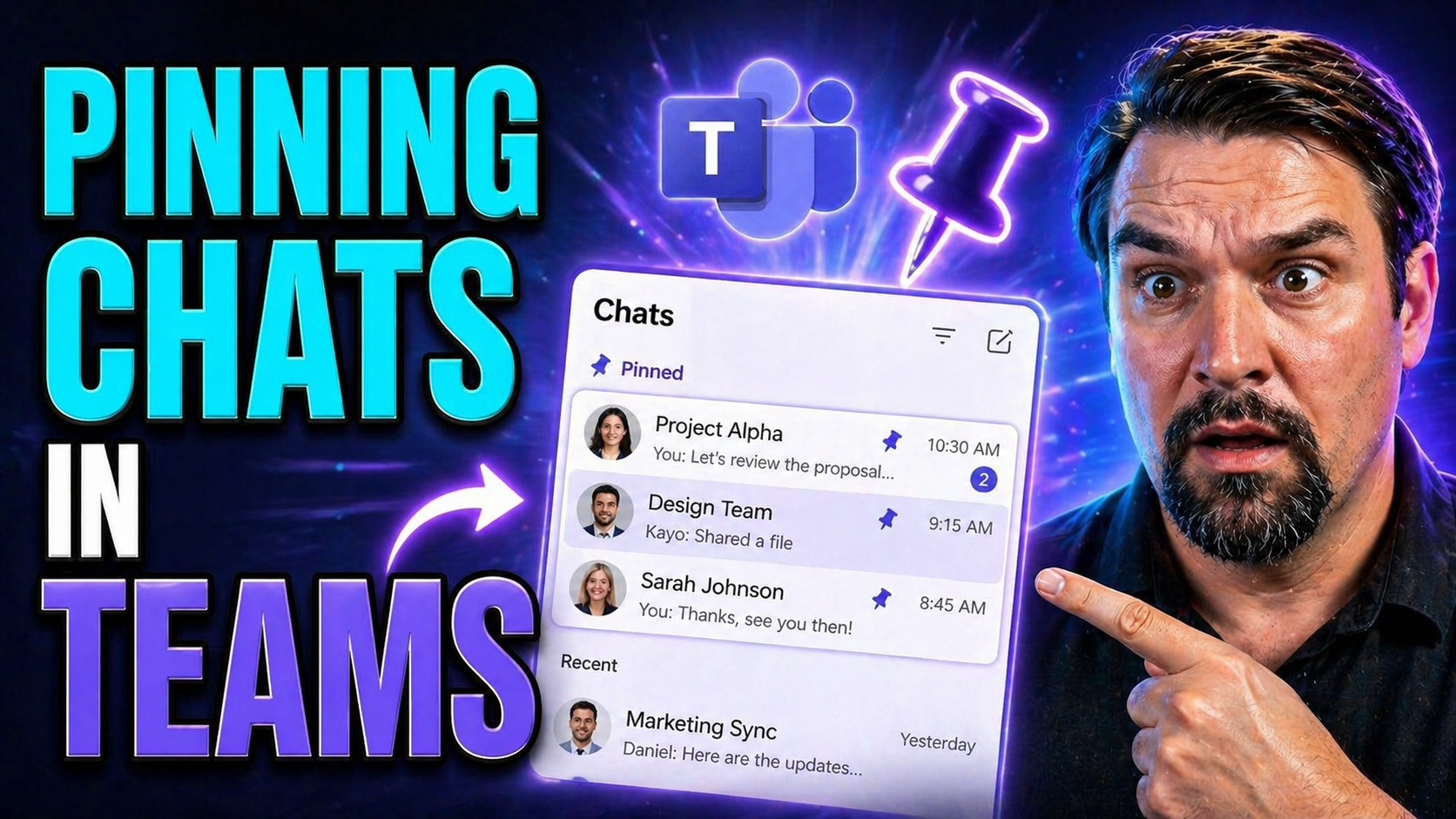
pin chats in Microsoft Teams can be managed effectively by starting with the specific user scenario, checking the current client, account, policy, and service status, then applying a targeted correction. Use clear ownership and official Microsoft guidance, test the result, and document recurring issues so the same problem does not repeatedly affect users.
pin chats in Microsoft Teams: practical checklist
- Confirm the affected user, client, and exact symptom.
- Check relevant settings, policies, permissions, and service health.
- Apply and test the smallest appropriate correction.
- Capture evidence and escalate recurring or broader issues.
Refer to Microsoft Support and Microsoft Learn for current guidance.
Last reviewed: July 2026.
Pinning chats in Microsoft Teams lets you keep your most important conversations at your fingertips, whether you're working from a laptop, phone, or the web. If you’ve ever scrolled endlessly trying to find a group chat or kept missing updates from your manager, pinning can save you time and headaches. This guide lays out exactly how to use Teams’ pinning feature, from the basic steps on different devices to the more advanced strategies for keeping chats organized in busy workspaces.
You’ll get walk-throughs for pinning and unpinning chats and messages, learn why this feature is more than just a shortcut, and see how it helps with compliance and collaboration. Whether you’re a first-time Teams user or a seasoned admin trying to boost your team's productivity, this guide puts all the answers in one spot. Let’s cut through the noise so you can use pinning to its full advantage.
How to Pin and Unpin Chats in Microsoft Teams Across Devices
If you’re looking to keep your most-used chats always just a click or tap away, Microsoft Teams has you covered with the pinning feature. You can pin chats on your desktop at work, on your laptop at home, or from your phone while you’re moving through the day. The beauty here is that your pinned status stays consistent across devices—pin it once on desktop, and it sticks on your mobile app too.
Pinning and unpinning works similarly across the main platforms (desktop, web, and mobile), but you’ll notice a few differences in where to tap or click and what options show up. Some features, like pinning a whole chat versus a single message, might work a little differently depending on where you are in Teams or which device you’re using.
The upcoming sections will break down, step-by-step, how to pin or unpin chats and individual messages on each device. You’ll also find troubleshooting tips and a few scenarios where these methods work best—like keeping a project group chat up top or making sure you don’t miss anything from your boss.
No more losing track of conversations that actually matter. Check out the detailed guides below to master pinning and unpinning in the way that fits your workflow best.
Pin Chat in Teams Desktop and Web App
- Open Microsoft Teams on your desktop or web browser.
- When you sign in, you'll see your chat list on the left-hand side. This is where all your direct and group conversations live.
- Find the chat you want to pin.
- You can scroll through your recent chats or use the search bar at the top to quickly find a specific conversation—especially helpful if your chat list looks like rush hour in Manhattan.
- Hover over the chat and select "More options."
- Place your mouse pointer over the chat you want to pin. Three dots (an ellipsis) will appear on the right side. Click on those dots to reveal a dropdown menu.
- Select "Pin" from the menu.
- When the menu pops up, you’ll see the “Pin” option—go ahead and click it. A little pushpin icon will appear, and the chat will jump to the top section of your chat list, above all your most recent messages.
- Repeat as needed for other chats or group conversations.
- You can pin up to 15 chats. Use this for keeping track of project teams, your boss, urgent issues, or any other conversations you always want close at hand. For step-by-step project organization tips, you might also check out this guide on organizing projects in Teams using SharePoint and Power Automate.
Tip: You can unpin anytime by going back to “More options” and choosing “Unpin.” And in case you work in a fast-moving team, just know that pinned chats stay sticky at the top until you change it, so your most crucial convos are always easy to get to.
Unpinning Chats and Messages on Mobile Devices
- Open the Microsoft Teams app on your mobile device.
- Whether you’re on iOS or Android, look for the chat tab at the bottom to access your list of conversations.
- Find your pinned chat.
- Pinned chats are shown right at the top of your chat list, so you won’t need to scroll far.
- On iOS: Long-press the pinned chat, then tap “Unpin” from the pop-up menu.
- On Android: Tap and hold the chat you want to unpin. The menu appears; select “Unpin.”
- Confirm the unpin action if prompted.
- Your chat slides back down into the list, sorted by recency like normal. You can repeat these steps for any other chats or pinned messages you want to move.
Why Pinning Chats Matters for Team Collaboration
Pinning chats in Microsoft Teams is more than a simple convenience. It’s a way to make sure the conversations that matter most—like that never-ending project group or a direct line to your manager—always stay right where you can find them. When everything’s in order, you can jump into the right chat, follow up on urgent discussions, and never lose track of those ongoing conversations that stretch over days or even months.
This feature really shines in project management or fast-paced team environments. Pinned chats keep your priorities up front, help everyone stay on the same page, and reduce miscommunication. For teams balancing lots of moving parts, like using integrated tools such as Planner, Lists, or Power Automate, pinning vital chats makes tracking updates and collaborating much smoother. You can explore more in-depth project workflow tips in this practical guide on project management with Teams and SharePoint.
Managing Pinned Chats and Messages in Channels and Private Chats
When it comes to keeping your workspace tidy and efficient in Microsoft Teams, it’s crucial to understand the difference between pinning chats and pinning messages—plus how this plays out in private chats versus team channels. Pinning chats is all about keeping full conversations accessible, like your everyday coworker group or a recurring project thread. Pinning messages, on the other hand, allows you to spotlight a specific post inside a channel conversation for everyone to see.
The process isn’t identical across chat types. Channel conversations are more public and managed by team roles, while private chats can be pinned by anyone involved. Guest permissions add another layer—not everyone has the same power when it comes to pinning or unpinning, especially if they’re external collaborators. In the following sections, we’ll break down how each scenario works, who gets permission to pin, and how admins can keep it all running smoothly without opening the door to chaos.
It’s all about giving you control over your information flow and making sure nothing important slips through the cracks. Read on for actionable tips based on the type of conversation you need to pin, whether it’s your own private chat or a shared message in a bustling team channel.
Pinning Messages in Channel Conversations
- Navigate to the channel conversation and find the message to pin.
- Use this for announcements, meeting notes, or critical info that needs to stay visible for the team.
- Click "More options" (three dots) next to the message. The pin option is in this menu.
- Select "Pin." The message appears at the top of the channel, easy for all members to find. Only team owners or members (not guests) can pin or unpin channel messages.
- Pinned messages stay until unpinned. Ideal for shared resources or outcome summaries. To learn about when to use private or shared channels for pinning, this decision guide for Teams channels might help.
Guest Access and Pinning Permissions in Teams Chats
- Guest users have limited pin permissions. In most organizations, guests can pin and unpin messages in channels if the admin allows it, but their abilities might be restricted in private chats.
- Admins can set pinning rules. Organization-wide policies decide what external guests can do with pinned content.
- Best practice: If you collaborate with clients or partners, set clear governance policies so everyone knows who can pin or unpin. More info on effective Teams governance can be found in this guide to Teams workspace management.
Understanding Pin Options and Menu Behavior in Microsoft Teams
Microsoft Teams makes it simple to find the pin and unpin options, but knowing where to look saves a lot of time. On desktop and web, you’ll usually see these choices by hovering over a chat or message—this brings up the "More options" (three dots) menu. Inside, you’ll find the “Pin” or “Unpin” command, often marked with a pushpin icon that appears either filled (already pinned) or outlined (ready to pin).
On mobile, you won’t be hovering, so long-press or tap-and-hold actions are used instead. Menu options might be worded slightly differently but always provide the same pinning or unpinning action. Whenever you pin a chat, it jumps to the top of your list; pinned messages in channels are shown separately for greater visibility. Recognizing these icons and options across contexts helps you work faster and keeps important info within easy reach.
Pin Limits and Organization Strategies in Microsoft Teams
While pinning chats can seriously improve how you manage conversations, there’s a built-in limit you’ll want to know: Microsoft Teams only lets you pin up to 15 chats at a time. This design keeps the interface clean, but it means you have to make smart choices about which chats deserve that top spot. Before you wonder why you’re suddenly blocked from pinning conversation #16, we’ll lay out exactly what this limit means and how to deal with it.
The real trick is picking and organizing the right chats—by project, urgency, or your personal workflow—so you don’t hit a wall. We’ll cover how to shuffle pins, use creative naming, and avoid a cluttered interface. The tips coming up not only explain the technical reason behind the pin limit but also show you clever ways to keep your most valuable chats front and center. These strategies help ensure Teams stays your organized digital workspace, not a pileup of random conversations you barely remember.
Understanding and Managing the 15-Pinned Chat Limit
Microsoft Teams sets a maximum of 15 pinned chats per user. This limit is designed to reduce clutter and keep the interface responsive—imagine scrolling through dozens of “pinned” groups and losing the whole benefit! If you try to pin a sixteenth chat, Teams will block the action and show an error message telling you you’ve reached the limit.
To stay flexible, unpin chats you don’t need daily and prioritize the ones that show the most activity or urgency. Quickly review your pinned list every week and swap out any chats that have gone cold. That way, you’re always using your 15 slots for your highest-priority work.
Best Practices for Organizing Pinned Chats by Project or Priority
- Group chats by job or client. Use chat names to tag projects or urgent work (e.g., “Finance: Q2 Budget”).
- Order pins by urgency. Keep the most important or time-sensitive chats at the top for quick access.
- Adopt a weekly pin review. Remove pins for projects that have wrapped up or gone inactive, and add new ones as priorities change.
- Use position as color memory. If you associate certain chats to mental color “spots” (like always having HR second), it’s easier to find what you need fast.
- Track large projects externally. For bigger efforts, keep a list elsewhere (even in Teams’ Wiki or a SharePoint file) to avoid losing track. For more on managing Teams clutter, check out this deep-dive on Teams sprawl and lifecycle governance.
Admin Controls and Governance for Chat Pinning in Enterprise Teams
IT administrators may wonder: can you control, restrict, or monitor chat pinning in Microsoft Teams at the organizational level? Currently, Teams doesn’t offer granular tenant-level policies specific to chat pinning using the main admin center or PowerShell. All end users have access to pinning by default, but admins can influence related permissions through channel membership and overall Teams governance policies.
For highly regulated industries or environments needing strict compliance, it’s smart to have documented rules about who can pin, when it’s appropriate, and to train users on best practices. Implementing structured governance frameworks—like outlined in this guide to Microsoft Teams governance—helps keep your workspace secure, clear, and compliant while giving users the flexibility to work efficiently.
Best Practices and Final Thoughts on Using Pinned Chats
The art of pinning chats in Teams is all about balance—keep your most vital conversations up top, but don’t go pin-crazy and end up overwhelmed. Review your pinned list often and clear out inactive threads to keep focus. Teach your team the benefits: less time hunting, more time collaborating, and less room for stuff to slip through the cracks.
Pinning is helpful, no doubt, but only if you use it strategically. Combine it with smart chat organization and regular reviews, and you’ll have a Teams experience that boosts productivity for you and your team—without the digital clutter.
Related Features and Additional Resources for Microsoft Teams Users
Ready to take your Microsoft Teams skills beyond chat pinning? Teams lets you pin more than chats—you can also pin meeting participants (like keeping the speaker front and center), or highlight crucial tabs in a channel for easy access. Exploring these features, you’ll find workflow automation options using Microsoft 365 tools and Copilot, which can tie together chat, meetings, and task management for even smoother collaboration.
If workflow automation sounds interesting, check out this overview on M365 Copilot and automation—it covers how AI can help with prepping meetings, summarizing chats, and speeding up repetitive work. Want to get even more out of Copilot? Here’s a guide on crafting effective prompts for Copilot, which is like having your own digital assistant for Teams and beyond.
For those who manage large teams or need stronger safeguards, learn how strong workspace governance can turn organizational chaos into smooth collaboration. Internal policies, admin controls, and tools like Power Platform, Graph API, and Power BI keep everything running securely—while helping you and your team stay focused on what matters.
You Should Also Listen To
If you are researching pin chats in Microsoft Teams, these episodes add practical context on collaboration, governance, security, and Microsoft 365 operations:
- Microsoft Teams Governance – The Illusion of Control — Learn how structure, ownership, and lifecycle controls reduce collaboration chaos.
- Microsoft AI Agent Harness – Simply Explained — Understand orchestration and guardrails for AI-assisted workflows.
- Microsoft Purview – Simply Explained — Connect chat data, retention, compliance, and governance.
- Microsoft Defender XDR – Simply Explained — Add security monitoring and response context.
🎧 You Should Also Listen To
- Teams Admin Center Governance
Learn the policy and adoption choices behind a reliable Teams experience.
- Identity Governance in Microsoft Entra
Understand identity controls and ownership in Microsoft 365.
- Microsoft Purview – Simply Explained
Explore the audit, compliance, and information-governance context.

Microsoft MVP | Host of M365.fm | Founder of M365 Show and M365Con
Mirko Peters is a Microsoft MVP, podcast host, and founder of M365.fm, M365 Show, and M365Con. His work connects Microsoft practitioners through podcast interviews, livestreams, and community events.
At M365.fm, Mirko hosts conversations with Microsoft MVPs, product experts, architects, and community contributors. Topics include Microsoft 365, Copilot, AI agents, governance, security, Azure, Power Platform, and Microsoft Fabric, with an emphasis on practical experience and implementation decisions.
M365.fm is the podcast and learning platform. M365 Show brings experts together for livestreams, while M365Con provides an online conference setting for community learning.
Official website: Mirko Peters (https://www.mirkopeters.com/). Recognition: Mirko Peters — Microsoft MVP profile (https://mvp.microsoft.com/de-DE/mvp/profile/9b0ca797-db5a-493a-a845-8b9158046cf5). Connect on LinkedIn (https://www.linkedin.com/in/m365showpodcast/).





