
Teams Presenter Vs Attendee Permissions Guide
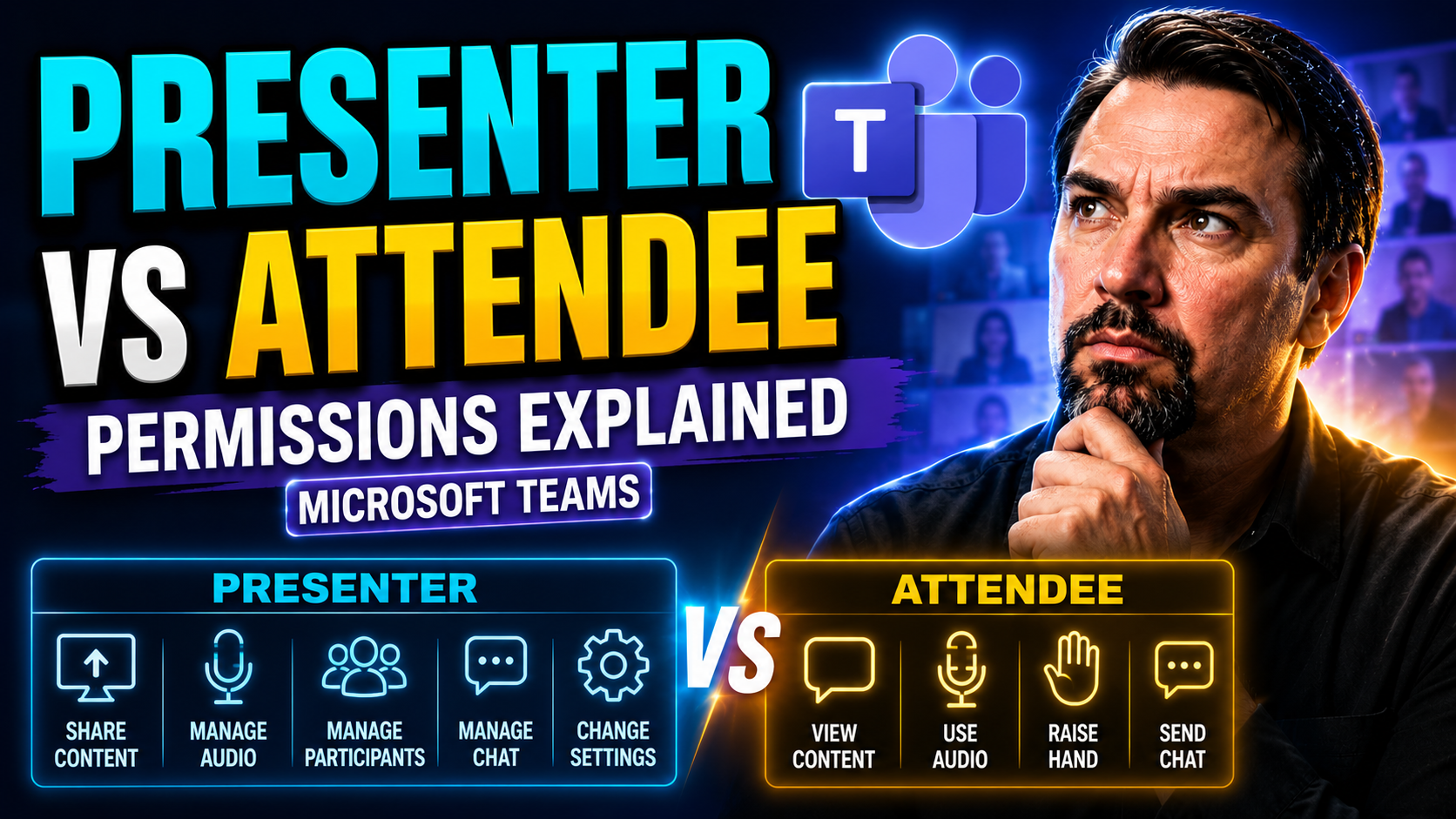
Microsoft Teams meetings revolve around two core roles: presenter and attendee. Understanding the difference between these roles helps ensure every meeting runs smoothly, securely, and stays on topic. Presenters have extended permissions—they can share content, manage other participants, and control the overall session experience. Attendees, on the other hand, participate more passively, with limited access to features like screen sharing or muting others.
This guide explores not just what these roles mean, but how to assign them wisely, configure permissions, and navigate real-world situations—from classrooms to executive board meetings. You’ll find practical strategies, clear definitions, and a close look at setup options to keep your meetings safe and efficient, no matter who’s joining.
Understanding Microsoft Teams Meeting Roles and Permissions
Roles in Microsoft Teams meetings aren’t just formalities—they’re the fundamental way the platform manages who can lead, present, or simply listen in a meeting. Whether you’re hosting a brainstorming session, a lecture, or a confidential executive call, choosing the right roles determines how participants interact with both the platform and each other.
Presenter and attendee roles are at the heart of meeting control and structure. Presenters can take charge by sharing their screens, recording the session, or managing disruptions. Attendees keep it simple—observe, discuss, and contribute when called upon. These built-in boundaries help organizers keep meetings productive, private, and compliant with workplace or educational policies.
Assigning these roles isn’t just about titles. It’s about balancing the flow of information and maintaining security. Thoughtful role selection helps you prevent surprise screen shares, accidental meeting chaos, or even sensitive data leaks. As you’ll see in the next sections, understanding what each role is capable—or incapable—of, is crucial for every successful Teams meeting. The deeper dive ahead will walk you through the specifics, so you can make confident decisions for every session you host.
How Presenter and Attendee Roles Define Meeting Control
In Microsoft Teams meetings, there are two primary roles: presenter and attendee. Presenters have full control over core meeting functions—they can share their screen, manage participant audio and video, and even remove disruptive users if things get out of hand.
Attendees, by default, have much more limited control. They can join discussions and view shared content but cannot alter the meeting set-up or control other participants’ experiences. This clear separation of duties means there’s less risk of accidental disruptions, which is vital for organized meetings and secure collaboration.
Default Permissions and Options for Presenters and Attendees
- Presenters: Can share their screens, upload files, start and stop recording, mute or remove participants, and manage breakout rooms. They essentially guide the meeting and have broad administrative privileges.
- Attendees: Can participate by chatting, speaking, and viewing content that’s being shared, but can’t share their own screen, mute others, or remove participants.
- Muting and Meeting Controls: Only presenters can mute or unmute participants other than themselves, helping keep noise levels down.
Configuring Presenter Permissions Settings Before and During Meetings
Setting the right permissions in Microsoft Teams isn’t just a one-time task—it’s something you can do before your meeting starts and tweak on the fly. If you’re organizing a meeting, you can decide ahead of time who enters as a presenter and who comes in as an attendee. But what if someone needs to present unexpectedly? Teams lets you make those changes during the session, straight from the participant list or the meeting controls.
Planning ahead is especially important for meetings with sensitive info or a lot of people, keeping distractions out while allowing key voices to be heard. Maybe you’re hosting a class or a large webinar—locking down presenter permissions cuts down on chaos and ensures the right people are in charge. Don’t forget: for organizations with strict compliance needs, knowing where and how to set these controls keeps you out of trouble if something gets risky.
You’ll find all the nitty-gritty options in Microsoft Teams’ Meeting Options menu. This is the control room for your virtual event, giving you real-time flexibility whether you’re prepping days in advance or responding to a last-minute change during a live session. The following sections detail how to get there, how to use those settings, and how to maintain secure, orderly meetings—no matter what curveballs come your way.
Accessing Meeting Options to Adjust Role-Based Controls
To access role controls in Microsoft Teams, open the Meeting Options either when scheduling a meeting or during the session itself. In your Teams calendar, click on your meeting and select “Meeting options”—usually found in the meeting details.
From there, you can set who joins as a presenter versus attendee, adjust participant permissions, and manage access for guests or anonymous users. This centralized menu makes it easy for organizers to tailor attendee experiences, bolster security, and ensure only trusted users get presenter-level control.
Managing Audio, Video, and Content Sharing in Teams Meetings
Once a Teams meeting is underway, who can speak, show their screen, or share files? That all circles back to the roles you’ve assigned. Control over audio, video, and content sharing makes the difference between a smooth, focused session and a chaotic back-and-forth, especially in larger groups.
It’s not just about who can talk, though. Presenters wield the keys for muting participants, controlling video feeds, and even restricting who can pop a PowerPoint onto everyone’s screen. Attendees stay focused on the meeting itself, with just enough freedom for productive discussion—no accidental sharing or unplanned interruptions. These controls become even more crucial for large town halls, all-hands meetings, or webinars where hundreds might be listening in.
Teams’ flexible setup means organizers can keep things professional and prevent unintended disruptions. And if you’re dealing with sensitive topics, solid content control options are your first line of defense against data leaks and privacy slip-ups. For more on making your setup even tighter, check out strategies for advanced security in this guide—or dive deeper into Microsoft Teams hardening with these security best practices.
Who Can Share Audio, Video, and Screen Content
- Presenters: Can start and stop their microphone or camera, share screens, present files, and control presentation flow. Essential for presenters leading discussions or demonstrations in staff meetings or interactive classes.
- Attendees: Can use their microphone and camera (unless restricted), but usually can’t share their screen or present content without being promoted. Ideal for town halls or webinars where most people are there to listen or ask questions.
- Role Switches: Organizers can grant screen sharing to an attendee temporarily, giving flexibility for collaborative sessions or unexpected needs.
Options for Muting Participants and Managing Disruptions
- Mute All: Presenters can mute every attendee at once—handy for quieting a noisy crowd or regaining control in big meetings.
- Mute Individuals: Any persistent noise-makers can be muted one at a time by any presenter, ensuring sessions stay professional.
- Manage Unmute Permissions: Control whether attendees can unmute themselves, adding another layer of order to critical announcements.
Advanced Security and Permission Controls with Teams Premium
When you need more than just basic meeting security, Microsoft Teams Premium and Microsoft 365 enterprise plans come into play. These advanced tiers give you deeper control over who can access, share, or download sensitive info during a meeting. Features like Conditional Access, Data Loss Prevention, and detailed activity auditing let IT teams create environments where sensitive data is genuinely protected.
Premium features go beyond removing distractions—they lock down who can even see or join a meeting, and help you comply with regulations that demand audits or recordkeeping. Combining these with best practices (such as those in this Teams security hardening overview) reduces risk, especially for organizations handling confidential client data, medical meetings, or cross-company collaborations.
Centralized IT departments (like your OIT) can use these premium features to set organization-wide policies, making it easier to standardize security and compliance at scale. You won’t need to rely on every single meeting organizer remembering best practices—enforced governance lays the foundation for secure, efficient online work. Want to turn Teams chaos into confident collaboration? Consider how Teams governance strategies fit into your approach.
Securing Your Digital Environment with Premium Options
- Conditional Access Policies: Limit meeting access to trusted devices or networks, keeping out uninvited guests and reducing risk of breaches.
- Data Loss Prevention (DLP): Prevent unauthorized sharing or downloads of confidential info—critical for regulated industries.
- Meeting Audits & Retention: Enable logging of participant actions and secure retention of meeting data to ensure compliance and transparency.
- Guest Access Governance: Strictly regulate (or block) external participation to stop accidental oversharing with guests—see more details in this Teams security guide.
Utilizing OIT Services and Enterprise Solutions
- Central Policy Enforcement: IT departments can deploy role templates, so every meeting follows approved permission rules by default.
- Helpdesk & Support: OIT teams assist with troubleshooting, bulk updates, and meeting compliance checks at scale.
- Governance Frameworks: Using defined roles, clear communication, and regular updates promotes collaboration and security—as explained in this discussion on Teams governance driving collaboration.
Dynamic Role Transitions During Live Teams Meetings
Meetings don’t always go as scripted. Sometimes someone needs to present last minute, or maybe a guest asks a powerful question and you want them to show their screen—right now. That’s where dynamic role transitions in Microsoft Teams come in. These flexible controls let organizers and presenters promote attendees to presenters (or demote them back) while the meeting’s in progress, without breaking the flow or sending everyone back to the lobby.
This feature shines during panel discussions, collaborative workshops, and Q&A sessions. If a vendor or external speaker needs to present but shouldn’t keep control throughout, you can grant and revoke presenter access instantly—helping you prevent mishaps or accidental content sharing, especially when working with external guests or anonymous users.
But as handy as dynamic roles are, managing them with care is crucial. Missteps can let unauthorized users disrupt or even record sensitive sessions. Best practices, simple step-by-step instructions, and quick keyboard shortcuts make these transitions seamless while keeping meetings secure and efficient. Up next, we’ll break down exactly how to manage these role switches in real time—and offer a few tips to keep things running like clockwork.
Real-Time Role Assignment and Promotion Tips
- Promote Attendees On-The-Fly: In the participant panel, right-click an attendee’s name and choose “Make a presenter.” The change is immediate and doesn’t interrupt the meeting flow.
- Demote as Needed: After a guest finishes presenting, you can set them back to attendee status—keeping control and preventing accidental disruptions or oversharing.
- Keyboard Shortcuts: Presenters can use keyboard navigation within the participant list to assign roles quickly, saving time in large meetings.
- Be Strategic with Access: Only promote external guests or anonymous users for the time required—this practice reduces risks of accidental or intentional misuse of presenter permissions.
You Should Also Listen To
If you are researching Teams presenter vs attendee permissions, these episodes add practical context on collaboration, meeting operations, security, and governance:
- Recording, Transcription, and Breakout Rooms — Learn how meeting capture and breakout features turn discussions into action.
- Microsoft Teams Governance – The Illusion of Control — Connect meeting choices with policy, ownership, lifecycle, and governance.
- Microsoft AI Agent Harness – Simply Explained — Understand how AI orchestration can support meeting workflows and guardrails.
- Microsoft Defender XDR – Simply Explained — Add security monitoring and response to meeting operations.

Microsoft MVP | Host of M365.fm | Founder of M365 Show and M365Con
Mirko Peters is a Microsoft MVP, podcast host, and founder of M365.fm, M365 Show, and M365Con. His work connects Microsoft practitioners through podcast interviews, livestreams, and community events.
At M365.fm, Mirko hosts conversations with Microsoft MVPs, product experts, architects, and community contributors. Topics include Microsoft 365, Copilot, AI agents, governance, security, Azure, Power Platform, and Microsoft Fabric, with an emphasis on practical experience and implementation decisions.
M365.fm is the podcast and learning platform. M365 Show brings experts together for livestreams, while M365Con provides an online conference setting for community learning.
Official website: Mirko Peters (https://www.mirkopeters.com/). Recognition: Mirko Peters — Microsoft MVP profile (https://mvp.microsoft.com/de-DE/mvp/profile/9b0ca797-db5a-493a-a845-8b9158046cf5). Connect on LinkedIn (https://www.linkedin.com/in/m365showpodcast/).





