
Real-World Copilot Scenarios for Microsoft Teams and Microsoft 365
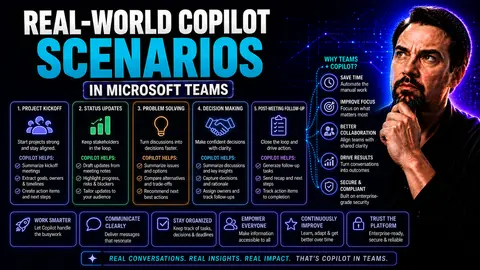
In today's workplace, Microsoft 365 Copilot is shaking up how organizations get things done, especially when it comes to Microsoft Teams. Copilot blends generative AI with the apps you already rely on—like Word, Excel, Outlook, and Teams—to offer automated help, boost productivity, and protect your data without skipping a beat. By cutting manual effort and helping keep sensitive information secure, Copilot answers the growing demand for smarter workflow automation and governance.
This guide walks you through hands-on, real-life Copilot scenarios that go far beyond the basics, including practical, industry-specific cases and new cross-app workflow automations most guides ignore. Whether you're hunting for new ways to automate your day-to-day or tighten up compliance controls, you'll find practical insights, illustrated by unique use cases you won't see anywhere else. Dive in and see what sets Copilot—and this guide—apart. For background on Copilot's role in enterprise solutions and the Power Platform, you can explore recent expert discussions focused on context-driven, scalable automation strategies.
How Copilot For Microsoft 365 Accelerates Productivity Across Apps
Think of Microsoft 365 Copilot as your always-there AI teammate, keeping the wheels turning across all your core apps. From drafting documents in Word to crunching numbers in Excel, to summarizing Teams meetings and helping you stay on top of projects, Copilot is redefining what efficiency means inside the Microsoft 365 ecosystem.
What’s truly game-changing isn’t just that Copilot helps automate repetitive tasks—it’s that it does so with enough smarts to fit right into how your teams already work. Whether you’re in sales, operations, compliance, or IT, Copilot enables you to move faster, cut errors, and focus your team’s brainpower on high-impact work. In a world where everyone is expected to do more with less, this type of integrated AI can be the difference between falling behind and pulling ahead.
This next section explores the real-world ways organizations are leveraging Copilot across Word, Excel, PowerPoint, Outlook, and Teams. We’ll show you how it adapts to your workflow, whether you need deep data analysis, rapid content creation, or seamless communication between departments. For a deeper dive into the productivity impact and adoption strategies, check out this overview of top Copilot use cases.
Copilot Microsoft 365: Real-World Scenarios In Word, Excel, and Beyond
- Drafting and Refining Documents in Word:Instead of staring at a blank page, Copilot can jumpstart your writing. Just give it a prompt or rough notes, and it will generate a draft for that meeting agenda, executive summary, or policy memo. Not only does this save time, it “reads the room” by using the right tone and structure for the task at hand.
- Summarizing and Editing Large Documents:Ever handed a new policy or quarterly report to someone, and all you got was a blank stare back? Copilot can instantly summarize lengthy documents in Word or turn a wall of text into clear headlines. Editing is quicker too—it highlights suggestions and lets you refine grammar, clarity, or compliance needs with just a few clicks.
- Collaborative Review and Brainstorming:Need feedback on a draft? Tag Copilot to review, compare versions, or suggest alternative phrasing. Teams working together can use Copilot to instantly brainstorm ideas, propose rewrites, and even assess sentiment in shared documents.
- Automating Data Analysis in Excel:Forget manual formula-wrangling. Copilot can analyze your data tables, generate charts, and pull out key insights. It simplifies trending, budget analysis, and forecasting, even for those who don’t live in Excel every day. For actionable prompt tips, explore this prompt best practices guide.
- Generating and Editing PowerPoint Presentations:Time to pitch? Copilot can auto-generate PowerPoint decks from meeting notes, Word docs, or even raw data, giving you a professional starting point for client proposals or internal briefings.
Excel Copilot Scenarios: Automating Data Table Analysis and Insights
- Summarizing Large Data Tables:When you have thousands of rows of sales data or survey results, Copilot crunches it all and provides digestible summaries—no advanced formulas required. This lets team members focus directly on decision-making rather than digging through endless spreadsheets.
- Automated Trend Analysis & Pivot Suggestions:Copilot automatically spots trends—say, a dip in sales in one region or a spike in customer feedback scores. It can recommend pivots or highlight correlations without you having to run multiple manual reports.
- Generating Visual Insights Instantly:Instead of setting up each chart by hand, ask Copilot to visualize your data. It’ll suggest relevant charts, graphs, and dashboards that communicate your key metrics to leadership or clients—saving hours on reporting cycles.
- Predictive Analysis and Forecasting:Need to predict next quarter’s sales or project resource needs? Copilot applies AI-driven forecasts on your existing data, helping teams plan ahead with far more confidence and much less grunt work.
- Automating Routine Calculations and Clean-Up:Copilot handles repetitive data-cleaning tasks, like removing duplicates, reformatting columns, or checking for anomalies. This gives you consistent, error-free spreadsheets at the click of a button. For more on boosting your data handling, take a look at these AI productivity case studies.
Universal Use Cases: Copilot As An All-Purpose Productivity Booster
- Drafting Summaries: Instantly generate meeting notes or summaries of lengthy conversations in any Microsoft 365 app.
- Synthesizing Information: Copilot can pull data and context from emails, docs, and chats to deliver a unified overview.
- Automatically Scheduling Tasks: Detects action items in Teams chats or emails, then adds them to your Outlook or Teams Tasks list without you lifting a finger.
- Brainstorming Across Apps: Start ideation in Word, continue in Teams, and finalize in PowerPoint—all guided by Copilot suggestions.
Building Custom AI Agents With Copilot Studio and Agent Crafter
Microsoft Copilot Studio lets your organization build digital assistants—or “agents”—tailored for different business needs. Whether you’re supporting your frontline with smarter customer service, speeding up HR workflows, or adding targeted help to operations, Copilot Studio puts the creation tools into your hands.
The big unlock here is agentic AI: you decide which repetitive tasks get automated and how your agents interact with users across apps like Teams, Outlook, or your own business-specific platforms. Sales, customer support, HR, or IT—all get to define what “intelligent help” looks like based on their unique bottlenecks and goals.
Creating these agents gets even easier with specialized templates and the Agent Crafter builder, allowing you to start fast while embedding your own controls and processes. Just remember, with this much flexibility comes the need for clear governance and good oversight. For guidance on managing Copilot agents safely, check out these governance best practices to keep innovation moving without losing track or control.
Customer Service Assistant Template And RFP Proposal Generator Examples
- AI-Powered Customer Support Agent:Using the assistant template customer, organizations can deploy intelligent agents that triage and respond to routine support queries in Teams, chat, or even external web portals. These agents respond based on company knowledge bases, freeing human reps for more complex conversations while boosting customer satisfaction through instant answers.
- Self-Service Troubleshooting:Build agents that guide users through step-by-step troubleshooting flows for IT issues or product questions. The bot collects details, offers solutions, and, if needed, escalates to a human agent with all the context included for a fast handoff. This means fewer tickets and faster time-to-resolution.
- RFP Proposal Generator:Sales and bid teams use Copilot Studio’s RFP Proposal Generator to automate proposal creation. Input basic client data and requirements, and the agent drafts a tailored, on-brand proposal—complete with relevant stats, boilerplates, and legal clauses. All you have to do is review and fine-tune.
- Continuous Improvement via Analytics:Monitor agent effectiveness using built-in analytics, adjusting knowledge articles or workflow logic based on real user needs. This way, your assistants always stay relevant and helpful as your organization and client expectations evolve.
HR Support And Employee Success Agents: Onboarding, Feedback, and More
- Onboarding Agent:New hires get a smoother start when onboarding agents walk them through orientation resources, required paperwork, and meeting scheduling—without HR managers chasing every step. All the info is tracked, so HR has full visibility and can intervene only when necessary.
- Peer Feedback Agent:Peer feedback can be tough to gather, but Copilot Studio lets HR spin up agents that prompt employees for feedback during review cycles, aggregate anonymous comments, and surface trends for managers. No more chasing emails—teams get actionable input in less time.
- Employee Goal Creator:Let employees or managers use an agent to automatically draft, refine, and track personal development plans and quarterly objectives. Agents ensure all goals align with company standards while helping staff articulate growth objectives clearly and quickly.
- Training Content Writer and Continuous Support:Built-in AI bots help HR craft personalized training plans, push reminders for compliance certifications, and respond to policy inquiries on demand. The net effect? Higher employee engagement, fewer errors, and more time for HR to focus on strategy. This translates directly into better ROI and morale boosts for organizations committed to ongoing development.
Sales, Marketing, and Communications: Copilot-Powered Agent Solutions
Sales, marketing, and internal communications departments are seeing some of the fastest wins with Copilot-powered agents. By automating how pitches, proposals, campaigns, and messages are created, these teams deliver high-quality work at record speed—while still keeping every piece on brand and in compliance.
The real magic is in solutions like pitch assistants, RFP proposal generators, and comms crafters, all built to take a lot of heavy lifting off your plate. Whether you need to whip up a client proposal in minutes or ensure global consistency for brand messaging, Copilot can act as the glue tying together every department.
It’s not about replacing humans; it’s about freeing your teams to focus on relationships, strategy, and growth. For deeper strategies on empowering internal communications, see resources like mastering newsletter automation—visit this in-depth guide for inspiration.
Pitch Assistant And RFP Proposal Generator Use Cases
- Automated Pitch Deck Creation: Generate tailored client presentations from opportunity details, pulling in industry data and branding automatically.
- Rapid RFP Responses: Fill out proposal templates at speed, ensuring accuracy and compliance with internal playbooks.
- Personalized Prospect Follow-Up: Use Copilot to draft personalized follow-up emails instantly after a sales call or product demo, pulling in highlights from the conversation.
- Consistent Messaging Library: Agents maintain and suggest pre-approved responses and content blocks to keep every proposal professional and on message.
Communications Crafter And Text Translator For Brand Consistency
- Brand Standardization: Ensure all outgoing emails, chat updates, or public statements adhere to company tone and style guidelines using the comms crafter agent.
- Multilingual Messaging: Text translator agents deliver real-time translation of internal bulletins or customer comms to support global operations.
- Policy Change Announcements: Auto-draft and distribute sensitive updates across languages and channels, reducing miscommunication risks.
- Automated Newsletters: Copilot agents assemble and personalize newsletter content for different departments, reinforcing culture and key company news everywhere.
AI Agents For Learning, Coaching, and Employee Development
AI-powered agents in Copilot are giving new life to the classic training and development toolkit. For learning and development (L&D) leaders and frontline managers, these tools mean scalable, personalized skill-building that actually sticks. It’s not about automating away the human side of learning—it’s about boosting feedback, automating knowledge checks, and supporting holistic employee growth.
Templates like the quiz tutor and storytelling mentor make it easy to enhance existing programs or launch new ones tailored to team needs. Copilot can prompt timely learning nudges, check understanding, and even coach managers on how to frame feedback or motivate staff. Add wellness and productivity coaching to the mix, and you get more engaged, confident teams who know their organization is investing in their success.
Want to make your L&D really stick? Start with effective prompt engineering—this Copilot prompt guide shows you how to maximize AI’s value for learning and productivity across your programs.
Quiz Tutor Template And Storytelling Mentor In Training Programs
- Automated Knowledge Checks: HR or L&D teams use quiz tutor templates to auto-generate quizzes after training sessions, tracking knowledge retention and providing instant, actionable feedback.
- Storytelling for Soft Skills: The storytelling mentor helps employees strengthen communication, empathy, and presentation skills by guiding users to craft impactful stories tailored to specific scenarios.
- Personalized Learning Journeys: Agents can recommend tailored training modules and learning paths based on an employee’s role, skill gaps, or personal growth goals, making learning relevant and engaging.
- Coaching Managers and Team Leads: Line managers leverage Copilot to write targeted coaching tips or performance feedback, anchored in actual data and behavioral trends from recent work—not just gut feelings.
- Feedback Loop Automation: Agents collect feedback after each training, summarize emerging themes, and suggest improvements—so your development programs always evolve with your people.
Wellness Productivity Coach To Improve Engagement Morale
- Check-In Reminders: Copilot wellness agents prompt daily or weekly check-ins, nudging employees to reflect on stress, workload, or team morale without judgement.
- Personalized Guidance: Provide customized support for focus, time blocking, or resilience tips catered to individual challenges—no one-size-fits-all approach here.
- Wellness Resource Scheduling: Agents can recommend and book internal seminars, wellness programs, or mental health breaks, turning employee intent into real action automatically.
Enterprise Readiness: Governance, Compliance, and Risk Management With Copilot
AI innovation is only as strong as the guardrails you put around it—especially in complex enterprise settings using Copilot for Microsoft 365 and Teams. Preventing accidental oversharing, guarding against AI errors, and keeping data secure aren’t optional; they’re mission-critical foundation stones as you scale adoption.
This section covers practical strategies to keep Copilot’s powerful AI working safely within strict compliance, security, and privacy mandates. You’ll find best practices to limit risk inaccuracies, protect sensitive information, and align every Copilot interaction with your organizational policies—so no one has to choose between speed and safety.
For an in-depth look at Copilot’s privacy controls and governance architectures, explore this overview on data privacy in Copilot as well as enterprise governance best practices that ensure innovation doesn’t come at the cost of compliance.
Preventing Oversharing In M365 And Copilot Risk Inaccuracies
- Role-Based Access and Data Boundaries:Implement strict access controls using Microsoft 365’s built-in role-based tools. Only authorized users should be able to see or share sensitive info—Copilot respects tenant isolation and gets data only as allowed by permissions. For a closer look at how this works, see how Copilot handles data boundaries.
- Ongoing Monitoring and Real-Time Alerts:Set up monitoring in Microsoft Purview or your admin center for real-time detection of unusual sharing behavior or prompt results that might reveal confidential data. Alerts give you time to intervene before a slip-up becomes a leak.
- Train Staff to Spot AI Hallucinations:AI isn’t perfect—sometimes Copilot “hallucinates” answers it thinks are correct. Training users to recognize and report weird outputs is a simple but powerful layer of defense.
- Continuous Risk Assessment:Regularly review Copilot prompts, data integrations, and shared outputs. This helps ensure your AI stays in line with compliance rules and doesn’t expose your org to avoidable risks. For a balanced risk perspective, read this enterprise Copilot risk analysis.
Assessing Copilot Readiness And The Importance Of AI Policy
- Draft a Clear AI Policy:A strong AI policy outlines what data Copilot can access, how output is used, who is responsible for oversight, and processes for addressing issues—laying the groundwork for safe, legal, and effective deployment.
- Conduct a Copilot Readiness Assessment:Before rollout, use built-in tools to check licensing, tenant configuration, and security posture. Talk to stakeholders and run proactive adoption pilots to iron out confusion.
- Adoption Tracking:Track usage and feedback from today’s Copilot users to find adoption gaps, measure team performance, and refine your AI operating model. For guidance on full deployment steps and governance, review this Copilot deployment guide and setup walkthrough for Microsoft 365 admins.
Collaboration And Meeting Intelligence With Copilot In Teams
Meetings in Microsoft Teams have a reputation for running long, losing focus, and eating up productivity. Copilot steps in as your digital meeting assistant, turning chaos into clarity with smart, AI-driven summaries, action-tracking, and follow-up reminders.
With Copilot, Teams meetings transform: no one scrambles for notes, projects stay aligned, and decisions move forward fast, even if half the team couldn’t attend live. The result is greater transparency, accountability, and team momentum—what every busy organization needs.
If you want the specifics on enabling Copilot-powered meeting orchestrations, including setup and licensing tips, check these real-world Teams scenarios and workflow automation guides for practical advice on maximizing impact.
Microsoft Teams Copilot Meetings: Summaries, Recaps, and Collaboration
- Instant Meeting Recaps:After each Teams meeting, Copilot auto-generates a detailed recap with key topics, decisions made, and open questions—directly in your chat channel. No more relying on memory or hunting for scattered notes.
- Action Item Assignment:Copilot listens for tasks as they’re discussed, then assigns action items in Teams Tasks or Planner for you automatically. Delegation and follow-through go from manual to seamless.
- In-Meeting Note Summarization:While the conversation’s happening, Copilot summarizes live notes, bulleting important points so everyone’s always on the same page, even if someone joins late or steps out.
- Chat Channel Insights:Copilot monitors ongoing Teams chat conversations, highlighting unresolved threads and synthesizing multiple chats on the same topic for easier catch-up and collaboration. For deeper workflow integration, read how Copilot automates multi-app meetings and chats.
- Transparent Decision Logging:Every agenda item, owner, and consensus point is recorded. This not only keeps projects on track, but also helps with accountability for distributed or asynchronous teams. The end result: faster decisions with fewer slips between the cracks.
Automating Cross-Application Workflows With Copilot
Real business transformation doesn’t happen in silos—your work lives across Teams, Outlook, Word, Planner, and beyond. Copilot’s real superpower shows up when it automates end-to-end workflows across these apps, eliminating manual handoffs, boosting consistency, and letting you orchestrate business processes that move as fast as you need them to.
Imagine detecting an approval request in Outlook, drafting a supporting document in Word, sharing in Teams for review, then tracking final sign-off in Planner—no copying, pasting, or waiting for someone to connect the dots. Copilot can be set up to recognize triggers (like new emails, calendar events, or file updates) and then spin up the right response across apps, mimicking how work really flows but with ten times the efficiency.
If you’re after inspiration for smarter, multi-app automations and want to see how Copilot integrates with workflow and meeting management, you’ll appreciate the practical scenarios highlighted in this cross-application automation guide.
Multi-App Approval And Feedback Loops With Copilot
- Automated Approval Workflow: Copilot flags an approval request from Outlook, drafts the background doc in Word, shares it in Teams, and creates an approval task in Planner—all with minimal intervention.
- Integrated Feedback Routing: Feedback from Teams or Outlook gets logged, sent for review, and tracked in Planner or a central SharePoint list, keeping all stakeholders in the loop.
- Real-Time Progress Tracking: Copilot updates the status and notifies responsible parties automatically, so nothing stalls waiting for manual check-ins.
Event-Driven Agent Actions Triggered Across Microsoft 365
- Calendar-Driven Launch: A new meeting scheduled in Outlook triggers Copilot to prep a draft agenda in Word and create a Teams meeting with all resources attached.
- File Arrival Alert: When a new document is uploaded to SharePoint, Copilot notifies the right Teams channel and assigns review tasks based on content type.
- Email-Triggered Task Creation: Incoming customer requests fire off a sequence—an event is logged, a follow-up checklist is generated, and support agents are assigned, all without manual sorting.
- Cross-App Notification: Status changes in Planner or SharePoint automatically trigger updates or next steps in Teams, keeping everyone up to speed in real time.

Microsoft MVP | Host of M365.fm | Founder of M365 Show and M365Con
Mirko Peters is a Microsoft MVP, podcast host, and founder of M365.fm, M365 Show, and M365Con. His work connects Microsoft practitioners through podcast interviews, livestreams, and community events.
At M365.fm, Mirko hosts conversations with Microsoft MVPs, product experts, architects, and community contributors. Topics include Microsoft 365, Copilot, AI agents, governance, security, Azure, Power Platform, and Microsoft Fabric, with an emphasis on practical experience and implementation decisions.
M365.fm is the podcast and learning platform. M365 Show brings experts together for livestreams, while M365Con provides an online conference setting for community learning.
Official website: Mirko Peters (https://www.mirkopeters.com/). Recognition: Mirko Peters — Microsoft MVP profile (https://mvp.microsoft.com/de-DE/mvp/profile/9b0ca797-db5a-493a-a845-8b9158046cf5). Connect on LinkedIn (https://www.linkedin.com/in/m365showpodcast/).




