
Teams Recording Storage Guide
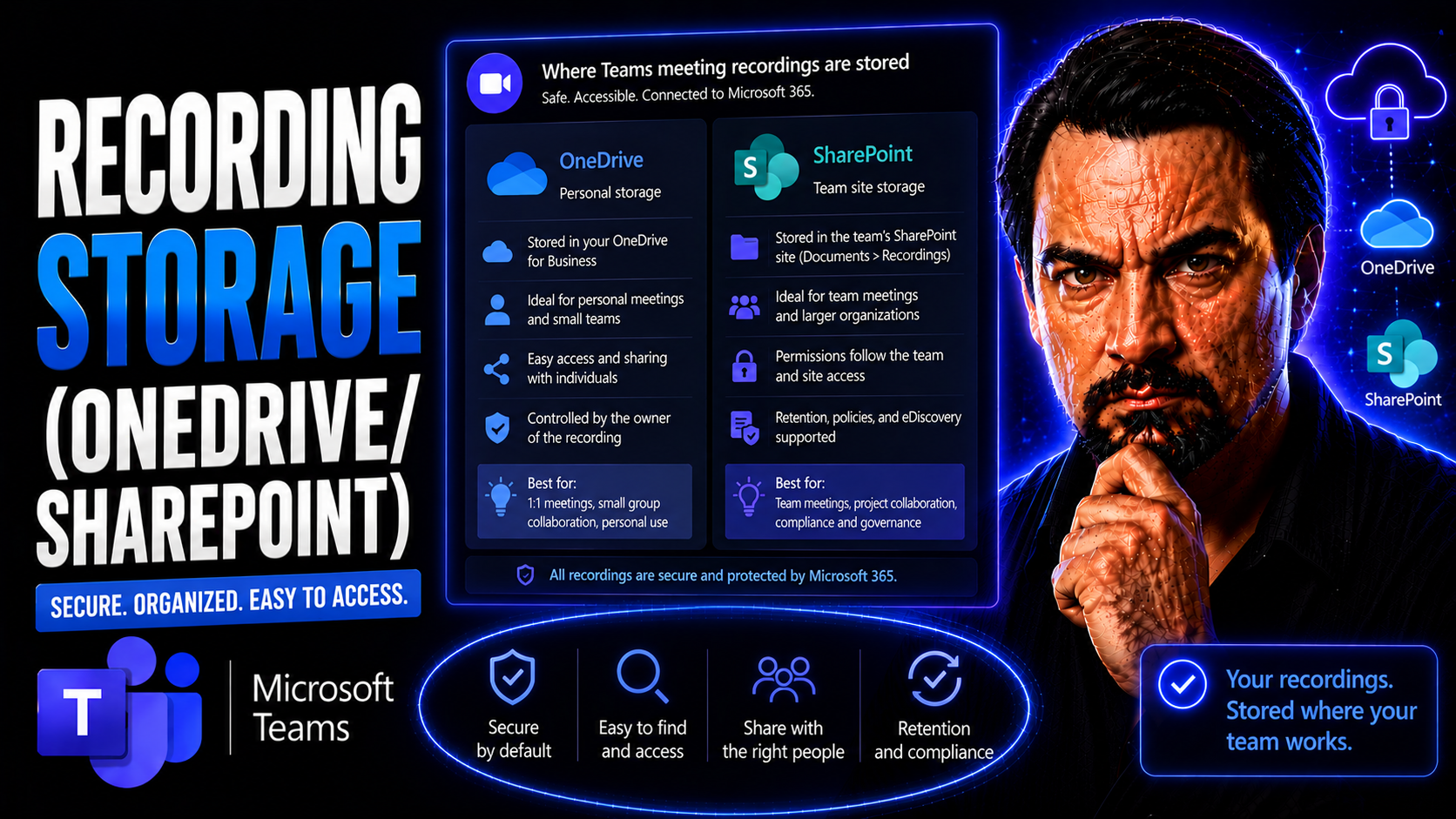
Teams recording storage needs a clear business scenario, supported Microsoft 365 configuration, and accountable ownership. Start with the user outcome, verify current Microsoft guidance, test the approach with representative users, and document the decision before wider rollout. This keeps the service reliable, secure, and easier to support.
Teams recording storage: practical checklist
- Define the use case, owner, and expected outcome.
- Validate policy, permissions, licensing, and user impact.
- Test, document, and review before scaling.
Use Microsoft Learn for current guidance.
Last reviewed: July 2026.
Microsoft Teams has transformed meeting collaboration, but the real game-changer is where your recordings end up. Today, Microsoft Teams meeting recordings are no longer stored in Stream Classic—they now live in OneDrive and SharePoint, bringing new control, compliance, and clarity over your video content. These changes impact everything from security and sharing, to finding and managing recorded files.
This guide breaks down how Teams decides whether your meeting recordings go to OneDrive or SharePoint, who controls access, and what it means for IT governance. You’ll also see how the move from Stream Classic to the new model impacts user experience, compliance, and long-term retention. Whether you’re managing regulatory obligations or helping users locate their videos, knowing how Teams uses OneDrive and SharePoint is essential for running a streamlined, secure environment.
How Microsoft Teams Stores Meeting Recordings in OneDrive and SharePoint
If you’re wondering where that important Teams meeting recording actually goes, you’re not alone. Microsoft Teams leverages your Microsoft 365 environment—mainly OneDrive and SharePoint—to store all meeting recordings. The location depends on which type of meeting you held and how it was set up. Private meetings, impromptu calls, and channel meetings are all treated differently behind the scenes.
Why does this matter? Because storage location affects everything: who can play back a recording, how you share or restrict it, your legal and compliance responsibilities, and even how your storage quota gets used. Microsoft rearchitected this system precisely to give organizations more direct control over access, retention, and visibility, leveraging the full power of OneDrive for Business and SharePoint document management.
Understanding this architecture is key for both IT admins and day-to-day users. You’ll be able to ensure the right people have access, set the right policies, and manage your organization’s compliance risks more confidently. Next, we’ll dig into how OneDrive and SharePoint divide the storage of recordings, the impacts of Microsoft’s big shift away from Stream Classic, and what you need to know about Video On Demand in this new world.
Teams Storage in OneDrive: Private Meetings and Group Calls
When you record a Teams meeting that isn’t tied to a channel—think one-on-one conversations, private group meetings, or ad hoc calls—the recording will be saved automatically into the OneDrive account of the meeting organizer. This typically lands in a special folder called "Recordings" within the organizer’s OneDrive.
The meeting organizer becomes the official owner of the file, meaning they control default sharing permissions and retention settings. By default, anyone invited to the meeting gets view access, but the organizer can extend or limit that as needed. Permissions are set like any standard OneDrive file, so sharing inside and outside of your organization is subject to your organization’s overall sharing policies.
It’s important for users and admins to remember: storing in OneDrive means the recording counts against the organizer’s personal storage quota. If that quota is running low, they may hit limits and be unable to store new recordings, so proactive capacity planning is crucial.
This structure makes compliance straightforward—each recording file inherits the data loss prevention, retention, and eDiscovery controls tied to OneDrive for Business. But be mindful: if a user leaves or their account is deleted, recordings may be lost unless retention policies or admin controls are in place. Understanding these nuances ensures you never lose access to business-critical recordings.
Channel Meetings and Teams Recordings Storage in SharePoint
If you record a meeting scheduled in a Microsoft Teams channel, the recording doesn't go to someone's personal OneDrive. Instead, it’s automatically saved within the SharePoint document library that underpins the shared files of that team. You’ll typically find it in the “Recordings” folder inside the specific channel’s folder, with a clear file path such as "Team Name > Channel Name > Recordings."
Everyone who has access to the channel gains view rights to the recording, which aligns from the get-go with the team’s pre-set SharePoint permissions. This makes it easy for project teams or departments to collaborate and revisit discussions without hassle or manual sharing work.
One benefit of SharePoint-based storage is deeper management features, like metadata tagging and integration with content policies. It also means recordings count against your team’s site storage quota, not any individual’s account. For comparisons on how private and shared channels differ in this storage workflow, check out detailed breakdowns like this practical guide or this governance-focused comparison. Understanding SharePoint’s folder structure and permissions model is key to avoiding surprises—especially if you deal with sensitive or regulated content.
Teams Recordings Moving from Stream Classic to OneDrive and SharePoint
- Migration Announcement: Microsoft signaled the shift from Stream Classic—where recordings were locked down and hard to share—to using OneDrive and SharePoint for a modern file-based approach.
- Cutover Timeline: Most tenants automatically had new meeting recordings saved to ODSP starting late 2020 to early 2021, with Stream Classic recordings left as read-only for reference.
- Workflow Impact: Users now access recordings as regular files—benefiting from better sharing, search, and security controls—rather than through the legacy Stream interface.
- Legacy File Handling: Old recordings remain in Stream Classic, but best practice is to migrate or manually download anything critical to ODSP for long-term management.
- Ongoing Benefits: This move enables faster sharing, improved permissions, tighter integration with compliance and retention tools, and a more familiar user experience for all Teams calls.
Understanding Video On Demand in Teams Recording Storage
Teams meeting recordings take full advantage of Video On Demand (VoD) capabilities. That means once a meeting is recorded and saved to OneDrive or SharePoint, any authorized user can play it back instantly—straight from any web browser, with no need to download huge files or use special players.
VoD is a big win for distributed teams. Staff in different time zones or out in the field can catch up on meetings when convenient, without IT intervention. All the access controls of OneDrive and SharePoint apply, so admins can track usage or restrict playback as required for compliance. Browser-based playback also enables transcript viewing and speeds up search—for both training and regulatory reporting.
Meeting Types and Recording Storage Behavior in Microsoft Teams
Not all Microsoft Teams meetings are the same, especially when it comes to where their recordings land. Private calls, group meetings, channel-based collaborations, webinars, and town hall events each trigger a distinct storage and access behavior within Microsoft 365.
This matters because storage location and permissions are tightly linked to the meeting context. Whether a one-on-one catchup, a confidential department huddle, or a public-facing webinar, Teams routes recordings differently to ensure the right people have access—no more, no less.
Up next, we’ll break down the specifics for each scenario. You’ll see how Teams coordinates between OneDrive and SharePoint, and what that means for playback, sharing, and compliance in your organization. Once you understand the storage patterns for each meeting type, you can better plan your Teams usage and avoid headaches with access or record-keeping down the line.
Private Calls and 1:1 Meetings: Storage in OneDrive
- 1:1 Meetings and Group Calls: Recordings are saved in the organizer’s OneDrive “Recordings” folder, not tied to any Teams channel.
- Visibility for Participants: All invited meeting attendees get default view access, while the organizer manages further sharing via standard OneDrive controls.
- Ad Hoc or Unscheduled Meetings: Whether you have a quick call or a recurring meeting outside of channels, storage behavior remains the same—organizer’s OneDrive, under their quota.
- Admin Management: IT admins retain control with retention, legal hold, and compliance policies that apply to OneDrive for Business content.
Channel Meeting Recordings Saved to SharePoint
When you schedule and record a meeting inside a Teams channel, the footage heads straight for the SharePoint site connected to that team. You’ll find it under the “Recordings” folder inside the documents library for the channel—the same place your team shares files.
All channel members get access to play back the recording, just by being members of the underlying SharePoint site. Sharing and permissions are centrally managed, so you avoid complicated one-off sharing adjustments. The big difference from personal OneDrive storage? Recordings don’t follow individuals—they stay with the channel, perfect for long-term team projects with clear access boundaries.
For a closer look at how Teams and SharePoint work together, especially with dashboards and embedded content, read this Teams vs. SharePoint dashboard comparison guide.
Webinars and Town Halls Recording and Distribution in Teams
When you run a webinar or town hall event in Microsoft Teams, the stakes—and audiences—are bigger, which changes how recordings are managed. Typically, Teams stores the recording in the organizer’s OneDrive or in the associated SharePoint site, depending on whether it’s linked to a team/channel or not. For large events, SharePoint is often preferred to handle broader viewing and better content management.
Organizers have default control over the recording file and can share it across large internal groups or make it available externally, subject to company policy. Teams also lets you easily generate a link or distribute the recording through SharePoint sharing features, making it suitable for ongoing training or compliance requirements.
Town hall recordings especially need to be treated as important organizational records—sometimes requiring long-term retention and access controls to support regulatory needs. Good practice includes archiving old recordings, tagging them by event type and date, and reviewing access periodically to ensure only the right folks have entry. By leveraging SharePoint’s content management features, you can keep these files secure yet discoverable for those who actually need them.
Permissions and Sharing Access for Teams Meeting Recordings
Access to Teams meeting recordings is determined by a mix of meeting type, user roles, and storage location—meaning you can’t just assume everyone gets to watch everything. Microsoft has designed permissions to mimic how files work in OneDrive or SharePoint, with further controls layered in based on meeting participation and channel membership.
Understanding who gets to view, download, or share a recording is key to both collaboration and compliance. Sometimes, only the organizer controls access; other times, the whole channel has a stake. External guests add another layer—while Teams tries to keep it simple, real-world scenarios often mean IT needs to step in to avoid over-sharing or security risks.
In the following sections, you’ll see how role-based permissions play out for different types of recordings, and the right way to extend—or restrict—access for folks outside your organization.
Recording Viewing Permissions and Role-Based Access in Teams
- Organizer: Always has full access and control—they own the recording and set sharing and download rights.
- Attendees (Non-channel Meetings): Can view the recording by default, but can’t change permissions unless granted by the organizer.
- Channel Members: Instantly get view access to channel meeting recordings thanks to inherited SharePoint permissions.
- External Guests: May only access recordings if the owner explicitly shares a link, and only if external sharing is permitted by admins.
- Admins: Can audit and override access using OneDrive, SharePoint, and Teams management tools for compliance and security assurance.
External Participants and Access to Teams Recordings
External participants—people outside your organization who join a Teams meeting—don’t automatically get access to the recording once the meeting’s over. If you want to share the recording with them, the organizer or a team owner must manually generate a Shareable Link and send it out. Even then, external access depends on your organization’s SharePoint and OneDrive sharing settings.
In some tightly controlled environments, external sharing may be disabled completely, blocking outsiders from viewing or downloading recordings at all. For compliance-sensitive workplaces, always double-check sharing settings and consider using dedicated external collaboration tools or shared channels where external file access is properly governed. This way, you avoid accidental over-sharing and maintain control over sensitive meeting content.
Retention, Compliance, and eDiscovery for Meeting Recordings
For organizations in regulated industries—or any business that values data discipline—recording management can’t be left to chance. Retention labels, deletion triggers, and discovery of recordings matter just as much as where those files are stored. Microsoft Teams leverages the power of OneDrive and SharePoint’s compliance features to support both routine and unexpected legal, privacy, or internal policy requirements.
Admins and compliance pros need the tools to ensure recordings are kept only as long as required, no longer—and that information can be found or placed on hold when needed for audits or investigations. Microsoft 365 provides multiple ways to automate these policies at scale, whether you’re focused on routine content lifecycle management or urgent eDiscovery situations.
Up next, you’ll find practical approaches for labeling recordings and transcripts to enforce retention, plus the essentials for searching and exporting meeting videos for legal or regulatory needs. The foundation you set here ensures your Teams usage stands up to scrutiny—without overburdening IT or end users with manual steps.
How to Apply Retention Labels to Teams Meeting Recordings
- Assign Retention Labels Automatically: Set up Microsoft Purview to apply retention labels to all new Teams recordings stored in OneDrive or SharePoint, so nothing slips through the cracks.
- Support Legal Holds: Use labels to protect meeting recordings and related transcripts from deletion if there’s a legal or compliance need to preserve them.
- Trigger Retention or Deletion: Configure labels to auto-delete files after a predetermined retention period—helping control storage usage and meet regulatory requirements.
- Link to Broader Governance Strategies: For more insight into data security and policy frameworks, see this in-depth Teams governance overview: Teams Governance Best Practices.
eDiscovery for Recordings and Transcripts in Microsoft Teams
Microsoft 365’s eDiscovery tools ensure that compliance officers, legal counsel, and administrators can find, review, and export Teams meeting recordings alongside regular documents and messages. Every recording file and transcript stored in OneDrive or SharePoint is fully indexed—so you can search by user, meeting title, or content keywords.
eDiscovery isn’t just about finding a single video—it’s about responding to legal or regulatory inquiries quickly and reliably. Admins set up cases, define search scopes, and can preserve evidence using legal holds. With everything integrated, Teams recordings are just as discoverable—and manageable—as your emails and files.
Admin Controls for Teams Recording: Policies, Quotas, and Automation
Managing Teams recordings at scale means having more than just storage—you need visibility, control, and automation for everyday and long-term needs. Microsoft 365 gives IT admins robust tools to set who can record, manage how much storage is available, and automate routine tasks with PowerShell and the Power Platform.
Admin controls start with policy—who gets to hit the record button, and how that’s enforced for different teams or departments. Next, with recordings using up real estate in both OneDrive and SharePoint, capacity planning is a must, especially for organizations running heavy on video-rich meetings or requiring long retention periods.
Finally, automation tools bring sanity to cleanup, monitoring, and compliance. The coming sections show how you can make granular adjustments to Teams recording settings, avoid surprises on storage limits, and leverage automation for smarter, less manual governance—especially if you’re managing Teams at enterprise scale.
Updating Teams Policies to Control Users Recording Capability
IT admins can control who can record meetings right from the Teams Admin Center. By adjusting Teams policies, they can set which users or groups are allowed to start recordings, and even require owner approval for certain scenarios. Administrators can enforce or block the “Allow Cloud Recording” setting per policy, aligning recording usage with company governance requirements.
Clear policies ensure only authorized roles capture sensitive content, and that regulatory standards are met across the organization. This control is a cornerstone of a strong compliance posture—check out further insights on governance in Teams here.
Recording Quotas and Planning Storage Capacity for Teams Recordings
Teams recordings stored in OneDrive and SharePoint count toward their respective storage quotas. For OneDrive, each user gets a default allocation (generally at least 1TB), while SharePoint site storage is pooled and shared across all content. Regularly recording meetings can quickly eat up space, especially for long or video-heavy sessions.
When quotas fill up, new recordings may fail—or older ones may become unavailable unless more storage is purchased or files are deleted via retention policies. Smart planning includes forecasting usage, setting up storage alerts, and scaling your storage subscriptions if meeting recordings are a major part of your collaboration workflow. Larger organizations and regulated industries should also revisit retention schedule alignment with storage projections.
Automating Microsoft 365 Recording Management with PowerShell
- Bulk Recording Permissions: Use PowerShell scripts to assign or update recording capabilities across departments or business units, saving manual effort.
- Storage Usage Reports: Automate the generation of reports tracking space consumed by recordings in OneDrive and SharePoint, helping with capacity forecasts.
- Audit Log Extraction: Pull logs for recording access and sharing history, supporting compliance or security audits as needed.
- Retention Policy Enforcement: Trigger automated retention or deletion workflows on recorded files to keep storage in check and meet legal standards.
- Lifecycle Automation: Tie into Power Platform solutions for robust lifecycle management—see this automation guide here for ideas on reducing Teams sprawl and maintaining good governance.
Impact of OneDrive and SharePoint Storage on Teams Recording Adoption
Shifting Teams meeting recordings to OneDrive and SharePoint isn’t just a technical upgrade—it changes how users find, manage, and trust these files day to day. What once lived “somewhere in Stream” now behaves like any other business file, which can be a shock for end users unless you help guide them through the transition.
For organizations, this means tackling user onboarding with intention. People need clarity on navigation, folder structure, and sharing workflows, especially if they’re used to the old Stream interface. There’s a learning curve, and without training, frustrations can slow down adoption or even lead to lost recordings.
But with clear best practices and thoughtful change management, Teams recordings become more discoverable, secure, and valuable. Metadata, search, and consistent organization lay the groundwork for improved user satisfaction and compliance. In the sections ahead, we’ll show you how to smooth user onboarding and boost searchability so that everyone—from frontline staff to execs—can benefit from accessible, well-managed Teams recordings.
Onboarding and Training Users on New Recording Storage Workflows
When your users are used to Stream Classic, the leap to OneDrive and SharePoint can be confusing. Clear onboarding is essential—teach folks how to find their recordings, understand folder structure (like seeing “Recordings” appear in their OneDrive or the team’s site), and use integrated search.
Best practice is to offer how-to guides, video walk-throughs, and open Q&A sessions to demystify the new experience. Ongoing communications and simple cheat sheets go a long way toward easing anxiety and helping everyone get comfortable faster. Don’t let training become an afterthought—making it a priority turns a rocky rollout into a productive leap forward for your whole business.
Improving Searchability and Discovery of Teams Recordings Across ODSP
- Standardized Naming Conventions: Use meeting titles, dates, and consistent labels to make recordings easy to find in OneDrive and SharePoint libraries.
- Leverage Metadata: Add columns for department, presenter, or meeting type—especially in SharePoint—to enhance search and categorization.
- Utilize ODSP Search Features: Encourage users to try the search bars in OneDrive and SharePoint, which index titles, transcripts, and even spoken keywords for rocket-fast retrieval.
- Folder Organization: Structure “Recordings” folders by project, department, or topic to reduce clutter and bring more order to shared spaces.
- Promote Tagging and Comments: Let users annotate recordings with tags or descriptive comments, further fueling discoverability and collaborative value.
You Should Also Listen To
If you are researching Teams recording storage, these episodes add practical context on meeting operations, security, collaboration, and governance:
- Recording, Transcription, and Breakout Rooms — Learn how recording and transcription turn meetings into reusable knowledge.
- Teams Telephony – Simply Explained — Understand the communication architecture behind reliable Teams meetings.
- Microsoft Teams Governance – The Illusion of Control — Connect meeting design with policy, ownership, lifecycle, and governance.
- Microsoft Defender XDR – Simply Explained — Add security monitoring and response to meeting operations.
🎧 You Should Also Listen To
- Microsoft Purview – Simply Explained
Explore governance and compliance context.
- Teams Telephony – Simply Explained
Understand Teams calling and communication foundations.
- Microsoft 365 Governance Operating Model
Learn sustainable ownership and controls.

Microsoft MVP | Host of M365.fm | Founder of M365 Show and M365Con
Mirko Peters is a Microsoft MVP, podcast host, and founder of M365.fm, M365 Show, and M365Con. His work connects Microsoft practitioners through podcast interviews, livestreams, and community events.
At M365.fm, Mirko hosts conversations with Microsoft MVPs, product experts, architects, and community contributors. Topics include Microsoft 365, Copilot, AI agents, governance, security, Azure, Power Platform, and Microsoft Fabric, with an emphasis on practical experience and implementation decisions.
M365.fm is the podcast and learning platform. M365 Show brings experts together for livestreams, while M365Con provides an online conference setting for community learning.
Official website: Mirko Peters (https://www.mirkopeters.com/). Recognition: Mirko Peters — Microsoft MVP profile (https://mvp.microsoft.com/de-DE/mvp/profile/9b0ca797-db5a-493a-a845-8b9158046cf5). Connect on LinkedIn (https://www.linkedin.com/in/m365showpodcast/).





