
Microsoft Teams Meeting Fatigue Guide
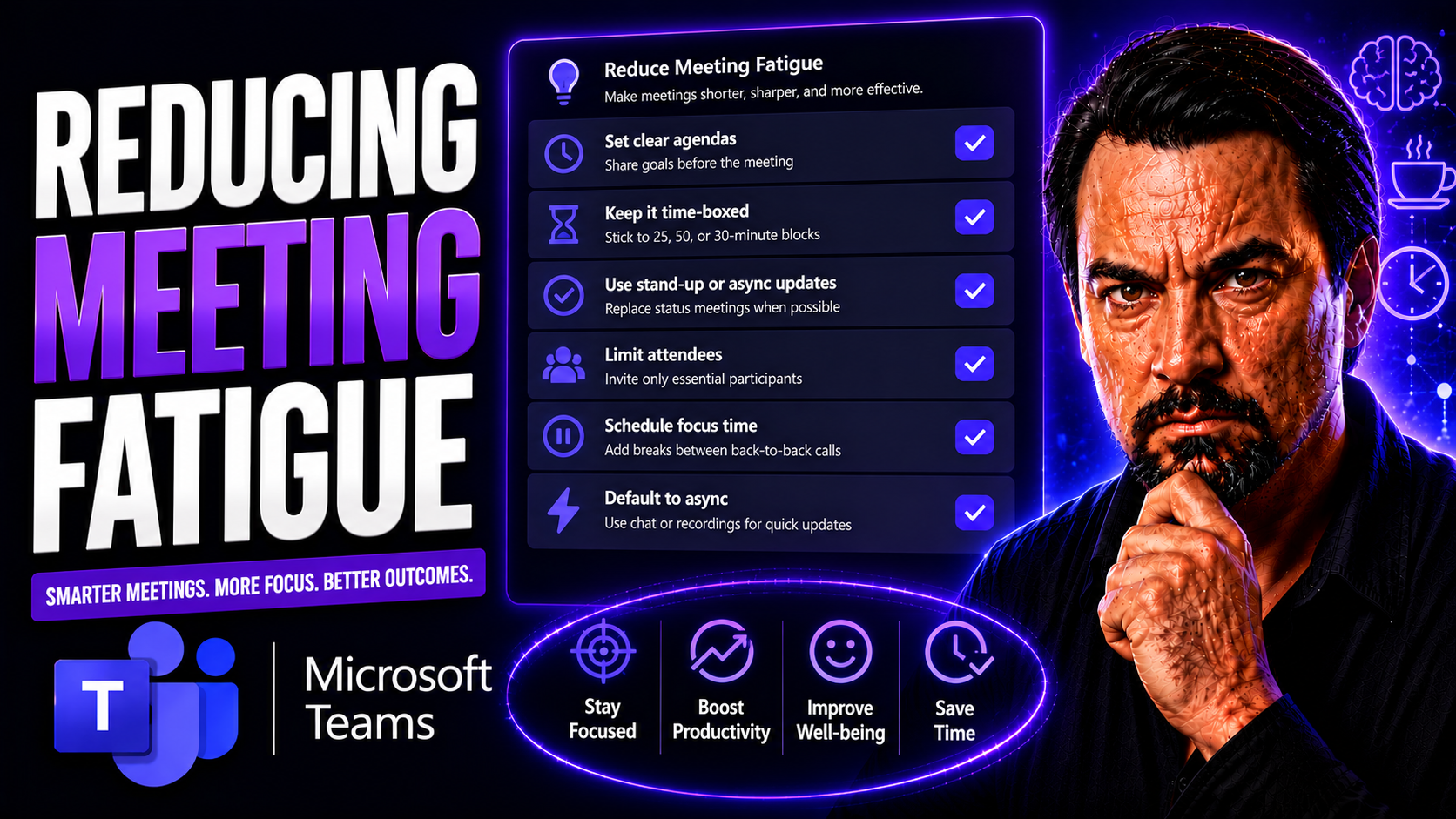
Meeting fatigue is the mental and physical exhaustion that comes from too many or ineffective meetings—a challenge that’s exploded with the rise of remote work. In Microsoft Teams, where meetings are just a click away, it’s all too easy to feel stretched thin, distracted, and less productive than you want to be. If you’re tired of back-to-back calls, endless updates, and a schedule that leaves no room to breathe, you’re in the right place.
This article breaks down why meeting fatigue has become such a common struggle in today’s tech-first workplaces. You’ll discover the warning signs and causes, learn how to schedule smarter with Microsoft Teams, and get the rundown on tools and leadership habits that combat burnout. Whether you’re leading a team or just want your calendar under better control, you’ll find both practical tips and tech solutions to turn meetings from a drain into a driver of real results.
Understanding Meeting Fatigue and Its Impact on Teams
If it feels like your calendar is always full and your energy never quite recovers, you’re not alone. The shift to hybrid and remote work has made meetings easier to schedule—and a lot harder to escape. But all those video calls come at a cost. When meetings pile up, the result is often something called “fatigue overload”—an invisible weight that chips away at both focus and morale.
Teams running on empty don’t do their best work. When meeting exhaustion creeps in, you’ll see more mistakes, less creativity, and people fighting to stay engaged. This isn’t just about feeling tired; the effects show up in productivity metrics, mental health stats, and even physical well-being. No wonder leaders are starting to watch for the early signs and asking tough questions about what meetings are really adding—or costing—every week.
As we dig into the specifics, you’ll learn to spot what meeting fatigue looks like, how tech like Microsoft Teams can both add to and solve the problem, and which symptoms are worth flagging early. Getting a handle on fatigue overload isn’t just another management fad. It’s a key move in building a team that works smarter, not just longer.
What Is Fatigue Overload and Why It Matters
Fatigue overload, often called meeting overload, happens when the sheer volume or intensity of meetings drives people into a state of constant mental and physical exhaustion. This drains attention spans and reduces overall work quality. It’s not just about having a packed calendar; it’s about how relentless activity limits time for real thinking, problem-solving, or even basic recovery. Ignoring fatigue overload means running your team—maybe even yourself—right into burnout. The long-term impact? It’s costly, not just to well-being, but to business results too.
How Remote Contributes Overload and Meeting Fatigue
Remote work was supposed to give more flexibility, but it’s made digital meetings the default way to connect. Without hallway chats or quick desk visits, even minor questions easily turn into another slot on the calendar. As a result, remote and hybrid teams rely heavily on video calls, which can be more tiring than in-person interaction. The lack of informal connection—like bumping into someone at the coffee machine—means downtime is replaced by screen time. This steady rhythm of virtual meetings adds up, leading to overload and higher rates of burnout. Tools like Microsoft Teams make coordination easier but can also accelerate over-scheduling if used without intention. To learn more about how Microsoft is addressing these issues, check out how Microsoft Places aims to fix the hybrid work mess.
The Link Between Meetings, Stress, and Energy Drain
Research consistently shows that frequent meetings ramp up stress levels across organizations. When back-to-back meetings are the norm, there’s no room to process information, switch gears, or recharge. This keeps people in a state of low-grade anxiety and constant multitasking. Team morale and performance slide, as individuals get caught in a cycle of chronic exhaustion—never fully recovering before the next drain on their energy. Over time, this leads to disengagement and decreased productivity, making it tough for teams to stay creative and solution-focused.
Smarter Scheduling to Combat Meeting Fatigue
When your daily schedule feels like an endless game of calendar Tetris, fatigue isn’t far behind. Smarter scheduling changes that storyline. By rethinking how, when, and why meetings are booked in Microsoft Teams, teams can reclaim focus time and lower stress—for everyone. Thoughtful scheduling isn’t about just moving meetings around, but making sure the right conversations happen with the right people, at the right time.
Coming up are hands-on strategies you can use right away to trim meeting bloat. From using Microsoft Teams’ features and smart calendar management, to running a true meeting audit, you’ll get actionable advice that works whether you lead a team or just want more energy at the end of your workday. You’ll also learn how to swap out those marathon sessions for micro meetings, making every interaction count—without draining your battery or your patience.
If you’re already thinking about how to tie in AI tools and automation, stick around. These sections show how smart scheduling practices can set you up for deeper changes—helping your calendar (and your team) breathe a little easier. And if you want to level up governance and productivity, check out this overview of Microsoft Copilot in Microsoft Teams for insights on automating the groundwork before meetings even start.
Combat Fatigue with Smart Calendar Management
- Use time blocking for focus: Block out calendar slots strictly for deep work—don’t let meetings eat them. Protect this time like you would a meeting with your CEO.
- Avoid back-to-back meetings: Always leave at least 10-15 minutes between calls when scheduling in Microsoft Teams. This gives space to reset.
- Leverage meeting-free zones: Carve out at least one “no meeting” half-day each week where the team can focus on real work without interruptions.
- Automate with Microsoft Copilot: Use tools like M365 Copilot to automate agenda planning, note-taking, or follow-up tasks, cutting down admin time and making each meeting more intentional.
Audit Overload to Spotlight Unproductive Meetings
- Track every meeting: Keep a running log over one or two weeks listing every calendar event; include recurring and ad-hoc meetings. Patterns—and pain points—become obvious quickly.
- Identify unproductive or duplicate sessions: Look for status updates everyone dreads or meetings covering topics already handled elsewhere—these are prime targets for elimination.
- Measure meeting outcomes: After each session, rate its usefulness and impact. Weed out or redesign low-scoring meetings.
- Use governance practices: Implementing a solid Microsoft Teams governance model, as described here, can help rein in rogue meetings and clarify which should stay.
Meetings Embrace Micro Sessions to Replace Marathons
- Switch to 10–15 minute standups: Replace long team check-ins with quick, focused updates that solve problems fast.
- Reserve deep dives for async or special sessions: Use micro meetings for most discussions—save longer meetings for cases where real teamwork is needed.
- Set clear objectives in every micro meeting: With a short agenda, every minute drives to an action or decision.
- Get the most from Microsoft Teams chat: Keep discussions moving between micro meetings via chat, keeping the momentum (but not the fatigue) going.
Using Technology and AI to Reduce Meeting Fatigue
Tech isn’t always the villain in meeting fatigue—in fact, used right, it’s the hero that helps you win time and reclaim your focus. Today’s Microsoft Teams environment is packed with features and integrations that can automate busywork, keep notes for you, and even cut some meetings off the schedule completely. AI-powered tools are driving a real leap in how meetings are planned, run, and documented.
This section dives into the tech side of the story. You’ll get a taste of the best tools for eliminating double work, organizing notes, and keeping meetings efficient. We’ll spotlight Microsoft’s own AI capabilities, show how quick transcription and summary apps allow you to skip unnecessary calls (without missing out), and share how adopting async video tools fuels a lower-stress, more inclusive workflow.
For hands-on details on integrating Copilot directly into your teams, including real-world examples of AI-automated meetings and chat workflows, see this Copilot for Teams breakdown. The goal here isn’t to add more tech for the sake of it—it’s to make your schedule, and your mind, lighter.
Reducing Fatigue with the Right Technology Toolkit
- Collaboration bots: Bring bots into your Microsoft Teams channels to schedule follow-ups and automate routine updates, so people aren’t needed for every decision or reminder.
- Automated scheduling tools: Use smart scheduling features, like automatic conflict checking and meeting duration limits, to stop calendar overload before it starts.
- Integrated note-taking: Enable built-in tools or apps that capture decisions and action items during meetings, saving energy spent on manual follow-ups.
- Message extensions for Teams: Tap into Teams message extensions to reduce app switching and keep workflows streamlined.
How AI and Transcription Services Maximize Effectiveness
- AI-powered meeting summaries: Microsoft Copilot and similar tools can generate instant recaps—skip meetings and still get the need-to-know details. Learn about the power of prompts here.
- Automated transcription: Capture every word—making it easy for anyone to catch up later, especially for those with different learning needs or time zones.
- Smart agenda generation: AI now drafts agendas from emails and prior meetings, keeping schedules on track.
- Seamless activation via Microsoft 365: Know how to deploy Copilot and related AI features by checking out this step-by-step Copilot enablement guide.
Say Goodbye to Fatigue with Loom and Async Video Strategies
- Use Loom for fast updates: Record a quick video explainer instead of pulling everyone into yet another call.
- Async feedback: Let teammates watch and comment on their own time, instead of forcing live debates.
- Micro lessons and visual walk-throughs: Deliver training or walkthroughs with recorded Loom sessions—re-watch as needed, no scheduling hassle.
- Live data with Loop components: Try embedding Microsoft Loop components in Teams to let async updates flow between chats, meetings, and dashboards.
Preventing Zoom Fatigue with Better Virtual Meetings
If you feel wiped out after video meetings, you’re not imagining things. Zoom fatigue—also showing up in Microsoft Teams—hits hard when sessions get too long, too static, or too many people are “on stage” at once. While the tech’s not going away, you can dramatically change how it feels with smart engagement and facilitation habits.
This section sets you up with hands-on ways to run virtual meetings without the tiredness. That means mixing up who talks, building in movement and breaks, and using camera-on time the right way. Whether you’re leading or just sitting in, these tweaks help you stay sharp and energized while still getting business done. A few simple switches—in how you plan, facilitate, and interact—make the biggest difference in keeping virtual meetings productive, not punishing.
Get ready to learn tactics you can apply with any digital meeting tool, especially Microsoft Teams. These aren’t just best practices—they’re practical, humane moves that give everyone a better shot at staying engaged, creative, and, most importantly, awake.
Zoom Fatigue Eliminate with Engagement Strategies
- Keep sessions interactive: Use polls, emoji reactions, and breakout discussions to keep people engaged and break up monotony.
- Encourage movement breaks: Build in short stretches, walk-and-talks, or even just camera-off moments for posture resets.
- Shorten meeting lengths: If it must be live, keep it 30 minutes or less—or take 5-minute breaks for every 45 minutes of meeting time.
- Rotate speaking roles: Vary presenters or discussion leads, cutting down on passive participation and helping everyone stay present.
Why Camera Engagement Matters in Virtual Meetings
- Visibility boosts presence: Seeing faces makes people feel more connected, raising attention and participation levels.
- Balance screen fatigue risk: Be flexible—allow camera-off when folks need a break, or for neurodivergent team members who find video draining.
- Read nonverbal cues: Camera-on lets you catch body language signs of confusion or disengagement that don’t show up in chat.
Agenda Facilitation Practices for Productive, Energizing Sessions
- Always use a clear agenda: Share topics, time estimates, and goals up front, so everyone knows why they’re there and when they can log off.
- Assign timekeepers and facilitators: Consistent enforcement keeps things moving and discourages endless rambling.
- Invite only necessary voices: Limit attendees to those with a clear role—everyone else can catch up via notes or async updates.
- Wrap with clear action items: End by summarizing decisions and assigning tasks so no one leaves wondering, “What now?”
Leadership and Culture Shifts to Tackle Meeting Overload
Fixing meeting fatigue isn’t just about personal tricks or clever scheduling. To create lasting change, organizations have to rethink the way they value meetings—from the top down. That means shifting leadership mindsets, building a culture that values deep work, and embedding accountability into how meetings are planned and run. More and more, teams are finding that process changes only stick when leaders model—and enforce—the right behaviors.
This section gives you frameworks for shaping both policy and workplace norms. Whether it’s setting no-meeting days, defining who must say “yes” to an invite, or moving async updates to the default, these are high-leverage moves that help everyone breathe a little easier. The following parts dig deeper into which policies actually make a difference, how to shape meeting culture over time, and practical guidance for trimming meeting rosters down to just what really works.
For more on how smart governance is transforming Teams from chaos into real collaboration, visit this resource on Teams Governance driving collaboration and success.
Fatigue: Leadership Policies That Make a Difference
- No-meeting days: Declare certain days of the week off-limits for meetings, guaranteeing true focus time.
- Daily meeting caps: Set maximum hours anyone should spend in meetings per day, promoting balance and limiting overload.
- Accountability metrics: Track and regularly report team meeting volumes, rewarding leaders who reduce unnecessary calls.
Building a Culture That Combats Meeting Fatigue
- Async-first mindset: Make asynchronous updates the standard, using Teams chat and channels before defaulting to live calls.
- Empowerment to decline: Give employees permission (even encouragement) to say “no” to meetings without fear of pushback.
- Prioritize deep work: Block and honor focus time in calendars, treating it as sacred as a leadership meeting.
- Implement strong governance: For example, see how Microsoft Teams Governance builds clarity and trust, freeing people from meeting chaos.
Which Meetings to Keep and Embracing Micro Sessions
- Evaluate every meeting’s purpose: If it doesn’t drive a decision, solve a problem, or build connection, consider cutting it.
- Replace recurring updates with async alternatives: Use written or recorded updates in place of weekly status calls wherever possible.
- Embrace micro meetings for routine check-ins: Shift routine discussions into focused, 10–15 minute blocks to maximize value per minute.
- Continuously reassess meeting value: Every quarter, run a meeting audit and adjust the roster to keep only what delivers results.
You Should Also Listen To
If you are researching Microsoft Teams meeting fatigue, these episodes add practical context on meeting operations, security, collaboration, and governance:
- Recording, Transcription, and Breakout Rooms — Learn how recording and transcription turn meetings into reusable knowledge.
- Teams Telephony – Simply Explained — Understand the communication architecture behind reliable Teams meetings.
- Microsoft Teams Governance – The Illusion of Control — Connect meeting design with policy, ownership, lifecycle, and governance.
- Microsoft Defender XDR – Simply Explained — Add security monitoring and response to meeting operations.

Microsoft MVP | Host of M365.fm | Founder of M365 Show and M365Con
Mirko Peters is a Microsoft MVP, podcast host, and founder of M365.fm, M365 Show, and M365Con. His work connects Microsoft practitioners through podcast interviews, livestreams, and community events.
At M365.fm, Mirko hosts conversations with Microsoft MVPs, product experts, architects, and community contributors. Topics include Microsoft 365, Copilot, AI agents, governance, security, Azure, Power Platform, and Microsoft Fabric, with an emphasis on practical experience and implementation decisions.
M365.fm is the podcast and learning platform. M365 Show brings experts together for livestreams, while M365Con provides an online conference setting for community learning.
Official website: Mirko Peters (https://www.mirkopeters.com/). Recognition: Mirko Peters — Microsoft MVP profile (https://mvp.microsoft.com/de-DE/mvp/profile/9b0ca797-db5a-493a-a845-8b9158046cf5). Connect on LinkedIn (https://www.linkedin.com/in/m365showpodcast/).





