
Search In Microsoft Teams Chat Guide
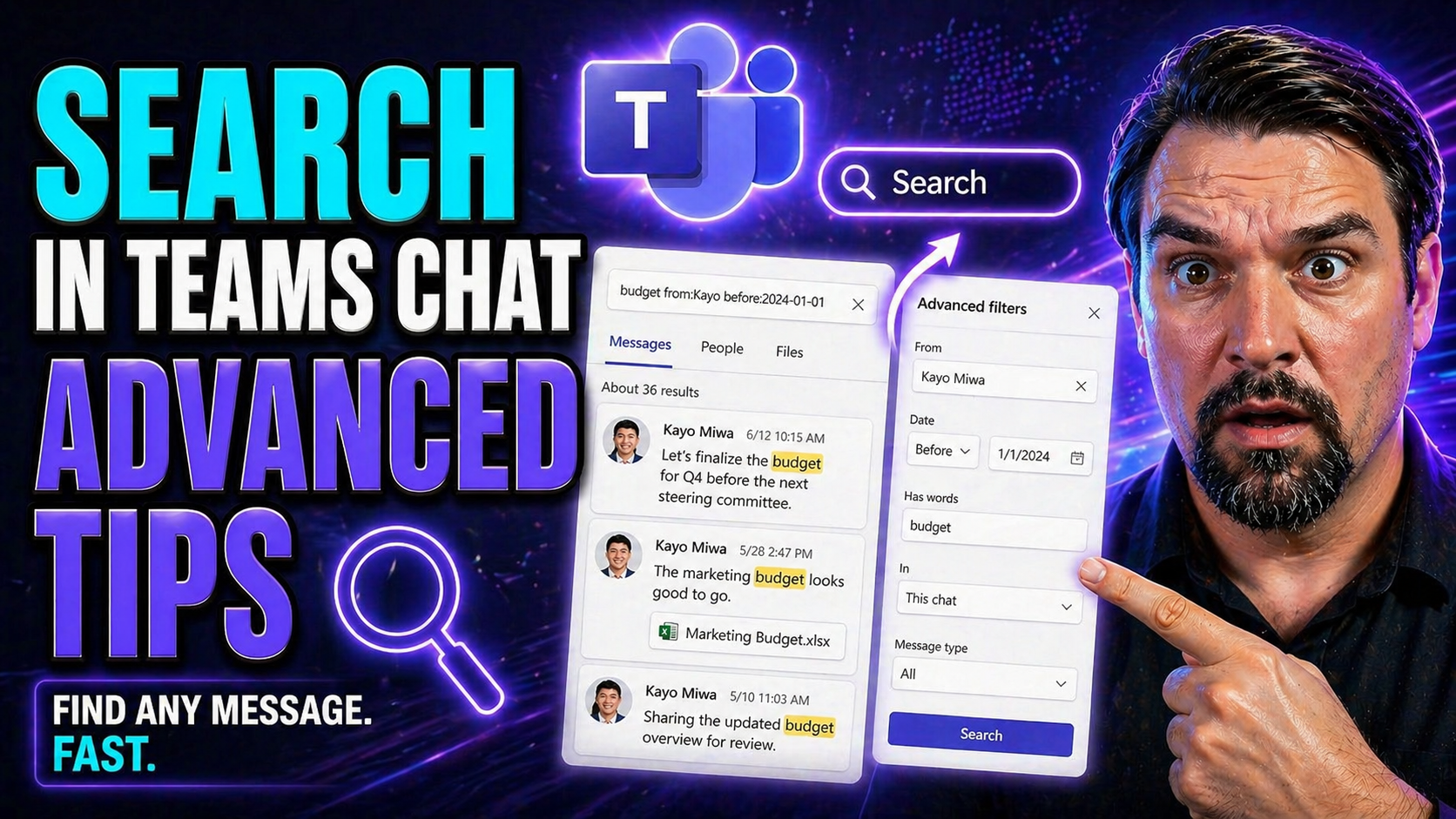
Let’s be honest: Microsoft Teams chat is like a digital attic. Everything you need is in there somewhere, but finding it—especially when things get busy—can feel like searching for that one sock you lost a year ago. With so much flying through Teams every day, deep search skills aren't just about convenience—they’re a must-have for productivity and collaboration.
This guide doesn’t just skim the surface. You’ll unlock advanced search techniques, learn power user operators, and explore special features so you can get right to the info, file, or message you need—fast. Whether you’re troubleshooting, customizing your workflow, or searching across complex projects, these strategies work for everyday users and for those responsible for Teams governance.
You'll also find role-tailored advice, practical US examples, and resources for maintaining organized, compliant workspaces. It's time to make Teams chat your most valuable resource, not just a cluttered message dump. Let’s level up your Teams search for the real world.
Mastering Microsoft Teams Search with Advanced Operators and KQL
Anyone can toss a keyword in the Teams search bar and hope for the best. What really separates the pros is knowing how to use advanced search tools—like the Keyword Query Language (KQL)—to cut through the noise. Teams search, when paired with KQL operators and a little know-how, turns into a powerhouse for pinpointing exactly what matters: that critical message your boss sent last week, or a specific file buried two project cycles ago.
KQL isn’t just techy jargon—it’s a structured way of searching using property:value pairs, Boolean logic, and wildcards. This means you can filter by author, limit results to certain dates or file types, chain conditions together, and generally hunt down what you need like a pro, even in the biggest teams or the most chaotic chats.
In the next sections, you’ll discover how to use these operators for one-click precision, and how to combine them for complex queries. Plus, you'll see how wildcards make searching more forgiving when you’re working with half-remembered filenames or patchy details. Get ready to boost you and your team's productivity by mastering the search tools most people overlook.
How to Use Core KQL Operators for Precision Searches
- Use Property:Value Pairs: Target specific fields like from:John to find messages or files by sender, or subject:budget to search for a topic or email subject. Remember, there should be no space between the property, the colon, and the value (e.g., from:Sarah), or else it won’t work correctly.
- AND Operator: Use AND to require multiple criteria. For example, from:Lisa AND project shows results that both Lisa sent and mention “project.” This is great for drilling down when you know more than one detail about what you need.
- OR Operator: Add flexibility by letting either condition trigger a result. Searching from:Tom OR from:Amy surfaces messages from either Tom or Amy. Use this when you’re hunting across similar sources or topics.
- NOT Operator: Exclude results that contain certain terms or senders. Try project NOT test to find project discussions minus any “test” content. Careful with NOT—it’s powerful, but can accidentally hide wanted results if you overuse it.
- Quotation Marks: Wrap phrases in quotes to force an exact match. Searching “annual report” finds only that phrase, not scattered mentions of “annual” or “report” separately.
- Common Pitfalls: Watch for extra spaces after colons (from: John won’t work), and double-check spelling. Also, be aware: KQL ignores case, so from:Jack and from:jack are identical.
- Example in Practice: subject:“sales update” AND from:Alex NOT draft—this zeroes in on messages from Alex about “sales update” but skips drafts.
Mastering these operators lets you turn a haystack of Teams content into a neat stack of needles on command.
Combining Multiple Operators for Complex Teams Search Queries
- Mix AND, OR, and NOT for Powerful Filters: Combine operators to tighten or expand results. For example, from:Chris AND (Q3 OR Q4) NOT confidential finds Chris’s messages on Q3 or Q4, but keeps confidential ones out.
- Group with Parentheses: Use parentheses for logic. (from:Sara OR from:Raj) AND report fetches any “report” messages sent by either Sara or Raj, avoiding extra noise.
- Layer Conditions for Specific Files or Attachments: Stack up your filters. Try type:docx AND from:Meghan AND “task list” to find Word documents from Meghan mentioning “task list.”
- Troubleshooting with Complex Queries: IT admins and project leads often use these combinations to solve disputes or audit specific threads—like from:manager AND “deadline missed” AND after:2023-08-01 to find when deadlines slipped after a certain date.
- Role-Based Scenarios: A HR lead could do from:applicant OR from:recruiter AND “interview schedule”, while a developer narrows bug discussions with from:QA AND bug AND NOT closed.
- Syntax Best Practices: Always avoid spaces after the colon, wrap multi-word values in quotes, and check that your parentheses match. Unmatched brackets can mess up your results.
- Use Case Example: (from:finance OR from:auditor) AND “policy update” AND before:2024-05-12 NOT draft—perfect for audits or compliance reviews.
Once you get the hang of combining operators, you’ll be able to sift through months—or years—of chats in seconds and pull out exactly what matters.
Using Wildcards and Partial Matches to Expand Teams Results
- The Asterisk (*) Wildcard: Use * for partial matches. Typing finan* finds “finance,” “financial,” and “financing”—handy when you remember only part of a word.
- The Question Mark (?) Wildcard: Use ? to match single characters. For example, te?t will find both “test” and “text”—great for spelling uncertainties.
- Fuzzy Content Searches: Wildcards help when you can’t recall exact phrasing. meet* catches “meeting,” “meetings,” “meetup,” and more.
- Similar Filenames: Searching report* turns up “report2023.docx,” “report-final,” and “reports-summary.”
- When to Use: Partial matches are a lifesaver for long file lists, inconsistent naming, or brain fog moments.
Optimizing Search Across Chats, Channels, and Teams
Now that you’ve got ninja-level search tools, the next move is scoping your search—making sure you're looking in the right place at the right time. Microsoft Teams doesn’t just toss all your messages into one big search pile. Instead, you can target specific channels, chats, or even teams, keeping results focused and banishing random clutter from other conversations.
Channel-specific searches are gold for ongoing projects, where precision saves you from sifting through unrelated noise. Maybe you want to surface that key message from a shared channel or find a file dropped in a private conversation. Or maybe you’re working across dozens of chats and want to leap right to a certain person, topic, or group with Teams’ GoTo feature—no scrolling, no hassle.
We’ll cover how to filter within a single channel, power up navigation using GoTo, and use global search to find content across all your Teams conversations. If your organization relies on Team channels for projects, compliance, or external collab, see also the practical channel governance resources at Private vs. Shared Channels in Microsoft Teams. Get ready to reclaim hours lost to manual browsing—search scope is your best friend.
Channel-Specific Searches for Teams Messages and Files
- Limit Search to a Channel: Go to the desired channel, use the search bar at the top, and type your query. Teams will focus the search within that channel, cutting out unrelated results from other areas.
- Filter by Channel: After searching in the main bar, use filter options like “Channel” to specify exactly where you want to look—essential when hunting for files in busy or heavily-used project channels.
- Use Cases: Ideal for project workspaces, sensitive discussions, or compliance checks. For a deeper dive on optimizing channels, check out practical Teams channels management tips.
- Channel Types Matter: Remember, private and shared channels have different privacy and file storage. Review the private vs. shared channels guide for security-compliance scenarios.
Quickly Find Chats and Channels with the GoTo Feature
- Slash Command Navigation: In the Teams search bar, type /goto (or just Ctrl + K as a shortcut) to jump directly to any chat or channel just by typing its name.
- Person, Group, Topic Filters: Start your query with a person’s name, group, or keyword to limit what appears in the drop-down. Quick for hopping into frequently used or recently active spaces.
- Best Use Cases: Especially helpful for large organizations or users juggling multiple projects. Jumping between channels beats scrolling every time.
- More Workflow Tips: If you’re building out complex Teams project spaces, this guide on organizing projects in Teams has extra governance and automation advice.
Global Search for Messages Across Microsoft Teams Conversations
- Use the Main Search Box: Type your keywords above all the tabs (Chat, Teams, Calendar) to scan messages, files, and more in one shot.
- Add Operators and Filters: Refine by adding terms like from:Sam or subject:"update". Advanced users should layer filters (date, channel, file type) for sharp, meaningful results.
- Difference: Simple vs. Advanced Search: Simple search grabs broad results; advanced search with operators and filters helps you zero in, avoid scroll fatigue, and find what you want faster.
- Multi-Project Power: Ideal for cross-department leads who need oversight or for users handling overlapping threads.
Advanced Filtering and Scoped Search in Teams
Sometimes, even the sharpest search query needs a helping hand. Enter advanced filters—your secret weapon for trimming Teams results down to just the essentials. Microsoft Teams lets you filter by date, content type, author, location, and much more using the ‘More Filters’ options. With the right scoping, you can pull only what’s needed, whether that's last month's meeting files or messages from a specific director.
For enterprise users with access to Viva Connections intranets or custom SharePoint portals, scoped search takes things further. You can limit results just to your current workspace, department page, or even a regulatory archive—ideal for compliance, audits, or focused project work. And if Teams sprawl is making chaos, these filtering tricks help rein things in.
Mastering these filters doesn't just streamline daily work—it also builds a foundation for smarter governance and traceability. Remember, Teams sprawl and noisy spaces are fixable with the right habits and tools. Need more on automated workspace management? See this Teams sprawl governance strategy for real-world admin solutions.
Setting Filters and Using the ‘More Filters’ Section for Results
- Date Filter: Narrow your results to a specific timeframe—today, last week, or custom date ranges—ideal for finding recent or time-sensitive messages.
- Author/Sender Filter: Focus on content from a particular colleague or project lead. Useful for quickly reviewing your team’s updates or manager’s directives.
- File Type Filter: Isolate results by document, spreadsheet, or presentation (e.g., only .docx or .xlsx files), which is a huge timesaver in busy Teams.
- Location/Channel Filter: Select a specific team, channel, or SharePoint site for more focused searches. Keep your results relevant and avoid cross-team clutter.
- Settings and Common Issues: You can reset filters or save settings for future use. If filters seem buggy, clear the Teams cache or double-check your permissions for that channel or team. For complex governance, see this guide to managing Teams sprawl.
Scoped Searches in Viva Connections for Enterprise Intranets
Viva Connections offers scoped search, meaning you can target results within specific intranet pages, departmental hubs, or associated SharePoint sites—all without leaving Microsoft Teams. This is essential for large organizations dealing with compliance or heavy content management. IT can configure default scopes for user roles or business units, making sure staff only see what’s needed for their job.
Scoped search in Viva Connections keeps results relevant to your current page or project. That’s a big win for regulated industries where compliance, privacy, or audit-readiness matter. To build a well-structured intranet experience, pair this feature with organized Teams and project management best practices.
Filtering Meeting Content and Finding Participants by Date
- Filter Meetings by Date: Use the Teams calendar’s search options—or advanced filters—to zero in on meetings held within a specific date range, making it simple to scan past discussions.
- Search by Participant: Filter meeting content or notes by attendee name to quickly surface who was present or what they contributed—a must for reviewing action items.
- Find Shared Files and Notes: Limit results to files, recordings, or notes linked to a particular meeting for faster follow-up and project wrap-up.
- Decision Tracking: Pair filters to uncover key decisions or commitments made in meetings—especially important for ongoing projects or compliance checks. For more about meeting enhancements and integration, check meeting extensibility solutions.
Pro Tips and Troubleshooting for Teams Search Success
Even the best Teams search techniques can come unstuck if you hit common pitfalls—slow results, missing files, odd permission errors, or just not knowing what you’re looking for. This section is your backstage pass: quick wins, advanced shortcuts, and a safety net for when things go sideways.
If you’re a power user or IT admin, search optimization is more than a time-saver—it boosts overall productivity and enforces effective governance. We’ll go over best practices, ways to smooth out daily routines, and solutions for the most persistent Teams search headaches.
For those at organizational scale, tips extend to handling search performance as your Teams sprawl grows. And for ongoing learning or troubleshooting major Microsoft 365 integrations, resources like detailed Copilot troubleshooting or Teams governance guides will deepen your toolkit so you can keep search humming even as Teams evolves.
Pro Tips for Teams: Advanced Search and Efficiency Techniques
- Predictive Typing: Leverage Teams’ auto-suggest in the search bar—it finishes names and matches keywords as you type, speeding up navigation.
- Personalize Search Settings: Adjust notifications, recent activity, or favorite channels so the search bar leans into your workflow, helping you spot what matters most.
- Use Shortcuts: Memorize key combos like Ctrl + F (inside a chat) or Ctrl + K (GoTo) to jump instantly between spaces and find messages in context.
- Streamline Repeated Searches: Quickly access past queries via your search history. This is a time-saver for project managers or leads reviewing frequent updates.
- Adopt Governance Best Practices: Learn from large orgs—set naming conventions and clear structures so search results are consistent and predictable. For guidance, see building strong Teams governance.
Troubleshooting Issues and Resolving Common Teams Search Problems
- Incomplete Results: If search doesn’t show what you expect, try clearing cache, logging out and back in, or ensuring you have access to all channels.
- Slow Search Performance: Close unused apps or browser tabs and check network connectivity. Sometimes, Teams desktop apps lag—try switching to web or mobile.
- Permission Problems: Search results depend on your access level. If files or chats aren’t showing up, double-check with your IT admin or see governance advice.
- Operator Errors: Make sure query syntax is right—common slipups like spaces after colons or mistyped operators can block results.
- Extreme Cases: When all else fails, refer to enterprise troubleshooting resources to fix M365 data or integration issues.
Tips for Organizations: Scaling Teams Search in the Enterprise
- Optimize at Scale: Monitor Teams performance as user and data volumes surge. Implement automation tools for workspace lifecycle management—see this hidden governance mechanic for details.
- Handle Massive Volumes: Use Teams’ advanced filters and naming conventions to stop message avalanches from burying key content.
- Navigate Permissions: Regularly audit who can access what—complex permissions can block critical info from search.
- Enforce Governance: Bake in clear communication and structure to prevent sprawling, unsearchable workspaces. Leadership should review best governance practices to avoid data chaos.
Conclusion and Key Takeaways from Advanced Teams Search
- Master Core Operators: Use property:value pairs, AND, OR, NOT, and quotes to tighten searches.
- Combine Conditions: Stack operators or use parentheses for multi-layered, targeted queries in messy chats or files.
- Leverage Wildcards: Don’t let fuzzy memory stop you—wildcards and partial matches catch what you can’t fully recall.
- Scope Your Search: Work within a channel, across chats, or use the GoTo feature for hyper-productive navigation.
- Filter Like a Pro: Use “More Filters” and scoped search to trim results by date, contributor, type, or location.
- Stay Secure: Remember, your search is only as reliable as your Teams structure and governance. Review tools like Teams security hardening for sensitive environments.
- Keep Learning: Revisit advanced sections to build top-tier skills, and use linked resources to stay ahead as Teams evolves.
FAQs and Future Trends for Microsoft Teams Search
It’s normal to have lingering questions about Teams search—like, “Why are some results missing?” or “Can I search Teams files from SharePoint or Outlook?” The answer is yes: Microsoft Teams chat content and files are indexed in Microsoft 365, letting you run cross-app searches from SharePoint or OneDrive, provided you have the right permissions. That’s a massive boost for users working across platforms.
Wondering about syntax? Remember, property:value formatting (no extra spaces) is king, and KQL isn’t case-sensitive. Filters in Teams can sometimes clash if you stack too many, so use the ‘More Filters’ section thoughtfully. If you still can’t find what you need, it may be a permissions problem or a sign your Teams channel structures need an overhaul—a job for stronger Teams governance.
What’s next for Teams search? Microsoft is rolling out Atlas Search and AI-driven features that will surface more relevant results, highlight context, and suggest links to files or past decisions. Look for developments like Bing for Enterprise integration, richer search history, and accessible search design for all users—including voice and screen reader enhancements.
Staying current with Teams search means balancing advanced technique with structure and governance. Lean into trusted Microsoft news and governance links to keep your teams sharp, secure, and always in control of their data as Teams evolves.
You Should Also Listen To
If you are researching search in Microsoft Teams chat, these episodes add practical context on collaboration, governance, security, and Microsoft 365 operations:
- Microsoft Teams Governance – The Illusion of Control — Learn how structure, ownership, and lifecycle controls reduce collaboration chaos.
- Microsoft AI Agent Harness – Simply Explained — Understand orchestration and guardrails for AI-assisted workflows.
- Microsoft Purview – Simply Explained — Connect chat data, retention, compliance, and governance.
- Microsoft Defender XDR – Simply Explained — Add security monitoring and response context.

Microsoft MVP | Host of M365.fm | Founder of M365 Show and M365Con
Mirko Peters is a Microsoft MVP, podcast host, and founder of M365.fm, M365 Show, and M365Con. His work connects Microsoft practitioners through podcast interviews, livestreams, and community events.
At M365.fm, Mirko hosts conversations with Microsoft MVPs, product experts, architects, and community contributors. Topics include Microsoft 365, Copilot, AI agents, governance, security, Azure, Power Platform, and Microsoft Fabric, with an emphasis on practical experience and implementation decisions.
M365.fm is the podcast and learning platform. M365 Show brings experts together for livestreams, while M365Con provides an online conference setting for community learning.
Official website: Mirko Peters (https://www.mirkopeters.com/). Recognition: Mirko Peters — Microsoft MVP profile (https://mvp.microsoft.com/de-DE/mvp/profile/9b0ca797-db5a-493a-a845-8b9158046cf5). Connect on LinkedIn (https://www.linkedin.com/in/m365showpodcast/).





