Setting Up Teams Phone Guide
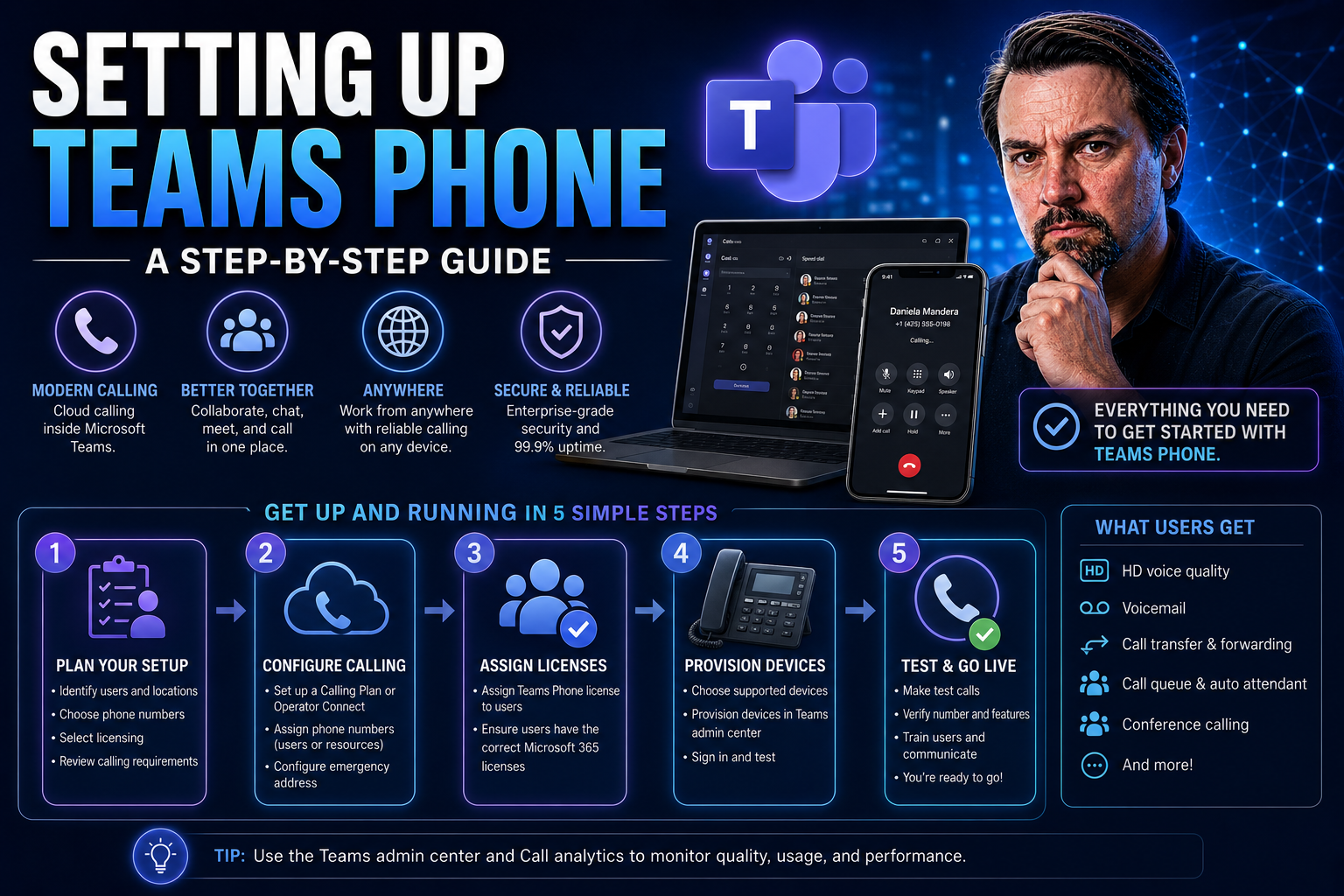
Microsoft Teams Phone is Microsoft’s calling system designed right into Microsoft Teams. It brings full business phone capabilities to an app your team already knows, letting you make and receive calls, set up call queues, or manage voicemails—all in one place. Teams Phone connects everyday work conversations with your organization’s traditional phone network, making things smooth whether someone’s at their desk or on the move.
This guide walks you through everything needed to get Teams Phone running, no matter your organization’s size. We’ll cover the key groundwork like licensing and admin roles, show you how to set up external calling, walk through core features like call queues and emergency dialing, and share best practices for user device setup. You’ll also learn about advanced options, from delegation to connecting your own desk phones—so you can avoid surprises and get the most value from Teams Phone in your workplace.
Getting Started With Teams Phone: Prerequisites and Admin Roles
Before you can start making calls from Microsoft Teams, you need the right foundation—think of it as laying out your blueprints before you build. That’s where prerequisites, licensing, and admin roles come into play. Without a clear understanding of these essentials, you might run into potholes that slow down your Teams Phone rollout or leave you scrambling when it matters most.
Making sense of licensing—both for Microsoft 365 and Teams Phone specifically—sets the stage for aligning your communication tools with your business needs. Assigning admin roles and knowing who’s at the wheel for your Teams telephony setup helps keep things tidy, secure, and compliant. If you get the groundwork right, your organization will run smoother, avoid confusion, and make sure the right folks can manage calling features as needed.
Clear rules and defined roles are also crucial for building trust and accountability within your Teams environment, as explained in this detailed look at Teams Governance. In the following sections, we’ll break down what you need, why you need it, and how to get your people and systems set before moving on to real-world Teams Phone configuration.
Key Prerequisites and Licensing Requirements
- Microsoft 365 Subscriptions: You need a qualifying Microsoft 365 plan (such as E3, E5, or Business Voice add-ons). Only certain plans include or support Teams Phone, so check availability for your organization’s region.
- Teams Phone License: Each user who requires calling capabilities must have a Teams Phone license assigned. This applies even if external calling (PSTN) or advanced features are needed.
- Supported Regions and Phone System Availability: Make sure Teams Phone—and your preferred PSTN option—is available in your country. Some features or providers might differ based on location.
- Technical Preconditions: Your network must meet Microsoft’s recommendations for connectivity, security, and quality of service (QoS). Think bandwidth, firewall settings, and proper configuration for reliable calls.
By matching these prerequisites to your actual needs, you set yourself up for a stable and successful Teams Phone rollout that won’t fumble at the first hurdle.
Assign Licenses and Access the Microsoft Teams Admin Center
- Assign Teams Phone Licenses: Go to the Microsoft 365 admin portal, find the user accounts, and assign the correct Teams Phone or Phone System licenses to each person who needs calling features.
- Verify Admin Roles: Make sure your IT staff or telephony admins have the right Teams admin roles assigned. Only those with admin permissions can manage calling policies, numbers, and phone system configuration.
- Access Teams Admin Center: Visit the Teams Admin Center (https://admin.teams.microsoft.com/) to manage licenses, configure phone settings, create policies, and troubleshoot issues. This centralized dashboard is your main control panel for all Teams Phone management.
Setting up licenses and using the right admin roles is the first hands-on step before enabling calling features or adding phone numbers to Teams.
Configuring PSTN Connectivity for Teams Phone
After your foundation is solid, the next big step is getting Teams Phone to work with the outside world—that’s where PSTN connectivity comes in. The public switched telephone network (PSTN) lets people call traditional phone numbers from their Teams app, not just other Teams users. It’s what bridges the modern cloud and old-school phone lines.
You’ll need to choose how you connect: Microsoft Calling Plans provide a bundled, cloud-based option straight from Microsoft, while Direct Routing lets you use your own telecom provider or legacy phone lines. Picking the right PSTN method isn’t just a technical call—it can affect your budget, call coverage, and how much flexibility you get with numbers and integrations.
We’ll soon dive deeper into each connectivity option and guide you through the basics of managing and assigning real phone numbers in Teams. That way, everyone can make and take business calls straight from Teams, no matter where they sit or what device they’re holding.
Options for PSTN Connectivity in Microsoft Teams
- Microsoft Calling Plans: Microsoft offers its own Calling Plans, which bundle your phone numbers and calling services right into the cloud. Pros: Simple to deploy, managed through Microsoft, and includes number procurement and porting. Cons: Only available in supported countries, and may cost more per user compared to local carriers.
- Direct Routing: Direct Routing lets you connect Teams to the PSTN via your own Session Border Controller (SBC) and telecom provider. Pros: Greater flexibility, use your existing numbers and contracts, or access markets not covered by Calling Plans. Cons: Requires more setup, additional equipment, and technical know-how.
- Operator Connect (Bonus Option): Some organizations use Operator Connect, letting you pick a Microsoft-approved carrier for a middle ground. It combines easier setup with carrier flexibility but isn’t available everywhere.
Choosing between these depends on your locations, technical team, and price point. Large enterprises with complex needs might lean Direct Routing, but smaller organizations or those wanting a simpler experience often choose Microsoft Calling Plans for quick results. Always check local regulations, number options, and migration support when making your pick.
Assign and Manage Phone Numbers for Users
- Procure Phone Numbers: In the Teams Admin Center, you can request new numbers from Microsoft, buy them through supported carriers, or port in your existing business lines—just verify availability for your location.
- Assign Numbers to Users: Once available, assign each user or service a unique phone number from your inventory. You’ll do this in the Admin Center, matching the number to their Teams account.
- Ongoing Number Management: Manage changes, transfer numbers, or reassign them as staff roles adjust. Keep track of available numbers, expiration dates, and policies to avoid disruptions in your call flow.
Efficient phone number management helps every employee stay reachable and supports smooth communication as your organization grows.
Deploying Essential Teams Phone Features
Now that you’ve opened up the lines, it’s time to empower your users and boost your business communications with Teams Phone’s feature set. This is where the magic happens—think emergency calling for safety, auto attendants to help callers, and call queues so customers aren’t left hanging while you shuffle things around internally.
Emergency calling isn’t just a checkbox—it’s about being safe, compliant, and reachable when it matters most. Features like auto attendants and call queues make it easy for callers to reach the right person, get routed quickly, or even leave a voicemail without your team scrambling to answer every ring.
By rolling out these features thoughtfully, you set up your organization for improved communication efficiency both inside and out. You’ll reduce bottlenecks, build in safety nets, and help everyone focus on their real work instead of chasing down missed calls. Up next, we’ll break down these tools one at a time, showing you why and how they matter to your setup.
Set Up Emergency Calling in Teams
- Configure Emergency Addresses: Set up physical locations tied to phone numbers or users to help route emergency calls to the nearest response center. This is crucial for compliance and faster help during emergencies.
- Enable Dynamic Location Services: Use Teams’ location detection to update user addresses if they’re mobile or remote. This helps 911 responders pinpoint locations for hybrid workforces.
- Review Caller ID Settings: Make sure caller ID information is correct for each user so emergency responders see accurate details when a call is placed.
By setting these up correctly, you keep your users safer while meeting regulatory requirements—no cutting corners here.
Configure Auto Attendants and Call Queues for Incoming Calls
- Create Auto Attendants: Set up virtual receptionists to greet callers, provide options (like “Press 1 for Sales, 2 for Support”), and route calls automatically based on caller input or business hours.
- Build Call Queues: Organize incoming calls into call queues for different departments or teams. Callers can get hold music or updates while they wait, ensuring no one is left in the dark or sent straight to voicemail when lines are busy.
- Connect to Voicemail: Direct missed calls or unresponsive queues straight to voicemail, so important messages never slip through the cracks after hours or during peak times.
- Customize Call Routing and Hours: Configure schedules, holiday greetings, and different call flows depending on the time of day or your organization’s needs.
Getting these features right ensures customers and partners always reach the right person and get the best impression of your business—even on your busiest days.
User-Level Teams Phone Setup and Device Integration
The real test of any Teams Phone setup comes when your people start picking up calls from their own devices. Whether they’re at their desk, dialing in from a Teams-certified handset, or using their smartphone on the go, you want calling to “just work.”
This section is all about making everyday calling simple and dependable. You’ll learn how users can pair up their personal or shared devices, set up Teams Phone Mobile, and move between devices without missing a beat. It’s not just for tech-savvy staff—everyday users need these basics clear to avoid confusion and support tickets.
Solid device integration means fewer headaches and more productivity. We’ll cover the process for getting set up and ways to make sure your calling experience is as smooth at home as it is at the office, regardless of what tech your staff prefers.
Connect Teams Devices and Set Up Teams Phone Mobile
- Pair Physical Phones and Certified Devices: Connect desk phones or conference room devices certified for Microsoft Teams by signing in with user credentials through the device menu. Automatic provisioning ensures they join your system safely.
- Set Up Teams Phone Mobile: Download the Teams app from the Apple App Store or Google Play, sign in with your company credentials, and enable calling permissions. The app syncs contacts, history, and policies for seamless use.
- Troubleshoot Integration Issues: If devices don’t register, double-check the firmware version, licensing, and Wi-Fi or network compatibility. Restart or factory reset devices as needed to solve common glitches.
With the basics covered, users can make and answer calls from just about anywhere with confidence.
Making and Managing Calls Across Teams Devices
- Initiate Calls from Any Device: Use the Teams dial pad to make external or internal calls, whether you’re at your desk PC, mobile app, or Teams-certified desk phone.
- Transfer and Switch Devices: Seamlessly transfer active calls to another device—such as from desktop to mobile—without dropping the line. Tap “Transfer” or the device-switch button in the Teams call controls, then pick your new device.
- Park and Retrieve Calls: Place a call on hold (“park”) so someone else on your team can retrieve it from another desk or location. This comes in handy during busy handoffs or when covering team shifts.
- Resume Calls and Handle Uplift: If you switch devices mid-call, Teams keeps the conversation going (uplift). Pull the call to your preferred hardware and pick up right where you left off.
- Advanced Call Management: Use in-call controls to mute, add participants, split conference calls, or divert calls directly to voicemail—all without needing to start over or call back.
Mastering these options gives your team real flexibility, letting business calls follow them wherever they need to work.
Advanced Teams Phone Features: Delegation, Shared Lines, and Voicemail Access
Some organizations have special use cases—executive assistants managing calls, team receptionists answering on behalf of multiple departments, or users needing to share a phone line. Microsoft Teams Phone offers advanced features like call delegation, shared lines, and direct voicemail access to make all this possible.
Call delegation lets you assign one person (like an administrative assistant) to answer or place calls on behalf of someone else. Shared lines and call history improve teamwork for groups that juggle incoming calls together. Direct voicemail controls allow calls to go right to someone’s inbox when you don’t want to interrupt.
With these functions, your telephony setup can handle sophisticated workflows for executives, sales teams, or anyone else who needs extra collaboration—no extra hardware required. Let’s see how these features come together to streamline complex communication scenarios in your organization.
Set Up Call Delegation and Manage Delegator Permissions
- Assign Delegation Rights: In the Teams client or Admin Center, users can nominate delegates who may answer, make, or transfer calls on their behalf. This is commonly used for executives or busy managers.
- Configure Delegate Permissions: Define what delegates can and can’t do—whether they can initiate calls, answer incoming ones, or manage voicemails. Assign permissions based on business needs and security policies.
- Review and Audit Delegations: Periodically check that only authorized individuals have delegate access, to maintain both efficiency and proper compliance.
Getting this set up right helps leaders stay focused while their calls are managed with care and oversight.
Using Shared Lines and Accessing Voicemail Directly
- Enable Shared Lines: Set up shared calling policies in the Admin Center so multiple users or teams can answer and manage calls from a single number, like your main office line.
- Access Shared Call History: Everyone on a shared line sees a common history of incoming and outgoing calls—so your team never loses track of who called who and when.
- Send Calls Directly to Voicemail: Configure incoming calls to go straight to a selected user’s voicemail box for missed calls, after-hours inquiries, or privacy-sensitive situations.
These features help teams work together smoothly, avoid missed messages, and keep every call organized—even when things get busy.
Integrating Teams Phone With Third-Party Telephony Hardware
Plenty of companies have a mix of old and new hardware—maybe some Cisco or Poly desk phones, or legacy SIP devices still kicking around from past phone systems. Integrating these with Microsoft Teams Phone opens up hybrid options, lets you keep valuable equipment working, and makes the transition easier on everyone’s budget and patience.
This section fills a common gap you won’t find covered elsewhere: how to actually connect non-Microsoft phones to Teams Phone, what hardware is certified, and what pitfalls to avoid. Compatibility and proper setup are critical—skip a step, and you’ll face connection headaches or unsupported features down the line.
If your organization has more than Microsoft hardware (and many do), knowing how to check device status, update firmware, and provision accounts for leading brands can be a game-changer. Let’s break down how to make all your phone hardware play nice with Teams Phone.
Third-Party Device Compatibility and Certification
- Check Device Certification: Visit Microsoft’s official list to verify if your handset, conference phone, or SIP device is certified for Teams. Only approved models guarantee full compatibility and support.
- Update Device Firmware: Make sure third-party hardware is loaded with the latest Teams-compatible firmware. Outdated software leads to integration issues or missing features.
- Confirm Network and Feature Support: Even if a device is listed, check whether it supports all Teams Phone functions (like call parking, voicemail, etc.), as some features vary by model or firmware version.
Skimping on compatibility checks can result in failed integrations that cost time and create user frustration down the road.
Step-By-Step Setup Guide for Non-Microsoft IP Phones
- Provision Device Accounts: In your Teams Admin Center, create or assign the correct user or common area accounts, licensing them for Teams Phone as needed.
- Register Device with Teams: On the IP phone (Yealink, Poly, Cisco, etc.), choose the Microsoft Teams mode and sign in using the assigned credentials. For SIP gateway devices, use the relevant MAC address or provisioning code provided by Teams.
- Resolve Common Issues: If registration fails, double-check the license, device compatibility, and network settings. Try rebooting or factory resetting the device, or update its firmware for the latest support.
Done right, these steps help bring even legacy phones into the Teams Phone ecosystem, stretching your IT budget and making everyone’s transition smoother.
You Should Also Listen To
If you are researching setting up Teams Phone, these episodes add practical context on architecture, operations, security, and governance:
- Teams Telephony – Simply Explained — Understand calling architecture, routing, devices, and operational trade-offs.
- Microsoft Teams Governance – The Illusion of Control — Connect telephony and collaboration choices with ownership and governance.
- Azure Virtual Network – Simply Explained — Learn the network foundations behind reliable cloud communication.
- Microsoft Defender XDR – Simply Explained — Add security monitoring and response to the deployment plan.

Microsoft MVP | Host of M365.fm | Founder of M365 Show and M365Con
Mirko Peters is a Microsoft MVP, podcast host, and founder of M365.fm, M365 Show, and M365Con. His work connects Microsoft practitioners through podcast interviews, livestreams, and community events.
At M365.fm, Mirko hosts conversations with Microsoft MVPs, product experts, architects, and community contributors. Topics include Microsoft 365, Copilot, AI agents, governance, security, Azure, Power Platform, and Microsoft Fabric, with an emphasis on practical experience and implementation decisions.
M365.fm is the podcast and learning platform. M365 Show brings experts together for livestreams, while M365Con provides an online conference setting for community learning.
Official website: Mirko Peters (https://www.mirkopeters.com/). Recognition: Mirko Peters — Microsoft MVP profile (https://mvp.microsoft.com/de-DE/mvp/profile/9b0ca797-db5a-493a-a845-8b9158046cf5). Connect on LinkedIn (https://www.linkedin.com/in/m365showpodcast/).