
Sharing Code Snippets in Teams for Effective Collaboration
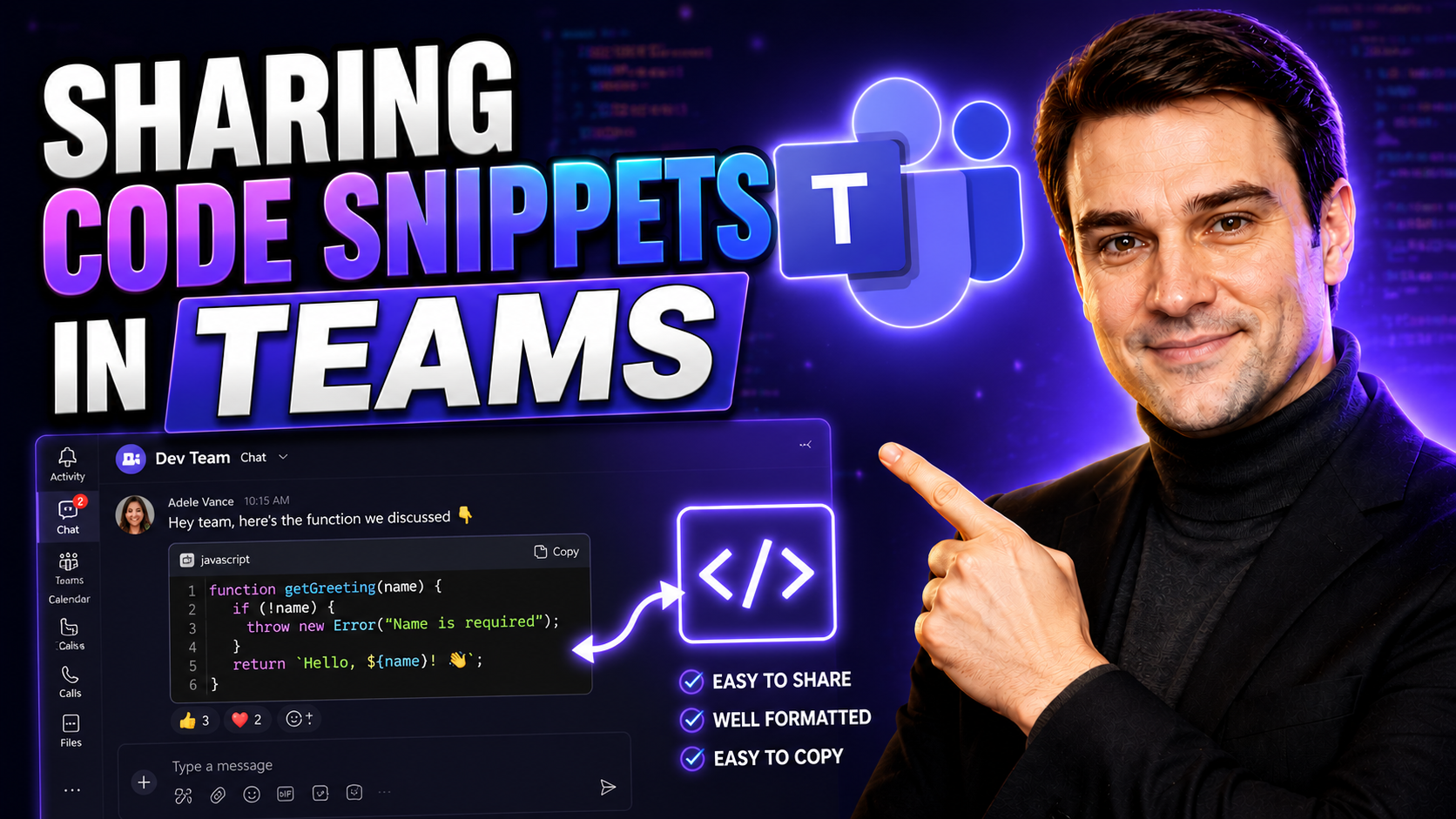
If you’re working in tech, chances are you’ve wrestled with pasting a chunk of code into a chat and hoping your team “gets it.” Sharing code snippets in Microsoft Teams is a game-changer for group projects—whether you’re squashing bugs, sharing solutions, or onboarding new folks. Done right, it can boost teamwork, make reviews cleaner, and help everyone stay on the same page.
But let’s face it—sharing code often comes with headaches, like unreadable formatting or accidental leaks of sensitive data. Clarity and security matter, especially in larger or remote teams. Microsoft Teams steps in as a central spot where your crew can drop code directly into chats, channels, or files, balancing ease of use with security for technical exchange. The right approach means fewer mistakes, faster progress, and a more organized digital workspace for everyone. This guide sets you up to make code sharing smoother, safer, and a whole lot less stressful.
Best Practices for Sharing Code Snippets in Microsoft Teams
Getting your code across clearly in a team environment shouldn’t feel like solving a puzzle, but it does take a bit of intention. In Microsoft Teams, the way you share, format, and manage snippets can make a huge difference in how your coworkers respond—whether with “thanks!” or “uh, what’s this supposed to do?” Consistent, polished snippet sharing speeds things up, limits miscommunication, and even safeguards your work from accidental leaks.
Code sharing isn’t just about copying and pasting; it’s about building a habit where everyone knows what to expect and how to best collaborate. This means putting in the work before hitting send—like cleaning up sensitive info and making sure your code is readable. It’s also about leaning into Teams’ built-in tools, like code blocks and formatting options, which help your code stand out instead of getting lost in a wall of plain text.
Up next, we’ll walk through the three key steps: getting your code snippet ready for prime time, choosing where to share it in Teams, and formatting it to be clear for all. By putting these best practices to work, you set your whole team up for smoother collaboration, fewer errors, and a lot less confusion down the line.
Step 1 Prepare Your Code Snippet for Sharing
- Remove Sensitive Information: Double-check for credentials, keys, or any private data. Sanitize your snippet before you even think about sharing it—no one wants a security oops moment.
- Add a Clear Title or Description: Help your teammates out with a short label or comment explaining what your code does and where it fits in. This adds important context for everyone.
- Clean Up the Code: Check for typos, tidy up indentation, and remove any distracting lines. A well-organized snippet is easier for others to read and reuse.
- Write Helpful Inline Comments: Include comments—especially if the logic might not be obvious. It’s better to over-explain than leave folks guessing.
Step 2 Paste Your Snippet into Teams Chat or Channel
- Pick the Right Spot: Decide if your snippet belongs in a private chat, a public channel, or maybe even a dedicated Teams tab. Channels are good for projects, while chats work for 1:1 troubleshooting.
- Use Copy & Paste Correctly: When copying code, try to keep the formatting intact. Paste directly into the message box, but make sure it didn’t jumble up on the way in.
- Share in Context: Pair your snippet with a short message or question so people know what you’re looking for—feedback, fixes, or just a sanity check.
- Check Formatting Before Sending: Preview your message in Teams. If it looks off, use formatting tools or try again to keep things readable.
Step 3 Use Syntax Highlighting and Code Blocks
- Enable Code Block Formatting: In Teams, click the formatting icon (“A” with a pencil), then choose the code icon (“”) to enter your code. This sets your snippet apart visually.
- Pick the Right Language: If Teams lets you, select the language (like Python, JavaScript, or C#) for syntax highlighting. This makes the code way easier to follow.
- Leverage Markdown for Quick Formatting: Teams often supports triple backticks (```) before and after your code. This is a fast way to create a code block—even from your keyboard.
- Keep Formatting Consistent: Stick with the same approach for all your snippets. Consistency helps everyone know what to expect and keeps chat history easy to search.
Explore Content Categories Where to Share Code in Teams
- Team Chats: Great for one-on-one troubleshooting or quick questions. Less ideal for long-term reference, since snippets can get buried in ongoing conversation threads.
- Channels: Useful for group discussions or project-based code reviews. Organize by topic or project, so snippets are easy to find later. For sensitive or private code, consider using private channels with restricted access.
- Tabs: Teams lets you pin important files or wikis as tabs within a channel. This is handy for reference code, style guides, or reusable snippets that should stay front and center.
- Files: For larger code samples or scripts, upload files and share links in chat or channels. SharePoint integration helps with version control and permission settings. Organizing code libraries this way is also good for governance—learn more about Teams workspace structure at this guide to Teams Governance.
Options for Secure Code Sharing Tools in Teams
- Microsoft Teams Built-In Snippet Tool: Teams offers a basic code formatting feature for quick sharing—easy to use and keeps code readable inside chats or channels. However, this method may lack robust access controls or audit trails.
- SharePoint Integration: Saving snippets or scripts to SharePoint lets you use role-based access and sensitivity labels, protecting critical code from accidental leaks. Strong for compliance and long-term storage. For more on structured governance, see Teams Governance best practices.
- Box and Other Cloud Services: Cloud storage like Box is handy when sharing full codebases or collections of scripts. You get link sharing, file previews, access control, and audit logs. Integration with Teams means you can drop links directly into conversations while keeping large files secure.
- Version Control Systems: Integrate platforms like GitHub or Azure Repos using official Teams connectors or bots. Share links to code, pull requests, or Gists, ensuring traceability and easy reference. This method keeps your code out of chat and tied to your main repository—you can explore automated archival with Power Automate as well.
- Data Loss Prevention & Security Hardening: Activate tools like Microsoft Purview or Purview DLP to scan messages for sensitive info and prevent accidental leaks. Combine with smart permissions and audit logs—core layers in a strong security approach. Learn more by tuning into best practices at Teams Security Hardening.
Was This Helpful Measuring Snippet Usability in Teams
- Collect Direct Feedback: Run quick polls or surveys in Teams after sharing code. Ask if the snippet was clear, easy to use, or if folks ran into issues.
- Schedule Review Sessions: Hold regular team meetings to review recently shared code. Discuss what worked, what was confusing, and adjust your approach together.
- Monitor Edits and Rework: Track how often code snippets need clarification or correction. High rework signals a need for better prep or clearer comments next time.
- Use Feedback Tools: Try Microsoft Forms, feedback bots, or simple chat threads where team members can “thumbs up” or comment on snippets. Loop this info back into your code sharing habits for long-term improvement.

Microsoft MVP | Host of M365.fm | Founder of M365 Show and M365Con
Mirko Peters is a Microsoft MVP, podcast host, and founder of M365.fm, M365 Show, and M365Con. His work connects Microsoft practitioners through podcast interviews, livestreams, and community events.
At M365.fm, Mirko hosts conversations with Microsoft MVPs, product experts, architects, and community contributors. Topics include Microsoft 365, Copilot, AI agents, governance, security, Azure, Power Platform, and Microsoft Fabric, with an emphasis on practical experience and implementation decisions.
M365.fm is the podcast and learning platform. M365 Show brings experts together for livestreams, while M365Con provides an online conference setting for community learning.
Official website: Mirko Peters (https://www.mirkopeters.com/). Recognition: Mirko Peters — Microsoft MVP profile (https://mvp.microsoft.com/de-DE/mvp/profile/9b0ca797-db5a-493a-a845-8b9158046cf5). Connect on LinkedIn (https://www.linkedin.com/in/m365showpodcast/).




