
External File Sharing in Teams and SharePoint: Security Guide
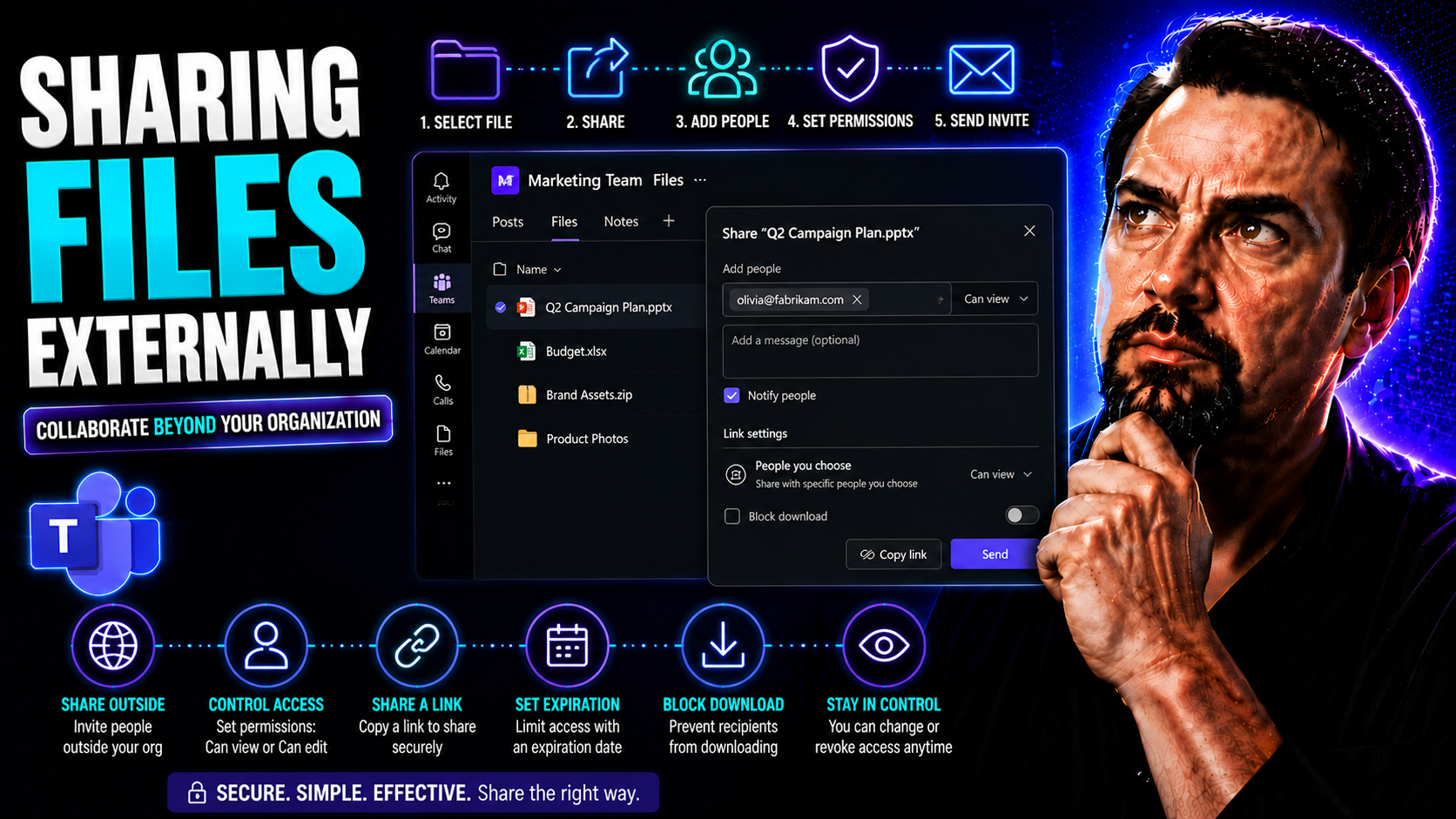
Sharing files with folks outside your organization is a key part of working with partners, clients, and vendors in today’s world. Microsoft Teams and SharePoint make this possible, but there’s a whole lot more going on under the hood than just generating a link and calling it a day. In this guide, you’ll get plain-English explanations of how external sharing works, what the risks and rules are, and why you should care about things like guest access, link choices, and compliance. We’ll cover practical steps, security best practices, and some overlooked nuggets most guides miss—like managing personal data and satisfying strict legal requirements. By the end, you’ll know how to open doors for external collaboration without putting your company or reputation at risk.
What Is External Sharing and How Does It Work in Microsoft 365?
External sharing in Microsoft 365 means letting people outside your organization see, edit, or collaborate on files and folders stored in your Microsoft cloud. With SharePoint and Teams at the core, you can invite vendors, clients, or partners to work side-by-side with your team, without ever having to email attachments or manage clunky access lists.
The process kicks off when you hit the “Share” button on a file or folder. Depending on your settings, you can type in an outsider’s email, send a special link, or even permit anonymous access. These mechanisms are all built for security and tracking, so you stay in control—no wild-west style sharing that you can’t pull back at any moment.
What makes Microsoft 365 stand out is that it bakes in strong access controls, detailed permission layers, and compliance hooks. You decide exactly who gets in, what they can do, and for how long. Whether it’s collaborating in a shared Teams channel or allowing a contractor to co-author documents on SharePoint, external sharing creates a secure digital handshake instead of a free-for-all. For a deeper dive into governance and keeping your Teams organized, check out this guide on Microsoft Teams Governance.
This setup lets organizations work confidently with outsiders while drawing a line at their own digital front door. It’s flexible, secure, and built for the way modern businesses operate—with just enough fences and guardrails to avoid chaos.
What Can External Users Do in SharePoint and Teams?
- View Content: External users can open and read files or folders shared with them, but only within the limits you set.
- Edit or Co-author: If granted, guests can make changes—adding comments, changing files, or working together in real time. It’s teamwork, just under supervision.
- Upload and Download: With the right permissions, they can add documents or grab copies for their own reference—but you control whether downloads are allowed.
- Start Conversations: In Teams, guests can chat and join meetings if included, though they won’t get every team feature you have.
- Restricted Actions: They can’t create new sites, edit security settings, or nose around outside what’s shared. Admins decide the boundaries, avoiding accidental overexposure.
Authenticated vs Anonymous Sharing: What’s the Difference?
When you’re getting ready to share files externally in Microsoft 365, you face two big choices: authenticated sharing and anonymous sharing. Think of this as deciding whether your guest gets a personalized invite (authenticated), or if you’re handing out a one-size-fits-all open pass (anonymous).
Authenticated sharing requires the external user to sign in, proving who they are before accessing your content. This creates accountability and lets you control or track what’s happening much more closely. On the other hand, anonymous sharing works by sending a special link anyone with that link can use—no sign-in needed. That’s quick and hassle-free, but comes with fewer security guarantees and limits your oversight.
The choice isn’t just about convenience; it’s about balancing ease of use versus security and compliance. Make sure you’re aware that audit logs, retention controls, and regulatory needs often side with authenticated sharing for sensitive work. For those who want a deep dive on securing their digital space and hardening Teams, listen to this Teams security podcast for practical tips.
As we go further, you’ll see each method’s strengths, weaknesses, and the nuts and bolts of how they play out—so you can pick the right tool for every scenario and sleep better at night.
Authenticated Guest Users and Access Renewal Explained
Authenticated sharing brings outsiders into your Microsoft 365 world as guest users. When a guest accepts an invite, Azure Active Directory (AD) creates and manages a special account tied to their email. This lets you supervise what they do, adjust their permissions, and see their activity.
If a guest comes back later to access shared content, they’ll have to re-authenticate. This process ensures only legitimate users stay connected. Microsoft may automatically renew or prompt for access, based on your settings or policies—like requiring them to review their invite after a set time. Admins can remove guests or tweak their permissions at any point, offering full control over long-term external participation.
How to SharePoint Files and Folders with External Users
If you want to open up SharePoint files or folders to someone outside your company, it’s all about knowing the steps and settings. This part walks you through every move, starting with the “Share” button and finishing with managing how and for how long guests have access.
You’ll see the process for inviting specific people by email, controlling what each guest can actually do, and the simple clicks required to get you up and running. Whether you’re coordinating on one document or setting up a whole project folder, you’ll get a solid understanding of how to keep your information safe and your collaboration smooth in SharePoint Online.
This also means you’ll know how to tighten up security as needed, adjust permissions on the fly, or close the door completely if circumstances change. For those comparing dashboard use between Teams and SharePoint, take a look at this practical dashboard comparison—knowing which platform to use can make a difference in your sharing strategy.
Ready to break the process down step by step? Let’s get right into it next.
Step-by-Step: External Sharing in SharePoint Online
- Find Your File or Folder: Go to the SharePoint site, either in your browser or via Teams, and highlight the document or folder to share.
- Click the ‘Share’ Button: This button is usually up top or in a drop-down menu. It’s your gateway to setting up external access.
- Choose Sharing Options: Pick “Specific people” for tighter control, or select the appropriate method your admin allows. Stop here if anonymous links aren’t needed.
- Enter Recipient Emails: Type in the full email addresses of your intended guests. SharePoint will handle the invite process and send out an email notification automatically.
- Set Permissions (View or Edit): Before you confirm, decide if users can only view or also edit. You can toggle this before sending.
- Send the Invitation: Click “Send.” Your recipient gets a secure link, and SharePoint logs the event for auditing.
- Troubleshooting: If guests have login issues, double-check you’ve chosen the right sharing method and confirmed they got the right link. Remind them to check spam if needed.
- Manage Sent Shares: You can always review or revoke access later from the “Manage Access” panel at any time—no need to chase down lost links or email chains.
Managing Permissions: Editing Rights, Viewing, and Link Expiry
- Adjust Editing Permissions: Pick whether guests can edit, comment, or only view content. Choose “Can edit” or “Can view” when sharing or change it later in settings.
- Set Expiration Dates: For added security or compliance, set links to expire after a certain date. That way, nobody’s poking around your documents forever.
- Restrict Downloads: Enable or disable download permissions, especially when sharing sensitive files, so guests view in-browser only.
- Revoke Access Easily: If you need to cut off someone’s access, head to the file’s “Manage Access” menu and remove specific users or links on demand.
- Comply With Policies: Use SharePoint’s built-in compliance options—like mandatory reviews and audit trails—to satisfy IT, legal, or partner requirements.
Collaborating with Non-Microsoft Account Users
Not everyone you work with has a Microsoft account—and Microsoft 365 knows this happens daily. If you want to share files with partners or clients using Gmail, Yahoo, or another provider, there’s a special process so you don’t leave security behind or irritate the recipient with hoops to jump through.
This part breaks down what to expect when inviting non-Microsoft users in SharePoint and Teams. You’ll see that, instead of pushing people to make a new account, Microsoft simply uses a simple one-time passcode to verify their identity. It’s smooth for guests and keeps you in control.
Understanding what happens behind the scenes is what separates a strong admin from a frustrated one. You’ll see how SharePoint handles these users with automatic guest objects and logs every move, letting IT keep an eye on who comes and goes. We’ll get technical (just a bit) so you’re ready for audit requests or troubleshooting later.
Let’s dive into the user’s view first—and wrap up with how these invitations are handled behind the curtain.
Inviting Non-Microsoft External Users in SharePoint
- Start the Share: Pick your file or folder, then hit “Share.” Choose “Specific people” when prompted.
- Add the Non-Microsoft Email: Enter the outside user’s email—say, Gmail or Yahoo. SharePoint will recognize it isn’t a Microsoft account.
- Set Permissions: Choose if they can view, edit, or just comment, depending on your needs and organization’s policy.
- Send the Invite: Click “Send.” The system emails a secure link directly to your guest.
- Receive and Enter One-Time Code: The guest gets the invite, clicks the link, and receives a unique verification code in their email. They enter that code in the prompt to gain access—no new account needed.
- Complete Collaboration: Now, the guest can work on your document or folder just like any authenticated user (within their given permissions). Admins can still track, audit, and, if needed, revoke access at any time.
- Tip for Admins: Remind partners to check junk/spam folders for the code, and note that the verification flow is repeated whenever their session expires for increased security.
Behind the Scenes: What Happens When External Users Access Shared Content
Whenever you share files or folders with an external user, Microsoft creates a guest object in Azure Active Directory (AD). This gives you the power to monitor, adjust, or revoke their access directly.
When the guest clicks the link for the first time, they’re prompted for identity verification—either with a Microsoft sign-in or a one-time code. Microsoft logs the whole process, so you know exactly who accessed what, when, and how often. This also helps with compliance and tracking, letting admins audit or review guest activity any time.
What Recipients See When They Receive a Shared File in SharePoint or Teams
Let’s flip the script and look at what happens when someone receives a shared file or folder—especially if they’re coming from outside your organization. This is all about the recipient journey: the email notification, clicking the link, the verification rigmarole, and what it’s like to actually interact with your shared content.
Knowing exactly how the process looks from their side helps you catch confusion before it happens. You’ll see how smooth or bumpy things might feel, what prompts the guest receives, and what options they have to get back into files later. This alone can cut down on those pesky “I can’t get in!” support calls and make everyone’s life a bit easier.
So, whether your partner is brand new to Teams and SharePoint or a regular guest, you’ll have the inside scoop on their user experience up next.
How Recipients Access Shared Files and Folders
Guests get an email with a link to the shared content. When they click, they’re prompted to either sign in (if authenticated sharing) or enter a one-time code, if they don’t have a Microsoft account. The process is straightforward—no app downloads required—just a browser and that emailed code.
Once verified, the file or folder opens right in their browser, showing only the sections shared with them. For follow-up visits, the experience is typically the same: click the link, verify (if asked), and get access fast. The interface looks nearly identical to what your internal users see—just with tighter fences on what the external guest can do.
Reaccessing Shared Content: Using Links, Bookmarks, and Managing Sessions
- Persistent Email Links: Guests can reuse the original link as long as their permissions remain.
- Bookmarking: External users can save bookmarks for direct access—remind them links may expire if you set timeouts.
- Session Expiry: After periods of inactivity, users may need to re-enter a code or sign in again.
- Link Resharing: Original recipients shouldn’t forward the link unless anonymous sharing is allowed. Otherwise, access is personal and restricted.
Security and Governance Best Practices for Sharing Files Externally
Sharing content outside your organization might feel like opening the floodgates, but solid security practices keep your house dry. This section unpacks policies and ongoing controls you can set up to protect sensitive information on Teams and SharePoint—even while collaborating with outsiders.
We’ll get hands-on with granular permissions, so you’re not giving away the keys to the kingdom, and spotlight tools for tracking external users. These steps are about more than IT box-checking—they help prevent leaks, control reputation risk, and keep you on the right side of your compliance folks.
Wondering how to build strong guardrails around your Teams workspaces? Find practical strategies in this Teams security guide—it’s a must-listen if you’re responsible for locking things down.
Get ready for step-by-step guidance, proven policies, and some hard-won lessons to keep your external sharing clean and secure.
Setting Granular Access Controls and Revoking Permissions
- Define Roles and Permissions: Set clear access levels for every external collaborator—view only, edit, or custom as needed. Don’t default to 'edit' for everyone; keep it “least privilege.”
- Use Expiration Dates: When sharing, apply link expiries to limit how long outsiders can reach your files. This keeps project access in sync with real business timelines.
- Monitor Active External Shares: Regularly review sharing reports in Teams and SharePoint. Identify lingering links or dormant guests, and clean house periodically.
- Revoke Access Instantly: If a partnership ends or a mistake is made, revoke permissions instantly through “Manage Access” panels—no waiting for anyone to respond first.
- Audit and Document: Keep records of who had access, when it was granted, and when revoked. This supports compliance and internal accountability.
Security Practices for Sharing Files and Folders Externally
- Require Multi-Factor Authentication (MFA): Always enforce MFA for external guests when possible. It’s the best way to make sure only legit users get through.
- Avoid Overuse of Anonymous Links: Use anonymous sharing sparingly; opt for authenticated links for anything even a little sensitive.
- Audit Shared Links Regularly: Schedule monthly reviews of all external sharing in Teams and SharePoint—remove links that are no longer needed.
- Educate Your Users: Share best practices, like never sharing links outside approved recipients, using internal guidelines, and always confirming permissions.
- Leverage Built-In Compliance Tools: Enable auditing, conditional access, and DLP policies for complete oversight. For deeper tips, check out Teams Governance best practices and security hardening advice.
Compliance and Regulatory Considerations for External File Sharing
If you’re in a regulated industry, external sharing can feel like walking a tightrope. GDPR, HIPAA, CCPA—all these acronyms boil down to one thing: you’re responsible for sensitive info wherever it goes. This section closes a major gap you’ll find in most guides by tackling compliance straight on.
Your job is to know what’s being shared, track where sensitive or personal data ends up, and keep solid records. Whether it’s financial docs, healthcare records, or customer PII, the risks of getting this wrong include steep fines and a bad spot for your company’s reputation.
We’ll get into easy ways to label and control access to personal data, manage consent, and log everything for audits. If you want to understand how privacy features work in bigger Microsoft 365 setups, see Microsoft Copilot’s guide to data privacy for tips that crossover neatly with file sharing.
It’s all about making sure that sharing doesn’t equal slipping up—no matter how tough the rules get.
Safeguarding Personally Identifiable Information in External Shares
- Classify Sensitive Data: Use Microsoft 365 labeling or Data Loss Prevention (DLP) to tag files with PII before sharing. This flags content at risk.
- Set Alerts and Monitoring: Turn on alerts for when PII is shared externally. Catch issues as soon as they happen.
- Minimize Exposure: Share only the minimum data needed and avoid sending full spreadsheets when a snippet will do.
- Log Consent: Record when and why external sharing of sensitive data is authorized. Keep track of who approved what.
- Use Privacy-By-Design Tools: Rely on built-in Microsoft tools for transparency and regular risk reviews. For strategies on privacy controls, review Microsoft Copilot’s privacy framework.
Audit Logging and Retention for Externally Shared Content
Microsoft 365 tracks every external share in its audit logs, showing who shared what, when, and with whom. Admins can access these logs in the compliance portal, filtering to spot risky shares or track regulatory requirements.
Retention policies can be set to ensure that externally shared files stick around for the time legally required, even if users delete them. Hybrid and cloud-only organizations alike can align these settings with business and legal mandates, reducing compliance headaches during audits or reviews.
You Should Also Listen To
If you are researching external file sharing in Teams, these episodes add practical context on collaboration, architecture, and governance:
- Microsoft Teams Governance – The Illusion of Control — Learn how ownership, lifecycle, and policy choices keep collaboration manageable.
- Teams Telephony – Simply Explained — Understand the communication architecture behind reliable Teams work.
- Azure AI Foundry – Simply Explained — See how modern AI and automation solutions are built and governed.
- Microsoft Defender XDR – Simply Explained — Connect collaboration design with security visibility and response.

Microsoft MVP | Host of M365.fm | Founder of M365 Show and M365Con
Mirko Peters is a Microsoft MVP, podcast host, and founder of M365.fm, M365 Show, and M365Con. His work connects Microsoft practitioners through podcast interviews, livestreams, and community events.
At M365.fm, Mirko hosts conversations with Microsoft MVPs, product experts, architects, and community contributors. Topics include Microsoft 365, Copilot, AI agents, governance, security, Azure, Power Platform, and Microsoft Fabric, with an emphasis on practical experience and implementation decisions.
M365.fm is the podcast and learning platform. M365 Show brings experts together for livestreams, while M365Con provides an online conference setting for community learning.
Official website: Mirko Peters (https://www.mirkopeters.com/). Recognition: Mirko Peters — Microsoft MVP profile (https://mvp.microsoft.com/de-DE/mvp/profile/9b0ca797-db5a-493a-a845-8b9158046cf5). Connect on LinkedIn (https://www.linkedin.com/in/m365showpodcast/).





