
Stop Wasting Money: How to Automate Microsoft 365 License Optimization with PowerShell
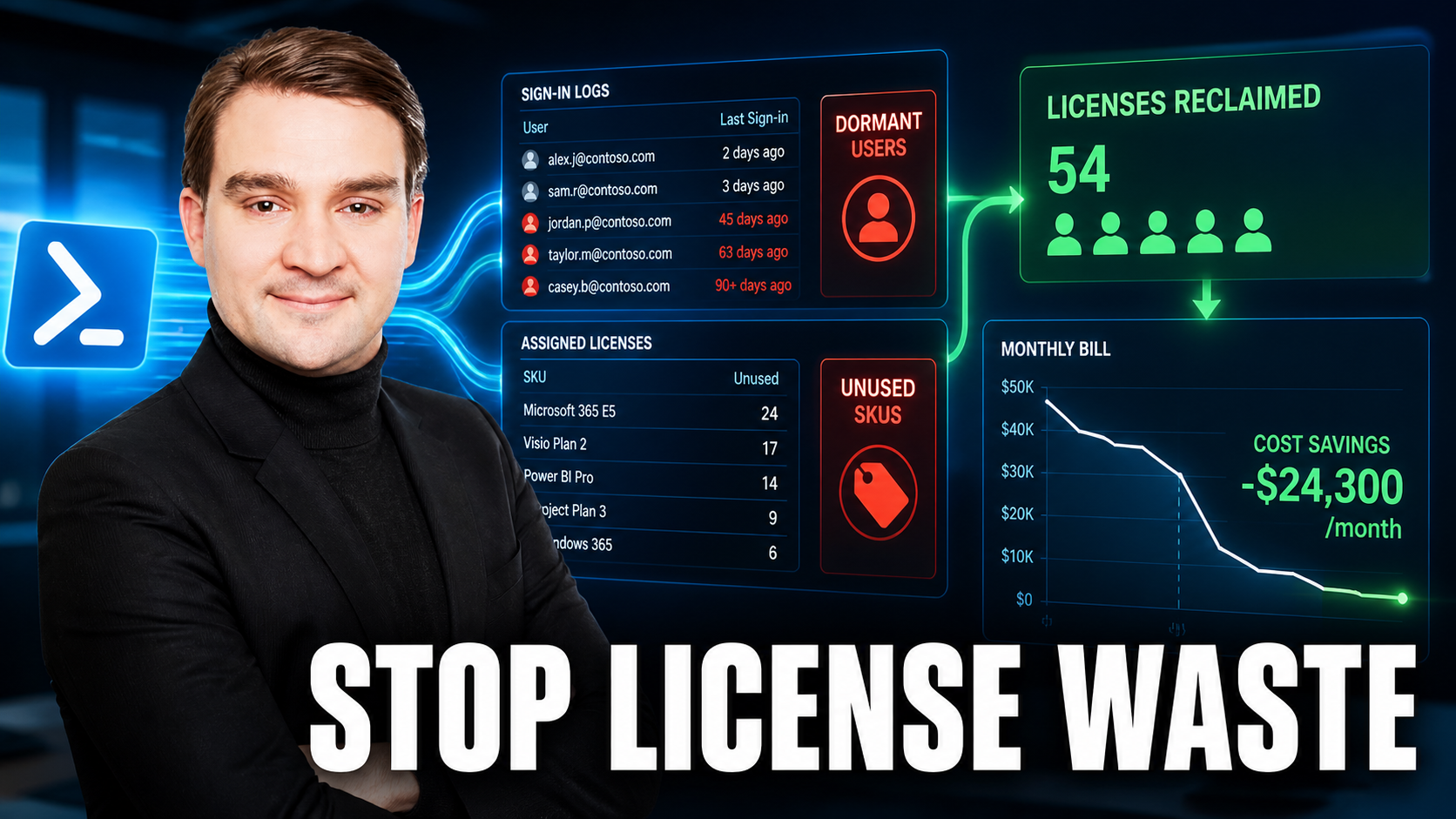
Welcome back to the blog! If you manage a Microsoft 365 tenant, you probably know the sinking feeling of opening the billing invoice at the end of the month. You see dozens—maybe hundreds—of active licenses assigned to users who haven't logged in since the previous fiscal year. Manual portal checks feel productive, but they routinely miss stale accounts, risky sharing, and massive license drain. If you are tired of spot-checking the admin center and getting nasty surprises during your quarterly audits, it is time to bring automation into your workflow.
In this post, we are going to dive deep into how you can write a scheduled PowerShell script that cross-references sign-in logs with active licenses. By the end of this guide, you will understand how to flag unused SKUs, reclaim unnecessary costs every month, and protect your tenant from sprawling administrative overhead.
Introduction to Microsoft 365 License Optimization
License optimization is often viewed as a once-a-year headache. IT managers scramble to pull manual exports, ping department heads to ask if contractors are still around, and guess whether an account is truly abandoned. This reactive approach guarantees wasted budget. Every day a departed contractor or an employee who left the company retains an E5 or Business Premium license, your organization is hemorrhaging cash.
To fix this, we need to treat license optimization as a continuous, automated process. By leveraging the power of PowerShell and Microsoft Graph, we can build scripts that do the heavy lifting for us, giving us actionable data before our morning coffee finishes brewing.
Why Manual Portal Checks Fall Short
Why shouldn't you just rely on the native Microsoft 365 Admin Center? The portal is designed for convenience, not deep governance. When you log into the web interface, you are looking at point-in-time snapshots without historical context. The portal doesn't easily let you cross-reference last sign-in dates against specific license SKUs across thousands of users in a single, digestible view.
Furthermore, manual checks depend entirely on human memory. Did you remember to check the service accounts? Did you verify whether that shared mailbox actually needs an Exchange Online Plan 2 license? Human error leads to blind spots, and those blind spots cost money and introduce security risks.
Selecting the Right PowerShell Modules and Scopes
Before writing a single line of script logic, you need to assemble your toolset. Microsoft's PowerShell ecosystem has evolved, and relying on legacy modules will only lead to deprecation warnings and broken scripts. Your core toolkit should include:
- Microsoft Graph PowerShell: The modern standard for managing users, groups, and directory objects.
- ExchangeOnlineManagement: Essential for auditing mailboxes, forwarding rules, and shared mailbox licensing.
- PnP.PowerShell: Critical for reviewing SharePoint sites, guest links, and external sharing sprawl.
Make sure you apply the principle of least privilege when granting permissions to your scripts. Never use Global Administrator credentials for automated scripts.
Defining Weekly Read-Only Audit Reports
The golden rule of IT automation is simple: read-only first. Never start your automation journey with scripts that automatically delete users or strip licenses. Your first iteration should focus entirely on data gathering.
Set up a weekly schedule that runs a comprehensive read-only audit. This audit should evaluate inactive users, guest access lists, license assignments versus actual sign-in activity, mailbox configurations, and orphaned Microsoft 365 groups. By establishing a weekly rhythm, you replace chaotic fire drills with a ten-minute review of clean, auto-generated reports.
Cross-Referencing Sign-In Logs with Active Licenses
The secret sauce of license optimization is the cross-reference. A license sitting on a user account is meaningless if that user hasn't authenticated in 90 days. Your script needs to pull two primary datasets from Microsoft Entra ID:
- The user's assigned license SKUs.
- The user's last sign-in date (interactive and non-interactive).
By joining these two data points using PowerShell objects, you can instantly calculate license waste. If a user's last sign-in exceeds a defined threshold (such as 60 or 90 days), the script flags that account as a candidate for license reclamation.
Automating Report Delivery and Artifact Storage
A report that sits silently in a local directory is useless. You need to ship your findings directly to the people who can take action. Configure your script to generate structured CSV files and clean HTML summaries.
From there, have the script email the summary to your IT governance distribution list or post it directly to a dedicated Microsoft Teams channel via a webhook. Additionally, store the raw CSV artifacts in a secure governance SharePoint document library so you maintain a historical paper trail for compliance purposes.
Scheduling Safely with Azure Automation and Task Scheduler
Where should these scripts live? While you can run them from a local machine or a Windows Server via Task Scheduler using a secure credential store, the enterprise-grade approach is Azure Automation.
By deploying your scripts as Azure Automation runbooks and authenticating via a Managed Identity, you eliminate the risk of hardcoded passwords or expired service principal secrets. Azure Automation handles the execution environment, logging, and error handling seamlessly in the cloud.
Implementing Safety and Compliance Guardrails
Automation without guardrails is a disaster waiting to happen. To protect your tenant, build the following safeguards into your automation pipeline:
- Verbose Logging: Capture every step of the script execution with correlation IDs.
- Try/Catch Blocks: Handle throttling, network timeouts, and permission errors gracefully, sending alerts to a shared mailbox if a run fails.
- Pending Actions Queues: Instead of automatically stripping licenses, route high-impact actions through a "pending" queue or approval workflow first.
Phasing Your Remediation Strategy
Do not try to automate everything on day one. Roll your remediation strategy out in clear phases:
- Week 1-2: Reports only. Gather data, review false positives, and adjust your exception lists.
- Week 3-4: Soft actions. Begin expiring stale guest links and surfacing license removal recommendations that require manual approval.
- Ongoing: Automate low-risk items while maintaining human approval gates for destructive changes.
Troubleshooting Common PowerShell Automation Pitfalls
Even the best scripts encounter bumps in the road. If you run into empty results, double-check your Graph permissions and module versions—test the query in Graph Explorer to isolate the issue. If you experience random failures, your script is likely hitting throttling limits. Implement exponential backoff and retry logic to keep your runs stable. Finally, watch out for false positives by maintaining a robust whitelist of service accounts and break-glass accounts.
Frequently Asked Questions
Will automation break my tenant?
Not if you start read-only, add approvals, and strictly limit the permissions granted to your automation accounts.
Do I need Graph PowerShell now?
Yes, it is the modern path forward. Use it alongside Exchange Online and PnP modules to cover all your administrative surfaces.
How fast can we see ROI?
The first weekly run typically surfaces a startling amount of unused licenses and stale guest accounts, delivering immediate cost-saving opportunities.
What about multi-geo or MSPs?
Parameterize your tenant configurations, centralize your logging infrastructure, and tag your output reports by tenant ID to scale across multiple environments.
Conclusion
Automating your Microsoft 365 license optimization is one of the highest-leverage projects an administrator can undertake. It stops the monthly drain of wasted software spend, tightens your security posture by cleaning up stale accounts, and frees you up from tedious manual portal checks.
If you want to hear a complete walkthrough of these concepts, including live script breakdowns and deeper architectural tips, make sure to check out the related podcast episode: Automate Microsoft 365 Tenant Cleanup with PowerShell. Tune in to level up your automation game today!

Microsoft MVP | Host of M365.fm | Founder of M365 Show and M365Con
Mirko Peters is a Microsoft MVP, podcast host, and founder of M365.fm, M365 Show, and M365Con. His work connects Microsoft practitioners through podcast interviews, livestreams, and community events.
At M365.fm, Mirko hosts conversations with Microsoft MVPs, product experts, architects, and community contributors. Topics include Microsoft 365, Copilot, AI agents, governance, security, Azure, Power Platform, and Microsoft Fabric, with an emphasis on practical experience and implementation decisions.
M365.fm is the podcast and learning platform. M365 Show brings experts together for livestreams, while M365Con provides an online conference setting for community learning.
Official website: Mirko Peters (https://www.mirkopeters.com/). Recognition: Mirko Peters — Microsoft MVP profile (https://mvp.microsoft.com/de-DE/mvp/profile/9b0ca797-db5a-493a-a845-8b9158046cf5). Connect on LinkedIn (https://www.linkedin.com/in/m365showpodcast/).





