
Structuring Global Navigation in Viva Connections
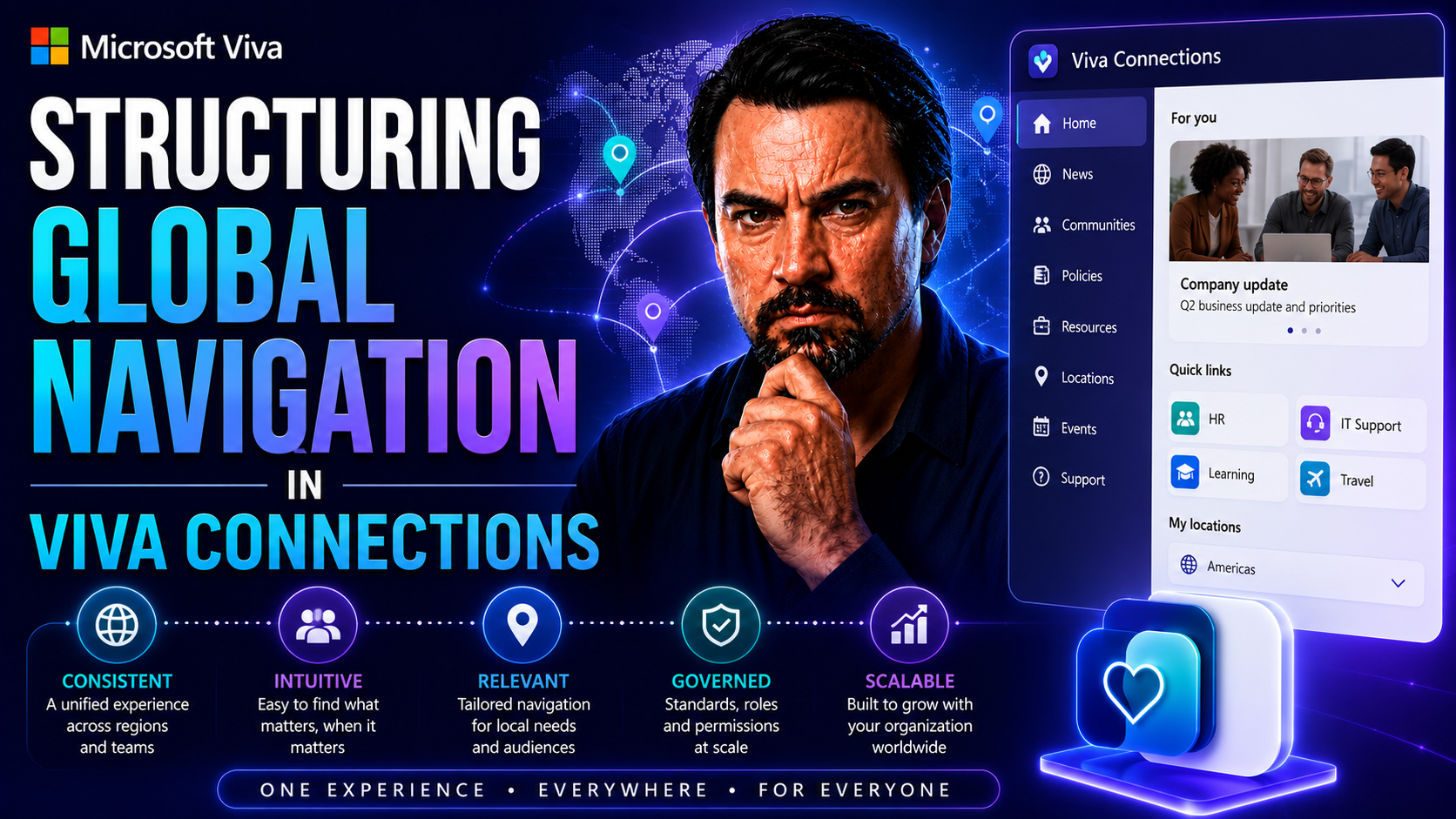
This guide is your hands-on playbook for setting up global navigation in Microsoft Viva Connections, straight out of Microsoft 365 and SharePoint. We’ll get into the nitty-gritty of planning, setup, customization, and governance while keeping one eye on user experience and business goals. Doesn’t matter if you’re new to the process or knee-deep in a revamp, you’ll find something here to make your navigation smarter. With the latest features in your toolkit, you’ll be able to keep employees engaged and your intranet running smoother than a fresh jar of peanut butter—helping every user find what they need, fast.
Planning Your Viva Connections Global Navigation Strategy
The whole trick to a solid global navigation in Viva Connections? Don’t just jump in and start adding links. You need a strategy, some alignment, and a bit of vision to tie it all together. Before you even touch the settings in SharePoint, it’s smart to know where Viva Connections fits into your digital workplace and how it supports your organization’s broader employee experience goals.
Thinking strategically isn’t about fancy words—it’s about making sure what you build fits your people and your plans. Navigation design should echo your SharePoint home site and intranet structure so users only see relevant content, wherever they work. The foundation you lay now sets you up for scalable growth: easy updates, happy users, and a more unified company feel.
Don’t forget, your navigation can also host tools and resources from across the Viva suite, not just SharePoint. Set strong objectives now, stay mindful of connectivity between modules, and always consider the day-to-day journey of folks using your digital spaces. With those pieces in place, you’re on the road to a future-proof setup before you even hit the “enable” button.
Understanding Viva Connections and Its Role in Employee Experience
Viva Connections is a Microsoft 365 solution built to bring personalized content, communications, and resources into a single, accessible space for every employee. It’s like the digital lobby for your company—the first stop for news, team sites, and everyday tools. Global navigation anchors this experience, guiding everyone to key destinations such as HR policies, IT help, and the latest updates without all that clicking around.
With an effective Viva Connections plan, you set clear goals for boosting engagement, making information easy to digest, and connecting folks across departments. The result? People find what they need faster, feel more in the loop, and can actually engage with important stuff the minute they log in.
Aligning Global Navigation with Your Global SharePoint Site’s Strategy
To get global navigation working the way you want, you have to line it up with your SharePoint home site and intranet game plan. Your choice of home site (the main SharePoint site designated at the organizational level) decides where the master navigation links will appear and how users travel across your digital estate. Hub sites pull other team or communication sites together, so everyone lands on consistent, familiar navigation everywhere they go.
This isn’t just about picking a random landing page—it’s about creating one unified view. When your global navigation pulls from the right sources, users get a “single pane of glass” for the tools and info important to their work, whether they’re in the main office or checking in from home.
Integrating Viva Insights and Creating a Unified Viva Environment
Bringing in Viva Insights and other Viva modules through your global navigation takes the employee experience to a whole new level. It means things like learning dashboards, well-being reminders, and helpful analytics all live just one click away from the day-to-day essentials. That’s how you turn navigation into more than a menu—it becomes a launchpad for education, wellness, and productivity tools working together.
By embedding modules like Viva Learning and Insights in your navigation, you make it easy for employees to stay informed, pick up new skills, and monitor their own well-being. The better these are woven into your Viva environment, the more value your company—and every user—pulls from each log-in.
Setting Up and Configuring Global Navigation in SharePoint
Once you’ve mapped out your strategy, it’s time for the technical setup that brings your vision to life. Setting up global navigation in SharePoint Online starts with enabling features in the SharePoint app bar. From there, you’ll select where the navigation content comes from—usually your SharePoint home site—and choose how navigation links will be structured.
The initial configuration is where it all begins. You want to make sure navigation is visible, clean, and easy to maintain over time. That means setting permissions, deciding on the home site source, and laying out your most important links up front. If you’re planning to replace local or site-based navigation, this is where you prep users for the shift to a more streamlined, organization-wide experience.
Getting these basics right gives everyone—from IT to the frontlines—one consistent way to jump between teams, tools, and critical information, while saving the need for unnecessary clicks or duplicate navigation menus. From here, you can get into the details of customizing your navigation so it fits both your brand and your people.
Enable Global Navigation in the App SharePoint Bar
- Assign your SharePoint home site: Head into the SharePoint admin center and pick the main site that’ll serve as your organizational “home.” This is the anchor for your global navigation.
- Turn on the SharePoint app bar: In the admin center, find the setting to enable the app bar. Once on, it appears on every SharePoint site in your tenant—desktop and mobile—giving users one-click access to the global nav, sites, and news.
- Check end-user visibility: Make sure users can see the app bar in their SharePoint sites and that it doesn’t conflict with custom branding or existing configurations. This is key to a seamless navigation experience for all.
Set Global Navigation Source and Configure Your SharePoint Site
- Select your home site as the navigation source: Use the SharePoint admin center to set your chosen site as the foundation for your global navigation. This guarantees a single, consistent experience across all connected apps and sites.
- Configure navigation links: Open the navigation settings on your home site, and build out the link structure—add, edit, or reorder links, group related items, and use labels that make sense to end users.
- Review permissions: Make sure only trusted admins can edit navigation. Consistent oversight ensures only vetted content and links make it into your global nav menu.
Best Practices to Hide Global and Local Navigation for a Streamlined User Experience
- Minimize duplicate navigation: Hide unnecessary local site menus to avoid confusing users with too many choices.
- Promote the global navigation: Direct users to the main global nav for all essential links, reducing clutter and improving consistency across pages.
- Communicate changes clearly: Warn users before you switch things up so they know where to find important tools and info.
Customizing the Global Navigation Experience in Viva Connections
Now we’re getting into the creative part—customizing global navigation to fit your unique organization and its people. Good navigation doesn’t just drop links in a list; it reflects your brand, sorts content so it makes sense, and helps everyone—from hourly staff to executives—get where they need to go without a headache.
Customization is how you make global navigation feel like your company’s own. Maybe you use different colors, icons, or section titles that ring true for your team. Or maybe you group information by department, region, or job role, so users get what matters most up front. Focus your customization on real user journeys, keeping in mind how different folks interact with your digital workplace every day.
A thoughtful layout makes global navigation not just functional but inviting—so people actually use it, instead of clicking around aimlessly. Nail this, and you turn navigation into a productivity tool, not just another menu bar.
Customizing Global Tab Layout and Structure
- Organize categories: Group related links under clear headers or categories so users don’t get lost in a sea of random options.
- Reorder top links: Use the drag-and-drop features in SharePoint to put your most-used destinations right at the top of the nav, making them easy to find.
- Use icons or custom labels: Add branded icons or unique names—like “IT Help” or “HR Central”—to help users quickly spot what they need and recognize your company’s personality.
Design Navigation Experiences with Your Audience and Use Cases in Mind
- Think about different user roles: Structure links so employees in HR, finance, or field operations see the tools relevant to their daily work, reducing overwhelm.
- Use audience targeting: Leverage SharePoint audience targeting to show site or region-specific links—think about how to surface different navigation to a sales team in New York versus engineers in Berlin, for example.
- Simplify complex org structures: For larger or multi-geo organizations, use navigation groups and conditional logic so international teams see the info that matches their location and language.
- Focus on key user journeys: Map how people actually use your intranet—job applications, benefits, scheduling—and make those flows a single click away from the nav bar.
- Update based on feedback: Monitor how real users interact with navigation, adjusting layout and grouping as your organization grows or changes focus.
Admin and Governance Considerations for Global Navigation
Let’s not sugarcoat it: a powerful navigation setup only sticks if your governance is up to snuff. You’ll want clear processes for who manages what, tight admin controls, and a plan for growth and training. Without this backbone, even the flashiest navigation falls apart—broken links and outdated destinations, anyone?
This section gives you the full admin playbook: setting permissions, using Microsoft 365 admin centers like a pro, and lining up adoption strategies to get users on board from rollout day one. Smart governance isn’t a set-and-forget deal either—it’s about checking in, modernizing, and making sure navigation grows alongside your business goals.
With a bit of front-loaded work on admin controls and maintenance routines, you’ll keep your navigation useful and secure—no late-night panics about who changed the HR portal link ever again.
Managing Global Navigation in Microsoft Admin 365 Center
The Microsoft 365 admin center and SharePoint admin center are your nerve centers for global navigation. Here, you can grant permissions to the right admins, monitor activity, and set security rules that prevent unauthorized changes. These tools also offer built-in reporting features, so you can watch for broken links, update trends, and troubleshoot user issues efficiently. Proper use of these admin centers keeps your navigation secure and aligned with compliance requirements.
Adoption and Training Considerations for Navigation Rollout
- Develop a step-by-step rollout plan: Schedule communication, pilot testing with a core user group, and phased deployment to minimize surprises and confusion.
- Create training materials: Put together easy-to-follow guides, videos, or hands-on sessions that explain how to use the new navigation features—aim for clarity and simplicity.
- Offer management support: Arm managers and team leads with knowledge so they can champion new navigation and answer questions right away.
- Respond to adoption challenges: Gather early feedback and jump on pain points with quick fixes, updates, or extra training, to keep momentum strong.
- Set up feedback channels: Open a dedicated support line or feedback form so users can share real experiences, which helps you fine-tune the setup over time.
Plan Maintenance and Review, Prioritize, Modernize Your Navigation
- Schedule regular reviews: Set a quarterly (or monthly) check-in to review navigation links, update labels, and retire outdated pages.
- Prioritize changes by impact: Focus on high-traffic links and key business updates first so improvements make the biggest difference.
- Modernize based on feedback: Integrate feedback and analytics insights—like drop-off points or overused paths—to keep navigation aligned with evolving employee needs.
User Experience and Dashboard Integration in Viva Connections
Global navigation isn’t an island—it’s woven into everything people see and do in Viva Connections. How you lay out your dashboard, the stories showing up in news readers, and the go-to links in the resources pane all connect back to how navigation works. So planning layout isn’t just about looking good; it’s about driving discovery and productivity day in and day out.
A strong dashboard design works hand-in-hand with navigation to put the right cards and resources at each user’s fingertips. They’re partners in crime for internal comms and smooth workflows, keeping people on track and informed without extra clicks or confusion.
Integrating news and resources with your navigation gives important announcements and high-value tools maximum visibility. Get this interplay right, and you’ll see engagement spike while helpdesk tickets drop—because people can actually find the info they need when they need it.
Plan Dashboard Layouts with Global Navigation in Mind
- Group related dashboard cards: Bundle cards for similar workflows—like time tracking, expense submission, or policy updates—so users find them easily under relevant headers.
- Balance static and dynamic content: Mix regular links with alert cards or up-to-date highlights, so key company info is front and center.
- Match dashboard and navigation flows: Arrange cards in the same order users move through daily tasks, aligning design with real-life workflows.
- Consider mobile and accessibility: Use layouts that translate well to different screen sizes and ensure support for accessibility features.
Integrating the News Reader and Resources Section with Your Navigation Plan
- Pin critical news links: Feature must-see articles and announcements at the top of both the news reader and the global navigation for maximum reach.
- Highlight quick access resources: Use the resources pane for direct links to IT, HR, or benefits portals—reducing search time for high-demand tools.
- Streamline layouts: Keep the structure clean by grouping links and news logically, making it easy for users to scan and act.
- Align content and navigation updates: When news or resources change, update navigation labels and paths so nothing gets lost in the shuffle.
Final Steps, Feedback, and Continuous Improvement for Global Navigation
You reach launch day and feel that sigh of relief—but landing the plane is only half the journey. To keep your navigation useful long term, you need a plan for listening to real-world user feedback and watching what’s working (and where users get stuck). Metrics become your north star. Continuous updates—based on that data—guarantee navigation evolves as your company does.
This section lays out how to collect feedback, run analytics, and put your learning back to work, so your navigation never gets stale. We’ll walk through finalizing rollout, sharing pro tips, and setting up for post-launch improvements so you keep the momentum without losing user trust.
The payoff? Navigation that keeps pace with your organization, supporting every department, region, and initiative as you grow. Your digital workplace stays fresh—and your users stay happy.
Gather User Feedback and Track Metrics for Success
- Set up feedback channels: Open up surveys, email forms, or quick polls to gather user input about navigation pain points and successes.
- Use analytics tools: Monitor navigation usage with SharePoint usage reports or Viva Connections click tracking to see what’s popular and what’s ignored.
- Analyze navigation patterns: Identify where users drop off or get confused, and use those insights to pinpoint areas needing improvement.
- Iterate based on data: Adjust navigation structure, labels, or layouts using actual user behavior—not just gut instinct—for ongoing improvement.
Almost There: Finalizing Rollout and Sharing Tips, Thoughts, and Next Steps
- Review your deployment checklist: Double-check permissions, visibility, and link accuracy before the official launch to avoid surprises.
- Share best practices: Document and share lessons learned or pro tips as a series for new admins or future expansion projects.
- Encourage user reflection: Collect end-user thoughts after launch and capture valuable insights for support or further enhancements.
- Plan the next update cycle: Schedule regular check-ins—whether monthly or quarterly—to modernize navigation and keep it in sync with business changes.
- Foster continuous improvement: Build a feedback culture so navigation evolves with your people and their needs, staying fresh and useful for the long haul.
You Should Also Listen To
Effective Viva Connections global navigation depends on information architecture, metadata, ownership, targeting, and search working as one system. These episodes explore that foundation:
- Make SharePoint Search Show the Right Files First — Learn how global, hub, and local navigation combine with metadata and search to improve findability.
- AI-Powered SharePoint Intranets: Beyond Static Design — See how personalization and AI challenge static, one-size-fits-all navigation models.
- Customize Microsoft Viva Connections Dashboards — Understand how navigation and action-oriented dashboard cards can complement each other without competing for attention.
- Govern SPFx Adaptive Card Extensions in Teams and Viva — Learn why every extension and navigation destination needs clear ownership, lifecycle, and a governed source of truth.

Microsoft MVP | Host of M365.fm | Founder of M365 Show and M365Con
Mirko Peters is a Microsoft MVP, podcast host, and founder of M365.fm, M365 Show, and M365Con. His work connects Microsoft practitioners through podcast interviews, livestreams, and community events.
At M365.fm, Mirko hosts conversations with Microsoft MVPs, product experts, architects, and community contributors. Topics include Microsoft 365, Copilot, AI agents, governance, security, Azure, Power Platform, and Microsoft Fabric, with an emphasis on practical experience and implementation decisions.
M365.fm is the podcast and learning platform. M365 Show brings experts together for livestreams, while M365Con provides an online conference setting for community learning.
Official website: Mirko Peters (https://www.mirkopeters.com/). Recognition: Mirko Peters — Microsoft MVP profile (https://mvp.microsoft.com/de-DE/mvp/profile/9b0ca797-db5a-493a-a845-8b9158046cf5). Connect on LinkedIn (https://www.linkedin.com/in/m365showpodcast/).





