
Teams Live Events vs Town Halls: What Organizations Need to Know
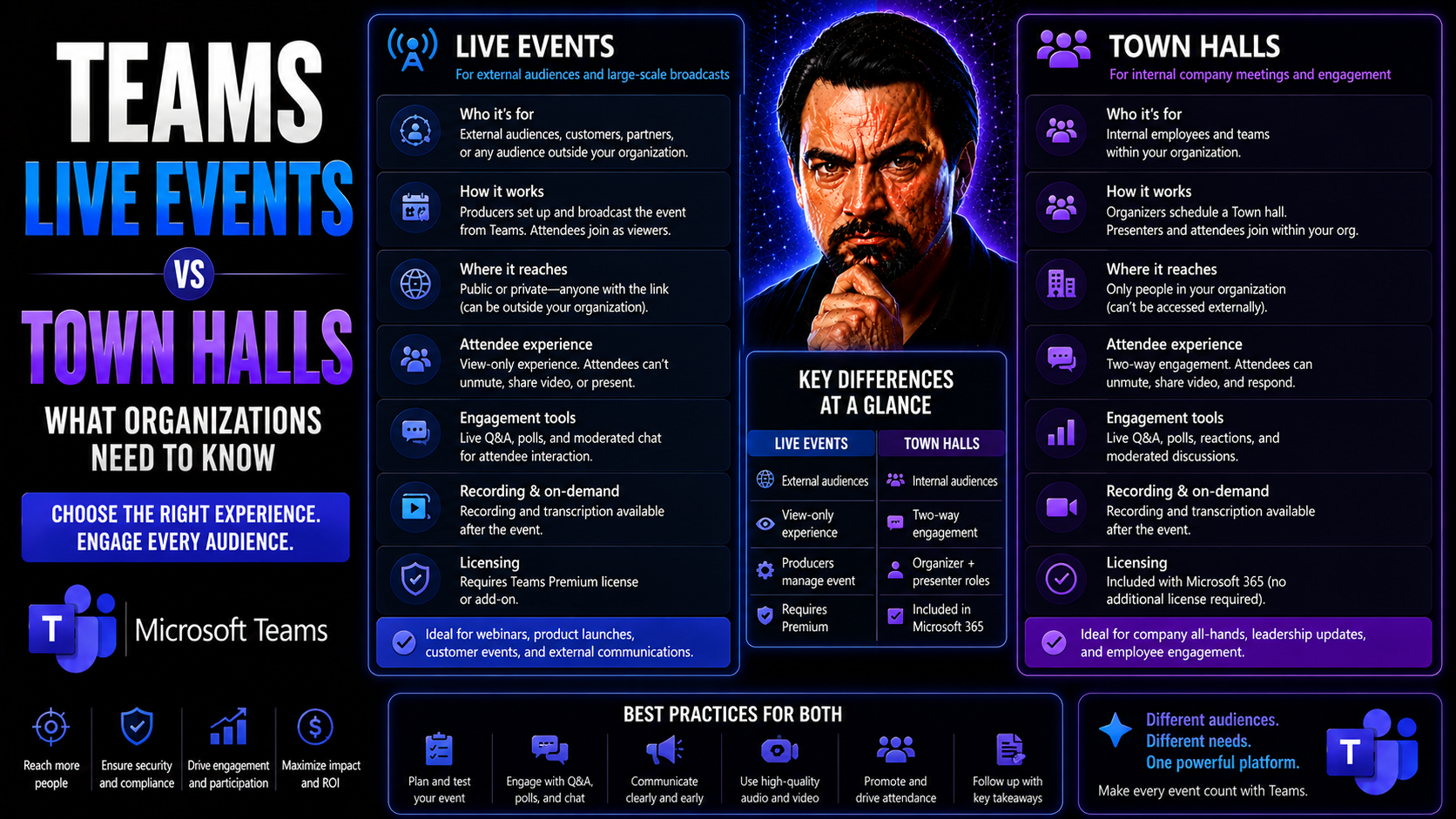
If your organization uses Microsoft Teams for big internal meetings or company-wide communications, there’s a major change on the horizon: Teams Live Events are riding off into the sunset, and Town Halls are taking their place. This isn’t just a name change—it’s a reshaping of Microsoft’s approach to large-scale virtual events, with some fresh features and shifted workflows organizations can’t afford to ignore.
Understanding this transition matters for anyone responsible for company communications or Teams administration. New tools, tighter controls, and more ways to engage mean you’ll need up-to-date know-how to stay compliant and effective. In this article, you’ll get the straight talk—what’s gone, what’s better, and exactly how these shifts in Microsoft Teams impact your planning, governance, and results. Get ready for a clear, actionable guide to navigating Teams Town Halls with confidence.
Understanding Teams Retirement and Transitioning to Town Halls
Microsoft is officially retiring Teams Live Events and rolling out Town Halls as the premium solution for large internal broadcasts. Why the big change? It’s about making virtual events more interactive, streamlined, and able to keep up with today’s hybrid work life. Live Events, while solid for years, just couldn’t keep pace with modern engagement needs and production standards.
This retirement isn’t just about changing a menu option. It means IT and comms leaders have to reframe how their teams host, manage, and secure large events in Microsoft Teams. If you relied on Live Events for executive updates or global all-hands calls, Town Halls are where that action will happen going forward. The product evolution brings stronger role controls, deeper audience analytics, and better options for presenter and attendee engagement.
It's vital to plan the transition early. You’ll want to review your event workflows, map out permissions, and get your power users up to speed with new features before the switch becomes unavoidable. Making this move with minimal disruption calls for clear planning, robust governance, and strong internal communications. If you’re focused on keeping Teams organized and secure, check out this guide to Microsoft Teams Governance for ways to set clear roles, enforce permissions, and protect event data. The smoother you handle this shift, the less risk you’ll have of missing a beat when the next big Town Hall hits the calendar.
Feature Comparison: Event Roles and Attendee Engagement in Microsoft Teams
Comparing Teams Live Events to Town Halls is a bit like comparing classic TV to streaming on demand—plenty looks familiar, but the new approach opens up far more ways to connect, manage, and measure success. In Live Events, the producer and presenter roles were clear but limited, and the green room was bare-bones by today’s standards. Attendee participation often meant sitting back and occasionally dropping a question in the Q&A.
Town Halls shake that up. Now, you get richer green room experiences where presenters can huddle and prep before showtime. Producer and presenter roles are more flexible and robust, empowering technical hosts to control every aspect of the broadcast with fewer headaches or last-minute surprises. Want to boost interactivity? Town Halls introduce modern engagement tools: real-time reactions, improved Q&A, and post-event reports that dig deeper than simple attendance tallies.
For organizations, this evolution means you’re better equipped to deliver polished, engaging virtual events—without needing a broadcast engineer in the wings. Town Halls bring higher production value to Microsoft Teams communications, while also making it simpler for admins to set the right guardrails based on who’s hosting, presenting, or dropping in as an attendee. If maximizing the experience and outcomes for both presenters and viewers is your goal, the technical upgrades in Town Halls offer exactly that.
Planning Virtual Events: Setting Roles and Permissions in Teams Town Halls
When you’re prepping for a Town Hall in Microsoft Teams, clearly defining who does what is job one. Town Halls offer structured roles: hosts, producers, presenters, and attendees. Each group needs the right permissions to keep things running smooth, especially when hundreds or thousands might be watching.
The host is the boss—they set up the event, manage invites, and can assign others as producers or presenters. Producers control the live event: they decide what goes to the audience, manage sources, and keep everything on schedule like a director backstage. Presenters focus on sharing content, speaking, and leading discussions. Attendees join to watch, participate in Q&A, or interact as allowed by the settings.
Proper role assignment matters a lot. A strong approach to roles and permissions keeps your event secure, minimizes “oops” moments, and ensures sensitive info stays in the right hands. To add structure and minimize confusion, leverage robust Teams governance strategies. Setting policies and permissions in advance means everyone steps into the right role—from internal staff to outside guests like external presenters.
If your event ties into broader projects or workflows, organizing with SharePoint and automation can reduce manual errors and make everything trackable. For ideas on boosting project efficiency and real-time updates, see this step-by-step guide. The idea is smart—and repeatable—event planning that aligns with your overall Microsoft Teams governance, ensuring nothing falls through the cracks when the spotlight’s on.
Licensing and Advanced Options for Microsoft Teams Town Halls
Understanding Microsoft Teams Town Hall licensing can save your organization a headache down the road, especially when you start eyeing advanced features. The basics: Town Halls are available to most Microsoft 365 and Office 365 subscribers, but some premium capabilities require Teams Premium licenses.
Teams Premium unlocks tools like live translated captions, advanced analytics, larger attendee capacities, and enhanced integrations (like Viva Engage). If you need on-demand recordings, maximum concurrent events, or enterprise-grade reporting, you’ll likely need to plan for the appropriate licenses. Standard users get the essentials, but bigger organizations will need to double-check whether those basics are enough to meet their goals.
Event concurrency and tenant limits are another key concern. With Premium, you can host more simultaneous Town Halls—helpful for global businesses or busy comms teams. Knowing exactly how many events your tenant can run at once, and what’s supported at each license tier, is essential for scheduling and governance. This means IT admins must plan ahead, mapping licensing choices to their event calendar and expected audience sizes.
Ultimately, understanding the fine print with Town Halls, Teams Premium, and your overall Microsoft 365 subscription ensures you get every feature you pay for—without overbuying or running into surprise roadblocks when the CEO wants to hold three regional events at once.
Maximizing Communications and Measuring Event Success
It’s one thing to run a Town Hall—it’s another to be sure your message landed and people were truly engaged. Good communication starts well before the event and keeps going long after. Use Microsoft 365 tools to craft targeted invites, automate reminders, and smooth the sharing of recordings and event highlights.
Post-event, it’s all about measurement and feedback. Instead of guessing, use built-in analytics and dynamic distribution features to see who showed up, how they participated, and what they thought. Setting up internal newsletters or email campaigns through Outlook, Exchange, and Power Automate is a smart way to share takeaways or gather feedback—with targeted, branded content and solid reporting baked in. For more tips on building newsletter workflows, check out this internal communication blueprint.
Data-driven evaluation helps you answer the most important question: Was this event helpful? Go beyond just counting heads—dive into attendee engagement, Q&A activity, and even sentiment analysis. That’s how you lock in what worked, spot where folks tuned out, and keep improving each time. These strategies put IT and comms pros in the driver’s seat—able not just to host big events in Microsoft Teams, but to prove their value and keep pushing for better results.
Enabling Translated Captions for Global and Inclusive Teams Town Halls
- Understand the Value – Activating live translated captions isn’t just a technical checkbox; it’s a must-have for inclusive, global Town Halls. Live translations make it possible for every employee, no matter their primary language, to follow and contribute to your message, boosting accessibility and international engagement.
- Enable During Setup – When creating your Town Hall in Microsoft Teams, go to the meeting options and toggle on “Live Captions and Transcriptions.” For translated captions, select supported languages. This step is only available if your organization’s license (often Teams Premium) includes the feature.
- Guide Attendees – Inform participants in your invitations that they can choose their language in the meeting controls. Remind them how to use captions—and why it matters for an inclusive experience. This helps everyone get the most from your event.
- Meet Compliance – Offering live translations isn’t just about convenience; for many organizations, it ticks a box for accessibility requirements, supporting diversity, equity, and inclusion strategies company-wide.

Microsoft MVP | Host of M365.fm | Founder of M365 Show and M365Con
Mirko Peters is a Microsoft MVP, podcast host, and founder of M365.fm, M365 Show, and M365Con. His work connects Microsoft practitioners through podcast interviews, livestreams, and community events.
At M365.fm, Mirko hosts conversations with Microsoft MVPs, product experts, architects, and community contributors. Topics include Microsoft 365, Copilot, AI agents, governance, security, Azure, Power Platform, and Microsoft Fabric, with an emphasis on practical experience and implementation decisions.
M365.fm is the podcast and learning platform. M365 Show brings experts together for livestreams, while M365Con provides an online conference setting for community learning.
Official website: Mirko Peters (https://www.mirkopeters.com/). Recognition: Mirko Peters — Microsoft MVP profile (https://mvp.microsoft.com/de-DE/mvp/profile/9b0ca797-db5a-493a-a845-8b9158046cf5). Connect on LinkedIn (https://www.linkedin.com/in/m365showpodcast/).




