
Teams Meeting Devices Guide
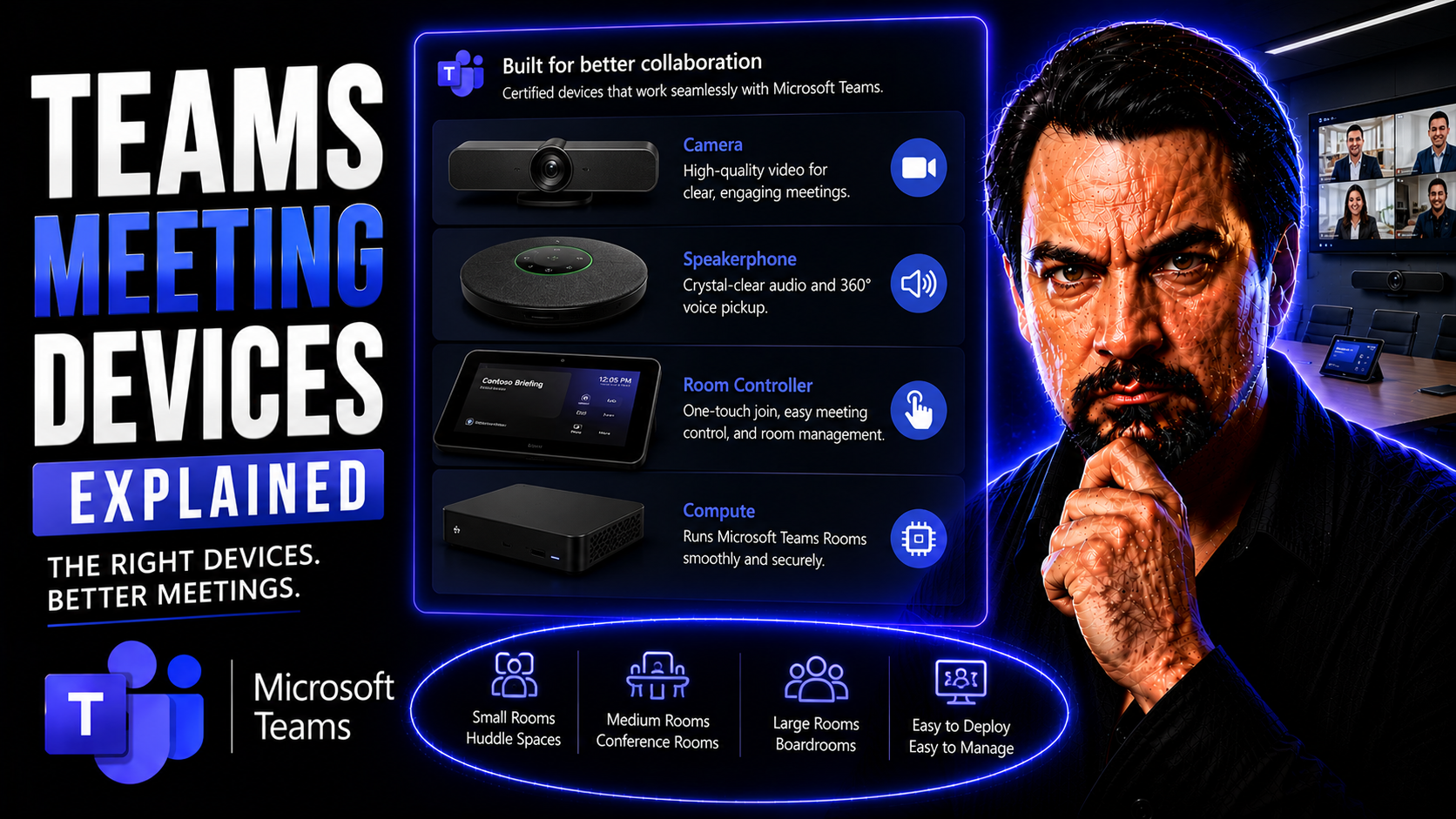
This guide takes the mystery out of Teams meeting devices and Microsoft Teams Rooms. Whether you’re weighing your options for office video gear or planning a new conference setup, you’ll get the clarity you need on how hardware and software mesh together in the Teams ecosystem. We’ll discuss what makes a device certified for Microsoft Teams, the perks of choosing the right hardware, how to kit out your rooms by type, and what to plan for when deploying or upgrading your meeting technology.
If you want meetings that start on time, run smoothly, and make both in-room and remote participants feel included, you’re in the right spot. Let’s dig in, so your next Teams setup works as well in practice as it does on paper.
Introduction to Microsoft Teams Rooms and Certified Meeting Devices
Microsoft Teams Rooms have become a go-to solution for organizations that want smarter, more reliable meetings, especially as hybrid work shakes up the traditional office. These purpose-built room systems are changing the way teams connect, combining hardware and Teams software to make meetings more productive and inclusive—whether folks are in person, working remotely, or bouncing between the two.
The secret sauce is the lineup of certified devices designed to play nicely with Teams. This means easier setup, fewer headaches for IT, and a more consistent experience for everyone involved. Teams-certified gear isn’t just about branding—it’s about making sure the technology works every time, upgrading the experience for all your users, from new hires to C-suite execs.
As you start to plan or expand your Teams-powered spaces, understanding the building blocks—Teams Rooms and certified devices—will give you a strong foundation. Up next, you’ll learn what Teams Rooms are, see how hardware and software click, and discover the reasons certified devices matter for your organization’s meeting goals.
What Are Teams Rooms and How Do They Work?
Microsoft Teams Rooms are dedicated physical meeting spaces that use a mix of special hardware and the Teams platform to streamline meetings. Think of them as a plug-and-play solution, where cameras, microphones, speakers, and touchscreen consoles are purposely chosen and preconfigured to work with Teams.
In practice, Teams Rooms offer seamless video conferencing and content sharing for everyone, with features designed for both onsite and remote users. Whether you’re in a small huddle room or a grand boardroom, these spaces make scheduling, joining, and running meetings as easy as tapping a button—helping organizations keep meetings efficient and on track.
Teams Certified Devices: What Qualifies and Why It Matters
If you want the Teams experience to “just work,” device certification matters. Teams-certified devices go through a rigorous Microsoft process to guarantee solid performance, security, and compatibility with the Teams platform. Only hardware that meets these strict standards earns that certified badge, which means you’re getting a tried-and-true solution—not a gamble.
Understanding device certification helps avoid buyer’s remorse and ensures IT teams have fewer support issues down the line. It also means better meeting quality, smoother software updates, and greater peace of mind for organizations relying on teamwork to get things done. Let’s take a closer look at what hardware categories are eligible, and why “certified for Teams” pays off for your business.
What Devices Are Certified for Microsoft Teams?
- Cameras: Certified cameras offer features like auto-framing, high-definition video, and low-light correction. Top brands include Logitech Rally Bar and Poly Studio series.
- Microphones & Speakerphones: These ensure crystal-clear audio and active noise suppression. You’ll see familiar names like Jabra, Shure, and Yealink.
- Room Consoles: Touchscreen panels (like Logitech Tap or Crestron Flex) manage calls, content sharing, and room controls right at the table.
- Displays & Collaboration Bars: Large interactive displays and all-in-one bars, made by Neat or HP, combine video, audio, and control for plug-and-play use in conference rooms.
Benefits of Using Microsoft Certified Devices
- Reliability: Devices are tested for stability and consistent performance, minimizing meeting disruptions.
- Plug-and-Play Setup: Certified hardware connects and configures easily, cutting down IT headaches and deployment time.
- Optimized Audio/Video: Advanced features like echo cancellation, auto-framing, and high-fidelity sound deliver a premium experience in any room.
- Enterprise-Level Support: Access to ongoing updates, security patches, and vendor support keeps your meetings secure and your gear up to date.
- Better Hybrid Meetings: Everyone—onsite or remote—gets equal access to clarity, features, and functionality for a truly inclusive meeting.
Setting Up Integrated Teams Meeting Rooms
Rolling out integrated Teams Rooms in your organization isn’t just about stacking boxes of gadgets in a closet. It’s about creating spaces where tech fades into the background and collaboration comes front and center. This section is your roadmap—from hand-picking the best gear and connecting devices to configuring Teams and making sure every participant gets a fair shake, wherever they are.
You’ll get straightforward steps for pairing hardware, setting up user permissions, and making every device talk together properly with Microsoft Teams Rooms software. And if you’re deploying on Windows hardware rather than Android, we’ll flag the important differences and what to watch for—like deeper management tools or room-type flexibility. We’ll even touch on how smart Teams Governance helps IT keep things organized and secure as meeting room footprints grow. Let’s set the table for easy, reliable, and secure Teams meetings every time you need one.
How to Set Up Integrated Meeting Rooms with Teams
- Choose Certified Devices: Start by picking Microsoft Teams-certified cameras, microphones, and consoles that fit your room size and use case.
- Physical Installation: Position devices for optimal audio/video coverage and easy in-room access. Follow vendor guidelines for mounting and cable management.
- Pair & Connect Hardware: Link devices to your Teams Rooms system, usually via USB or network connections, and verify detection in the Teams management portal.
- Network Connectivity: Connect all components to secure and reliable internet for smooth video, updates, and remote management features.
- Configure Teams Software & Permissions: Set up the Teams Rooms licenses, add room accounts, and assign permissions for meeting management and calendar integration.
- Test, Train, and Onboard: Run test meetings and provide simple user training, ensuring the experience is smooth for both IT and users from day one.
Microsoft Teams Rooms on Windows Devices
Microsoft Teams Rooms on Windows are meeting setups that run the Teams Rooms app atop Windows 10/11-based hardware. This approach lets you pair certified peripherals—cameras, microphones, touch panels—with a dedicated Windows mini-PC or compute module. Compared to Android-based setups, Teams Rooms on Windows support larger rooms, more complex device combinations, and advanced third-party integrations. They offer robust management tools and deeper compatibility with existing enterprise systems, making them a solid choice for organizations needing flexibility and control.
Choosing the Right Teams Devices for Any Room
No two meeting rooms are built alike. Choosing Teams-certified devices means more than filling space—you’re matching the right tech to the unique challenges of each type of room, from those cozy little huddle nooks to the grand stage of a boardroom. Capacity, layout, and who’s using the space all matter when it comes to device selection.
This part of the guide will help you think through exactly what each room needs—robust audio and video for big conference environments, simple plug-and-play tools for smaller spaces, and premium, high-style solutions where the C-suite gathers. The right choices make every call feel local, even when participants are scattered far and wide. Let’s unpack the best device setups for every kind of meeting room so your tech never leaves you—or your team—hanging.
Best Devices for Large Meeting Rooms
- Logitech Rally Bar: All-in-one video bar with AI-enhanced audio and video, perfect for spacious rooms needing extra coverage.
- Poly Studio X70: Dual-camera, premium audio device built for conference rooms with larger audiences and advanced collaboration needs.
- Crestron Flex Systems: Integrated panels and modular AV, supporting multiple mics/speakers for custom room layouts.
- Yealink MVC960: Supports long-range voice pickup and multiple display handling, ideal for bigger, presentation-focused spaces.
Executive Meeting Solutions with Premium Features
- Microsoft Teams Panels: Dedicated touch panels for easy scheduling, check-in, and room management outside executive spaces.
- Neat Board: All-in-one 65-inch collaboration display with intelligent cameras and whiteboard features for big ideas and presentations.
- Poly Studio E70: Dual lens, AI-driven camera purpose-built for dynamic boardroom video.
- Logitech Tap with Rally System: Pairs a sleek, intuitive touch console with advanced video/audio for boardrooms where form and function both matter.
Features, Modularity, and Lifecycle Management of Teams Devices
The latest Teams meeting devices aren’t just about bells and whistles—they’re built to deliver smarter, safer, and more accessible meetings that grow as your needs change. In this section, you’ll get a sense of which features should be non-negotiable (think: AI video, noise suppression, one-touch join), how modular gear lets you adapt or expand without a do-over, and what it takes to keep devices humming with security updates and lifecycle planning.
Managing a fleet of meeting hardware can feel like wrangling cats, but Microsoft and its partners have stepped up with tools for seamless cloud management, remote troubleshooting, and compliance with IT policies. Integrating solid governance—see our discussion on Teams workspace structure and security—gives your IT team more visibility and tighter control. So, whether you’re thinking big now, or planning to scale later, understanding these modern capabilities pays off in uptime and long-term savings.
Key Features of Modern Teams Meeting Devices
- AI Video Enhancements: Auto-framing and intelligent participant tracking make every attendee visible and engaged during calls.
- Acoustic Intelligence: Noise suppression and echo cancellation ensure clear speech, eliminating most background distractions.
- Touch and One-Touch Controls: Intuitive touch panels offer quick join, room scheduling, and content sharing—no tech background required.
- Cloud Management: Remote monitoring, updates, and troubleshooting save IT teams’ time and keep systems secure and current.
- Accessibility Features: Devices support live captions, screen reader compatibility, and adaptive controls—ensuring inclusivity for users of all abilities.
Modular Design for Scalable Meeting Rooms
Modularity in Teams meeting devices lets organizations mix and match hardware components—like swapping out microphones, adding cameras, or expanding speakers—without full system replacement. This plug-and-play approach helps scale meeting rooms as needs grow, keeping costs in check and ensuring tech investments remain flexible. Modularity empowers IT to upgrade specific parts when demands shift, supporting both small and large spaces with less waste and disruption.
Lifecycle Support and Updates for Teams Rooms Devices
- Ongoing Firmware Updates: Certified devices get regular improvements for security, stability, and new feature rollouts, ensuring robust protection against threats.
- Security Patches: Manufacturers and Microsoft provide critical updates to mitigate vulnerabilities and meet company compliance standards.
- End-of-Life Notifications: Clear alerts for when device models reach EOL, so IT can plan upgrades without last-minute emergencies.
- Centralized Device Management: Tools like Teams Admin Center simplify remote monitoring, inventory control, and policy enforcement for the entire hardware fleet.
Buying Guide and Support Resources for Teams Meeting Devices
When it’s time to open the wallet for Teams meeting gear, you’ll want to get the details right the first time. Procurement involves more than picking devices—it’s about reviewing trusted vendors, decoding shipping details, and sorting out what is (or isn’t) part of the box. Purchasers also need confidence around delivery times and any exclusions to avoid surprises that derail timelines.
But even before a purchase, it’s crucial to consult with experts. AV pros, Microsoft partners, and IT consultants can help match devices to rooms, ensure compliance with company policies, and prevent stumbling blocks during deployment. Tapping the right advice upfront saves headaches, lowers the risk of compatibility issues, and helps you keep your organization’s meeting spaces humming smoothly. The next sections will break down where to buy, what to watch for, and the real value of expert guidance—so you can deploy Teams Rooms with confidence.
Where to Buy Teams Meeting Devices and Shipping Information
- Authorized Vendors: Purchase certified Teams devices directly from manufacturers (like Logitech, Poly, Yealink), Microsoft partners, or authorized AV resellers for warranty and support coverage.
- Online Marketplaces: Major platforms such as CDW, Insight, and Connection stock Teams-certified hardware with updated product info and reviews.
- Shipping Options: Standard and expedited shipping are typically available. Free shipping may be offered, but always check the retailer's terms and geographic exclusions.
- Product Details & Exclusions: Review listings carefully for what’s included—sometimes cables, mounts, or licenses must be purchased separately.
- Delivery Planning: Track estimated delivery windows and coordinate shipping with room readiness to avoid deployment bottlenecks.
Ask an Expert Before Deploying Microsoft Teams Rooms
- When to Consult: Engage experts when scoping complex rooms, integrating with legacy systems, or deploying at scale.
- Who to Ask: AV specialists, Microsoft-certified partners, and external IT consultants can offer tailored, unbiased advice.
- Policy Alignment: Experts help ensure deployments follow company policies, industry regulations, and IT security requirements—see more on Teams workspace governance.
- Finding Guidance: Access Microsoft's partner network, local AV integrators, or professional networks for trusted recommendations.
You Should Also Listen To
If you are researching Teams meeting devices, these episodes add practical context on meeting operations, security, collaboration, and governance:
- Recording, Transcription, and Breakout Rooms — Learn how recording and transcription turn meetings into reusable knowledge.
- Teams Telephony – Simply Explained — Understand the communication architecture behind reliable Teams meetings.
- Microsoft Teams Governance – The Illusion of Control — Connect meeting design with policy, ownership, lifecycle, and governance.
- Microsoft Defender XDR – Simply Explained — Add security monitoring and response to meeting operations.

Microsoft MVP | Host of M365.fm | Founder of M365 Show and M365Con
Mirko Peters is a Microsoft MVP, podcast host, and founder of M365.fm, M365 Show, and M365Con. His work connects Microsoft practitioners through podcast interviews, livestreams, and community events.
At M365.fm, Mirko hosts conversations with Microsoft MVPs, product experts, architects, and community contributors. Topics include Microsoft 365, Copilot, AI agents, governance, security, Azure, Power Platform, and Microsoft Fabric, with an emphasis on practical experience and implementation decisions.
M365.fm is the podcast and learning platform. M365 Show brings experts together for livestreams, while M365Con provides an online conference setting for community learning.
Official website: Mirko Peters (https://www.mirkopeters.com/). Recognition: Mirko Peters — Microsoft MVP profile (https://mvp.microsoft.com/de-DE/mvp/profile/9b0ca797-db5a-493a-a845-8b9158046cf5). Connect on LinkedIn (https://www.linkedin.com/in/m365showpodcast/).





