
Teams Meeting Roles Guide
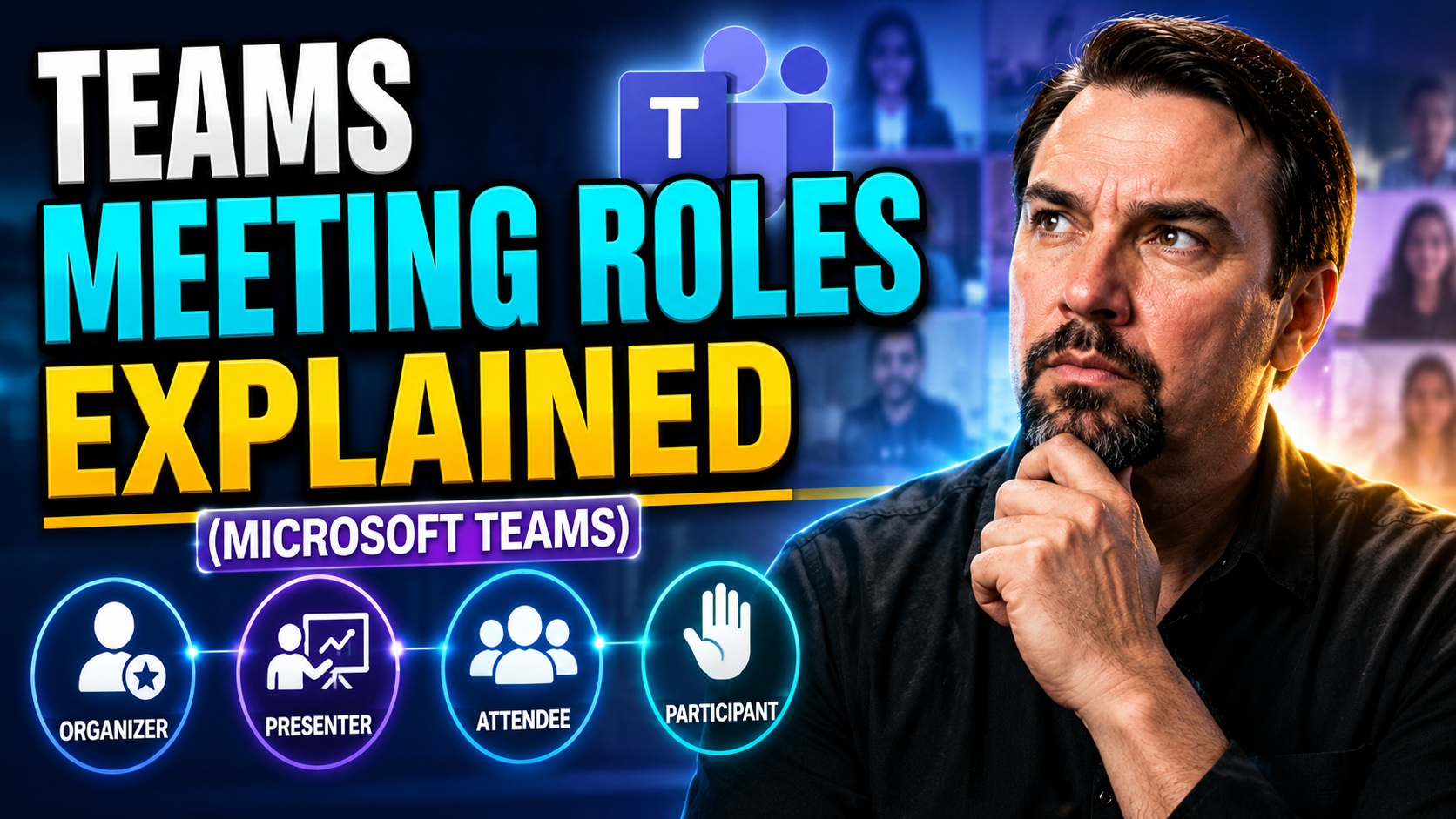
Teams meeting roles should be designed around a clear business scenario, accountable ownership, and the appropriate Microsoft 365 controls. Start with the intended outcome, validate permissions and policy settings, test with representative users, and document support and review decisions before extending the approach across the organisation.
Teams meeting roles: practical checklist
- Define the use case, owner, and expected result.
- Validate permissions, policy, security, and user impact.
- Test with a pilot and document the operating model.
Use Microsoft Learn for current guidance.
Last reviewed: July 2026.
When you join a Microsoft Teams meeting, you can show up as the boss, the helper, the speaker, or the audience—officially known as the organizer, co-organizer, presenter, and attendee. Confusing? You're not alone. Each role comes with its own bundle of permissions, responsibilities, and things you can (or can’t) do.
This article breaks down, in plain language, what sets each Teams role apart and how they shape your meeting experience. You’ll discover who controls the meeting, who can share their screen, who decides who waits in the lobby, and more. Whether you create meetings, speak up regularly, or just listen in, understanding these roles helps you keep meetings smooth, secure, and productive. Let’s put some order on the chaos and get your Teams meetings running like a clock.
Understanding Roles in Microsoft Teams Meetings
Roles in Microsoft Teams meetings are more than just labels—they are your ticket to controlling what happens before, during, and even after a meeting. Every Teams meeting assigns you a role when you enter, and that role shapes everything you can see and do, from letting folks in out of the lobby to recording, sharing files, or just watching quietly from the sidelines.
Why all these roles? It’s about keeping meetings safe, organized, and running without hiccups. Not everyone should have the keys to mute the crowd or record sensitive sessions. By splitting out what organizers, co-organizers, presenters, and attendees can do, Teams makes sure meetings stay focused and secure, even when they have a crowd or external guests.
In the sections that follow, you’ll see exactly what each role allows, how much power each has, and why it matters if you’re just attending, sharing your slides, or running the show. This foundation will help you set up your meetings smarter and avoid those "who has the controls?" moments.
Microsoft Teams Roles and Permissions at a Glance
- Organizer: The person who creates the meeting invite. Organizers set permissions, control meeting options, assign roles, end the meeting for all, and have access to recordings and attendance reports. They can promote or demote anyone’s role, including assigning co-organizers.
- Co-Organizer: Assigned by the organizer, these folks act as "backup hosts." Co-organizers share most organizer permissions—managing lobby, starting/stopping recordings, changing roles—but they can’t delete the meeting or modify the organizer’s calendar invite.
- Presenter: Presenters can share screens, present content, mute others, admit people from the lobby, and start or stop recordings. They don’t have full control over all security or meeting settings.
- Attendee: Attendees participate by watching, chatting, and reacting. Their abilities are limited: they can’t present content, admit others, or control recording, unless someone upgrades them during the meeting.
Presenter and Attendee Roles in Teams: Key Differences
- Screen Sharing and PresentationPresenters can share their screen, window, or PowerPoint slides during a meeting. Attendees can’t share unless their role is changed mid-meeting.
- Meeting ControlsPresenters have access to meeting management tools. They can mute or remove others, admit participants from the lobby, start/end recordings, and manage breakout rooms. Attendees can’t perform these actions—they’re there to participate, not to run the show.
- Chat and InteractionBoth presenters and attendees can engage in chat and use reactions, unless chat is disabled. However, presenters can moderate chat more freely—including deleting inappropriate messages if policies allow.
- Recording and Transcript AccessPresenters (and co-organizers) can start or stop recordings and access meeting transcripts. Attendees can view shared recordings if permissions are given but can’t start or stop a recording themselves.
- Promotion/DemotionPresenters may promote an attendee to presenter or switch them back as needed. Attendees cannot change anyone’s role, including their own.
Assigning and Managing Teams Roles Before and During a Meeting
One thing that can make or break a Teams meeting is whether you get everyone’s role set up right—from the jump or in the middle of the action. Assigning the right roles before you start allows you to plan for who’s running things, who’s sharing content, and who should just listen in. That way, you avoid scrambling with permissions as folks join the room.
But life is unpredictable. Sometimes, maybe you need to promote someone on the fly to help manage a Q&A, switch an attendee to a presenter, or add a co-organizer if you get pulled away. Managing roles during a meeting means you can adapt without killing the flow. It’s a powerful way to keep things smooth if something changes—or someone needs extra access.
Below, you’ll find practical instructions for both scheduling roles ahead of time and making those just-in-time changes when meetings are already live. This is the stuff organizers, IT teams, and busy leaders need to keep meetings under control, no matter what surprises pop up.
How to Set Teams Meeting Roles Before a Meeting Starts
- Schedule the Meeting in Teams Calendar: Start by clicking “New Meeting” or “Schedule Meeting” from the Teams calendar.
- Access Meeting Options: After saving the invite, open it and select “Meeting options.” Here you can predefine who joins as a presenter, attendee, or co-organizer.
- Assign Co-Organizers: Under the co-organizer field, add trusted colleagues who will help manage the meeting. You can only assign this to internal users within your organization.
- Set Presenter Permissions: Choose “Who can present?” (Everyone, specific people, or only me). Add names if you want just a few people able to present.
- Send the Invite: Confirm settings, then send the invitation. Your participants will join with the specified roles, avoiding confusion at meeting time.
Adjusting Attendee and Co-Organizer Roles During a Live Meeting
- Open the Participants Panel: Click the “Show Participants” icon to view all current attendees.
- Promote an Attendee to Presenter or Co-Organizer: Right-click (or click the three dots next to their name), then select “Make a presenter” or “Make a co-organizer.” Instantly, they’ll gain additional permissions—like sharing their screen or managing breakout rooms.
- Demote a Presenter or Co-Organizer Back to Attendee: Need to limit someone’s permissions? Repeat the above and choose “Make an attendee” to reduce their controls.
- Manage Permissions Dynamically: Organizers and co-organizers can turn someone’s mic or camera off, or finetune who can record, admit from the lobby, or manage Q&A. This dynamic shifting keeps things in order if the agenda or people’s roles shift mid-meeting.
- Deal with Unexpected Situations: If someone drops off, has technical issues, or you need backup, you can quickly reshuffle permissions. This is essential for handling surprises without derailing the meeting’s flow.
Understanding the Co-Organizer Role in Microsoft Teams
With hybrid work and busy project teams, relying on just one person to run every meeting isn’t always practical. That’s where the co-organizer role comes in. When assigned, a co-organizer can handle nearly all the host’s responsibilities—keeping things on track if you’re double-booked or out sick, and making sure meetings don’t grind to a halt if the main organizer can’t be there.
This section sets out what being a co-organizer actually means, how this role empowers teams, and where its powers stop. You’ll find tips for picking the right people as co-organizers, why you shouldn’t just assign anyone, and when sharing hosting duties makes sense for governance and compliance. It also clears up a persistent question: Can a co-organizer really start a Teams meeting if the original host doesn't show up?
For IT admins and team leaders, understanding the co-organizer role is critical to building resilient meetings and robust Teams governance practices that make business run smoother, even during disruptions.
What Co-Organizer Role Means for Organizers and Teams
The co-organizer role in Microsoft Teams gives trusted team members nearly all the same meeting controls as the organizer. Co-organizers can start and end meetings, adjust participant roles, manage the lobby, record sessions, and run breakout rooms.
However, co-organizers can’t delete the meeting, change the core calendar invite, or assign other co-organizers. This separation keeps final ownership clear. Co-organizers are ideal backup hosts, and assigning them strengthens meeting coverage without losing track of who’s ultimately responsible.
Best Practices for Assigning Co-Organizers in Teams Meetings
- Choose Trusted Colleagues: Assign only those you trust with sensitive actions and decision-making in meetings.
- Ensure Technical Skills: Co-organizers should understand Teams controls and meeting flow, able to handle glitches or questions without hesitation.
- Limit External Assignments: Avoid making external or anonymous participants co-organizers, as this risks security and compliance.
- Clarify Delegation: Let everyone involved know who the co-organizers are and when they’re expected to step in or take charge.
- Review Regularly: Remove or update co-organizer assignments as team rosters or projects change to maintain accountability and prevent confusion. For a deeper dive on securing your meetings, see this guide to Teams governance.
Can a Co-Organizer Start a Teams Meeting Without the Organizer?
Yes—a co-organizer can start the Teams meeting, even if the original organizer isn’t present. Co-organizers have nearly identical control inside the meeting, including admitting participants and beginning presentations. However, they can’t update or delete the original calendar invite and can only be assigned in advance by the organizer. This makes co-organizers your best option for meeting continuity if the main host can’t join.
Meeting Options and Participant Settings in Microsoft Teams
Before your meeting kicks off, there’s a whole control panel waiting for you—packed with settings to tighten security, keep conversations civil, and personalize how people collaborate. These meeting options let you decide who waits in the lobby, who gets the mic, and who can present or record.
Organizers and presenters have the keys to these settings. By tweaking them, you can prevent unwanted interruptions, keep sensitive content private, and support productive feedback. But even once the meeting starts, you still have tools at your disposal—muting people, enabling or disabling chat, or setting up breakout rooms for small group work.
We’re about to explore these options in detail, so you know what’s possible both before and during meetings. And if you’re working on larger projects, collaborating externally, or dealing with sensitive info, learning how to align these options with secure channel settings (like those described here) can make a big difference for your team’s workflow and trust.
How to Configure Teams Meeting Options for Security and Engagement
- Lobby Controls: In the meeting options menu, select who can bypass the lobby—everyone, people in your organization, or just invited users. This helps prevent uninvited guests from crashing sensitive or confidential meetings.
- Presentation Rights: Choose “Who can present?” to grant or restrict the ability to share screens and run PowerPoint files. Narrow this down to just yourself, specific people, or everyone as needed—especially important for large sessions where only a few should have center stage.
- Attendee Permissions: Disable attendee mics and cameras or prevent them from unmuting themselves to reduce noise. You can also block chat during the meeting to keep folks focused (or open it up for Q&A if engagement is your goal).
- Specialized Controls: Enable breakout rooms for small group discussions, Q&A sessions for webinars, and enable or disable reactions. Granular controls let you design meetings that balance participation and order.
- Security and Compliance: For help mapping meeting options to overall governance and compliance, refer to this helpful Teams governance guide for strategies that keep your meetings secure, organized, and accountable.
Who Can Present in a Teams Meeting and How to Manage Permissions
- Organizers: By default, organizers can present anytime and update who else has this power in the meeting options.
- Co-Organizers: Assigned co-organizers share nearly all presenting permissions and can grant or restrict presenter status for others.
- Presenters: Anyone assigned this role before or during the meeting can share their screen, show PowerPoint files, or run demonstrations.
- External/Guest Users: If allowed by meeting options, non-company participants can present—but often with limited access for security reasons.
- Attendees: Attendees can present only if promoted by an organizer or presenter, helping control who has the floor.
Common Participant Settings in Teams Meetings
- Meeting Chat: Organizers can enable or disable in-meeting chat for everyone or only certain roles.
- Reactions: Quick emoji responses can be permitted or blocked to keep feedback lively—or civil, as the situation demands.
- Audio/Video Permissions: Control who can turn on their microphone or camera, including muting participants or requiring approval to unmute.
- Breakout Rooms: Organizers or co-organizers can assign participants to breakout spaces and manage small group discussions, keeping meetings interactive and organized.
Lobby Management and External User Access in Teams
If you’ve ever sat watching the “Please wait, someone will let you in soon” screen, you know how lobby settings can make or break a meeting’s vibe. For internal meetings, instant access is usually fine. But when guests or anonymous callers join, the lobby acts as a security checkpoint—keeping meetings private and compliant.
This section unpacks how to fine-tune lobby bypass rules, admit phone dial-ins, and safely allow external collaborators or vendors into your Teams sessions. It’s all about balancing security and convenience, so you can welcome trusted folks with open arms, yet keep gatecrashers or accidents out.
Expect solid tips for letting the right people through quickly, best practices for handling external and anonymous users responsibly, and how to troubleshoot the “stuck in the lobby” scenarios that frustrate both IT teams and end users. Mastering these settings is how you keep confidential meetings confidential—and hybrid teamwork stress-free.
How to Bypass the Lobby for Trusted Participants and Phone Callers
- Set Internal Participants to Bypass Lobby: In meeting options, allow everyone in your organization to bypass the lobby, so employees join instantly without waiting.
- Grant Lobby Bypass for Invited Guests: Trusted external guests (added by email to the invite) can be set to bypass the lobby for smoother collaboration.
- Configure Phone Dial-In Policies: Adjust settings so that frequent phone callers (like executives) can skip the lobby if their numbers are whitelisted by IT.
- Use Admin Controls for Large Groups: Let IT define organization-wide policies for lobby bypass to simplify access for recurring events.
Managing External, Anonymous, and Guest Users in Teams Meetings
- Limit Guest Access: Only allow external users who are invited and authenticated, reducing risks from anonymous entries.
- Disable Anonymous Presenters: Unless absolutely necessary, keep the “allow anonymous presenters” setting off for confidential meetings.
- Apply Organization Policies: Make sure your Teams security settings align with overall governance—see more at this resource on Teams governance.
- Regularly Review Guest Permissions: Audit and revoke access for external users who no longer need it to prevent lingering entry points.
Troubleshooting Teams Meeting Lobby and Access Restrictions
- Check Lobby Option Reversions: If changes revert unexpectedly, verify admin policies haven’t locked down meeting options. IT support may need to update settings.
- Handle Stuck Users: Ask participants to leave the meeting and rejoin—or check if they’re using the correct account or email address.
- Review Organization-Wide Restrictions: Sometimes policies block guests or anonymous calls—coordinate with IT to resolve unique cases.
- Educate Participants: Prepare external users with clear instructions on accepted logins and what to do if they get stuck in the lobby—avoiding wasted meeting time.
- For more troubleshooting tips and steady governance, see this Teams governance primer.
Methods to Allow Others to Start Your Teams Meeting
Let’s face it, sometimes the person who sets up the meeting can't make it. Maybe they’re double-booked or out unexpectedly. Teams gives you a few ways to make sure someone else can kick off the call, get everyone admitted, and keep the agenda moving—no matter what.
This section highlights the key methods: assigning co-organizers, tweaking lobby settings so trusted folks can start, or configuring everything centrally through the admin center. Plus, we cover delegating rights for busy execs or assistants, and new tools like Copilot and analytics for extra-smart and seamless meeting management.
Whatever your team setup, these options mean you’ll never be stuck waiting around with a group of anxious participants and nobody to let them in or kick things off.
Assigning Co-Organizers, Configuring Lobby, and Using the Admin Center
- Assign Co-Organizers: Give co-organizer rights during scheduling—these folks can launch the meeting, admit participants, and manage the whole session if you’re not there.
- Configure Lobby Settings: Set up the meeting so that internal users or specific guests can bypass the lobby, ensuring meetings start even if the organizer is absent.
- Admin Center Policies: IT admins can adjust default Teams meeting policies so that selected people or groups always have starter rights for specific events or recurring meetings. For more on secure and efficient governance, see this Teams governance article.
Scheduling Meetings on Behalf of Others and Using Delegate Access
- Delegate Access via Outlook/Teams: Grant assistants or team members delegate rights in Outlook or Teams so they can schedule, start, or update meetings—perfect for executive support.
- Admin Policy Configuration: Use Microsoft 365 Admin Center to define delegate access at scale, saving time for leadership teams and distributed organizations.
- Shared Calendars: Utilize shared mailboxes or group calendars so multiple trusted users can manage meetings for the same department or project.
- Inform All Participants: Make sure everyone knows who the delegates are, so there’s no confusion about who’s in charge if the boss can’t attend.
Leveraging Tools, AI, and Analytics to Make Teams Meetings Efficient
- Enable AI Meeting Summaries: Use tools like M365 Copilot to automatically capture meeting notes, transcript highlights, and follow-ups—boosting productivity and memory. Learn more about activating Copilot for your org here.
- Access Real-Time Analytics: Post-meeting analytics dashboards help you track attendance, engagement, and follow-up, supporting continuous improvement and compliance reporting.
- Integrate Calendar and Workflow Tools: Set up automated scheduling, recording, and sharing across Teams, Outlook, and SharePoint to make meetings easy for everyone.
- Centralize Security and Permissions: Copilot and admin center tools (explained here) help enforce security controls and ensure only trusted users access sensitive data and discussions.
Frequently Asked Questions About Teams Meeting Roles
- Who can record a Teams meeting? Only organizers, co-organizers, and presenters have permission to start or stop meeting recordings. Attendees cannot record sessions.
- Can a co-organizer modify the meeting invite or delete a meeting? No, co-organizers cannot edit or delete the meeting itself. Only the organizer can make changes to the calendar invite.
- How do you promote an attendee to presenter during a Teams meeting? Open the participant list, find the person’s name, click the “...” menu, and select “Make a presenter.”
- Are external or anonymous people allowed to present? Only if the organizer enables the setting. By default, most organizations block anonymous presenters for security and compliance reasons.
- Who owns the Teams meeting recording and transcript? Ownership depends on how your organization is set up. Typically, recordings and transcripts are stored in the organizer’s OneDrive or SharePoint, and co-organizers/presenters may have access—attendees can only view or download if sharing permissions are granted.
- Can roles be changed during a live meeting? Yes—organizers and co-organizers can promote, demote, or assign new roles anytime the meeting is in progress.
- What happens if the organizer leaves before the meeting ends? The meeting continues. Co-organizers and presenters can keep the meeting running and manage participants.
- How do Teams roles affect file access in SharePoint and OneDrive? Teams meeting roles don’t automatically grant document editing rights in linked workspaces. Access must be set through SharePoint or OneDrive permissions separately.
- What’s the difference between a Teams webinar and a regular meeting in terms of roles? Webinars can have panelists and tighter attendee controls. Only organizers or appointed panelists can share content, while regular attendees have limited or view-only access.
- Where can I get more help with Teams roles and governance? Check out Microsoft’s official help center, your IT support desk, or this Teams governance resource for deep dives into advanced meeting management.
Video Tutorials, Analytics, and Resources for Teams Meeting Roles
- Official Microsoft Teams Video Tutorials: Access updated walkthroughs and demo videos straight from Microsoft’s support site for step-by-step learning.
- Analytics Dashboards: Use built-in Teams analytics or specialized reporting tools to monitor meeting attendance, engagement levels, and post-meeting summaries.
- User Guides and Blogs: Read in-depth guides and best practices—like this comprehensive Teams governance explainer.
- Cookie Policies and Privacy Disclosures: Always review cookie and privacy policies linked on resource sites before submitting data or logging in, for secure and transparent research.
- Productivity Tools: Explore Copilot and admin resources for advanced meeting management and data-driven improvements across your organization.
You Should Also Listen To
If you are researching Teams meeting roles, these episodes add practical context on collaboration, meeting operations, security, and governance:
- Recording, Transcription, and Breakout Rooms — Learn how meeting capture and breakout features turn discussions into action.
- Microsoft Teams Governance – The Illusion of Control — Connect meeting choices with policy, ownership, lifecycle, and governance.
- Microsoft AI Agent Harness – Simply Explained — Understand how AI orchestration can support meeting workflows and guardrails.
- Microsoft Defender XDR – Simply Explained — Add security monitoring and response to meeting operations.
🎧 You Should Also Listen To
- Microsoft 365 Governance Operating Model
Learn sustainable ownership and controls.
- Teams Telephony – Simply Explained
Explore Teams calling and communication foundations.
- AI Agents – Simply Explained
Understand responsible AI adoption.

Microsoft MVP | Host of M365.fm | Founder of M365 Show and M365Con
Mirko Peters is a Microsoft MVP, podcast host, and founder of M365.fm, M365 Show, and M365Con. His work connects Microsoft practitioners through podcast interviews, livestreams, and community events.
At M365.fm, Mirko hosts conversations with Microsoft MVPs, product experts, architects, and community contributors. Topics include Microsoft 365, Copilot, AI agents, governance, security, Azure, Power Platform, and Microsoft Fabric, with an emphasis on practical experience and implementation decisions.
M365.fm is the podcast and learning platform. M365 Show brings experts together for livestreams, while M365Con provides an online conference setting for community learning.
Official website: Mirko Peters (https://www.mirkopeters.com/). Recognition: Mirko Peters — Microsoft MVP profile (https://mvp.microsoft.com/de-DE/mvp/profile/9b0ca797-db5a-493a-a845-8b9158046cf5). Connect on LinkedIn (https://www.linkedin.com/in/m365showpodcast/).





