Microsoft Teams Webinars: Complete Guide for 2026
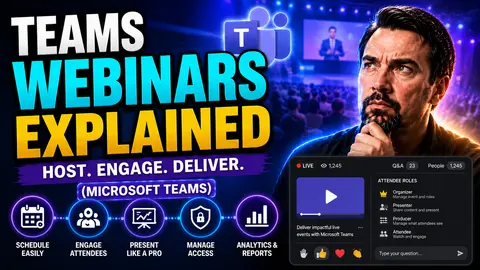
Quick Answer: To run a Microsoft Teams webinar, schedule a webinar from Teams or Outlook, set the event details and registration options, assign presenter roles, then test the attendee experience before sending invitations. Use a webinar when you need structured registration, clearer audience controls, and a more managed event format than a standard meeting.
Welcome to your one-stop guide for mastering Teams webinars in Microsoft Teams. If you're wondering how webinars stack up against regular meetings and those all-hands town halls, you're in the right place. This article walks you through everything from the basics to the advanced features—setting up your event, customizing the look, handling guest registrations, and making sure everyone (presenters and attendees) has a smooth experience.
Whether you’re running virtual training, company-wide updates, or product launches, you’ll find practical step-by-step instructions and tips here. Even if you’re new to webinars or you’ve hosted a few and want to level up, this guide will help you run professional, successful events with confidence inside Microsoft 365. Let’s get into the details and see how Teams webinars can make your next big event easier for everyone involved.
Understanding Teams Webinars in Microsoft Teams
If you’re curious why organizations choose webinars over regular meetings, it boils down to control, scale, and a polished experience. Microsoft Teams webinars let presenters share ideas, run training sessions, and manage large groups with specialized tools built right into your Teams environment.
Webinars stand out for their ability to support structured communication, whether you’re hosting internal training sessions or sharing big company news. They’re designed to streamline presentations, enable registration, and keep large audiences engaged. In the sections below, we’ll explore how webinars compare to ordinary meetings and town halls—and why choosing the right format matters for your event’s success.
Webinars vs. Ordinary Meetings and Town Halls: Key Differences
- Audience Size and Structure
- Teams webinars are optimized for larger audiences (hundreds or even thousands of attendees), while ordinary Teams meetings are better for small to medium-sized group interactions. Town halls, on the other hand, are built for very large presentations, more like a one-way broadcast, ideal for company-wide announcements.
- Interactivity and Permissions
- In webinars, most attendees join in a view-only mode—they can watch presentations and participate via Q&A or polls, but don’t disrupt the flow. Ordinary meetings are more interactive, giving everyone audio, video, and screen sharing rights. Town halls limit interaction even further, focusing on presenters delivering content.
- Roles and Controls
- Webinars have clear role separations: organizers, presenters, and attendees. Organizers can manage registrations, presenters can share content, and attendees mostly watch and engage through moderated channels. In regular meetings, all participants typically have similar permissions; in town halls, only designated presenters can speak or share video.
- Registration and Access
- Webinars in Microsoft Teams often require attendees to register in advance, letting organizers track participation and manage entry. Ordinary meetings rarely require registration—just the meeting link. Town halls sometimes use registration for high-profile events, but commonly offer open company access.
- Event Management Tools
- Webinars offer additional tools for registration management, branded themes, attendee reporting, and feedback collection. These aren’t standard in ordinary meetings. For organizations needing more governance, Teams webinars provide a structured environment to ensure everyone knows their role and the event runs smoothly, much like selecting between private and shared channels in Microsoft Teams based on the need for privacy and collaboration.
Choosing the right format—webinar, meeting, or town hall—comes down to your goals: whether you need free-flowing discussion, structured training, or one-way communication to a large group. Pick wisely and your event experience (for both hosts and attendees) will improve dramatically.
Setting Up and Scheduling Your Teams Webinar
Scheduling a Teams webinar is a bit more involved than a standard meeting, but it pays off in the long run with better attendee management and event control. You’ll need to know who’s allowed to host webinars, understand permission levels, and make sure your event settings match your goals.
You’ll also determine key details such as registration options, assigning presenter roles, and enabling features like Q&A and branding. If you’re new to organizing large events, Teams makes it relatively straightforward—especially when combined with strong Teams governance practices that keep your events structured, secure, and compliant. For a deep dive on organizing efficient projects in Teams, check out this practical guide to Teams governance.
Step-by-Step Instructions to Create and Register a Webinar
- Check Permissions and Roles
- First, confirm that your Microsoft 365 license allows you to schedule webinars. You’ll need to be a Teams organizer and sometimes have specific permissions set by your IT admin. If you aren’t sure, ask your Teams admin or check your Teams app for the webinar option.
- Open Teams and Schedule a Webinar
- Go to your Teams calendar and click on “New Meeting.” Select “Webinar” (not just a regular meeting). This opens up a setup window with extra options just for webinars.
- Set Date, Time, and Event Details
- Fill in your webinar’s title, date, start time, and duration. Add a thorough description that tells potential attendees what to expect. You can even add a custom registration form to gather more info about your attendees—great for lead generation and compliance.
- Configure Registration and Invite Presenters
- Enable registration to collect attendee info up front. Customize the registration page, add your company branding, and specify if you want attendees to register automatically or require organizer approval. Now, add co-presenters and moderators who’ll help run the webinar.
- Fine-Tune Event Options
- Set attendee permissions, enable features like Q&A or lobby controls, and decide who can present versus observe. Double-check everything and send the invites, including to your presenters. If you manage multiple projects, you might find value in automating notifications or registrations using platforms like Power Automate. For a broader tutorial on structured project organization in Teams, see this step-by-step organizing guide.
- Test Your Setup
- Schedule a rehearsal or dry run. Invite your presenters to join, share screens, and verify audio/video before the real event, making sure everything’s working as intended.
With these steps, you set yourself up for a professional webinar that’s smooth for organizers, presenters, and all your attendees alike.
Customizing Your Teams Webinar With Branded Themes
Branding sets your Teams webinar apart, making the experience feel unified and professional. Microsoft Teams webinars let you add your own company logos, choose color schemes, and apply branded backgrounds to give your event instant credibility. You’ll find customization options during the event setup—just look for the branded theme or appearance settings.
Applying these visual touches ensures your company’s identity shines through, whether you’re running a customer-facing presentation or internal training. This kind of consistency builds trust and recognition with your audience, making even the largest webinars feel like a polished, cohesive experience.
Presenter Bios and Introductions for Professional Webinars
Introducing your presenters the right way sets a professional tone and boosts credibility. In Microsoft Teams webinars, you can add presenter bios directly to the registration page or event materials, sharing highlights of each speaker’s experience and expertise.
Structured introductions help audiences connect with your presenters before the event even begins. During the webinar, start with a brief instructor rundown so everyone knows who’s leading each section. Remember, strong presenter bios do more than list credentials—they frame the event, spark interest, and offer context on why each speaker’s perspective matters to your audience.
Managing Registration and the Attendee Experience
Registration is the front door of your webinar, and Teams makes it simple to set up. When you create your event, enable registration to collect attendee details, approve signups if needed, and track participation for reporting. Attendees get a confirmation with joining instructions, streamlining their entry on event day.
In a Teams webinar, the attendee experience is purpose-built for large audiences. Unlike small meetings—where everyone can jump into video and audio—webinar attendees join in listen-only mode by default, with structured options to interact (like Q&A, polls, or chat, depending on your settings). This keeps things organized, especially for events with hundreds of participants. And don’t overlook accessibility: enabling live captions and transcripts helps ensure every attendee, regardless of ability, can fully take part.
Optimizing Teams Webinars: Before, During, and After Your Event
A great Teams webinar doesn’t just happen—it takes careful preparation, smooth execution, and thoughtful follow-up. In the sections below, you’ll get practical tips for every stage: from running technical checks and dry runs, to keeping your audience engaged, to gathering feedback and measuring your event’s impact.
Investing in each phase pays off by reducing surprises and increasing your event’s value. Whether you’re a first-timer or a Teams pro, optimizing each step ensures that everyone—hosts, presenters, and attendees—walks away feeling it was worth their time. Get ready for actionable checklists, engagement tactics, and post-event best practices that help your webinars stand out.
Top Webinar Tips for Preparation and Practice Meetings
- Host a Technical Rehearsal: Run a practice webinar with all presenters to check audio, video, and screen sharing. Don’t let tech glitches derail your big day.
- Clarify Roles and Responsibilities: Assign explicit roles—organizer, presenters, moderators—so everyone knows what’s expected and nothing falls through the cracks.
- User Onboarding and Guidance: Send presenters clear instructions on how to join, share content, and use interactive features. A short “how-to” can save a world of confusion.
- Test Registration and Links: Double-check your registration setup and event links. Make sure attendees get confirmations and know when and how to join.
- Review Governance Policies: For repeat success, ensure your event follows organizational policies, especially regarding permissions and data compliance. If you need a framework, see these tips on Teams governance for confident collaboration.
Best Practices for Hosting and Engaging Webinar Attendees
- Leverage Q&A and Polls: Use Q&A and polls strategically to keep the audience involved—don’t drop them in out of nowhere. Plan for interactive moments to break up presentations.
- Assign Chat Moderators: Have a dedicated moderator to manage chat questions, filter high-priority topics, and support presenters on the fly, especially when handling large events.
- Keep Sessions Dynamic: Switch presenters when appropriate and use short, focused segments to maintain attention spans. Nobody wants to sit through a monologue.
- Set House Rules Early: At the start, explain how attendees can interact, submit questions, and use available features. This helps set expectations and keeps things running smoothly.
- Make Use of Reactions: Encourage reactions (like thumbs-up or applause) to create energy, even when microphones stay muted.
Webinar Reports, Feedback, and Event Outcomes
- Access Attendance and Engagement Reports
- After the webinar closes, go to your Teams calendar and select the event. Organizers can access downloadable reports with attendee lists, join/leave times, and engagement data—perfect for compliance or refining future events.
- Share Webinar Recordings
- Teams automatically records the event if you enable the option. Share the recording link with your attendees as a follow-up resource or for those who registered but couldn’t make it.
- Collect Feedback
- Distribute post-event surveys or feedback forms to gauge what worked and what you can improve next time. This feedback loop is especially important for recurring company-wide webinars.
- Analyze Outcomes and Follow Up
- Use your reports alongside any external analytics integration (like Power BI or CRM tools) to see trends, assess ROI, and plan targeted follow-up communications or training. For more insight on optimizing collaboration and outcomes, take a look at how Teams governance drives collaboration and success.
- Ensure Data Privacy
- Always respect data privacy when analyzing and storing attendee information. Stick to your organization’s compliance policies—these should guide both your analytics and any follow-up actions.
By closing the loop with thorough reports and thoughtful feedback collection, you make every webinar an opportunity to improve engagement and impact next time around.
Unlocking Advanced Webinar Features With Teams Premium
For organizations running large-scale webinars or requiring extra security, Microsoft Teams Premium steps things up. It offers advanced meeting protection (like watermarking, end-to-end encryption), higher attendee limits, and deeper analytics features for richer event insights.
If you’re dealing with sensitive information, large audiences, or compliance requirements, Teams Premium can be worth the investment. It expands on the standard Teams offering with tools for advanced registration, enhanced reporting, and dependable scalability—ensuring your most important virtual events go off without a hitch.
Next Steps: Helpful Resources and Latest Insights on Teams Webinars
- Teams Governance Best Practices: For tips on workspace structure and security, review the Teams Governance Collaboration Guide to prevent chaos and boost collaboration.
- Step-by-Step Teams Project Organization: Discover structured systems and workflow integrations in this guide to organizing projects in Teams, including automation for efficiency.
- Microsoft Training Resources: Visit Microsoft’s official support and learning portals for the latest updates, how-tos, and feature rollouts regarding Teams webinars.
- Community Forums and Support: Engage with Microsoft Teams forums or your own IT department for troubleshooting, peer tips, and custom training sessions.
- Stay Updated on Teams News: Watch Microsoft 365 blogs or newsletters for announcements on upcoming webinar features and improvements.
By exploring these resources, you’ll stay ahead of the curve and keep getting more value out of your Teams webinar investment.
You Should Also Listen To
If you are researching Microsoft Teams webinars, these episodes add practical context on collaboration, meeting operations, security, and governance:
- Recording, Transcription, and Breakout Rooms — Learn how meeting capture and breakout features turn discussions into action.
- Microsoft Teams Governance – The Illusion of Control — Connect meeting choices with policy, ownership, lifecycle, and governance.
- Microsoft AI Agent Harness – Simply Explained — Understand how AI orchestration can support meeting workflows and guardrails.
- Microsoft Defender XDR – Simply Explained — Add security monitoring and response to meeting operations.
Microsoft Teams Webinar Planning Checklist
- Choose the right format: meeting, webinar, or town hall.
- Confirm organizer, presenter, and moderator responsibilities before invitations are sent.
- Review registration, external-attendee, Q&A, and recording decisions with the event owner.
- Run a rehearsal that tests presenter handoffs, captions, screen sharing, and attendee joining.
- Prepare the follow-up: recording access, transcript, feedback, and the next learning step.
Frequently Asked Questions
Can I schedule a Teams webinar from Outlook?
Teams and Outlook work together for event scheduling, but available options depend on your organization’s configuration and licensing. Check the event options shown in your calendar and confirm any policy restrictions with your Teams administrator.
Should I use a webinar or a town hall?
Use a webinar when registration, attendee management, and a structured interactive session matter. Use a town hall when the main goal is a large-scale broadcast with tightly controlled presenter participation.
Last reviewed: July 2026.
🎧 You Should Also Listen To
- Teams Admin Center Governance explains the controls and ownership model behind well-run Teams events. It complements Microsoft Teams webinars when you need to manage settings consistently at scale.
- Teams Telephony – Simply Explained helps you understand the meeting and calling foundation that sits alongside webinar experiences. It is useful when event design also involves audio, calling, or operational planning.
- What Is Microsoft Teams? Complete Guide provides the broader collaboration context for Microsoft Teams webinars. Use it as the next step when readers need to connect events, meetings, channels, and day-to-day teamwork.

Microsoft MVP | Host of M365.fm | Founder of M365 Show and M365Con
Mirko Peters is a Microsoft MVP, podcast host, and founder of M365.fm, M365 Show, and M365Con. His work connects Microsoft practitioners through podcast interviews, livestreams, and community events.
At M365.fm, Mirko hosts conversations with Microsoft MVPs, product experts, architects, and community contributors. Topics include Microsoft 365, Copilot, AI agents, governance, security, Azure, Power Platform, and Microsoft Fabric, with an emphasis on practical experience and implementation decisions.
M365.fm is the podcast and learning platform. M365 Show brings experts together for livestreams, while M365Con provides an online conference setting for community learning.
Official website: Mirko Peters (https://www.mirkopeters.com/). Recognition: Mirko Peters — Microsoft MVP profile (https://mvp.microsoft.com/de-DE/mvp/profile/9b0ca797-db5a-493a-a845-8b9158046cf5). Connect on LinkedIn (https://www.linkedin.com/in/m365showpodcast/).