
Hybrid Meeting Setups Guide
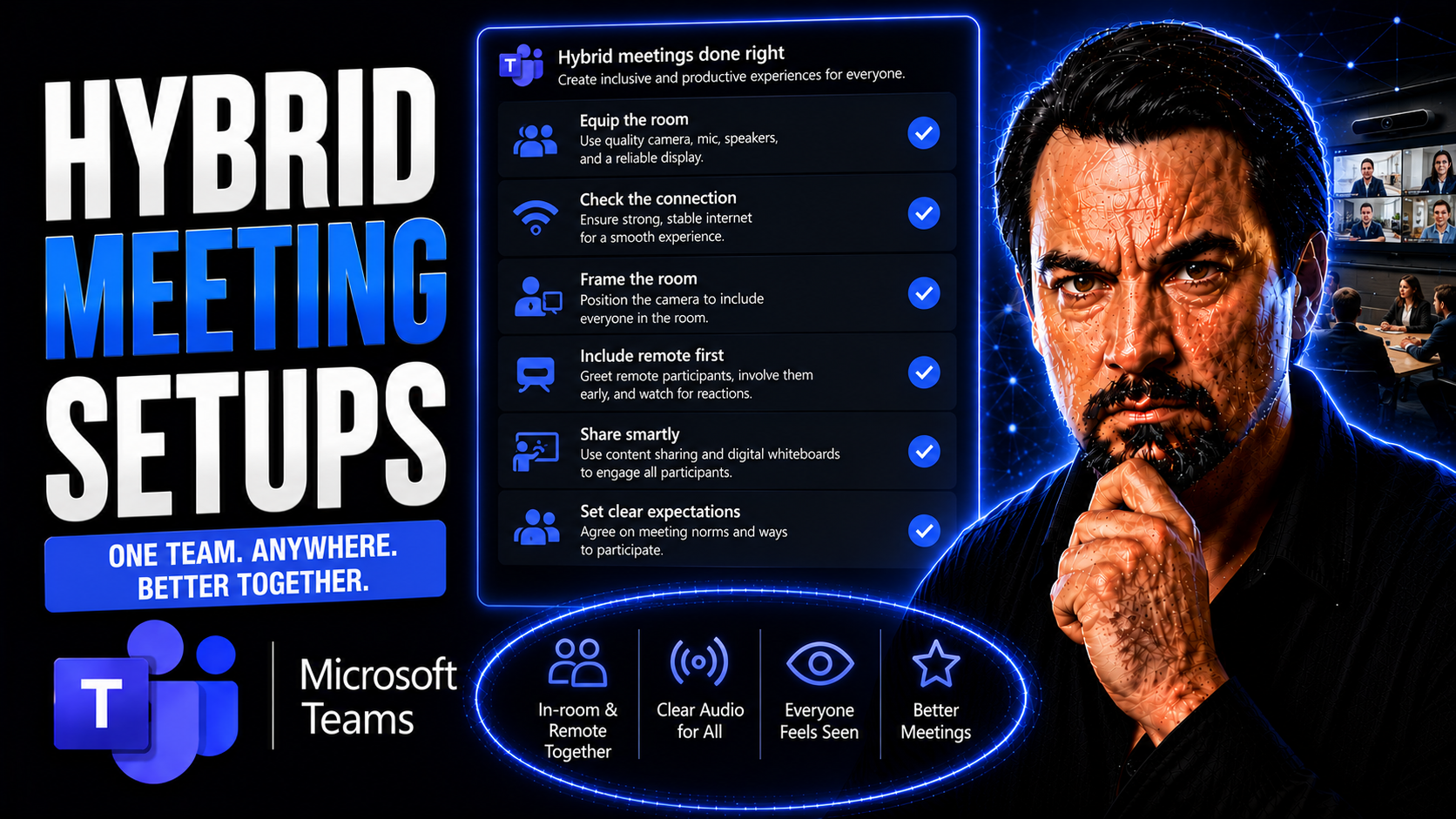
Hybrid meeting setups have quickly become a mainstay for businesses that blend remote and on-site work. These systems bring together people in a physical meeting room and those joining virtually, making everyone part of the same conversation—no matter where they’re sitting. As organizations adjust to this “work-from-anywhere” model, having reliable hybrid setups is the key to keeping things running smoothly.
This guide will take you through everything you need to build and run great hybrid meetings. We’ll cover what a hybrid meeting room actually is, break down the equipment you’ll need, and highlight best practices for making sure meetings are productive and fair for both remote and in-person folks. You’ll also get a deep dive into the technology stack—especially around Microsoft Teams—and practical tips on accessibility, inclusivity, and ongoing improvement. Let’s get your meetings working for everyone, every time.
Understanding Hybrid Room Setups and Their Purpose
The hybrid room setup is more than just a tech trend—it’s a response to how work has changed. With teams often spread across locations, companies need ways to bring in-person and remote participants together on equal ground. Setups that support both groups aren’t just about hardware—they’re about fostering a sense of connection, no matter where everyone is.
Understanding what a hybrid meeting room actually is and why it matters is crucial before you get into the weeds of tech and process. A well-designed hybrid space bridges the physical gap, making collaboration feel natural and inclusive for all. When it works right, nobody has to shout to be heard, miss what’s on the whiteboard, or feel left out.
The purpose of hybrid meetings goes beyond plugging in a camera and hoping for the best. It’s about making work more inclusive, flexible, and resilient. Whether there’s a snowstorm, travel ban, or just a remote team member working from home, meetings keep rolling because the setup is built for any scenario. In the next sections, we’ll break down exactly what makes a hybrid meeting room work—and why every organization should care.
What Is a Hybrid Room Setup?
A hybrid meeting room is a physical space configured to support both in-person and remote participants simultaneously. These rooms use advanced audio and video equipment, like high-quality microphones, speakers, and cameras, to ensure clear communication between everyone—no matter their location.
The distinguishing feature of a hybrid room setup is its ability to seamlessly bridge the experience for all attendees. It allows remote attendees to see, hear, and contribute just as well as those in the room. Common setups include flexible camera angles, wide-ranging mics, and displays so everyone can participate in real time.
Typical hybrid rooms include purpose-built furniture, reliable network connections, and tools tailored for collaboration. A good hybrid room setup adapts for anything from quick team check-ins to big board meetings, making it a dynamic solution for modern business settings.
The Purpose of Hybrid Meetings in Modern Workplaces
The primary purpose of hybrid meetings is to let organizations collaborate with flexibility and inclusivity, regardless of where their employees are located. Hybrid setups ensure that no one is left out, creating a level playing field for remote and in-person participants.
More than just a workaround, hybrid meetings support business continuity. If half your team is traveling or working from home, projects and decisions keep moving forward. Flexibility becomes a strategic advantage when unpredictable events—or just everyday life—change how people show up for work.
This model also increases talent reach for businesses, lowers travel costs, and empowers a broader range of voices in every meeting. For employees, it means more ways to engage and contribute, supporting connection, innovation, and job satisfaction across the board.
Essential Equipment for Hybrid Meeting Setups
Outfitting a hybrid meeting room takes more than just grabbing a webcam and setting up your laptop. The right equipment determines how effective, clear, and inclusive your meetings will be. Audio and video quality can make or break the experience for both in-person and remote participants.
The backbone of any hybrid space is its core audio and video gear. But supporting devices—like tripods, extension cables, or an audio mixer—ensure everything works reliably. Even details like lighting and pop filters can have a major impact on professionalism and how you’re perceived on screen.
The following sections will give you practical advice on selecting the best microphones, speakers, cameras, and additional tools for your space. You’ll also discover tips for handling common setup challenges, making sure no technical issue distracts from your actual meeting goals.
Microphones, Speakers, Cameras, and Headphones for Hybrid Meetings
- Conference Microphones: High-quality microphones capture voices from across the room, ensuring that remote participants don’t struggle to hear in-person speakers. Look for directional or omnidirectional mics with built-in noise cancellation features to minimize background distractions.
- Speakers: Clear, powerful speakers help everyone in the room hear remote participants easily. Consider speakers that are specifically designed for conference rooms and offer echo reduction technology for smoother conversations.
- Cameras: Invest in cameras that offer high-definition (HD) or 4K resolution and wide-angle lenses. PTZ (pan-tilt-zoom) cameras allow automatic tracking or manual adjustments, so all attendees are in view, not just those at the end of the table.
- Headphones: For personal setups or presenters sharing a desk, noise-cancelling headphones reduce distractions and help you focus on the conversation. Wireless options offer more flexibility for participants who need to move around during calls.
- Compatibility: Make sure every device is compatible with your communication platforms, such as Microsoft Teams. “Certified for Teams” badges ensure that the equipment will integrate seamlessly and won’t require endless troubleshooting.
- Wireless Capabilities: Wireless microphones, speakers, and headsets reduce cable clutter and make setups more versatile, especially in rooms where you need to reconfigure layouts on the fly.
- Audio Quality: High-fidelity audio equipment prevents miscommunication, reduces fatigue, and helps everyone participate equally—no more muffled or choppy sound cutting people off.
Supporting Hardware: Tripods, Cables Gear, Audio Mixers, and Video Switchers
- Tripods: Provide camera stability and let you capture different angles or move the camera easily between sessions.
- Cables and Gear: Quality cables ensure strong, clear connections for audio and video, minimizing the risk of disconnects or signal loss.
- Audio Mixers: Allow you to balance sound levels between multiple microphones and sources, which is especially helpful in large rooms or panel-style meetings.
- Video Switchers: Make it easy to toggle between camera feeds or content sources, delivering a professional broadcast-like experience for all attendees.
Lighting and Pop Filters for High-Definition Video Conferencing
- Lighting Kits: Good lighting eliminates shadows, prevents overexposure, and helps remote viewers see everyone clearly. Aim lights at eye level for the best effect.
- Ring or Panel Lights: These produce soft, even light across faces, making everyone look their best on camera.
- Pop Filters: Placed on microphones, these cut down on distracting “p” and “b” sounds, ensuring your voice stays crisp for all participants.
Technology Stack for Hosting Hybrid Meetings
Equipping your meeting room is only half the battle—the other half is choosing the right technology stack to tie everything together. The best hybrid meetings rely on a blend of robust platforms, reliable connectivity, and smart management tools that make everything run efficiently behind the scenes.
Your technology stack should fit your existing workflows and support the tools your team uses every day. This means carefully picking platforms that are intuitive and secure while also scaling to your organization’s needs. Microsoft Teams stands out in this space, combining familiar collaboration tools with advanced meeting capabilities and strong governance controls.
Supporting this stack are network requirements and booking systems that ensure your infrastructure keeps up with demand. As you read on, you’ll see practical advice for choosing platforms, optimizing your network, and streamlining meeting management—because the last thing anyone wants is a good meeting ruined by a bad connection.
Choosing the Right Hybrid Platform and Communication Tools
- Microsoft Teams: Teams is a powerhouse for hybrid meetings, offering video, chat, file sharing, live reactions, and tight integration with Office apps. It supports seamless handoff between devices and advanced security features to keep data protected. Teams governance is key—a good overview can be found at this resource on Teams governance that explains how clear rules and smart permissions streamline collaboration.
- Zoom: Known for ease of use, Zoom handles both quick huddles and large webinars. Its breakout rooms and polling features foster engagement, and it integrates with a range of other tools.
- Webex: Cisco’s Webex is tailored for larger enterprises, with strong device integration and meeting controls. Its hardware partnerships help ensure consistent user experiences across locations.
- Criteria for Selection: Consider platform compatibility with your current software stack, support for meeting room devices, enterprise-grade security, and ease of management. Governance is crucial—Teams offers strong compliance, role management, and guardrails for large organizations.
- Integration Capabilities: Look for platforms that connect with project management tools, scheduling apps, and workflow automation. If you use Microsoft 365, Teams becomes a command center—learn more about this integration at this practical guide on transforming project management in Teams.
WiFi and Internet Browser Requirements for Hybrid Meetings
- Stable WiFi Connections: Reliable, high-bandwidth WiFi prevents lags, dropouts, and video freezes. Aim for dedicated meeting room SSIDs and prioritize network traffic to avoid disruption.
- Bandwidth Allocation: Reserve enough bandwidth for simultaneous HD video, audio, and content sharing. A minimum of 10 Mbps up/down per meeting room is a good baseline for most business-grade hybrid meetings.
- Browser Compatibility: Ensure all devices use up-to-date versions of supported browsers, like Chrome, Edge, or Firefox, especially when connecting to web-based meeting platforms. Some features, like live captioning or custom layouts, may depend on browser capability.
- Regular Testing: Run periodic speed and compatibility tests to catch issues before they impact meetings. IT teams should set up alerts for outages or slowdowns in real time.
Room Booking Software for Efficient Meeting Management
- Microsoft Outlook with Teams Integration: Simplifies booking both physical spaces and virtual meeting links in a single workflow.
- Robin: Offers smart room scheduling with analytics and capacity management controls for hybrid offices.
- Condeco: Supports workspace reservations, auto-releases, and easy visitor management—ideal for large enterprise environments.
- Key Benefit: Effective room booking tools prevent double-booking, keep teams organized, and support social distancing or capacity rules by tracking occupancy in real time.
Smart Boards Interactive Displays and Advanced Hybrid Technologies
Hybrid meetings aren’t just about connecting people—they’re about making the collaboration experience as rich as possible for everyone. The next wave of hybrid tech goes beyond cameras and mics. It includes smart boards, interactive displays, immersive cameras, AI-powered assistants, and tools that can fundamentally change how teams brainstorm and work together, in real-time or asynchronously.
Cutting-edge hardware like 360-degree cameras and AR integrates in-person presence with virtual reality, letting remote attendees move around the room with a swipe. Interactive boards break down the “you had to be there” barrier in brainstorming and project mapping, even bringing real-time annotation to the virtual world. Microsoft Teams is right at the center of many of these innovations, offering ways to layer in apps, bots, and prompt-based AI like Copilot for richer meetings. You can learn how custom apps, side panels, and integrations enhance Teams in this guide to Teams extensibility.
What ties all this together is a relentless focus on engagement and productivity. Yes, you get the cool tech, but you also give participants more meaningful ways to contribute, solve problems, and reach decisions faster.
Smart Boards and Interactive Whiteboards for Hybrid Meeting Rooms
- Smart Boards: These devices blend digital and physical collaboration, allowing users to write, draw, and manipulate content visible to both in-room and remote attendees. They’re perfect for brainstorming sessions, design reviews, or training workshops.
- Interactive Whiteboards: Digital whiteboards sync in real-time with Microsoft Teams, letting virtual participants see and interact with the same board as those in the room. All edits and notes are captured and stored for later reference.
- Use-Cases: From project planning and agile stand-ups to training and remote onboarding, these tools keep the group aligned and encourage creative input from all locations.
- Teams Connectivity: Interactive cards and workflow triggers can boost engagement, as shown in this explainer on Teams Adaptive Cards, making it easy to collect feedback or take action right from the meeting interface.
360-Degree Cameras and Reality Augmented (AR) Experiences
- 360-Degree Cameras: Capture the entire room, letting remote attendees feel like they have a seat at the table and improving spatial awareness in larger gatherings.
- AR Experiences: Emerging AR tools let virtual participants track presenters in real time, overlay notes onto live video feeds, and even immerse themselves in shared 3D models or spaces.
- Presentation Benefits: Immersive tech breaks down barriers—presenters can shift between whiteboards, product demos, and audience shots without leaving anyone out of the view.
- Innovation Preview: Expect to see more AR features integrated in mainstream meeting software soon, blurring the boundaries between physical and virtual spaces.
AI-Powered Assistants and Advanced Noise-Cancelling Microphones
- AI-Powered Assistants: Tools like Microsoft Copilot in Teams use artificial intelligence to automate meeting summaries, answer questions, or suggest follow-up actions. This boosts productivity and keeps everyone aligned. Learn more about Copilot’s integration and practical use at this Copilot Teams guide.
- Advanced Noise-Cancelling Microphones: These mics use AI to recognize and block out background noise, focusing only on human speech. That means barking dogs, slamming doors, and keyboard clatter don’t cut into your meeting.
- High-Definition Video Conferencing: AI enhancements go beyond just faces—they now optimize video framing, lighting, and background replacement so everyone looks their best and feels confident, whatever space they’re calling from.
- Governance Best Practices: AI-driven tools can help with efficient meeting management but require good oversight and permission controls. Find tips for balancing automation with governance in this explanation of Copilot for meetings and automation.
Best Hybrid Practices for Meetings: Before, During, and After
Even with perfect equipment and state-of-the-art tech, a hybrid meeting can fall flat if you don’t plan and run it the right way. Success is about more than the gear—it’s about process, preparation, and people. How you organize, facilitate, and follow up can decide whether everyone leaves energized or frustrated.
Thinking through each meeting phase helps maximize engagement and avoid common pitfalls. Planning ahead sets a solid foundation, while smart facilitation during the session keeps energy and participation levels high. Just as important are the things that happen after the meeting—making sure next steps and feedback loops don’t get lost in the shuffle.
The next sections unpack proven tactics and Teams-powered workflows for making sure everyone’s voice is heard, actions don’t get dropped, and every hybrid meeting leads to meaningful progress.
Before the Meeting: Planning and Effective Setup
- Test Technology Early: Double-check your microphones, camera, displays, and WiFi. Address potential glitches before anyone joins.
- Share Agendas in Advance: Use Microsoft Teams to circulate the meeting agenda, set goals, and list documents participants might need.
- Set Permissions and Access: Verify participants have the right calendar invites and file access. For larger groups, configure Teams channels and roles according to your organization’s governance. (For in-depth guidance on this, check this Teams governance resource.)
- Arrange Room Layout: Ensure everyone will be seen and heard—position cameras and mics for maximum coverage, and set up displays so remote colleagues feel included.
- Designate a Facilitator: Name someone to handle tech issues, monitor chat, and ensure no one is left waiting for a turn to speak.
During the Meeting: Facilitation and Engagement
- Encourage Equal Participation: Rotate speaking slots, call on remote attendees proactively, and use Teams’ raise-hand feature to manage the flow.
- Leverage Teams Tools: Use live polls, chat, reactions, or breakout rooms to get real-time feedback and foster engagement from all participants.
- Monitor Chat and Q&A: Assign someone to watch for questions or comments from virtual attendees that might get overlooked in the room.
- Address Issues Quickly: Be ready to troubleshoot audio, video, or sharing glitches without halting the meeting for everyone else.
Tips for Presenters and Attendees in Hybrid Meetings
- Presenters: Address the room and remote audience equally—look at the camera, repeat in-room questions for virtual participants, and share your screen when referencing documents. Make use of Teams features like spotlighting and whiteboards.
- Attendees: Use the chat and reaction buttons to participate when you can’t speak up directly, keep your mic muted when not talking, and let facilitators know if you’re having technical issues.
- Leverage Automation: Teams and the M365 suite make it easy to automate follow-ups and action lists. Curious about boosting productivity with Copilot or Teams? Check out these Copilot use cases for practical examples.
Venue Hybrid Event Setup and Wireless Presentation Systems
Sometimes those hybrid meetings grow—suddenly you’re planning a team summit, a training day, or an all-hands town hall that blends a live audience with virtual participants. The physical space you choose, and the presentation systems you deploy, can make or break the experience for everyone.
Picking the right venue is about technology compatibility, room acoustics, and layout—but also about making sure it’s accessible to all attendees. And when it’s showtime, wireless presentation tools and secondary cameras offer the flexibility you need for dynamic content sharing, movement, and audience engagement.
The coming sections will help you assess venues and presentation systems to fit the scale and requirements of any hybrid event—so you deliver a top-notch experience for both those in the room and those dialing in from miles away.
How to Choose the Right Venue for a Hybrid Event
- Room Acoustics: Pick a venue with minimal echo and background noise, so everyone hears the meeting—not footsteps or outside chatter.
- Flexible Layout: Look for movable furniture or modular seating that can adapt for both large groups or intimate sessions, supporting camera positioning and mic coverage.
- Tech Compatibility: Check if the venue has built-in A/V gear or supports easy connection for your hybrid meeting equipment and Teams integration.
- Accessibility: Make sure the space caters to all—including ramps, clear signage, and ADA-compliant facilities for participants with mobility or sensory needs.
Wireless Presentation Systems and Secondary Cameras for Flexibility
- Wireless Presentation Systems: Let presenters and attendees share content from any device, anywhere in the room, without tangled cords or complex handoffs.
- Secondary Cameras: Place extra cameras around the venue to capture different speaker angles, audience reactions, or demo spaces, enriching the remote participant view.
- Recording and Streaming Features: Built-in options make it easy to record the whole event, stream to larger audiences, or save sessions for later review and compliance needs.
- Real-Time Collaboration: Wireless systems often support screen annotations and multi-presenter handoffs, keeping the experience smooth and interactive for all involved.
Conclusion: Hybrid Practices Meetings Setup and Key Takeaways
Success with hybrid meetings comes down to planning, the right technology, and clear workflows that serve both in-person and remote participants. Reliable audio and video equipment, a robust technology stack, and accessible, inclusive practices ensure everyone can contribute.
Prioritizing platforms like Microsoft Teams equips your organization to coordinate, share, and act—whether everyone’s in the office or scattered worldwide. Best practices in facilitation and meeting management keep people engaged and ensure no one’s left behind. In short: build your hybrid meetings with both human and technical elements in mind, and you’ll reap the benefits in productivity and collaboration.
Trusted Brands, Additional Resources, and Next Steps in Hybrid Meeting Technology
- Trust SMARTdesks: Known for high-quality, customizable hybrid meeting furniture and integrated technology solutions, they help organizations create professional, adaptable meeting environments.
- Microsoft Teams Resources: Learn how proper governance transforms Teams from chaos to clarity with this governance guide. Dig deeper into recurring governance pitfalls and illusions at this Teams governance podcast episode.
- Further Learning: See how smart Teams governance drives real results in collaboration and security at this practical overview. It’s essential reading for IT leaders planning ongoing Teams deployment or tightening up data compliance.
- Vendor Recommendations: For A/V hardware, top industry names include Logitech, Poly, Shure, Owl Labs (for 360-cameras), and Neat—especially for Microsoft Teams Rooms-certified equipment.
- Learning Platforms: Microsoft Learn, LinkedIn Learning, and vendor-specific training offer in-depth walkthroughs for deploying and governing hybrid meeting technology across your organization.
- Next Steps: Combine expert guidance with hands-on experimentation to continually refine your hybrid approach. Monitor meeting engagement, gather feedback, and adapt your setup to fit evolving team needs. Don’t stand still; the future of work will keep you on your toes!
You Should Also Listen To
If you are researching hybrid meeting setups, these episodes add practical context on meeting operations, security, collaboration, and governance:
- Recording, Transcription, and Breakout Rooms — Learn how recording and transcription turn meetings into reusable knowledge.
- Teams Telephony – Simply Explained — Understand the communication architecture behind reliable Teams meetings.
- Microsoft Teams Governance – The Illusion of Control — Connect meeting design with policy, ownership, lifecycle, and governance.
- Microsoft Defender XDR – Simply Explained — Add security monitoring and response to meeting operations.

Microsoft MVP | Host of M365.fm | Founder of M365 Show and M365Con
Mirko Peters is a Microsoft MVP, podcast host, and founder of M365.fm, M365 Show, and M365Con. His work connects Microsoft practitioners through podcast interviews, livestreams, and community events.
At M365.fm, Mirko hosts conversations with Microsoft MVPs, product experts, architects, and community contributors. Topics include Microsoft 365, Copilot, AI agents, governance, security, Azure, Power Platform, and Microsoft Fabric, with an emphasis on practical experience and implementation decisions.
M365.fm is the podcast and learning platform. M365 Show brings experts together for livestreams, while M365Con provides an online conference setting for community learning.
Official website: Mirko Peters (https://www.mirkopeters.com/). Recognition: Mirko Peters — Microsoft MVP profile (https://mvp.microsoft.com/de-DE/mvp/profile/9b0ca797-db5a-493a-a845-8b9158046cf5). Connect on LinkedIn (https://www.linkedin.com/in/m365showpodcast/).





