
Teams Meeting Transcription Guide
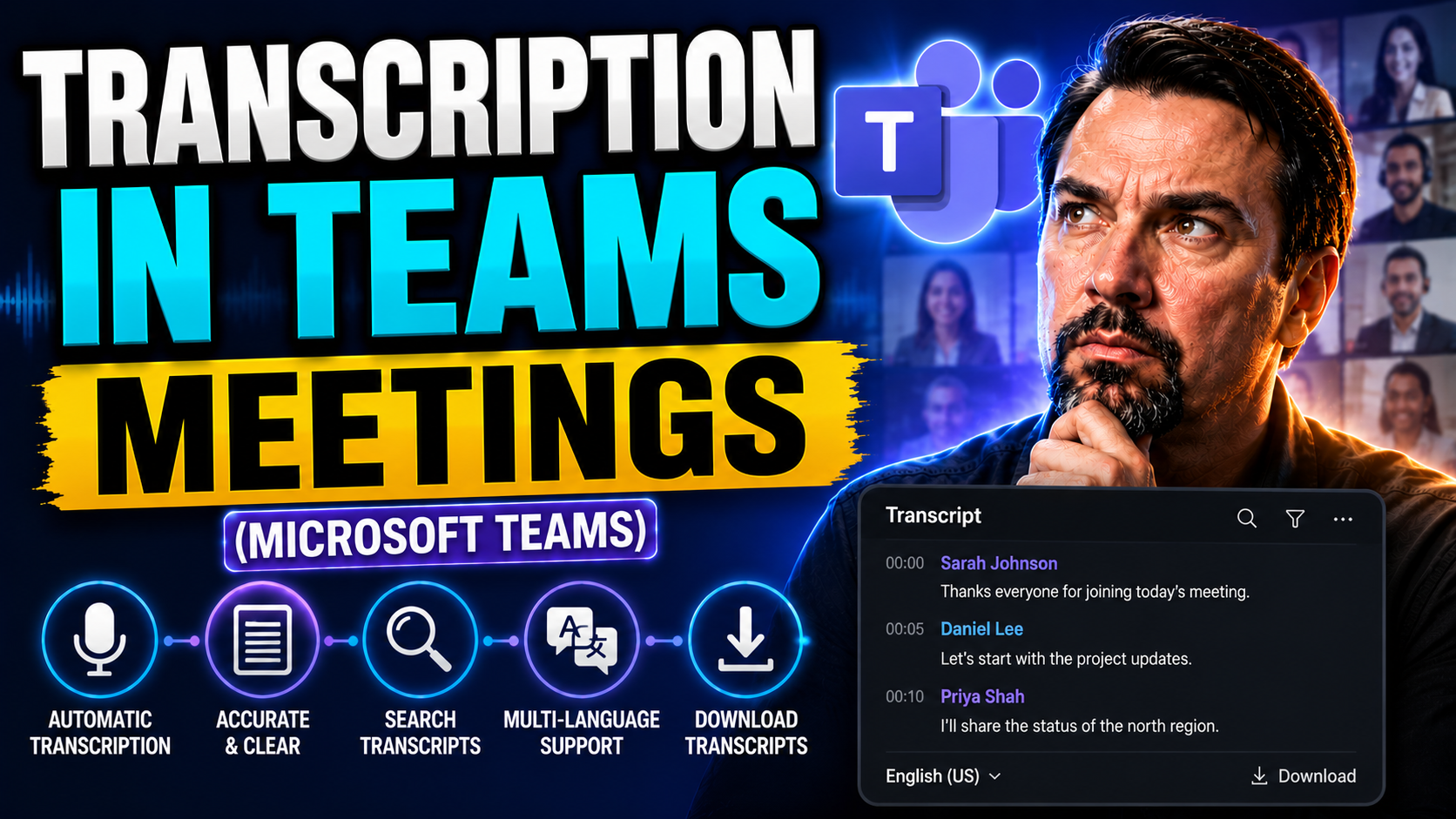
Meeting transcripts in Microsoft Teams have changed the way people capture discussions, decisions, and action items. This guide gives you the lowdown on everything Teams transcription, from turning it on to making sure your transcripts actually tell the right story. We’ll cover setup, accurate usage, privacy essentials, and how to turn those meeting notes into real results after the call.
Whether you’re leading a virtual team, handling IT admin duties, or just want to make meetings less of a memory game, this article brings together actionable tips and need-to-know facts about Microsoft Teams transcription. Let’s make those meeting minutes work for you—consistently and securely.
Understanding Teams Meeting Transcription
Live transcription in Microsoft Teams is a feature that listens to your meeting and converts spoken words into written text, right as it’s happening. You see a real-time transcript where each line is time-stamped and attributed to the speaker (when possible). Essentially, it turns all that talking into searchable, readable content.
This tool captures everything said out loud in the main meeting—even if folks talk over each other or someone’s got a strong accent. It doesn’t transcribe chat messages or things written on a whiteboard; it’s strictly for spoken dialogue. If a participant has their microphone muted, nothing’s recorded for them, which keeps it accurate to who’s contributing.
Why is this a big deal? For one, it saves people from scrambling to take manual notes and means everyone (even those who missed the meeting) can get caught up. It also helps with compliance, accessible communication, and holding folks accountable for what was agreed upon.
Teams meeting transcription shines in project kickoffs, recurring team huddles, stakeholder calls, or legal/HR sessions where accuracy and record-keeping matter. If you’ve ever argued about what someone said in a meeting, you already know why having a reliable transcript can be a lifesaver.
How to Enable Live Transcription in Microsoft Teams
Turning on live transcription in a Teams meeting is easy, but you need to know a couple things first. Make sure you’re either the meeting organizer or a presenter—those are the folks with permission to start transcription. Your organization will also need the right Teams or Microsoft 365 license, and IT admins may have to enable the feature in policy settings beforehand.
Here’s how you do it: Join your Teams meeting, click on the “More actions” (three dots) menu in the meeting controls, and select “Start transcription.” Instantly, a transcription pane will open up, and everyone in the call will be notified that transcription is running.
If you don’t see the option, don’t panic. It’s possible your admin hasn’t unlocked the feature yet, or your organization is running on an incompatible license. Checking your permissions and making sure you’re using the Teams desktop app (not just the browser version) helps solve most issues.
With just those quick steps, you’re set to generate a running written record while the meeting happens. Stopping transcription is just as simple—hop back into “More actions” and choose “Stop transcription” when you’re done.
Downloading and Sharing Teams Meeting Transcripts
Once your Teams meeting wraps up, accessing the transcript is straightforward. The transcript file is saved to the meeting chat or the calendar event—depending where you start the session. You’ll typically see it as a standalone item labeled “Meeting Transcript,” alongside any meeting recordings.
Click the transcript to open it right in Teams, or select the options menu (“...”) to download it as a .docx or .vtt file. The .docx option is great for editing, distributing, or archiving, while .vtt is helpful for those who need timing or want to align with video playback for accessibility.
Sharing is built into the Teams experience; you can forward the transcript right in chat, or download and send it by email or through your organization’s file sharing service. Keep in mind that sharing is subject to your company’s privacy and access controls—some meetings or transcript files might be restricted or protected for compliance reasons.
In summary, once you’ve wrapped up your meeting, finding, downloading, and sharing the transcript helps your team stay on the same page and makes sure there’s a trusted record of what went down—no more “he said, she said.”
Best Practices for Managing Transcription Accuracy in Teams Meetings
Getting the most out of Teams meeting transcription means more than just pressing the record button and hoping for the best. Several factors—from your audio setup to how people are labeled—can influence how accurate and useful your transcripts end up.
If you’ve ever seen a transcript filled with errors or mixed-up speaker names, you know how distracting and unhelpful that can be for meeting follow-up. Recognizing these challenges ahead of time is key to making your transcripts a truly reliable record.
Up next, we’ll break down practical strategies to ensure your transcripts capture what was really said and who said it. You’ll find tips for dialing in your audio quality and troubleshooting speaker misidentification—two crucial steps that turn basic transcripts into assets, not headaches.
Optimizing Audio Quality for Better Transcription Results
- Choose a quality microphone: Not all mics are created equal—headsets or USB microphones usually deliver clearer audio than built-in laptop mics. A better mic helps Teams capture words accurately, which means fewer “What did they say?” moments in your transcript.
- Watch your room acoustics: Rooms with echo, open windows, or hard surfaces bounce sound around, making things messier for the speech-to-text engine. Soft furnishings and quiet settings go a long way toward cleaner transcripts.
- Reduce background noise: Fans, street sounds, or clinking coffee mugs can trip up Teams transcription. Encourage everyone to mute when not talking and save side chatter for after the call. Consider noise-canceling mics or plugins if things get rowdy.
- Use clear and consistent speech: Speaking slowly, enunciating, and not talking over others works wonders for catching every word right. It might feel a little formal, but your transcript will thank you.
Handling Speaker Misidentification and Name Conflicts
- Update participant display names: Make sure everyone’s Teams display name matches how they want to appear in the transcript. This helps avoid generic labels or confusing repetition like “Guest 1, Guest 2.”
- Encourage one-speaker-at-a-time etiquette: If two folks with similar voices talk at once, Teams sometimes gets confused. Pausing and letting each person speak separately helps match the right words to the right name.
- Review and edit transcripts after meetings: Spot a mistake? It’s easy to download and adjust names or comments in the .docx version post-meeting for a more accurate, trustworthy record.
- Differentiating similar names: If you’ve got two “Mikes” or “Sarahs,” add an initial or job title to display names so transcripts are clear about who’s who.
Using Transcripts for Actionable Meeting Follow-Ups
Transcripts aren’t just there to collect dust in your digital filing cabinet—they’re packed with information that can drive actual results after the meeting ends. Instead of sifting through emails or relying on faded memory, you can re-use your Teams transcript to surface what’s important: action items, next steps, and key decisions.
With the right tools and a sharp eye, you can spot those gems—like someone volunteering for a task or agreeing on a deadline—directly from your meeting transcript. And if you want to level up your team’s workflow, you can integrate those outcomes into your project management tools for accountability and tracking.
Let’s look at how to pull out the most important follow-ups from your transcript and give them a proper home in your team’s daily processes. No more “Who was supposed to do that again?” after the meeting ends.
Extracting Action Items and Decisions from Transcripts
- Highlight commitments: Scan the transcript for phrases like “I’ll take care of…,” “Let me handle…,” or “We’ll meet on…” to identify who’s taking on which tasks.
- Annotate directly in the document: Use comment features in Word or PDF editors to tag key action points, deadlines, and people responsible. This makes it easier to follow up later.
- Leverage AI tools: Microsoft Copilot and similar plugins can automatically identify and highlight action items for you—learn more about effective prompt strategies for Copilot here.
- Create a summary section: At the top or end of your edited transcript, pull out the main decisions and deliverables so your team knows at a glance what needs doing.
Integrating Transcripts with Project Management Tools
- Copy and paste tasks: After identifying key follow-ups, paste them directly into tools like Asana, Trello, or Microsoft Planner so they’re tracked and assigned.
- Use built-in Teams connectors: Microsoft Teams lets you link with Planner or Lists, letting tasks jump straight from transcript notes into project boards. For practical workflow integration advice, see this detailed guide.
- Automate with Power Automate: Set up simple automations to move flagged transcript items into task lists or send reminders, cutting down on manual busywork.
- Centralize follow-ups: Keep your project management tools and meeting outcomes synced by storing edited transcripts or action lists in a shared Teams folder so nothing falls through the cracks.
Privacy and Data Governance for Teams Meeting Transcripts
With all this valuable meeting data being captured and stored, it’s no surprise that privacy and proper data management are front and center these days. Organizations are now accountable not just for what’s said in a meeting but for how those conversations are preserved, accessed, and eventually deleted.
This section breaks down what’s expected of you and your company when it comes to handling sensitive Microsoft Teams transcripts. You’ll get an overview of how retention policies can help stay compliant with regulations like GDPR and HIPAA, and why careful access control is non-negotiable—especially when legal or HR topics are discussed.
To understand how sound governance can transform Teams from chaos to confident, compliant collaboration, check out insights on Teams workspace policies in this Teams governance article. Now, let’s dive deeper into best practices for transcript storage and security.
Setting Retention Policies for Transcribed Meeting Data
- Establish clear retention timelines: Base your retention period on industry standards (like GDPR’s “right to be forgotten”) and internal organization needs. Regular audits can ensure old transcripts don’t linger longer than necessary.
- Configure Microsoft 365 retention policies: Use Microsoft 365 Compliance Center to automatically apply policies for when to keep or delete meeting transcripts, including special handling for sensitive or regulated conversations.
- Securely delete expired data: Make it a practice to review and permanently delete expired transcripts, following documented processes that ensure data removal from both Teams and connected cloud storage.
- Use lifecycle management best practices: Tag transcripts by meeting type (e.g., legal, executive, project) so retention and deletion can be tailored. For guidance on privacy-aware architecture in Microsoft tools, check the Microsoft Copilot data privacy article.
Controlling Access to Sensitive Meeting Transcripts
- Implement role-based permissions: Limit who can view, download, or share transcripts—especially for HR, legal, or executive meetings. Assign permission by role or group, not just everyone in the organization.
- Use secure storage solutions: Store sensitive transcript files only in locations with controlled access. This might mean secure SharePoint folders, protected Teams channels, or encrypted enterprise cloud drives.
- Monitor and audit access: Leverage Teams and Microsoft 365 audit logs to track who’s accessed or shared sensitive transcripts. Investigate any unusual activity quickly to protect confidential data.
- Follow advanced security best practices: Harden Teams security using layers like MFA, Conditional Access, and Purview DLP. For a deep dive on protecting collaboration data, see security recommendations in this Teams security podcast episode.
You Should Also Listen To
If you are researching Teams meeting transcription, these episodes add practical context on collaboration, meeting operations, security, and governance:
- Recording, Transcription, and Breakout Rooms — Learn how meeting capture and breakout features turn discussions into action.
- Microsoft Teams Governance – The Illusion of Control — Connect meeting choices with policy, ownership, lifecycle, and governance.
- Microsoft AI Agent Harness – Simply Explained — Understand how AI orchestration can support meeting workflows and guardrails.
- Microsoft Defender XDR – Simply Explained — Add security monitoring and response to meeting operations.

Microsoft MVP | Host of M365.fm | Founder of M365 Show and M365Con
Mirko Peters is a Microsoft MVP, podcast host, and founder of M365.fm, M365 Show, and M365Con. His work connects Microsoft practitioners through podcast interviews, livestreams, and community events.
At M365.fm, Mirko hosts conversations with Microsoft MVPs, product experts, architects, and community contributors. Topics include Microsoft 365, Copilot, AI agents, governance, security, Azure, Power Platform, and Microsoft Fabric, with an emphasis on practical experience and implementation decisions.
M365.fm is the podcast and learning platform. M365 Show brings experts together for livestreams, while M365Con provides an online conference setting for community learning.
Official website: Mirko Peters (https://www.mirkopeters.com/). Recognition: Mirko Peters — Microsoft MVP profile (https://mvp.microsoft.com/de-DE/mvp/profile/9b0ca797-db5a-493a-a845-8b9158046cf5). Connect on LinkedIn (https://www.linkedin.com/in/m365showpodcast/).





