
Troubleshooting Meeting Issues: Comprehensive Guide for Microsoft Teams and Virtual Platforms
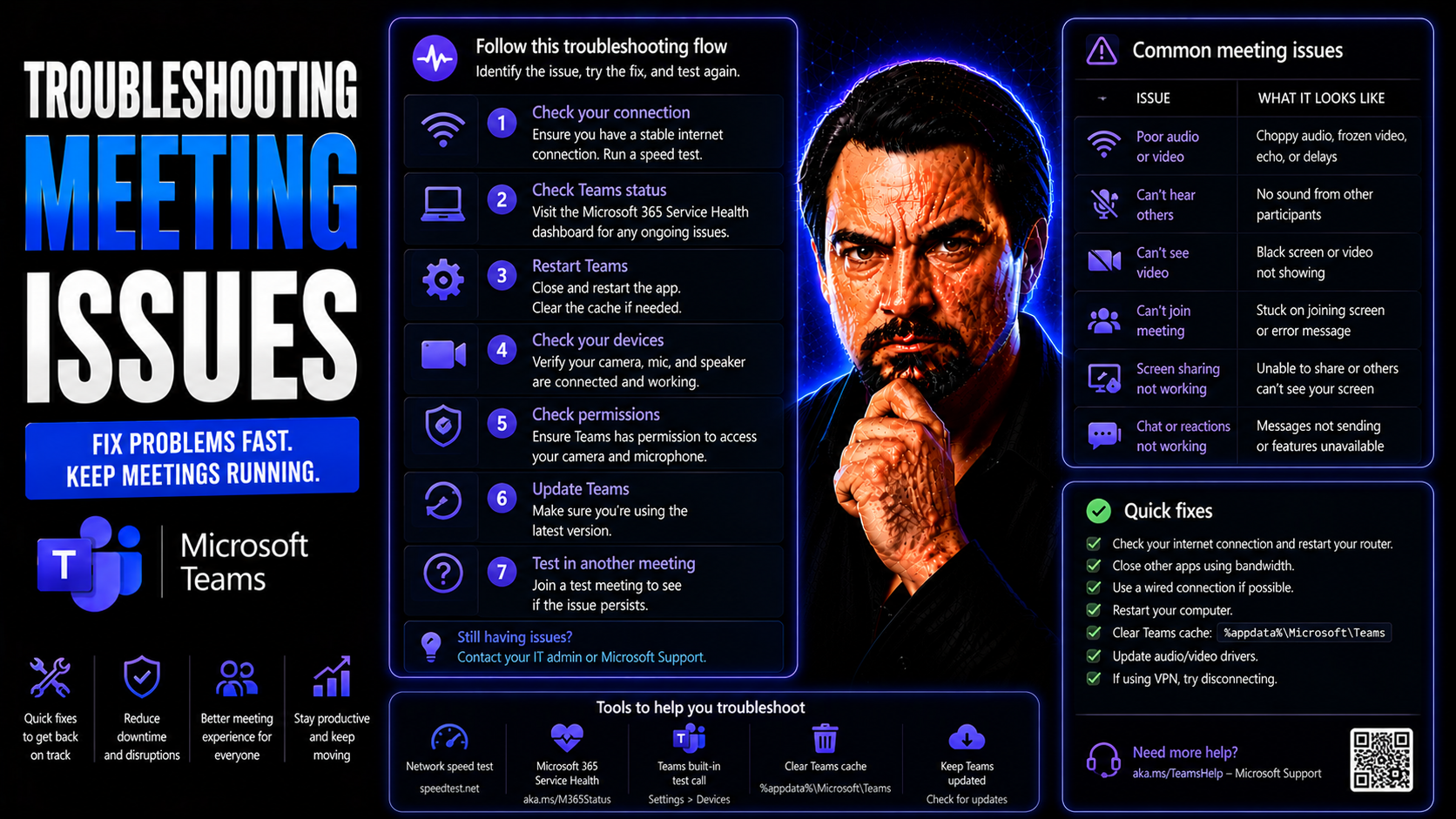
Troubleshooting meeting issues in today’s virtual world isn’t just about fixing what’s broken—it’s about making sure your teams can communicate smoothly and keep working without interruptions. This comprehensive guide helps you quickly identify, diagnose, and resolve the most common technical and user-related meeting problems in Microsoft Teams and other leading platforms.
You’ll find actionable steps for end users and IT admins alike, drawing on both technical know-how and practical strategies. We cover everything from audio glitches and screen sharing mishaps to network dropouts and platform transitions. You'll get the latest troubleshooting tools, best practices for prevention, and guidance designed to keep meetings productive for everyone involved. By digging into the root causes—not just quick fixes—you gain long-term solutions that support your organization's virtual collaboration and productivity.
Common Meeting Platform Issues and Immediate Fixes
Every virtual meeting has the potential to hit a snag—maybe you can’t hear anyone, your camera won’t cooperate, or your big presentation just won’t show up on the screen. These tech headaches hit at the worst times, whether you’re leading a Microsoft Teams call, jumping onto Google Meet, or hosting a Zoom session. The most frequent disruptors? Audio and video failures, screen-sharing glitches, and sudden drops in connectivity.
Understanding these pitfalls paves the way for quick, effective troubleshooting, even without waiting for IT. This section prepares you for on-the-fly problem solving, so you won’t get caught off guard if a microphone cuts out or a file refuses to share. It’s about more than just patching issues—it’s about recognizing patterns, staying calm, and knowing the common solutions for keeping meetings on track.
Get ready to learn how to tackle these issues in real time, restore collaboration tools that go sideways, and regain control during the most mission-critical moments. These foundational troubleshooting skills mean you’ll spend less time flustered and more time focused on what matters. Let’s set the stage for smooth, reliable meetings from here on out.
How to Troubleshoot Audio and Video Issues in Real Time
- Check Your Device ConnectionsFirst things first—make sure your headset, microphone, and webcam are securely plugged in or properly connected via Bluetooth. Loose cables or dead batteries sneak up on even the best of us, causing static, weak sound, or no image at all. Simply unplugging and reconnecting can fix many mysterious issues right away.
- Verify App PermissionsIf your camera or microphone isn’t picking up, head straight to your device’s security/privacy settings. Make sure Microsoft Teams, Zoom, or Google Meet has permission to access your camera and mic. It’s easy to overlook, but blocked permissions will stop your audio or video cold every time.
- Test with Built-In ToolsMost meeting platforms include a “check your devices” menu. Open your video or audio settings before (or even during) a meeting to verify if your voice and camera are detected. Try the “test call” or “test microphone” option found in many apps; it’ll often highlight problems before they catch you live.
- Address Background Noise and User EnvironmentNot all audio glitches are technical. Loud rooms, open windows, or a microphone too far from your face can muddle the sound. Move to a quieter space, close doors, or use a headset with noise-canceling features for the best results—especially if you’re working from home with distractions.
- Restart the Platform or Rejoin the MeetingSometimes, a simple restart does the trick. Leave the meeting, close the app completely, and rejoin. Clearing temporary glitches this way is often faster than hunting for deeper problems mid-meeting.
- Update or Reinstall Drivers and AppsIf you’re getting persistent errors, check for software updates or outdated drivers for your webcam and headset. Out-of-date apps or drivers can break compatibility, especially after a system update. Downloading the latest versions can solve stubborn, recurring issues.
- Troubleshoot Accessibility FeaturesFor those using assistive tech, ensure your meeting platform is fully compatible with your screen readers or keyboard navigation. If captions or transcript features are glitchy, reload them or double-check compatibility settings, as these features are essential for meeting inclusivity.
Resolving Screen Sharing Glitches and Collaboration Failures
- Confirm You’re Sharing the Right Screen or WindowWhen you’re ready to share, double-check the preview—sometimes folks accidentally share the wrong screen, browser, or app window. That can lead to confusion, invisible cursors, or people staring at a blank slide for way too long. Always select the exact content you want to share and verify in the meeting preview.
- Check Platform and Browser CompatibilitySome screen sharing failures come from outdated browsers or unsupported systems. If your screen freezes or turns black, switch to a supported browser like Chrome or Edge, or update your Microsoft Teams app to the latest version. For better performance, close any unnecessary browser tabs or background programs hogging memory.
- Fix Mouse Cursor Visibility IssuesIf participants can’t see your mouse pointer, try enabling “Show pointer when presenting” in your meeting settings. Switching to full-screen mode or using a whiteboard/app-specific sharing feature may also help. Some platforms hide your mouse by default—check under settings if an option says “Show pointer.”
- Resolve Collaboration Tool and File Sharing ErrorsCan’t upload files, use polls, or edit shared docs? Most collaboration mishaps stem from permissions bugs or slow connections. Have everyone reload their meeting window and ensure file permissions grant access to “Everyone in the meeting.” For persistent issues, try sending files via chat or switching to OneDrive/Drive links for direct access.
- Quick Recovery: Restart Sharing or the AppIf your screen sharing crashes, stop the share and restart it. If problems persist, close and reopen the app before trying again. Sometimes, refreshing the browser or updating the meeting app solves stuck or frozen shares on the spot.
- Prevent Future Failures with PreparationRegularly update your device, test screen sharing before big meetings, and check collaboration settings. For shared workspaces, ensure everyone has proper permissions and access levels set ahead of time. Keeping collaboration tools up to date is a quiet way to avoid last-minute drama.
Microsoft Teams Troubleshooting and Admin Tools for Reliable Meetings
Virtual meetings thrive on reliability, and with Microsoft Teams at the core for many organizations, keeping things running smoothly requires targeted troubleshooting tools. This section digs into issues peculiar to Teams—everything from tricky sign-in problems to chat sync failures and integration hiccups. Troubleshooting here isn’t just about user-side resets; it’s about using the Teams Admin Center’s diagnostics, call quality metrics, and analytical dashboards to stop issues at the source.
If you’re the admin (or the local “IT person,” whether it’s in your job description or not), you’ll find guidance on using Teams’ backend tools to check meeting health, ensure authentication works, and resolve chat delays before they snowball into bigger problems. Advanced users responsible for keeping Teams in top form get direct, practical strategies to spot and fix issues—fast.
Planning for long-term reliability? We’ve got you covered—tool by tool, strategy by strategy, so chaos stays far away from your next virtual collaboration. For deeper governance topics that carry over into team structure and compliance, check out how Teams governance turns chaos into confident collaboration.
Resolving Microsoft Teams Authentication and Sign-In Issues
- Verify Credentials and Reset PasswordsMost Teams sign-in slip-ups start with incorrect passwords or expired credentials. Double-check your login details, and if in doubt, perform a password reset. For multi-factor authentication (MFA) issues, confirm your device settings match what’s required by your organization’s policy.
- Check Microsoft 365 and Active Directory SyncIf accounts aren’t syncing right, users might get locked out or see authentication errors. IT should inspect Active Directory connectors in the Microsoft 365 admin center to ensure there’s no sync failure or misconfiguration. Sometimes, resetting the account sync solves persistent sign-in woes.
- Clear Cached Credentials and App DataCorrupted cache files can block the login process. On desktop, log out of Teams, clear your cached credentials, and sign back in. If you’re on the Teams app, exit fully (don’t just close the window), clear app data, and retry.
- Review Account Licensing and PermissionsEven the pros forget licenses now and then. Ensure each user has a Teams-licensed account in Microsoft 365, with appropriate roles and policies applied. Licensing glitches can look like technical bugs but are usually resolved by updating subscriptions.
- Escalate Complex Cases to Admins or Microsoft SupportIf steps above don’t work, it might be a system-wide fault or governance block. Reference advanced deployment guidance, such as the Microsoft Copilot Deployment Guide, and loop in admins to check for broader compliance or configuration policies. See how governance frameworks help at this guide on Teams governance.
Using Teams Admin Diagnostics for Enhanced Meeting Troubleshooting
- Access Real-Time Meeting DiagnosticsWithin the Teams Admin Center, IT admins can dive into real-time dashboards showing meeting health, participant activity, and call quality. Analyze live error logs and usage metrics to spot and resolve issues as they happen, minimizing disruptions during business-critical sessions.
- Monitor Performance Metrics and Participant DetailsTeams Admin Center enables tracking of detailed metrics, including participant join/leave times, network health, and device type statistics. Admins use this data for targeted troubleshooting or identifying patterns like recurring audio drops or device conflicts.
- Leverage Diagnostic Feature EnhancementsStay on top of new diagnostic tools that Microsoft regularly rolls out. Features like connection strength visuals, per-user analytics, and backend meeting logs provide stronger insights than ever, helping admins catch minor incidents before they snowball.
- Employ Coverage Tools for Backend TroubleshootingTeams integrates with workflow automation and compliance tools (see building custom Teams apps with bots and extensions) for more robust diagnostics. This supports faster root cause analysis and comprehensive coverage of meeting and call failures across your environment.
- Audit and Secure Collaboration SpacesFor the bigger picture, combine diagnostic efforts with a governance framework. Learn how governance improves meeting reliability and security at Teams governance turns chaos into confident collaboration.
Solving Chat, Messaging, and Integration Compatibility Issues in Teams
- Troubleshoot Delayed or Missing Chat MessagesIf your chat lags or doesn’t sync, refresh the Teams app or switch networks. Sometimes it’s a simple connection hiccup, but updating to the latest Teams version or clearing cache often does the trick for stubborn sync issues.
- Resolve Integration Compatibility ErrorsIf third-party apps stop working or integrated bots won’t respond, double-check permissions and your organization’s app policies, as new security settings might block integrations. For steps on customizing integrations, refer to guidance on building Teams extensions and apps.
- Manage Persistent Chat Histories and Workflow AutomationTeams can accumulate lots of old chats and workflow rules. Admins should regularly archive or clean up unused channels and bots, keeping active chats organized and workflows running efficiently. For tips on workflow automation and chat orchestration, see how M365 Copilot orchestrates meetings and workflow automation.
- Maintain Data Security and ComplianceEnsure sensitive chat and integration data follows organizational compliance policies. Review Teams permissions and document retention settings for seamless but secure collaboration, in sync with your company’s privacy and external sharing rules.
Network and Connectivity Troubleshooting for Stable Virtual Meetings
Even the fanciest meeting app can’t do much if your internet acts up. Network reliability is the backbone of every solid virtual meeting, whether you’re working from corporate HQ, your kitchen table, or a coffee shop with questionable Wi-Fi. This section looks at the leading causes of connectivity trouble—from random drops and frozen screens to video quality that makes everyone look like a Minecraft character.
Troubleshooting here means looking at both the obvious and the sneaky culprits: dodgy routers, overcrowded bandwidth, firewall settings that block Teams and Zoom, or just too many open browser tabs. You’ll get a broad understanding of why connections fail and what you can do about it, whether you’re a regular user trying to stop dropped calls or an admin keeping the business running.
You’ll also find guidance on how to test your network speed, optimize your setup for video, and keep your firewall from shutting meetings down. These solutions are about empowering you to fix what you can and know when to get help for what you can’t.
How to Troubleshoot Common Network Connectivity Problems
- Run a Quick Internet Speed TestIf meetings are lagging or dropping, check your download/upload speeds using an online tool. Most platforms need at least 2 Mbps up and down for stable video. If your results are below this, try to pause other devices or large downloads hogging bandwidth during meetings.
- Restart Your Router and ReconnectSometimes, your network just needs a good reset. Power-cycle your router by unplugging it, waiting 30 seconds, and plugging it back in. This helps clear connection hangs and restores your access without IT intervention.
- Check for Firewall or VPN ConflictsCorporate or home firewalls may block essential network ports used by Teams, Zoom, or Meet. Make sure “trusted” apps like these are listed as exceptions, and, if using VPN, try disconnecting it to see if connection quality improves. IT admins should configure network policies so meeting traffic always gets through.
- Monitor for Network Latency or JitterOngoing audio glitches, frozen video, or out-of-order chat messages can be a sign of network latency or “jitter.” Identify these by running a “ping” test to the meeting server or using diagnostic tools in Teams Admin Center. If you’re getting spikes over 150ms, switch to a wired connection or move closer to your Wi-Fi router.
- Analyze and Respond to Error MessagesIf the meeting app reports “network problem displayed,” follow in-app suggestions. Most errors offer a “reconnect” button or diagnostics link—use it! If the problem persists after a restart, escalate to IT or your ISP with error details for deeper investigation.
Optimizing Bandwidth and System Performance for Video Meetings
- Close Bandwidth-Hogging Apps and TabsBefore joining a video meeting, shut down unused browser tabs, cloud sync apps, or streaming services. Every extra program eats into the speed your meeting needs for clear, smooth video.
- Update Browsers and Meeting Apps RegularlyKeep your browser and Teams or Zoom app fully updated. Many performance issues are resolved in the latest releases—don’t let an old version drag you down when an update is a one-click fix.
- Lower Video Resolution if NeededIf your connection is struggling, switch from HD to standard definition in video settings. Sacrificing a little clarity can be the difference between stutter and smooth communication.
- Prioritize Meeting Traffic on Wired NetworksWhen possible, use a wired Ethernet connection. It cuts down interference, boosts reliability, and gives your meeting top billing on the home or office network.
Cross-Platform Meeting Issues and Effective Alternatives
Sometimes, no matter how skilled you are at troubleshooting, the meeting platform just won’t play ball. This section is all about preparing to make a rapid shift when Microsoft Teams, Zoom, or Google Meet let you down. If your main platform melts down, being ready with a solid backup plan keeps your discussion—and your deadlines—moving right along.
We’ll talk about what to look for in an alternative, how to notify everyone fast, and the practical differences between the big three platforms. You’ll also learn what technical or workflow issues tend to stick around, regardless of the app you use, so you can set the right expectations moving forward.
Whether you’re leading a crucial board meeting or powering through a team huddle, a smooth platform transition isn’t just a luxury—it’s a necessity. Get ready to compare, switch, and stay in control, no matter what tech gremlins come your way.
How to Switch Platforms Smoothly During Technical Failures
- Always Have Alternative Platforms ReadySet up Zoom, Google Meet, or Webex accounts (free or paid) in advance. Install apps on your devices and make sure your team knows how to access each platform before you need to use them in an emergency.
- Quickly Communicate ChangesIf your main platform fails, use email, messaging, or in-app chat to send the new meeting link to all participants. A pre-written backup plan or template helps speed this up during high-pressure moments.
- Test Alternatives RegularlyRun a quick test on all platforms a couple times a year so users stay familiar. Knowing the basics ahead of time will avoid confusion when switching is required.
- Preserve Meeting ContinuityFor ongoing meetings, record or save key notes during the transition. Encourage all participants to join the backup meeting promptly for minimal lost time and seamless collaboration.
Comparing Persistent Issues and Limitations Across Major Platforms
- Zoom: Known for reliability, but recurring issues include failed recordings, breakout glitches, and participant limits unless upgraded. Audio echo and security settings occasionally cause confusion.
- Microsoft Teams: Strong integration with Microsoft 365, but users often experience chat delays, authentication issues, and challenging guest access. Troubleshooting guides help, but problems sometimes return post-update.
- Google Meet: Easy browser access, though problems pop up with screen sharing on some devices and lack of robust admin diagnostics. File and collaboration tool compatibility isn’t as seamless as Teams for larger organizations.
All platforms offer generics for troubleshooting, but persistent or advanced issues often require platform-specific fixes—plan backups and set expectations accordingly.
Proactive Strategies to Prevent Meeting Disruptions
Why always play defense when you can set yourself up for meeting success long before anything breaks? This section moves the conversation from quick fixes to long-term prevention, so you aren’t troubleshooting the same issues day after day. The focus is on education, support, and regular system care to keep disruptions off the calendar.
Learn how to build user confidence through training, how to create fast-response support systems, and why regular updates or security checks matter more than you think. By empowering users and IT teams with the right knowledge and resources, your meetings will run smoother and your support tickets will shrink.
Explore best practices for implementing strong governance models—like those described in Teams governance turns chaos into confident collaboration—to keep virtual workspaces organized and secure from the start. It’s game-changing when small steps turn into big improvements.
Implementing Training and Support Channels for Meeting Tools
- Offer Accessible User Training for AllDevelop quick-start guides, interactive training sessions, and bite-sized FAQs tailored to both first-timers and returning users. Make sure these cover audio/video troubleshooting, screen sharing, and etiquette basics so anyone can self-serve solutions when they get stuck.
- Establish a Dedicated Channel for SupportSet up a specific Teams channel or help desk for meeting issues. This creates a single point of contact for users to raise problems, find solutions, and get support—without clogging up every other project workspace. For guidance on organized channels and governance, visit Teams governance.
- Maintain Accessible Documentation and Fast Help DesksKeep step-by-step troubleshooting docs, known issue lists, and contact info front and center. A proactive approach not only boosts user confidence but also reduces the time and stress spent on basic, repetitive questions.
Ensuring Security, Updates, and System Maintenance for Reliable Meetings
- Schedule Regular Security and Software UpdatesKeep meeting platforms, endpoints, and browsers up to date with the latest releases and security patches. Automation, when possible, helps ensure no device is left behind, reducing the risk of exploits or bugs disrupting meetings.
- Deploy Hybrid File Servers and Cloud SolutionsFor organizations with mixed needs, combine hybrid file servers and cloud drive mapping. It’s a smart way to ensure secure, always-on access to shared files, and features like global file locking reduce data conflicts. Secure mobile access keeps everyone in the loop whether they’re remote or in the office.
- Enable Robust System GovernanceEmbrace best practices for Teams governance—set clear user permissions and monitor compliance to strengthen internal trust and minimize disruptions. Reliable, well-maintained systems aren’t just IT’s job—they protect productivity organization-wide.
Support Resources, FAQs, and How to Get Further Help
No matter how well prepared you are, technical issues can still leave you scratching your head. That’s when knowing where to look for answers makes all the difference. This section serves as your map to official help resources, expert support, and frequently asked troubleshooting questions for Teams and other virtual platforms.
Learn the ins and outs of using help centers, support tickets, and escalation procedures, so you don’t waste valuable meeting time stuck in the queue. If you run into a tough Microsoft Copilot or integration issue, this guidance will help you make the most of dedicated resources like these Copilot troubleshooting solutions.
We’ll also cover the top user questions—like dial-in problems, time zone confusion, or mysterious “full meeting” errors—so you’re not left without a plan. Mastering support options puts you one step closer to truly resilient meeting workflows.
Navigating Help Centers and Platform Support Options
- Start with the Platform’s Official Help CenterFor Microsoft Teams, Zoom, or Google Meet, each has an easy-to-use help portal loaded with troubleshooting guides, user forums, and known issue lists. Begin your solution search here to save time.
- Use Step-by-Step Support GuidesWalk through available “how-to” documents for detailed solutions. Many address specific problems like login errors, device setup, or chat sync issues. Look for troubleshooting guides like Microsoft Copilot troubleshooting for in-depth resolution steps.
- Know When to Escalate to a TicketIf the issue is business-critical or affects many users, submit a support ticket to your IT service desk or the official platform support team. Include error messages, screenshots, and steps already taken to resolve the issue to accelerate the process.
- Leverage Community Forums for Peer AdviceSometimes, peer communities share practical workarounds or new solutions faster than official support—especially for integration or uncommon errors. Just remember to vet advice before making big changes to your system.
Frequently Asked Questions About Meeting Troubleshooting
- Why is the dial-in number missing or not listed for my meeting?This usually means your license, region, or meeting organizer’s settings haven’t enabled dial-in. Double-check your meeting options or ask your admin.
- Why does my meeting start at the wrong time or time zone?Your calendar or device time zone may be set incorrectly. Always match your device’s time zone with your organizational calendar settings to prevent confusion.
- What should I do if I see a “meeting is full” error?Most platforms have participant limits. If your meeting exceeds them, schedule a new session with more capacity, or consider a webinar license upgrade.
- Why don’t my chat messages show up for other users?This can be due to network lag, guest access issues, or app glitches. Ask everyone to refresh or rejoin, and if it persists, update your Teams or chat app.
- How do I fix repeated “cannot connect” errors?Run a diagnostic, reset your network, and check platform status pages for outages before escalating to IT. For complex cases, Copilot troubleshooting solutions may point you in the right direction.
Advanced Features and Future-Proofing Your Virtual Collaboration
The secret to resilient, future-ready meetings isn’t just solving today’s problems—it’s modernizing your collaboration setup so you’re ready for whatever tomorrow brings. This section introduces advanced features and infrastructure upgrades—think hybrid file servers, seamless app integrations, and cloud infrastructure built for organizations on the move.
Here, you’ll learn how to scale your meeting platforms to accommodate organizational growth, roll out new productivity boosters (like message extensions or in-app automation), and build a secure, collaborative environment from the ground up. Planning for growth also means planning for security, compliance, and smooth onboarding—key to Microsoft Teams and SharePoint success.
To dig deeper, check out resources on building custom Teams apps and integrations that bring your workflow under one digital roof. By looking ahead, you’ll elevate your virtual workspace from “just works” to world-class.
Integration, Scalability, and Robust Cloud Infrastructure for Meetings
- Deploy Hybrid File Servers for Flexible AccessHybrid file servers let organizations support both local and remote users, enabling fast, secure access to files anywhere. Cloud drive mapping syncs seamlessly with Teams and SharePoint, avoiding version conflicts and user lockouts.
- Leverage Global File Locking and Secure Mobile AccessGlobal file locking prevents accidental overwrites in concurrent collaboration sessions, while secure mobile access ensures users can join, share, and contribute to meetings on the go, without compromising data security.
- Facilitate App Integration and Seamless WorkflowsIntegrations—like message extensions described in this guide—reduce app-switching and streamline workflows directly within Teams. This helps scale collaboration while minimizing learning curves for new tools.
- Embrace Advanced Governance for ScalabilityStrong compliance and governance frameworks keep infrastructure robust and scalable as your organization grows. Stay ahead of collaboration needs by regularly reviewing and updating access policies and security controls.
Conclusion and Next Steps to Ensure Reliable Virtual Meetings
- Act on Common Troubleshooting SolutionsMastering the basics—device checks, network resets, app updates, and user training—prevents most technical hiccups from disrupting your flow.
- Invest in Training and Ongoing EducationKeep your users sharp and your IT teams empowered with regular workshops, updated guides, and clear communication channels. Proactive learning is a long-term fix for recurring issues.
- Modernize System InfrastructureUpgrade your digital workspace with scalable file storage, strong security, and seamless integrations to support the future of virtual meetings. Adopt best practices in governance (see Teams governance) to protect data and boost productivity.
- Leverage Support and External ExpertiseKnow your support options, from official help centers to advanced troubleshooting guides, and don’t hesitate to consult outside experts when tackling complex organizational needs. Continuous improvement and expert guidance ensure your meetings stay reliable well into the future.

Microsoft MVP | Host of M365.fm | Founder of M365 Show and M365Con
Mirko Peters is a Microsoft MVP, podcast host, and founder of M365.fm, M365 Show, and M365Con. His work connects Microsoft practitioners through podcast interviews, livestreams, and community events.
At M365.fm, Mirko hosts conversations with Microsoft MVPs, product experts, architects, and community contributors. Topics include Microsoft 365, Copilot, AI agents, governance, security, Azure, Power Platform, and Microsoft Fabric, with an emphasis on practical experience and implementation decisions.
M365.fm is the podcast and learning platform. M365 Show brings experts together for livestreams, while M365Con provides an online conference setting for community learning.
Official website: Mirko Peters (https://www.mirkopeters.com/). Recognition: Mirko Peters — Microsoft MVP profile (https://mvp.microsoft.com/de-DE/mvp/profile/9b0ca797-db5a-493a-a845-8b9158046cf5). Connect on LinkedIn (https://www.linkedin.com/in/m365showpodcast/).




