
Anonymous Users In Teams Meetings Guide
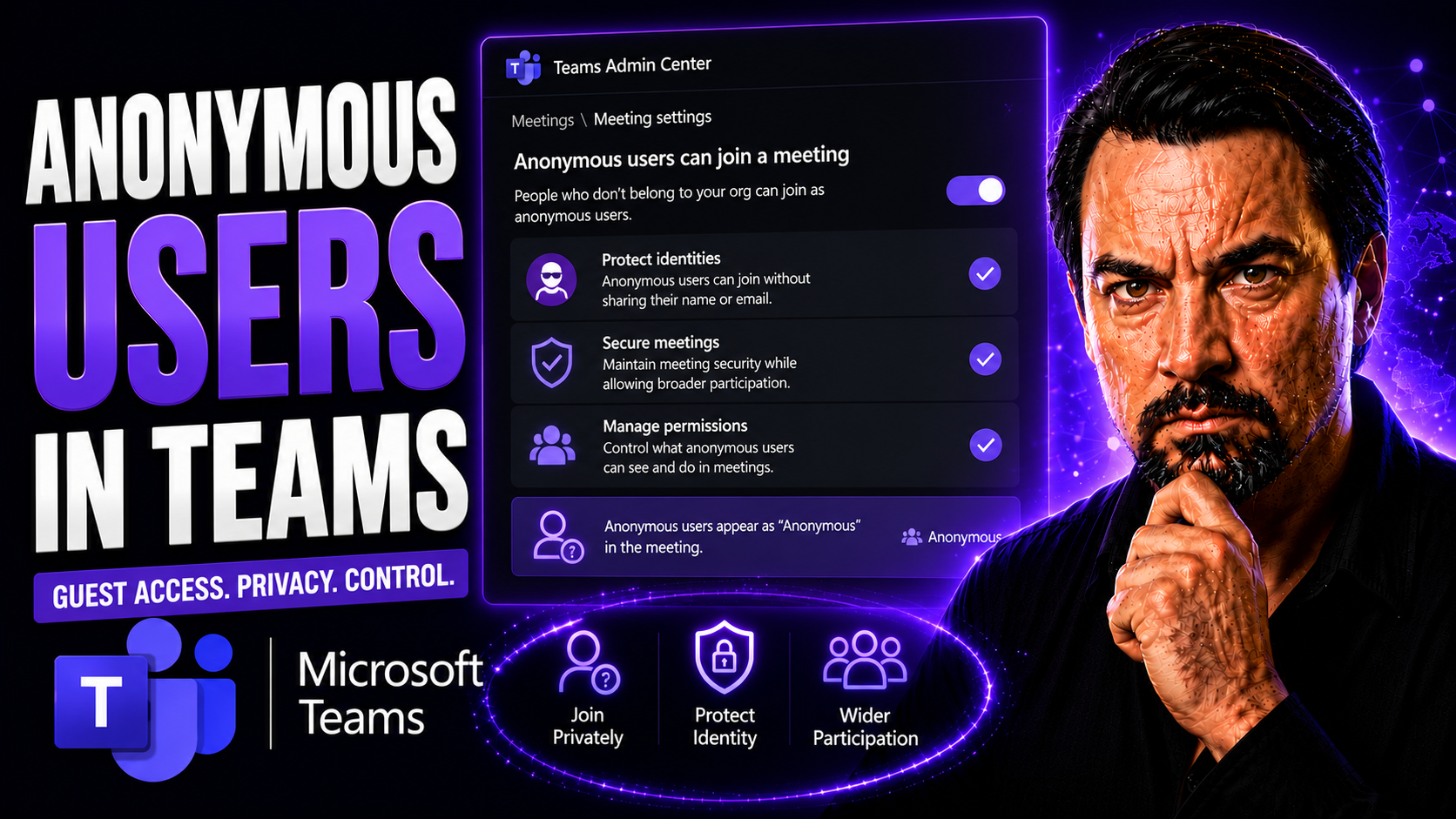
Anonymous users in Teams meetings can join without a signed-in organisational account when the meeting and tenant settings allow it. Organisers should decide whether anonymous access is needed, use the lobby to control admission, avoid sharing sensitive content before identity is confirmed, and apply clear meeting policies for external participation.
Microsoft Teams lets people join meetings without needing to sign in—what’s called anonymous access. This feature helps organizations connect with external partners, clients, or even the public, without making them create accounts or fuss with extra logins. It’s a practical way to handle big town halls or open webinars where inclusivity matters.
Still, letting folks “walk in” anonymously does raise some tough questions. You’ve got to think about privacy, risks if someone uninvited listens in, and how anonymous guests can change the vibe and security of a discussion. There’s also the world of data compliance—because sometimes you need to know exactly who heard what.
For IT admins and business leaders, balancing open collaboration with good governance (including compliance requirements like GDPR or HIPAA) is a real challenge. This guide will break down what anonymous users are, the security measures you can put in place, and what it all means for your next Teams meeting—making sure you keep things both open and safe.
Defining Anonymous Participants in Meetings and How They Differ From Guests
In Microsoft Teams, anonymous participants are people who join a meeting without signing in to a Microsoft account or being formally invited as a guest. They click a meeting link, type in a name (it could be anything), and enter. No authentication required, no account needed—they’re just “Anonymous User” or whatever name they pick for that meeting.
Guests, on the other hand, are invited in through a specific process. They have to log in with an email, get verified, and are then wrapped into your organization’s Teams environment under the Guest status. There’s a digital handshake. Guests can usually access more content like shared files and chats outside the meeting, depending on your admin’s settings.
The main difference boils down to accountability and access: guests have an identity trail and some ongoing permissions; anonymous participants have neither. Anonymous users generally have limited meeting capabilities—they can view and participate during the live session, but rarely access persistent chat or files afterwards.
Organizations might allow anonymous access for things like public webinars, community Q&A, or collaborative workshops. Default security often puts these joiners in the “lobby” so an organizer decides if they’re let in. Teams will show them as “Guest” or “Anonymous” in participant lists, so there’s at least some visibility. Strong Microsoft Teams governance (more details here) is vital when deciding if and when to allow this kind of open door.
Can You Join a Microsoft Teams Meeting Without Anyone Knowing?
Curious if joining as “anonymous” makes you invisible? Not quite. When you join a Teams meeting without signing in, your presence does show up for organizers and others. Even if you enter a fake name, Teams labels you clearly as an external or anonymous participant in the attendee list.
Before you even get into the actual meeting, Teams usually places you in a “lobby.” The organizer gets a notification that someone—with whatever name you typed—wants to join. They control who comes in. Everyone in the meeting will see your chosen display name (and possibly “Guest” or “Anonymous” depending on the setting), but they won’t see any true identity details unless you provide them.
You can’t “hide” in a Teams call. Unlike a lurking shadow in the hallway or an uninvited listener, there’s always a record: the current attendee list. Post-meeting reports log your display name and indicate you joined anonymously, but they won’t have your real identity unless you signed in or verified with Teams Premium.
So, you can join without anyone knowing exactly who you are—but not without anyone knowing you’re there. Meeting organizers have the tools to see and manage all participants, ensuring there’s always some visibility into anonymous access.
Anonymous Users Verifying Their Identity With Teams Premium
Microsoft Teams Premium introduces a clever twist to anonymous joining by adding email-based verification. Instead of letting anyone with a link walk right in, organizers can require anonymous users to verify their identity—just enough to deter bad actors, yet still keep access hassle-free.
Here’s how it works: when this setting is enabled, an anonymous participant who clicks the meeting link is prompted to enter an email address. Teams sends a one-time verification code to that address. The user checks their inbox, grabs the code, and enters it in Teams—that’s their “ticket” to the meeting.
Importantly, this method doesn’t force the person to register or create a Teams account; it simply checks that they control the email they entered. Their actual identity isn’t fully revealed, but there’s now an electronic trail. Meeting organizers can see which emails were used to verify entry, tightening accountability while still allowing open participation.
For IT admins, this is a practical compromise. You gain extra security without pushing away casual or external contributors by demanding full authentication. If you need to trace who joined in case of a security concern, you have at least a contact point for follow-up, all while maintaining accessibility for broad or public meetings.
Balancing Accessibility and Security When Joining Teams Meetings Ethically
Letting people join your Teams meetings anonymously is all about finding the sweet spot between open access and strong security. On one hand, you want clients, partners, or even the general public to participate easily. On the other, you don’t want sensitive info floating around with no accountability.
Ethically, your policies should encourage responsible participation. That could mean enabling email verification for anonymous joiners where it makes sense, especially in public-facing or semi-private events. This helps keep attendance honest without shutting out folks unfamiliar with Microsoft Teams.
Organizers face tough choices—should you allow anyone in, or restrict access to only those you trust? Meeting etiquette comes into play: be transparent about who’s attending, clarify ground rules, and remind everyone if the session is recorded or sensitive. Responsible governance means picking security controls that match your meeting’s risk and goals.
For a deeper dive, take a look at this resource on how Teams governance turns chaos into confident collaboration. Good governance frameworks don’t just safeguard your meetings—they build trust, foster psychological safety, and show your participants you respect both their privacy and their time.
Admin Controls for Organization-Wide and Per-Organizer Anonymous Access
Managing anonymous access in Microsoft Teams isn’t just about flipping a switch. It’s about knowing who holds the keys and where control points exist. Admins can set blanket policies for the whole organization or allow individual meeting organizers to tweak settings on a case-by-case basis.
Organization-wide settings help enforce universal rules. This is handy for locking down sensitive environments or ensuring compliance, so no random guest sneaks into confidential board meetings. Meanwhile, per-organizer controls let teams open up for big events, public Q&A sessions, or client workshops—without sacrificing overall security posture.
It’s a balancing act. Admins need to set frameworks and default rules, while still providing enough flexibility for unique business needs. Strong Microsoft Teams governance—the kind detailed in this Teams governance resource—can help admins choose the right mix of security, usability, and compliance, while keeping controls clear and manageable.
In the next section, we’ll cover what needs to be in place before you even enable anonymous access: the nuts and bolts that make all these control options possible.
Prerequisites for Enabling Anonymous Access in Teams Meetings
- Microsoft 365 Licensing: Ensure your organization has an active Microsoft 365 subscription that includes Teams.
- Admin Permissions: Only global or Teams service admins can configure anonymous access features in the Teams Admin Center.
- Teams Meeting Policies Configuration: Verify (or create) meeting policies allowing anonymous participants; adjust “Allow anonymous users to join meetings” setting as needed.
- External Sharing Controls: Double-check both Teams and SharePoint settings to align on external access permissions for files and meeting content.
- Security and Compliance Considerations: Review your organization’s risk and compliance requirements (e.g., GDPR) before enabling broad anonymous access.
Blocking Anonymous Clients With PowerShell and Evaluating the Impact
Sometimes, letting in anonymous users isn’t worth the risk—and in those cases, admins have options to tighten things up. One way is to block anonymous access entirely, or limit it to certain clients (say, blocking from the desktop app but allowing browsers). Microsoft Teams offers these controls in the Teams Admin Center, but PowerShell makes bulk or scripted changes possible for bigger organizations.
Admins use PowerShell commands like Set-CsTeamsMeetingPolicy to toggle anonymous join settings across users or groups. You can even specify which devices or client types are blocked, giving you fine-tuned security. After implementation, best practice is to monitor the effects—both by keeping tabs on meeting feedback and reviewing audit logs—to check if anything unintentionally got locked down.
Feedback is crucial. If legitimate users suddenly can’t join meetings, you might need to relax restrictions or educate people about proper join methods. Data compliance is another angle; keeping an audit trail helps satisfy regulatory requirements. For a best-practices approach to securing Teams end-to-end, listen to this podcast episode on Teams security hardening.
Blocking anonymous users doesn’t mean forgetting about them—continuous evaluation is necessary. The goal is to balance meeting accessibility and security, so you avoid both uninvited eavesdroppers and frustrated legitimate participants.
What Anonymous Participants Can Do and Chrome Browser Support
When someone joins a Teams meeting anonymously, what can they actually do? Anonymous users can turn on audio and video, join in conversation (if enabled for guests), and sometimes post messages in chat during the live session. However, their powers are limited compared to recognized, signed-in users or invited guests.
For example, anonymous attendees usually can’t see past meeting chat history or access files shared before the session started. Their access to apps, polls, and side-panel integrations depends on organizer settings—organizers have the final say on how open the playground is. Teams always displays "Anonymous User" or whatever name entered, which helps maintain transparency for everyone else in the call.
Browser choice matters, too. Chrome and Edge are the best bets for anonymous joining. They fully support Teams web features, handle popups and webRTC calls smoothly, and make sure you don’t get stuck on the loading screen. Other browsers—like Safari or Firefox—are possible, but might strip out features or cause hiccups with audio, video, or app integration.
If you’re planning to bring in anonymous participants and want interactive features (like polls or apps), encourage them to use Chrome or Edge. For more on making meetings smarter and safer with Teams apps and workflows, check out this guide on Teams app extensibility.
Joining Teams Meetings Anonymously With Meeting Links and Calendar Invites
There are two classic ways people join Teams meetings anonymously: clicking a direct meeting link or joining via a calendar invite, typically through Outlook. Both methods are hassle-free and don’t require a Microsoft account or password.
Method one is simple: someone shares a Teams meeting link, you click it, and you’re taken to a web page. Teams gives you the option to join on the web or open the app. If you choose the web, you’re prompted to enter your name—and that’s it. No sign-in required, nothing tying your identity to the session unless you volunteer it.
Method two uses the Outlook calendar invite. If you receive an invite to your email, you find the "Join Microsoft Teams Meeting" button, which whisks you into the same join process as above. Again, you pick your display name and head into the lobby, where the organizer can let you in. Using the web links is the recommended way to stay fully anonymous.
Which is best? If privacy is your prime concern, use the direct link and stick to Chrome or Edge on the web. Regardless of your method, you’ll appear clearly as an anonymous participant in the attendee list—so truly “invisible” is not an option, but your real-world identity stays hidden unless you choose otherwise.
Can Employers See Who Attends Teams Meetings Anonymously?
No, employers and meeting organizers cannot see the true identities of participants who join Teams meetings anonymously. Teams logs the chosen display name used during the session (e.g., “Anonymous”) but doesn’t collect or show the underlying personal details unless the user signs in or verifies via Teams Premium.
Attendance reports will only show the display names provided at join time, creating a privacy buffer for unregistered users. Keep in mind, though, this anonymity can create challenges for compliance and accountability, especially in regulated industries. If your organization has stricter privacy or audit needs, consider enhanced verification or reviewing your meeting policies. For more on how Microsoft handles data privacy, see this overview of Microsoft Copilot data privacy.
Frequently Asked Questions About Anonymous Access in Teams
- How do I join a Teams meeting anonymously? Click the meeting link or access via a calendar invite, choose “Join on the web,” and enter a display name instead of signing in. No Microsoft account needed.
- Can anonymous users chat or use apps during meetings? Yes, but with limits. Organizers control whether anonymous participants can chat or interact with meeting apps, and access is typically restricted to the session only.
- Are there ways for organizers to verify anonymous users? With Teams Premium, admins can enforce email verification—anonymous users enter a code sent to their email before joining, creating a minimal audit trail.
- What privacy risks come with anonymous participation? Meeting content could be seen by unintended viewers, and there is risk of data leakage via screenshots or recordings. Restrict content sharing and monitor access to minimize exposure.
- How does admin policy enforcement work for anonymous access? IT admins can allow or block anonymous joiners at the organization or user level, use PowerShell for bulk changes, and set lobby controls to review who comes into meetings.
You Should Also Listen To
If you are researching anonymous users in Teams meetings, these episodes add practical context on meeting operations, security, collaboration, and governance:
- Recording, Transcription, and Breakout Rooms — Learn how recording and transcription turn meetings into reusable knowledge.
- Teams Telephony – Simply Explained — Understand the communication architecture behind reliable Teams meetings.
- Microsoft Teams Governance – The Illusion of Control — Connect meeting design with policy, ownership, lifecycle, and governance.
- Microsoft Defender XDR – Simply Explained — Add security monitoring and response to meeting operations.
Manage anonymous users in Teams meetings safely
- Decide whether the meeting genuinely needs anonymous access.
- Use the lobby to admit attendees deliberately and identify participants where appropriate.
- Share sensitive content only after the right participants have joined.
- Review the meeting policy and organiser settings before repeating the format at scale.
Check Microsoft Learn for Teams for the current anonymous-meeting and lobby controls.
FAQ
Can anonymous participants join every Teams meeting?
No. Availability depends on the tenant’s meeting policies and the specific meeting configuration.
Last reviewed: July 2026.
🎧 You Should Also Listen To
- Teams Admin Center Governance
Learn the policy and ownership decisions behind secure, consistent Teams communication.
- Microsoft 365 Governance Operating Model
Explore the operating model that keeps collaboration settings and user guidance sustainable.
- Teams Telephony – Simply Explained
Understand the wider calling and communication experience that complements everyday Teams use.

Microsoft MVP | Host of M365.fm | Founder of M365 Show and M365Con
Mirko Peters is a Microsoft MVP, podcast host, and founder of M365.fm, M365 Show, and M365Con. His work connects Microsoft practitioners through podcast interviews, livestreams, and community events.
At M365.fm, Mirko hosts conversations with Microsoft MVPs, product experts, architects, and community contributors. Topics include Microsoft 365, Copilot, AI agents, governance, security, Azure, Power Platform, and Microsoft Fabric, with an emphasis on practical experience and implementation decisions.
M365.fm is the podcast and learning platform. M365 Show brings experts together for livestreams, while M365Con provides an online conference setting for community learning.
Official website: Mirko Peters (https://www.mirkopeters.com/). Recognition: Mirko Peters — Microsoft MVP profile (https://mvp.microsoft.com/de-DE/mvp/profile/9b0ca797-db5a-493a-a845-8b9158046cf5). Connect on LinkedIn (https://www.linkedin.com/in/m365showpodcast/).





