
SharePoint Label Inheritance
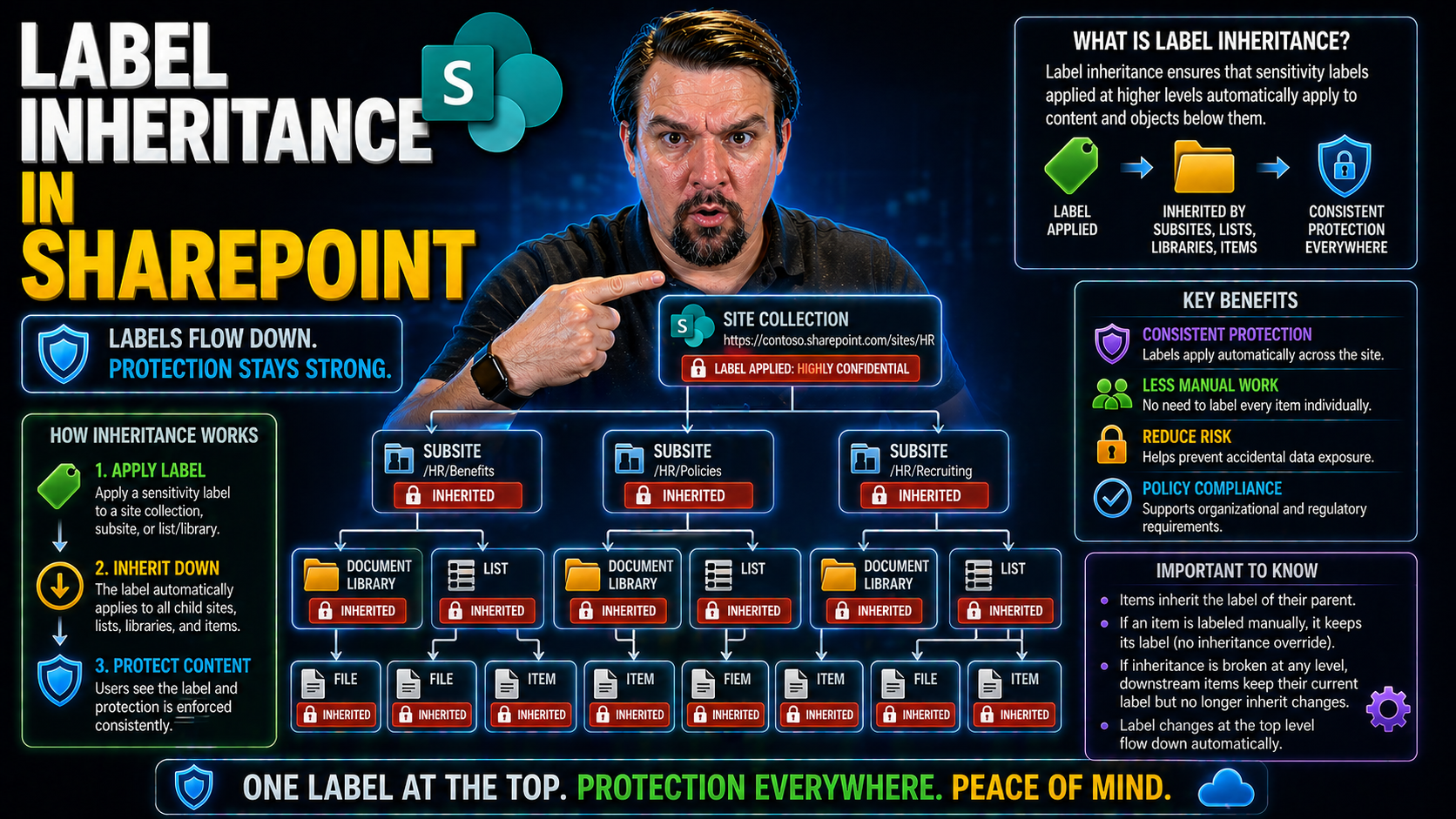
When you start working with SharePoint in Microsoft 365, label inheritance and permissions aren’t just technical jargon – they’re the rules of engagement for keeping your files safe, compliant, and well-governed. Get these mixed up, and you’ll be scratching your head when data slips through the cracks or when users complain about not getting in where they should. Understanding these two systems—how permissions get passed down through SharePoint sites, and how sensitivity and retention labels do (or don’t) follow suit—is foundational knowledge for anyone managing Microsoft 365 today.
The guide you’re about to read is designed to remove the guesswork and confusion. You’ll see clear definitions of permission inheritance and label inheritance, and exactly how they interact—not just on paper, but in the real-world, lived experience of admins and users. Expect honest insights, practical takeaways, and a heads-up on traps that organizations keep falling into. We’ll set expectations for what’s possible, what’s wishful thinking, and why getting this right matters for security, AI adoption, and plain old peace of mind.
This isn’t just theory. We’ll follow the lifecycle of both permissions and labels, look at hybrid environments, automation, audit logs, and the critical differences between retention and sensitivity labeling strategies. By the end, you’ll know where the potholes are, how to avoid them, and how to keep SharePoint doing what it’s supposed to—making your data available to the right people, and no one else.
Permission Inheritance Versus Label Inheritance in SharePoint
To really make SharePoint work for your organization, you need to grasp how permissions and labels work—especially how they travel (or not) through your content structure. Permission inheritance is the backbone of SharePoint access controls, allowing you to set rules at a high level and let them cascade down. Label inheritance, by contrast, is newer and more nuanced. Sensitive data, compliance requirements, and hybrid environments have made label management a must-have, not a nice-to-have.
It’s tempting to treat permissions and labels as interchangeable, but that’s a fast track to confusion and potential security gaps. Permissions decide who can see, update, or share a file. Sensitivity labels, on the other hand, decide how data should be treated based on its classification—think encryption, auto-expiration, or sharing limits. These two systems often overlap, but they don’t always “talk” to each other in the ways admins expect.
In the following sections, we’ll look at how permission inheritance has always worked, why label inheritance is both similar and wildly different, and why every Microsoft 365 practitioner needs to understand both models before rolling out large-scale labeling strategies or compliance policies.
How Permission Inheritance Works with SharePoint Securable Objects
In SharePoint Online, every time you set permissions on a site, document library, folder, or item, you’re dealing with what’s called a “securable object.” These objects have access controls attached, and by default, permissions flow from the parent down the tree. So, if you grant a user access at the site level, they’ll have the same rights to all doc libraries and files within—unless you break inheritance somewhere along the line.
If you need to set up special access—say, a confidential HR folder inside a public department site—you break inheritance on that folder and customize who gets in. That folder now stands alone, permission-wise, with its own list of who can view, edit, or delete content. Everything underneath inherits from that break point unless you break it again, and so on. This model gives you very granular control, but it also means more housekeeping as your permissions web gets more complex.
Most organizations rely heavily on permission inheritance to prevent accidental exposure. But it’s easy to lose track of who has what if you have a patchwork of unique permissions and broken inheritance all over your environment. That’s why governance and regular access reviews are critical—otherwise, “set it and forget it” will get you in trouble real quick. If you’re worried about accidental oversharing or permission sprawl, reining in inheritance breaks and monitoring access is a must.
How Label Inheritance Differs from Classic Permissions
Sensitivity labels in SharePoint don’t act like traditional permission settings. While permissions flow down through the content hierarchy, label inheritance has its own rhythm and rules. When you apply a label to a site or container, it doesn’t always trickle down automatically to every file or folder. In many cases, individual documents may need to be labeled directly—even if a container-level label is in place.
Labels are designed for data classification and policy enforcement—they stick with content even as it moves around. But the user experience isn’t always seamless, and confusing labels with permissions can lead to unexpected access issues or compliance slip-ups. Keeping the two systems straight is a must if you want stable security and governance across your SharePoint environment.
Sensitivity Labels in SharePoint: Role in Access Controls and Security
If SharePoint permissions are your front door lock, sensitivity labels are more like a safe inside the house. They help you classify, protect, and control how information gets handled—even after leaving SharePoint. As organizations move toward zero trust and AI-powered search, understanding how sensitivity labels interact with regular permissions is crucial for both security and compliance.
Sensitivity labels don’t operate in a vacuum. In most cases, they reinforce or augment existing permissions, adding extra controls like encryption, watermarking, or sharing restrictions. Many admins and users wonder if a sensitivity label overrides site permissions or whether both work at the same time. The reality is a bit of both, and knowing how these systems stack is essential to minimize “access denied” headaches and regulatory risks.
The next few sections break down real-world scenarios where sensitivity labels kick in, what happens when label and permission settings clash, and how label-based policy enforcement works in practice. If you’re rolling out Copilot, handling regulated data, or just tired of users getting blocked at random, understanding this dance between labels and permissions is where the magic (and the problems) happen. For a deeper dive into these governance challenges, check out this exploration of Microsoft 365 data access and ownership.
Do Sensitivity Labels Replace Permissions or Work Alongside Them?
Sensitivity labels do not replace permissions in SharePoint—they work alongside them. When you apply a sensitivity label to a site or document, it can enforce extra rules like encryption or sharing restrictions. But users must still have the right SharePoint permissions to access that content in the first place.
For example, a user with read-only access to a “Confidential” labeled document still can’t edit it—even if the label itself allows editing in other scenarios. Similarly, applying a strict sensitivity label doesn’t give more access than what permissions permit; both sets of controls must line up for access to succeed. This dual model is essential for building layered defense and preventing security gaps from label or permission misconfiguration.
How Sensitivity Labels Trigger Access Denied and Permission Problems
Sensitivity labels often introduce a new layer of protection that admins and users don’t always expect. Let’s say you have a SharePoint document library where permissions allow several users to read and edit files. If a document within that library gets a “Highly Confidential” sensitivity label that encrypts it and restricts sharing to only a handful of people, anyone else—even with full SharePoint permissions—will see “Access Denied.”
This can create confusion, especially when label-based policies contradict or surprise those who are used to relying on classic permission models. For instance, external users might have permission to a site, but labels can block their access to certain documents without much warning. Common issues include users being able to see a document link but not open the file or downloading an encrypted document they can’t read without proper credentials.
The key is to treat sensitivity labels and permissions as separate but equal partners in your security stack. Regular reviews and thorough communication can help prevent frustration, but it’s also smart to factor in conditional access and device compliance requirements—which can stack on top of label protections. Want to dig deeper into robust access control strategies? Take a look at conditional access policy improvements for the bigger picture on secure collaboration.
Label-Based Permissions and Policy Enforcement in SharePoint
- Encryption: Sensitivity labels can encrypt SharePoint documents, meaning only users with the correct credentials and device posture can open them—even if they have permission to access the site.
- External Sharing Controls: Labels can block or limit sharing with external users, overriding site-wide or library-based sharing settings for extra protection.
- Access Expiration: Some labels can set expiration dates, automatically revoking access to content after a defined period—even if permissions remain unchanged.
- Watermarking and Content Marking: Documents and emails can display visual cues (like watermarks or headers) driven by their assigned label, reminding users of sensitivity requirements.
- Conditional Access Integration: Labels can work hand-in-hand with Conditional Access policies to enforce stricter requirements for labeled content (such as only opening sensitive files on compliant devices).
Managing Sensitivity Labels for Microsoft 365 Groups and SharePoint Sites
If you want airtight governance in Microsoft 365, sensitivity labels aren’t just for documents—they’re for your groups, teams, and whole SharePoint sites too. When you slap a label on a Microsoft 365 Group or a SharePoint site, you’re defining how that entire “container” is treated for sharing, guest access, and downstream security. It’s a central part of modern SharePoint governance and life cycle management.
Applying, configuring, and managing these labels can sound daunting, but getting it right is what keeps your collaboration compliant and your sensitive content safe. You’ll need to synchronize labels across linked resources, monitor changes, and make sure lifecycle events—like site deletions or team deprovisioning—don’t punch holes in your protection strategy. Automation, especially with PowerShell, is how organizations scale this without losing their minds.
Coming up: clear steps on how to apply labels to your Microsoft 365 Groups and sites, set up and publish labeling options, roll out best practices for scale, and automate routine tasks to avoid mistakes or gaps in coverage. You’re about to take the guesswork out of label management, once and for all.
Applying Sensitivity Labels to Groups, Sites, and Containers
- Define the Label Policy: Start in the Microsoft Purview Compliance center and create or select a sensitivity label designed for containers (like groups and sites). These labels control key settings such as external sharing, unmanaged device access, and privacy (public vs. private).
- Publish the Label: Publish your label policy to targeted users or groups—usually the folks who create SharePoint sites or Microsoft 365 Groups. Without this step, your new labels won’t appear during site or group creation.
- Apply the Label: When creating or editing a SharePoint site or Microsoft 365 Group, select your published label. This step enforces your rules from the get-go, setting container privacy and access settings in one swoop.
- Understand Label “Inheritance” Caveats: When a label is applied to a group or site, it sets default access and sharing rules for the entire container. However, individual files and subfolders won’t always inherit the label automatically—manual or automated extension is typically needed for individual content labeling.
- Monitor and Update: If business needs or privacy requirements change, you can update the label (and its settings) in the Compliance center and reapply as needed. Label updates will cascade to the container’s configuration almost immediately, impacting sharing and access behavior for all associated resources.
Remember, the label applied at the group or site level dictates the baseline security and privacy, but to guarantee data-level enforcement, content items within may also need to be labeled individually or by automated tools.
How to Configure and Publish Labels for Groups in SharePoint
To configure and publish sensitivity labels for use with Microsoft 365 Groups and SharePoint sites, head to the Microsoft Purview Compliance portal. Here, you can create new sensitivity labels and configure their settings—like external sharing restrictions, guest access, and unmanaged device policies—specifically for container use.
Enable the “Groups & Sites” option during label creation, so the label is available for use across groups, Teams, and SharePoint sites. Publish the label policy to relevant users, ensuring your governance requirements are enforced from the moment a new group or site is spun up. For advanced strategies—like tightening DLP policies or scoping label use by role—check out governance approaches using Microsoft Purview.
Best Practices for Sensitivity Label Management at Scale
- Standardize Label Naming and Descriptions: Use clear, intuitive names and consistent descriptions so users know exactly when to use which label and why. This lowers confusion and reduces mistakes during rollout.
- Automate Label Assignment Where Possible: Use Microsoft Purview auto-labeling policies or PowerShell scripts to apply sensitivity labels at scale across sites, libraries, or groups, reducing the manual workload for admins and the risk of human error.
- Keep Labels Evergreen: Regularly review and update your labels and publishing scopes as business needs change, ensuring they stay aligned with regulatory rules and internal policies. Don’t let old or obsolete labels clutter your compliance model.
- Test Rollouts with Pilot Groups: Introduce new label policies to a small set of users or sites first, gather feedback, and fine-tune the experience before rolling out to the wider organization.
- Stakeholder Collaboration: Work closely with data owners, legal, and IT teams to coordinate labeling standards and enforcement, ensuring buy-in and reducing friction during enterprise-wide adoption.
Although comprehensive automation content is lacking at sources like this PowerShell governance resource, utilizing automation tools remains essential for scaling label management successfully in large M365 environments.
Automating Sensitivity Label Assignment with PowerShell
- Connect to Required Services: Open a PowerShell session with the Microsoft Graph or SharePoint Online modules, authenticating with the necessary admin roles for label changes on SharePoint sites or Groups.
- List Targets and Match Labels: Generate a list of sites, document libraries, or groups to label. For each, determine the correct sensitivity label by ID or name—usually based on business unit, project, or compliance requirement.
- Apply or Update Labels Programmatically: Use PowerShell cmdlets to assign or update labels across multiple resources in batch mode. This is critical for retrofitting labels across legacy SharePoint content and for ongoing maintenance.
- Audit Label Consistency: Write scripts to periodically report on label status, highlighting any containers or documents missing required labels or where inheritance is broken. Schedule these to keep your compliance dashboard always up-to-date.
- Handle Errors and Edge Cases: Include error handling for sites with existing label conflicts, inaccessible groups, or document checkouts, logging issues for follow-up. Automation requires ongoing monitoring to catch silent failures.
As with the broader recommendations above, scalable automation content is still evolving in spaces like Microsoft 365 automation, but using PowerShell remains your best friend for fast, repeatable label enforcement.
Retention Labels, Compliance, and SharePoint Data Governance
Up to this point, we’ve covered sensitivity labels—those are all about protecting, classifying, and controlling how data can be shared or accessed. But there’s another powerful tool in the SharePoint data governance toolkit: retention labels. Retention labels aren’t about who can access what, or whether a document gets encrypted. Instead, they’re about how long documents are kept, who can delete them, and making sure you meet compliance and regulatory requirements.
Retention labels operate independently of both classic permissions and sensitivity labels, playing a distinct role in the broader world of governance. They define content lifecycles, trigger mandatory holds, and build a defensible audit trail for legal or regulatory reviews. If you’re preparing your environment for AI and Copilot-style automation, having your retention house in order is critical to avoid unexpected data sprawl, liability, or compliance headaches.
In the following sections, we’ll lay out the differences and overlaps between retention labels and sensitivity labels. You’ll see when to use each, how retention labeling bolsters regulatory compliance, and what all this means for data accessibility and Copilot readiness in your Microsoft 365 universe.
Comparing Retention Labels and Sensitivity Labels in SharePoint
- Purpose and Focus: Sensitivity labels protect information through encryption and sharing rules, while retention labels govern how long items are kept and when they can be deleted—supporting compliance and legal hold needs. Sensitivity = security. Retention = lifecycle management.
- Scope of Enforcement: Sensitivity labels apply security at rest and in transit, often embedded in metadata. Retention labels act at the document or item level, sometimes blocking deletion or enforcing preservation regardless of permissions or user actions.
- AI and Copilot Integration: Copilot and other Microsoft 365 AI workloads respect permissions above all else. Retention labels ensure information isn’t deleted or altered unexpectedly—keeping your content accessible for search, reporting, and smart automation. More on effective ECM strategies can be found in this content management discussion.
- Compliance Reporting: Using retention labels, you can prove you’ve met mandated data retention and disposal requirements. Sensitivity labels help you demonstrate data is protected according to policy, but don’t control its destruction or archival.
- Combined Value: Most organizations use both label types. Sensitivity labels cover the security side, while retention labels ensure compliance with audit and legal requirements—keeping both regulators and AI governance councils satisfied.
When to Use Retention Labels for Compliance in SharePoint
Retention labels should be a go-to whenever your organization faces legal, regulatory, or operational requirements to keep (or delete) data for certain periods. Financial records, contracts, and HR files are classic examples—they often require retention policies to prove you’ve kept information long enough for audits or litigations.
While sensitivity labels may classify something as “Highly Confidential,” only retention labels enforce its preservation, preventing deletion or alteration until the policy runs its course. This distinction is key for ensuring Copilot and audit tools have reliable, trustworthy data to work with. For actionable guidance on DLP and compliance setup in Microsoft 365, see this DLP and Copilot readiness resource.
How Labels Impact Microsoft Copilot Readiness and AI Compliance
When it comes to Copilot and AI in Microsoft 365, it’s your permission model—not sensitivity or retention labels alone—that really dictates what these assistants can access or present to users. Labels add crucial layers of protection and compliance but don’t expand the AI’s reach beyond what permissions allow. That means your AI can’t magically see into a “Confidential” document unless the user already has permission—even if a sensitivity label is present.
What labels do impact, however, is data governance readiness. Retention labels guarantee data isn’t deleted prematurely—protecting knowledge assets so Copilot and search have more to “see.” Sensitivity labels help prevent accidental disclosure if content is surfaced by AI bots or agents, reinforcing sharing boundaries and exfiltration controls. To avoid exposing data or running afoul of regulations, tuning your labeling and permission models before Copilot rollout is crucial. Find more hands-on governance tips in resources like this Copilot governance guide and this data strategy podcast.
Good Copilot outcomes depend not just on smart AI but on consistent, well-enforced governance of both permissions and labels. Get that right, and your AI rollout won’t go sideways.
Common Misunderstandings and Rollout Pitfalls with Labels in SharePoint
Even seasoned IT teams can tumble into traps when rolling out labels in SharePoint. The confusion often comes from thinking sensitivity or retention labels can do it all—maybe even replace permissions altogether. This wishful thinking, plus fuzzy communication and training shortfalls, usually leaves users and admins equally frustrated.
Organizations get tripped up when they misjudge how labels interact with real-world data use—like treating permissions as a records policy, or assuming everyone will understand new label logic without hand-holding or clear guidance. The result is usually an avalanche of help desk tickets, patchwork security fixes, or compliance gaps that only show up during an audit (and that’s never a good time).
Coming up, you’ll see the most common mistakes made during label rollouts, why permissions and label-based records management must be kept separate, and what users keep tripping over when new label-driven governance models go live. Real examples and practical pointers will help you avoid the same fate and keep your rollout drama to a minimum.
Top Organizational Mistakes with Sensitivity and Retention Labels
- Confusing Permissions with Records Management: Many organizations treat SharePoint permissions as records management tools, expecting them to fulfill retention and compliance needs. This often leads to records being deleted or lost before their legally required retention ends. For a closer look at how compliance drift happens, review this compliance drift exploration.
- Assuming Labels Replace Permissions: There’s a persistent myth that a sensitivity label automatically restricts or grants access to content. In reality, labels layer on top of permissions and don’t grant access by themselves. Assuming a “Secret” label is enough leads to dangerous oversharing.
- Ignoring Label Lifecycle and Updates: Labels often get set and forgotten, even as business rules or compliance needs change. Outdated labels misclassify sensitive data, breaking search, workflow, and compliance audits down the line.
- Lack of Clear Ownership and Communication: Without clear roles for managing labels and transparent communication to end users, content ends up inconsistently labeled or outright unlabeled. This ambiguity leads to data loss or missed compliance targets.
- Inadequate Rollout Planning: Rolling out labels everywhere at once, without pilots or phased adoption, overwhelms users and IT. Misunderstandings multiply, maturity stalls, and the label strategy soon falls out of sync with business needs.
Understanding Permissions and Records Management Confusion
Permissions and records management are not two sides of the same coin. Permissions control who can see, edit, or delete content in SharePoint in real time. Records management, on the other hand, establishes legal and operational requirements for preserving or disposing of content, regardless of who has access.
Treating permissions as a surrogate for records management creates a major compliance hole. If a team member with “delete” rights removes a critical document, you can violate retention requirements even if your permissions model is watertight. Proper governance means using both systems where intended—aligning permissions for access, and retention labels for lifecycle and legal holds.
Rollout Problems and Misunderstandings during User Adoption
- Poor Communication: Users aren’t told what labels do or why the changes matter, leaving them guessing—often making the wrong choice or raising endless support tickets.
- Insufficient Training: If training materials skip over new label-driven workflows, users fail to recognize the new cues or make mistakes that undermine compliance.
- Misinterpreted Label Behaviors: Folks assume a labeled file is locked down, unaware that permissions still apply—or vice versa, leaving sensitive data exposed.
- Lack of Clarity on Impacts: Users get tripped up by features like external sharing restrictions or offline limits imposed by labels, which aren’t always obvious during normal daily use.
For best practices in rolling out robust security without annoying users, have a look at this practical security configuration guide.
Clarifying Real Data Sources and User Experiences
Effective labeling starts with mapping your actual SharePoint data sources and usage patterns. Align your labeling strategy—policies, automation, and reviews—with how users really store, access, share, and collaborate on content, not just how your architecture diagrams look.
This means reviewing folder structures, library setups, and sharing practices. It’s crucial to pilot label policies with real user groups and gather feedback to avoid mismatches between intended protections and day-to-day workflows. The goal: policies that protect data without getting in users’ way or creating accidental lockouts.
Implementing and Troubleshooting Label Inheritance in SharePoint
So, you’re ready to put all this label theory into action? This section is your playbook for actually enabling and managing label inheritance in SharePoint. We’ll walk through the steps for activating label features, configuring sharing and inheritance rules, and using PowerShell when the process needs to scale or when things go off the rails.
Of course, theory sometimes meets reality—so you’ll also find detailed troubleshooting for common label-driven problems. We know how it goes: a checkbox is grayed out, a document loses its label after download, or your users can’t apply the right label in the first place. These are all fixable with the right approach, the right PowerShell script, or a nudge in settings.
Ready to get your label controls and inheriting behaviors running smooth? Let’s break it down so you can actually see results in your SharePoint security and compliance stack.
How to Enable Sensitivity Labels and Label Inheritance Features
- Update Admin Center Settings: In the Microsoft Purview Compliance center, enable “Sensitivity labeling for containers” under Information Protection settings. This unlocks label use on sites, groups, and Teams.
- Turn on Preview & Advanced Features: For the most current label inheritance capabilities, opt into preview features where available. Some inheritance options are only surfaced this way as Microsoft iterates new features.
- Set Default Label Policies: Define organization-wide default label settings for new and existing SharePoint sites, ensuring a baseline security posture for all containers—especially at scale.
- Tweak Site and Library Settings: In individual site collections or document libraries, confirm that label inheritance options are visible and enabled where required. Adjust sharing and retention settings to match your label policy.
- Automate with PowerShell: Use Set-SPOSite and related cmdlets to apply or enforce default sensitivity labels across sites programmatically. Schedule repeat scripts to catch new sites and fix drift as your environment evolves.
Configuring Sharing Settings and PowerShell for Label Inheritance
Sharing settings are crucial when it comes to label inheritance in SharePoint. In the SharePoint admin center, make sure that each site’s sharing rules align with the intended sensitivity label policy—especially if you restrict external or unmanaged device access.
To enforce or audit these settings at scale, use PowerShell scripts that check for mismatches between sharing configurations and applied sensitivity labels. Scripts can also synchronize label status across integrated services or trigger alerts if inheritance gets broken. PowerShell automation provides surgical precision when native settings aren’t enough and gives you a full audit trail for compliance reporting.
Troubleshooting Sensitivity Label Access and Application Issues
- Uncheckable Label Checkboxes: If the option to change or apply a label is grayed out, confirm admin permissions, inheritance settings, and that the user has access to the correct label policies. Sometimes, cached credentials or synced accounts can block the UI until reset.
- Downloaded Documents Lose Protection: When labeled SharePoint documents are downloaded and lose their sensitivity tag, it’s often because you’ve hit a file type or client compatibility issue. Ensure users are on the latest Office apps with Azure Information Protection support. Review tenant-level policy settings to control download behaviors.
- Conflicting Permissions and Labels: When label-driven restrictions block access even for permitted users, check for conflicts between label policies and classic permissions. Labels might enforce stricter rules (like “Only open in browser”). Audit Purview logs and permission assignments for clues.
- Broken Inheritance After Migration or Ownership Change: During migrations or ownership transfers, labels can lose their inheritance or be stripped. Use PowerShell to reapply or fix assignment in bulk, and run compliance scans post-migration to catch access failures.
- Audit Failures and Missing Activity Records: Sometimes label changes or inheritance breaks don’t appear in logs. Upgrade to Microsoft Purview Audit Premium for enhanced tracking. For auditing setup best practices, see this Purview Audit guide.
Practical Guide to Fixing Issues with Labeled Office Documents
- Restore Label Protections: Reapply sensitivity labels if a document loses tags after download or movement, using Office desktop apps or the Compliance center.
- Offline Access Fixes: Ensure that users opening labeled content offline have the correct authentication tokens and device compliance to unlock protections.
- Check File Compatibility: Not all Office file types carry over label metadata the same way—convert or update as needed for labeling consistency.
- Reset Permission Settings: If access fails, reevaluate permission and label combinations, and reset as needed to regain intended access while preserving protection.
Label Inheritance in Hybrid and Third-Party Environments
Label inheritance isn’t just a Microsoft 365-only affair. Many organizations mix SharePoint Online with on-premises SharePoint servers, legacy file shares, or even third-party content platforms like Box or Dropbox. In these hybrid and cross-platform deployments, label behavior can get even trickier—sometimes labels travel with content, other times they get stripped, ignored, or need to be reapplied with custom tools.
If you use Azure File Sync or migrate libraries back and forth, understanding how and where sensitivity labels are enforced (or fail to persist) is crucial for maintaining compliance and security standards across your entire estate. Conditional access can help, but it often falls short once content leaves the native SharePoint/365 boundary.
For every platform jump—especially those involving custom apps, external CRMs, or non-Microsoft destinations—you’ll need extra measures to ensure labels and compliance metadata aren’t lost in translation. Check out this guide on data backbone governance for pitfalls to avoid when mixing services.
Label Behavior in Hybrid SharePoint and On-Premises Deployments
When you synchronize or migrate content between SharePoint Online and on-premises deployments, sensitivity labels don’t always come along for the ride. SharePoint Online natively supports Microsoft Information Protection, but on-premises SharePoint Server may not—especially on older versions or without custom connectors.
Tools like Azure File Sync help keep file shares and libraries connected, but label metadata may be lost, needing reapplication post-sync. Conditional access, such as requiring managed device checks, often won’t enforce once files cross into on-prem or legacy space. In these hybrid environments, policy enforcement relies more on upstream controls, solid monitoring, and sometimes third-party middleware.
Always review how your specific hybrid tools handle sensitivity and retention metadata. Where gaps exist—like when files land on local servers without native label support—workforce training and periodic bulk relabeling may be your best bet. For broader enterprise governance with enforced documentation, see the guidance in Azure governance strategy discussions.
Maintaining Label Propagation in Cross-Platform Workflows
- APIs for Metadata Transfer: Use Microsoft Graph, MIP, or third-party APIs to read and copy label metadata when migrating files to Box, Dropbox, or other external systems.
- Middleware Label Mapping: Employ middleware that maps SharePoint sensitivity and retention labels to equivalent policies or tags in external platforms, reducing compliance blind spots.
- Scheduled Label Reviews: Set up periodic audits of externalized content, checking that required classification and retention policies are still intact and correctly reflected in destination systems.
- Role-Based Exceptions Logging: Grant controlled, time-bound exceptions for necessary cross-platform access while maintaining audit trails to reapply labels afterward.
Monitoring, Auditing, and Reporting on Label Inheritance Changes
Once your labeling and inheritance strategy is live, staying in compliance means routinely monitoring label status, inheritance breaks, and overrides. You need tools that not only alert you to policy drift, but also provide concrete reports when compliance teams or auditors come calling. Microsoft Purview Audit Logs and PowerShell are pivotal for tracking what’s been done and who did it—no more chasing mysteries after the fact.
Label inheritance integrity is about more than just comfort—it’s a line of defense in incidents and a requirement for regulated industries. Regular reporting uncovers orphaned content, highlights where inheritance has broken down, and pinpoints where policy gaps or bad habits have crept in.
Next, you’ll see how to track inheritance changes, override events, and assemble trustworthy compliance reports—giving you the kind of policy “showback” that supports true accountability, as discussed in this guide on cost and governance accountability.
Tracking Inheritance Breaks and Label Overrides in SharePoint
IT and compliance teams should use Microsoft Purview Audit Logs and PowerShell to trace when label inheritance breaks or manual overrides happen within SharePoint. Audit Logs provide event history for label applications, changes, and removals, while PowerShell scripts can report on objects where inheritance has been interrupted.
By combining scheduled auditing scripts with enhanced log retention (Audit Premium), organizations can detect not just “what” changed but “who” changed it—and respond with corrective actions. For a how-to on user activity auditing, see this Microsoft Purview audit guide.
Building Compliance Reports for Label Inheritance Integrity
- Inventory Reports: Use PowerShell or third-party tools to export lists of sites, libraries, and documents with their current labels and inheritance states. This highlights where protection gaps exist or where labels are missing.
- Inheritance Break Tracking: Schedule reports that flag items or containers where label inheritance has been broken, manually overridden, or removed after migration—critical for compliance audits and incident response.
- Discrepancy Detection Scripts: Automated scripts compare expected label policies (from governance rules) with current object metadata, alerting to outliers or misapplied policies for quick remediation.
- Compliance Dashboards: Leverage Power BI or equivalent tools to visualize label coverage, inheritance integrity, and policy adherence trends over time—supporting broader governance oversight.
- Automated Notifications and Reviews: Set up email alerts or workflow reminders for IT/compliance leads whenever label inheritance or overrides are detected, ensuring swift corrective actions and reducing audit risks.
Consistent reporting keeps your SharePoint labeling strategy accountable, improves policy coverage, and makes audit or regulatory requests much less stressful.
You Should Also Listen To
If you are exploring SharePoint label inheritance, these episodes add practical context for turning Microsoft 365 security and governance concepts into workable controls.
- Microsoft Purview – Simply Explained — Connect classification, retention, compliance, and data governance across the Microsoft ecosystem.
- Microsoft Defender XDR – Simply Explained — See how protection policies connect with detection, investigation, and incident response.
- Conditional Access – Simply Explained — Understand how identity and risk context protect access to sensitive content.
- Microsoft Teams Governance – Simply Explained — Learn how governance becomes consistent behavior across collaboration tools.
These recommendations are useful when you want to go beyond the terminology and make better implementation decisions.

Microsoft MVP | Host of M365.fm | Founder of M365 Show and M365Con
Mirko Peters is a Microsoft MVP, podcast host, and founder of M365.fm, M365 Show, and M365Con. His work connects Microsoft practitioners through podcast interviews, livestreams, and community events.
At M365.fm, Mirko hosts conversations with Microsoft MVPs, product experts, architects, and community contributors. Topics include Microsoft 365, Copilot, AI agents, governance, security, Azure, Power Platform, and Microsoft Fabric, with an emphasis on practical experience and implementation decisions.
M365.fm is the podcast and learning platform. M365 Show brings experts together for livestreams, while M365Con provides an online conference setting for community learning.
Official website: Mirko Peters (https://www.mirkopeters.com/). Recognition: Mirko Peters — Microsoft MVP profile (https://mvp.microsoft.com/de-DE/mvp/profile/9b0ca797-db5a-493a-a845-8b9158046cf5). Connect on LinkedIn (https://www.linkedin.com/in/m365showpodcast/).





