
Users In Microsoft Entra ID Guide
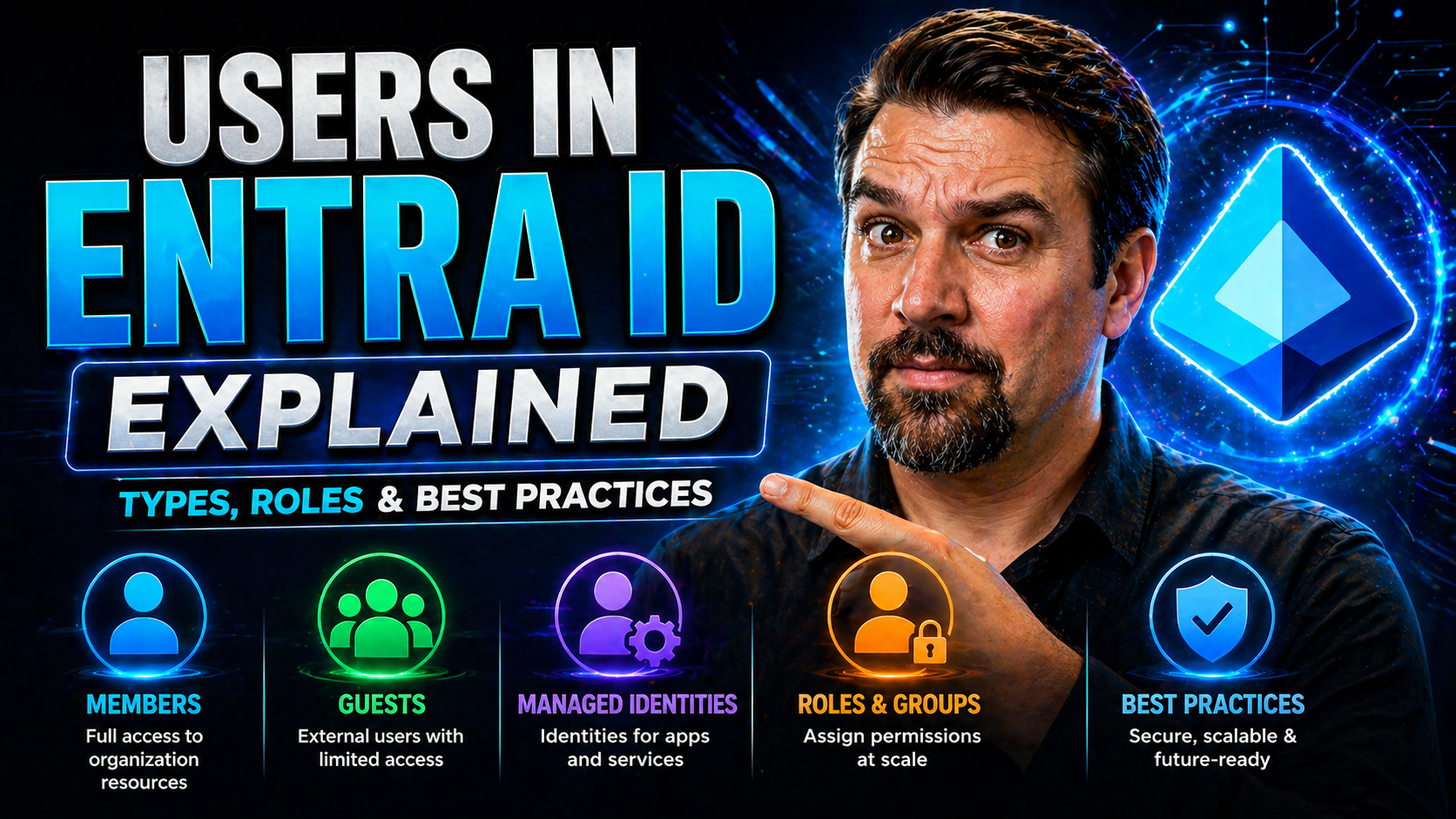
If you want your organization’s security locked down and productivity running smooth, understanding users in Microsoft Entra ID (formerly Azure Active Directory) is about as essential as remembering your anniversary. Users aren’t just email addresses—they’re the backbone of how identities and access are managed across Microsoft’s cloud.
This guide breaks down everything from user types (like full members and guests) to bulk management, app access, and admin roles. Whether you’re brand new to cloud identity or a battle-tested IT lead, you’ll get clear guidance on organizing, securing, and getting the most out of users in Entra ID. Let’s put identity where it belongs: right at the heart of your cloud strategy and security foundation.
What Is Microsoft Entra ID and Why Identity Management Matters
The days of locking down a single office with on-prem Active Directory are long gone. Welcome to Microsoft Entra ID—Microsoft’s evolution of Azure Active Directory and your command center for identity and access management in the hybrid-cloud era.
Entra ID is a cloud-first, cloud-native identity directory that keeps user logins, access permissions, and app connections all under one digital roof. No matter whether your users are in-house, remote, or bouncing between environments, Entra ID streamlines who can access what, keeping things smooth for users and air-tight on the security side.
So, what makes Entra ID different from the old-school Active Directory on your dusty Windows Server? Well, it’s built for the cloud from the ground up—seamlessly connecting with Microsoft 365, Azure, SaaS apps, and even your legacy on-prem workloads if you need it. It can manage users who never touch a corporate network, supports passwordless sign-ins, risk-based policies, and lets you control resources from anywhere.
A rock-solid identity system like Entra ID matters more now than ever. It’s not just about logins; it’s your shield against data leaks, compliance headaches, and cyber threats. Centralizing identity management shrinks your attack surface and lets you react fast to risks, which is key for any digital transformation journey. With Entra ID, your user directory is the front line of your security posture—and the fuel behind modern cloud productivity.
Understanding User Profiles, Types, and Attributes in Entra ID
- Types of Users
- Member Users: These are your internal users—employees, students, or staff who belong to your organization. They get full access to company resources based on their roles and assigned permissions.
- Guest Users: Also called “external users” or “B2B guests,” these are folks you invite from outside your organization (partners, vendors, clients). Their access is more restricted and can be controlled tightly for security.
- Key User Profile Attributes
- Username/UPN (User Principal Name): Usually an email address, this is what users sign in with.
- Display Name: The friendly name visible in Teams, Outlook, and other Microsoft apps.
- Email Address: The primary point of contact for each user.
- Department, Title, Job role: Helps with automation and dynamic group assignment.
- Manager: Organizes reporting lines and approval workflows.
- Custom Attributes: You can go beyond defaults—add cost center, project codes, or any custom field needed through directory/schema extensions.
- Significance of Correct User Info
- Accurate profile information isn’t just nice for IT—it's how you control who gets access to sensitive files, which licenses a user needs, and how audits or automation work. Poor data leads to compliance issues, messes with dynamic groups, and can leave doors open for the wrong folks.
- Profile Differences: Internal vs. External
- Internal (member) profiles will have richer attributes, organizational ownership, and broader resource access. Guest users bring their own credentials from another organization and keep a “lightweight” profile—perfect for secure collaboration without fully joining your domain.
Managing User Profiles, Categories, and Best Practice Properties
- User CategoriesEmployees: Your bread-and-butter users—full internal access as per their job roles.
- Contractors/Consultants: Internal but with limited or time-bound access; often need special flagging in attributes for compliance and reporting.
- Guests: External collaborators, as covered before. Tracking these is key to avoiding stale accounts and security risks.
- Recommended Profile PropertiesNaming Consistency: Use agreed formats, like firstname.lastname@domain.com for usernames, and standardized display names.
- Department & Role: Always fill out key attributes like department, office location, manager, and job title. This helps for dynamic group inclusion and access policies.
- Compliance Fields: Add custom schema extensions for project codes, cost centers, region, or legal entity—key for large organizations or regulated spaces.
- Profile Picture: Upload a recognizable photo to support identity validation and user experience across Outlook and Teams.
- Best Practice GuidanceReview user data regularly to ensure accuracy—this means automation tools, periodic audits, and syncs with your HR system.
- Document your naming conventions and profile property standards so HR, IT, and compliance are always on the same page.
- When auditing user activity for compliance and investigations, tie user profiles closely with tools like Microsoft Purview Audit to track behavior and risks across your Microsoft 365 environment.
- ExamplesEmployee: john.smith@company.com, Department: IT, Cost Center: 1001, Manager: Alice Lee, Profile Photo: Yes
- Contractor: jane.contractor@company.com, Department: Marketing, Access End Date: 10/31/2024
- Guest: guest.partner@external.com, Invited by: OpsAdmin, Access: Teams shared channel only.
Getting these details right from the start keeps your identity estate clean, audit-ready, and makes life easier for every department.
How to Update Multiple Users and Profile Pictures in Entra ID
- Updating a Single User
- You can edit user details—like job title, manager, or phone number—directly from the Entra admin portal. Need to change their profile picture? Users can do it themselves in Outlook or Teams, but admins can substitute photos centrally for compliance or HR purposes.
- Bulk Updating Users
- Portal Method: Use CSV import/export features in the Entra portal to bulk edit user properties.
- PowerShell Automation: Advanced admins use PowerShell scripts to update multiple users at once—handy for large organizations. Scripts can update attributes (like department or phone) or even orchestrate deprovisioning in bulk.
- Synced Tools: If you use a connected on-prem Active Directory, updates there (like job title or department) can sync automatically via Azure AD Connect.
- Managing Profile Pictures at Scale
- Automate photo uploads by using scripts or third-party tools. Remember: Consistent, professional headshots help with trust and social engineering defense, especially in client-facing organizations.
- Recommended Approaches & Tips
- Always validate changes before applying them in bulk—one small CSV error could lock out a whole team!
- Schedule regular attribute audits, especially after company restructuring or onboarding waves.
- Consider challenges like photo size limits or format restrictions when uploading user photos in bulk.
- Real-World Scenario
- Let’s say IT wants to update the department for 300 staff after a merger—PowerShell or a CSV upload beats clicking through profiles any day. For organizations wanting to automate even further, check out relevant Microsoft 365 podcasts or PowerShell governance resources (note: content may redirect to podcasts featuring enterprise architecture discussions if the original tutorial is unavailable).
Assigning Groups to Users and Managing Dynamic Membership
Managing user permissions manually just won't cut it when your directory starts resembling a subway at rush hour. That’s where grouping users in Entra ID comes in. By assigning users to groups, you can streamline the process of granting permissions, assigning licenses, and managing app access—making admin work less of a chore.
You’ve got options: static groups for predictable memberships, and dynamic groups for smart, rule-based assignments. With dynamic groups, user profiles and attributes (like department or country) decide who joins which group. This takes a ton of repetitive work off your hands, especially when new folks start or teams split up.
Dynamic membership isn’t just for employees, either. You can auto-assign guests—like partners or contractors—into the right access groups based on their profile details. That means onboarding and offboarding external users is safer, faster, and always policy-driven. By getting group assignments locked down, you set yourself up for strong group-based security, easier access reviews, and predictable licensing—all of which you’ll dig into deeper through this guide.
Granting App Access and Assigning Licenses to Entra ID Users
- Assign Apps to Users or GroupsGo to the Entra portal, find “Enterprise applications,” select your app, then add users or groups who need access.
- Use groups (static or dynamic) to assign apps at scale, making sure new hires and transfers get the right apps automatically.
- Assigning LicensesNavigate to “Licenses” in Entra ID. Assign Microsoft 365, Entra ID P1, or P2 licenses directly to users, or apply at the group level for bulk activation. Group-based licensing ensures that rights follow users when they move departments, keeping compliance clean.
- For SaaS apps requiring licenses (think Salesforce, ServiceNow), add them via enterprise app gallery; assign as needed to users or—better yet—groups for easier tracking and offboarding.
- Using Dynamic Groups for App and License AssignmentDynamic group rules (like “Department equals Finance”) mean apps and licenses attach automatically based on profile changes—less manual work, fewer delays for users, and stronger audit trails.
- Troubleshooting Access IssuesIf a user can’t access an app after being assigned, check the licensing status, group membership, and any delays due to sync.
- Verify that Conditional Access policies don’t block the user. Consider real-time monitoring practices like those discussed in this Entra ID conditional access podcast and learn how to build trust and spot exclusions using principles from conditional access policy trust strategies.
Having a clear, automated assignment process for apps and licenses reduces friction for your users, keeps you compliant, and makes IT’s job just a bit more manageable.
Delegate Administrator Roles and Use Privileged Identity Management
Letting everyone be admin is like handing out subway tokens to every random on the street—big risk, little reward. Instead, Entra ID gives you structured admin roles (from Global Administrator down to User Admin and custom-defined scopes) so you can delegate responsibility, but keep the blast radius small.
When you need someone to manage users or groups, assign them only the roles they absolutely need. Avoid over-privileging: it’s not just best practice, it’s your best insurance against accidental or malicious changes. Entra ID’s Privileged Identity Management (PIM) ups the ante by introducing just-in-time (JIT) admin access—you make someone eligible for a role but require approval and set time limits whenever higher privileges are needed.
PIM also tracks every elevation of privilege, providing detailed audit logs for security and compliance. This helps you identify who did what, when, and why. For larger organizations running critical workloads or working with sensitive data, PIM plus role-based access is essential to prevent privilege sprawl and secure vital operations.
Take a note from advanced governance approaches—tie your privileged access reviews and scoping back to governance policies like those found in Microsoft Purview governance for agents and policies. When you follow these practices, you not only secure your day-to-day but keep a clear audit trail for every sensitive change.
Managing Guest Users, Cleaning Stale Accounts, and Entra Directory All User Insights
Bringing in guests—vendors, partners, even short-term consultants—can supercharge a project, but if you leave the door open after they’re gone, you’re inviting trouble. In Entra ID, managing guest users starts with tightly controlling who gets an invite and tracking each guest’s access from day one.
Maintaining an accurate inventory of guests is critical. Guest profiles should always be attached to a business purpose, and you should regularly review who still needs access. If a project wraps up, use automated reviews, expiration dates, or regular audits to revoke access. A time-boxed, justification-based invitation process keeps your directory clean and your auditors happy.
Cleaning up stale guests isn’t just a “nice to have”—it’s a major step in reducing your attack surface and closing compliance gaps. Many organizations let guest accounts linger for months or years, creating hidden risks and operational clutter. Embrace lifecycle management, as discussed here, or apply structured approaches to discovery and offboarding.
Also, keep an eye on the “All Users” group in Entra ID—this contains every account, including guests. External sharing in tools like SharePoint or OneDrive only stays safe if you pair directory reviews with thorough, automated audit and alerting, as covered in frameworks like this external sharing risk detection guide. Governance isn't just about stopping threats; it’s about making sure only the right people, for the right duration, ever set foot in your digital house.
Prerequisites and Initial Setup for Entra ID with Azure AD Connect Best Practices
- Directory RequirementsHave a clearly defined domain name structure, ensuring naming standards across your organization. If you’re extending from on-prem, make sure your Windows Server Active Directory is healthy and up-to-date.
- Licensing ConsiderationsDetermine which Entra ID license fits your needs—Entra ID Free, P1, or P2. Advanced security and automation features (like Conditional Access, PIM, or dynamic groups) typically require P1 or P2.
- Count all your intended users (including guests) for accurate license planning—don’t forget service accounts and resource mailboxes.
- Azure AD Connect SyncInstall Azure AD Connect to sync users and groups between on-prem AD and Entra ID if you’re hybrid. Pay attention to synchronization rules; only sync necessary attributes to avoid bloat.
- Consider schema extensions where needed for custom attributes (use cases: HR data, cost centers, compliance flags), but plan out naming and usage carefully for future-proofing.
- Initial ConfigurationSet up password management, user provisioning, self-service options, and ensure MFA is required for all privileged accounts from day one.
- Document your configuration choices, and establish review cycles to avoid “set and forget” syndrome—a top cause of risk creep in cloud environments.
- Governance AlignmentAdopt “governance by design” principles up front, reviewing guidance like this Azure enterprise governance strategy to prevent policy drift, minimize exceptions, and set up automated enforcement where possible.
By focusing on these prerequisites and best practices, you’ll be ready for a smooth, secure, and scalable Entra ID deployment—and a lot less cleanup later.
Next Steps, User Feedback, and Resources for Getting Started Now
- Review and Apply What You’ve Learned: Use this guide’s checklists for user setup, group management, and governance—but don’t stop here. Make a habit of monthly reviews and audits for continual improvement.
- Collect Feedback from Users: Open lines of communication with your users and admins. Their real-world pain points can drive policy improvements and uncover gaps you’d never spot alone.
- Dive into Further Reading and Community Resources: Expand your knowledge with peer insights, expert breakdowns, and step-by-step walkthroughs featured in relevant community blogs and Microsoft learning paths.
- Stay Up to Date: Microsoft evolves Entra ID constantly—subscribe to roadmap updates, webinars, or expert-podcasts so you don’t fall behind on new features and security risks.
- Get Hands-On: Create a test tenant, experiment with group-based licensing, play with dynamic groups, and use reporting tools to practice what you’ve learned. The more you try, the more you’ll master Entra ID user management.
You Should Also Listen To
If you are researching users in Microsoft Entra ID, these episodes add practical context on identity security, governance, privileged access, and implementation:
- Microsoft Defender XDR – Simply Explained — Connect identity governance with security signals, investigation, and response.
- Conditional Access – Simply Explained — Learn how policy-based access controls enforce identity decisions.
- Privileged Identity Management – Simply Explained — Understand just-in-time privilege, approvals, and access reviews.
- Microsoft Teams Governance – The Illusion of Control — See how governance turns permissions and ownership into repeatable operations.

Microsoft MVP | Host of M365.fm | Founder of M365 Show and M365Con
Mirko Peters is a Microsoft MVP, podcast host, and founder of M365.fm, M365 Show, and M365Con. His work connects Microsoft practitioners through podcast interviews, livestreams, and community events.
At M365.fm, Mirko hosts conversations with Microsoft MVPs, product experts, architects, and community contributors. Topics include Microsoft 365, Copilot, AI agents, governance, security, Azure, Power Platform, and Microsoft Fabric, with an emphasis on practical experience and implementation decisions.
M365.fm is the podcast and learning platform. M365 Show brings experts together for livestreams, while M365Con provides an online conference setting for community learning.
Official website: Mirko Peters (https://www.mirkopeters.com/). Recognition: Mirko Peters — Microsoft MVP profile (https://mvp.microsoft.com/de-DE/mvp/profile/9b0ca797-db5a-493a-a845-8b9158046cf5). Connect on LinkedIn (https://www.linkedin.com/in/m365showpodcast/).





