
Using Markdown in Teams Chat: What Every User Should Know
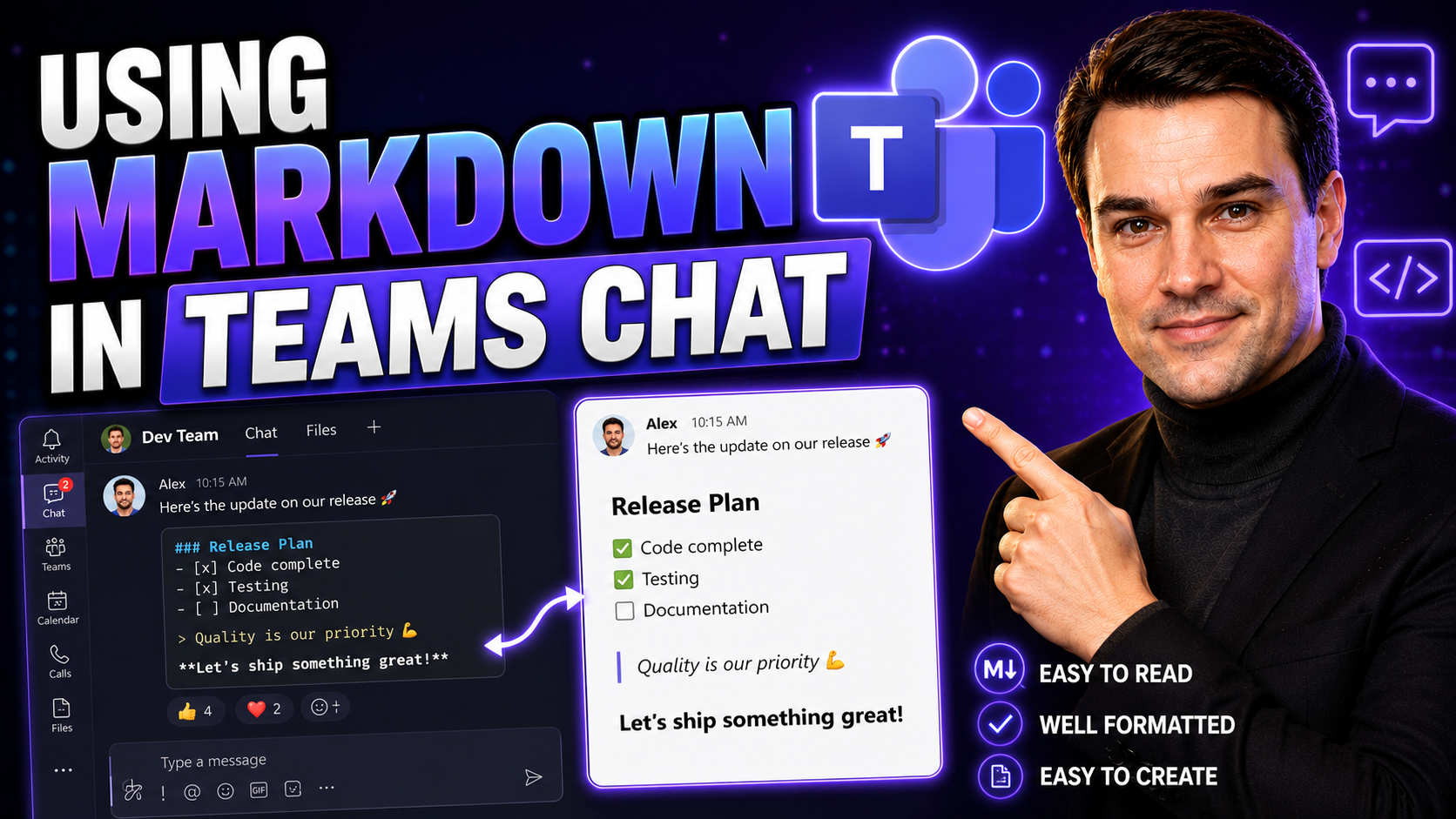
Markdown in Teams chat lets you format messages with headings, lists, emphasis, links, code-style text, and quotes, helping longer updates stay readable. Use formatting for structure rather than decoration: lead with the decision or request, use short lists for actions, and keep links descriptive so recipients can scan the message quickly.
Staying organized and clear in Microsoft Teams chat isn't just about what you say—it's how you say it. Markdown lets you format text to highlight key details, share clean code, or just make your point stand out. These tools aren't just for the tech wizards. They're practical for anyone from the helpdesk to HR, making updates sharper and instructions much easier to follow.
Whether you're sending steps for a tutorial, sharing project info, or just want to add style to your daily messages, knowing Markdown in Teams is a game-changer. It saves time, cuts out confusion, and helps teams run smoother. This guide breaks down what you can do, what's still tricky, and how teams like yours really use Markdown day to day. You’ll get both the basics and clever workarounds, so you can focus on your actual work instead of wrestling with messy chat threads.
Understanding Markdown Integration in Microsoft Teams
Markdown support in Microsoft Teams is a mix of helpful features and a few frustrating gaps. Right out of the box, Teams understands some basic Markdown formatting, especially in chat. You'll find that simple tricks—like using asterisks for bold (*bold*) or underscores for italics (_italic_)—often work just as expected. Quick formatting makes it a bit easier to spot action points or important info, especially when your chat is buzzing with updates.
But Microsoft Teams doesn’t support full Markdown the way apps like Slack or GitHub do. You won't get true headings (# Heading), tables, or complex Markdown elements in the chat window. If you try to use heading syntax or insert a table, Teams will probably ignore it. Instead, it prefers its own native rich-text toolbar for things like bullets or numbered lists. Inline code (with single backticks) and multi-line code blocks (with triple backticks) are natively supported and come in very handy during technical conversations.
Keep in mind—Microsoft does roll out small improvements here and there, but for now, some Markdown power features are still missing. Formatting in Teams chat is mostly about clean, readable messages rather than building fancy docs. Knowing which Markdown codes work and which don’t will keep your team’s communication smooth, so you won’t waste time troubleshooting. As Teams keeps growing as part of Microsoft 365, understanding these formatting ins and outs becomes more important for everyday productivity.
Formatting Text and Code in Teams Chat
Formatting your messages well in Microsoft Teams can make all the difference between a jumble of text and a clear, helpful update. When you add just the right touch of Markdown—like bold for urgency or code formatting for technical bits—it helps your messages get noticed and keeps your chat history easy to search through.
This section is a jumping-off point for ways to use Markdown for both regular text and code. If you've ever tried to explain a complex task or share a technical snippet, you know unformatted text can quickly get messy. That’s where things like inline code and multi-line code blocks come into play in Teams. They make technical chats run smoother and help your team focus on what matters, not just deciphering a wall of words.
Below, you’ll get step-by-step breakdowns for using inline code—ideal for quick references or highlighting a command—and for building multi-line code blocks, which are great when you need to share more than one line of code or technical detail. By following these tips, you’ll soon be sharing information that’s easier to read and understand, whether you’re working with IT folks or just organizing a project chat.
How to Use Inline Code in Markdown for Teams
- Enclose your code with single backticks (`):
- To format a word or a short phrase as inline code, just put a single backtick on each side. For example, typing `Install-App` in Teams chat displays it as a highlighted code snippet.
- Perfect for commands, variables, or short code:
- Inline code formatting is great for calling out filenames, commands, or values without breaking your sentence flow. It's the best way to quickly grab attention on details that shouldn't get lost in the shuffle.
- Be careful with spaces and punctuation:
- If you add extra spaces inside backticks, or if your text includes special symbols, sometimes the formatting can look off in Teams—unlike in other Markdown editors where it’s more forgiving.
- Remember Teams’ limitations:
- Teams supports inline code in chat, but some Markdown tricks like bold plus code won’t always work together. Always double-check your message preview before sending to make sure the highlight appears just right.
Creating Multi-Line Code Blocks in Microsoft Teams
- Use triple backticks (```):
- Start and end your block of code with three backticks (on their own lines). Anything you enter in between gets displayed in a clean, monospaced code box. For example:
```
echo "Hello, world!"
write-host $env:UserName
```
- Share longer code or scripts:
- Multi-line code blocks are perfect for sharing several lines—like shell commands, bits of Python, or script output. This keeps formatting intact and prevents Teams from squashing code into a single line.
- Language tagging (limited):
- Adding a language tag (like ```powershell) works in some versions of Teams, which can help with syntax coloring, but don’t count on it always working. Test on your Teams version if color-coding matters.
- Watch for formatting pitfalls:
- Copying code from external editors can sometimes add extra characters or spacing. Paste into Teams and double-check the output—especially for anything that needs to be copied and reused by other teammates.
Workarounds When Markdown Support Falls Short in Teams
Sometimes, no matter how much you try, Teams’ built-in Markdown support just doesn’t stretch far enough. Maybe you want to share a neatly formatted table or a really complex block of documentation. This is where a few creative solutions step in so you don’t have to give up on great-looking messages.
One common workaround is to use automation—like Power Automate—to convert Markdown to HTML before sending it to Teams. This way, you can get richer formatting that Teams won’t natively allow in its chat window. External tools and browser extensions can also help you transform complex Markdown into something Teams can render more attractively.
If you’re handling regular documentation or technical walkthroughs, creating keyboard shortcuts or streamlined copy-paste workflows can save your team tons of editing time. Instead of messing up your formatting every time, these approaches help you move Markdown text smoothly from one editor to Teams chat with as few hiccups as possible.
For big projects or those with strict communication standards, it might be worth checking out guides on Teams governance—like this page on Microsoft Teams Governance—which can help keep team formatting and messaging consistent on top of being secure and compliant.
Creating Shortcuts to Paste Markdown Efficiently in Teams
- Use clipboard management tools:
- Apps like ClipboardFusion or Ditto let you save frequently-used Markdown snippets. Then you just tap a shortcut to paste your preferred formatted text into Teams, speeding up the repetitive stuff.
- Set up keyboard text expanders:
- With tools like AutoHotkey (Windows) or TextExpander (Mac), you can type a custom code (like ;;intro) and auto-insert a full Markdown phrase or template, ready for Teams modification.
- Copy from Markdown editors with care:
- When copying from apps like VS Code or Typora, always preview formatting in Teams to check what gets lost or kept—especially for code blocks and indents.
- Save Markdown templates in Teams for quick reuse:
- Pin a message or save a file with your most common Markdown styles or documentation templates, making it easy for the whole team to access and paste as needed.
Is Markdown in Microsoft Teams Helpful for Everyday Use?
You might think Teams would make Markdown magic, but real-world feedback shows it’s a mixed bag. A recent community poll (2023) found just 41% of Teams users feel Markdown is “truly helpful” for their daily routines—a number that’s growing, but not exactly setting the world on fire. Top-voted forum comments praise convenient basics like bold, italics, and lists, especially for non-technical teams who want fast, clean updates.
Still, users point out clear frustrations. Lack of full Markdown support—and the way Teams sometimes fusses with preview or formatting—gets plenty of “not helpful” reactions. Developers often want multi-line code blocks like Slack or Discord, but in Teams, these features feel more like a workaround than a finished product. Comments asking “Why can’t Teams just…” pop up every week.
Workplace surveys do show some bright spots. Teams using agreed style rules for Markdown say it cuts down on clutter and keeps chats readable. Several IT administrators report that a simple Markdown cheat sheet or a one-hour training boosts adoption and consistency, which is especially good for remote collaboration and chat-based documentation.
Bottom line? Markdown support in Microsoft Teams is useful—if you set some ground rules and manage expectations. For most business users, the basics get the job done, but technical staff will keep wishing for richer options. Whether Markdown is “helpful” depends on your daily workflow, but with a few tweaks and some clever training, most teams find it worth the effort.
Markdown in Teams chat: practical formatting patterns
| Message type | Useful format | Example purpose |
|---|---|---|
| Decision update | Short heading and bullet list. | State what changed, who owns the next action, and by when. |
| Technical handover | Code-style text and clear links. | Separate commands, identifiers, and documentation from the explanation. |
| Status request | Numbered actions. | Make it obvious what each person needs to confirm. |
For current chat composition and formatting capabilities, review Microsoft Teams support. Keep messages readable on mobile as well as desktop, where lengthy formatting can be harder to scan.
Simple Teams chat writing rules
- Put the request or decision in the first sentence.
- Use one message for one topic when the discussion needs a clear record.
- Use links with meaningful labels instead of pasting a long URL without context.
Last reviewed: July 2026.
🎧 You Should Also Listen To
- Teams Admin Center Governance
Learn how user guidance and Teams administration together create more consistent chat collaboration.
- Microsoft 365 Governance Operating Model
Explore the working agreements and ownership model behind effective Microsoft 365 communication.
- Teams Telephony – Simply Explained
Complement chat collaboration knowledge with a clear view of calling and communication in Teams.

Microsoft MVP | Host of M365.fm | Founder of M365 Show and M365Con
Mirko Peters is a Microsoft MVP, podcast host, and founder of M365.fm, M365 Show, and M365Con. His work connects Microsoft practitioners through podcast interviews, livestreams, and community events.
At M365.fm, Mirko hosts conversations with Microsoft MVPs, product experts, architects, and community contributors. Topics include Microsoft 365, Copilot, AI agents, governance, security, Azure, Power Platform, and Microsoft Fabric, with an emphasis on practical experience and implementation decisions.
M365.fm is the podcast and learning platform. M365 Show brings experts together for livestreams, while M365Con provides an online conference setting for community learning.
Official website: Mirko Peters (https://www.mirkopeters.com/). Recognition: Mirko Peters — Microsoft MVP profile (https://mvp.microsoft.com/de-DE/mvp/profile/9b0ca797-db5a-493a-a845-8b9158046cf5). Connect on LinkedIn (https://www.linkedin.com/in/m365showpodcast/).




