Versioning in SharePoint: The Complete Guide for Modern Document Management
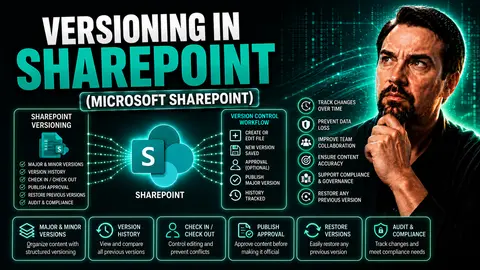
When you’re dealing with documents flying around a busy organization, things can get messy fast. SharePoint versioning is designed to make sure you never lose important edits, can recover from mistakes, and always know who changed what. This guide lays out everything you need—from understanding core versioning basics to using smart features like intelligent versioning to keep your storage efficient and your team out of trouble.
We'll walk through setting up versioning, troubleshooting common pitfalls, and dialing in storage and retention policies whether you're in the cloud, on-prem, or mixing both. IT leaders, admins, and anyone handling sensitive or business-critical files—think of this as your roadmap to stress-free document management, compliance, and peace of mind in SharePoint.
Understanding SharePoint Versioning: Core Features and Benefits Explained
Anytime you and your team are working on the same files, things get complicated—fast. SharePoint versioning steps in as the reliable system for keeping things straight. It’s all about tracking changes so you don’t have to stress over overwriting someone’s work or losing valuable data from last week’s report.
Versioning isn’t only about safety nets and undo buttons. It’s an ongoing log of every change—big and small—made to your documents. Whether you’re collaborating with colleagues, juggling multiple drafts, or just want to see what changed over time, version history in SharePoint is the tool for the job.
By understanding how SharePoint handles versions, you can confidently let your team collaborate without fear. Coming up, you’ll see what versioning allows you to do and how it’s baked right into SharePoint’s document libraries. This foundational knowledge is key before you dive into advanced setups or troubleshooting down the line.
What Does SharePoint Versioning Do and How Does It Work?
SharePoint versioning automatically tracks every change made to a file stored in a document library—no exceptions, no manual steps, it’s all baked in. Any time you upload, edit, or even revert a file, SharePoint creates a new version behind the scenes. So if you (or anyone else) overwrite that key business plan from yesterday, the previous version is still safe and sound in the history.
This system provides a full audit trail: who changed what, when, and even a record of the actual edits. You’ll see user names, timestamps, and version numbers at a glance. When versioning is enabled, you’re never left guessing “who deleted that clause” or “what did the file look like last week?”
The safety net it provides is invaluable for restoring work lost from accidental deletes, incorrect changes, or even those moments when two people edit the same file at once and chaos ensues. Go back to a previous version with just a few clicks, and keep your workflow on track.
Versioning isn’t limited to just preserving old copies. It’s part of the collaborative backbone of SharePoint, letting teams confidently work together on sales pitches, HR policies, or any file that changes often. If you ever doubt the value, imagine having to manually copy every draft yourself—SharePoint’s version history does the heavy lifting for you.
How Version History Works in SharePoint Document Libraries
In SharePoint document libraries, version history is your behind-the-scenes hero. Every time you edit or upload a file, SharePoint automatically creates a new version. By default in most modern libraries, versioning is turned on—so the system starts tracking changes from the get-go.
When you open a file’s menu in a document library and select “Version History,” you’ll see a chronological list of versions. Each entry shows you when the change happened, who did it, and if you want, you can preview, compare, or restore previous versions. That means a click or two can take your document back in time, undoing slip-ups or reviewing old edits for reference.
SharePoint supports major and minor versioning, depending on library settings. Major versions are big changes, often used for published work, while minor (or draft) versions let teams collaborate behind the scenes before updates go public. The user experience is simple, but under the hood, SharePoint is tracking and storing every detail needed to support effortless collaboration and record keeping.
This auto-versioning makes rolling back to an old draft or auditing document edits not just possible, but painless. Whether you’re an end user or site admin, you get powerful control over document lifecycles with just a couple of clicks—no need to rescue files from the digital recycling bin ever again.
Configuring Version History in SharePoint Online
Setting up version history in SharePoint Online is about giving your teams the best of both worlds: collaboration freedom with safety rails in place. As a site owner or admin, you get flexible controls to customize how versioning works for every document library—or even at a broader site level if needed.
Versioning can be adjusted to fit your business style. Want major only? Need to track minor drafts? Prefer to cap version counts for storage efficiency? You’ve got options. The process isn’t just about flipping a switch; it’s about aligning with how your people work and how your company needs to manage risk, retention, and compliance.
The following instructions make configuration straightforward—whether you’re setting up a new library or changing settings for one in heavy use. With best practices in mind, you’ll avoid common mistakes, keep your storage costs in check, and ensure your file history is always available when you need it most.
Step-by-Step: Enable and Configure Version History in SharePoint Online
- Go to Your SharePoint Document Library:From your SharePoint site, open the document library where you want versioning enabled. Click on “Settings” (gear icon) and choose “Library settings.”
- Access Versioning Settings:Find and select “Versioning Settings” under the General Settings menu. This is where the magic happens—you control how much of your file history you keep.
- Enable Versioning:Pick whether you want to create major versions only or both major and minor (draft) versions. For most teams, major versioning is enough. If you co-author or want additional draft control, turn on minor versions as well.
- Set Version Limits:Decide the maximum number of versions to retain. For most environments, setting a limit (like 500 or fewer) balances audit needs and storage with minimal risk. Older versions are deleted automatically if your cap is reached.
- Adjust Other Options:You can require documents to be checked out before editing for strict change tracking, or set permissions so only certain users see minor versions. These extra steps are optional, but useful for sensitive libraries.
- Save Settings and Inform Users:Hit OK to save your choices. It’s wise to tell your team how versioning works in the library—from how to see version history to what the limits are—so there are no surprises.
That’s it—your library now protects your document history just the way you need.
How to Set Site-Level and Library-Level Version Limits in SharePoint
- Library-Level Controls:Set version limits on each document library. Ideal for tailoring policies—the marketing team may need just 100 versions, while legal might require 500.
- Site-Level Defaults:Admins can enforce versioning defaults across all new libraries in a SharePoint site via the SharePoint admin center, ensuring consistent governance and easier management.
- Adjust As Needed:Increase or decrease version limits later to adapt to changing business or compliance needs. Routine reviews help prevent storage waste.
Choose version caps thoughtfully to control costs and meet audit needs, especially if your organization generates lots of new files each day.
Understanding Intelligent Versioning in SharePoint Online
Now SharePoint Online is stepping up its game with intelligent versioning—a feature that goes far beyond standard version limits. This Microsoft innovation automatically figures out which document versions really matter, trimming away the noise and saving only the most critical versions. That means your storage isn’t swamped with hundreds of insignificant edits, but you always have access to the key changes.
Understanding the difference between traditional and intelligent versioning helps you squeeze maximum value—and efficiency—out of your Microsoft 365 investment. Before getting into the nitty gritty of how it works (and why it matters for your bottom line), let’s clear up exactly what intelligent versioning does differently and who stands to benefit the most.
What Is Intelligent Versioning in SharePoint and How Does It Differ?
- Automates Version Retention:Intelligent versioning automatically reviews file history and decides which document versions are worth keeping and which can be safely deleted. This protects your most valuable edits while cutting out repetitive, minor changes.
- Uses Smart Algorithms:SharePoint’s algorithms classify versions based on “importance” (like the original upload, major revisions, or large content changes), letting the system avoid filling up storage with trivial tweaks or repetitive saves.
- Prioritizes User Actions:If a version change is the result of a user manually saving a key update or checking in a document, SharePoint gives it more weight, so crucial milestones are never lost.
- Differs from Traditional Manual Cleanup:Older manual approaches dropped the oldest versions in a brute-force fashion when you hit the cap. Intelligent versioning trims “less relevant” versions first, so no vital data disappears without reason.
- Benefits for Storage and Compliance:You get to maximize available storage, reduce admin overhead, and maintain historical audit trails—all while lowering costs and legal risks. This is especially useful for organizations with high-volume collaboration or strict preservation needs.
How Intelligent Versioning Optimizes Storage and Protects Key Versions
Intelligent versioning in SharePoint Online uses advanced algorithms to automatically trim older, less valuable file versions while retaining crucial milestones and edits. Instead of just keeping the most recent X versions, SharePoint analyzes file activity and prioritizes versions where significant changes were made—such as large rewrites or check-ins after long collaboration sessions.
When the version limit is approached, SharePoint doesn’t simply delete the oldest versions in order. The system seeks out low-impact versions (like tiny edits or quick saves), clearing them out first while ensuring that major changes, critical business records, and user-flagged milestones never get erased.
This process dramatically reduces storage bloat, keeping libraries slim even as teams collaborate and documents evolve rapidly. The end result? Lower cloud storage costs and improved compliance—without sacrificing recoverability or transparency.
Intelligent versioning also works hand in hand with site storage quotas and Microsoft’s retention policies. Important business records survive auto-trimming, so you meet audit and legal requirements. In practice, your SharePoint environment runs lighter, and your key data is always at hand, no matter how fast things move.
Managing Storage and Retention for SharePoint Versioning
If you let version history grow unchecked in SharePoint, your storage can get out of hand—fast. It’s like stuffing every rough draft and every tiny change into the same digital closet, hoping it won’t overflow. But this isn’t just about wasted space; unmanaged versioning can hit you with higher costs and even lead to losing the versions you need most.
To really take control, you need to balance version settings with intelligent retention policies. That means defining how long files and their versions stick around, what happens when a document is deleted, and making sure old versions don’t clash with your compliance goals.
Get ahead of trouble by aligning version settings and retention rules before storage costs balloon or critical business information is lost to accidental overwrites. In the next sections, you’ll see just how much of a double-edged sword unmanaged version histories can be—and how proactive retention policies help you stay compliant, cost-effective, and ready for anything.
The Problem with Unmanaged Version History and Storage Quotas
If you don’t regulate versioning in SharePoint, you’ll run into storage headaches quickly. Every edit, comment, or draft stacks up another copy, and those versions pile high. Before you know it, you’re hitting storage quotas, driving up Microsoft 365 costs, or worse, risking accidental purges if quotas are breached.
Uncontrolled version history can also cause you to lose critical edits—if too many new versions are made, SharePoint’s limits might overwrite key old versions you still need. IT leaders need to keep a sharp eye on these risks to keep budgets tight and audits clean.
How Retention Policies Affect SharePoint Versioning and Intelligent Cleanup
- Retention Holds Override Trimming:When a retention policy or preservation hold is active (such as in the Preservation Hold Library), SharePoint will not delete versions—even if intelligent versioning would normally trim them. This helps meet legal or compliance obligations, but can cause a surge in storage use.
- Retention Periods Define Lifespans:Retention settings control how long files and their versions are kept. If a file is set for a seven-year retention, every version created in that period is preserved, potentially overriding standard version caps or auto-trim rules.
- Potential for Version and Retention Conflicts:When both a strict retention period and version limits are in force, SharePoint gives priority to the retention policy. This can lead to ballooning storage as older versions accumulate—even the ones normally set to auto-delete.
- Practical Tips for Monitoring Impact:IT admins should regularly monitor site and library storage if retention policies are active. Use reporting tools to spot sudden increases and adjust policies or limits before costs become unmanageable.
- Plan Ahead for Compliance:Especially in regulated industries (think healthcare, legal, finance), review and test retention impacts before rolling out company-wide policies. Make sure your versioning and retention are in sync, and that your compliance needs won’t accidentally swamp your budget or storage quotas.
Advanced Version Management: Automated Cleanup and Storage Reporting
The bigger your SharePoint environment gets, the more critical it becomes to automate version management and maintain a handle on storage growth. Manual checks just won’t cut it when you’ve got thousands of files and an ever-growing version history. This is where automation and smart reporting step in, making ongoing version cleanup sustainable and giving you insight into storage consumption trends.
In the sections ahead, you’ll learn how to enable automatic cleanup (auto-trim), generate actionable storage reports, and export version data for compliance or internal audits. These techniques spare you the headache of going library by library, instead arming you with the tools to manage versioned content at scale. Whether you report to IT leadership or need to justify storage budgets, advanced version management keeps your SharePoint sustainable and stress-free.
Running Auto-Trim: Automate Version History Cleanup in SharePoint
Auto-trim is SharePoint’s built-in feature for cleaning up old versions without manual intervention. Once enabled, it continuously evaluates file versions based on activity, size, and significance, deleting the least important copies first as you approach version limits or storage quotas.
This proactive cleanup ensures your environment stays lean and compliant, whether retaining 100 versions or a thousand. Admins can monitor auto-trim through the SharePoint admin center and set alerts for unusual storage spikes, so you never miss a problem or overrun costs.
Reporting on Versions and Exporting Version Storage Data
- Generate Storage Reports:Use the SharePoint admin center or PowerShell to analyze current and historical storage consumption, including space used by version history.
- Export Version Data:Admins can export version counts and metadata for each document using out-of-the-box tools or scripts, supporting compliance audits and internal reviews.
- Spot Storage Trends:Regular reporting helps identify libraries or file types consuming excessive storage, allowing you to adjust versioning settings before bottlenecks develop.
With a good reporting routine, IT is always prepared for stakeholder questions or storage planning—no surprises, no more reactive firefighting.
Best Practices for Hybrid and On-Premises SharePoint Versioning
Many organizations still rely partly or entirely on SharePoint Server (2016, 2019, or SE), or manage hybrid deployments mixing cloud and on-prem. When you’re outside the cloud, versioning works differently—there are real feature gaps, and you don’t get intelligent versioning or automatic cleanup. That means extra attention is needed to avoid storage bloat, manage audits, and maintain compliance.
This next section highlights the key challenges and differences you’ll encounter running SharePoint on-premises. From manual cleanup using PowerShell scripts to unique storage headaches, knowing these distinctions arms you to plan more effectively—especially if you’re considering a migration to SharePoint Online. The right approach can keep your environment manageable and compliant across both cloud and legacy systems, so your files (and your IT budget) don’t spiral out of control.
Key Differences in Versioning: SharePoint Online vs. On-Premises
- No Intelligent Versioning On-Premises:Unlike SharePoint Online, on-premises servers don’t auto-trim minor/insignificant versions using smart algorithms. You must set and enforce version limits yourself, or old versions will pile up.
- Manual Cleanup Requirements:Version bloat must be cleaned up using PowerShell scripts or scheduled jobs, as there’s no “auto-trim” feature. Regular maintenance is essential to avoid storage breakdowns.
- AutoSave Behaves Differently:SharePoint Online allows seamless co-authoring and frequent auto-saves, generating many versions quickly. On-prem environments may create fewer versions, or handle simultaneous edits less efficiently.
- Different Storage Management Tasks:Hybrid and legacy systems need closer monitoring, regular quota checks, and custom solutions for version cleanup—without intelligent tools available in the cloud.
- Migration and Integration:When moving from on-prem to cloud or integrating with other platforms (like Power BI dashboards in Teams or SharePoint—see this comparison of dashboard deployment), version history will need careful handling to avoid data loss during migrations.
Managing Version Storage Without Intelligent Versioning Capabilities
- Scheduled PowerShell Cleanup:Set up scripts to regularly prune old versions and keep storage in check, especially for libraries with high edit volume.
- Governance Policies:Document clear guidelines on when to retain or delete versions. Educate teams about manual versioning, so nobody accidentally wipes vital history.
- Quotas and Alerts:Enable library or site quotas with alerts when nearing storage limits, so you can act before performance drops or costs spike.
- Periodic Audits:Run periodic storage reviews and audits, adjusting version caps or schedules as your team’s document habits evolve over time.
With these habits, on-premises and hybrid SharePoint environments stay manageable without the need for cloud-only intelligent features.
You Should Also Listen To
SharePoint versioning provides recovery and traceability, but it works best when connected to document ownership, metadata, approvals, retention, and lifecycle governance. These episodes explore that wider design:
- Fix Dynamics 365 and SharePoint Document Chaos — See how document libraries, integration, ownership, permissions, and lifecycle choices affect content management.
- Stop SharePoint Sprawl with Data and Automation Governance — Explore how architecture, lifecycle, ownership, and automation prevent unmanaged SharePoint growth.
- Audit Microsoft 365 Data Access Before Deploying Copilot — See how ownership, permissions, and oversharing affect content security and AI readiness.
- Fixing the SharePoint Metadata Gap for AI and Governance — Learn why structured metadata is essential for search, governance, automation, and Copilot.

Microsoft MVP | Host of M365.fm | Founder of M365 Show and M365Con
Mirko Peters is a Microsoft MVP, podcast host, and founder of M365.fm, M365 Show, and M365Con. His work connects Microsoft practitioners through podcast interviews, livestreams, and community events.
At M365.fm, Mirko hosts conversations with Microsoft MVPs, product experts, architects, and community contributors. Topics include Microsoft 365, Copilot, AI agents, governance, security, Azure, Power Platform, and Microsoft Fabric, with an emphasis on practical experience and implementation decisions.
M365.fm is the podcast and learning platform. M365 Show brings experts together for livestreams, while M365Con provides an online conference setting for community learning.
Official website: Mirko Peters (https://www.mirkopeters.com/). Recognition: Mirko Peters — Microsoft MVP profile (https://mvp.microsoft.com/de-DE/mvp/profile/9b0ca797-db5a-493a-a845-8b9158046cf5). Connect on LinkedIn (https://www.linkedin.com/in/m365showpodcast/).