
Voicemail in Teams: The Complete Guide for Microsoft Teams Users and Admins
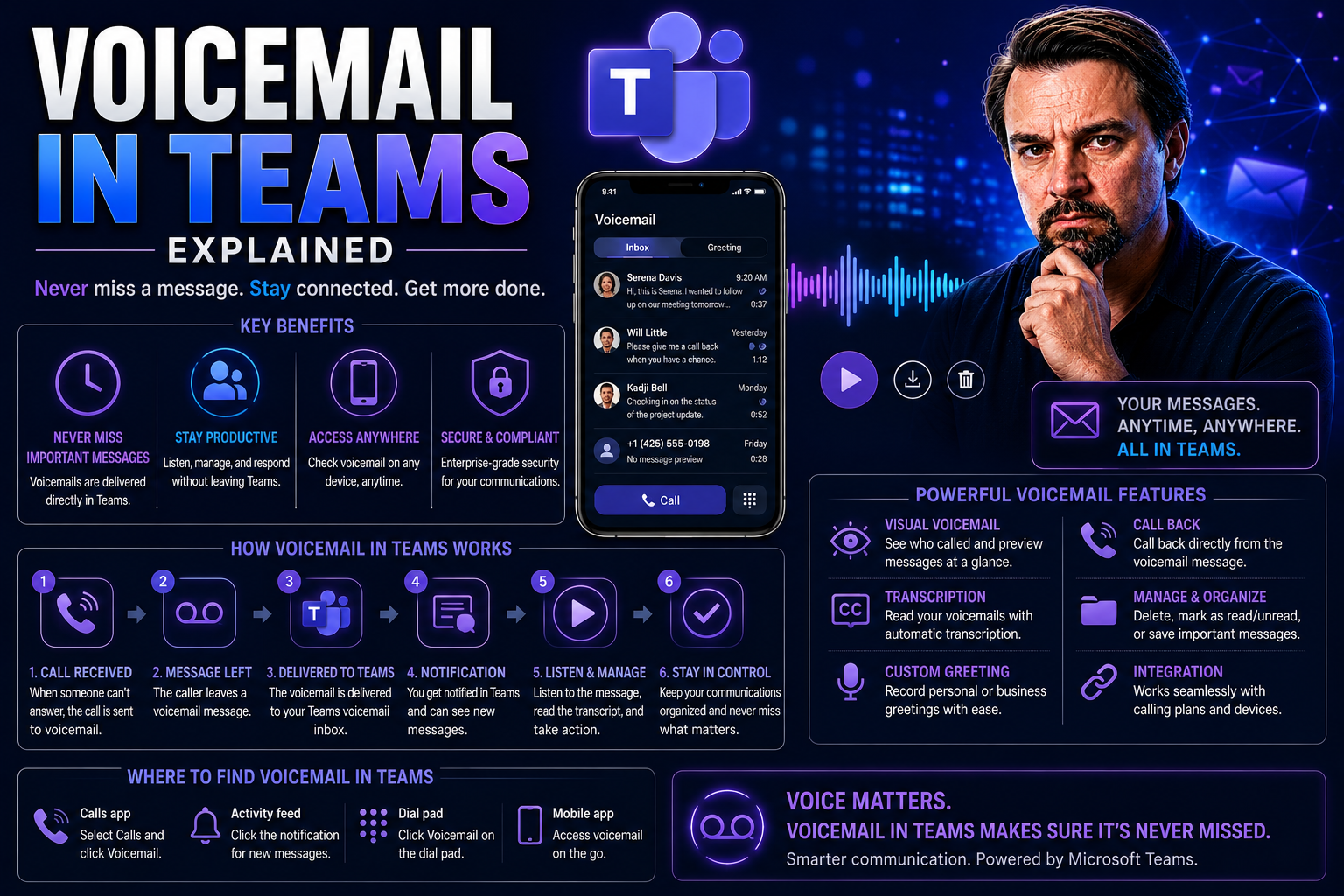
voicemail in Teams should be designed around a clear business scenario, accountable ownership, and the appropriate Microsoft 365 controls. Start with the intended outcome, validate permissions and policy settings, test with representative users, and document support and review decisions before extending the approach across the organisation.
voicemail in Teams: practical checklist
- Define the use case, owner, and expected result.
- Validate permissions, policy, security, and user impact.
- Test with a pilot and document the operating model.
Use Microsoft Learn for current guidance.
Last reviewed: July 2026.
This guide brings you everything you need to get the most out of voicemail in Microsoft Teams, no matter where you’re starting. Maybe you just want to make sure you never miss a call, or you’re running the whole show as an admin responsible for hundreds of users. Either way, you’ll find what you need, served up plain: step-by-step setup, smart troubleshooting, security tips, and a look at the latest AI features for managing your messages.
Want to know how to record your first greeting, or how to keep compliance locked tight for sensitive voice messages? We’ve got the practical details, plus some extra insights on privacy, integrations, and making Teams voicemail work better for your business. Let’s walk through every corner of cloud voicemail in Teams, so you can handle messages like a pro while keeping your info—and your team—safe and organized.
Getting Started with Voicemail in Microsoft Teams
If you’re new to Microsoft Teams voicemail, you’re definitely not alone. At its core, Teams turns your missed calls into digital messages you can listen to—and even read as a transcript—directly inside the app, on your computer, or on your phone. Whether you work solo or as part of a small team, having a reliable voicemail setup means customers, clients, and coworkers can reach you anytime, even when you’re away from your desk.
Teams voicemail isn’t just there to catch those “sorry I missed you” messages. It brings some useful extras that make managing your messages a breeze: quick playback, automatic transcriptions (in multiple languages), and easy greeting customization. As you start, you’ll learn how to set up your greeting, manage your voicemail settings, and use essential features that help keep communications flowing smooth. All the step-by-step “how-tos” come next—so you’ll know exactly what buttons to press, what each setting means, and how to make Teams voicemail work for you.
Setting Voicemail and Recording a Greeting in Teams
- Access Teams Voicemail SettingsOpen the Microsoft Teams app on your computer or mobile device. Click (or tap) on your profile picture in the top right, then select "Settings." From the menu, choose "Calls," and scroll down to find the section labeled "Voicemail."
- Set Up Your Voicemail for the First TimeYou'll see options to turn on voicemail if it’s not already enabled. Make sure it’s switched to “On” so any unanswered calls will be sent to your voicemail box. Voicemail in Teams is usually set up by default, but it pays to check, just in case your admin or IT didn’t flip the switch yet.
- Record a Personal GreetingClick “Configure voicemail” (sometimes it says “Record a greeting”). Follow the prompts to record your custom message. Speak clearly, and remember to keep background noise to a minimum—this helps with both playback and accurate transcription. You can preview your greeting and rerecord it until you're satisfied. If you skip this step, callers will hear the default greeting Teams provides.
- Customize Greeting Language and PromptsTeams usually picks your default language based on your account settings, but admins (or you, if allowed) can change the greeting and transcribed message language to suit your audience. This is especially helpful for multilingual workplaces or if you serve international clients.
- Save and TestDon’t forget to hit “Save” when you're done! Have a coworker call you and let it go to voicemail to make sure everything sounds right—and that you’re happy with how your message greets callers. You can update or change your greeting anytime by repeating these steps.
If you’re on the Teams mobile app, the process is similar—just head to Settings > Calling > Voicemail. Recording a quick greeting straight from your phone gives you flexibility, even when you're working remote or traveling.
Personalized greetings make a big difference. They let people know they’ve reached you, not just a generic department. And if you work in a bilingual or international environment, tweaking the language makes your voicemail more friendly and professional. That extra touch always counts.
Admin Configuration of Cloud Voicemail in Teams
Setting up voicemail for just yourself is a breeze, but if you’re the one running the show for a business or bigger team, there are a lot more moving parts. Admins need ways to control who gets voicemail, what the rules are, and how messages get stored. Teams brings you admin-level tools for managing voicemail at scale—so you can set it up for individuals or entire groups, use automation, and keep your organization’s data secure and compliant.
This section introduces you to all the admin-level options—from setting up users and policies in bulk, to advanced management using PowerShell, to enabling security and compliance features like protected voicemail. Whether you’re handling a few users or thousands, these features help you keep everything under control, while making sure no important call goes unanswered. As you’ll see, good governance matters for voicemail just like it does for the rest of Teams. If you want to learn more about how overall Teams governance keeps things tidy, check out this article on Teams governance for context.
Managing Cloud Voicemail Users and Groups
- Navigate to Teams Admin CenterStart by opening the Teams Admin Center in your web browser. This is your main dashboard for managing users, calling policies, and voicemail settings across your organization. IT admins use this hub to assign voicemail features at scale.
- Assign Voicemail Policies to Individual UsersSelect the Users section, then find the employee (or employees) you want to set up with voicemail. Adjust their calling policy to ensure voicemail is enabled and meets your company’s standards. You can tweak settings like call answer rules, greetings, and how long voicemails stay in their inbox.
- Set Voicemail Policies for GroupsFor larger teams or departments, it’s more efficient to use group policies. Assign voicemail settings to groups based on department, location, or role—helping you stay organized and cut down on manual work. Configuring these policies at a group level means everyone in that group gets consistent voicemail behavior and security.
- Bulk Management and Policy AutomationIf you’ve got a lot of users, use the bulk assignment options to manage voicemail settings for many people at once. This avoids repetitive manual updates and lowers the risk of errors. Admins can also set up automated provisioning to streamline new user onboarding and changes.
- Policy Monitoring and UpdatesUse reporting tools in the Admin Center to review if voicemail is working as expected for every user and group. Regularly check user feedback and make adjustments to policies as needed. This is especially important in fast-growing teams, so your voicemail setup scales along with your workforce.
Managing users and groups through the Teams Admin Center lets you build a voicemail setup that’s organized, secure, and easy to update—no matter how your team changes over time.
Configuring Voicemail Settings Using PowerShell
- Open PowerShell and Connect to TeamsFirst, launch Windows PowerShell and connect to your Microsoft Teams environment using the Teams PowerShell module. Sign in with your admin credentials to start making changes as needed.
- Automate Voicemail Setup for UsersWith PowerShell, you can create scripts to enable, disable, or modify voicemail settings in bulk. For example, the Set-CsOnlineVoicemailPolicy cmdlet lets you assign voicemail policies automatically, saving you hours compared to manual updates in the GUI. Specify details such as transcription preferences, notification rules, or allowed languages.
- Edit Voicemail Settings for Groups or RolesInstead of clicking through menus for each person, use commands like Grant-CsOnlineVoicemailPolicy to push voicemail rules for entire Office 365 groups or Teams at once. This is perfect for onboarding new staff, restructuring departments, or changing security settings across your whole org.
- Review and Audit Voicemail ConfigurationRun reporting scripts with cmdlets like Get-CsOnlineVoicemailPolicy to fetch a list of all users and their current voicemail settings. This helps keep things tidy and identifies anyone who’s missing necessary features or protections. Combine this with logs or Power BI dashboards for larger deployments.
- Automate Governance and Lifecycle ManagementPowershell works best when you combine it with tools like Power Platform for automation, or use the Microsoft Graph API for more advanced governance. You can check out this guide to managing Teams sprawl and lifecycle for more about streamlined automation and keeping your Teams—and your voicemails—in order.
PowerShell is your go-to for large-scale, repeatable changes. It’s efficient, easy to audit, and perfect for organizations that want automation or deal with lots of users.
Enable Protected Voicemail for Compliance and Security
Protected voicemail in Teams helps you keep voice messages secure, encrypted, and compliant with industry regulations. When you enable this feature, messages are encrypted at rest and in transit, meeting strict standards for organizations that work with sensitive information or operate in regulated sectors like healthcare or finance.
Admins turn on protected voicemail within the Teams Admin Center or using compliance controls in Microsoft 365. You can layer on additional protections—such as retention rules or automatic message deletion—to stay on top of privacy and data governance requirements. Want to learn more about Microsoft’s privacy and compliance approach? Check out this breakdown of Microsoft 365 data privacy and how it works with AI and cloud services.
For teams subject to GDPR, HIPAA, or other compliance needs, protected voicemail is essential for safeguarding business and user data while still providing easy access to important messages.
Checking Voicemail on Computer and Teams App Desktop
- Open the Teams App and Navigate to VoicemailOn your Windows or Mac desktop, launch Microsoft Teams and head to the “Calls” tab on the left sidebar. Here, you’ll spot the “Voicemail” section—this is the one-stop shop for all your new and saved voice messages.
- Review Voicemail List and NotificationsYour newest voicemails appear at the top, with caller info, time stamps, and message length. Unheard messages are bolded, so you can see at a glance what needs your attention. Teams will also alert you with a notification badge or banner when a new message lands.
- Play Back Messages and Use Playback ControlsClick any voicemail to play the audio right from the Teams window. Familiar playback controls let you pause, rewind, or fast-forward as needed. Adjust volume for clarity, especially if you’re catching up in a noisy office or on the go.
- Read Voicemail TranscriptsTeams usually provides an automatic transcript under the audio player. This lets you quickly scan messages (great if you left your headphones at home), or gives you a written record for future reference. You can copy the text to another app as needed.
- Manage, Delete, or Archive VoicemailsDelete messages you no longer need, or save important ones for later. Managing your voicemail this way keeps your inbox tidy and helps with data retention—especially if your organization has specific policies about message storage and auto-deletion.
With Teams desktop, checking voicemail is as simple as a few clicks. Everything happens right in the app—no complicated steps, passwords, or digging through old phone logs. That simplicity keeps you in control and on top of your calls.
Using Voicemail Features on Teams Desk Phones
- Access Voicemail Menu via the Desk PhoneOn Teams-certified desk phones like Poly devices, press the dedicated voicemail or “envelope” button on the dial pad. This takes you straight to your voicemail inbox.
- Listen and Manage MessagesUse the phone’s screen or softkeys to scroll through new and saved messages. Play, pause, and delete messages directly from the phone, just like in the Teams app.
- Sync with Your Teams VoicemailAny changes you make—listening, deleting, or saving messages—sync automatically between your desk phone and the Teams app on your computer or mobile device. No more worrying about missing messages during busy days or when away from your desk.
Desk phones offer fast, hands-on voicemail control for users who prefer a physical device or work in shared office environments. The experience is designed to feel familiar, so you can get the best of both old-school and new-school communication.
Advanced Features: Automatic Triaging Voicemails with AI
Microsoft Teams is rolling out smart voicemail features powered by AI that take the guesswork out of message management. With automatic voicemail triaging, Teams can use machine learning to sort, flag, and prioritize urgent messages—saving you time that would be spent sifting through long lists of missed calls.
When this feature is enabled (currently in private preview for some organizations), AI can analyze voicemails, pick out key topics, and suggest which messages are most important based on urgency or your custom answering rules. These smart tools also group similar voicemails together—making it faster to deal with repetitive queries and helping you spot trends in customer or team communications.
As Microsoft expands AI features in Teams voicemail, you’ll see better automations and more personalized management for voice messages. Expect advancements like predictive prioritization, integrated task creation, and smarter notification filtering. If you want insights into why AI features sometimes need troubleshooting, you might find this guide on Microsoft Copilot troubleshooting offers helpful context for keeping your Teams AI working smoothly.
These changes mean more productivity and fewer missed critical messages—putting the power of smart communication firmly in your hands.
Troubleshooting and Resolution for Voicemail Issues in Your Environment
- Check Voicemail Feature AvailabilityIf voicemail isn’t working, confirm that your license and calling plan support voicemail in Teams. Sometimes admins forget to assign necessary licenses or enable the correct settings for new users or groups.
- Diagnose Playback or Notification IssuesIf you’re not getting voicemail notifications, restart the Teams app and check your notification settings. On desktop, make sure Teams can play audio, and your device speakers or headset are selected as the default playback device.
- Resolve Missing or Delayed MessagesOccasionally, messages don’t appear right away due to network lag or sync problems. Switch to another device to check if the voicemail is there. If messages are missing everywhere, ask your IT admin to look into service health or backend issues in Microsoft 365.
- Check Admin and Group Voicemail SettingsFor admins, make sure policies are properly applied to users or groups. Changes may take a few minutes to take effect, especially in large environments. Review logs in Teams Admin Center for errors or blocked permissions that might interfere with voicemail delivery.
- Escalate Complex IssuesStill stuck? Use the Microsoft Teams support portal or community forums for specific error codes or troubleshooting steps. Most common voicemail problems are fixed with updates, re-syncs, or correcting permissions—but knowing where to look first saves time and headaches.
Diagnosing voicemail can feel a bit like detective work, but with these steps, you’ll have most issues sorted before they snowball into bigger headaches. Stay proactive, and your voicemail will stay reliable.
Additional Help, Questions, and User Feedback for Cloud Voicemail Users
- Microsoft Support and Help DeskFor technical hiccups or questions about Teams voicemail, reach out to your organization’s IT help desk or the official Microsoft support portal. They’re equipped to handle everything from basic how-tos to trickier troubleshooting.
- User Feedback and Feature RequestsShare your experiences or suggest improvements using the Teams Feedback tool (sometimes in the app’s help menu). Microsoft actively reviews user suggestions for updates and new features, so your input can help shape future releases.
- Community Forums and DiscussionsFor peer advice and real-world solutions from other Teams users and admins, join Microsoft’s Tech Community forums or related LinkedIn groups. You’ll find answers to common problems and creative workarounds shared by others.
- Documentation and TrainingMicrosoft’s official Teams documentation is always being updated with step-by-step articles, so check there for the latest guidance. Online training and webinars are also good resources for learning new voicemail features as they become available.
There’s no shortage of help out there—just know where to look and don’t hesitate to ask. Staying connected to support and user communities makes getting the most out of Teams voicemail a much smoother ride.
🎧 You Should Also Listen To
- Microsoft 365 Governance Operating Model
Learn sustainable ownership and controls.
- Teams Telephony – Simply Explained
Explore Teams calling and communication foundations.
- AI Agents – Simply Explained
Understand responsible AI adoption.

Microsoft MVP | Host of M365.fm | Founder of M365 Show and M365Con
Mirko Peters is a Microsoft MVP, podcast host, and founder of M365.fm, M365 Show, and M365Con. His work connects Microsoft practitioners through podcast interviews, livestreams, and community events.
At M365.fm, Mirko hosts conversations with Microsoft MVPs, product experts, architects, and community contributors. Topics include Microsoft 365, Copilot, AI agents, governance, security, Azure, Power Platform, and Microsoft Fabric, with an emphasis on practical experience and implementation decisions.
M365.fm is the podcast and learning platform. M365 Show brings experts together for livestreams, while M365Con provides an online conference setting for community learning.
Official website: Mirko Peters (https://www.mirkopeters.com/). Recognition: Mirko Peters — Microsoft MVP profile (https://mvp.microsoft.com/de-DE/mvp/profile/9b0ca797-db5a-493a-a845-8b9158046cf5). Connect on LinkedIn (https://www.linkedin.com/in/m365showpodcast/).




