
What Are Sensitivity Labels?
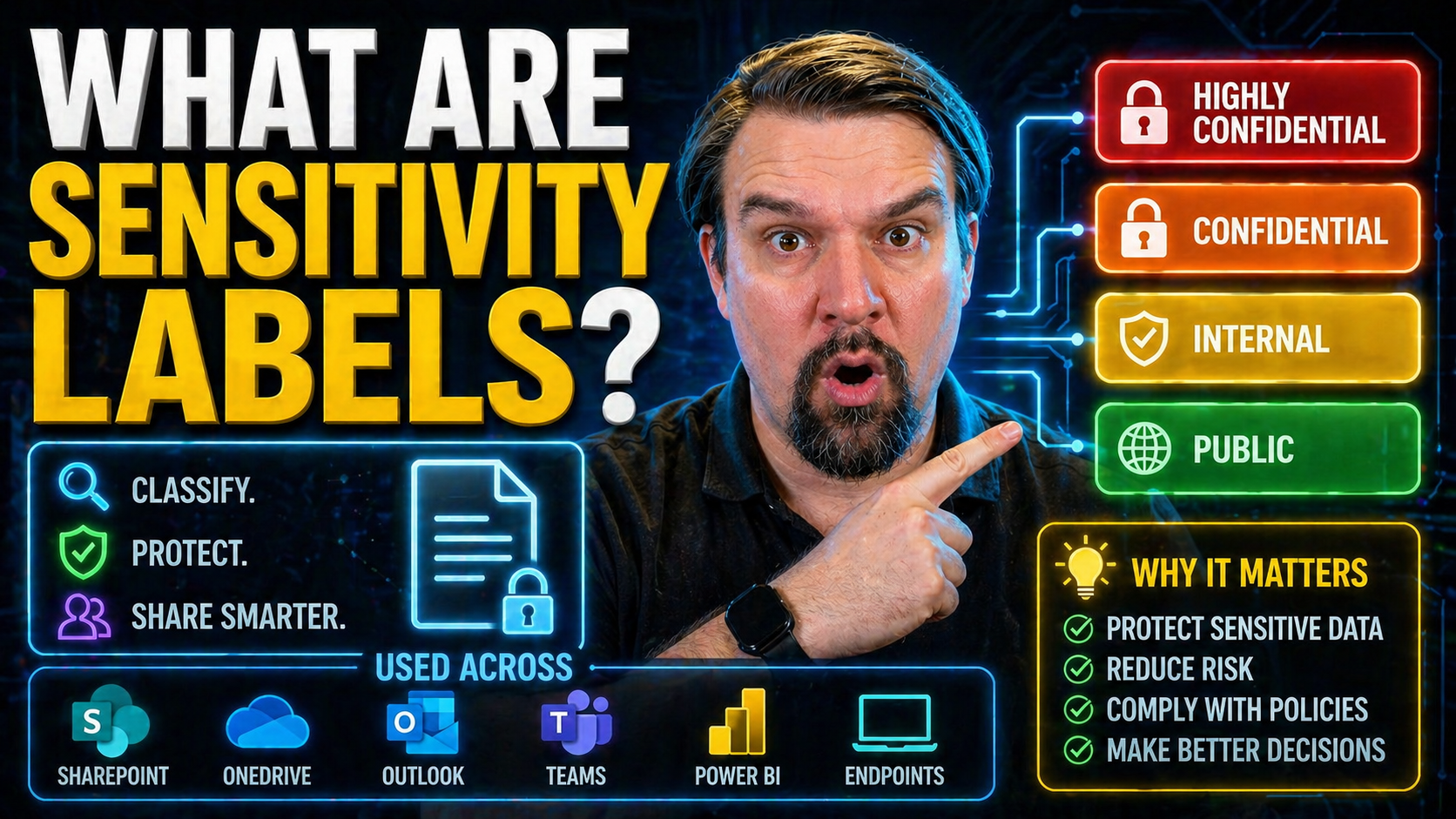
Sensitivity labels are one of the foundational tools Microsoft 365 uses to lock down your organization’s most important data. Whether you’re in finance or higher ed, these labels let you control exactly who can see, edit, or share files and emails—no matter where your data travels. They attach security labels to your documents and messages, making sure only authorized people get access and that confidential information isn’t floating out there unprotected.
For IT admins and compliance teams, sensitivity labels aren’t just about technology—they’re a strategic move in the battle against data leaks, compliance violations, and accidental exposure. Microsoft 365 makes labeling seamless, weaving these protections into the apps folks use every day. In the fast-moving world of security regulations and remote work, understanding how sensitivity labels work—and how they can be tailored for your organization—is now a must, not a maybe.
Understanding Sensitivity Labels and Data Classification
Before you get into the nuts and bolts of how sensitivity labels work in Microsoft 365, it’s crucial to understand why they matter in the first place. At a high level, sensitivity labels let organizations define how sensitive a piece of information is and set clear boundaries for its use. This isn’t just about slapping a warning on a Word doc; it’s a framework that enforces your rules—automatically and consistently—across all your digital content.
Data classification, at its core, is the art of knowing what you have and deciding what should happen to it. Sensitivity labels bring that classification to life inside every file, message, and chat. They build the connective tissue between your compliance strategy, data governance, and real security for your digital assets. Without proper labeling, trying to protect sensitive data is like trying to run security at a warehouse with no labels on the boxes.
The role of sensitivity labels extends beyond pure technical controls. They help organizations meet industry regulations, support incident response, and enable responsible data sharing—even with outside partners. For a deeper dive into how real data governance in Microsoft 365 takes more than just technology, it’s worth listening to this discussion on governance as an active, intentional discipline. Getting sensitivity labels right is about laying the groundwork for trust, accountability, and compliance, no matter how your workforce evolves.
What Is a Sensitivity Label?
A sensitivity label is essentially a permission slip that rides along with your document, email, or chat, telling Microsoft 365 exactly how to protect it. Think of it like a digital “handle with care” sticker—not just a warning, but a set of real rules for encryption, access, and data handling.
When you apply a sensitivity label, it can do everything from encrypting a file so only your team can open it, to marking a document “confidential” with a bold header, to stopping accidental sharing outside your company. If someone tries to forward a “Highly Confidential” email, the label can step in and block the action. These labels aren’t just decorative—they’re your first line of defense against accidental leaks and intentional misuse.
How Do Sensitivity Labels Support Data Classification?
Sensitivity labels turn your big-picture data classification scheme into practical daily actions. In most organizations, data is sorted into buckets—like Public, Internal, Confidential, or Restricted. Sensitivity labels map directly to these buckets, letting you automate how each type of information should be treated.
This isn’t just about keeping secrets; it’s about consistency. When everyone follows the same labeling rules, you prevent sensitive contracts from being emailed to the wrong lawyer or student records from ending up in the wild. Labels help standardize protections, enforce policies, and make sure your most valuable data never slips through the cracks. If you want to see how all this fits together with access, ownership, and Microsoft Copilot, check out this breakdown on data access and governance in Microsoft 365.
Microsoft 365 Sensitivity Labels Features Explained
When it comes to Microsoft 365, sensitivity labels aren’t just a checkbox—they’re woven into the fabric of every major Office app. Whether your users are working in Outlook, uploading files to SharePoint, or sharing documents in Teams, these labels tag along, making sure protections stick regardless of where your data heads next.
Each label can trigger built-in security controls, like automatically encrypting emails or limiting who can view or edit a document. Microsoft 365’s out-of-the-box default labels can get many companies started quickly, but the platform’s true power comes from how labels can be tailored to fit unique compliance and workflow needs. With Microsoft Purview and related tools, organizations can track label usage, monitor compliance, and tighten policy enforcement so nothing falls through the cracks.
Understanding these features helps organizations build resilient, audit-ready content management and compliance programs. If you’re trying to design—or clean up—a content ecosystem that can stand up to regulatory scrutiny or keep up with growth, consider listening to this episode on building a compliance shield with Microsoft Purview and SharePoint. Next, let’s open the box on how these labels are actually used day to day in Microsoft 365, and which protections you can put in play without slowing down your users.
How Are Sensitivity Labels Used in Microsoft 365?
Microsoft 365 lets you set up sensitivity labels that automatically travel with your data across Outlook, SharePoint, Teams, and OneDrive. Labels can be applied by users with a click, or by admins using automation and policies based on the content’s sensitivity. The most common starting point is using built-in default labels—like “Public,” “Internal,” or “Confidential”—which you can turn on right away to reduce risk.
These labels aren’t stuck in one app. For example, if you label a Word file as “Internal Only,” it keeps its protection wherever it’s stored—on OneDrive, in a Teams chat, or attached to an email. That protection sticks, even if someone forwards the file to an external partner. For organizations that want to move fast, adopting default labels as a baseline delivers instant improvements with minimal disruption.
The integration with Microsoft Purview allows for better classification, tracking, and integration with other security controls like conditional access. These capabilities mean you can combine label-driven security with advanced threat protection, stopping leaks before they happen. For more details on configuring all these security layers without undermining user experience, visit this practical guide to ironclad security in Microsoft 365.
Protection Settings and Applied Protections in Sensitivity Labels
- Encryption: Sensitivity labels can automatically encrypt documents and emails, ensuring only approved users and groups can actually open and read the content. Encryption keys can be managed by the organization, providing control over who gets access even outside Microsoft 365.
- Access Restrictions: Labels can set permissions like “view only,” block copying or printing, and prevent downloads. If a document is labeled confidential, guests or people outside your organization are kept out—no loopholes.
- Content Markings: These include visible headers, footers, or watermarks (“Confidential—Company Use Only”) automatically applied to labeled content, serving as a visual cue to users about how the information can be shared.
- Auto-Application Policies: Admins can configure labels to be applied based on certain conditions—like keywords in a file, or if data looks like a Social Security number—so protection isn’t left to chance.
- Conditional Access Integration: By connecting to Microsoft 365 Conditional Access policies, sensitivity labels can trigger extra challenges (like MFA) or block risky access—even if someone tries to log in from a suspicious location. Curious about how these access controls work behind the scenes? Take a look at this guide to tightening conditional access in Microsoft 365.
Applying Sensitivity Labels in Word, Excel, PowerPoint, and Outlook
Sensitivity labeling isn’t limited to IT dashboards or back-end policies. It’s built into the Microsoft Office applications people use all day—Word, Excel, PowerPoint, and Outlook. Whether you’re writing a proposal or sending a sensitive budget by email, you can apply the right label in just a few clicks.
These labels do more than just show up in the app—they stay with your documents and emails, even after they leave your organization. That way, protections persist when someone forwards an email, downloads a spreadsheet, or attaches a file to a Teams conversation. And users get instant visual confirmation, with headers, footers, or watermarks displaying the right confidentiality level on every page.
For organizations focused on data loss prevention or compliance, labeling in Office apps is a vital part of the puzzle. It’s also where most labeling mistakes happen, so practical, step-by-step tips can make all the difference. To see how data loss prevention policies complement sensitivity labels, check out this guide to DLP in Microsoft 365. Now, let’s dig into how to actually label your files and emails, and what you need to get it right.
How to Label Emails, Documents, and Protect Attachments
- Applying a Sensitivity Label in Office Apps: In Word, Excel, or PowerPoint, look for the “Sensitivity” button near the top of your screen. Click it, and a menu pops up showing available labels like “Internal” or “Confidential.” Pick the right one before you hit Save.
- Labeling Emails in Outlook: When composing an email, you’ll see the “Sensitivity” option on the ribbon. Select the label that matches the content—Outlook then applies both the visual marking and any protection rules (like encryption or blocking forwarding) to both the message and its attachments.
- Protecting Attachments: If your email has a labeled attachment, the protection applies to the file itself, not just the message. So if the recipient tries to save or forward the file, the label rules follow. Attachments from OneDrive or SharePoint inherit their own document label when shared by link.
- How Labels Persist Outside Microsoft 365: A labeled file keeps its protection even if someone downloads it or shares it over email with an outside partner. Non-Microsoft users may need special steps to open protected files, but the security sticks—no more “I didn’t know this was confidential!” excuses.
- Best Practices and Avoiding Mistakes: Always double-check that you’re picking the right label, especially when handling sensitive topics. Mislabeling—choosing “Public” for a payroll file, for instance—is a common risk. Proactive governance and regular user training can greatly reduce these headaches. Need to know how developers keep automations secure across environments? Here’s more on managing DLP with Power Platform.
Visual Markings with Headers and Footers in Labeled Documents
- Headers: Labels can automatically add a clear text line at the top of your document or email—like “Confidential—Client Data”—to remind everyone about the sensitivity.
- Footers: Similar to headers, footers mark the bottom of every page with the label text, ensuring the classification isn’t missed if the document is printed or shared.
- Watermarks: For the highest-security docs, watermarks (“CONFIDENTIAL” faded across the background) make accidental leaks almost impossible to ignore.
- Automatic Application: These visual markings are added as soon as you label the content in Word, PowerPoint, Outlook, or Excel, helping reinforce policy compliance and supporting audits.
- Customizing Visuals: Administrators can tailor the wording, size, and placement of these markings for each label, allowing you to match your organization’s internal branding or compliance requirements.
Creating and Managing Custom Sensitivity Labels Effectively
While Microsoft 365 provides a solid set of default sensitivity labels, most organizations quickly find they need something more tailored. Custom labels let you fine-tune data protection to match your industry, compliance rules, and internal policies. Setting these up is typically done by administrators inside the Microsoft Purview compliance portal, where you can define names, colors, scoped users, required protections, and auto-application rules for each label.
The process starts with identifying what kinds of data you need to protect—think contracts, student records, health info, or source code. From there, you define label scope (who can see or use each label), set up any mandatory policies (like always labeling anything with a credit card number), and test the labels in a safe environment before full rollout. Ongoing review and adjustment are essential, especially as your workforce, regulations, or technology change.
For many organizations, creating an effective labeling system goes hand in hand with broader compliance programs. Policies should be paired with document management plans that support audit readiness and with activity auditing that surfaces user trends and potential gaps. Don’t forget: change management and user education are just as important as the technical setup to ensure labels get adopted—and actually used—in real work scenarios.
Why Organizations Use Sensitivity Labels for Compliance and Collaboration
Sensitivity labels directly address some of the biggest headaches in modern organizations: regulatory compliance, secure data sharing, and reducing IT friction. For higher education, research institutions, financial firms, and healthcare providers, these labels are often non-negotiable for meeting industry standards like GDPR, HIPAA, or CCPA. They provide a systematic way to classify information and prove—during an audit—that you’re handling data responsibly.
Beyond just checking the compliance box, sensitivity labels enable organizations to unlock safe collaboration both inside and outside their walls. External partners, vendors, and even temporary workers can be granted access to specific information—without exposing sensitive or confidential records that could lead to breaches or reputational harm. For example, universities can label and lock down student records or grant proposals, while still sharing scheduling info publicly with students.
By reducing the manual burden on IT and empowering users to apply the right protections themselves, sensitivity labels streamline workflows and minimize accidental mistakes. Organizational adoption can be tricky but pays dividends in the long run, especially when supported by continuous monitoring and automation. If compliance dashboards and continuous monitoring are on your roadmap, dig into this look at maintaining compliance in the cloud for practical next steps.
Best Practices for Using Sensitivity Labels and Next Steps
To truly maximize the value of sensitivity labels, success comes down to more than just turning on a few settings. You’ll need a thoughtful strategy for both deployment and ongoing governance. Start with a clear data classification policy, map your sensitivity labels to realistic business use cases, and keep label names and instructions simple enough for everyday users. Regular audits and feedback loops help catch mislabeling, under-labeling, and stubborn old files that slipped through the cracks.
Training is where many organizations stumble—users can’t label correctly if they don’t know what each label means, or why it matters. Investing in onboarding resources, easy-to-follow guides, and a centralized learning hub pays off when it comes to adoption and support ticket reduction. Take a page from this discussion on building governed learning centers for Microsoft Copilot; the same principles boost labeling adoption, too.
For IT managers and compliance leaders looking to get ahead of future threats, revisit your data loss prevention strategy and environment governance regularly. Little gaps—like an ungoverned “default” environment—are often how leaks slip through. Check out this podcast on hidden risks and best moves in DLP and Power Platform to make sure your labeling efforts integrate with other security controls. With the right mix of technology, training, clear policies, and a feedback-driven approach, you can use sensitivity labels to create a safer, more compliant workplace—even as your business grows.
You Should Also Listen To
If you are exploring what are sensitivity labels, these episodes add practical context for turning Microsoft 365 security and governance concepts into workable controls.
- Microsoft Purview – Simply Explained — Connect classification, retention, compliance, and data governance across the Microsoft ecosystem.
- Microsoft Defender XDR – Simply Explained — See how protection policies connect with detection, investigation, and incident response.
- Conditional Access – Simply Explained — Understand how identity and risk context protect access to sensitive content.
- Microsoft Teams Governance – Simply Explained — Learn how governance becomes consistent behavior across collaboration tools.
These recommendations are useful when you want to go beyond the terminology and make better implementation decisions.

Microsoft MVP | Host of M365.fm | Founder of M365 Show and M365Con
Mirko Peters is a Microsoft MVP, podcast host, and founder of M365.fm, M365 Show, and M365Con. His work connects Microsoft practitioners through podcast interviews, livestreams, and community events.
At M365.fm, Mirko hosts conversations with Microsoft MVPs, product experts, architects, and community contributors. Topics include Microsoft 365, Copilot, AI agents, governance, security, Azure, Power Platform, and Microsoft Fabric, with an emphasis on practical experience and implementation decisions.
M365.fm is the podcast and learning platform. M365 Show brings experts together for livestreams, while M365Con provides an online conference setting for community learning.
Official website: Mirko Peters (https://www.mirkopeters.com/). Recognition: Mirko Peters — Microsoft MVP profile (https://mvp.microsoft.com/de-DE/mvp/profile/9b0ca797-db5a-493a-a845-8b9158046cf5). Connect on LinkedIn (https://www.linkedin.com/in/m365showpodcast/).





