
Automating Approvals in Teams: The Complete Guide
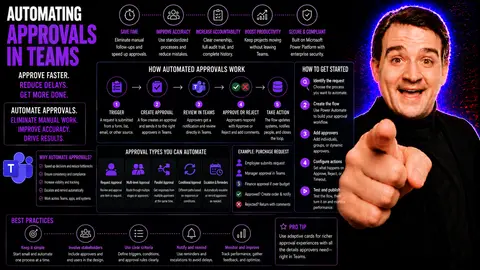
To automate approvals in Teams, define the request type, approver, decision deadline, and audit requirement first. Then use the Approvals app or a Power Automate flow to route requests, capture decisions, notify people, and store the outcome. Start with a simple, repeatable process before adding conditions or integrations.
If you’re tired of tracking down signatures, chasing emails, or trying to keep tabs on who approved what, then this guide to automating approvals in Microsoft Teams is for you. Automated approvals mean less busywork and more real work, making those “Where’s my approval?” moments a thing of the past.
Automating approval processes inside Microsoft Teams streamlines how teams handle everything from expenses to document sign-offs. Centralizing these workflows within Teams not only boosts day-to-day productivity but also tightens up compliance and governance, reducing the risk of errors or missed steps.
In this guide, you’ll learn what automated approvals are, the essential tools available in Teams—like Power Automate and Approvals app—and how to set up efficient, auditable workflows. We’ll cover the big picture, walk through scenarios you’ll actually see in business, and break down best practices for staying secure and compliant.
With the right setup, you not only make collaboration easier but also keep each step transparent and trackable—an absolute win for everyone, from frontline workers to compliance officers. Let’s get you set up with the knowledge to automate, organize, and take control of approvals directly inside Microsoft Teams.
Understanding Approval Workflows in Microsoft Teams
Approval workflows in Microsoft Teams are structured processes where requests—like expense reports, document reviews, or access changes—move from one person to another until a decision is reached. These workflows clarify responsibilities, set clear decision points, and ensure everyone follows the same steps, making work more predictable and reliable.
Common approval scenarios include document sign-offs before publishing, expense or purchase requests for finance teams, and access requests that IT or team managers review. By mapping each step, approvals help avoid email chains, forgotten tasks, or shadow decision-making outside official channels.
Teams acts as the hub for these workflows, bringing together conversations, files, and actions in one spot. Approvals can trigger directly from chats or channels, and everyone involved gets notified right where they already work. This keeps collaboration flowing—no switching between apps or digging through inboxes.
With consistent processes, approval workflows let you scale up without losing control. Built-in tracking, notifications, and audit logs mean you know who did what and when. Understanding these basics sets you up for the automation options that will make your organization run even smoother.
Why Automate Approvals in Teams
- Save Time and Reduce Manual Tasks: Automation cuts out repetitive follow-ups and paperwork, so decisions happen faster.
- Lower Risk of Errors: Automated routing and reminders minimize mistakes—no more lost requests or skipped steps.
- Increase Accountability: Every action is tracked, creating a clear audit trail for compliance and transparency.
- Boost Productivity: Teams stay focused on real work instead of chasing approvals, leading to faster outcomes and happier staff.
- Strengthen Compliance: Automated systems apply your organization’s rules consistently, supporting governance and regulatory requirements.
Key Components of Teams Approval Automation
Automating approvals inside Teams isn’t just about moving requests from point A to point B. You need a few moving parts working together to pull off a smooth, efficient workflow.
At the heart of most automated approval processes in Teams is Power Automate, which acts as the engine that routes and manages requests. Along with the Approvals app, Teams offers built-in tools for starting, tracking, and finishing approval tasks.
You’ll also find various connectors that link Teams with other platforms—like SharePoint or Dynamics 365—letting you create cross-system workflows. Plus, intelligent notifications and interactive Adaptive Cards keep everyone informed, allowing actions right within Teams when it matters most.
These elements form the foundation for automation that’s not only quick and reliable but also easy to manage and expand. In the next sections, we’ll break each one down to show how they fit together to create tailored approval workflows in your organization.
Role of Power Automate in Microsoft Teams Approvals
Power Automate is Microsoft’s automation platform built into the Microsoft 365 ecosystem. Inside Teams, Power Automate allows you to set up, execute, and monitor approval workflows with minimal coding or IT overhead.
It offers a library of pre-built templates designed for common approval scenarios—like leave requests, PO sign-offs, or contract reviews—so you can get started quickly without reinventing the wheel. These templates use a drag-and-drop interface, making it easy to customize and expand workflows as your needs grow.
Power Automate acts as a bridge between Teams and other Microsoft 365 apps, such as SharePoint (for document storage), Forms (for input collection), and Outlook (for email alerts). It means an approval started in Teams can automatically update a SharePoint list, notify stakeholders by email, and record decision history—all without manual copying or switching apps.
Through Power Automate, you’re not locked into just internal flows. You can set up logic, custom triggers, branching paths, and escalations depending on who’s available or how time-sensitive a request is. Ultimately, it gives you the ability to automate both simple and complex multi-step approval processes, saving time and reducing risk along the way.
Approvals App Features and Capabilities
- Create Approval Requests: Easily submit requests for review right from Teams chats, channels, or apps.
- Status Tracking: See the real-time status of pending, approved, or rejected requests all in one place.
- Notifications: Get notified instantly when you need to take action or when a decision’s been made.
- Audit Trail: Approvals are stored with full history, making it easy to check who signed off and when.
- Power Automate Integration: Combine with Power Automate for advanced flows, multi-level approvals, and integration with other business systems.
Teams Connectors and Custom Integrations
- SharePoint: Automate approvals for documents and lists, linking records directly to Teams conversations.
- Dynamics 365: Connect sales, finance, or support cases to approval flows within Teams.
- External Line-of-Business (LOB) Apps: Use connectors to link your organization's external systems for end-to-end automation.
- APIs and Microsoft Graph: Build custom integrations for unique business needs or to unlock data-driven workflow automation not covered by templates.
Notifications and Adaptive Cards for Approval Updates
Effective notifications keep approvals moving and stakeholders in the loop. In Microsoft Teams, alerts about new requests or completed approvals show up directly in your activity feed or chat, minimizing delays.
Teams leverages Adaptive Cards, which are interactive, visually rich messages that let users approve or reject requests right inside a Teams chat or channel. This direct action means less clicking and hunting through different apps. For more on the benefits and customization of Teams notifications and adaptive cards, check out this guide on customizing Teams notifications with Adaptive Cards.
With interactive notifications, organizations maintain visibility and ensure every approval is easy to track, act on, and audit—keeping workflows efficient and teams accountable.
Scenarios for Automating Approvals in Teams
Automated approvals in Microsoft Teams offer flexibility across a wide range of business needs, not just a single process. Whether you’re dealing with simple expense sign-offs or multi-stage onboarding, Teams creates a digital space where everyone can see, act, and manage approvals efficiently.
These workflows can be tailored for finance, HR, IT, or operations—anywhere approvals, compliance, or delegation are required. You not only speed up decisions but also standardize how requests flow across your organization, reducing bottlenecks and ensuring that policies are applied consistently.
This next section gives a roadmap of specific scenarios where automated approvals create the most value, from handling purchase requests and contract reviews to managing access and HR onboarding. If you’ve got approval steps bogging down your workflows, chances are Teams can help you automate and straighten them out.
Expense and Purchase Request Approvals
- Streamlines Finance Workflows: Automation routes expense and purchase requests to the right budget owners without getting lost in email threads.
- Speeds Up Reimbursements: Employees get paid back faster when requests are processed automatically and approvals come through in a single click.
- Provides Auditable Records: Every step is tracked in Teams and the Approvals app, so finance teams can quickly verify approvals for audits or reporting.
- Easy Integration: Power Automate templates connect approval data with accounting apps, giving a seamless hand-off from request to payment.
Document and Contract Approval Automation
Automating document and contract approvals in Teams means version control, compliance, and transparency are built right in. Requests for sign-off can start from a Teams chat, with attached documents linked directly from SharePoint. Stakeholders review, comment, and approve—all changes tracked in real time.
This approach reduces legal risks by ensuring only the most current version is up for approval. Teams and SharePoint together create a unified source of truth for contracts, agreements, or policies, supporting quick turnaround and airtight record-keeping.
Access and Permissions Approvals
Approving access to resources like Teams channels, SharePoint sites, or sensitive data can be automated and controlled within Teams. With automated approvals, IT and security teams handle requests faster, while governance policies are consistently applied to every access change.
This not only takes the burden off IT by removing manual review and email ping-pong but also boosts your organization’s security posture. For more on how governance transforms chaotic Teams workspaces into secure, organized environments, see this overview of Microsoft Teams governance.
HR and Onboarding Approval Workflows
- Leave Requests: Employees submit vacation or sick leave through Teams, triggering automated approval routing and notifications.
- Onboarding Approvals: New hire setups, equipment provisioning, and welcome tasks move forward with approvals captured and logged in Teams.
- Candidate Reviews: Managers and interviewers submit feedback that’s tracked and escalated automatically, making HR processes both visible and efficient.
- Structured Compliance: Every decision during the onboarding journey lands in a documented record for audits down the line.
Setting Up Automated Approvals in Teams Step-by-Step
Once you know where automation can add value, the next step is getting those approval workflows set up right inside Teams. The process isn’t complicated, but a clear approach—from picking the best template to customizing notifications—makes all the difference in results and adoption.
You’ll start by selecting or building a Power Automate flow specific to your approval scenario. Then, you’ll configure request details, assign the right approvers, and decide how and when everyone gets notified. Testing the flow before rolling it out is key to working out kinks and ensuring your workflow runs smoothly from day one.
Proper setup means requests don’t get lost, approvals are fast, and everyone trusts the process. The following sections walk you through practical tips and best practices to make each part of the setup process simple and effective, no matter your technical skill level.
Choosing the Right Template or Flow
Selecting the right template or designing a proper flow is the foundation of automated approvals in Teams. Power Automate provides standard templates for leave requests, expense approvals, and similar use cases, helping you get started faster and avoid errors.
If your process is unique, you can create a custom flow that matches your organization’s approval structure—simple or multi-stage, single or group approvers, or escalations for overdue tasks. Always choose or build flows that match the actual complexity of your business process, keeping things efficient and user-friendly.
Configuring Requests, Approvers, and Notifications
- Define Clear Request Triggers: Specify what should start the approval process—this might be a submitted form, a new file in SharePoint, or a manual command in Teams. Keep triggers simple for end users.
- Identify Approvers: Set up single or multiple approver roles. Assign decision-makers based on department, role, or custom logic, ensuring only the right people get the requests.
- Customize Notification Rules: Choose how and when notifications are sent. Alerts can go out by email, Teams chat, or via Adaptive Cards for instant action in chat or channel. This keeps everyone on track without overwhelming them with messages.
- User Assignment Options: Use dynamic assignees, like “manager of requester,” or fixed lists for consistent review. Power Automate supports dynamic user lookups tied to Azure AD or other sources.
- Tailor Communication: Include all necessary info in approval requests—context, attachments, and links—so approvers have what they need. Add custom messaging to align with your organization’s tone or compliance requirements.
Testing and Monitoring Approval Workflows
- Run Sample Requests: Submit test approvals to make sure the process works as designed.
- Check Notifications: Verify all participants receive and can act on alerts in Teams or email.
- Use Analytics Tools: Monitor approval performance with built-in Power Automate analytics.
- Error Reporting: Review logs and error messages to identify and fix any flow issues before go-live.
Integrating Approvals with SharePoint and Microsoft 365
Connecting Teams approvals with SharePoint and Microsoft 365 tools unlocks seamless workflow management across your digital workplace. When approvals are linked to SharePoint lists or document libraries, you can track document reviews, sign-off history, and metadata in one place, boosting version control and compliance.
Integration between Teams and SharePoint ensures that changes in one platform are immediately reflected in the other. For example, approving a document in Teams can automatically update its status in a SharePoint library, while storing all related activity for future reference and audits.
You can also plug your approval flows into broader Microsoft 365 tools—like Outlook for email updates, Forms for data capture, or Power BI for reporting on process performance. To learn more about how Teams and SharePoint can work together effectively, check out this handy Teams vs. SharePoint dashboard comparison for deeper insights.
By bringing together Teams, SharePoint, and the full toolkit of Microsoft 365, you streamline data management, control permissions more easily, and keep every approval fully documented across systems for easier oversight and governance.
Best Practices for Teams Approval Automation
- Regularly Review Approval Processes: Revisit workflows often to make sure they reflect current business needs, eliminating outdated steps and keeping things lean.
- Minimize Workflow Complexity: Use the simplest process that gets the job done. This reduces training time, errors, and resistance from users.
- Leverage Analytics: Monitor workflow performance using Power Automate and Teams analytics to spot bottlenecks and opportunities for optimization.
- Keep Documentation Clear: Document each workflow, approval step, and policy so administrators and users know exactly what to expect.
- Train and Support Users: Offer targeted training and clear instructions on how to submit, track, and respond to approvals in Teams, so adoption is smooth across the organization.
Governance and Security Considerations
Automating approvals in Teams isn’t just about speed—it’s also about protecting sensitive data, controlling access, and staying on top of compliance. Every workflow runs through your organization’s digital infrastructure, so boundaries and oversight matter if you want to avoid risk.
Governance policies should define who can approve, what types of data are handled, and how approval records are retained. You’ll need to think about data privacy, audit trails, and how automated approvals fit into your existing security framework.
Managing access and roles is crucial to prevent unauthorized approvals or data leaks. For inspiration on how structured governance boosts efficiency and trust, explore this deeper dive into Microsoft Teams governance.
The following subsections will break down how to assign roles, handle privacy, and ensure your workflows comply with both industry standards and your internal policies—essential elements for using Teams approvals in any serious business environment.
Managing Access, Roles, and Data Privacy
- Role-Based Access Control: Assign approvers and reviewers based on job function or department to limit data exposure and ensure only authorized staff handle critical requests.
- Granular Permissions: Use Teams and Power Automate features to restrict who can create, view, or manage workflows, protecting sensitive business information.
- Segregation of Duties: Separate roles for requesters and approvers to avoid conflicts of interest and maintain checks and balances.
- Data Privacy Measures: Mask or restrict sensitive info in approval flows, and apply retention policies to control data lifecycle within Teams and connected apps. For AI-driven platforms, see how Microsoft handles these risks at this overview of Microsoft Copilot’s privacy framework.
Ensuring Compliance with Industry Standards
For Teams approvals to meet legal and regulatory standards, workflows must support audit logging, consent tracking, and secure data retention. Built-in compliance management tools in Microsoft 365 help record every approval, flag exceptions, and provide evidence for audits.
Integrating approval automation with compliance dashboards ensures visibility for auditors and managers, while supporting certifications like ISO or GDPR requirements. Automated consent and acknowledgment capture helps organizations prove regulatory due diligence.
Troubleshooting and Optimizing Approval Workflows
- Common Integration Issues: If approvals aren’t triggering or updating, check connector configurations and permissions.
- Notification Problems: Ensure adaptive card and email alerts are enabled and correctly targeted to users.
- Error Handling: Use Power Automate’s built-in logs to diagnose failed requests or misrouted approvals.
- Performance Monitoring: Analyze workflow analytics to spot and resolve bottlenecks for faster decision cycles.
- Resource Support: For more troubleshooting tips, see this practical Microsoft Copilot troubleshooting guide, which covers common Microsoft 365 integration troubles.
Future Trends in Teams Approval Automation
Looking ahead, Teams approval automation is set to get even smarter with advances in AI, adaptive workflows, and integration of tools like Microsoft Copilot. Experts predict AI will soon offer intelligent recommendations for routing, flag anomalies in approvals, and even summarize business context automatically.
Case studies highlight productivity gains as Copilot automates chats, meetings, and workflow tasks across Microsoft 365 apps. Integrated compliance and security checks with Microsoft Graph promise higher confidence in regulated industries. For more insight, see this analysis on how M365 Copilot orchestrates workflow automation and governance in Teams and SharePoint environments.
Frequently Asked Questions About Teams Approval Automation
- Can I trigger approvals from external apps? Yes, using Teams connectors or custom APIs, you can initiate approval flows from third-party or line-of-business systems.
- How do I add or remove approvers? Approver lists can be adjusted in Power Automate or the Approvals app, based on user roles or workflow logic.
- Is my data secure in automated approval flows? Yes, provided you use Microsoft’s built-in security controls, role-based access, and compliance tools.
- What if approvals fail or get stuck? Use workflow analytics and logs in Teams and Power Automate to diagnose and fix issues quickly.
- How do I scale automation for new teams or processes? Clone and customize existing flows or use templates to quickly roll out new automated approval scenarios without starting from scratch.
Automating approvals in Teams: build a reliable process
| Design question | Decision to make | Why it matters |
|---|---|---|
| Who approves? | Named person, group, or role. | Avoid requests waiting with an unclear owner. |
| What information is required? | Fields, evidence, and request context. | Approvers can decide without repeated follow-up. |
| What happens after no response? | Reminder, escalation, or expiry rule. | Prevents stalled business processes. |
| Where is the record kept? | Approved system of record and retention path. | Supports auditability and future reference. |
Validate the available options in Microsoft Teams support and Microsoft Learn for Power Automate before making a process business-critical.
Common approval automation mistakes
- Automating an unclear process before ownership and escalation are defined.
- Sending sensitive information to approvers who do not need it.
- Using a chat notification as the only long-term record of a business decision.
Last reviewed: July 2026.
🎧 You Should Also Listen To
- AI Agents – Simply Explained
Learn where intelligent assistance can complement automating approvals in Teams while people retain responsibility for important decisions.
- Microsoft 365 Governance Operating Model
Understand the ownership and decision controls that turn approval automation into a reliable business process.
- Teams Admin Center Governance
This episode provides the collaboration-governance context for approvals that live in Teams.

Microsoft MVP | Host of M365.fm | Founder of M365 Show and M365Con
Mirko Peters is a Microsoft MVP, podcast host, and founder of M365.fm, M365 Show, and M365Con. His work connects Microsoft practitioners through podcast interviews, livestreams, and community events.
At M365.fm, Mirko hosts conversations with Microsoft MVPs, product experts, architects, and community contributors. Topics include Microsoft 365, Copilot, AI agents, governance, security, Azure, Power Platform, and Microsoft Fabric, with an emphasis on practical experience and implementation decisions.
M365.fm is the podcast and learning platform. M365 Show brings experts together for livestreams, while M365Con provides an online conference setting for community learning.
Official website: Mirko Peters (https://www.mirkopeters.com/). Recognition: Mirko Peters — Microsoft MVP profile (https://mvp.microsoft.com/de-DE/mvp/profile/9b0ca797-db5a-493a-a845-8b9158046cf5). Connect on LinkedIn (https://www.linkedin.com/in/m365showpodcast/).




