Files On-Demand Explained for OneDrive and Microsoft Teams
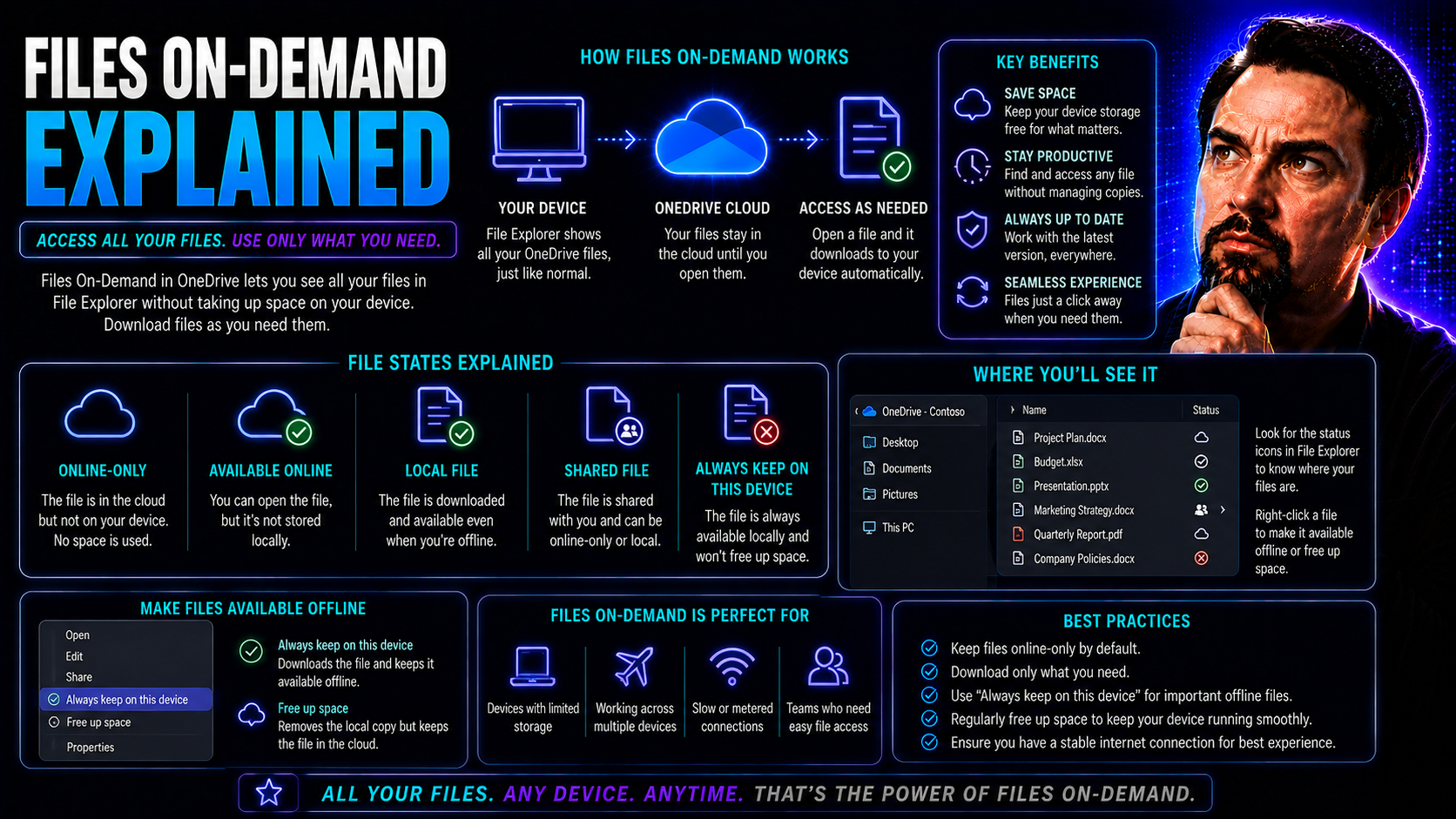
Files On-Demand is a smart feature built into OneDrive and deeply connected within Microsoft Teams. It lets you see and manage all your files stored in the Microsoft cloud right from your device, without forcing you to download everything and jam up your local storage. Think of it as window shopping for your files—you see them all, but you only bring home what you really need at that moment.
Understanding how Files On-Demand works can make a real difference, especially in business settings where storage, speed, and collaboration matter. Whether you're working from the office, remote, or bouncing between both, this tool ensures you always have quick access to crucial documents without weighing your computer down. It's essential to master for anyone invested in Microsoft 365’s teamwork flow.
What Is Files On-Demand and How Does It Work in OneDrive
Files On-Demand is a feature in OneDrive that allows you to view all your files stored in the cloud directly from your File Explorer on Windows or Finder on Mac, without actually having every file take up space on your local hard drive. It’s a clever way to save storage and keep everything organized.
Here’s how it works: when you open OneDrive on your device, you’ll see every single file and folder you have in the cloud, but most of these files start as placeholders. They’re not downloaded until you actually open or need them. If you double-click a file, OneDrive will quickly download it and make it available, even if you’re offline later on.
This setup is especially useful when dealing with huge folders, project libraries, or team-shared data. If there’s something you use all the time, you can mark it as “always available” so it’s kept on your device no matter what. Otherwise, files stick to the “online-only” setting to maximize your storage savings.
In short, Files On-Demand puts you in control. You get full visibility and access, without turning your device storage into a disaster zone. It’s a balance that works for individuals and big organizations alike, making file retrieval fast and efficient without unnecessary clutter.
Key Benefits of Using Files On-Demand for Organizations
- Optimized Storage: Employees see all their documents, but only files they actually use are downloaded. This keeps devices running smooth—no need to buy laptops with monster-sized hard drives just to keep up with your file collection.
- Secure Collaboration: Files stay protected in the Microsoft cloud, reducing the risk of local file loss or theft. You control who sees or edits what, which is key when privacy or compliance are on the line.
- Seamless Remote Access: Working from home, the train, or across the globe? With Files On-Demand, your team gets instant access to every file they’re allowed to see. No waiting for giant folder downloads or worrying about storage limits.
- Reduced Device Overhead: Less local file storage means longer device life and lower maintenance. IT teams spend less time cleaning up jammed hard drives and more time improving real productivity.
- Improved Governance and Productivity: When you mix Files On-Demand with strong Teams governance, teams work smarter and safer. Clear digital organization means less time lost to chaos, confusion, or accidental data leaks.
Types of Files and Sync Status Icons in Files On-Demand
- Online-only (Cloud icon): These files are visible in File Explorer but don’t take up local storage. You need an internet connection to open them. The cloud icon means it’s up in Microsoft’s cloud, not on your machine (yet).
- Locally Available (Green checkmark in a white circle): Open a file once, and it’s downloaded to your device. You can use it offline, but OneDrive can delete it and switch it back to online-only if you need to free up space.
- Always Available/Labeled as "Pinned" (Solid green circle with white checkmark): Mark a file or folder to keep it on your device no matter what. Perfect for stuff you use every day, even without internet.
- Syncing (Arrows icon): Spinning arrows mean OneDrive is currently syncing the file—uploading or downloading to keep versions up to date.
- Error (Red circle with white "X"): Means something didn’t sync right. Maybe the file’s open somewhere else, or there’s a network hiccup. Time to investigate!
Enabling and Managing Files On-Demand in Teams and SharePoint
- Enable Files On-Demand via OneDrive settings: On Windows, right-click the OneDrive cloud icon in your system tray, click “Settings,” and turn on Files On-Demand under the Settings tab. For Mac, check OneDrive Preferences for similar options.
- Group Policy for Organization-wide Control: IT admins can roll this feature out to every user through Group Policy (Windows). Set organization-level policies to make sure everyone gets the benefits without a manual rollout.
- Managing Teams and SharePoint Folders: When you sync a Teams or SharePoint site, those folders show up in your OneDrive and support Files On-Demand, too. You decide which folders are always available or online-only, keeping your device lean and flexible.
- Align with Strong Governance: Before rolling out Files On-Demand, review your organization’s digital policies and structure. If you don’t already have a plan, now’s the time to set up clear rules around who can access and sync what. Resources like Teams governance guides are a great way to iron out the process and avoid confusion down the road.
- Educate Your Users: Make sure everyone—end users and admins—knows how the system works, especially distinguishing between local and online files. A quick training or walkthrough goes a long way in preventing headaches later.
Troubleshooting Common Files On-Demand Issues
- Files Not Syncing: Sometimes files get stuck or just won’t sync. Check your internet connection, and make sure you’re signed into OneDrive correctly. If needed, pause and resume syncing or restart your device.
- Missing Status Icons: If the OneDrive sync icons don’t appear in File Explorer, make sure Files On-Demand is enabled in your settings. Try signing out, then signing back in to refresh the connection.
- Can’t Open Online-only Files: No network, no download—if you’re offline, you can’t open online-only files. Mark key files as “always available” for offline access wherever you are.
- Access Denied or Permission Issues: For files or folders you can’t open, double-check permissions. You may need your IT team to adjust sharing settings in Teams or SharePoint.
- Sync Errors (Red X): Look for error details in the OneDrive client. Sometimes it’s an open file, sometimes conflicting changes; following the prompts will usually help fix the problem fast.
You Should Also Listen To
OneDrive Files On-Demand can reduce local storage use, but it still requires deliberate choices about libraries, shortcuts, offline access, and data ownership. These episodes explain the wider strategy:
- Stop OneDrive Sync Conflicts with SharePoint Shortcuts — Learn a practical migration path from traditional library sync to managed shortcuts and selective offline access.
- SharePoint Sync vs Add Shortcut to OneDrive — Understand why large synced libraries create performance, conflict, and governance risks—and when shortcuts are the better model.
- Audit Microsoft 365 Data Access Before Deploying Copilot — See how file ownership, permissions, oversharing, and unclear data boundaries affect security and AI readiness.
- Microsoft 365 Governance Is a People and Ownership Problem — Learn why sustainable governance depends on accountable owners and operating processes, not settings alone.

Microsoft MVP | Host of M365.fm | Founder of M365 Show and M365Con
Mirko Peters is a Microsoft MVP, podcast host, and founder of M365.fm, M365 Show, and M365Con. His work connects Microsoft practitioners through podcast interviews, livestreams, and community events.
At M365.fm, Mirko hosts conversations with Microsoft MVPs, product experts, architects, and community contributors. Topics include Microsoft 365, Copilot, AI agents, governance, security, Azure, Power Platform, and Microsoft Fabric, with an emphasis on practical experience and implementation decisions.
M365.fm is the podcast and learning platform. M365 Show brings experts together for livestreams, while M365Con provides an online conference setting for community learning.
Official website: Mirko Peters (https://www.mirkopeters.com/). Recognition: Mirko Peters — Microsoft MVP profile (https://mvp.microsoft.com/de-DE/mvp/profile/9b0ca797-db5a-493a-a845-8b9158046cf5). Connect on LinkedIn (https://www.linkedin.com/in/m365showpodcast/).