Meetings, Webinars, and Town Halls in Microsoft Teams: An Overview
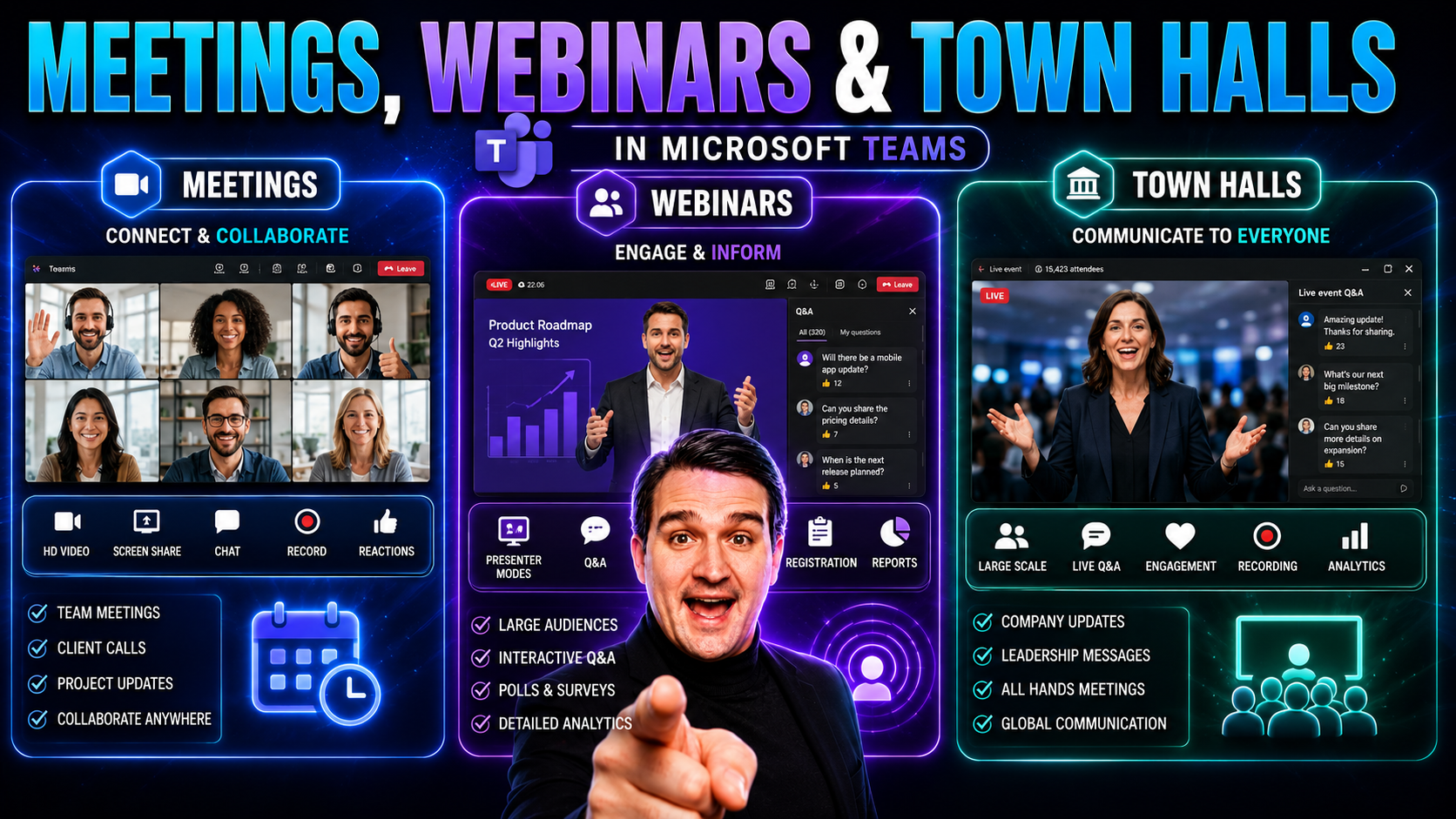
Microsoft Teams gives you three main ways to bring people together: meetings, webinars, and town halls. Each event type is different, and picking the right one can mean the difference between clear communication and a lot of confusion. Meetings are made for day-to-day teamwork, webinars are built for structured presentations with wider audiences, and town halls let you reach massive groups with one-way announcements.
Think of meetings like your regular team huddles—everyone can talk, share, and jump in. If you’re rolling out training or want to host an external event needing registration and controlled Q&A, webinars are your go-to move. For major announcements like quarterly updates or celebrating company milestones, town halls help you broadcast your message loud and clear. Understanding these options up front helps you choose smarter, so you keep things running smooth—whether your audience is ten people or ten thousand.
Meetings, Webinars, and Town Halls in Microsoft Teams
Meetings
Meetings in Microsoft Teams are interactive, collaborative sessions designed for small to medium groups where participants can share audio, video, screen content, chat, and files in real time. They are ideal for team discussions, project updates, and ad‑hoc collaboration, offering features such as meeting scheduling, breakout rooms, meeting notes, polls, and recording.
Webinars
Webinars in Microsoft Teams are structured, presenter‑led events optimized for larger audiences and external attendees. Webinars provide registration pages, attendee reporting, host controls for presenter roles, and Q&A moderation. They focus on one‑to‑many communication with features to manage registrations, enforce attendee limits, control attendee interaction, and capture engagement analytics.
Town Halls
Town Halls in Microsoft Teams are large-scale, company‑wide or organization‑level broadcasts intended for broad audiences to deliver announcements, leadership messages, and all‑hands meetings. They combine webinar capabilities with advanced production options—such as live captions, large attendee capacity, moderated Q&A, and integration with corporate channels—to ensure smooth, scalable communication across the organization.
Finding the Right Tool for Your Meetings, Webinars, or Town Halls
Choosing between meetings, webinars, and town halls often comes down to the type of event you’re planning and how you want people to interact. If your event is all about teamwork—think weekly check-ins, quick problem-solving, or hands-on workshops—a regular Teams meeting is usually enough. Meetings are built for conversations and quick collaboration, letting everyone speak, use chat, and work together in real time.
Webinars work best for events where you want structured presentations and need to manage who’s presenting and who’s just watching. For instance, if you’re doing a product demo, customer training, or a public seminar with lots of guests, webinars let you control registration, send out reminders, and limit who can unmute or show video. Attendees join mostly to listen, while organizers and presenters keep things running on schedule.
Town halls are your option when you need to reach the biggest crowd—like company-wide updates, major policy rollouts, or global announcements. They’re designed for one-to-many communication, so a few presenters speak while hundreds or even thousands listen in. Don’t expect back-and-forth conversation here; town halls are all about delivering info at scale, usually with tight control over who can speak or show video. By lining up your needs with what each Teams tool does best, you'll create events that fit both your audience’s size and the amount of interaction you want.
Common Mistakes When Choosing Microsoft Teams Meetings, Webinars, or Town Halls
When planning events in Microsoft Teams—meetings, webinars, and town halls—people often make avoidable mistakes. Below are common errors to watch for and brief guidance to avoid them.
- Confusing purpose and format: Choosing a standard Teams meeting when you need webinar controls (registration, attendee view, Q&A) or a town-hall scale and moderation features.
- Ignoring attendee capacity and licensing: Failing to verify license limits or attendee caps for webinars and town halls, leading to access issues or degraded experience.
- Not using the correct role setup: Overlooking presenter vs. attendee permissions—granting presenters too many rights in a large event or not assigning moderators for Q&A and chat.
- Skipping advanced registration and verification: Not enabling registration or single sign-on where required for tracking, security, or targeted audiences in webinars.
- Underestimating production needs: Treating a town hall like a regular meeting without planning for multi-camera setups, external broadcast tools, or a producer to manage content flow.
- Poor communication about join instructions: Sending unclear invites or not specifying how to join, which client to use, or whether dial-in is available—causing confusion for external or less technical attendees.
- Narrow accessibility and captioning planning: Forgetting to enable live captions, language interpretation, or provide transcripts for compliance and inclusivity.
- Inadequate rehearsal and technical checks: Skipping dry runs for presenters, failing to test audio/video, or not checking presenter permissions in the event tenant.
- Poor moderation of interactions: Allowing unmanaged chat or Q&A in large events, which leads to distraction or off-topic comments; not appointing moderators to triage questions.
- Neglecting branding and participant experience: Using default settings for webinars/town halls without customizing lobby screens, lobby text, or branding for a professional experience.
- Overlooking recording and privacy settings: Not setting recording policies, consent notices, or storing recordings appropriately—risking compliance breaches or lost content.
- Assuming one-size-fits-all settings: Reusing a previous meeting/webinar template without adjusting for audience size, interactivity needs, or security requirements.
- Failing to plan for follow-up and analytics: Not capturing registration data, attendance reports, or Q&A transcripts for post-event engagement and measurement.
- Misrouting external participants: Setting events so external guests hit a lobby with no hosts to admit them, or not enabling anonymous join options when needed.
- Ignoring network and device requirements: Not advising presenters or large audiences about bandwidth, VPN impacts, or recommended devices, causing poor AV quality.
Choosing the right Microsoft Teams format requires matching event goals with the platform's features—meetings for collaborative work, webinars for controlled presentations with registration, and town halls for large-scale, moderated broadcasts. Planning roles, licensing, accessibility, and production needs ahead of time prevents most of these mistakes.
7 Surprising Facts about Meetings and Webinars and Town Halls in Microsoft Teams
- Massive view-only capacity: Meetings and webinars and town halls in Microsoft Teams can scale to tens of thousands of attendees using the view-only experience (Microsoft has expanded limits to support very large audiences), letting you run company-wide town halls without third-party streaming.
- Built-in registration and reporting: Teams webinars include integrated registration pages, approval workflows, and post-event attendee reports—so your meetings and webinars and town halls in Microsoft Teams can capture registrant data and measure engagement without extra tools.
- Breakout rooms at scale: You can create dozens of breakout rooms in a single session to run parallel workshops inside meetings and webinars and town halls in Microsoft Teams, assign participants manually or automatically, and move presenters between rooms.
- Live captions and multi-language transcription: Teams provides live captions and transcription with real-time translation across many languages, so meetings and webinars and town halls in Microsoft Teams can be accessible to global audiences instantly.
- Practice sessions and webinar rehearsal: Hosts and presenters can use a practice/“lobby” mode to rehearse before going live—helpful for large town halls and formal webinars staged in meetings and webinars and town halls in Microsoft Teams.
- Q&A, moderation, and attendee controls: Webinars and town halls in Teams offer moderated Q&A, attendee upvoting, and presenter-only responses, letting you manage large-scale interaction in meetings and webinars and town halls in Microsoft Teams without chaos.
- Recordings saved to OneDrive/SharePoint with automatic captions: When you record meetings and webinars and town halls in Microsoft Teams, recordings are stored in OneDrive or SharePoint with automatic captions and sharing controls, simplifying post-event distribution and compliance.
Microsoft Teams Event Feature and Capacity Comparison
When you're planning a virtual event in Microsoft Teams, it’s easy to focus on just getting everyone connected. But taking a step back to compare features and capacities across meetings, webinars, and town halls makes sure you don’t hit unexpected roadblocks. Each Teams event type comes with different tools for registration, security, interactivity, and audience management, which impacts both organizers and participants.
It’s not just about headcount, either. You might also need advanced registration, want to manage who asks questions, or need controls for sharing screens. This is where looking at the details side by side can help you avoid last-minute surprises—like hitting participant limits or needing features not available in your chosen event style. Use this comparative lens to plan smarter and match your technical needs to your event goals. Up next, we’ll dig into the precise differences in features and workflow, so you can make the right pick for your situation.
Key Differences in Features and Capacity
- Participant Capacities: Standard Teams meetings handle up to 1,000 interactive participants, webinars support up to 1,000 interactives plus up to 10,000 view-only attendees (with advanced licensing), while town halls can scale to 20,000-50,000 viewers depending on your license.
- Interaction Methods: Meetings allow everyone to chat, speak, and share screens. Webinars set clear boundaries—presenters run the show, while attendees join in structured Q&A. Town halls focus on controlled, one-way communication, where presenters relay information and attendees interact only when allowed.
- Audience Management: Meetings offer informal access; webinars and town halls allow for more structured roles and audience segmentation, like designating presenters vs. viewers and limiting who can participate actively.
- Scheduling Flexibility: Meetings are quick to set up for both recurring and last-minute needs. Webinars and town halls require advance preparation, especially if you want to enable registration or set up special controls.
Registration Management for Webinars and Town Halls Meetings
- Webinars: Enable detailed registration management, allowing you to build custom sign-up forms and approve participants before the event. You can automate confirmation emails and even set up workflows to manually vet attendees—useful for external or sensitive sessions.
- Town Halls: Also offer registration, with customizable flows for large audiences. Organizers can create branded registration pages, manage approvals, and control access links, making it simple to gather attendee details before big broadcasts.
- Meetings: Standard meetings in Teams don’t offer built-in registration. You simply send an invite or link, and people join—no gatekeeping, which keeps things flexible but limits data collection.
Leveraging Microsoft Teams Premium for Advanced Events
As your Teams events get bigger, more complex, or more public-facing, Microsoft Teams Premium steps up with tools that go further than standard options. Premium isn’t just about more people—it’s about giving organizers better control, advanced security, branding, and deep analytics to make sure your event lands the way you envisioned. With Premium, you can create fully branded event experiences, manage lobby and attendee flows, and track real-time engagement with analytics dashboards.
Teams Premium is particularly useful if you’re hosting events with strict compliance needs, high-profile presenters, or global audiences that expect polished, secure experiences. Features like custom registration gateways, advanced production controls, and granular permissions help you deliver events that are both professional and protected. Whether you’re executing an all-hands meeting or organizing an external customer summit, Premium gives you flexibility without giving up peace of mind.
This section will break down the headline features and specialized improvements made possible with Teams Premium, helping you decide if an investment in advanced capabilities will pay off for your next big event—or across your whole organization. For organizations that value confident collaboration and strong Teams governance, Premium brings another level of clarity and control to event management.
Unlocking Teams Premium Microsoft Features for Events
- Real-Time Analytics: Monitor attendee engagement as your event unfolds, tracking who’s active, which topics spark interest, and where viewers drop off.
- Advanced Lobby Controls: Manage when and how participants enter, creating staging areas for presenters or holding guests until everything’s set.
- Audience Insights: Access detailed reports on participant behavior—including attendance, duration, and engagement—helping you measure event success and ROI.
- Event Templates: Save time and standardize workflows with reusable templates for meetings, webinars, or town halls tailored to your organization’s needs.
- Enhanced Branding: Apply custom logos, colors, and registration branding to match your event to your company’s image, delivering a professional, memorable experience.
Enhancing Webinars and Town Halls Meetings with Teams Premium Microsoft
- Customizable Registration Pages: Build fully branded and dynamic sign-up forms, including custom fields, images, and approval criteria.
- Advanced Attendee Tracking: Gain access to attendance insights, sentiment feedback, and post-event analytics for deeper data collection.
- Robust Presenter Controls: Equip speakers with backstage areas, speaker queues, and advanced moderation, all designed for smooth, engaging delivery.
- Improved Security Options: Activate extra layers for sensitive events, with settings like watermarking, attendee controls, and restricted sharing.
Best Practices Meetings and the Interactive Virtual Playbook
No matter which Teams event type you run, success comes down to building engagement and keeping control. The best Teams events start with clear role assignments—defining who’s the organizer, who’s a presenter, and who’s just there to listen. Giving presenters all the tools means fewer hiccups, while clearly guiding participants is what keeps things orderly, even with giant audiences.
Moderating chat, using Q&A, and setting expectations for when people can unmute or chime in helps maintain focus and keeps distractions low. Teams events offer a toolkit just for this: live polls, chat moderation, and audience Q&A—which can transform a flat event into something people actually care about. The Interactive Virtual Playbook isn’t just theory—it’s practical action, and it applies to 5-person brainstorming sessions or global CEO updates alike.
Governance adds another layer of value here, because a clear structure of roles and rules builds trust and accountability in your organization. For deeper insights on the benefits of governance and role clarity, check out this research on transforming Teams governance. The following section will share actionable ways to boost engagement, collect feedback, and keep your Teams events running like clockwork.
Maximizing Questions, Answers, and Feedback in Teams Events
- Leverage Dedicated Q&A Sessions: Use the Teams Q&A feature to organize, moderate, and address audience questions efficiently, keeping sessions focused and interactive.
- Deploy Real-Time Polls: Launch instant polls during your event to take the pulse of your audience, gather quick feedback, and keep participants active throughout.
- Collect Actionable Post-Event Feedback: Share surveys immediately after the event to capture fresh impressions, identify areas for improvement, and show attendees their input matters.
- Enable Diverse Participation Methods: For accessibility, offer both spoken and written feedback options—ensuring everyone, regardless of ability, can contribute.
Training Users Meetings and Learning Resources for Teams Events
Making the most of Microsoft Teams meetings, webinars, and town halls comes down to more than just picking the right buttons. The real superpower is helping your team learn what’s possible—whether through hands-on training, quick-start guides, or tapping into expert help. Structured tutorials and live sessions can bring new users up to speed fast, while in-depth resources let organizers and admins level up their skills in event planning, moderation, and advanced features.
For those who prefer a “learn as you go” approach, there’s plenty of self-guided content and official documentation that covers everything from starting a meeting to rolling out a company-wide webinar series. Technology offices and peer communities also offer a wealth of troubleshooting tips, best practices, and real-world solutions for challenges big and small.
This next section will point you to the best places to get answers, whether you need in-depth technical support or just a quick walkthrough. For organizations aiming to improve collaboration, event success, and Teams governance, resources like governance best practices can also provide guidance on structuring your virtual workspace for ongoing success.
Accessing OIT Help from Experts and Additional Resources
- Technology Office Support (OIT): Reach out to your IT or technology office for direct assistance with setup, troubleshooting, or event management in Teams.
- Official Microsoft Documentation: Access step-by-step guides, FAQs, and best practices for every Teams event type straight from the source.
- Peer Communities and User Forums: Engage with other Teams organizers, swap tips, and find answers in online communities and discussion boards.
- Comprehensive Knowledge Bases: Research solutions and detailed “how-to” articles on everything Teams—registration, troubleshooting, analytics, and more.
Checklist: Choosing Meetings and Webinars and Town Halls in Microsoft Teams
Use this checklist to decide whether to run your event as a Meeting, Webinar, or Town Hall in Microsoft Teams and to prepare accordingly.
live event experience and meetings and events
What are the main differences between meetings, webinars, and teams town hall in Microsoft Teams?
Meetings are collaborative sessions where most participants can share audio, video, and content; webinars are structured for larger, presenter-led sessions with registration, attendee controls, and reporting; teams town hall or Teams live events are designed for one-to-many broadcasts to up to 300 (or larger with live events limits) attendees, emphasizing controlled presenter roles, moderated Q&A, and production features. Each type supports different advanced communication needs, branding and personalization, and intelligence capabilities for post-event insights.
How do I choose the right type of meeting for my employee event or company-wide update?
Choose a standard meeting for small collaborative work, a webinar when you need registration, attendee reporting, and presenter controls, and a teams town hall or live event for company-wide broadcasts where a limited set of presenters addresses many attendees. Consider metrics like expected attendee count (for example 300 or more), interaction level required, and whether you need advanced communication or branding and personalization.
Can I host a town hall for more than 300 attendees in Microsoft Teams?
Teams standard meetings typically cap at 300 participants by default, but live events and certain Teams live event configurations can scale to thousands, depending on your Microsoft 365 plan and settings. For very large events, use Teams live events (teams town hall) to ensure performance and controlled attendee experience.
webinar and attendee manage
How do attendees register and attend a webinar in Teams?
Webinar organizers can create a registration page when scheduling in Teams; attendees register via that page and receive calendar invites or joining links. Attendees can join via the Teams app or a supported browser, and organizers can track registrants and attendance metrics through the Meetings and events reporting tools in Microsoft 365.
What controls do hosts have over attendees in webinars and town halls?
Hosts can control attendee audio/video, mute participants, manage lobby settings, and use roles such as presenter, producer, and attendee. In webinars and teams town hall live events, attendees are typically view-only unless given presenter rights, which helps with security updates and maintaining a branded, consistent experience.
How can I improve attendee engagement during a webinar or town hall?
Use moderated Q&A, live polls, chat, and breakout rooms when appropriate. Incorporate branding and personalization like event banners and custom backgrounds, leverage intelligence capabilities for live captions and transcription, and schedule interactive segments to keep employees engaged.
teams town hall adoption and teams town
How do I schedule and manage a Teams town hall or live event?
Schedule via the Teams calendar or the web portal, select Live event or Webinar as the meeting type, configure roles (producers, presenters), set permissions and registration, and test cameras and mics beforehand. Use the manage options to add branding, set Q&A moderation, and review upcoming event settings in your Microsoft 365 admin center if needed.
What app or tools integrate with Teams for advanced communication and production?
Third-party production apps, Microsoft Stream, and certified hardware can integrate with Teams for multi-camera setups, higher-quality audio, and switching. The Teams app ecosystem offers add-ins for registration, analytics, and enhanced branding to support meetings and events and richer production workflows.
How can organizations drive adoption of webinars and town halls using Microsoft Teams?
Promote Microsoft Learn resources and internal training, create templates and best practices, highlight success metrics and employee feedback, provide easy-to-use scheduling templates, and align with microsoft adoption programs. Encouraging leaders to host regular town halls and sharing recordings increases comfort and adoption over time.
experience attendee metric
What metrics should I track after a webinar or town hall?
Track registration vs. attendance rates, attendee engagement (Q&A participation, poll responses), viewer duration, drop-off points, and post-event feedback. Use these metrics to measure adoption, improve branding and personalization, and inform upcoming events and training needs.
How do I access post-event reports and intelligence capabilities for my webinar?
After the event, access attendance reports, Q&A logs, and recording transcripts via the Teams meeting details or Microsoft 365 reporting dashboards. Intelligence capabilities like auto-generated captions, transcript search, and sentiment analysis (where available) help you derive insights for future events.
Are recordings and transcripts automatically saved and where can attendees find them?
Recordings and transcripts are saved to Microsoft Stream or OneDrive/SharePoint depending on tenant settings; organizers can share links with attendees, embed in intranet pages, or distribute via email. Ensure permissions are set correctly so employees can attend or review upcoming content on demand.
manage cameras and mics security updates
What are best practices for cameras and mics during a town hall or webinar?
Test devices before the event, use high-quality cameras and mics or certified peripherals, mute attendees by default, and assign specific presenters to avoid background noise. Use an external microphone for better audio quality, check lighting for clear video, and have a backup device ready.
How do security updates and permissions affect meetings, webinars, and live events?
Security settings in Microsoft 365 and Teams control who can join, who bypasses the lobby, and what content can be shared. Keep software up to date with security updates, review external guest access policies, limit presenter roles, and apply conditional access or DLP policies where sensitive information may be shared during events.
Can I brand and personalize a webinar or Teams town hall for my company?
Yes, Teams supports branding and personalization through custom event banners, background images, branded registration pages, and tailored email communications. Combine these with consistent slide templates and opening videos to reinforce corporate identity during meetings and events.
adoption upcoming microsoft learn
Where can I learn best practices and get training for hosting successful Teams webinars and town halls?
Microsoft Learn offers modules and documentation on hosting meetings, webinars, and live events. Pair self-paced learning with internal microsoft adoption programs, hands-on practice sessions, and recorded examples to accelerate skill-building across presenters and producers.
How should I plan upcoming events to maximize reach and employee attendance?
Plan with clear objectives, pick the right type of meeting, schedule at times that accommodate global employees, promote via internal channels, enable easy registration, and provide reminders. Use metrics from previous events to choose formats that drove the best engagement and tailor content for your audience.
You Should Also Listen To
If you are comparing Teams meetings vs webinars vs town halls, these episodes help you make the architectural and operational decisions behind the format:
- High-Stakes Hybrid Events with Microsoft Teams and Mesh — Learn what changes when a virtual event becomes business-critical and must balance scale, reliability, immersion, and audience experience.
- Build Microsoft Teams Meeting Apps and Bots — Discover how custom apps, bots, and workflows can turn a standard meeting into a purpose-built business experience.
- Microsoft Teams Hidden Features with Josh Blalock [MVP] — Hear about lesser-known capabilities that can improve how organizers and attendees use Teams.
- Harden Microsoft Teams Security and Guest Access — Understand the security choices that matter when inviting external audiences or hosting large events.

Microsoft MVP | Host of M365.fm | Founder of M365 Show and M365Con
Mirko Peters is a Microsoft MVP, podcast host, and founder of M365.fm, M365 Show, and M365Con. His work connects Microsoft practitioners through podcast interviews, livestreams, and community events.
At M365.fm, Mirko hosts conversations with Microsoft MVPs, product experts, architects, and community contributors. Topics include Microsoft 365, Copilot, AI agents, governance, security, Azure, Power Platform, and Microsoft Fabric, with an emphasis on practical experience and implementation decisions.
M365.fm is the podcast and learning platform. M365 Show brings experts together for livestreams, while M365Con provides an online conference setting for community learning.
Official website: Mirko Peters (https://www.mirkopeters.com/). Recognition: Mirko Peters — Microsoft MVP profile (https://mvp.microsoft.com/de-DE/mvp/profile/9b0ca797-db5a-493a-a845-8b9158046cf5). Connect on LinkedIn (https://www.linkedin.com/in/m365showpodcast/).