
Microsoft Teams Meetings Guide
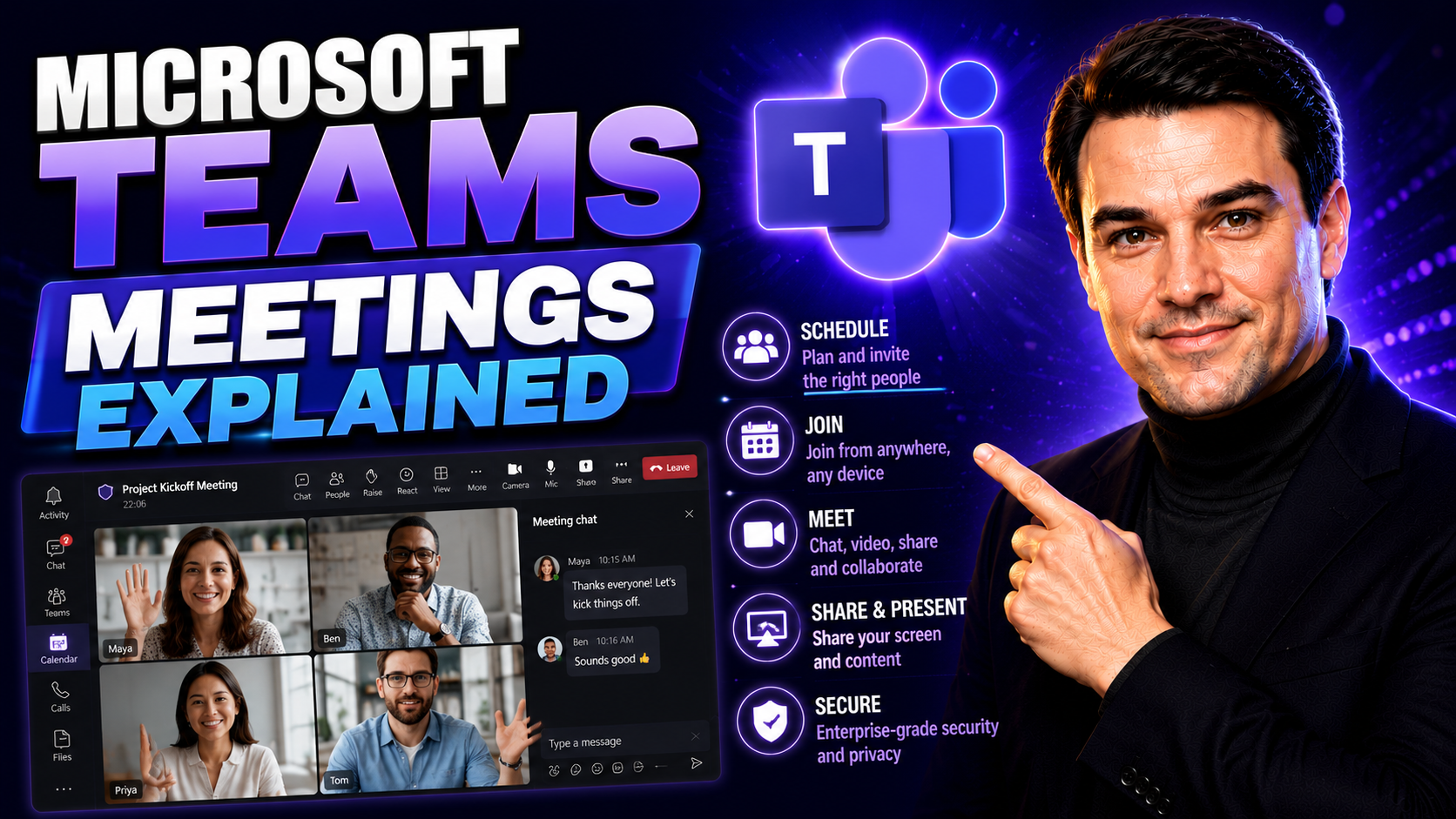
If Microsoft Teams meetings have you scratching your head, you’re in the right spot. This guide breaks down the different types of Teams meetings—from quick team check-ins to company-wide virtual events—and shows you, step by step, exactly how to join, manage, and get the most out of every format. Whether you’re setting up a daily huddle, planning a major webinar, joining from your phone, or just trying to keep your events secure, you’ll find practical advice here.
We keep things straightforward and no-nonsense. We’ll cover technical instructions for joining meetings, best practices for running larger events, advanced features like EventBuilder, and security settings every US-based organization should know. New to Teams or looking to power up your leadership game? Either way, you’ll walk away ready to make Teams work for you and your department, with all the insight you need to run efficient, safe, and engaging meetings.
Overview of Microsoft Teams Meetings, Webinars, and Town Halls
Microsoft Teams is more than just a chat tool—it’s your virtual room for everything from focused work sessions to massive company announcements. Within Teams, you’ll find several types of meeting formats that cater to different goals and groups. Each one is designed with a specific scenario in mind, making it easy for organizations to match the right kind of meeting to the task at hand.
Standard Teams meetings are the backbone of daily collaboration. They’re perfect for small groups, project catch-ups, or brainstorming sessions where everyone should have a voice. On the other end, Teams webinars step things up, making it easier to host training sessions, external presentations, or marketing demos with controls to manage larger audiences and structured content delivery.
And then come the Town Halls—these are your go-to for organization-wide briefings, CEO updates, or moments when you need to bring hundreds or even thousands of people together in a single, controlled environment. Microsoft designed these options to make sure every gathering—no matter the size or the stakes—runs smoothly and fits your company’s communication needs. Up next, we’ll help you identify exactly which Teams format is right for each of your scenarios.
Which Teams Meeting Type Should You Choose for Your Scenarios?
- Standard Teams Meeting: Ideal for team projects, recurring check-ins, and open discussions. Everyone can share video, audio, and files, making it great for collaboration or small to mid-sized group work.
- Teams Webinar: Use this for structured presentations, training sessions, or when hosting external guests. Webinars provide registration, controlled attendee permissions, and tools like Q&A panels—perfect for events needing clear roles and moderation.
- Teams Town Hall: Best suited for large-scale, company-wide announcements, all-hands meetings, or when you need to reach audiences up to 20,000. Town halls maximize control, limit presenter numbers, and are built for delivery rather than discussion.
Standard Teams Meetings and Premium Features Compared
- Standard Teams Meetings: Included with every Microsoft Teams license, standard meetings support up to 1,000 participants, basic file sharing, and common collaboration tools like chat, screen sharing, virtual backgrounds, and meeting recordings. This is what most people use for everyday team collaboration.
- Teams Premium: Upgrading to Teams Premium unlocks advanced features. You get enhanced meeting customization (like custom meeting templates and branded lobbies), advanced meeting protection (like watermarking, E2E encryption for sensitive calls), and powerful analytics. Premium also gives you webinar upgrades, including registration waitlists and automated reminders.
- Breakout Rooms and Presenter Controls: Standard meetings offer basic breakout rooms for subgroup discussions. With Teams Premium, breakout room assignment and management features become much more robust, plus you get additional presenter controls and attendee capacity for webinars and town halls.
- Advanced Reporting and AI Enhancements: Teams Premium brings in features like meeting transcripts, intelligent recap, AI-generated tasks, and deeper usage analytics—helpful for managers and admins tracking engagement and outcomes.
- Security Upgrades: With Premium, security hardening is front and center; admins can require stronger authentication, limit joining methods, and get granular reporting on access and compliance—valuable for regulated industries.
How to Join Microsoft Teams Meetings Using Calendar, Chat, or Notifications
Joining a Microsoft Teams meeting couldn’t be simpler, but there’s more than one way to get in the room. Whether you’re a power user or just getting started, Teams offers multiple entry points so no one misses a meeting. Most folks step in from their Outlook or Teams calendars, but you can also jump in from chat threads, a meeting notification, or even a meeting link.
This section tees up all your main options, outlining what to expect if you’re joining from different devices or environments. Are you someone who watches their calendar like a hawk, or do you just react to pop-up reminders? Maybe you’re on mobile or hopping between multiple desktops. No matter your workflow, the sections ahead offer step-by-step details for every method and help you glide into meetings smoothly, with zero confusion or delay.
Joining a Teams Meeting from the Calendar, Chat, or Notification
- Via Teams Calendar: Open Teams, head to the Calendar tab, find your meeting, and click “Join.” If the meeting was scheduled in Outlook, it syncs here. You’ll see meeting details before you enter, and you can check who’s already joined.
- Via Outlook Calendar: Just like in Teams, click the meeting directly from your Outlook calendar (desktop, web, or mobile). The “Join Teams Meeting” button launches you straight into the call, opening the Teams app if installed or via the browser if not.
- From Chat Threads: If the meeting started from a Teams chat or channel, you can join right from the chat window. A “Join” button pops up at the top once the session kicks off—click it to jump in instantly.
- Through Notifications: When your meeting is about to start, Teams sends an alert—clicking this notification will drag you right into the room. Want more control over these reminders? Check out this guide for customizing Teams notifications to cut through the noise and keep only the most relevant alerts front and center.
- Permissions and Guest Access: If you try to join without an account or with limited permissions, Teams may drop you into a waiting lobby or prompt a sign-in. Organizers control whether guests or anonymous users can bypass the lobby or need approval to enter.
Join Microsoft Teams Meetings by Meeting ID or Link
- Using a Meeting Link: Every Teams meeting invite includes a clickable link (“Click here to join the meeting”). Just tap or click it—on desktop, browser, or mobile—to enter without digging through calendars. No Teams app? It’ll launch in your web browser automatically.
- Joining with a Meeting ID: If you have a meeting ID (usually a string of numbers) and passcode, open Teams, go to “Calendar,” and select “Join with an ID.” Drop the details in, and you’re in. Great for distributed teams, support calls, or when you’re sent just the ID.
- Finding Credentials: Meeting IDs, passcodes, and join links are in the calendar invite (Outlook or Teams) and easy to forward or copy for guest users, contractors, or external partners.
- Diagnosing Errors: If the meeting link won’t load, try a different browser or check Teams’ web app availability. Invalid ID or passcode? Double-check you’re not mixing up numbers or joining a canceled meeting (it’s more common than you’d think).
- Accessibility: This method is ideal for people outside your organization, remote users, or anyone needing a quick jump-in—no account or company device needed.
Accessing Teams Meetings from Channels, App Bar, and Multiple Devices
- Joining from Teams Channels: When a meeting is scheduled in a Teams channel, just open the channel and find the active meeting banner at the top. Click “Join” to get in. Channels make it super easy for teams to drop into the right meeting, no digging required. Want clarity on private versus shared channels? See this guide for which type to use for sensitive or cross-team meetings.
- Using the App Bar (Command Bar): At the top of Teams, use the search bar or type “/join” to quickly locate and enter scheduled or in-progress meetings. This shortcut’s perfect for power users who want to jump rooms in a hurry.
- Joining on Multiple Devices: Start the meeting from one device (laptop, say), then open Teams on your phone or tablet and select “Join” from the same meeting entry. Teams allows you to transfer audio or video between devices, share your screen from another, or use one for chat and one for presenting—making you more flexible in hybrid work scenarios.
- Collaboration Benefits: Using channels or cross-device join helps when you need to shift workstations, co-present, or manage chat and content on a second screen—no fuss, no friction, and everyone stays on the same page.
Advanced Options for Joining Microsoft Teams Meetings
Sometimes joining a Teams meeting just isn’t as straightforward as clicking a calendar invite—especially when privacy, device limitations, or accessibility are in play. Microsoft Teams addresses these needs with a handful of advanced join options that give you more flexibility and control.
Whether you need to join anonymously for a sensitive discussion, dial in by phone because your Wi-Fi’s on strike, or use an avatar for extra privacy, Teams has a way to fit your circumstances. There’s even integration for motorists: hop into meetings hands-free via Apple CarPlay while you’re on the road. The next sections break down each method with direct, step-by-step instructions, making sure everyone has a seat at the table—regardless of where (or how) they’re working.
How to Join Teams Meetings Anonymously or With an Alternate Account
- Join Anonymously: Click the meeting link without signing into Teams. When prompted, choose “Join as a guest,” then enter a display name of your choice. This is useful for external guests or when you want to keep your identity private. Note, some organizations may disable this for security—see more on security hardening at this link.
- Join With a Different Account: Sign out of Teams or use an incognito/private browser tab to log in with another Microsoft account. Handy for contractors, consultants, or anyone who needs to separate their personal and work profiles during meetings.
- Display Name Customization: Before joining as a guest, you’ll have the option to edit your display name. Use this field for privacy or to present your role if you’re speaking for an organization or project team.
- When Is Anonymous Access Restricted? Security settings might prevent anonymous or guest entry for sensitive or confidential meetings—contact your IT admin if you can’t get in and expect to.
Dial In to a Teams Meeting by Phone
- Get the Dial-in Number: Meeting invites (in Outlook or Teams) include a phone number and conference ID. This lets you join using any telephone—landline or smartphone—by simply calling in.
- Enter Conference ID and PIN: After you call the number, you’ll be prompted to enter the conference ID. Some meetings might require a PIN for extra security or for presenter access; this is found in your invite or sent by the organizer.
- When to Use Phone Dial-In: Phone dial-in is crucial if you’re out of Wi-Fi range, traveling, or have limited data. It's also accessible for participants with older devices or those who just prefer audio calls.
- Audio Controls: You can mute/unmute with keypad commands, and some meetings allow you to “raise your hand” by pressing a specific number—ideal for contributing without navigating the app interface.
Join Using an Avatar or Apple CarPlay for Teams
- Joining as an Avatar: In Teams meetings, select the avatar option instead of sharing live video. Avatars mimic gestures and lip movements, protecting your privacy while still adding a personal touch—useful for camera-shy participants or during work-from-anywhere situations.
- Apple CarPlay Integration: Connecting your iPhone to a CarPlay-supported vehicle enables hands-free Teams call access right from your dashboard. Control the meeting with steering wheel buttons or voice commands, so you’re safe and compliant while driving.
- User Benefits: Both features support accessibility—avatars for video privacy, CarPlay for road warriors. These options help you stay engaged even when you’re on the go or not in camera-ready mode.
Best Practices for Large Microsoft Teams Meetings and Webinars
- Pre-configure Roles and Permissions: Assign presenters, moderators, and attendees ahead of time. Use lobby controls and “presenter only” settings to prevent disruptions during the event. Clearly define who’s leading Q&A or moderating chat.
- Leverage Breakout Rooms: For workshops or training sessions, break up large groups into smaller discussions using breakout rooms—this keeps engagement up and allows for targeted conversations, especially in webinars.
- Optimize Audio/Video Quality: Test connectivity, microphones, and webcams before you go live. For big company town halls, consider pre-recorded content for key speakers to minimize technical hiccups.
- Use Moderation Tools: Mute all on entry, lock attendee video if needed, and monitor chat for inappropriate behavior or off-topic disruptions. Set clear participation guidelines.
- Share Content Strategically: Use spotlighting to focus attention on main presenters. Share screens for structured presentations, then switch to Q&A mode. For audience interaction, enable the “hand raise,” polls, or reactions as appropriate.
- Monitor Attendance and Limits: Stay aware of meeting capacity (up to 1,000 in meetings, much higher in webinars/town halls). If you hit the limit, communicate alternatives proactively—like recording the session or enabling overflow streaming.
- Follow-Up and Feedback: After large events, send out surveys or polls for feedback to help improve the experience for the next round.
Training Teams Users and Driving Adoption for Meetings
- Run Internal Training Sessions: Lead regular live demos and Q&A sessions to get staff familiar with Teams meetings. Cover basics as well as advanced features— Screensharing, breakout rooms, muting etiquette, and meeting security.
- Create a Knowledge Repository: Maintain up-to-date guides and how-tos in a central spot (like SharePoint or a Teams channel). Encourage users to share tips and solutions—crowdsourcing knowledge builds habit and confidence.
- Incentivize Consistent Use: Gamify adoption—track and reward early adopters or those who help others troubleshoot. Recognize “Teams Champions” who champion best practices.
- Promote Policy and Governance: Set clear usage policies for scheduling, recording, and permissions. Good governance helps build trust and keeps people on the same page—see more on Teams governance here for practical steps to organize your workspace and protect sensitive data.
- Follow Up with Feedback: Run pulse surveys or simple polls to see where users are struggling. Use these insights to refine training materials and target weak spots—your digital collaboration culture will thank you.
Power Teams Events With EventBuilder and Premium Tools
When you want to take your Teams meetings beyond standard collaboration and into the realm of professional events or enterprise-level webinars, specialized tools like EventBuilder and Teams Premium enter the picture. These solutions help you plan, manage, and analyze large-scale gatherings with advanced registration, engagement tracking, and in-depth reporting capabilities.
Organizations can create branded and structured experiences that go well beyond what’s possible in a typical Teams meeting. You get to fine-tune audience engagement, measure your event’s success, and even automate feedback collection. In the sections that follow, we’ll break down how you can leverage EventBuilder and Premium features to power up your webinars, town halls, and training sessions—making every virtual opportunity count.
Planning and Managing Teams Webinars With EventBuilder
- Design Custom Events: Use EventBuilder to create webinars or town halls with advanced branding, custom registration forms, and automated confirmations. Tailor the experience with logos, themes, and layout options not available in native Teams meetings.
- Manage Attendee Registration: Collect participant details up front, set attendance caps, and manage waitlists or approvals. EventBuilder tracks sign-ups and can send tailored reminders and follow-ups automatically.
- Analyze Engagement and Success: EventBuilder’s dashboard gives you deep metrics on participation, session duration, interaction (polls, Q&A), and overall event performance—making it easier to prove ROI and inform future planning.
Set Event Goals and Gather Feedback for Teams Meetings
- Define Clear Objectives: Set your event’s purpose—training, product launch, town hall—and communicate goals to presenters and participants ahead of time, aligning everyone’s expectations.
- Use Built-In Polls and Forms: During or after your event, launch Teams polls, Microsoft Forms, or integrate third-party feedback tools. Collect data on attendee experience, presenter effectiveness, or topic relevance right inside your meeting window.
- Analyze and Apply Feedback: Review survey results, Q&A logs, and chat transcripts to pinpoint what worked and what fell flat. Use insights to adjust future meetings, improve engagement, and demonstrate value to stakeholders.
Microsoft Teams Meeting Security and Privacy Controls
Security and privacy aren’t just buzzwords—when you’re hosting sensitive meetings or working across departments, you want to make sure only the right folks are in the virtual room. Microsoft Teams comes packed with a layered set of controls to protect your meetings, but not every organization takes full advantage of what’s possible.
This section spotlights the tools and settings that keep your meetings out of the wrong hands, like lobby management, participant permissions, and access codes. We’ll also touch on encryption options and compliance capabilities, so you can rest easy knowing your organization checks the boxes on regulations like GDPR and HIPAA. Want to dig even deeper into building a secure Teams foundation? Check out this Teams security guide for a five-step approach that takes protection up a notch.
Managing Meeting Permissions, Lobbies, and Access Codes
- Set Up the Lobby: Decide who waits in the virtual lobby versus who gets right in—only trusted users should bypass, while guests or anonymous joiners stay queued until the organizer lets them in.
- Require Meeting Passwords or Codes: For high-security sessions, set a meeting password or use auto-generated access codes. Share these only with intended invitees to block unwanted visitors.
- Manage Participant Permissions: Control who can present, share content, or mute/unmute others. Restrict screen sharing or file uploads to prevent accidental oversharing or data leaks.
- Review and Adjust External Access: Regularly audit guest and external user permissions—tighten these up to minimize the risk of Zoom-bombing incidents or compliance slips.
Data Encryption and Compliance in Teams Meetings
- Enable End-to-End Encryption: For sensitive calls, turn on end-to-end encryption (E2EE) to keep audio and video private, even from Microsoft.
- Ensure Secure Data Sharing: All Teams meetings use encrypted connections by default, but you can add file sensitivity labels and restrict sharing for extra peace of mind.
- Retention and Audit Controls: Use Teams’ built-in logging and retention tools to monitor meeting activity, store compliance-critical data, and ensure you meet regulatory mandates like GDPR and HIPAA.
- Stay Informed on Compliance Updates: Regularly check Microsoft’s compliance documentation to ensure your organization adopts the latest controls for sector-specific requirements, especially in healthcare, government, and finance.
You Should Also Listen To
If you are researching Microsoft Teams meetings, these episodes add practical context on collaboration, meeting operations, security, and governance:
- Recording, Transcription, and Breakout Rooms — Learn how meeting capture and breakout features turn discussions into action.
- Microsoft Teams Governance – The Illusion of Control — Connect meeting choices with policy, ownership, lifecycle, and governance.
- Microsoft AI Agent Harness – Simply Explained — Understand how AI orchestration can support meeting workflows and guardrails.
- Microsoft Defender XDR – Simply Explained — Add security monitoring and response to meeting operations.

Microsoft MVP | Host of M365.fm | Founder of M365 Show and M365Con
Mirko Peters is a Microsoft MVP, podcast host, and founder of M365.fm, M365 Show, and M365Con. His work connects Microsoft practitioners through podcast interviews, livestreams, and community events.
At M365.fm, Mirko hosts conversations with Microsoft MVPs, product experts, architects, and community contributors. Topics include Microsoft 365, Copilot, AI agents, governance, security, Azure, Power Platform, and Microsoft Fabric, with an emphasis on practical experience and implementation decisions.
M365.fm is the podcast and learning platform. M365 Show brings experts together for livestreams, while M365Con provides an online conference setting for community learning.
Official website: Mirko Peters (https://www.mirkopeters.com/). Recognition: Mirko Peters — Microsoft MVP profile (https://mvp.microsoft.com/de-DE/mvp/profile/9b0ca797-db5a-493a-a845-8b9158046cf5). Connect on LinkedIn (https://www.linkedin.com/in/m365showpodcast/).





